- The iPhone 17 has issues with Bluetooth connections, commonly caused by software problems or device interference, not hardware defects, and aims to provide premium connectivity with the latest tech updates.
- Users can resolve most Bluetooth problems by toggling Bluetooth settings in the Settings app, forgetting and repairing their devices, or resetting network settings, while also ensuring their devices' software and firmware are up-to-date.
- If these solutions don’t work, a deeper system reset or a computer restore can help as a last resort, though persistent issues might indicate hardware failure requiring a visit to Apple Support for detailed diagnostic tests.
The iPhone 17 is a marvel of modern engineering, boasting the blazing-fast A19 chip and next-generation connectivity standards. Yet, even with Bluetooth 6.0 technology, users are finding themselves frustrated by connection dropouts, pairing failures, and stuttering audio. Whether you are trying to sync your Apple Watch, connect to CarPlay, or just listen to music on your AirPods, a refusal to connect can turn a premium experience into a headache instantly.
Fortunately, these issues are rarely catastrophic hardware failures. In most cases, Bluetooth problems on the iPhone 17 stem from corrupt software caches, interference from other devices, or a simple “handshake” error between the phone and the accessory. This guide breaks down the most effective solutions to get your wireless life back on track, moving from simple toggles to deeper system resets that clear out persistent bugs.
Fix iPhone 17 Bluetooth Connection Issues
This article will list various troubleshooting steps to help fix iPhone 17 Bluetooth not working, pairing, or discovering devices.
1. Toggle Bluetooth via Settings (Not Control Center)
A common misconception is that tapping the Bluetooth icon in the Control Center turns off Bluetooth completely. In reality, it only disconnects the current device while leaving the radio active for background tasks like AirDrop and Find My. To perform a true reset of the Bluetooth module, you must use the Settings app.
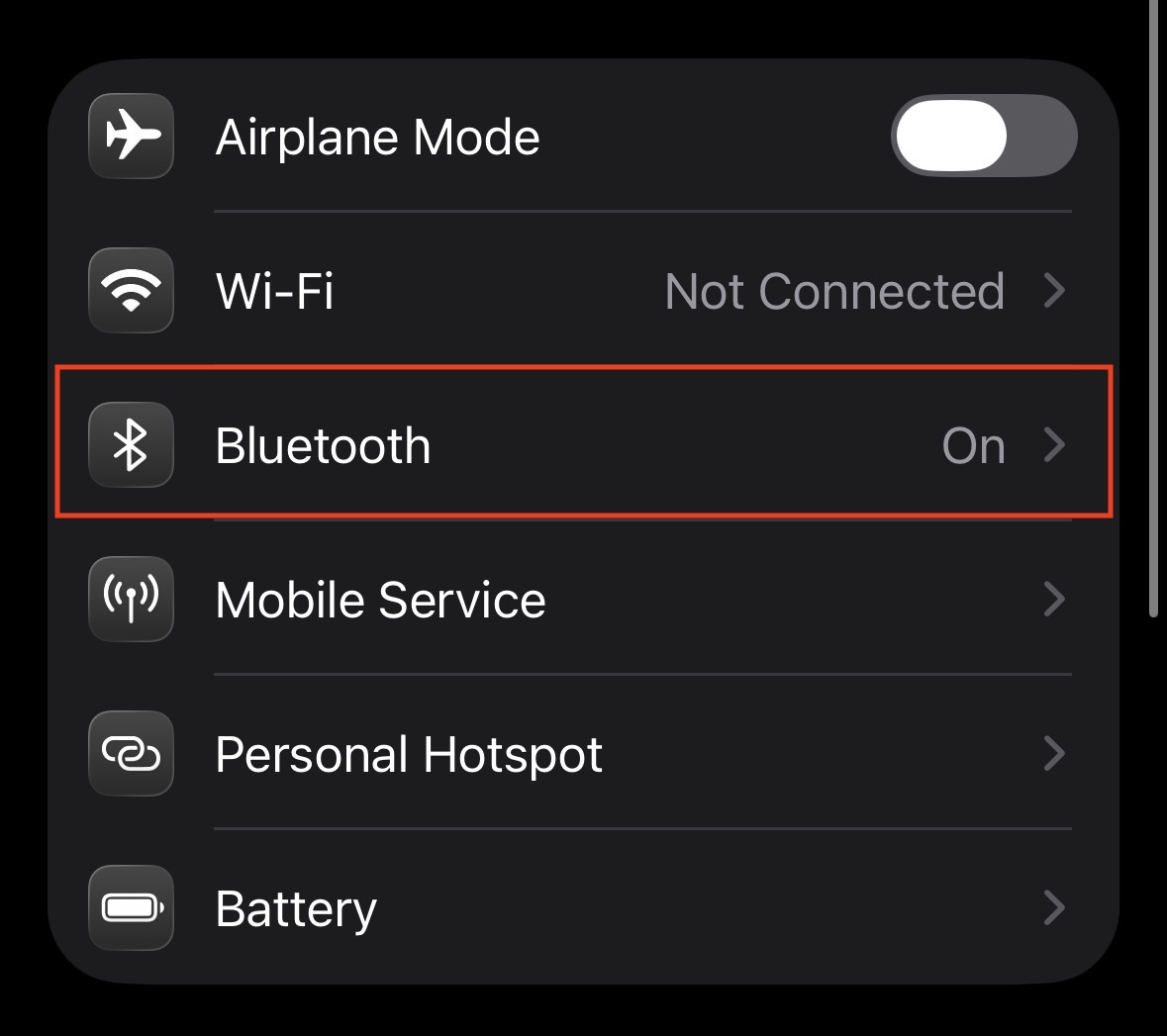
- Open the Settings app on your iPhone 17.
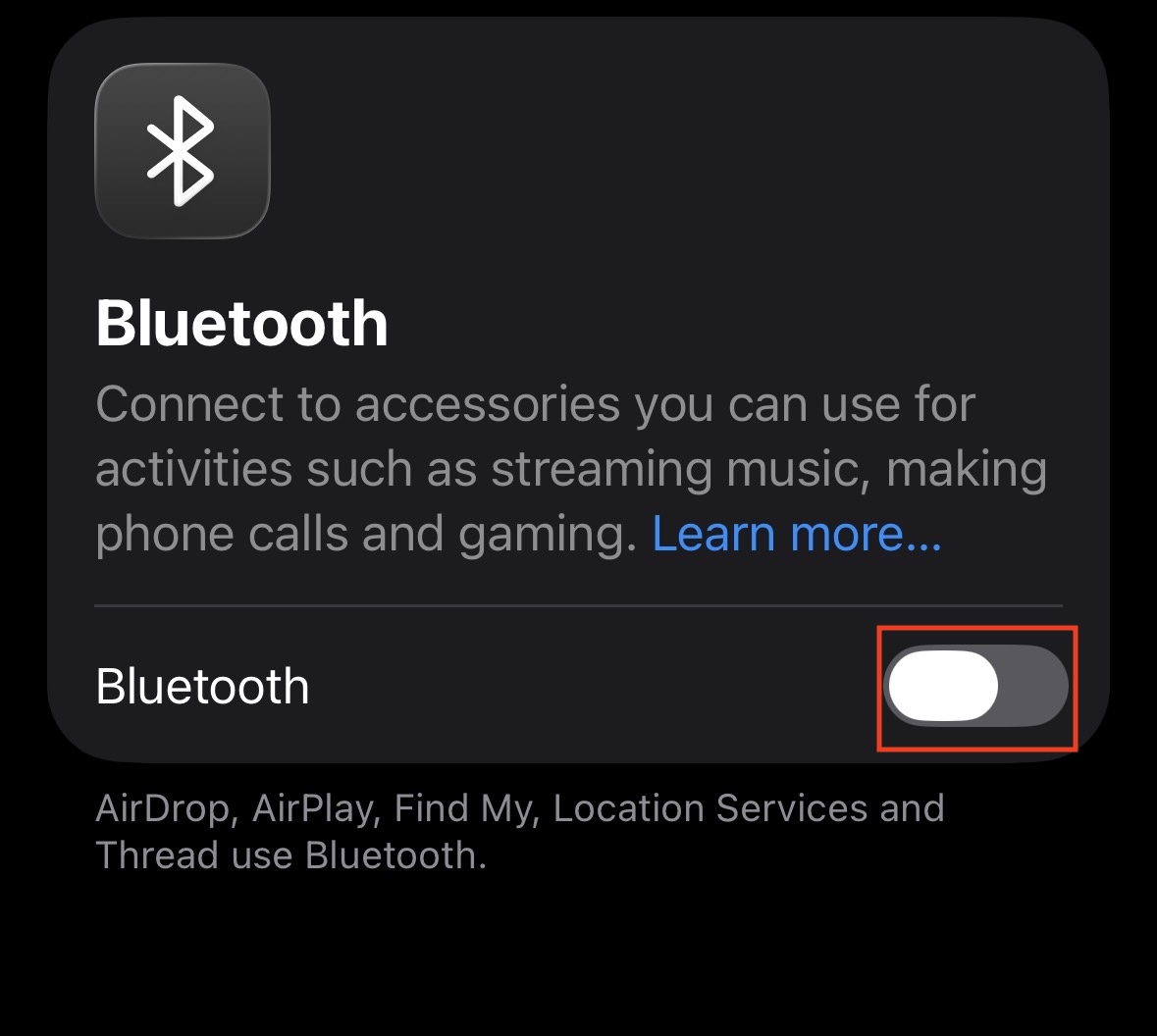
- Tap on Bluetooth.

- Toggle the switch to Off.

- Wait for at least 15 seconds. This ensures the wireless radio fully powers down and clears any temporary cache.
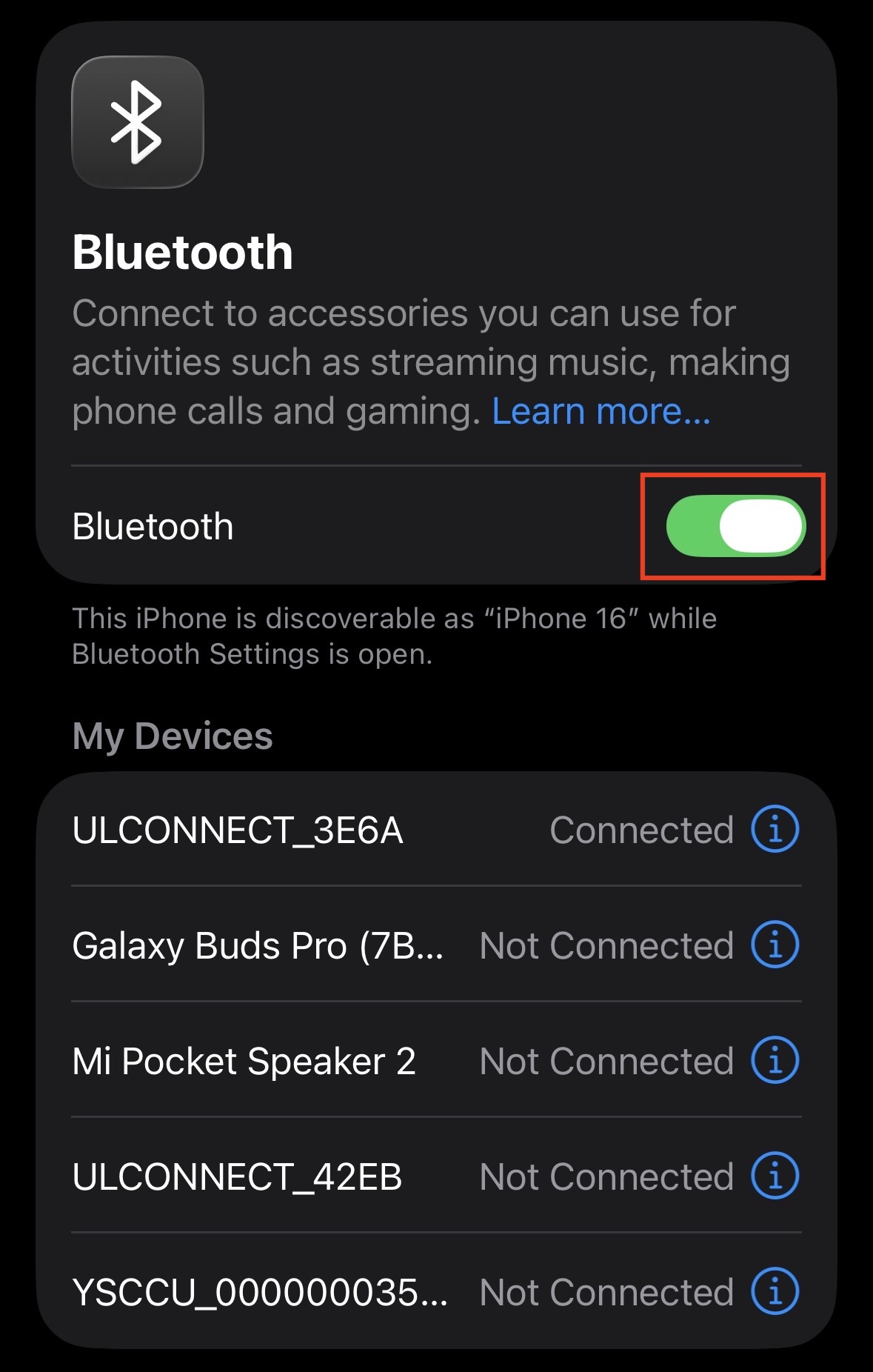
- Toggle the switch back On and wait for your devices to reappear in the list.

Forget and Re-Pair the Device
Over time, the digital “key” or link key that your iPhone and accessory share to encrypt their connection can become corrupted. This is especially common when transferring data from an old iPhone to a new iPhone 17. “Forgetting” the device forces both parties to generate a fresh encryption key.
- Go to Settings > Bluetooth.
- Find the problematic device in the list (e.g., “AirPods Pro” or “Car Audio”).
- Tap the blue (i) icon next to the name.
- Select Forget This Device and confirm.
- Crucial Step: Put your accessory back into Pairing Mode. For AirPods, hold the button on the back of the case. For non-Apple devices, hold the power/pairing button.
- On your iPhone, look for the device under Other Devices and tap to pair it again.
2. Toggle Airplane Mode (The Soft Reset)
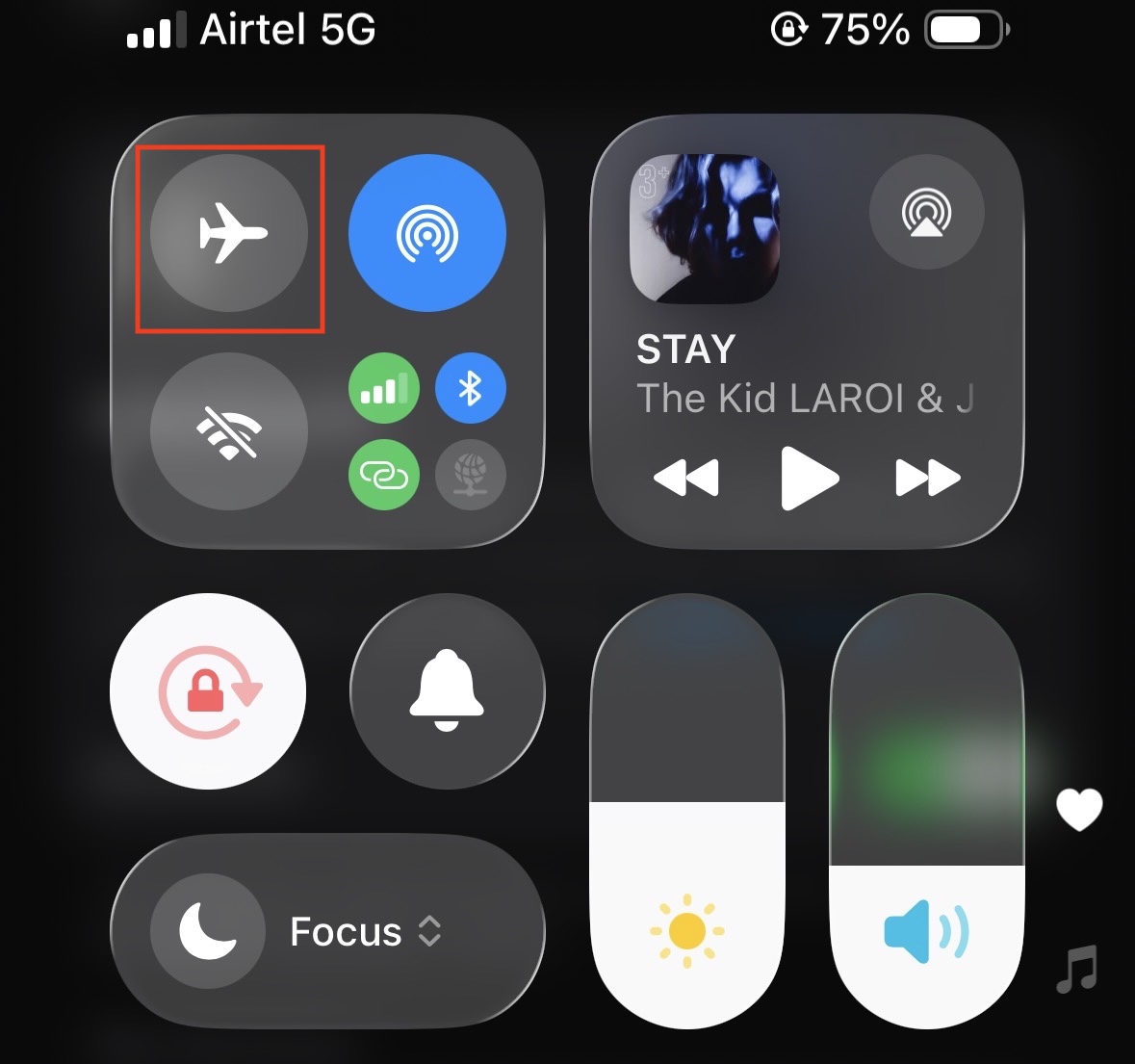
If toggling Bluetooth didn’t work, you might need to restart all wireless radios on the iPhone simultaneously. Airplane Mode cuts power to the cellular, Wi-Fi, and Bluetooth modems, clearing out temporary glitches.
- Swipe down from the top-right corner to open the Control Center.
- Tap the Airplane Mode icon (orange plane).

- Wait for 30 seconds.
- Tap the icon again to turn it off.
- Watch the status bar as your connections re-establish, then try connecting your Bluetooth device.
3. Restart Your iPhone 17
It sounds cliché, but a restart fixes a multitude of sins. The iPhone 17 runs complex background processes, and occasionally the bluetoothd daemon (the background process that handles Bluetooth) can crash or hang.
- Press and hold the Side Button and Volume Down button simultaneously.
- Slide the “slide to power off” slider.
- Wait for the screen to go completely black.
- Press and hold the Side Button again until the Apple logo appears.
- Once rebooted, try the connection again.
4. Check for Latest Updates
Bluetooth protocols are constantly being tweaked. If your iPhone 17 is running an early version of iOS 26, it might have bugs that affect connectivity with certain accessories. Apple frequently releases “point” updates specifically to address these issues.
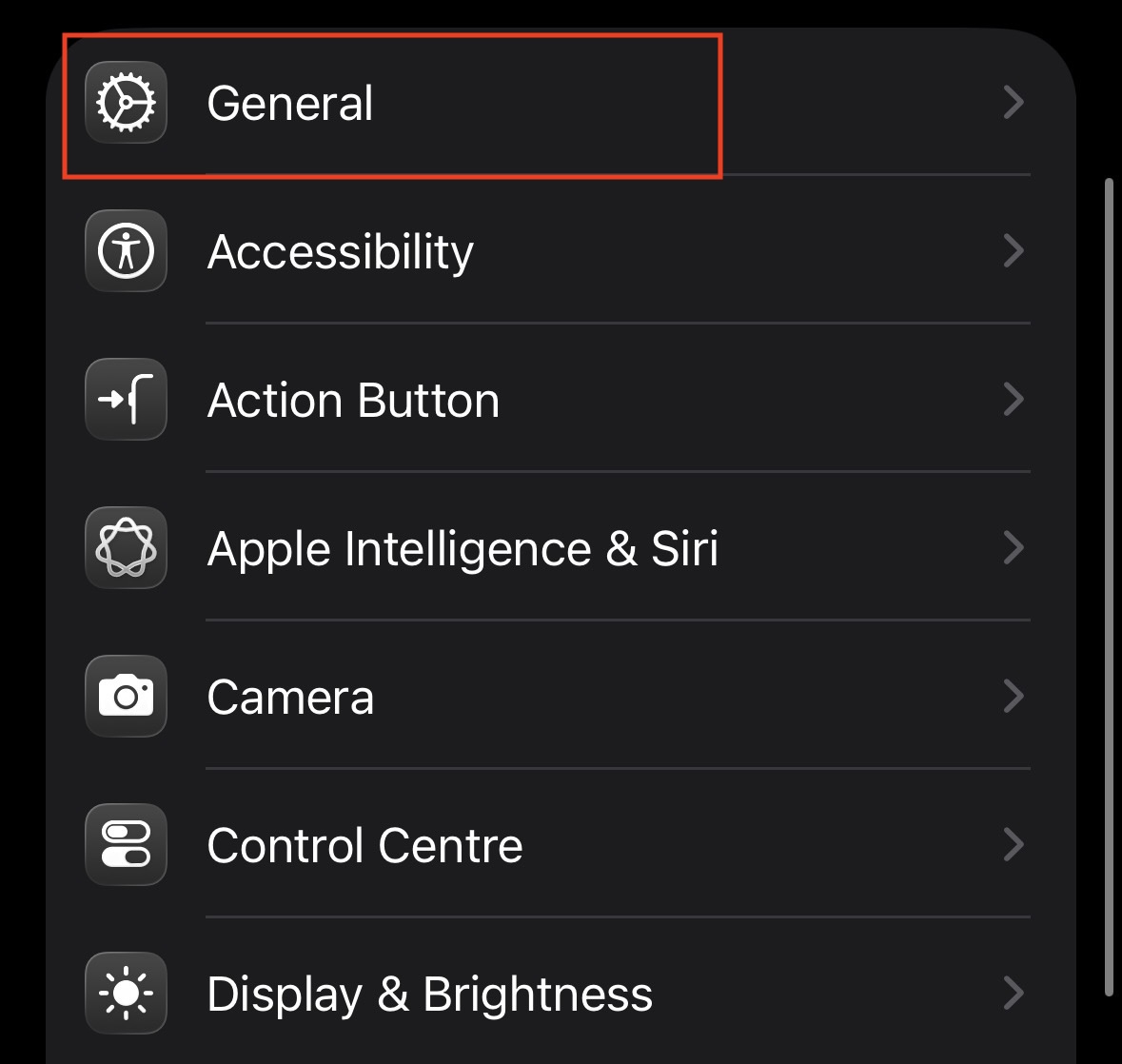
- Go to Settings > General.

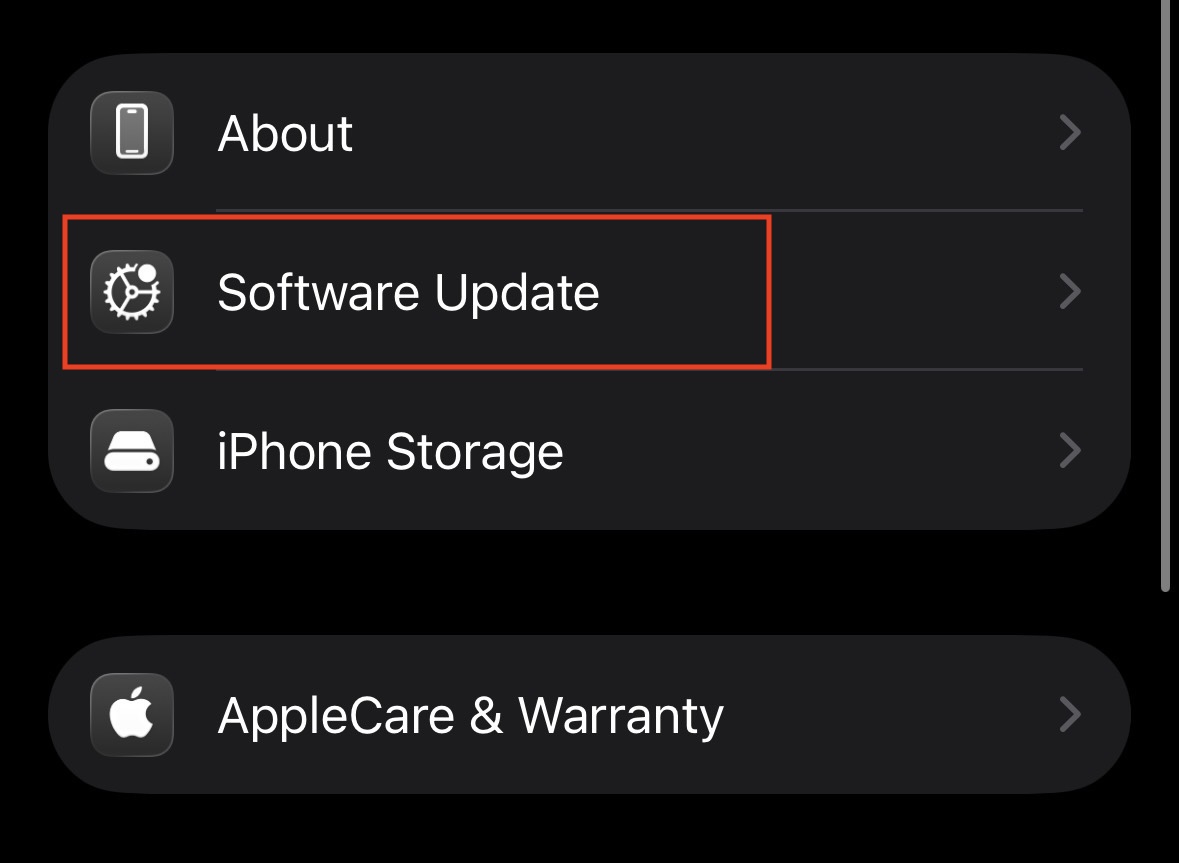
- Tap on Software Update.

- If an update is available, tap Update Now.
- Note: Ensure your iPhone has at least 50% battery or is plugged in during the update.
5. Reset Network Settings
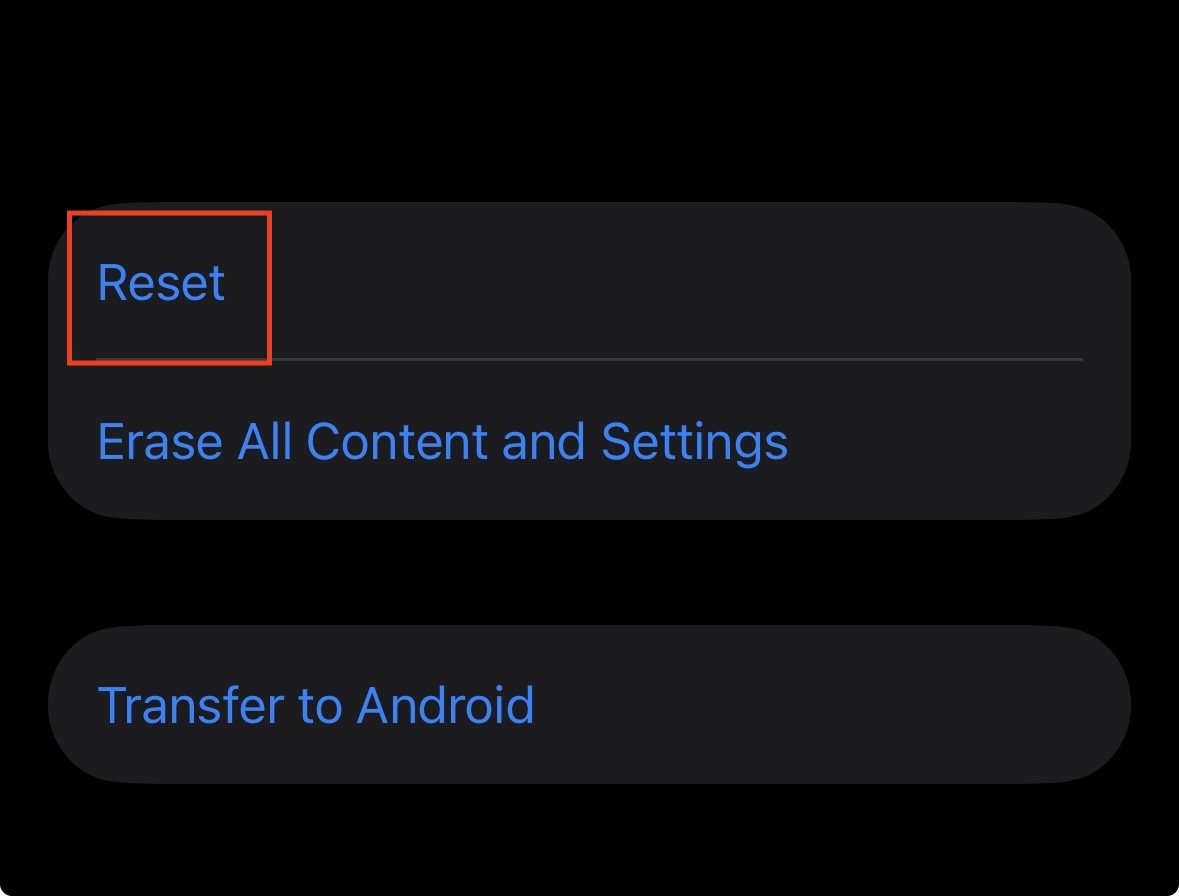
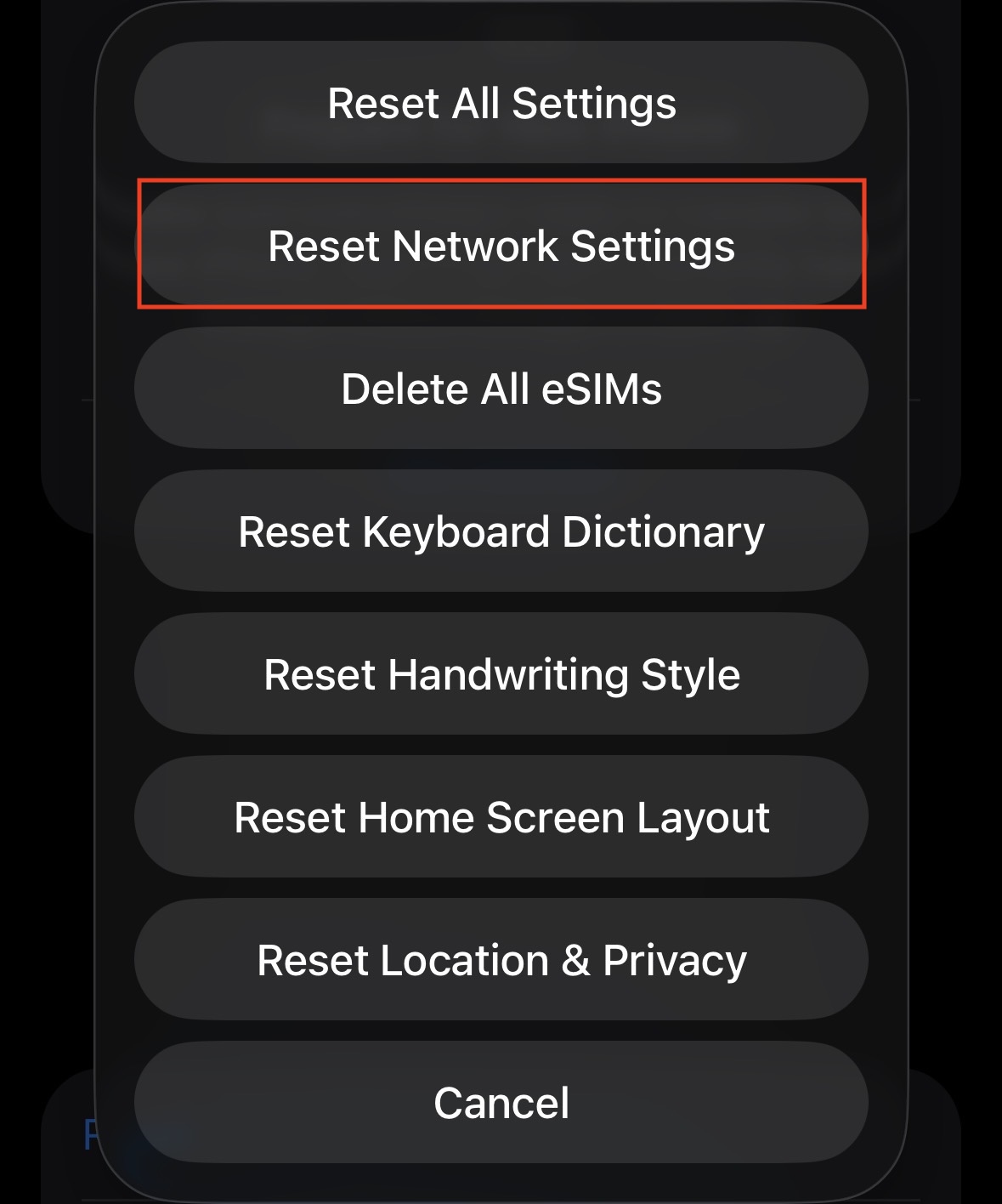
This is the “nuclear option” for connectivity issues. Resetting network settings will not delete your photos, apps, or contacts. However, it will erase all known Wi-Fi networks (and their passwords), VPN configurations, and Bluetooth pairings. You will have to re-pair every Bluetooth device you own, but it is highly effective at fixing stubborn software glitches.
- Open Settings > General.
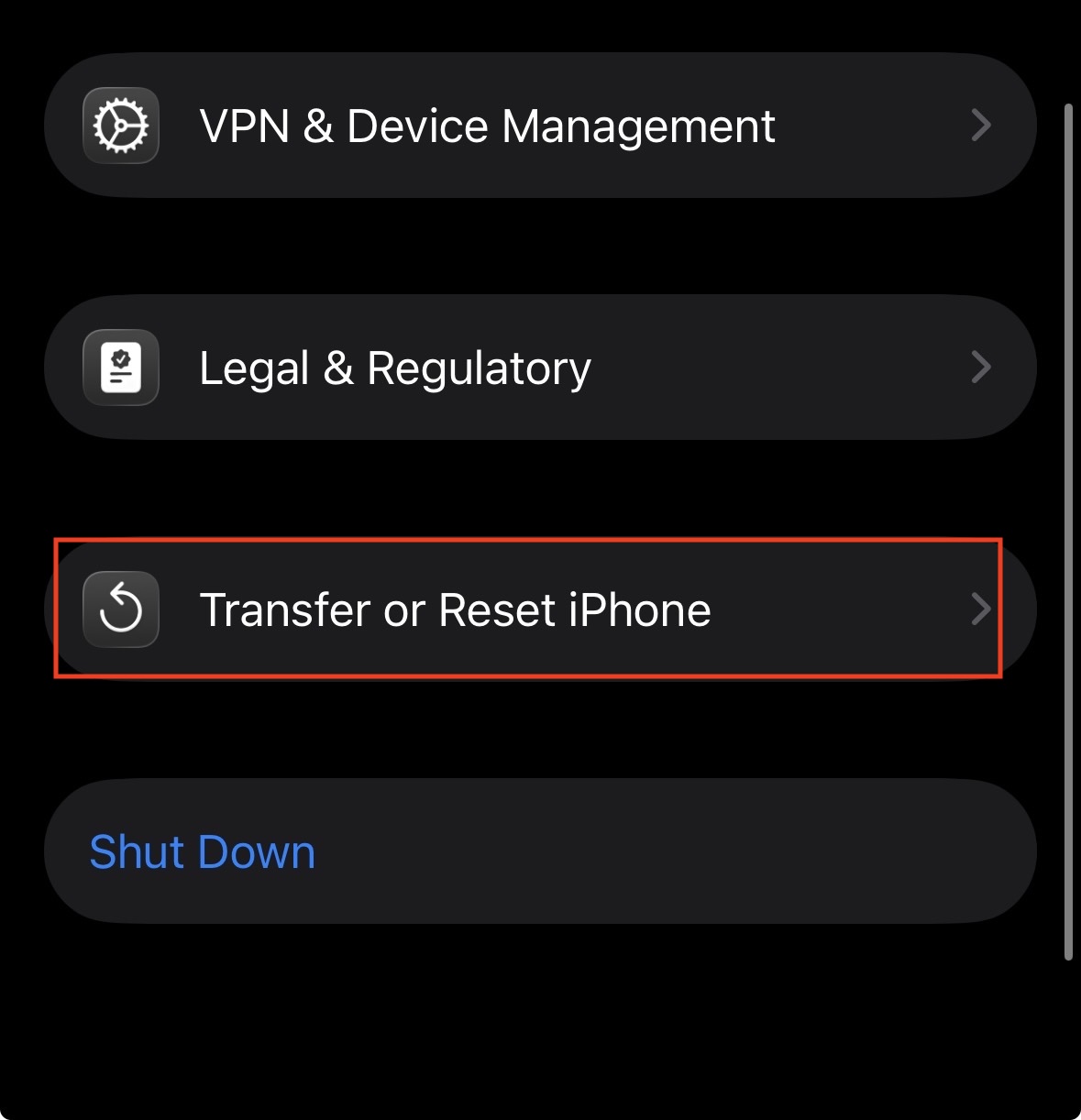
- Scroll to the bottom and tap Transfer or Reset iPhone.

- Tap Reset.

- Select Reset Network Settings.

- Enter your device passcode.
- Your iPhone will restart and the Apple logo will appear with a progress bar. Once it boots up, try pairing your device as if it were brand new.
6. Check for Interference (USB 3.0 / 2.4GHz)
Physical interference is a common cause of Bluetooth failure that many users overlook. Bluetooth operates on the 2.4GHz frequency—the same frequency used by older Wi-Fi routers, microwaves, and poorly shielded USB-C cables.
If you have a USB-C hub connected to your iPhone 17 (for data transfer or charging), try unplugging it. Poorly shielded USB 3.0 devices emit radio frequency noise that can jam Bluetooth signals. Additionally, try moving away from your Wi-Fi router to see if the connection improves.
7. Update Firmware on the Accessory
The problem might not be your iPhone 17 at all—it could be the accessory. Headphones, car stereos, and smartwatches all run their own firmware which may need an update to work with the latest iPhone.
- For AirPods/Beats: They update automatically when connected to your iPhone and charging.
- For Third-Party Devices (Sony, Bose, JBL): Download the companion app from the App Store (e.g., “Sony Headphones Connect” or “Bose Music”). Open the app and check for a firmware update.
- For Cars: Check your car manual or manufacturer website for infotainment system updates.
8. Restore iPhone as New (Last Resort)
If you have tried everything above and iPhone 17 bluetooth is not working (the toggle is grayed out) or constantly fails, there may be deep-seated corruption in your iOS installation. Restoring the iPhone via a computer wipes the OS and installs a fresh copy.
- Back up your iPhone 17 to iCloud or your computer.
- Connect it to your computer via USB-C.
- Select Restore iPhone (via Finder on Mac or Apple Devices app on Windows).
- Set it up as a New iPhone initially (do not restore backup immediately) to test if Bluetooth works. If it works, the issue was likely in your old backup data.
Final Words
The iPhone 17 is a masterpiece of engineering, but wireless technology remains temperamental. In most cases, the issue of iPhone 17 Bluetooth not working is a temporary software glitch that can be resolved by forgetting the device or resetting network settings. It is rarely a hardware defect.
However, if the Bluetooth toggle in your settings is grayed out and cannot be switched on, or if the spinning wheel never stops even after a factory reset, you may be facing a hardware failure of the Bluetooth antenna or logic board. In that specific case, you should contact Apple Support or visit an Apple Store for a diagnostic test. For everyone else, the steps above should get you back to enjoying your wireless music and calls in no time.
ALSO READ:
- Shokz Bluetooth Pairing Failed? How to Pair Shokz Headphones Correctly
- How to Connect PS5 Controller to PC or Laptop (Bluetooth & USB)
- iPhone 16 Car Bluetooth Audio Not Working? Fixes That Actually Work
- How To Fix Volkswagen (VW) Bluetooth Not Working
- How to Fix Windows 11 Bluetooth Not Working Issue
- How to Fix Tesla Bluetooth Not Working 2026