- Apple Pay not working is often caused by server outages, outdated iOS, or card verification issues, check Apple’s System Status first.
- If you see errors like “Apple Pay services are currently unavailable” or “why can’t I send money through Apple Pay”, reset network settings, re-add your card, and verify Apple Cash balance.
- Keeping iOS updated, ensuring bank compatibility, and maintaining a stable internet connection prevent most cases where Apple Pay stopped working.
Apple Pay is one of the most convenient ways to make contactless payments, transfer money through Apple Cash, and use digital wallets securely. But when Apple Pay stopped working unexpectedly, it can quickly turn from convenience into frustration. Many users have reported problems like transactions failing, the “Apple Pay services are currently unavailable“ message, or not being able to send money to friends.
If you’ve ever wondered “why can’t I send money through Apple Pay?” or “why is my Apple Pay not working?”, this guide provides all the working solutions to fix the issue.
We’ll cover everything from checking Apple’s servers to resetting Wallet, troubleshooting iPhone/iPad settings, and ensuring your card issuer supports Apple Pay.
Common Reasons Why Apple Pay Is Not Working
Before moving to fixes, it’s important to understand the common causes behind Apple Pay issues. Apple Pay may fail due to:
- Server problems → Apple Pay servers sometimes go down, causing the “Apple Pay services are currently unavailable” error.
- Outdated iOS/watchOS → Running older software may prevent transactions from processing correctly.
- Bank/card restrictions → Your card issuer may block the transaction or not fully support Apple Pay in your region.
- Incorrect region or settings → If your iPhone region isn’t set properly, Apple Pay may not work.
- Network issues → A weak Wi-Fi or cellular connection can prevent Apple Pay authentication.
- Face ID/Touch ID issues → If authentication fails, the payment won’t go through.
- Wallet corruption → Sometimes, removing and re-adding the card fixes transaction failures.
Knowing the possible reasons helps in applying the right fix.
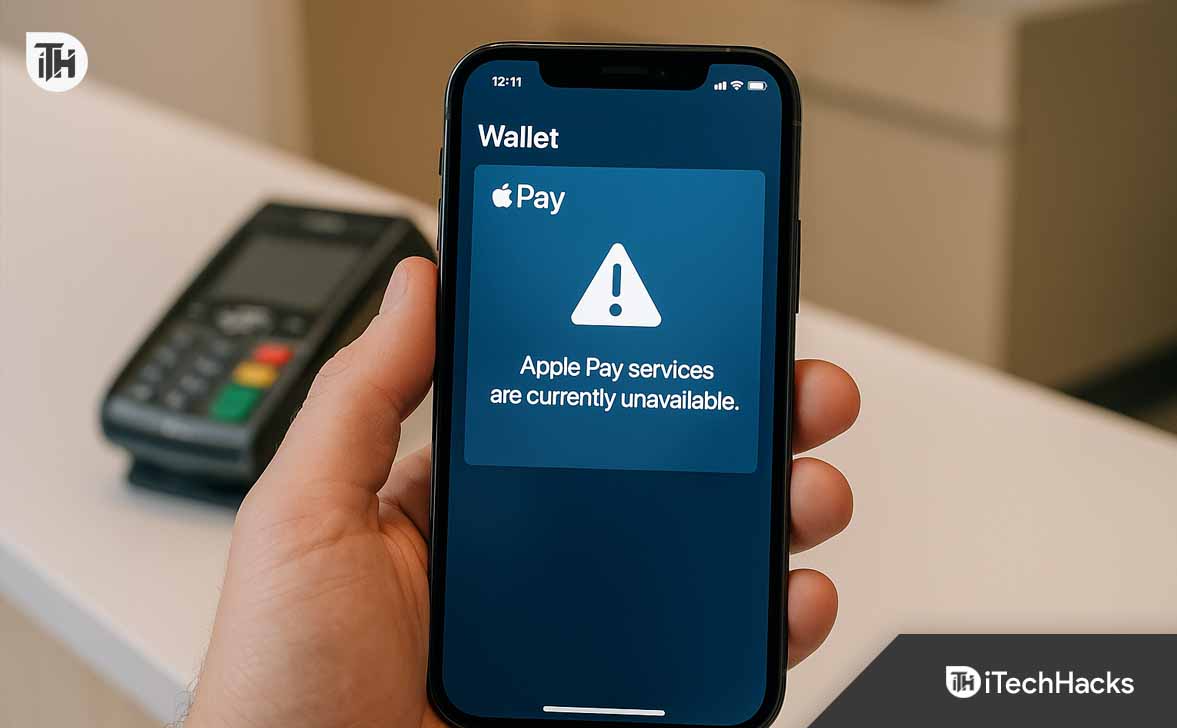
Why Is My Apple Pay Not Working? Step-by-Step Fixes
When Apple Pay stopped working, it can leave you stuck at checkout or unable to send money to family and friends. Whether you’re seeing the dreaded “Apple Pay services are currently unavailable” message, or you’re asking “why can’t I send money through Apple Pay?”, these solutions will help you fix the problem systematically.
Below are detailed, expert-approved fixes that address every possible cause of Apple Pay not working on iPhone, iPad, or Apple Watch.
1. Check Apple’s System Status Page
Sometimes, the issue isn’t your iPhone—it’s Apple’s servers.
- Open Safari or Chrome and visit Apple’s System Status page.
- Look for Apple Pay & Wallet in the list.
- If the status light is green, services are up. If it’s yellow or red, Apple Pay servers are down.
If it says “Apple Pay services are currently unavailable”, the problem is on Apple’s side. You’ll need to wait until Apple resolves it.
Why this matters for SEO: Many users search for “Apple Pay services are currently unavailable,” making this the #1 troubleshooting step.
2. Restart Your Device
A quick restart often solves temporary glitches causing Apple Pay not working.
- On iPhone X or newer: Hold the Side button + Volume button, then slide to power off.
- On iPhone 8, 7, or SE: Hold the Side button until the slider appears.
- On Apple Watch: Press and hold the Side button until you see “Power Off.”
Once restarted, try making a payment again.
Pro tip: If Apple Pay stopped working suddenly after a software update, restart immediately before trying anything else.
3. Update iOS or watchOS
If you’re wondering “why is my Apple Pay not working?”, outdated software could be the culprit. Apple Pay updates frequently for security and compatibility.
- Go to Settings > General > Software Update on your iPhone.
- If an update is available, download and install it.
- For Apple Watch, open the Watch app on your iPhone and check for updates.
Running the latest software ensures your device can communicate with Apple’s secure servers and your bank.
4. Ensure a Stable Internet Connection
Apple Pay needs internet to process peer-to-peer money transfers and identity verification. A weak connection may cause failed payments.
- Switch between Wi-Fi and Mobile Data.
- Toggle Airplane Mode ON, then OFF to refresh network.
- Run a speed test to confirm stable internet.
If you’re asking “why can’t I send money through Apple Pay?”, chances are your internet is unstable.
5. Check Bank and Card Compatibility
One of the most overlooked reasons for Apple Pay not working is bank or card restrictions.
- Visit Apple’s official list of Apple Pay supported banks.
- Verify if your bank and card type (Visa, MasterCard, AMEX) are supported in your region.
- If unsupported, you may always encounter “Apple Pay services are currently unavailable” when trying to add or use the card.
If your card is supported but payments still fail, your bank may have placed a temporary block. Contact customer support to confirm.
6. Remove and Re-Add Your Card
If Apple Pay stopped working only for one card, remove it and re-add:
- Open Settings > Wallet & Apple Pay.
- Tap on the problematic card.
- Select Remove This Card.
- Restart your iPhone.
- Go back to Wallet app > Add Card, then re-enter your card details.
This resets the card’s secure element, fixing most Apple Pay not working issues.
7. Verify Face ID or Touch ID Settings
Apple Pay won’t authorize transactions if biometric authentication fails.
- Go to Settings > Face ID & Passcode (or Touch ID).
- Test unlocking your phone with Face ID/Touch ID.
- If it fails, reset and reconfigure it.
Many users think “why is my Apple Pay not working?” when in reality Face ID isn’t set up properly for Wallet.
8. Check Apple Cash Balance
If you’re specifically facing the issue “why can’t I send money through Apple Pay?”, you might not have enough balance.
- Open Wallet app > Apple Cash Card.
- Check your available balance.
- Tap Add Money if it’s low.
Also, confirm that Apple Cash is enabled:
- Go to Settings > Wallet & Apple Pay > Apple Cash and toggle it ON.
9. Sign Out and Back Into Apple ID
Your Apple ID syncs Wallet and Apple Cash. If authentication fails, Apple Pay not working errors can occur.
- Go to Settings > [Your Name] > Sign Out.
- Restart your device.
- Sign back in with your Apple ID credentials.
This refreshes Apple Pay’s connection to your iCloud account.
10. Reset Network Settings
If you see “Apple Pay services are currently unavailable” frequently, it may be a network configuration problem.
- Go to Settings > General > Transfer or Reset iPhone > Reset > Reset Network Settings.
- Enter your passcode.
- iPhone will reboot, and you’ll need to re-enter Wi-Fi credentials.
This removes corrupted DNS and VPN profiles that often interfere with Apple Pay.
11. Adjust Region Settings
Apple Pay must match your actual country and region. If it’s misconfigured, payments won’t work.
- Go to Settings > General > Language & Region.
- Ensure the correct region is selected.
- Restart your device after changing.
This step is essential for users asking “why is my Apple Pay not working?” while traveling abroad.
12. Disable Restrictions in Screen Time
If Wallet is disabled under restrictions, Apple Pay won’t appear.
- Go to Settings > Screen Time > Content & Privacy Restrictions.
- Tap Allowed Apps.
- Make sure Wallet is enabled.
13. Contact Your Bank or Card Issuer
If Apple Pay stopped working for just one card while others work fine:
- Call the number on the back of your card.
- Ask if your account has restrictions for mobile wallet payments.
- Some banks temporarily block Apple Pay transactions due to suspected fraud.
14. Contact Apple Support
If none of the above fixes work:
- Visit support.apple.com.
- Choose Apple Pay & Wallet support.
- You can schedule a call or chat with Apple specialists.
Sometimes the issue requires a server refresh or account re-link only Apple can handle.
FAQs on Apple Pay Not Working
1. Why did my Apple Pay stop working suddenly?
Apple Pay may stop due to expired cards, bank restrictions, or server outages. Restarting your iPhone and re-adding the card usually resolves it.
2. Why can’t I send money through Apple Pay to my friend?
You may not have enough Apple Cash balance, or you haven’t verified your identity. Go to Wallet > Apple Cash > Verify Identity.
It typically means Apple’s servers are temporarily down, or your network connection is blocking Apple Pay from verifying transactions.
4. Can Apple Pay stop working after an update?
Yes. Sometimes updates break compatibility until you re-add your card or update to the latest iOS patch.
5. What if Apple Pay still won’t work after all fixes?
Contact your bank and Apple Support. In rare cases, it may be a hardware NFC chip issue requiring service.
Conclusion
When Apple Pay not working becomes a roadblock, the frustration is real—especially if you’re standing at checkout or trying to send money instantly. The most common fixes include checking Apple’s system status, restarting devices, updating iOS, and re-adding cards to Wallet. For specific cases like “why can’t I send money through Apple Pay?” or “Apple Pay services are currently unavailable”, checking your Apple Cash balance and resetting network settings usually helps.
By following the step-by-step solutions above, you’ll fix why is my Apple Pay not working issues quickly and keep enjoying seamless, secure digital payments.
ALSO READ: