- If your Ring doorbell isn't working after an update, it's often due to a dead battery, weak Wi-Fi, or a software issue. Check the doorbell light signals first to understand the problem, like a spinning white light indicating Wi-Fi trouble or no light at all meaning no power.
- For power issues, battery models may not work in cold weather until warmed up and charged, while hardwired models may need a stronger transformer if your home can't provide enough voltage.
It is a frustrating moment. You are sitting on your couch, expecting a package or a pizza. You check your phone and see a notification: “Delivery Attempted.”
You look at your front door. No one rang the bell. You check your Ring app, and the camera feed is black. You press the button on the wall, and… silence.
In 2026, our homes are smarter than ever, but when that technology fails, we feel surprisingly helpless. A smart doorbell is supposed to be your digital guard dog. When you find your Ring doorbell not working, it feels like you have left your front door wide open.
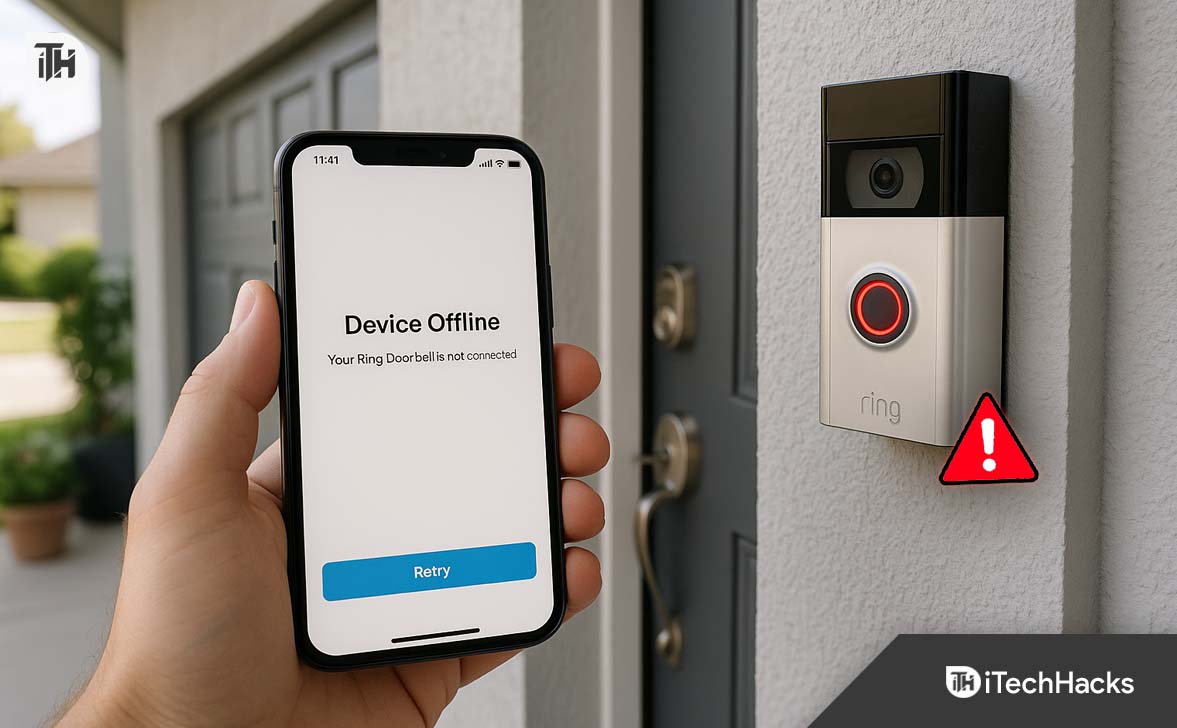
Ring Doorbell Not Working? 15 Fixes That Work
Before you go out and buy a new one, take a deep breath. Most Ring issues are not permanent. They are usually caused by one of three things: a dead battery, a weak Wi-Fi signal, or a confused software update.
Part 1: The “Traffic Light” Test
Your Ring doorbell is trying to talk to you. It doesn’t have a mouth, so it uses the circular LED light around the button to communicate.
Before you unscrew anything, go outside and press the button. Watch the light pattern closely. This is your first clue to solving why your Ring doorbell not working issue is happening.
The Secret Code:
- Spinning White Light: It is in “Setup Mode” or trying to find Wi-Fi. It isn’t broken; it just lost its internet connection.
- Flashing Blue Light: It is charging. If you see a blue circle filling up, the device is waking up.
- Flashing Top Half (White): Bad password. It found your Wi-Fi network, but the password you entered is wrong.
- Flashing Right Side (White): Weak signal. It can see your Wi-Fi, but the router is too far away to connect.
- Solid Red Light: This usually means the battery is critically low or the device has failed.
- No Light At All: It is completely dead. It has no power whatsoever.
If your light is dead, go to Part 2. If your light is spinning or flashing white, go to Part 3.
Part 2: The Power Problem
If you find your Ring doorbell not working, 90% of the time, it is simply out of power. Even “hardwired” doorbells can suffer from power issues.
Scenario A: Battery-Powered Models
(Ring Video Doorbell 1/2/3/4, Battery Doorbell Plus)
Batteries are temperamental. Even in 2025, lithium-ion technology has a major weakness: temperature.
1. The “Cold Weather” Freeze
If you live in a cold climate and it is winter, your battery might be “asleep.” When the temperature drops below freezing (32°F / 0°C), the chemical reaction inside the battery slows down. Below -5°F (-20°C), it stops completely.
Even if the app says you have 40% battery left, the device might shut down because it can’t physically pull the energy out.
- The Fix: You must bring the device inside. Let it warm up to room temperature for at least two hours. Charge it fully via the USB cable. Do not try to charge it while it is frozen—it won’t take the charge.
2. The “Fake” Charge
Ring batteries take a surprisingly long time to charge. A common mistake is plugging it in for an hour, seeing a green light, and putting it back.
- The Fix: Leave it plugged in for at least 6 to 8 hours. Wait until the light on the battery pack itself (not the app) turns solid green and blue.
Scenario B: Hardwired Models
(Ring Wired, Pro, Pro 2, Elite)
“Hardwired” sounds reliable, but it is actually the trickiest setup. A hardwired Ring doorbell doesn’t use a battery; it uses the electricity from your house wires.
The problem? Your house wasn’t built for a computer doorbell. It was built for a simple “ding-dong” chime that uses very little power.
1. The Voltage Check
Ring devices are computers. They need a steady stream of power (usually between 16 and 24 volts). Older homes often have transformers that only supply 10 or 12 volts. This is enough to make a mechanical chime go “ding,” but not enough to power a camera and Wi-Fi radio.
-
- The Symptom: The Ring works during the day but dies at night (when the night-vision lights turn on and require more power).
- The Fix: You need to check your “Doorbell Transformer.” This is a small box usually hidden in your garage, attic, or near your breaker box. If it is stamped with “10V,” it is too weak. You need to replace it with a “16V-30VA” transformer.
2. The Loose Wire
Since doorbells are outside, the wires behind them are exposed to humidity, heat, and cold. Over years, the copper wires can corrode or wiggle loose from the screws.
- The Fix: Unscrew the Ring from the wall. Check the two wires on the back. Are they touching the metal screws tightly? Is the wire rusty? If it looks corroded, snip off the end and strip a fresh piece of copper to wrap around the screw.
Part 3: The Wi-Fi Struggle
If your doorbell has power (the light spins white), but the app says “Device Offline,” you have a network issue.
Wi-Fi signals have a hard time passing through walls. They have an even harder time passing through brick, stucco, and metal—the exact materials your front door is made of.
1. Check Your RSSI Score
Ring gives you a score for your signal strength called “RSSI” (Received Signal Strength Indicator).
- Open the Ring App.
- Tap the three lines in the top left.
- Tap Devices > Select your Doorbell.
- Tap Device Health.
- Look for Signal Strength.
How to read the score:
- Green (0 to -60): Great connection.
- Amber (-61 to -70): Okay, but you might experience lag or missed videos.
- Red (-71 to -99): Terrible. This is likely why your Ring doorbell not working issue exists.
2. The 2.4GHz vs. 5GHz Trap
Most modern routers put out two signals: 5GHz (fast but short range) and 2.4GHz (slower but travels through walls better).
Older Ring devices only work on 2.4GHz. Newer ones work on both, but they often try to connect to the faster 5GHz signal, fail because of the brick wall, and drop offline.
- The Fix: If possible, force your Ring device to connect to your 2.4GHz network. It is slower, but it is much better at punching through exterior walls.
3. The “Chime Pro” Solution
If your router is in the back of the house and the doorbell is at the front, the signal just won’t make it. You might need a Wi-Fi Extender. Ring sells a device called the “Chime Pro” which acts as both an indoor speaker and a Wi-Fi booster specifically for this problem.
Part 4: The Software Glitch
Sometimes, the hardware is fine, but the software inside the doorbell has crashed. It is stuck in a “zombie” state—lights on, but nobody home.
1. The “Device Health” Refresh
Before you get off the couch, try this app trick.
- Open the Ring App.
- Go to Device Health.
- Scroll down and look for “Reboot This Device.”Note: This feature is only available on newer models and requires at least some Wi-Fi connection.
2. The Setup Loop
If you recently changed your Wi-Fi password or got a new router, your Ring doorbell doesn’t know that. It is still shouting the old password at the router, and the router is ignoring it.
- The Fix: You cannot just “update” the password in the app settings. You have to walk through the “Reconnect to Wi-Fi” process in the Device Health menu. You will need to be physically near the doorbell to press the setup button.
Part 5: The Hard Reset
If you have tried power, Wi-Fi, and app settings, and you still find your Ring doorbell not working, it is time to wipe its brain.
A hard reset (Factory Reset) deletes all settings and returns the device to the state it was in when you bought it. This clears out deep software bugs.
How to do it:
- Find the Orange Button:
- On the Ring Video Doorbell (1st and 2nd Gen), the orange button is on the back of the unit. You have to unscrew it from the wall to reach it.
- On the Ring Pro / Elite / Wired, the button is usually on the side (under the faceplate cover).
- The Long Press:
- Press and hold that orange (or sometimes black) setup button for a full 20 seconds. Count it out loud. The light on the front might flash a few times—ignore it and keep holding.
- Let Go:
- After 20 seconds, release the button.
- The light on the front should flash a few times indicating it is restarting.
- Wait:
- Give it about two minutes to fully reset.
- Re-Setup:
- Now, open your Ring App. Do not just try to reconnect. You might need to delete the old device from the app and tap “Set Up a Device” as if it were brand new.
Part 6: Mechanical Chime Issues
Here is a specific version of the Ring doorbell not working problem: The camera works, you get notifications on your phone, but the actual “ding-dong” sound in your hallway doesn’t happen.
This is usually a setting mismatch.
1. Check the App Settings
- Open the Ring App.
- Select your doorbell.
- Tap Device Settings > In-home Chime Settings.
- Make sure “Ring my in-home chime” is toggled ON.
- Also, check the “Chime Type.” If you have an old mechanical chime (with a real hammer and metal plates), set it to Mechanical. If you have a speaker that plays a digital tune, set it to Digital. If you get this wrong, the chime won’t fire correctly.
2. The “Pro Power Kit” (For Ring Pro)
If you have a Ring Pro, you should have installed a small white box inside your hallway chime box called the “Pro Power Kit.” This protects your chime from the higher power of the Ring Pro. If you skipped this step during installation, your hallway chime will not work.
Part 7: When to Call Support
You have charged it. You have reset it. You have checked the Wi-Fi. It is still dead.
Unfortunately, electronics do fail.
The “Red Light of Death”
If your device shows a solid red light and never changes, or if it gets extremely hot to the touch, there may be an internal short circuit.
Warranty Check:
Ring devices come with a standard 1-year warranty. However, if you subscribe to Ring Protect Plus (the monthly subscription for saving videos), it includes an “Extended Warranty” that covers the device for as long as you pay for the subscription.
If you have tried everything in this guide, contact Ring Support. Be sure to tell them, “I have already performed a factory reset by holding the button for 20 seconds.” This is the first thing they will ask you to do, so telling them you already did it saves time.
Conclusion
If your Ring doorbell not working headache is persisting, run through this quick checklist before you give up:
- Check the Light: Does it have power? (Spinning white = yes, No light = no).
- Check the Temp: Is it freezing outside? Bring it inside to warm up.
- Check the Voltage: If hardwired, is your transformer strong enough (16V)?
- Check the Wi-Fi: Is your RSSI score red? You might need a chime pro or extender.
- Hard Reset: Hold the setup button for 20 seconds to wipe the software.
Technology is great when it works, and annoying when it doesn’t. But with a little patience and some detective work, you can usually get that blue ring glowing again without spending a dime.
ALSO READ: