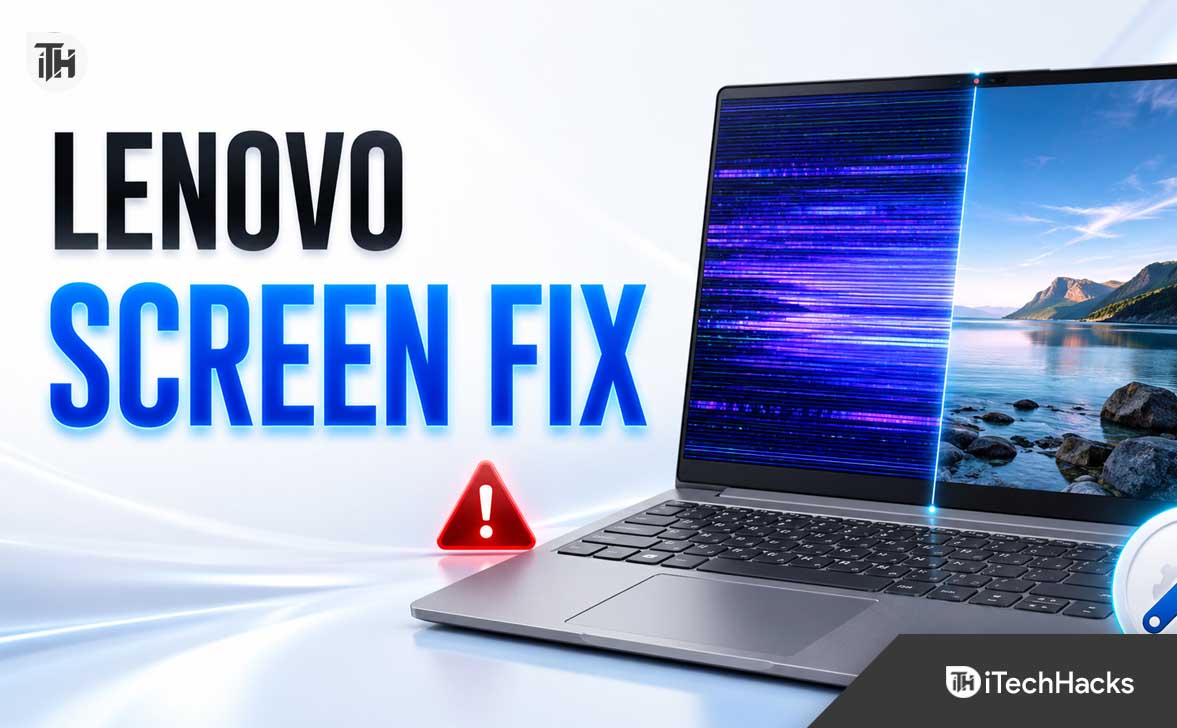
- A flickering Lenovo laptop screen can result from various causes, including graphics driver issues, incorrect refresh rates, Windows updates, incompatible applications, or power-saving features. It is important to identify if the problem is due to software issues like the graphics driver or a hardware issue like a loose display cable.
- To resolve screen flickering, start with simple solutions such as resetting the graphics driver using the keys Windows + Ctrl + Shift + B, restarting the laptop completely, or disconnecting external devices. Check whether Task Manager flickers along with the screen to determine if it's a graphics driver issue or an incompatible application causing the problem.
A flickering Lenovo laptop screen can make the computer difficult to use and may cause eye strain, headaches, or concern that the display is failing. The screen may flash continuously, dim and brighten randomly, show horizontal lines, flicker only while charging, or become unstable when you move the lid.
In many cases, Lenovo laptop screen flickering is caused by a graphics driver, incorrect refresh rate, Windows update, incompatible application, or power-saving display feature. However, flickering that appears before Windows starts or changes when the lid moves may point to a loose display cable, damaged panel, or another hardware problem.
This guide explains how to fix a flickering Lenovo laptop screen on ThinkPad, IdeaPad, Yoga, Legion, LOQ, ThinkBook, and other Lenovo models. Start with the quick fixes below, then continue through the diagnostic steps until you identify the actual cause.
Why Is My Lenovo Laptop Screen Flickering?
A Lenovo laptop display can flicker because the screen, graphics processor, display driver, operating system, and power-management features must all work together. A problem with any one of these components can interrupt the image being sent to the screen.
The most common causes include:
- An outdated, corrupted, or incompatible Intel, AMD, or NVIDIA graphics driver
- A graphics driver problem after a Windows update
- An unsupported or unstable screen refresh rate
- Intel Panel Self Refresh or another power-saving display feature
- Dynamic refresh rate, variable refresh rate, HDR, or adaptive brightness problems
- An application that conflicts with the Windows display system
- Hardware acceleration in a browser or desktop application
- A loose or damaged internal display cable
- A failing LCD or OLED panel
- A problem with the charger, power adapter, or electrical connection
- Overheating or a graphics hardware fault
The key is to determine whether the issue is being caused by Windows software, the graphics driver, or the physical display hardware. The following tests will help you narrow it down before you reinstall drivers or arrange a repair.
Quick Fixes for a Flickering Lenovo Laptop Screen
Before changing advanced settings, try these basic fixes. Temporary graphics errors and power-state problems can often be resolved without reinstalling anything.
1. Reset the Graphics Driver
Press the following keys together:
Windows + Ctrl + Shift + B
The screen may turn black briefly, flash once, or make a beep. This shortcut tells Windows to reset the active graphics driver without restarting the laptop. Microsoft recommends it as an initial troubleshooting step for display flickering and blank-screen problems. :contentReference[oaicite:0]{index=0}
Wait a few seconds and check whether the flickering stops. If the problem returns immediately, continue with the remaining solutions.
2. Restart the Lenovo Laptop Completely
Select Start > Power > Restart. Do not simply close the lid and reopen it because that usually puts the laptop into sleep mode instead of reloading the graphics driver.
If the laptop does not respond, hold the power button until it shuts down. Disconnect the charger and accessories, wait about 30 seconds, and turn it on again.
3. Disconnect External Devices
Remove USB hubs, docking stations, HDMI cables, USB-C displays, capture devices, and other accessories. A faulty dock, adapter, or external monitor connection can interfere with display detection and graphics output.
If the flickering stops after disconnecting a dock, reconnect devices one at a time. This helps identify whether the dock, cable, port, or external display is responsible.
Check Whether Task Manager Also Flickers
The Task Manager test is one of the fastest ways to distinguish a graphics-driver problem from an incompatible application.
- Press Ctrl + Shift + Esc to open Task Manager.
- Keep Task Manager visible while the laptop screen flickers.
- Observe whether Task Manager flickers along with the rest of the screen.
If Task Manager flickers, the graphics driver or display hardware is probably responsible. Focus on updating, rolling back, or reinstalling the display driver.
If Task Manager remains stable while everything behind it flickers, a running application may be causing the problem. Microsoft uses this same test when diagnosing screen flickering in Windows 11 and Windows 10. :contentReference[oaicite:1]{index=1}
Update Lenovo Display Drivers
An outdated or corrupted graphics driver is one of the most common causes of a flickering Lenovo laptop screen. Lenovo laptops may use Intel integrated graphics, AMD Radeon graphics, NVIDIA GeForce graphics, or a combination of integrated and dedicated GPUs.
For the best compatibility, begin with the driver provided specifically for your Lenovo model. A newer generic driver from Intel, AMD, or NVIDIA is not always better because Lenovo may customize drivers for the laptop’s panel, power system, hybrid graphics, and firmware.
Update Drivers Through Lenovo Vantage
- Open the Start menu.
- Search for and open Lenovo Vantage.
- Select System Update or Check for Updates.
- Install available graphics, display, chipset, power-management, and critical firmware updates.
- Restart the laptop after the installation finishes.
If Lenovo Vantage is not installed, it is normally available through the Microsoft Store on supported Lenovo computers. Business models may use Commercial Vantage instead.
Download the Driver From Lenovo Support
- Open Lenovo Support in your browser.
- Use Detect Product or enter the laptop’s serial number or exact model.
- Open Drivers & Software.
- Select the display, video, graphics, chipset, or power-management category.
- Download the recommended driver for your version of Windows.
- Install the driver and restart the computer.
Avoid third-party driver updater programs. They may install a generic or incorrect graphics package that creates additional flickering, brightness, sleep, or performance problems.
Roll Back the Graphics Driver
If the Lenovo screen started flickering immediately after a graphics driver or Windows update, the newly installed driver may be incompatible with the laptop. Rolling back restores the previous version that was working properly.
- Right-click the Start button.
- Select Device Manager.
- Expand Display adapters.
- Right-click the Intel, AMD, or NVIDIA adapter.
- Select Properties.
- Open the Driver tab.
- Select Roll Back Driver.
- Choose a reason and confirm the rollback.
- Restart the laptop.
If the Roll Back Driver button is unavailable, Windows does not have an older driver stored. In that situation, reinstall the Lenovo-provided driver using the next method. Microsoft also recommends rolling back the display driver when flickering begins after a recent update. :contentReference[oaicite:2]{index=2}
Reinstall the Graphics Driver
Updating a damaged driver may not replace every corrupted file or configuration. Uninstalling the adapter allows Windows to rebuild the driver installation.
- Download the correct Lenovo graphics driver before removing the current one.
- Right-click Start and open Device Manager.
- Expand Display adapters.
- Right-click the graphics adapter and select Uninstall device.
- Select the option to attempt to remove the driver, if it is displayed.
- Confirm the removal.
- Restart the laptop.
Windows may temporarily use the Microsoft Basic Display Adapter after restarting. Install the driver downloaded from Lenovo Support or run Lenovo Vantage again.
On Lenovo Legion, LOQ, or other laptops with hybrid graphics, Device Manager may list both an integrated GPU and a dedicated GPU. Update both drivers, but avoid uninstalling both simultaneously unless you already have the correct installation packages available.
Change the Screen Refresh Rate
The refresh rate controls how many times the display updates each second. For example, a 60 Hz panel refreshes the image approximately 60 times per second. Selecting an unstable or unsupported refresh rate may cause flickering, blanking, lines, or intermittent signal loss.
- Right-click an empty area of the desktop.
- Select Display settings.
- Open Advanced display.
- Make sure the built-in Lenovo display is selected.
- Open the menu beside Choose a refresh rate.
- Try 60 Hz or another rate officially supported by the panel.
Gaming models may offer 120 Hz, 144 Hz, 165 Hz, 240 Hz, or higher. Test 60 Hz temporarily. If the flickering stops at 60 Hz but returns at a higher setting, update the graphics driver and BIOS before assuming that the display panel is defective.
Windows also shows whether the selected display supports variable refresh rate. Refresh-rate options vary by the laptop panel, graphics driver, and current resolution. :contentReference[oaicite:3]{index=3}
Use the Recommended Display Resolution
An incorrect resolution can create scaling problems and may behave poorly with certain display drivers.
- Open Settings > System > Display.
- Find Display resolution.
- Select the option marked Recommended.
- Sign out or restart if Windows requests it.
The recommended option normally matches the native resolution of the Lenovo laptop panel. Common examples include 1920 x 1080, 1920 x 1200, 2240 x 1400, 2560 x 1600, and 2880 x 1800.
Disable Dynamic Refresh Rate and Variable Refresh Rate
Some newer Lenovo laptops automatically switch between refresh rates to reduce power usage. This is called Dynamic Refresh Rate in Windows. Gaming-focused systems may also use variable refresh rate technologies to synchronize the display with the graphics processor.
These features are useful when working correctly, but driver problems can cause visible flashing during refresh-rate transitions.
- Open Settings > System > Display > Advanced display.
- Turn off Dynamic refresh rate, if the option appears.
- Select a fixed refresh rate such as 60 Hz.
- Open Settings > System > Display > Graphics.
- Open Default graphics settings.
- Temporarily turn off Variable refresh rate, if available.
- Restart the computer and test the screen.
If turning off one of these features fixes the Lenovo screen flicker, keep it disabled until Lenovo or the graphics manufacturer releases a compatible driver update.
Disable Intel Panel Self Refresh
Panel Self Refresh, also known as PSR, allows an Intel-powered laptop display to refresh a static image without repeatedly requesting the same frame from the graphics processor. This can improve battery life, but it may cause flickering on certain laptop and driver combinations.
- Open the Intel Graphics Command Center.
- Select System.
- Open the Power section.
- Find Panel Self Refresh.
- Turn it off for battery power and plugged-in use.
- Restart the laptop.
The menu location can vary depending on the Intel graphics driver. Some versions display the option under System > Power, while others may not expose it at all.
Lenovo has specifically documented Panel Self Refresh as a cause of screen flickering on some ThinkPad configurations and recommends disabling it as a workaround. However, this option should be changed only when it exists on your model. :contentReference[oaicite:4]{index=4}
Turn Off Adaptive Brightness and Display Power Saving
If the Lenovo laptop screen appears to pulse, brighten, dim, or flicker when the image changes, an automatic brightness or display power-saving feature may be responsible.
- Open Settings > System > Display.
- Expand the Brightness section.
- Turn off automatic brightness based on lighting, if available.
- Turn off the option that adjusts brightness based on displayed content.
- Open Intel Graphics Command Center or AMD Software.
- Disable display power-saving features temporarily.
These options may not appear on every Lenovo laptop. They depend on the panel, ambient-light sensor, graphics hardware, and installed driver.
Disable HDR Temporarily
HDR can improve brightness range and color on supported displays, but it also changes how Windows manages color depth, brightness, and display output. A driver or panel problem may cause flickering when HDR content opens or when Windows switches between SDR and HDR.
- Open Settings > System > Display.
- Select the built-in Lenovo display.
- Open HDR.
- Turn off Use HDR.
- Restart the affected application.
If the problem occurs only in games or video players, also turn off Auto HDR and any application-specific HDR option. You can turn HDR back on after updating the display driver and BIOS.
Check for an Incompatible Application
If Task Manager does not flicker while the rest of the screen does, a program may be conflicting with the Windows display system. Screen-recording software, antivirus overlays, desktop customization tools, color-calibration utilities, old display managers, and applications with GPU acceleration can sometimes cause this behaviour.
- Open Settings > Apps > Installed apps.
- Sort the list by installation date.
- Look for software installed shortly before the flickering began.
- Update the suspected application first.
- If no update is available, uninstall it temporarily.
- Restart the laptop after each removal.
Do not remove several programs at once. Testing one application at a time makes it easier to identify the actual conflict.
Disable Hardware Acceleration in Problematic Apps
If the Lenovo screen flickers only while using Chrome, Edge, Teams, Discord, Office, a video editor, or another specific application, its hardware acceleration setting may be involved.
For Chrome or Microsoft Edge
- Open the browser settings.
- Search for hardware acceleration or graphics acceleration.
- Turn off the option that uses graphics acceleration when available.
- Close and relaunch the browser.
Disabling acceleration makes the application rely more heavily on the processor instead of the GPU. This is useful as a diagnostic step, although it may slightly reduce performance during video playback or graphics-heavy tasks.
Install Windows and Lenovo Updates
Windows updates can contain display-system fixes, while Lenovo updates may include graphics, chipset, monitor, power-management, and firmware improvements.
- Open Settings > Windows Update.
- Select Check for updates.
- Install available security and quality updates.
- Open Advanced options > Optional updates.
- Review driver updates carefully.
- Restart the laptop.
- Run Lenovo Vantage and check for Lenovo-specific updates afterward.
Prefer Lenovo’s model-specific graphics driver when Windows Update repeatedly installs a version that causes flickering. If necessary, roll back the problematic driver and pause updates briefly while checking for a corrected release.
Update the Lenovo BIOS Carefully
The BIOS controls communication between the operating system and important hardware, including graphics, power management, and the internal display. A BIOS update may fix model-specific flickering, sleep, brightness, or hybrid-graphics issues.
- Connect the official or compatible Lenovo charger.
- Make sure the battery has sufficient charge.
- Save your work and close all applications.
- Open Lenovo Vantage and check System Update.
- Install a BIOS update only when it is listed for your exact model.
- Do not shut down, disconnect power, or close the lid during the update.
Do not install a BIOS file intended for a similar-looking Lenovo model. If BitLocker device encryption is enabled, make sure you can access the recovery key before changing BIOS settings or performing major firmware work.
Boot the Lenovo Laptop Into Safe Mode
Safe Mode loads Windows with a limited set of drivers and startup services. If the screen remains stable in Safe Mode, the internal display is probably functional and a graphics driver, service, or installed program is more likely to be responsible.
- Open Settings > System > Recovery.
- Beside Advanced startup, select Restart now.
- Select Troubleshoot > Advanced options > Startup Settings.
- Select Restart.
- Press 4 or F4 to start Safe Mode.
Test the laptop for several minutes. If the flickering disappears, restart normally and focus on reinstalling the graphics driver, removing incompatible software, and disabling unnecessary startup applications.
Test the Screen Outside Windows
A flicker that appears before the Lenovo logo, inside the BIOS, or during hardware diagnostics is unlikely to be caused by a normal Windows application. This test can save time by separating operating-system issues from hardware problems.
- Restart the laptop.
- Press the appropriate key repeatedly to enter the BIOS or UEFI menu.
- Common Lenovo keys include F1, F2, or the Novo button, depending on the model.
- Leave the BIOS screen open for several minutes.
If the display flickers inside the BIOS, changing Windows settings is unlikely to solve it. The laptop may have a damaged panel, internal display cable, connector, motherboard, or graphics component.
Connect an External Monitor or TV
An external display test helps identify whether the problem is limited to the built-in Lenovo screen.
- Connect a monitor or television using HDMI, USB-C, DisplayPort, or a compatible dock.
- Press Windows + P.
- Select Duplicate or Extend.
- Compare the built-in screen with the external display.
If the external monitor is stable while the laptop screen flickers, the issue is likely related to the internal display panel, display cable, panel power, or a setting specific to the built-in screen.
If both screens flicker at the same time, investigate the graphics driver, GPU, application, operating system, power adapter, or motherboard.
Check Whether Moving the Lid Causes Flickering
Slowly move the laptop lid through a small range while watching the screen. Do not twist or force it.
If the screen flickers, develops lines, changes colour, or turns off at certain lid angles, the internal display cable may be loose, pinched, or damaged near the hinge. This is especially likely when the external monitor remains stable.
A display cable repair requires opening the laptop and removing delicate components. Do not attempt it yourself when the Lenovo laptop is under warranty. Opening the display assembly incorrectly can damage the panel, hinges, webcam cable, wireless antennas, or bezel.
Check the Charger and Power Source
If the Lenovo screen flickers only while charging, disconnect the adapter and test the laptop on battery power. Then try a different wall outlet without a low-quality extension board.
Use a genuine Lenovo adapter or a reputable USB-C Power Delivery charger that meets the laptop’s required wattage. An underpowered, damaged, or poorly grounded charger may cause power instability, reduced performance, or visible display interference.
If the problem occurs only with one adapter, stop using it until it has been checked. Do not continue using a charger that becomes excessively hot, sparks, smells burnt, or has a damaged cable.
Common Lenovo Screen Flickering Problems and Fixes
Lenovo Screen Flickers Only on Battery
Disable Panel Self Refresh, adaptive brightness, content-based brightness, and Dynamic Refresh Rate. Also update the Intel or AMD graphics driver and Lenovo power-management components.
Lenovo Screen Flickers Only When Plugged In
Test a different wall outlet and compatible charger. Check whether Windows changes the refresh rate, HDR mode, performance profile, or graphics mode when external power is connected.
ThinkPad Screen Flickers at Low Brightness
First update the BIOS and graphics driver, then disable adaptive brightness and Panel Self Refresh. Some displays use pulse-width modulation to control brightness, which may appear as flicker to sensitive users or smartphone cameras even when the panel is functioning as designed.
IdeaPad Screen Flickers After Windows Update
Roll back the display driver through Device Manager. After restarting, install the graphics driver recommended for the exact IdeaPad model through Lenovo Vantage or Lenovo Support.
Lenovo Legion Screen Flickers While Gaming
Disable variable refresh rate, G-SYNC, FreeSync, HDR, overlays, and GPU overclocking temporarily. Test the game at 60 Hz and update both integrated and dedicated graphics drivers.
Screen Flickers When Watching Videos
Turn off browser hardware acceleration, HDR video streaming, video-enhancement features, and automatic brightness. Test another browser or media player to determine whether the problem is application-specific.
Screen Flickers When the Laptop Lid Moves
This strongly suggests an internal cable, connector, or hinge-area problem. Back up important data and arrange inspection through Lenovo or a qualified laptop technician.
When Should You Contact Lenovo Support?
Software troubleshooting is unlikely to fix the issue when the screen flickers in the BIOS, shows permanent lines, or reacts to lid movement. Contact Lenovo Support or an authorised service provider when:
- The display flickers before Windows begins loading
- The screen has permanent horizontal or vertical lines
- The image changes when you move the lid
- The laptop was recently dropped or exposed to liquid
- The external monitor works but the built-in screen does not
- The display becomes black after warming up
- The panel shows cracks, pressure marks, colour patches, or image retention
- The laptop overheats or shuts down with the flickering
- The issue continues after a clean graphics-driver installation
Back up important files before sending the laptop for repair. Check the Lenovo warranty status using the serial number and avoid opening the device yourself while warranty coverage is active.
Frequently Asked Questions
Can a flickering Lenovo laptop screen be fixed?
Yes. Many cases can be fixed by resetting, updating, rolling back, or reinstalling the graphics driver. Adjusting the refresh rate, disabling Panel Self Refresh, and removing incompatible software may also resolve the issue. Hardware repair may be required when flickering occurs in the BIOS or changes when the lid moves.
Why does my Lenovo laptop screen flicker after an update?
A Windows or graphics-driver update may introduce a compatibility problem with the laptop’s display panel, hybrid graphics, or power-management system. Rolling back the display driver and installing Lenovo’s model-specific version is usually the best first step.
Why does my Lenovo screen flicker only at low brightness?
Low-brightness flickering may be caused by adaptive brightness, display power saving, Panel Self Refresh, a graphics-driver problem, or the panel’s brightness-control method. Update the display driver and BIOS, then test with automatic brightness and power-saving display features disabled.
Can a bad charger cause laptop screen flickering?
Yes. A damaged, underpowered, incompatible, or poorly grounded charger can cause instability or electrical interference. Test the laptop on battery and with a known-compatible Lenovo adapter to compare the results.
Does changing the refresh rate fix Lenovo screen flickering?
It can. Set the laptop to a supported fixed rate, such as 60 Hz, through Advanced display settings. If flickering occurs only at higher refresh rates, update the graphics driver and BIOS before considering a panel repair.
How do I know whether the Lenovo display cable is damaged?
A damaged display cable often causes flickering, lines, colour changes, or a black screen when the lid moves. The external monitor usually continues working normally. A technician should inspect the cable and connectors, especially if the laptop is under warranty.
Should I reset Windows to fix screen flickering?
A Windows reset should be considered only after testing drivers, applications, refresh rates, Safe Mode, BIOS behaviour, and an external monitor. Resetting Windows will not repair a loose display cable or faulty screen panel.
Why does Task Manager not flicker while the rest of the screen does?
This usually means an application is conflicting with Windows display rendering. Update or uninstall recently installed programs, disable overlays, and turn off hardware acceleration in the affected application.
Final Thoughts
To fix a flickering Lenovo laptop screen, begin by resetting the graphics driver with Windows + Ctrl + Shift + B. Next, use the Task Manager test to determine whether the problem is connected to the graphics driver or an incompatible application.
Update the correct Lenovo graphics driver, test a fixed 60 Hz refresh rate, and disable Panel Self Refresh, Dynamic Refresh Rate, adaptive brightness, HDR, or hardware acceleration where applicable. If the issue began after an update, rolling back the display driver may provide a faster fix than installing another generic driver.
ALSO READ: