

- Use a USB cable if you want the most stable and responsive connection. The Xbox Wireless Adapter is the best option for wireless use, as it supports headset audio and multiple controllers with lower latency. Bluetooth also works, but it’s less reliable and doesn’t support all features.
- Only newer Xbox One controllers (like those from the Xbox One S and later) support Bluetooth. Older controllers don’t. It’s also important to keep your controller’s firmware updated to avoid connection problems and improve performance.
Based on years of hands-on troubleshooting and PC gaming support, the most consistent issues with Xbox One controllers on Windows systems come down to connection method, driver reliability, and firmware mismatches. Windows 11 24H2 and modern gaming hardware offer better native support, but only if you follow the correct setup path.
This guide explains how to connect an Xbox One controller to a PC using USB, Bluetooth, and the official Xbox Wireless Adapter—including proper pairing steps, firmware update procedures, and connection limitations based on controller model and OS version.
We’ve tested these methods across custom gaming rigs, Dell/HP business laptops, and Surface Pro models running both consumer and enterprise Windows builds. Whether you’re troubleshooting intermittent disconnects or looking to enable headset support via your controller, this guide provides reliable solutions—not recycled tips or assumptions.
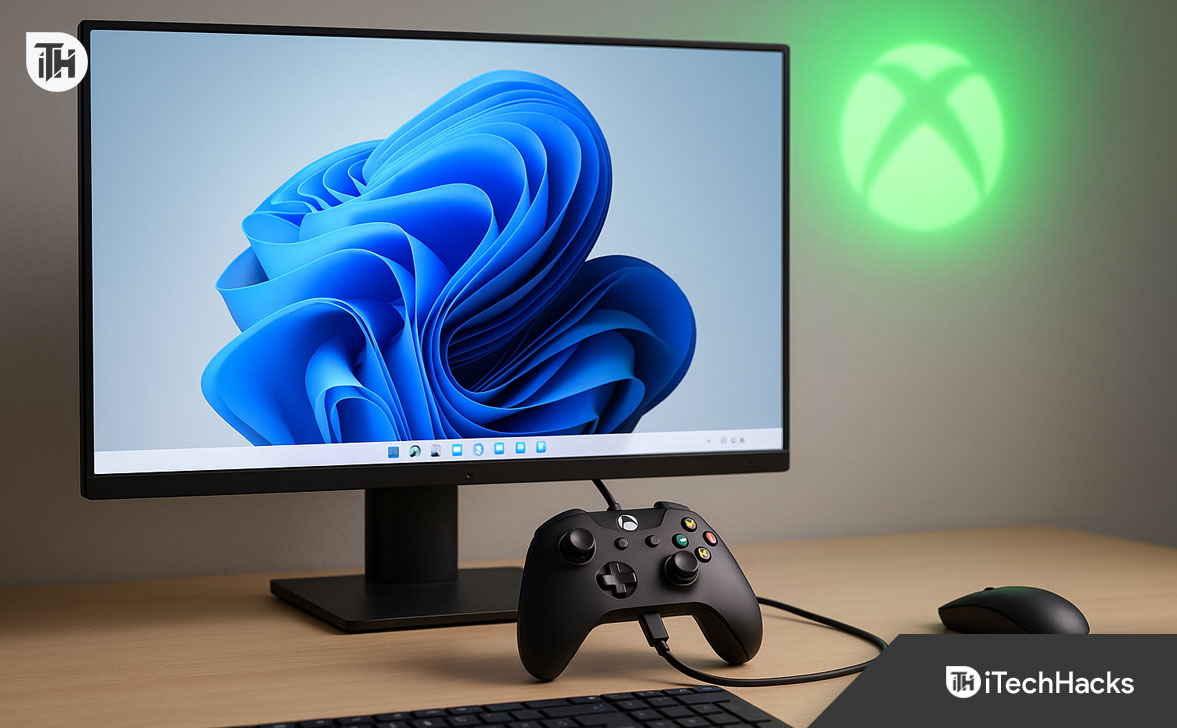
How to Connect Xbox Controller to a PC via USB (Wired)
Best for: Competitive gaming, precise input, minimal setup, and zero-latency performance.
Required:
- Xbox One Controller (any model)
- USB-A to Micro-USB cable (for older controllers)
- USB-A to USB-C cable (for Elite Series 2 or newer)
- Windows 10 (21H2 or later) or Windows 11 (22H2 or later)
Instructions:
- Identify your controller’s port.
- Models released before 2020 typically have a Micro-USB port.
- Newer models (Elite Series 2, Xbox Series controllers) feature USB-C.
- Use a high-quality USB cable.
Avoid power-only cables. Use a cable certified for data transfer to ensure Windows detects the device properly. - Connect the controller to your PC.
- Plug the USB cable into your PC’s USB-A port.
- Plug the other end into the controller.
- The Xbox logo should light up and stay solid.
- Verify the connection.
- Open Device Manager > Human Interface Devices.
- Look for “Xbox Controller” or “Microsoft Xbox One Controller.”
- Test the input.
- Launch the Game Controllers control panel: Press
Windows + R, typejoy.cpl, and hit Enter. - Select your controller > click Properties > test all buttons and analog sticks.
- Launch the Game Controllers control panel: Press
Notes:
- Wired connections do not require batteries.
- Firmware updates are automatically initiated when the controller is plugged in, especially on Windows 11.
- USB offers the lowest input latency and is the recommended method for emulators, racing games, and competitive titles like CS2 or Apex Legends.
How to Pair Xbox Controller to PC Using Bluetooth
Best for: Wireless casual gaming, mobile setups, newer laptops with Bluetooth 4.0+ support.
Compatibility Checklist:
- Your Xbox controller must support Bluetooth (models released with Xbox One S or later).
- Windows 10 (version 1803+) or Windows 11 with Bluetooth capability.
Identify Your Controller:
- Bluetooth-compatible: Single-piece faceplate (Xbox logo is part of front shell).
- Non-Bluetooth: Xbox logo embedded in separate glossy plastic along the top.
Step-by-Step Instructions:
- Turn on the controller.
- Press and hold the Xbox button until it lights up.
- Enter pairing mode.
- Hold the Pair button near the USB port until the Xbox logo blinks rapidly.
- Enable Bluetooth on your PC.
- Go to Settings > Bluetooth & devices.
- Toggle Bluetooth ON.
- Pair the controller.
- Click Add device > Bluetooth.
- Select “Xbox Wireless Controller” from the list.
- Wait until the Xbox button stays solid.
- Test functionality.
- Open joy.cpl to check button input.
- Use the Xbox Accessories app to confirm connection and test triggers, sticks, and vibration.
Performance Tips:
- Bluetooth introduces slightly higher latency compared to USB or Xbox Wireless Adapter.
- Audio features (headset jack) are not supported over Bluetooth.
- Keep the controller within 6–8 feet of the PC to maintain stable signal.
Troubleshooting:
- Update your Bluetooth drivers (especially Intel adapters) via Device Manager.
- Remove and re-pair the device if it fails to connect.
- Avoid using Bluetooth in areas with lots of Wi-Fi interference.
Connect Xbox Controller to PC Using the Xbox Wireless Adapter
Best for: Full wireless functionality, including headset support, lower latency, and multi-controller setups.
The Xbox Wireless Adapter for Windows is the most reliable way to connect an Xbox One controller wirelessly without compromising on performance. It uses Microsoft’s proprietary wireless protocol—different from Bluetooth—and is purpose-built for gaming.
- Xbox One controller (any model that supports wireless connectivity)
- Xbox Wireless Adapter for Windows 10/11 (2020 or newer version recommended)
- Windows 10 21H2 or Windows 11 22H2 and above
Step-by-Step Instructions:
-
Plug in the Xbox Wireless Adapter
-
Use a USB 3.0 port for best performance.
-
Windows will automatically install the drivers.
-
-
Enter Adapter Pairing Mode
-
Press the button on the side of the adapter.
-
The LED will start blinking.
-
-
Put the Controller in Pairing Mode
-
Press and hold the Xbox button to power it on.
-
Then press and hold the Pair button on top of the controller until the Xbox light blinks rapidly.
-
-
Establish the Connection
-
After a few seconds, the Xbox button will stop blinking and remain solid. This confirms successful pairing.
-
-
Test the Controller
-
Open joy.cpl (Game Controllers Panel) or launch the Xbox Accessories app to verify full input recognition and vibration.
-
Key Advantages:
- Supports headset audio via 3.5mm jack—something Bluetooth does not.
- Lower input latency than Bluetooth.
- Can handle up to 8 controllers connected simultaneously—ideal for local multiplayer.
Warnings:
-
Avoid using generic or third-party adapters. Only the official Microsoft version guarantees compatibility and firmware updates.
-
Always plug the adapter directly into the PC or use a short USB extension cable. Avoid USB hubs or front-panel ports.
Update Xbox Controller Firmware on PC (Essential for Stability)
Outdated firmware is one of the most common causes of Xbox controller connection issues, input lag, or disconnection—especially in newer Windows builds like 11 24H2.
Why Firmware Updates Matter:
- Fix random disconnects during gameplay
- Improve Bluetooth stability
- Ensure compatibility with Xbox Wireless Adapter and headset features
- Address known bugs introduced by OS updates or driver changes
How to Update the Firmware:
-
Download the Xbox Accessories App
-
Open Microsoft Store > Search “Xbox Accessories” > Install.
-
-
Connect Your Controller via USB
-
Do not attempt firmware updates over Bluetooth. It often fails mid-process.
-
-
Launch the App
-
It will automatically detect the controller.
-
If an update is available, you’ll see a prompt at the top.
-
-
Click “Update Now”
-
Wait for the process to complete fully.
-
Keep the controller plugged in and do not interrupt power.
-
Troubleshooting:
- If the controller isn’t detected in the app, restart your PC and try again with a different USB port and certified data cable.
- If the update fails, uninstall and reinstall the Xbox Accessories app.
Troubleshooting: Xbox Controller Not Connecting to PC
Controller not detected via USB
- Use a certified data cable, not charge-only.
- Try a rear USB 3.0 port (avoid front panels).
- Check Device Manager > Human Interface Devices. If not listed, reinstall drivers.
Bluetooth pairing fails or keeps disconnecting
- Remove old pairing in Settings > Bluetooth & devices > Devices.
- Reboot the PC. Re-enter pairing mode on controller.
- Update Bluetooth drivers (especially Intel or Realtek chipsets).
- Disable power-saving:
Device Manager > Bluetooth > Adapter > Power Management > Uncheck.
- Controller is stuck in pairing mode.
- Hold Xbox + Pair for 10 seconds to reset.
- Disconnect from nearby Xbox consoles or phones before retrying.
Input lag over Bluetooth
- Move to Xbox Wireless Adapter for better performance.
- Avoid pairing Bluetooth headphones or smartwatches to the same PC.
- Use a short USB extension to position your adapter closer.
Wired remains the most stable and lowest-latency method to connect an Xbox controller to a PC. If you want wireless functionality without compromising input performance, use the official Xbox Wireless Adapter. Bluetooth works—but only for casual use and without headset support.
In today times, proper driver updates, firmware maintenance, and avoiding low-quality cables or third-party adapters are critical. If your Xbox controller isn’t working with your PC, it’s almost always one of these three: a bad cable, unsupported Bluetooth version, or outdated firmware.
ALSO READ:



![Fix Phone Screen Unresponsive Touch on Android & iPhone [Step-by-Step]](https://itechhacks.com/wp-content/uploads/2025/10/Fix-Phone-Screen-Unresponsive-Touch-150x150.jpg "Fix Phone Screen Unresponsive Touch on Android & iPhone [Step-by-Step]")



