- To change the voice on Apple Maps, you must modify the system-wide Siri settings on your device because Apple Maps uses Siri for spoken directions.
- On iPhone and iPad, open the Settings app, go to "Apple Intelligence & Siri," choose "Voice," and select the preferred accent and voice; similar steps apply for Mac and Apple Watch where settings are through "System Preferences" and "Siri" respectively.
- Ensure your device is on Wi-Fi to download high-quality voice files and check that the Maps app isn't muted to avoid a robotic voice issue.
Learning to navigate complex roads requires intense focus, and the last thing you need is a robotic, grating voice barking navigation orders that disrupt your concentration. Having a comforting, easy-to-understand navigation assistant is crucial for a stress-free drive. Many users open their navigation app hoping to quickly swap out the default tone, only to find themselves completely lost in the menus, tapping around looking for an audio button that simply does not exist. If you are stuck wondering how to change Apple Maps voice, you are not alone in this frustrating digital maze.
The core of this confusion stems from how deeply integrated Apple’s operating system truly is. Unlike third-party navigation applications that have localized audio toggles built directly into their own interface, Apple Maps relies entirely on your device’s global virtual assistant to read street names aloud. This means you cannot just flip a switch inside the Maps app itself; you have to change your system-wide audio profile.
Apple Maps Voice Not Right? How to Change It on Any Apple Device
When you download a standard application, you usually expect all of its customizable features to live within a dedicated settings menu inside that specific app. However, Apple designs its software with a centralized ecosystem in mind.
Instead of having a separate text-to-speech engine for every single application, the system routes all spoken audio through Siri. Therefore, the navigation prompts you hear when approaching a turn are literally just Siri reading the map data to you. To alter the personality, tone, or accent of your driving directions, you must alter the underlying personality of Siri itself.
Changing the Voice on iPhone and iPad
The most straightforward way to update your navigation assistant is directly through your primary mobile device. Because you are changing a core system setting, this will also change how your phone responds when you ask it general questions or dictate text messages.
- Open the Settings application on your iPhone or iPad.
- Scroll down, and tap on Apple Intelligence & Siri.

- Locate and tap on the option titled Voice.

- Look at the Variety section at the top. Here, you can select the regional accent you prefer, such as American, Australian, British, Indian, Irish, or South African.
- Look at the Voice section directly below.
 Select the voice you want to use.
- Close the Settings app. Your new assistant will now guide you the next time you use Apple Maps.
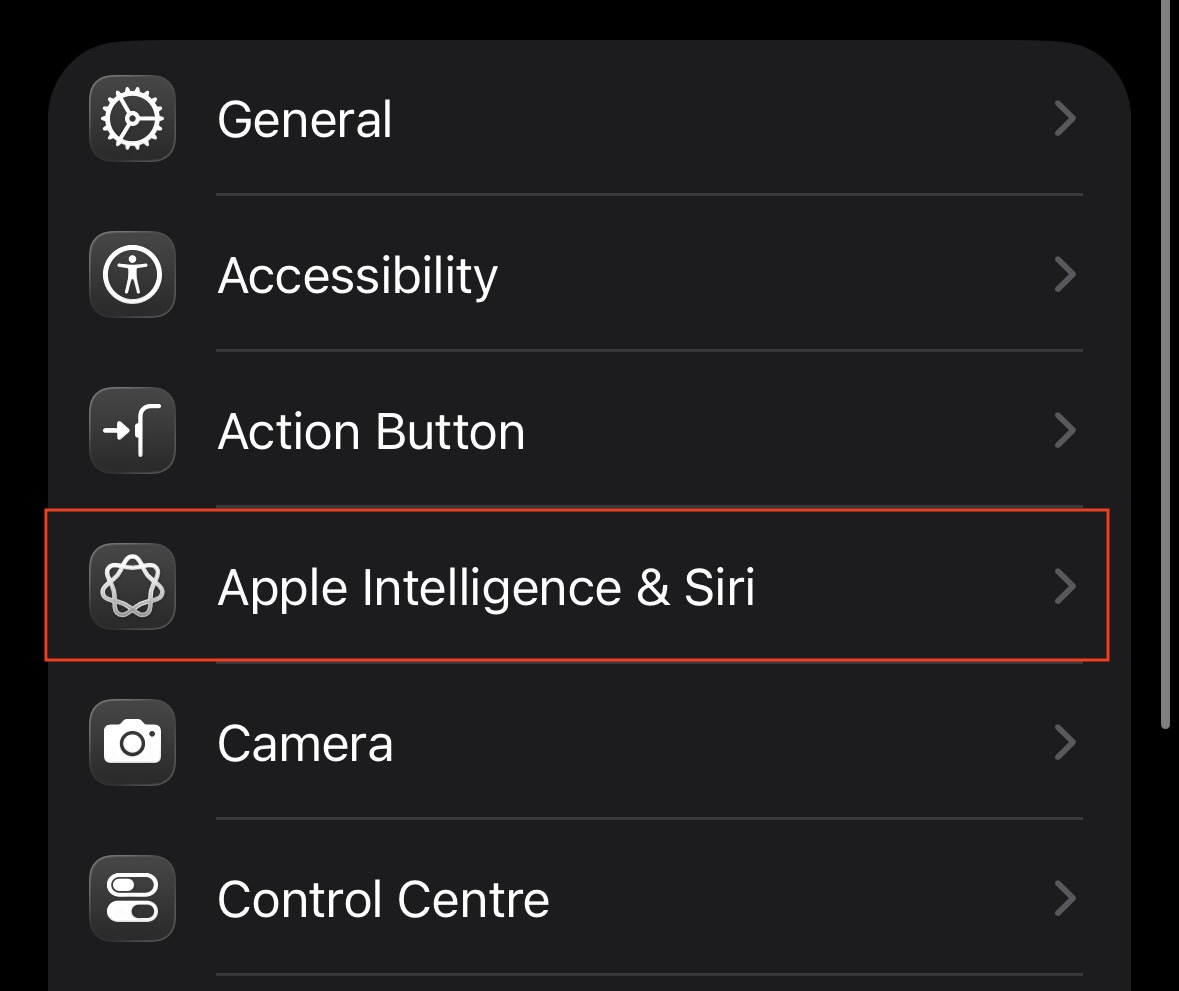
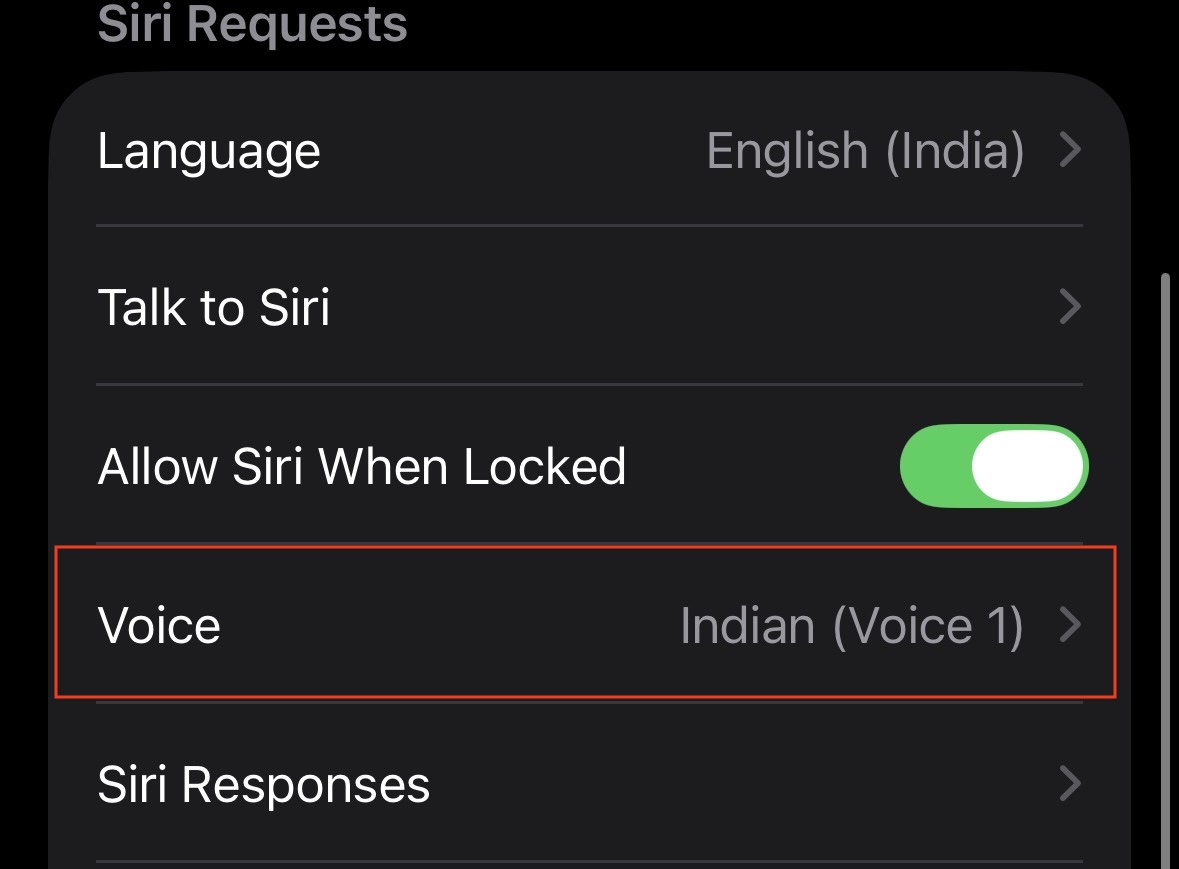
 Select the voice you want to use.
(Note: If you select a voice you haven’t used before, your phone will need to download the high-quality audio files in the background. Connect to Wi-Fi to speed this up.)
Changing the Voice on Mac
If you use your Mac for desktop-level navigation or local search guidance, you can customize the voice through your system settings.
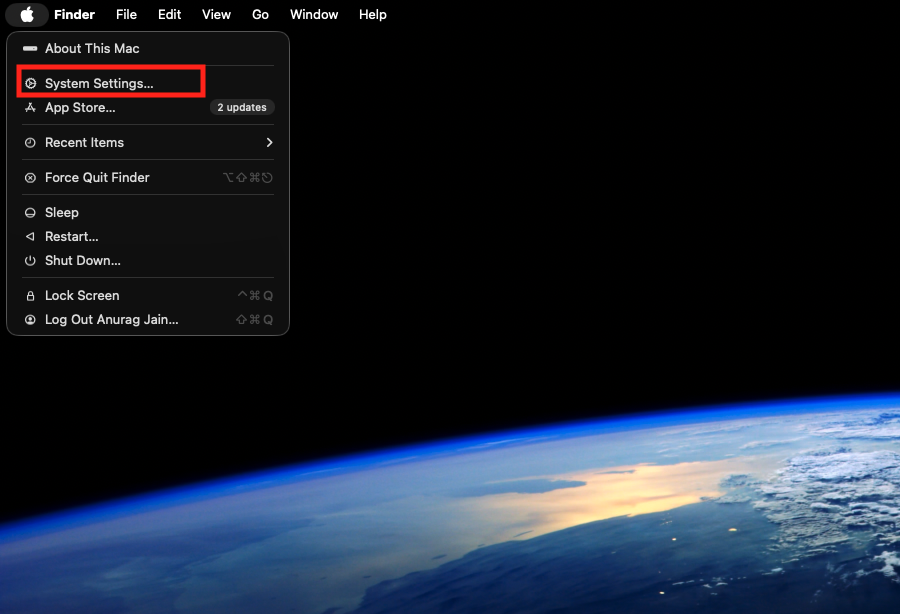
- Click the Apple Logo in the top left corner of your Mac’s menu bar.
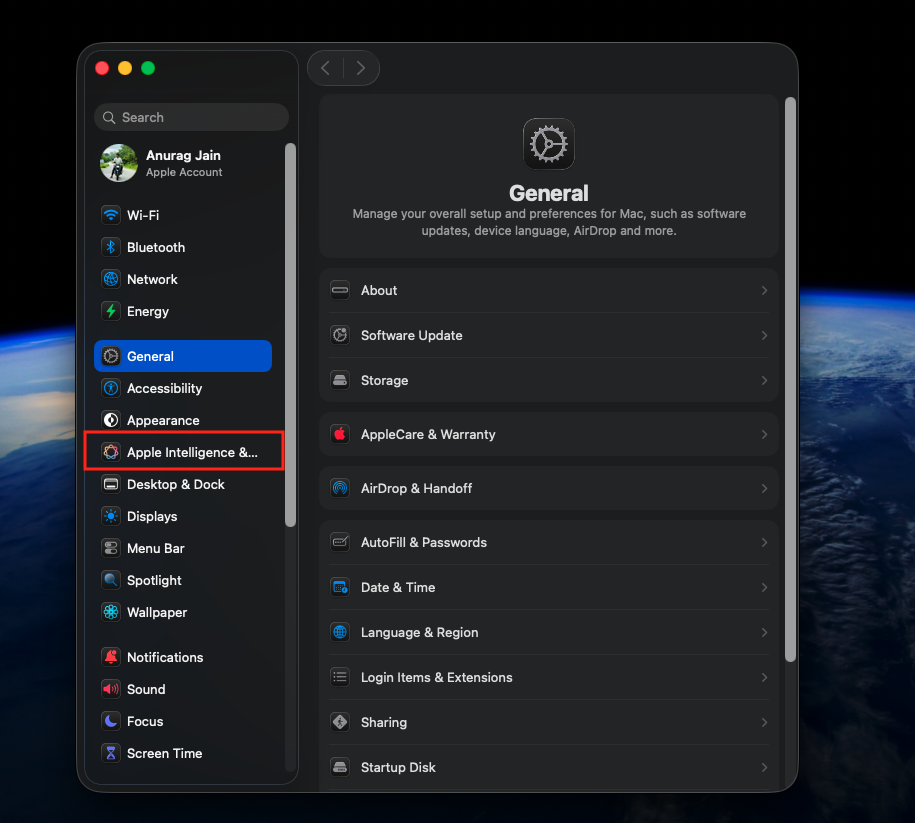
- Select System Settings (or System Preferences on older Macs).

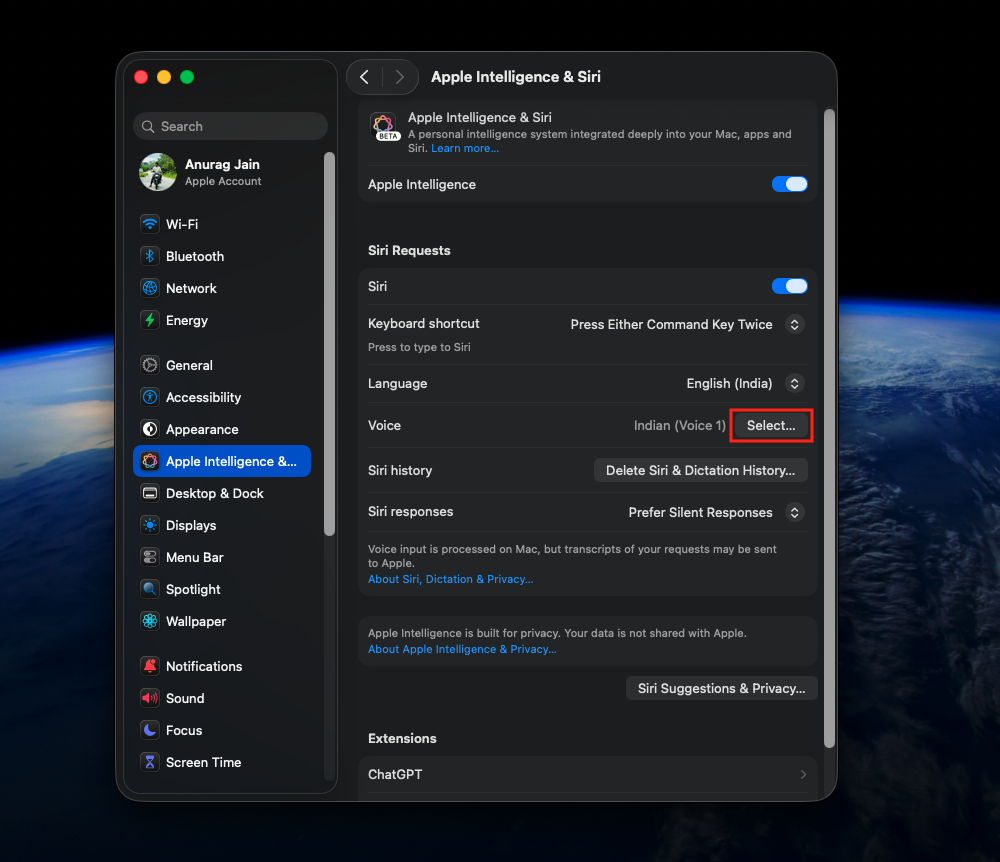
- Here, click on Apple Intelligence & Siri.

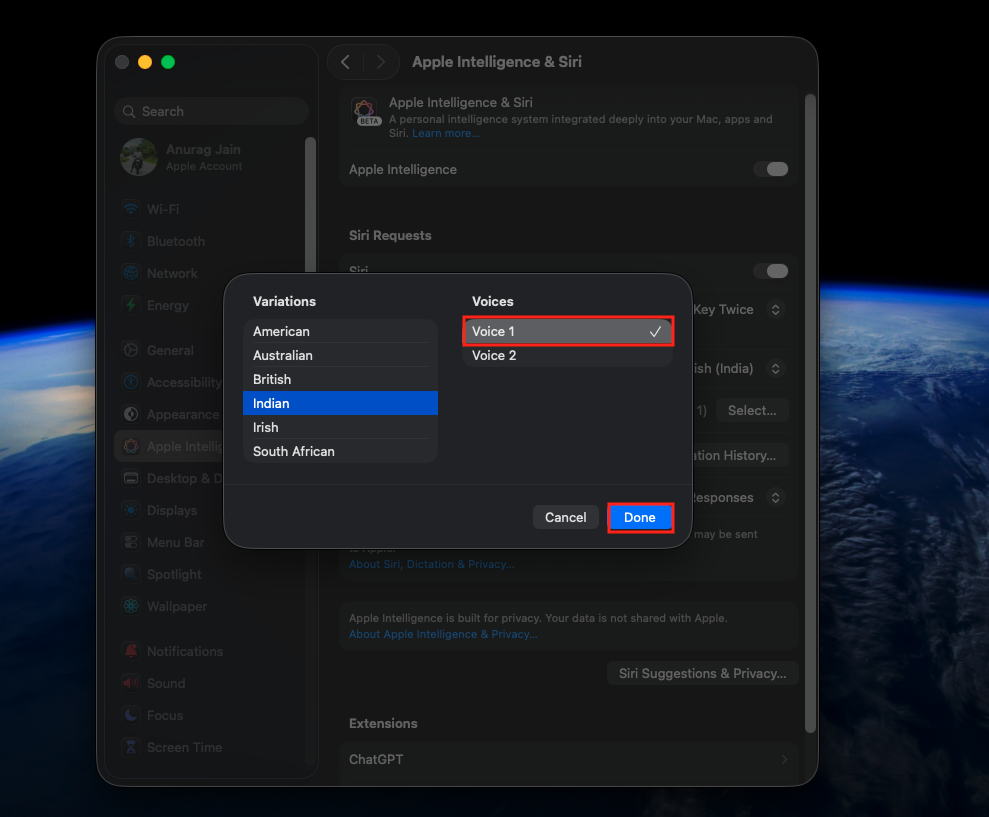
- Click on the Select Button next to Voice.

- Select your preferred accent and voice style from the list, and click on Done.

- The Mac will automatically apply this new audio profile to all spoken Maps interactions.
Changing the Voice on Apple Watch
Typically, your Apple Watch automatically mirrors the Siri settings from your paired iPhone. However, if the synchronization fails or if you want to force an update, you can change it directly on your wrist so your haptic turn-by-turn directions match your preferred voice.
- Press the digital crown on your Apple Watch to view your app grid.
- Tap the gear icon to open the Settings app.
- Scroll down and tap on Siri.
- Tap on Siri Voice.
- Use your finger or the digital crown to scroll through the available Varieties and Voices.
- Tap your preferred option to apply the new voice to your wrist-based navigation.
Quick Troubleshooting
Even if you follow all the steps perfectly, technology can sometimes be stubborn. If your navigation voice doesn’t sound right, check these two common culprits:
- The Wi-Fi Download Block: High-quality neural voices are large files. If you select a new voice on a weak cellular network, the phone will pause the download and default to a compressed, robotic-sounding voice. Connect your phone to a stable home Wi-Fi network to force the high-quality download to complete.
- Check the Maps Audio Toggle: Make sure you haven’t accidentally muted the Maps app itself. Open Apple Maps, enter a destination, and tap “Go”. Look at the right side of the screen for the speaker icon. Ensure it is not set to the “Muted” icon (a speaker with a slash through it).
Final Words
The confusion surrounding the lack of a simple audio button inside the Maps app is entirely valid, but once you understand the interconnected nature of the Apple ecosystem, taking control of your device becomes incredibly simple. By methodically updating your system-wide Siri profile, you can completely transform your driving experience.
The steps outlined above are designed to put you back in the driver’s seat of your digital experience. Once you successfully apply these settings, you can go back to focusing on the road ahead, knowing your navigation system will deliver clear and perfectly customized directions exactly when you need them.
ALSO READ:
- How to Fix Apple Pay Not Working on iPhone, iPad, or Apple Watch
- How to Hard Reset Apple Watch in 2026
- How to Jailbreak Apple Watch 2026: Step-by-Step Tutorial
- How to Fix Apple Watch Battery Draining Too Fast
- How to Factory Reset Apple Watch without Apple ID
- How to Remove and Turn off Red Dot Light on Apple Watch