

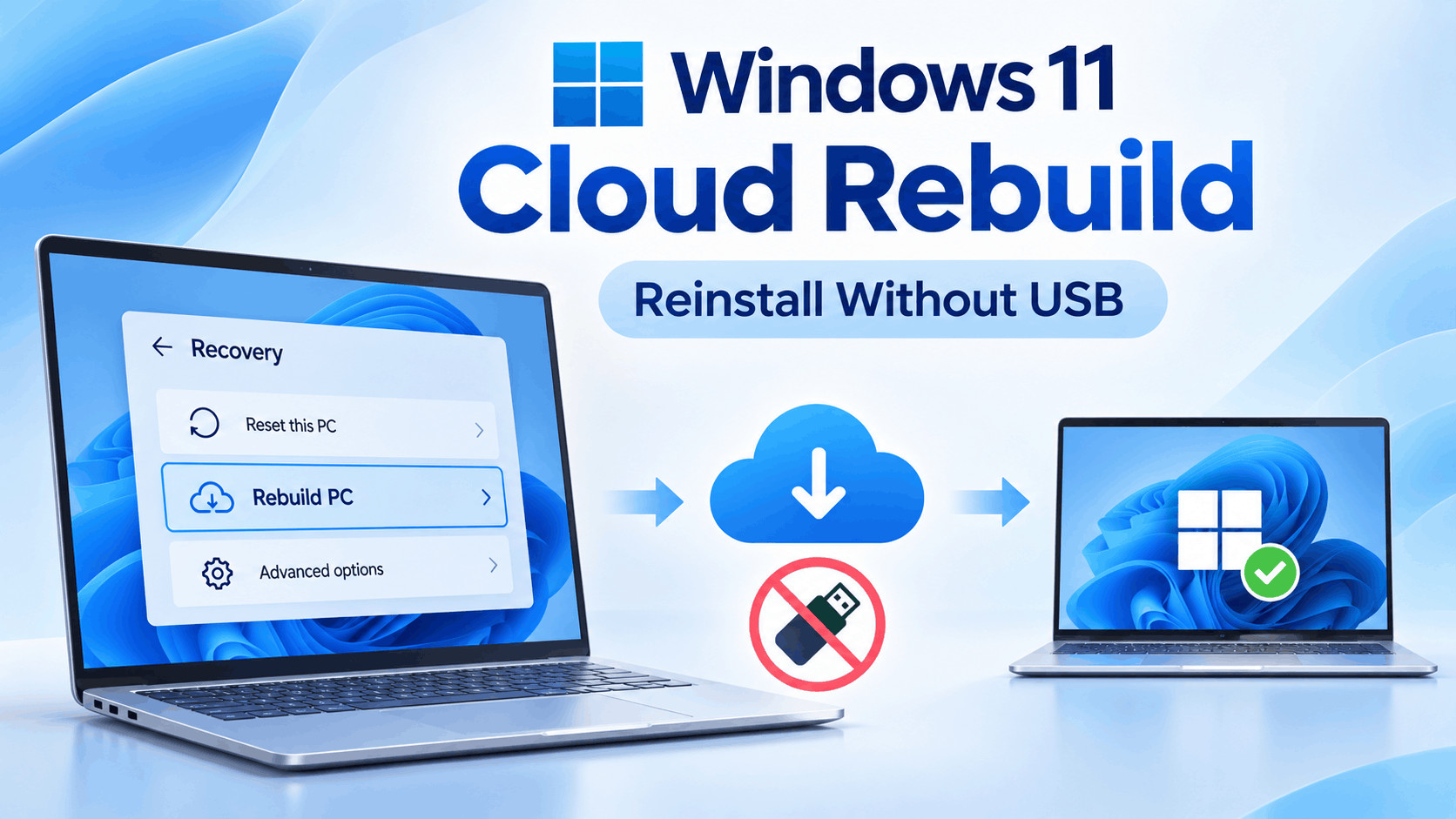
- Windows 11 Cloud Rebuild allows users to reinstall the operating system without a USB drive by downloading a fresh copy of Windows 11 and necessary drivers directly from the internet, making it useful when the computer cannot boot or has damaged recovery files.
- Introduced in the October 2026 update for Windows 11 versions 25H2 and 26H2, this feature removes all personal files, installed applications, user accounts, and settings, ensuring users back up important data before proceeding with the installation.
- The Cloud Rebuild process can be initiated through the Windows Recovery Environment, making it accessible even when the computer cannot start Windows, but it requires a stable internet connection and a functioning recovery environment to complete successfully.
Reinstalling Windows 11 usually means downloading an ISO file, creating a bootable USB drive, and going through Windows Setup. That process can become frustrating when your PC refuses to boot or its recovery files are damaged. Microsoft has introduced a new option called Cloud rebuild that makes a complete Windows reinstall possible without a USB drive.
Cloud rebuild downloads a fresh Windows 11 image and the drivers your computer needs directly from Windows Update. It works through the Windows Recovery Environment (WinRE), which means you can use it even when your existing Windows installation is too damaged to start normally.
The feature arrived with the optional KB5127936 update on October 28, 2026, for Windows 11 versions 25H2 and 26H2. It is also part of Microsoft’s wider November update cycle. Tuesday, November 10, 2026, is the scheduled Patch Tuesday, although availability can still vary by device as Microsoft gradually enables new features.
There is one particularly important detail before you begin: Cloud rebuild deletes your personal files, installed applications, user accounts, and Windows settings. Unlike some existing recovery options, it does not offer a way to keep your personal files.
Here is how Windows 11 Cloud rebuild works, how to reinstall Windows 11 without a USB drive, and what to check before using it.
What Is Cloud Rebuild in Windows 11?
Cloud rebuild is a new Windows 11 recovery feature that completely reinstalls the operating system using installation files downloaded from Windows Update. It is designed for computers with serious Windows problems, including corrupted system files, unsuccessful recovery attempts, and installations that can no longer boot.
Instead of relying on installation files already stored on your computer, Cloud rebuild retrieves a fresh Windows image and suitable device drivers over the internet.
Microsoft describes it as a way to return a computer to a clean, working Windows installation without using external installation media.
Here is what happens when you start Cloud rebuild:
- Your computer restarts into the Windows Recovery Environment.
- WinRE establishes an internet connection using Ethernet or Wi-Fi.
- Windows Update supplies the Windows installation image and required drivers.
- The recovery process removes the existing Windows installation and local user data.
- Windows 11 is installed again using the downloaded files.
- Your computer restarts into the initial Windows setup experience.
Because the process uses a fresh Windows image, it can work when the existing operating system files are badly corrupted. It also reduces the need to manually download drivers after reinstalling Windows.
However, Cloud rebuild still depends on a functioning recovery environment, compatible networking hardware, and an internet connection. It cannot repair every possible hardware or firmware problem.
Windows 11 Cloud Rebuild Availability: What’s New in November 2026?
Microsoft introduced Cloud rebuild to regular Windows 11 users through the October 28, 2026 optional preview update, KB5127936. That update applies to Windows 11 version 25H2 and version 26H2.
The update includes OS builds 26200.9818 for Windows 11 25H2 and 26300.9818 for Windows 11 26H2.
The November 10, 2026 Patch Tuesday marks the next normal cumulative update cycle following that preview. Microsoft’s release process generally moves previewed improvements into broader monthly updates, but that does not guarantee Cloud rebuild will appear on every eligible computer immediately.
Microsoft specifically identifies Cloud rebuild as a gradually rolling-out feature in the October update documentation. Users may therefore see the new Recovery option at different times, even when their computers are running the same Windows 11 version.
How to Check Whether Cloud Rebuild Is Available
You can check for the feature without changing anything on your computer.
- Step 1: Press Windows + I to open Settings.
- Step 2: Select System from the left sidebar.
- Step 3: Scroll down and open Recovery.
- Step 4: Look for an option labeled Rebuild this PC.
- Step 5: If you see Rebuild PC beside it, your computer has the new recovery entry point.
Do not click Rebuild PC simply to test the feature. Selecting it begins the recovery workflow and restarts the computer into WinRE.
If the option is missing, check Windows Update and install the latest applicable updates. You can also open Settings > System > About to confirm which Windows 11 version you have installed.
Requirements for Reinstalling Windows 11 Using Cloud Rebuild
Before trying Cloud rebuild, make sure your computer meets the necessary requirements. Having the correct Windows version alone does not guarantee that the recovery process will work.
1. A Supported Windows 11 Version
Cloud rebuild was introduced through KB5127936 for Windows 11 25H2 and 26H2. For the initial rollout described here, these are the relevant supported versions.
Older installations, including Windows 11 24H2 without the necessary feature updates, may not display the same recovery option.
2. A Working Windows Recovery Environment
Cloud rebuild runs outside the normal Windows desktop in WinRE. If the recovery environment is disabled, missing, or damaged, the procedure may fail before it can download Windows.
When Windows is working, you can check its status:
- Open Start and search for Command Prompt.
- Select Run as administrator.
- Enter reagentc /info and press Enter.
- Find the Windows RE status entry.
Ideally, the status should show Enabled. A disabled status indicates that WinRE needs attention before you rely on Cloud rebuild.
3. An Internet Connection That Works in Recovery
Cloud rebuild requires internet access because it downloads Windows and drivers from Microsoft. An Ethernet connection is usually the simplest option, especially if your computer has trouble connecting to Wi-Fi in recovery mode.
Microsoft has also introduced improvements that allow WinRE to reuse eligible saved Wi-Fi profiles, although availability depends on the update and network configuration.
A connection that works on the normal Windows desktop does not necessarily mean it will work inside WinRE. The recovery environment also needs a compatible network driver.
4. Reliable Power and Enough Storage
Keep your laptop connected to its charger throughout the procedure. A desktop should have a reliable power supply because an interruption during installation may prevent Windows from starting.
You also need sufficient usable storage for the downloaded Windows image and installation process. Microsoft does not specify one universal free-space requirement for Cloud rebuild, so avoid starting with an extremely full or failing storage drive.
Before You Start: Back Up Everything Important
This is the most important preparation step. Cloud rebuild is not a repair installation that preserves your documents. It removes personal files, apps, accounts, and settings from the Windows installation.
Before proceeding, copy anything you need to an external drive, another computer, or a cloud storage service.
Important items to back up include:
- Files stored in Desktop, Documents, Downloads, Pictures, and Videos.
- Browser bookmarks, locally saved passwords, and browser profiles that are not synchronized.
- Application data, saved games, custom software settings, and project folders.
- Email archives and local Outlook data files.
- Software license keys and installation files for paid applications.
- Files stored in separate local accounts or folders outside your usual user directory.
- BitLocker recovery keys and other recovery information.
If your files are already synchronized with OneDrive, they should remain available in your cloud account. Still, confirm that synchronization has finished and that the files can be opened from another device.
If Windows will not boot and you have important files that were never backed up, do not immediately start Cloud rebuild. Consider professional data recovery or another non-destructive method of accessing the drive first.
Method 1: How to Reinstall Windows 11 Without a USB Using Settings
This is the easiest way to use Windows 11 Cloud rebuild when your computer can still open the desktop.
It is particularly useful when Windows has serious software problems, but Settings and the recovery environment are still accessible.
Step 1: Open Windows Recovery Settings
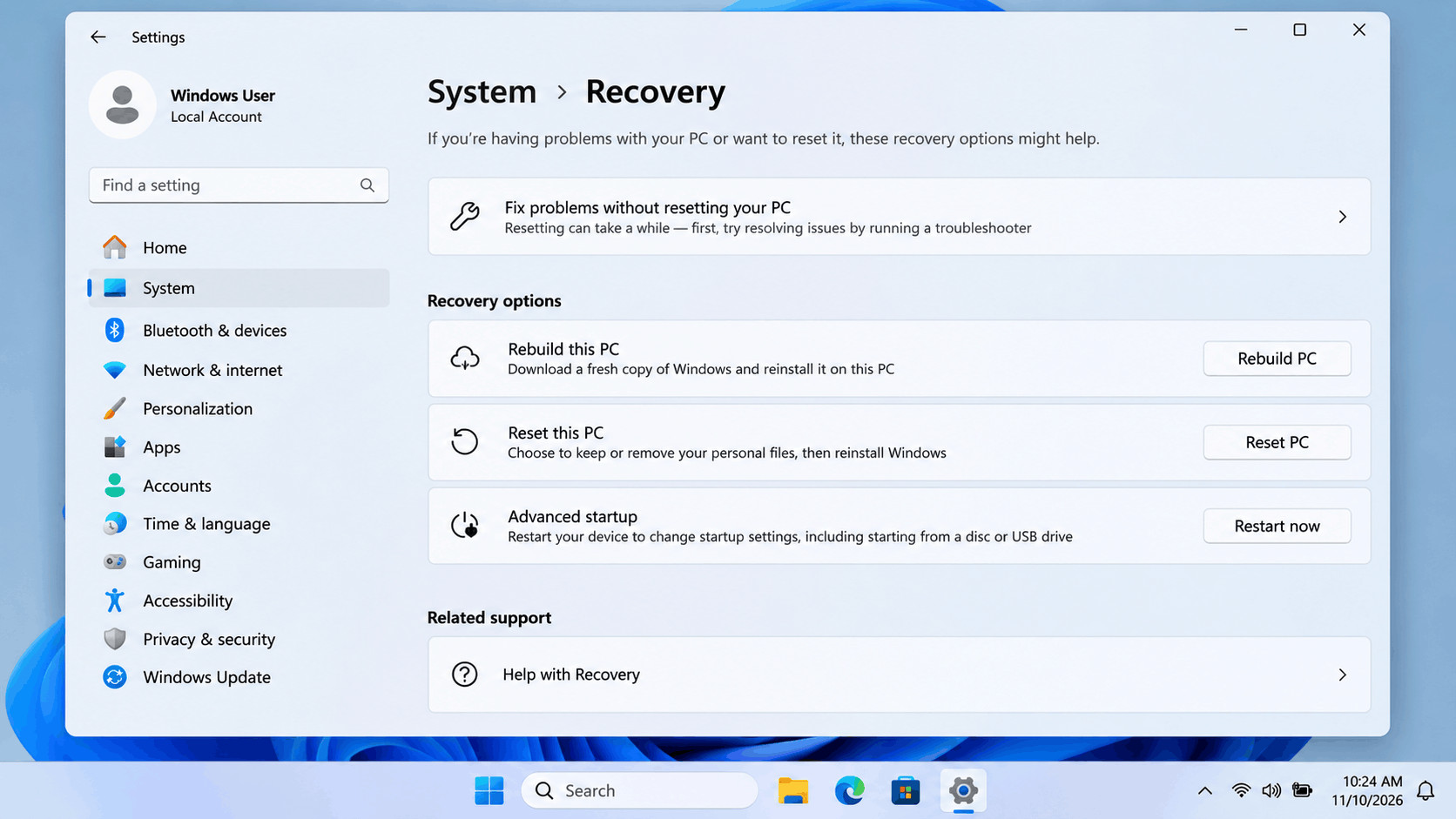
Press Windows + I to launch the Settings application.
Click System, scroll down, and select Recovery. This page contains the existing reset and repair options, along with Cloud rebuild when it is available on your device.
Step 2: Select Rebuild This PC
Find Rebuild this PC and select the Rebuild PC button.
Windows will restart your computer into the Windows Recovery Environment. You do not need to create installation media or manually enter the BIOS to start the process.
Step 3: Connect to the Internet
Once Cloud rebuild opens, it needs an active network connection.
If you are using Ethernet, the connection may be established automatically. For Wi-Fi, select the available network and enter its password if prompted.
Windows will then contact Microsoft’s services and prepare the installation information.
Step 4: Choose How to Remove Your Files
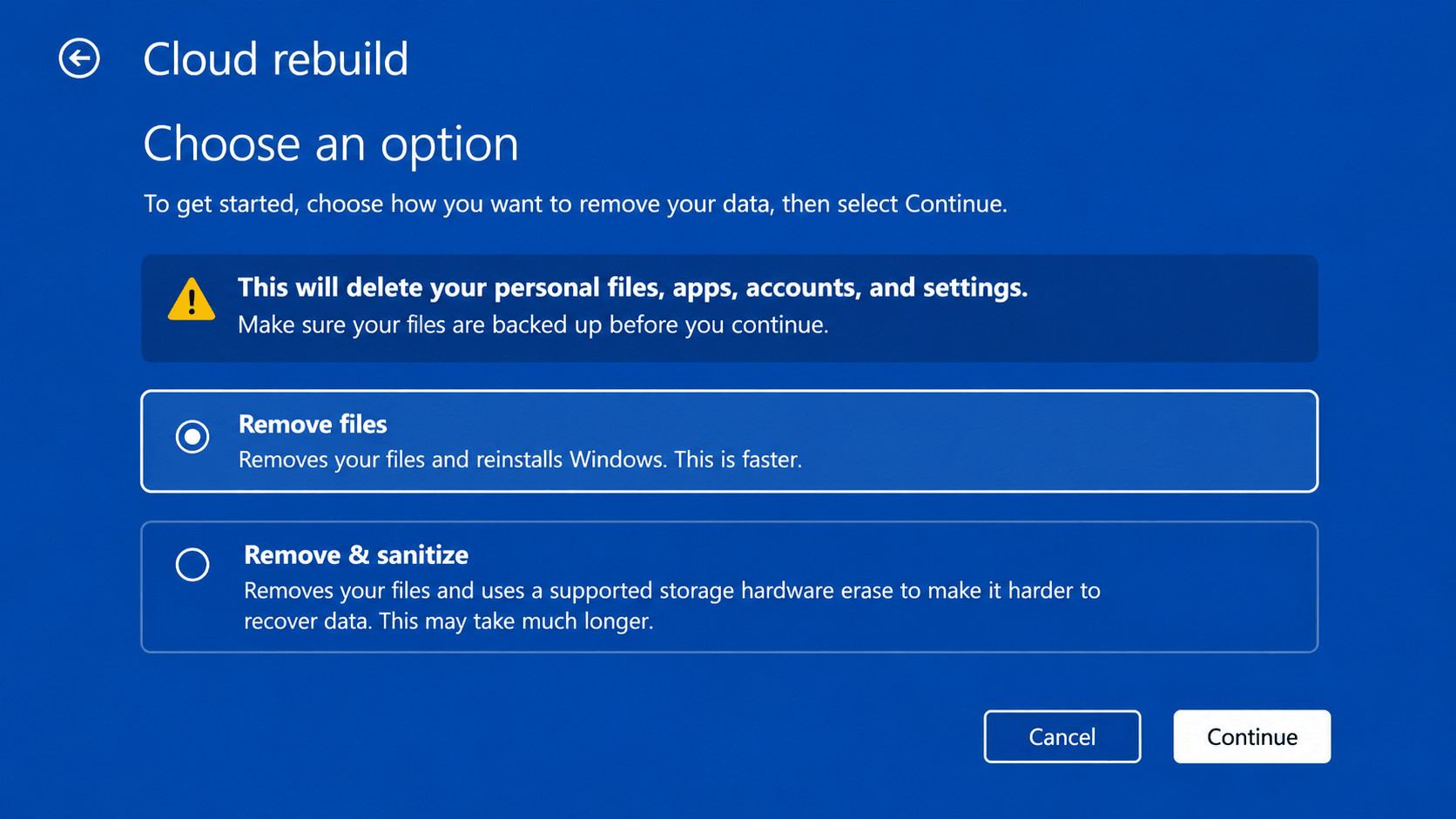
Cloud rebuild provides two main choices:
- Remove files: Removes your existing files and reinstalls Windows. This is the faster choice when you plan to keep using the computer.
- Remove & sanitize: Removes the data and uses supported storage hardware erase capabilities to make recovery much harder. This option is intended for devices being sold, returned, or recycled.
If you are simply reinstalling Windows to fix problems on your own computer, Remove files is generally the more practical choice.
Remember that both options delete your local data. The difference concerns how thoroughly the existing data is erased.
Step 5: Review the Windows Installation Details
If you selected Remove files, Windows displays information about the Windows version, edition, and language it intends to install.
Review these details carefully and read the data-loss warning before selecting Continue.
If you selected Remove & sanitize, you may also be asked whether to sanitize the Windows disk only or all disks. This distinction matters if your computer contains multiple storage drives.
Step 6: Let Windows Download and Reinstall
Cloud rebuild prepares the drive, downloads the Windows image and required drivers, and installs the operating system.
Your PC may restart multiple times. Leave it connected to power and avoid manually restarting it, even if the screen appears unchanged for a while.
The duration depends on your internet connection, storage speed, computer hardware, and whether sanitization was selected.
Step 7: Complete Windows 11 Setup
After Cloud rebuild finishes, your computer starts the initial Windows 11 setup process.
Select your region, keyboard layout, network, and account preferences as prompted. You can then sign in to your Microsoft account, restore available backups, and reinstall your applications.
Your PC should now have a fresh Windows 11 installation without requiring a bootable USB drive.
Method 2: Use Windows 11 Cloud Rebuild When Your PC Won’t Boot
One of the biggest advantages of Cloud rebuild is that it does not require Windows itself to start successfully.
If your computer is stuck in a startup repair loop, crashes before the login screen, or cannot load Windows because important system files are damaged, you may still be able to launch Cloud rebuild through WinRE.
Step 1: Enter the Windows Recovery Environment
Windows normally opens the recovery environment automatically after repeated unsuccessful startup attempts.
If you can still reach the sign-in screen, you can also hold Shift while selecting Power > Restart to access the recovery options.
For computers that cannot reach either screen, use the manufacturer-supported recovery procedure. Avoid repeatedly forcing shutdowns unless necessary, because abrupt power interruptions can create additional disk problems.
Step 2: Open Cloud Rebuild
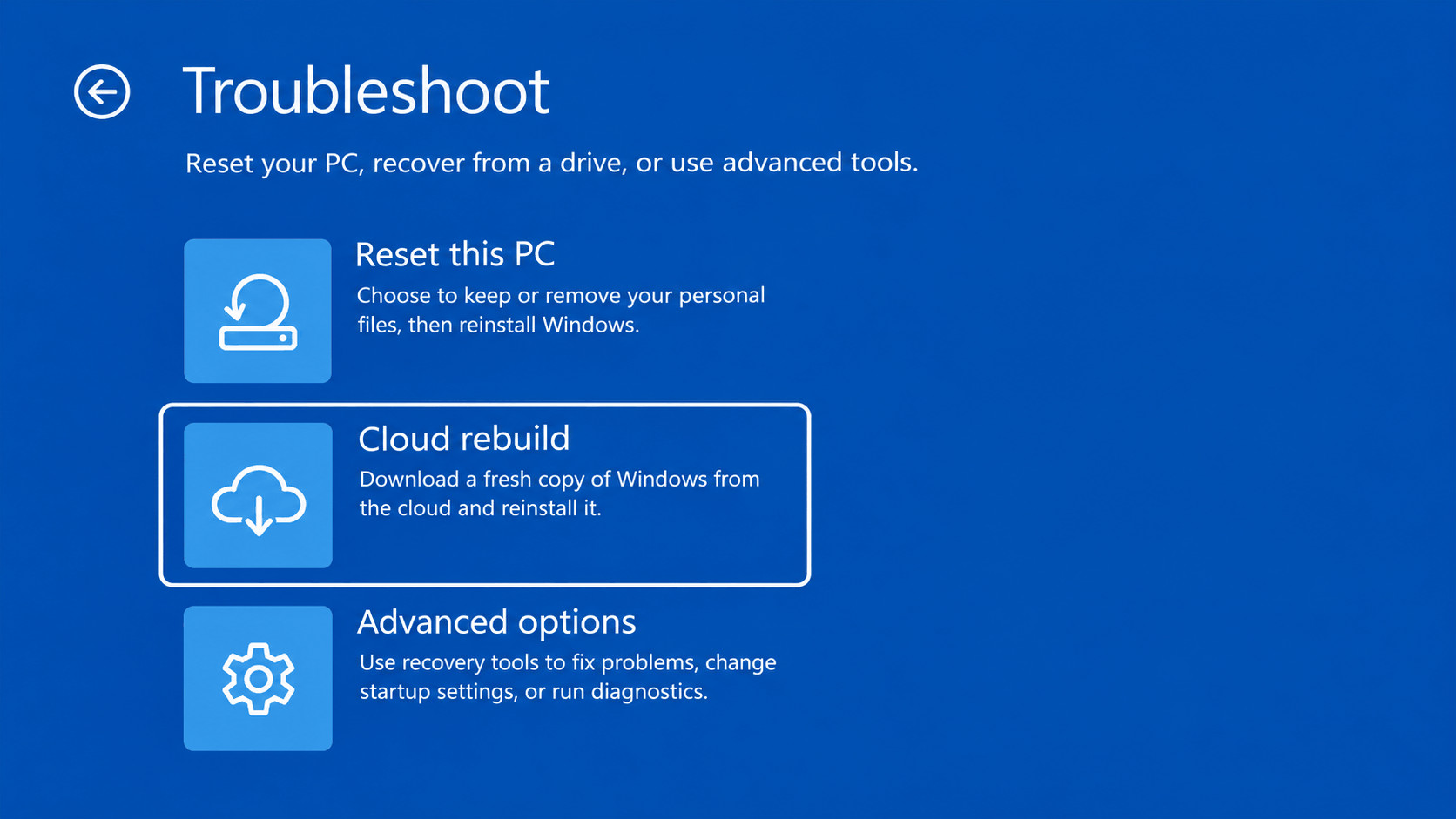
Once the Choose an option screen appears, select Troubleshoot.
Look for Cloud rebuild in the troubleshooting menu. Depending on the recovery interface version, it may appear directly under Troubleshoot or inside Recovery and uninstall.
Select Cloud rebuild to begin the recovery workflow.
Step 3: Establish a Network Connection
Connect an Ethernet cable if possible. Otherwise, choose your Wi-Fi network and enter the password when prompted.
This step is essential because the recovery environment needs to download the operating system and the appropriate device drivers.
Step 4: Select the Data Removal Option
Choose Remove files or Remove & sanitize according to your needs.
Do not continue if there are important files on the computer that have not been backed up. Cloud rebuild does not provide a keep-my-files option.
Step 5: Confirm and Reinstall Windows
Review the information presented on the confirmation screen and follow the remaining instructions.
Windows will download and install a fresh copy, then restart into the normal setup experience once the rebuild succeeds.
Important: This method only works if WinRE itself can start and access the network. If the recovery environment or storage hardware is damaged, you may still need USB installation media or recovery tools supplied by your PC manufacturer.
Remove Files vs. Remove & Sanitize: Which Should You Choose?
These two choices are easy to confuse because both remove your personal data. However, they serve different purposes.
Remove Files
The Remove files option deletes the existing local installation data and prepares the computer for a fresh Windows installation.
It is usually faster because it does not perform the additional hardware-assisted sanitization process.
However, some removed data might remain recoverable with specialized tools. Choose this option when you plan to continue using your own computer and simply want a clean installation.
Remove & Sanitize
The Remove & sanitize option is intended for situations where the computer will leave your possession.
Windows asks the storage hardware to perform its strongest supported erase operation. Depending on the storage device, the procedure may take considerably longer.
If your computer has multiple drives, Windows may offer a choice between sanitizing the Windows disk or all disks. Choosing All disks can erase personal files on drives that do not contain Windows.
Warning: Data sanitization is irreversible. Windows also cannot independently verify that the storage hardware has performed its erase operation correctly. For devices containing highly sensitive business or regulated information, follow the manufacturer’s approved secure-erasure procedures.
Cloud Rebuild vs. Reset This PC: What’s the Difference?
Windows 11 already has a Reset this PC feature that can download Windows from the cloud. So why would someone need Cloud rebuild?
The main difference is how the recovery operation works and what it preserves.
Reset This PC
Reset this PC offers two important choices: Keep my files and Remove everything.
It also allows you to choose Cloud download or Local reinstall. The cloud option downloads Windows installation files, while the local option uses files already available on the computer.
If you want to reinstall Windows without deleting your documents, Reset this PC with Keep my files is generally the better starting point.
Cloud Rebuild
Cloud rebuild is a more complete recovery process. It downloads a fresh Windows image and required drivers through WinRE rather than relying on the installed operating system’s integrity.
It also includes hardware-assisted data sanitization for users who need to prepare a device for resale, return, or recycling.
The major limitation is that it always removes personal files, user accounts, applications, and settings.
For ordinary Windows problems, try the less destructive repair options first. Cloud rebuild is more appropriate when those methods fail or you specifically need a completely fresh installation.
Cloud Rebuild Option Missing in Windows 11? Try These Fixes
If Rebuild this PC does not appear under Settings > System > Recovery, it does not necessarily mean your computer is incompatible.
1. Install the Latest Windows Updates
Open Settings > Windows Update and select Check for updates.
Install the latest applicable cumulative update and restart the computer if required. Cloud rebuild first appeared in the October 2026 preview update, and its availability may expand through subsequent updates.
After restarting, return to Recovery settings and check again.
2. Confirm Your Windows Version
Press Windows + R, type winver, and press Enter.
A window will display your Windows edition, version, and OS build. Confirm that you are running a supported Windows 11 release with the relevant recovery feature updates.
3. Check Whether WinRE Is Enabled
Open Command Prompt as administrator and run reagentc /info.
If Windows RE status shows Disabled, the recovery environment may need to be configured or repaired. Do not enable or modify recovery partitions blindly, especially on devices with encryption or custom manufacturer recovery setups.
4. Consider the Gradual Rollout
Microsoft sometimes releases Windows features in stages. Two computers with similar hardware and Windows versions can temporarily have different features available.
If your PC is fully updated and WinRE is healthy, the feature may simply not have been enabled for that device yet.
How to Fix Common Windows 11 Cloud Rebuild Errors
Because Cloud rebuild depends on networking, power, storage, and hardware compatibility, some computers may encounter an error before or during installation.
Error 0x800704C6: No Internet Connection
This error indicates that Cloud rebuild cannot access the network.
Try connecting an Ethernet cable directly to your router. If you are using Wi-Fi, confirm the network is available and that WinRE can connect to it.
After correcting the connection, select Cancel and restart Cloud rebuild from the troubleshooting menu.
Error 0x8007027F: Power Connection Required
Microsoft identifies this error as a power-related issue.
Connect the laptop to its charger and make sure the power connection is stable. Restart Cloud rebuild after the device is connected to external power.
Error 0xC1900200: Windows 11 Requirements Not Met
This error means the computer is not meeting the necessary Windows 11 hardware requirements.
One possible reason is that TPM has been disabled in the firmware settings. Depending on your computer, the relevant setting might be labeled TPM, Intel PTT, AMD fTPM, or Security Device.
Consult your manufacturer’s instructions before changing firmware settings.
This error occurs when a driver required by the computer is not available through Windows Update.
Check the manufacturer’s support website for recovery options or compatible recovery media. Some computers require manufacturer-specific storage or network drivers that a generic recovery image cannot supply.
Data Sanitization Couldn’t Be Completed
If sanitization fails, Windows may offer options to try again, skip sanitization, or copy diagnostic logs to a USB drive.
Skipping sanitization may allow Windows installation to proceed, but it does not securely erase the existing information.
If you intend to sell, return, or recycle the device, do not treat an unsuccessful sanitization as a completed secure wipe. Use a suitable manufacturer-supported erase method instead.
What Should You Do After Cloud Rebuild Finishes?
Once Windows 11 starts successfully, there are a few things worth checking before returning to normal use.
- Run Windows Update: Open Settings > Windows Update and install available security updates and drivers.
- Check Device Manager: Look for missing drivers or devices showing warning icons.
- Restore your files: Copy files back from your backup or sign in to your cloud storage account.
- Reinstall applications: Download software from official websites or trusted application stores.
- Restore Windows settings: Use available Windows Backup restoration options if you previously configured them.
- Check Windows activation: Open Settings > System > Activation and confirm that Windows is activated.
- Review security settings: Confirm that Windows Security, BitLocker or Device Encryption, and other required protections are configured correctly.
Cloud rebuild downloads drivers during installation, but you may still need additional software for certain printers, graphics cards, peripherals, and manufacturer-specific features.
Frequently Asked Questions
Can I reinstall Windows 11 without a USB drive in 2026?
Yes. Windows 11 offers several USB-free recovery methods, including Reset this PC, reinstalling through Windows Update, and the newer Cloud rebuild feature. Cloud rebuild can perform a complete reinstall even when the existing Windows installation will not start, provided WinRE and networking still work.
Does Windows 11 Cloud rebuild delete everything?
Yes. Cloud rebuild removes personal files, applications, accounts, and settings from the Windows installation. The optional sanitization process can erase additional disks depending on the option you select. Back up important information before proceeding.
Is Cloud rebuild available in Windows 11 24H2?
The October 2026 KB5127936 release introduced Cloud rebuild for Windows 11 versions 25H2 and 26H2. Users running 24H2 should not assume the same option is available. Check for an eligible Windows feature update if your device supports a newer release.
Can Cloud rebuild fix a Windows 11 PC stuck on a black screen?
Potentially. If the black screen results from serious Windows corruption, Cloud rebuild may resolve the software problem by reinstalling the operating system. However, it will not fix a defective display, failing graphics hardware, or other physical problems.
Does Cloud rebuild need an internet connection?
Yes. The feature downloads Windows installation files and required drivers from Windows Update. A working Ethernet or Wi-Fi connection must be available inside the Windows Recovery Environment.
How long does Windows 11 Cloud rebuild take?
There is no fixed completion time. It depends on download speed, computer performance, storage hardware, and the selected data removal method. Sanitization can add considerable time, particularly when multiple large disks are involved.
Is Cloud rebuild the same as Cloud download in Reset this PC?
No. Cloud download is an installation-source option within Reset this PC, which can preserve personal files. Cloud rebuild is a separate recovery process that downloads Windows and drivers, runs through WinRE, and always removes the existing local installation data.
Can I use Cloud rebuild without signing into Windows?
Yes. If Windows cannot start, Cloud rebuild can be launched from WinRE without first signing into the normal Windows desktop. However, access to certain recovery features may require additional authentication or recovery information, particularly on encrypted or managed computers.
Is KB5127936 required for Cloud rebuild?
KB5127936 introduced the feature through the October 2026 optional preview update. Microsoft says Cloud rebuild requires the October 2026 non-security update or a later applicable update. You do not necessarily need to install that exact preview package if a newer cumulative update already includes the relevant changes.
Final Thoughts
Windows 11 Cloud rebuild is a useful addition to Microsoft’s recovery tools, particularly for computers with badly corrupted installations that cannot be repaired using ordinary troubleshooting methods.
With the October 2026 preview update and the November update cycle, more eligible Windows 11 25H2 and 26H2 devices can access a recovery process that downloads Windows and drivers without requiring a bootable USB drive.
To use it, open Settings > System > Recovery > Rebuild PC, or launch Cloud rebuild from the Windows Recovery Environment if your computer cannot boot.
Just remember that convenience comes with a significant trade-off. Cloud rebuild removes your local files, apps, accounts, and settings, while its optional data sanitization feature is irreversible. If your goal is simply to repair Windows without losing personal files, try the less destructive recovery options first.
For situations where a complete Windows reinstall is necessary, Cloud rebuild provides a practical way to start fresh without preparing installation media.