- After updating to Google Photos v7.97.0, users may experience crashing, app freezing, and problems with the Magic Eraser tool. Google Photos is crucial for managing and editing photos, so these problems can be troublesome.
- Possible reasons for these issues include corrupted files, incomplete tool downloads, insufficient storage, or software compatibility problems. A stable internet connection is also necessary for some features to work smoothly.
- To fix these problems, try updating Google Photos to its latest version, clearing app cache if you're on Android, restarting your phone, or ensuring enough storage space. As a temporary solution, you can use Google Photos on the web for photo access while waiting for Google to address the issue.
Is Google Photos crashing, freezing, or closing unexpectedly after the v7.97.0 update? You might also notice that Magic Eraser is not working, photo editing gets stuck on processing, or the app becomes unresponsive when you try to save an edited picture.
These problems can be especially frustrating when you rely on Google Photos to manage your pictures, back up important memories, or remove unwanted objects from photos. Fortunately, several troubleshooting methods can help restore normal functionality without risking your photo library.
Google Photos has experienced editing-related bugs before, including an issue in September 2026 that made editing, sharing, and deleting controls unresponsive. Google fixed that earlier issue in version 7.94.0.988717361. However, that does not establish that the newer v7.97.0 release has the same defect.
As of October 26, 2026, there is no confirmed widespread issue officially attributed to Google Photos v7.97.0 that affects both app stability and Magic Eraser. Nevertheless, if your problems started after installing this version, the following fixes are worth trying.
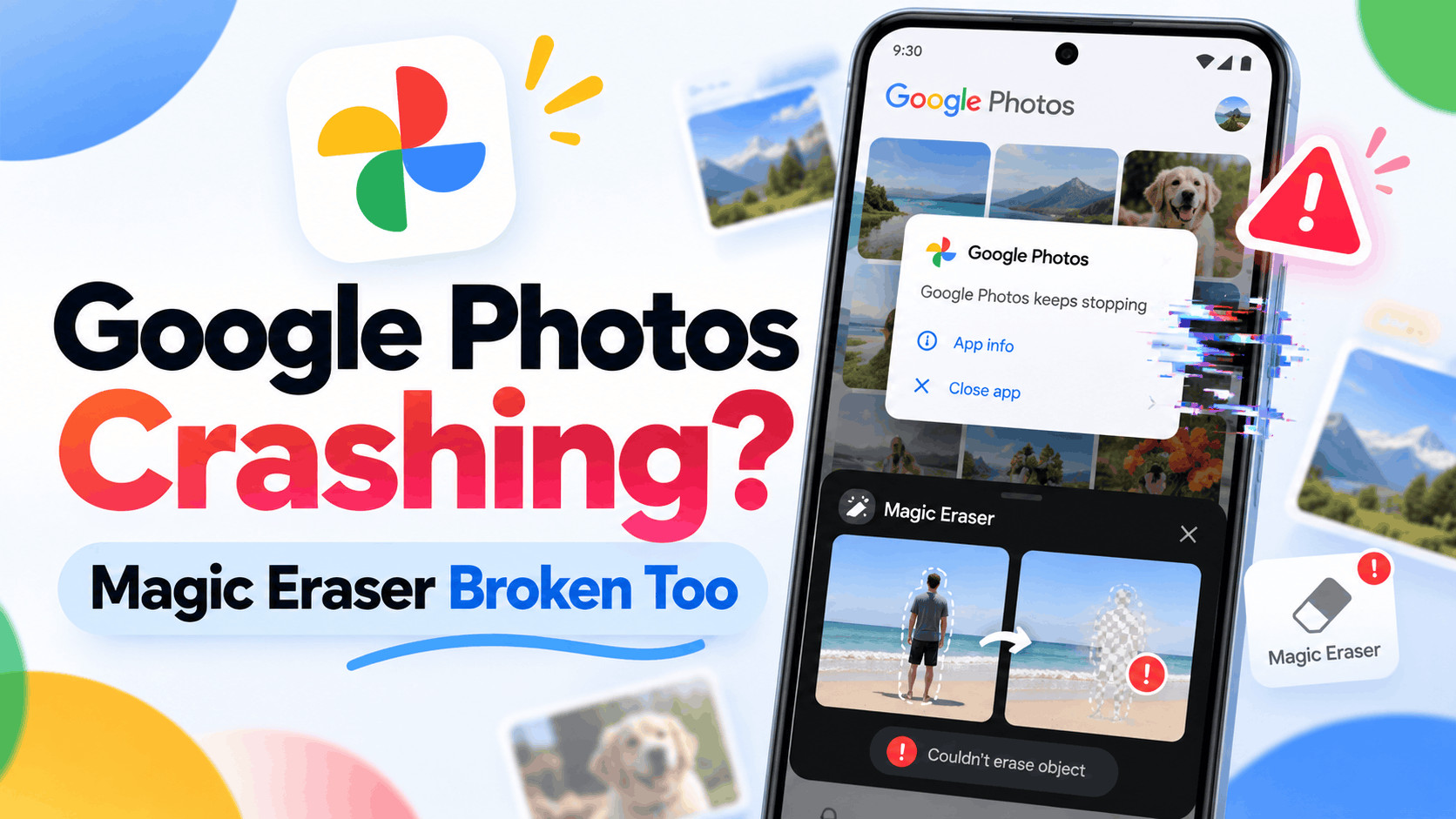
Why Is Google Photos Crashing After the v7.97.0 Update?
Google Photos receives frequent updates that improve performance, introduce editing features, and address existing bugs. Occasionally, an update can expose compatibility problems or interfere with temporary files used by the application.
If Google Photos started crashing after updating to v7.97.0, several possible explanations should be considered.
- Corrupted app cache: Temporary files left behind after an update may interfere with normal app operations.
- Incomplete feature downloads: Certain editing tools require additional components that may not have downloaded correctly.
- Software compatibility: A problem involving the installed Android or iOS version could cause unexpected behavior.
- Insufficient storage: Limited free space can prevent Google Photos from processing images or saving edits.
- Temporary application bugs: An issue in a particular app build may affect specific devices or editing functions.
- Network interruptions: Some editing operations and feature downloads depend on a working internet connection.
The symptoms can also help identify the cause. An app that crashes immediately after opening may have a different problem from one that works normally until Magic Eraser is selected.
1. Update Google Photos to the Latest Available Version
The first thing to check is whether Google has released another update. Installing a newer version may resolve a compatibility issue without requiring you to change application settings.
Google Photos v7.97.0 was released for iOS in October 2026, and version 7.98.0 has subsequently appeared on the App Store. However, update availability and version numbers can vary between Android and iOS.
On Android
- Open the Google Play Store.
- Search for Google Photos.
- Select the official Google Photos application published by Google LLC.
- Tap Update if an update is available.
- Restart the application after the installation finishes.
On iPhone
- Open the App Store.
- Search for Google Photos.
- Open its listing and check for an Update button.
- Install the available update.
- Launch Google Photos and test the editing tools again.
If the store only displays Open, there may not be a newer version available for your device. Avoid installing unofficial APK files or modified versions simply to obtain a different release.
2. Force Stop Google Photos and Restart Your Phone
If Google Photos keeps crashing after the update, restarting the app is one of the simplest fixes. This closes the current application process and allows the operating system to launch a fresh session.
For Android Users
- Open Settings on your phone.
- Navigate to Apps and select Google Photos.
- Tap Force stop.
- Confirm the action if prompted.
- Restart your phone and open Google Photos again.
For iPhone Users
- Open the App Switcher by swiping up from the bottom and pausing, or double-clicking the Home button on supported devices.
- Find Google Photos.
- Swipe its preview upward to close it.
- Restart your iPhone.
- Reopen Google Photos.
Restarting can resolve temporary memory and process-related errors. However, if the problem is caused by a bug in the installed version, it may return until Google releases a fix.
3. Clear Google Photos Cache on Android
Corrupted cached files are another possible reason Google Photos stops responding or crashes while editing pictures.
The application stores temporary files to load images and features more efficiently. Clearing this cache forces Google Photos to recreate temporary resources that may have become outdated.
- Open Settings.
- Go to Apps and select Google Photos.
- Tap Storage & cache or Storage, depending on your phone.
- Select Clear cache.
- Reopen Google Photos.
- Try editing a picture or using Magic Eraser.
Important: Clearing cache is different from clearing app storage or app data. Do not select Clear storage or Clear data as a routine troubleshooting step.
Google warns that clearing application data can permanently remove items stored in Locked Folder if those items have not been backed up. Uninstalling the application can have similar consequences.
4. Fix Google Photos Magic Eraser Not Working
Magic Eraser is one of the most useful editing features in Google Photos. It helps remove unwanted objects and distractions from an image, such as people in the background or objects that spoil a picture.
Sometimes Magic Eraser may become stuck on a loading animation, fail to process an image, or crash the application during editing. The issue may involve downloaded editing components, available storage, or the particular photo being processed.
Try Opening Magic Eraser Again
- Open Google Photos.
- Select a photo you want to edit.
- Tap Edit.
- Look under Actions for Magic Eraser, or use the editor’s Search option to find it.
- Select an unwanted object using the available selection tools.
- Tap Erase and check whether the operation completes.
If Magic Eraser is missing, remember that Google has changed the layout of its editing interface over time. The tool may be accessible through a different menu rather than having been removed.
Check Whether an Editing Tool Needs Downloading
Some Google Photos editing tools require additional downloads. If the app displays a download prompt, connect to reliable Wi-Fi and allow the process to finish.
On supported devices, Google Photos may require you to close and reopen the editor after installing an editing tool. Also ensure that your phone has enough free storage to accommodate downloaded components.
Test Another Photo
Try Magic Eraser on a simple image containing a clearly visible object against a relatively plain background.
If Magic Eraser works on the second image, the original photo may be unusually large, unsupported in some way, or difficult for the editing tool to process. Try making a copy or using a smaller image to narrow down the problem.
5. Check Your Phone’s Available Storage
Google Photos requires working storage for thumbnails, temporary processing files, downloaded editing tools, and saved images.
When your device is nearly full, some editing operations may fail even if you can still browse your photos.
On Android
- Open Settings.
- Select Storage.
- Check the available internal storage.
- Remove unnecessary downloads or applications if space is low.
- Restart Google Photos and test it again.
On iPhone
- Open Settings.
- Go to General.
- Select iPhone Storage.
- Review the available space.
- Remove unnecessary files or unused applications if needed.
Keeping several gigabytes free is a useful general practice, especially when editing high-resolution photographs. However, there is no specific free-space threshold that guarantees Magic Eraser will work.
Be careful when deleting images to free up space. Deleting a picture through Google Photos can also remove its backed-up copy from your Google Photos library.
6. Check Your Internet Connection and Downloaded Features
Although Google Photos can display locally stored pictures without an internet connection, certain features rely on cloud services or additional downloads.
If Magic Eraser remains stuck on processing, test whether your connection is contributing to the issue.
- Connect your phone to a stable Wi-Fi network.
- Disable any VPN temporarily and retry.
- Switch between Wi-Fi and mobile data to compare results.
- Turn off Data Saver temporarily if it restricts downloads.
- Disable Battery Saver briefly while testing the editor.
- Reopen Google Photos and try the same image again.
If the problem only happens on one network, investigate that connection. If it occurs on multiple networks, an application or device-related issue is more likely.
These checks are particularly useful when Magic Eraser is stuck downloading components or preparing an edit. They are less likely to resolve an immediate crash caused by a software defect.
7. Check for Android or iOS Software Updates
Compatibility problems between an updated application and the phone’s operating system can occasionally lead to instability.
Installing available system updates may help because they can include bug fixes, security patches, and improvements to underlying system components.
Android
- Open Settings.
- Select System and then Software updates, or the equivalent option on your device.
- Check for available updates.
- Install an update if available.
- Restart your device.
iPhone
- Open Settings.
- Navigate to General.
- Select Software Update.
- Install an available compatible update.
- Restart your iPhone and check Google Photos.
Only install official stable releases unless you intentionally participate in beta testing. A system update may improve compatibility, but it cannot guarantee a fix for an application-specific bug.
8. Check Your Backup Before Reinstalling Google Photos
Reinstalling an app can sometimes correct damaged installation files. However, Google Photos deserves special caution because it may contain pictures that are not stored anywhere else.
Before removing the application, open Google Photos and tap your profile picture. Check that your backup status reads Backup complete.
You should also visit Google Photos in a web browser to verify that your important backed-up pictures are actually available in your account.
Pay particular attention to Locked Folder. Locked Folder backup is a separate setting, and items stored there may not be included in your normal photo backup.
If Locked Folder backup is disabled, uninstalling Google Photos or clearing its app data can permanently delete those unbacked-up items.
For that reason, reinstalling should be a last resort, performed only after independently verifying your important pictures and Locked Folder contents are safely backed up.
9. Use Google Photos on the Web as a Temporary Workaround
If Google Photos continues crashing but you urgently need to access your pictures, the web version is a useful alternative.
- Open a browser on your phone or computer.
- Visit photos.google.com.
- Sign in using the same Google Account.
- Open your backed-up photo library.
- Download, share, organize, or access your available pictures.
Google previously recommended using the web version to share or delete pictures while an editing-related Android bug was being fixed in September 2026.
Keep in mind that the browser version does not offer every mobile editing feature. In particular, you should not expect the full Magic Eraser experience to be available through the website.
Also, photos that were never backed up may not appear on the web.
What If Google Photos Still Crashes After Trying These Fixes?
If none of these solutions work, determine whether the application crashes immediately or only while using a specific feature.
- Crashes immediately: Check available storage, restart your device, install updates, and clear cache on Android.
- Crashes during Magic Eraser: Test another image, verify editing downloads, and compare Wi-Fi and mobile data.
- Freezes after saving: Try Save as copy where available, then reopen the image.
- Editing buttons stop responding: Close and reopen the editor, and check for another application update.
- Only a modified APK crashes: Test the official Google Photos application, since third-party modifications can introduce separate compatibility problems.
If you can open the application, submit feedback through the Google Photos Help & feedback section. Include your device model, operating system version, installed Google Photos version, and the exact steps that trigger the crash.
These details can help distinguish a widespread application bug from a problem affecting one device or installation.
How to Prevent Google Photos Crashes in Future Updates
Although not every application bug can be prevented, a few habits can reduce troubleshooting difficulties and protect your data.
- Keep Google Photos updated through the official app store.
- Maintain enough free storage for photo editing.
- Verify that important pictures are backed up regularly.
- Check Locked Folder backup separately.
- Avoid unofficial or modified Google Photos builds.
- Keep your phone’s operating system updated.
- Do not clear application data without checking for locally stored content.
Most importantly, remember that updating an application and deleting its stored data are very different actions. An update is generally routine, while removing application data can have consequences for content stored only on your device.
Frequently Asked Questions
Is Google Photos v7.97.0 causing crashes?
Crashes may occur on devices running v7.97.0, but there is no confirmed widespread defect officially attributed to this release as of October 26, 2026. Check for newer updates and rule out temporary cache, storage, and compatibility problems before assuming the update itself is responsible.
Why is Magic Eraser not working after updating Google Photos?
Magic Eraser may fail because of an incomplete editing-tool download, insufficient storage, temporary application errors, or an issue processing a particular image. Restarting the app, checking available downloads, and testing another picture can help identify the cause.
Will clearing Google Photos cache delete my pictures?
Clearing the cache on Android normally removes temporary application files rather than your photo library. However, clearing app storage or data is different and may delete unbacked-up Locked Folder items. Always select Clear cache rather than Clear data when performing basic troubleshooting.
Can I downgrade Google Photos to an older version?
There is no generally recommended official downgrade process for Google Photos. Installing older APKs from third-party sources can introduce security and compatibility risks. Waiting for an official update is usually safer, especially if you store important pictures in the application.
Is Magic Eraser free in Google Photos?
Magic Eraser is available without a Google One subscription on supported devices. However, availability depends on device compatibility and the feature’s requirements. Other editing features may have different eligibility conditions or usage limits.
Does reinstalling Google Photos delete backed-up photos?
Photos successfully backed up to your Google Account should remain accessible after reinstalling and signing into the same account. However, locally stored content and unbacked-up Locked Folder items may be lost. Verify your backups before uninstalling the application.
Final Thoughts
If Google Photos is crashing after the v7.97.0 update or Magic Eraser has stopped working, begin with the least disruptive fixes. Check for another app update, restart your phone, clear the Android cache, verify available storage, and test the editing tool with another image.
For Magic Eraser problems, checking feature downloads and testing your internet connection may also help. If the issue persists across different photos and networks, it could require an application-level fix from Google.
Above all, avoid clearing Google Photos data or uninstalling the application without verifying your backups, particularly if you use Locked Folder. Protecting your pictures is more important than rushing through a troubleshooting method that could permanently remove them.