- Instagram might show “You Can’t Follow Accounts Right Now” if you follow or unfollow too many people quickly, your app session has problems, or your account reaches the 7,500 accounts limit, which can be fixed by trying different solutions.
- To fix this, stop rapidly following or unfollowing, update or reinstall the Instagram app, check your account status, clear the app cache on Android, or switch off connections like VPNs that change your network frequently.
- If issues persist, report the problem to Instagram with detailed information; avoid using unauthorized third-party apps to fix the follow limit, as they can add complications rather than solve the issue.
If Instagram suddenly shows “You Can’t Follow Accounts Right Now”, “Try Again Later”, or an “Unexpected Error” when you tap the Follow button, repeatedly trying the same action usually makes the problem worse rather than fixing it.
These errors can appear because Instagram has temporarily limited an account action, your app session is malfunctioning, the network connection is interfering with requests, or Instagram has detected unusual activity. In some cases, the problem is as simple as reaching Instagram’s maximum following limit.
This guide explains the practical ways to fix Instagram not letting you follow accounts on Android, iPhone, and the web, including what to do when the Follow button immediately changes back.
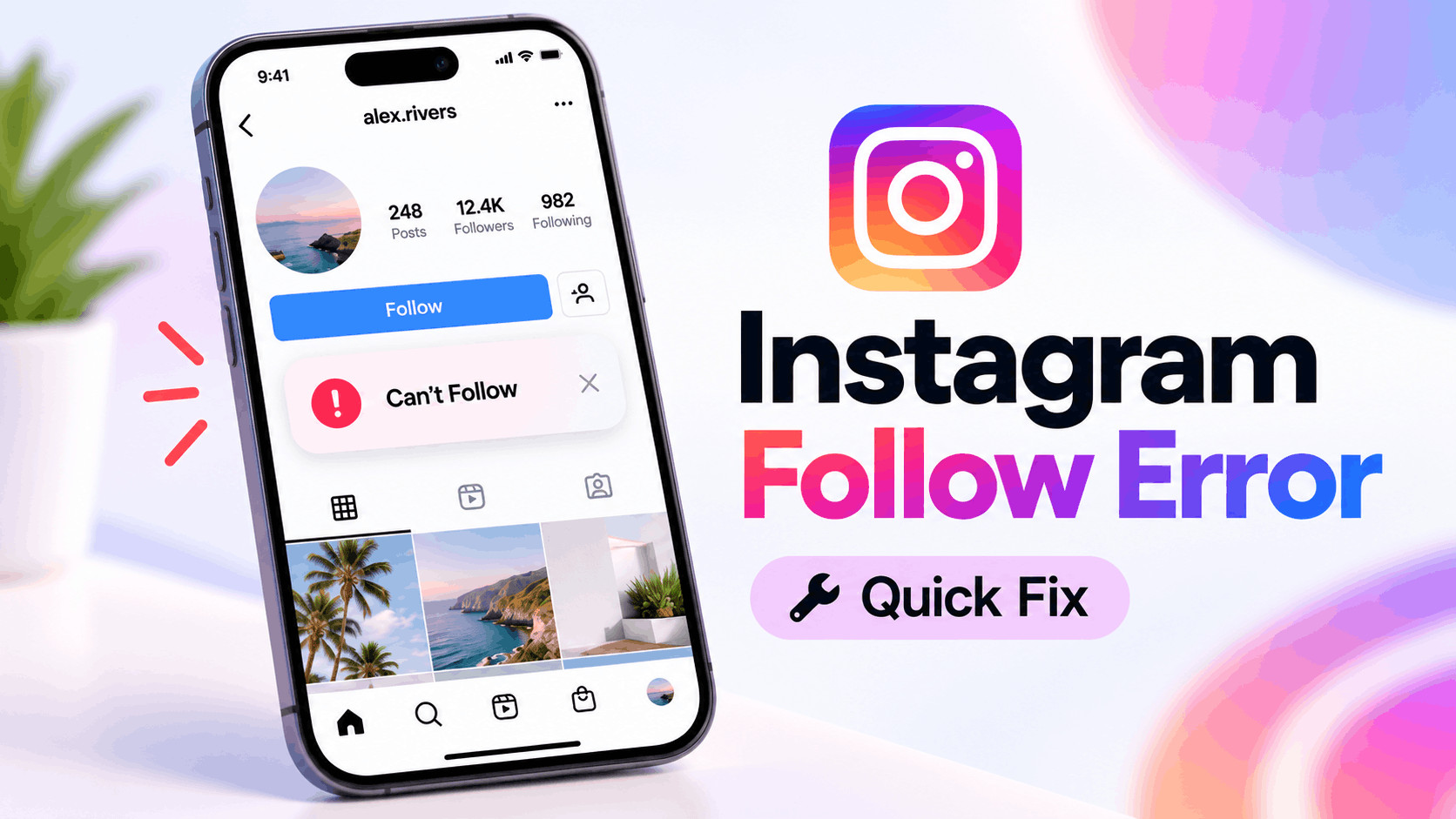
Why Does Instagram Say “You Can’t Follow Accounts Right Now”?
Instagram uses automated systems to limit activity that resembles spam, automation, or unusually fast account actions. Meta does not publish a fixed number of follows that every account can perform per hour or per day, so claims that there is one universal daily Instagram follow limit should be treated cautiously.
However, Instagram officially limits accounts to following a maximum of 7,500 accounts. If you have reached that number, Instagram will display an error when you attempt to follow more people.
The error can also occur because of:
- Following or unfollowing many accounts within a short period
- Repeatedly tapping Follow after requests fail
- A temporary restriction on your Instagram account
- Using follower, unfollower, growth, or automation services
- An expired or corrupted Instagram login session
- An outdated or buggy Instagram app
- VPN, proxy, DNS, or network problems
- A temporary Instagram server-side issue
- Reaching the 7,500-account following limit
1. Stop Following Accounts for a While
If the error appeared after you followed several accounts quickly, the first thing to do is stop performing follow and unfollow actions. Constantly tapping Follow, switching accounts, or repeatedly retrying the action is unlikely to remove a temporary restriction.
Meta’s systems can temporarily block features when activity is performed too quickly. Meta itself displays temporary-block messages stating that a feature may be restricted when it appears to be used too fast.
Close Instagram and avoid mass following, unfollowing, liking, or commenting for some time. You can continue using Instagram normally, but avoid repeatedly testing the Follow button every few minutes.
There is no officially documented universal duration for these temporary follow restrictions. Some restrictions disappear relatively quickly, while others may remain longer depending on the account and activity that triggered them.
2. Check Whether You Are Following 7,500 Accounts
This is one of the easiest causes to verify. Open your Instagram profile and check the number displayed next to Following.
Instagram officially prevents users from following more than 7,500 accounts as an anti-spam measure.
If your Following count is already around 7,500:
- Open your profile.
- Tap Following.
- Unfollow accounts you no longer want to follow.
- Wait briefly for Instagram to synchronize your account.
- Try following the new account again.
Do not rapidly unfollow hundreds of accounts to create space. Large bursts of follow and unfollow activity can themselves look unusual.
3. Check Your Instagram Account Status
If basic troubleshooting does not work, check whether Instagram has flagged something associated with your account.
Open Instagram and go to your Profile, tap the menu icon, and look for Account Status or the corresponding option under your account settings. Menu names can change slightly between Instagram versions.
Review any warnings, removed content, feature restrictions, or actions Instagram asks you to complete. If Instagram provides an option to request a review of a decision, use the built-in review process rather than repeatedly attempting the blocked action.
4. Force Close Instagram and Open It Again
Sometimes the Follow request actually fails because the current Instagram session has become stuck. A simple app restart creates a fresh connection with Instagram’s servers and can clear temporary interface errors.
On Android
Open Settings > Apps > Instagram and tap Force Stop. Reopen Instagram and test the Follow button once.
On iPhone
Open the app switcher, swipe Instagram away, wait a few seconds, and launch it again.
If the Follow button still changes from Following back to Follow immediately, continue with the next methods.
5. Update the Instagram App
Running an older Instagram build can cause unexpected errors when the app communicates with features that have recently changed on Meta’s servers.
Open the Google Play Store or Apple App Store, search for Instagram, and install any available update. Instagram continues to receive frequent updates. For example, the Google Play listing showed an Instagram update dated September 15, 2026 at the time this guide was checked.
After updating, restart the phone before testing the Follow button again.
6. Clear Instagram Cache on Android
Corrupted cached files can occasionally cause buttons, feeds, account data, or API requests inside Instagram to behave incorrectly.
On most Android phones:
- Open Settings.
- Go to Apps.
- Select Instagram.
- Open Storage.
- Tap Clear Cache.
- Reopen Instagram.
Start with Clear Cache rather than Clear Data. Clearing app data normally signs you out and removes locally stored app information.
7. Reinstall Instagram on iPhone
iOS does not provide the same per-app cache-clearing button commonly available on Android. If restarting and updating Instagram does not fix an unexpected error, reinstalling the app is a practical way to replace damaged local app files.
Delete Instagram, restart the iPhone, reinstall Instagram from the App Store, and sign back into your account.
Make sure you know your password and have access to your two-factor authentication method before removing the app.
8. Log Out and Sign Back In
An Instagram authentication session can occasionally become outdated or fail to synchronize correctly. Signing out forces the app to establish a new authenticated session.
Go to your Instagram settings, scroll down, choose Log Out, close the app, reopen it, and sign in again.
After logging back in, test one account. Avoid immediately following multiple accounts just to check whether the problem has disappeared.
9. Disable VPN or Proxy Connections
If you use a VPN, private proxy, custom DNS service, or privacy application that frequently changes your IP address, temporarily disable it.
Rapidly changing between different locations or network addresses can sometimes interfere with authentication and security checks. Connect directly through your normal Wi-Fi or mobile-data connection and reopen Instagram.
If you do not use a VPN, try switching between Wi-Fi and mobile data. This quickly helps determine whether the error is related to your current network.
10. Remove Instagram Automation and Follower Apps
Be particularly careful if you have connected Instagram to an app or website that promises automatic followers, mass unfollowing, engagement, analytics requiring your password, or other automated actions.
Instagram’s Help Center warns users to be careful when granting third-party apps or websites access to their Instagram account and not to share login information with untrusted services.
Disconnect suspicious services and stop using browser extensions or tools that automatically follow, unfollow, like, comment, or perform repetitive Instagram actions.
If you entered your Instagram password directly into an untrusted third-party service, changing your password is also sensible. Enable two-factor authentication if it is not already enabled.
11. Try Instagram in a Browser
Open Instagram.com in Chrome, Safari, Edge, or another browser and sign into the same account. Find an account you genuinely want to follow and test the Follow button once.
If following works in the browser but not inside the mobile app, the problem is more likely related to your app installation, cache, or mobile session.
If the same error appears on the browser, Android app, and iPhone app, the issue is more likely associated with the Instagram account itself or Instagram’s servers.
12. Check Whether the Problem Happens With Every Account
Try following one or two different accounts rather than repeatedly testing the same profile.
If you can follow other people but cannot follow one specific account, the problem probably is not a general Instagram follow restriction. The particular account may be unavailable, disabled, restricted, or have another account-specific issue.
If every Follow request fails, continue treating it as an account, app, or service-wide problem.
13. Restart Your Phone
A device restart sounds basic, but it clears temporary processes, refreshes network services, and completely restarts Instagram’s background components.
Restart Android or iPhone, reconnect to the internet, open Instagram, and test the feature again. This method is particularly useful if the Unexpected Error started after the phone switched networks or Instagram updated in the background.
14. Report the Problem to Instagram
If Instagram still says “You Can’t Follow Accounts Right Now” after the account has been left alone and the app has been updated, report the problem through Instagram.
Go to your profile, open the menu and find Help or Report a Problem. Describe exactly what happens and attach a screenshot of the error if Instagram allows it.
Include useful information such as:
- The exact error message
- Whether it affects every account
- When the problem started
- Whether it also happens on Instagram.com
- Your phone model and operating system
A clear report gives Instagram more useful diagnostic information than simply writing that the Follow button is broken.
Common Mistakes to Avoid
Do not install random “Instagram restriction remover” apps or pay someone claiming they can instantly remove an Instagram follow block. Account-level restrictions are controlled by Instagram, not by third-party tools.
You should also avoid repeatedly changing your password, logging in from many devices, switching between multiple VPN countries, or performing follow/unfollow tests dozens of times. These actions create additional variables and make troubleshooting harder.
Frequently Asked Questions
How long does “You Can’t Follow Accounts Right Now” last?
There is no single officially published duration that applies to every account. If Instagram temporarily limited the action because of unusual activity, stop following and unfollowing accounts and allow the restriction to clear rather than repeatedly retrying it.
Is there an Instagram daily follow limit?
Instagram does not publicly document one universal daily or hourly follow number for every account. Avoid guides claiming that an exact number is guaranteed to be safe. Instagram does, however, officially limit the total number of accounts you can follow to 7,500.
Why does Instagram let me tap Follow and then immediately unfollow?
This often means the Follow request was not successfully accepted. It can happen because of an account restriction, connection problem, app/session error, or another server-side issue.
Will reinstalling Instagram remove a follow restriction?
No. Reinstalling can fix corrupted app files or local software problems, but it cannot directly remove a restriction applied to your Instagram account.
Can a VPN cause Instagram Unexpected Error?
It can contribute to connection or authentication problems, especially when the VPN frequently changes servers or locations. Temporarily disable the VPN and test Instagram using your regular connection.
Why can I follow people from Instagram.com but not the app?
That strongly suggests the account itself is capable of following people and that the problem may be related to the mobile app, cache, installation, or login session. Update or reinstall Instagram before making further account changes.
Final Thoughts
The Instagram “You Can’t Follow Accounts Right Now” or “Unexpected Error” message does not automatically mean your account has been permanently restricted. Start by stopping rapid follow activity, checking whether you have reached Instagram’s 7,500 following limit, and reviewing your Account Status.
Next, update Instagram, restart the app, clear the Android cache or reinstall the iPhone app, disable VPN connections, and remove questionable follower or automation tools. Testing Instagram.com can also quickly tell you whether the problem is limited to the mobile app.
Most importantly, avoid repeatedly hammering the Follow button when Instagram is already rejecting the request. Fix the underlying app or account issue first, then resume normal Instagram activity gradually.