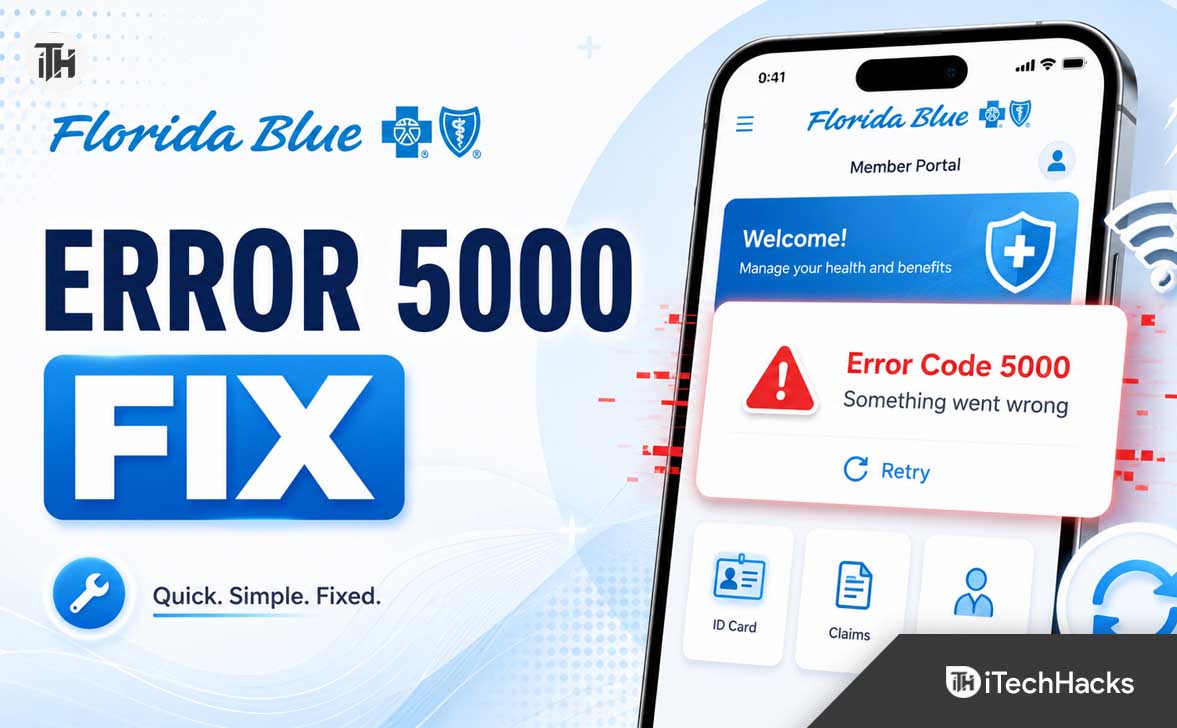
- Florida Blue Error Code 5000 can stop users from logging in or accessing their insurance details through the website or app, and this problem is typically due to technical or session issues, not a fault with your insurance policy itself.
- The error often arises because of temporary server issues, expired login sessions, or problems with the app or browser, such as outdated versions, blocked scripts, or incorrect settings like wrong time or date on your device.
Florida Blue Error Code 5000 can prevent members from signing in, viewing claims, opening their digital ID card, making payments, or accessing insurance benefits. The message may appear on the Florida Blue website or inside the mobile app, often without explaining exactly what caused the problem.
Florida Blue does not publicly provide a detailed definition for Error Code 5000. In most cases, it should be treated as a general service, session, login, browser, or app communication failure rather than proof that something is wrong with your insurance policy.
The problem may be temporary, but it can also continue because of corrupted cookies, an expired login session, outdated app data, blocked scripts, network filtering, or an account security restriction. This guide explains how to fix Florida Blue Error Code 5000 using practical troubleshooting methods for Android, iPhone, Windows, and Mac.
What Is Florida Blue Error Code 5000?
Florida Blue Error Code 5000 is an error message that may appear when the website or app cannot complete a requested action. For example, the system may fail to authenticate your account, retrieve policy information, process a payment page, or load data from Florida Blue’s servers.
The number 5000 should not be confused with the standard HTTP 500 Internal Server Error. Florida Blue may use its own internal error numbering system, so Error Code 5000 does not automatically identify one specific technical problem.
Because Florida Blue’s public member support pages do not list an official explanation for this code, the safest approach is to troubleshoot the most likely causes in order. Start with temporary service and session issues before changing passwords or reinstalling the app.
Common situations where Error Code 5000 may appear
- Signing in to the Florida Blue member account
- Opening the Florida Blue mobile app
- Viewing a digital member ID card
- Checking claims, deductibles, or benefits
- Making or reviewing a premium payment
- Searching for doctors or covered services
- Resetting a username or password
- Moving between the app and an external login page
- Loading account information after the session has expired
Why Is Florida Blue Not Working?
Florida Blue Error Code 5000 can be caused by either the Florida Blue service or something on your device. Identifying which side is responsible can save time and prevent unnecessary changes to your account.
1. Temporary Florida Blue server problem
The member website may occasionally be unavailable because of maintenance, increased traffic, or a temporary backend failure. Florida Blue has an official maintenance page stating that its member website may be temporarily down while changes are being made.
If the error appears on multiple devices and networks, the problem is more likely to be on the service side. In this situation, repeatedly reinstalling the app or resetting your password will probably not help.
2. Expired or corrupted login session
Secure health insurance websites create temporary sessions after you sign in. If that session expires or its browser cookie becomes corrupted, the server may reject the next request and show a generic error.
This frequently happens when a Florida Blue tab has remained open for a long time, the browser restores an old session, or the user moves backward after reaching a secure page.
Your browser stores cookies, scripts, images, and temporary website data to make pages load faster. Old Florida Blue data may conflict with a newer version of the member portal, especially after an account or website update.
Clearing only Florida Blue’s site data is usually better than deleting the entire browser history. It refreshes the secure session without removing saved data for unrelated websites.
4. Outdated Florida Blue app
An old version of the mobile app may no longer communicate correctly with the current login or member-account system. Florida Blue continues to release performance updates and bug fixes for its Android app, including an update listed on Google Play in June 2026.
Even when automatic updates are enabled, an update may be waiting because the phone has low storage, restricted background activity, or an incomplete app-store download.
5. VPN, ad blocker, or privacy protection
A VPN can route your connection through another region or repeatedly change the IP address used during login. Aggressive ad blockers, tracking protection, antivirus browser extensions, and DNS filters may also block scripts or authentication domains required by the member portal.
This does not mean you should permanently disable security software. Temporarily turning off one tool at a time can help identify whether it is interfering with Florida Blue.
6. Account security restriction
Florida Blue states that an account may be locked for technical or security reasons. When that happens, a customer service representative may need to unlock it.
An account restriction is more likely if you entered the wrong password several times, recently changed account information, received a suspicious-login warning, or cannot sign in from any device.
7. Incorrect phone date and time
Secure websites use time-limited authentication tokens. If your phone or computer has an incorrect date, time, or time zone, the token may appear expired before the login process finishes.
This can also affect verification codes. Setting the device to automatic date and time is a simple fix that is often overlooked.
How to Fix Florida Blue Error Code 5000
1. Close Florida Blue and try again
Begin by closing the error page completely. Do not simply refresh the same failed page repeatedly, because the browser may continue sending the expired session information.
- Sign out if the sign-out option is available.
- Close every Florida Blue browser tab.
- Remove the Florida Blue app from the recent-apps screen.
- Wait approximately one minute.
- Open the official Florida Blue website or app again.
- Sign in from the beginning.
This method works when the error was caused by a temporary request failure or expired session. If Error Code 5000 returns immediately, continue with the next solution.
Try opening the Florida Blue login page on another device. You can also switch from Wi-Fi to mobile data or ask another member in your household to check whether the portal loads.
If the website and app both fail across multiple devices, the service may be experiencing maintenance or an outage. Avoid repeatedly changing your password during a widespread service interruption because the new password may not synchronize correctly until the systems recover.
You can still use the customer service number printed on the back of your member ID card when urgent account information is needed. Florida Blue also lists 1-800-FLA-BLUE, or 1-800-352-2583, as its main member contact number.
3. Open Florida Blue in a private browser window
A private or incognito window creates a fresh browser session without using most existing cookies. It is one of the fastest ways to determine whether cached account data is causing Florida Blue Error Code 5000.
- Google Chrome: Press Ctrl + Shift + N on Windows or Command + Shift + N on Mac.
- Microsoft Edge: Press Ctrl + Shift + N.
- Mozilla Firefox: Press Ctrl + Shift + P.
- Safari: Select File and then New Private Window.
Open the Florida Blue member login page manually inside the private window. Avoid using an old bookmark that points directly to a secure claims, billing, or account page.
If Florida Blue works in private mode, your normal browser probably contains an outdated cookie, extension conflict, or cached script.
Clearing site data creates a clean connection between your browser and the member portal. You will need to sign in again after completing these steps.
Clear Florida Blue data in Google Chrome
- Open Chrome Settings.
- Select Privacy and security.
- Open Third-party cookies or Site settings.
- Select See all site data and permissions.
- Search for Florida Blue, floridablue.com, or bcbsfl.com.
- Delete the matching stored data.
- Restart Chrome and sign in again.
Clear Florida Blue data in Microsoft Edge
- Open Edge Settings.
- Select Cookies and site permissions.
- Open Manage and delete cookies and site data.
- Select See all cookies and site data.
- Search for Florida Blue or bcbsfl.com.
- Remove the stored entries and restart Edge.
Clear Florida Blue data in Safari
- Open Safari Settings or Preferences.
- Select Privacy.
- Choose Manage Website Data.
- Search for Florida Blue.
- Remove the related website data.
- Close and reopen Safari.
Do not block every cookie when testing the site. Secure login systems commonly require session cookies to remember authentication information while you move between account pages.
The Florida Blue login system requires JavaScript to display and process secure account pages. The official authentication page specifically indicates that JavaScript must be enabled for the application to run.
Check your browser settings and confirm that JavaScript is allowed. Also allow essential cookies for Florida Blue and avoid using a browser mode that blocks every cross-site authentication request.
After changing these settings, close the browser completely and reopen it. Reloading the same tab may not activate the new permissions immediately.
6. Temporarily disable extensions and privacy tools
Browser extensions can modify page scripts before they reach your screen. Content blockers, password managers, script blockers, antivirus extensions, and privacy tools are the most likely to interfere with login pages.
- Disable the extensions temporarily.
- Restart the browser.
- Open Florida Blue in a new tab.
- Try signing in again.
- Re-enable the extensions individually after testing.
If the website starts working after an extension is disabled, add Florida Blue to that extension’s allowlist instead of leaving the protection completely turned off.
7. Turn off your VPN or proxy
Disconnect from any VPN, proxy, work network, or filtered DNS service. Then reconnect using your normal home Wi-Fi or mobile data connection.
A secure login may fail if the IP address changes during authentication or if the network blocks one of the required Florida Blue domains. Public Wi-Fi networks can also redirect traffic through a sign-in page, which may interrupt the insurance portal.
After changing networks, close the browser or app and begin a new login attempt. Do not continue from the existing error screen.
8. Restart your modem, phone, or computer
A device restart clears temporary memory, closes stuck background processes, and creates a new network connection. It is especially useful when the Florida Blue app remains frozen or repeatedly redirects to a blank login page.
- Turn off the affected device.
- Unplug the Wi-Fi router for approximately 30 seconds if other websites are also slow.
- Reconnect the router and wait for internet access to return.
- Restart the phone or computer.
- Open Florida Blue and try again.
9. Update the Florida Blue app
Open the Google Play Store or Apple App Store and search for Florida Blue. Tap Update if the option is available.
The app provides access to digital ID cards, claims, deductible information, benefits, provider searches, and eligible premium payments. Keeping it updated reduces compatibility problems with these connected services.
Also update Android or iOS if a system update is available. An older operating system may contain an outdated browser component used by the app during secure sign-in.
10. Clear the Florida Blue app cache on Android
Android stores temporary app files that may become damaged after an update or interrupted session. Clearing the cache removes those files without deleting the app itself.
- Open Android Settings.
- Select Apps.
- Choose Florida Blue.
- Open Storage and cache.
- Tap Clear cache.
- Select Force stop.
- Reopen the app and sign in.
If clearing the cache does not help, return to the same screen and choose Clear storage or Clear data. This will sign you out and remove locally saved app preferences, so make sure you know your username and password first.
11. Offload or reinstall Florida Blue on iPhone
iPhone users can first offload the app, which removes the application while retaining some local documents and data.
- Open Settings.
- Select General.
- Open iPhone Storage.
- Select Florida Blue.
- Tap Offload App.
- Choose Reinstall App.
If Error Code 5000 continues, delete Florida Blue and install it again from the App Store. Reinstalling replaces damaged program files and refreshes the app’s connection to the login service.
12. Set the date and time automatically
Open your device’s date and time settings and enable automatic time, automatic date, and automatic time zone. Restart the app after correcting the settings.
This method works because verification links, secure cookies, and login codes often expire after a short period. An incorrect clock can make a valid login request appear old or invalid.
13. Reset your Florida Blue username or password
Use password recovery only after confirming that the website is generally available. Florida Blue allows members to look up their user ID or reset their password by selecting the recovery option from the login page.
- Open the official Florida Blue login page.
- Select Forgot User ID or Password.
- Enter the requested member information carefully.
- Use the newest verification email or code.
- Create a unique password that meets the displayed requirements.
- Close old login tabs before signing in with the new password.
Do not request several verification codes in quick succession. A newer request can invalidate the code from an earlier email, even if that earlier message arrives later.
14. Ask Florida Blue to unlock your account
If your credentials work nowhere and password recovery does not solve the issue, your account may have been locked. Florida Blue advises members with locked accounts to call the number on the back of their ID card so a representative can unlock the account.
Have your member ID card available before calling. The representative may need to verify your identity before discussing account information or removing a security restriction.
15. Use the website instead of the app
If the Florida Blue app is not working, try the member website in Chrome, Edge, Safari, or Firefox. Florida Blue states that the same username and password can be used for both the member website and mobile app.
This is an effective temporary workaround when only the mobile app is affected. Likewise, try the app if the website produces Error Code 5000 but mobile access remains available.
Florida Blue Error Code 5000 During Payment
Be particularly careful when Error Code 5000 appears after submitting a premium payment. A failed confirmation page does not always mean that the payment failed.
- Do not immediately submit the same payment several times.
- Check your bank or card account for a pending transaction.
- Sign in again and review your payment history.
- Look for a confirmation email.
- Take a screenshot of the error and note the time.
- Contact Florida Blue if the payment status remains unclear.
Repeatedly pressing the payment button could create duplicate authorizations. When the due date is close, call the number on your member ID card and ask the representative to confirm whether the payment was received.
Florida Blue App Opens a Blank or White Screen
A blank screen usually indicates that the app’s embedded browser failed to load the login or account page. Start by force-closing the app, changing networks, and reopening it.
Android users should update both Chrome and Android System WebView because apps may depend on these components to display web-based screens. iPhone users should update iOS and confirm that Safari is not heavily restricted by content-blocking settings.
If the blank screen appears only after selecting one feature, such as claims or prescription pricing, use the member website as a temporary alternative. Report the exact feature that fails because a section-specific problem may require an app update from Florida Blue.
Florida Blue Login Keeps Redirecting to the Website
The Florida Blue app may use a browser-based authentication screen to protect member information. A temporary redirect to a secure website is not automatically a problem, but repeatedly returning to the login screen usually indicates that the session is not being saved.
- Allow cookies in the default browser.
- Update the default browser.
- Disable private DNS or VPN temporarily.
- Clear the app cache.
- Remove old saved Florida Blue passwords if they are incorrect.
- Confirm that the app can open supported web links.
After making these changes, close both the browser and app. Reopen the Florida Blue app and complete the login process in one attempt without switching between several browser tabs.
Additional Tips to Prevent Florida Blue Errors
- Bookmark the main Florida Blue member page instead of a claims or payment subpage.
- Sign out when using a shared or public computer.
- Avoid keeping secure account tabs open overnight.
- Keep your browser, mobile app, and operating system updated.
- Use automatic date and time settings.
- Do not share verification codes or account passwords.
- Keep a physical or saved copy of your member ID card for emergencies.
- Verify the payment status before submitting a second payment.
- Use the phone number printed on your ID card for plan-specific support.
When to Contact Florida Blue Support
Contact Florida Blue when Error Code 5000 remains after testing another browser, device, and network. You should also call promptly if the error prevents you from confirming coverage, accessing urgent benefit information, or verifying a time-sensitive payment.
Florida Blue members can call 1-800-FLA-BLUE, which is 1-800-352-2583, or use the plan-specific number printed on the back of the member ID card. The main support page currently lists standard individual and family member service hours as Monday through Friday, 8 a.m. to 6 p.m. Eastern Time.
For a mobile-app-specific problem, the Florida Blue Google Play support listing provides [email protected] as an app support email. Do not email highly sensitive medical information, passwords, full payment details, or complete identification numbers unless an official support representative provides a secure method.
Information to provide to support
- The exact message and Error Code 5000
- The date and approximate time it occurred
- Whether you were using the website or mobile app
- Your phone model or computer operating system
- The app and browser version
- The action you were attempting
- Whether the issue happens on another device
- Whether it occurs on both Wi-Fi and mobile data
- A screenshot without exposed personal information
Never include your password or complete Social Security number in an ordinary support email. Customer service can tell you which details are needed for identity verification.
Frequently Asked Questions
Is Florida Blue Error Code 5000 caused by my insurance plan?
Usually, the error indicates a technical problem with the app, website, session, or account access. It does not by itself mean that your health coverage has been canceled or that a claim was denied.
Contact Florida Blue directly if you need confirmation about your plan status, payment, or eligibility.
Does Error Code 5000 mean Florida Blue is down?
It can appear during a temporary service problem, but it may also be caused by your browser, app data, network, or account session. Test another device and connection to determine whether the issue is widespread.
Why does Florida Blue work in incognito mode?
Incognito mode starts with a fresh session and does not use most existing cookies. If Florida Blue works there, corrupted site data, a browser extension, or an old login session is probably causing the normal-browser error.
Will clearing the Florida Blue app cache delete my insurance account?
No. Clearing the Android cache removes temporary files stored on the phone. It does not delete your Florida Blue membership or insurance policy.
Clearing the app’s storage will sign you out and reset local settings, but your actual account remains on Florida Blue’s servers.
Can I use the Florida Blue website when the app is not working?
Yes. Florida Blue indicates that members can use the same username and password on the member website and mobile app. This makes the website a useful alternative during app-specific problems.
Why is my Florida Blue account locked?
An account may be locked for technical or security reasons, including repeated unsuccessful login attempts. Florida Blue recommends calling the number on the back of your ID card to have the account unlocked.
Should I reset my password when Florida Blue is down?
No. Wait until you confirm that the login service is available. Resetting the password during an outage may create additional confusion, particularly if verification emails are delayed.
What should I do if Error Code 5000 appeared after payment?
Check for a confirmation email, review your payment history, and inspect your bank account for a pending charge. Do not submit another payment until you determine whether the first transaction was received.
Can a VPN cause the Florida Blue app to stop working?
Yes. A VPN can change your IP address or route traffic through a server that interferes with secure authentication. Disconnect the VPN temporarily and test Florida Blue using a normal Wi-Fi or cellular connection.
How long should I wait before trying Florida Blue again?
For a temporary error, close the app or browser and retry after a few minutes. If the same error continues for several hours across multiple devices and networks, contact Florida Blue support.
Final Thoughts
Florida Blue Error Code 5000 is usually a general technical error involving the member website, mobile app, secure login session, network connection, or account access. Start by closing the app, checking for a temporary outage, opening a private browser window, and clearing Florida Blue cookies or app cache.
If Florida Blue is still not working, update the app, disable VPN and browser extensions temporarily, enable JavaScript and cookies, and test another device or network. Password recovery should be used only when your credentials are the actual problem.
When Error Code 5000 affects a payment, coverage confirmation, or urgent insurance information, avoid repeated submissions and contact Florida Blue using the number on the back of your member ID card. Providing the exact error, time, device, and failed action will help support identify the problem more quickly.
ALSO READ:
- TiviMate Error Code 401: 8 Proven Fixes for Unauthorized IPTV Access
- Dropbox Sync Failed? Fix Error Code 8737.IDJ.029.22 on Windows & Mac
- Crunchyroll Error Code Shak-1001? 10 Easy Fixes You Can Try (2026)
- Fix Minecraft aka.ms/remoteconnect Error Code (2026)
- Top 5 Ways to Fix Origin Error Code 20.403