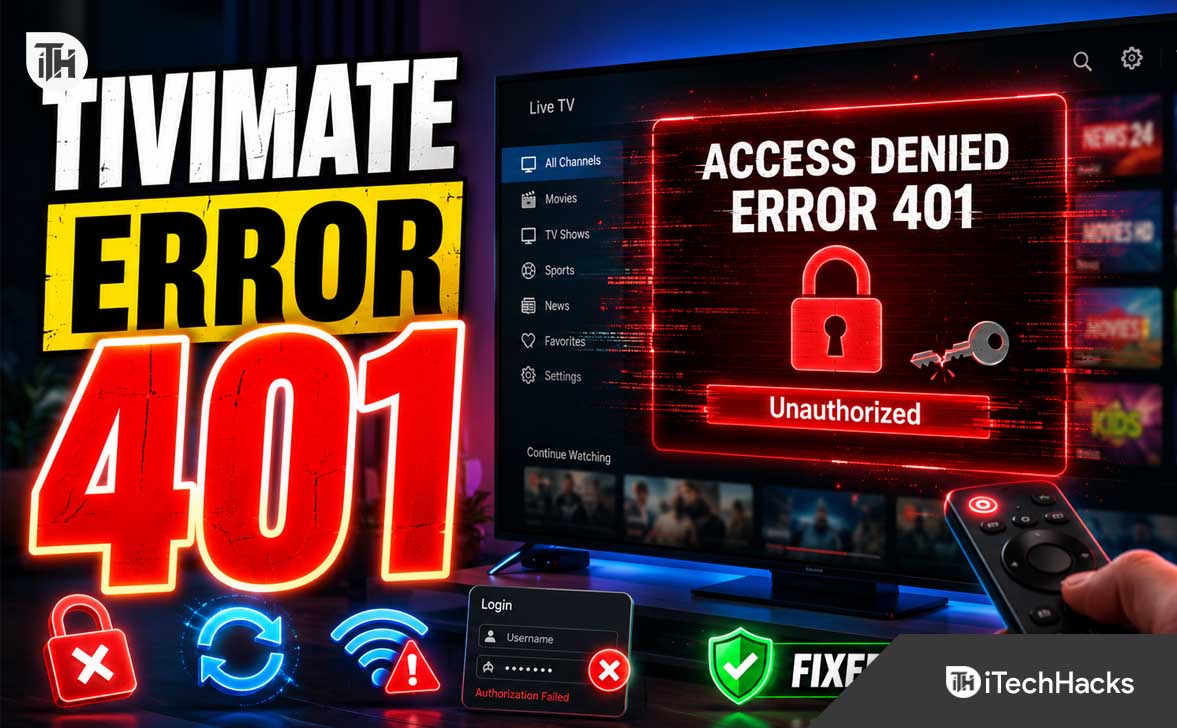
- TiviMate Error Code 401 occurs when you try to watch IPTV content, indicating that the server did not approve your login credentials or playlist request even though TiviMate connected successfully.
- Possible reasons for Error Code 401 include incorrect playlist URLs, expired subscriptions, username or password errors, device limits being exceeded, or issues with the IPTV provider's server settings.
- To fix the error, verify account details, update playlist URLs, confirm your subscription is active, check device limits, refresh playlists, restart TiviMate, clear the app’s cache, and keep the app updated; if these do not resolve the issue, contact your IPTV provider for assistance.
TiviMate Error Code 401 can be frustrating because it often appears when you are ready to watch a live channel, movie, or series. The message usually means that TiviMate successfully reached the IPTV server, but the server rejected the login or playlist request.
In most cases, a 401 error is not a problem with your Android TV, Fire TV Stick, Nvidia Shield, or TiviMate Premium account. It is an authentication issue connected to your playlist URL, Xtream Codes credentials, active subscription, device limit, or IPTV provider settings.
This guide explains what TiviMate Error Code 401 means and walks you through eight practical fixes. Follow the steps in order, starting with the simplest checks before resetting or reinstalling anything.
Important: Use TiviMate only with IPTV services, playlists, and content sources that you are authorized to access.
What Does TiviMate Error Code 401 Mean?
A 401 error is an HTTP authentication response. In simple terms, the IPTV server is saying that it cannot verify your access credentials for the requested playlist, channel, video, or guide data.
TiviMate supports common IPTV playlist formats, including M3U playlists, Xtream Codes logins, and Stalker Portal connections. When the server rejects one of these connection details, you may see TiviMate Error Code 401 while loading a playlist, updating channels, opening a live stream, or accessing video-on-demand content.
A 401 status usually points to invalid, expired, missing, or no longer accepted credentials. It is different from a general buffering error because TiviMate can often contact the server successfully, but the server refuses to authorize the request.
Common Reasons for TiviMate Error Code 401
Before trying the fixes, it helps to understand why the error appears. The most common causes include:
- An incorrect M3U playlist URL.
- A typo in your Xtream Codes username or password.
- An expired or inactive IPTV subscription.
- A provider that has changed its server address or portal URL.
- A device connection limit that has already been reached.
- An IPTV provider that has blocked your current device, IP address, or app connection.
- Old playlist information stored in TiviMate.
- A temporary issue on the provider’s authentication server.
The good news is that most TiviMate Error Code 401 problems can be fixed without losing your favorites, custom channel groups, or TiviMate settings.
1. Double-Check Your IPTV Login Details
The first and most important fix is to verify your IPTV account details. A single missing character, extra space, incorrect port number, or outdated password can trigger a 401 error.
If you use Xtream Codes login details, carefully check the following information from your provider’s original welcome email or account dashboard:
- Server URL or portal address.
- Port number, if one was provided.
- Username.
- Password.
Do not manually guess the server address. IPTV providers often use a specific URL format, and replacing part of the URL with a different domain, HTTPS address, or port can cause authentication failures.
How to Review Xtream Codes Details in TiviMate
Open TiviMate and go to Settings. Select Playlists, choose the playlist showing the error, and look for the Xtream Codes or server details section. The exact wording can vary slightly depending on your TiviMate version.
Compare every field with the information sent by your provider. Pay special attention to uppercase letters, lowercase letters, symbols, hyphens, and numbers that may look similar, such as zero and the letter O.
If your provider recently sent updated login information, use the newer details even if your previous credentials worked for months.
2. Update or Replace the M3U Playlist URL
If you use an M3U playlist instead of Xtream Codes, TiviMate Error Code 401 may appear because the playlist link is outdated, incomplete, or no longer authorized.
Many M3U playlist URLs contain account credentials inside the link. A typical URL may include a username, password, device token, or expiry parameter. If any part of the URL changes, the previous link can stop working.
Check for These Playlist URL Problems
- The URL was copied with a space before or after it.
- The provider changed its domain or port number.
- The playlist link has expired.
- The URL was pasted incompletely.
- The provider issued a new playlist link after a subscription renewal.
- The link was shared across too many devices.
Open the message, account page, or support ticket where you received the playlist link. Copy the complete M3U URL again instead of editing the old URL manually.
Then open TiviMate, go to Settings > Playlists, select the affected playlist, and update the playlist URL. After saving it, run a playlist update and try opening a channel again.
Re-entering the complete playlist link works because TiviMate sends the new credentials and server path to the IPTV service instead of relying on old stored information.
3. Confirm That Your Subscription Is Active
A subscription expiry is one of the most common causes of TiviMate Error Code 401. Your playlist may still appear in TiviMate, but the IPTV provider can reject stream requests after the account has expired.
Check your provider’s account dashboard, billing email, renewal confirmation, or customer support message. Look for the subscription status, expiration date, active device count, and any payment issue.
You should also confirm whether the subscription includes the type of content you are opening. Some providers separate live TV, movies, series, sports, or regional packages. A valid account may still receive a 401 error if it does not have access to a specific package.
What to Ask Your IPTV Provider
When contacting support, avoid sending your password in an unsecured public message. Instead, provide your order number, account email, username, and the exact error message.
- Is my subscription active and paid?
- Has my server URL changed recently?
- Has my username or password been reset?
- Is there a device limit on my account?
- Is my account currently blocked or locked?
- Do I need a new M3U or Xtream Codes login?
A reputable authorized provider should be able to confirm whether the problem is account-related or server-related.
4. Check Your Device Connection Limit
Many IPTV subscriptions allow only one active stream or one registered device at a time. If the same account is being used on multiple TVs, streaming boxes, phones, or apps, the provider may reject a new connection.
This can happen even if you are not actively watching on the other device. A previous stream session may still be open in the background, especially after a power outage, app crash, or sudden internet disconnection.
How to Fix Device Limit Issues
First, close TiviMate on every device using the same IPTV account. Restart the Android TV box, Fire TV Stick, or television where you want to watch.
Wait a few minutes before trying again. Some IPTV services need time to clear the older stream session from their server.
If the error continues, ask the provider to reset your active connections or confirm the number of devices included with your plan. Do not keep sharing one account across multiple households, as that may trigger account restrictions or security checks.
5. Refresh the Playlist and EPG in TiviMate
TiviMate can retain playlist information locally so that channels and TV guide data load faster. This is useful, but outdated stored data can create problems when your provider changes servers, passwords, channel IDs, or authentication rules.
Refreshing the playlist forces TiviMate to request current information from the IPTV server again.
How to Refresh a Playlist
Open TiviMate and go to Settings > Playlists. Select the playlist that is showing Error Code 401. Choose the option to update the playlist, then allow the app to finish downloading the latest channel data.
After that, update the TV guide or EPG if the error appears while loading program information instead of when opening channels.
Restart TiviMate after the update and test two or three different channels. Testing more than one channel matters because some providers use separate authorization rules for live TV, catch-up content, movies, or series.
6. Restart TiviMate and Your Streaming Device
A restart may sound basic, but it can solve temporary connection, memory, and session problems. TiviMate may be holding an expired server session, while your router or IPTV server may still associate your device with an older request.
Start by fully closing TiviMate. Do not simply return to the Android TV home screen. Then restart your streaming device.
Restart Steps for Android TV and Fire TV Devices
- Exit TiviMate completely.
- Open your device settings.
- Select Apps or Applications.
- Choose TiviMate.
- Select Force Stop if the option is available.
- Restart your Android TV, Google TV, Fire TV Stick, or streaming box.
- Open TiviMate and test the affected playlist again.
If your internet has been unstable, restart your router as well. Turn it off for around 30 seconds, turn it back on, and wait until the connection is fully restored before launching TiviMate.
This fix is especially useful when TiviMate Error Code 401 appeared suddenly after the app had been working normally earlier in the day.
7. Clear TiviMate Cache, Not Data, First
Cache files can become outdated or corrupted after repeated playlist updates, app crashes, incomplete downloads, or system updates. Clearing the cache removes temporary files without usually deleting your playlists and custom settings.
Start with cache clearing before clearing app data. Clearing data can remove your TiviMate setup, including playlist details, favorites, settings, and viewing preferences.
How to Clear the TiviMate Cache
Open your Android TV or Fire TV device settings and go to Apps. Find TiviMate, open the app details page, and choose Clear Cache.
Restart the device afterward, then launch TiviMate and update the affected playlist again.
If the 401 error continues after clearing cache, your issue is more likely connected to the IPTV account, playlist link, server URL, or provider restrictions rather than temporary app files.
When Should You Clear TiviMate Data?
Clear app data only as a last resort. Do this when TiviMate is behaving incorrectly across multiple playlists, the app repeatedly crashes, or playlist settings appear stuck even after you enter the correct new details.
Before clearing data, take screenshots or write down your authorized playlist details. Some TiviMate versions support backup and restore options, which can help preserve your app settings before a reset.
8. Update TiviMate and Re-Add the Playlist
An outdated TiviMate installation may have problems communicating with newer provider configurations. TiviMate is designed for Android TV devices and can be installed through Google Play where supported.
Check whether an update is available from the official source you originally used. Avoid downloading modified APK files from unknown websites because they can create security risks and may cause login, playback, or account issues.
Update TiviMate Safely
- Open Google Play Store on your Android TV or Google TV device.
- Search for TiviMate IPTV Player.
- Select Update if the option is available.
- Restart the device after the update completes.
- Open TiviMate and test the playlist again.
If the app is already updated and the playlist still shows Error Code 401, remove only the affected playlist and add it again using fresh login details from your provider.
Re-adding the playlist can fix a damaged configuration, outdated token, wrong server path, or old password stored inside TiviMate. It is safer than reinstalling the whole app because your other playlists and settings may remain untouched.
Additional Tips to Prevent TiviMate Error Code 401
Once the error is fixed, a few simple habits can reduce the chances of seeing it again.
Save Your Original Account Details Securely
Keep the provider’s original activation email, account information, and playlist URL in a secure password manager or private note. Do not post M3U links, Xtream Codes usernames, passwords, or portal URLs in public forums.
Playlist URLs can contain sensitive account access information. Treat them the same way you would treat a password.
Do Not Change Server Addresses Without Confirmation
If a playlist stops working, do not randomly replace HTTP with HTTPS, remove the port number, or change the domain name based on advice from unrelated websites. IPTV providers can use unique server paths and authentication systems.
Always obtain a replacement URL or server address directly from your authorized provider.
Use One App Session at a Time When Your Plan Has Limits
Close TiviMate properly before switching to another device. This reduces the chance that the provider sees multiple active streams from the same account.
If your household needs multiple simultaneous streams, contact the provider about a legitimate multi-connection plan instead of repeatedly logging in and out across devices.
Keep TiviMate Updated
App updates can improve stability, playlist compatibility, and device support. Update TiviMate from its official source and keep your Android TV or Fire TV software reasonably current.
TiviMate also has a separate Companion app that is intended for managing Premium activation on devices without Google Play. It is not the IPTV player itself.
Common TiviMate Error Code 401 Problems and Fixes
TiviMate Loads the Playlist but Channels Show Error Code 401
This usually means your playlist was accepted initially, but the provider rejected access when TiviMate requested the individual stream URL. Check whether your subscription is active, whether the provider changed stream servers, and whether your plan has a one-device limit.
Also test several channels. If only one channel group fails, the issue may be connected to a package restriction or a provider-side channel configuration problem.
TiviMate Error Code 401 Appears After Renewing a Subscription
After a renewal, some providers issue a new username, password, M3U link, server URL, or expiry token. Update your playlist using the newest information instead of assuming the old credentials will reactivate automatically.
Ask the provider whether the renewal requires a new playlist URL or a connection reset.
Only One Device Shows TiviMate Error Code 401
If the same account works on another device, compare the playlist details carefully. The affected device may have an older playlist URL, cached login information, or an outdated TiviMate version.
Update the playlist, clear cache, restart the device, and re-add the playlist only on the device showing the issue.
All Playlists Show Error Code 401
If multiple unrelated playlists suddenly show 401 errors, the problem may be with the device, internet connection, incorrect system time, DNS settings, or a temporary TiviMate issue.
Restart the streaming device and router first. Then test a legitimate authorized playlist or another internet-based app to confirm that your device connection is working normally.
Frequently Asked Questions
Is TiviMate Error Code 401 a TiviMate Premium problem?
Usually, no. TiviMate Premium unlocks additional player features, but Error Code 401 generally comes from the IPTV server rejecting playlist or stream authentication. Check your provider login details and subscription status first.
Can an incorrect password cause TiviMate Error Code 401?
Yes. An incorrect username, password, M3U link, portal URL, or server address is one of the main causes of a 401 unauthorized error.
Will reinstalling TiviMate fix Error Code 401?
It can help if the app configuration is corrupted, but reinstalling should not be your first option. Try updating the playlist, confirming your credentials, restarting the device, and clearing cache before reinstalling.
Why does my IPTV work on one device but not in TiviMate?
The other device may be using different login details, a newer server address, another playlist format, or an active session that reaches your device limit. Compare the credentials and ask your provider whether TiviMate requires a specific playlist setup.
Can I fix TiviMate Error Code 401 without contacting my IPTV provider?
You can often fix it by correcting your login details, updating the playlist URL, restarting TiviMate, or clearing cache. However, if the subscription has expired, the server has changed, or the provider has blocked the account, only the provider can confirm and resolve that issue.
Is Error Code 401 the same as Error Code 403?
No. A 401 error usually means the server cannot validate your credentials. A 403 error generally means the server recognizes the request but refuses access due to permissions or restrictions.
Final Thoughts
TiviMate Error Code 401 usually means that your IPTV provider is rejecting the playlist or stream request because the login information is invalid, expired, outdated, or restricted. Start by checking your username, password, M3U URL, or Xtream Codes server address.
Then confirm that your subscription is active, check your connection limit, refresh the playlist, restart TiviMate, clear cache, and update the app. These eight fixes resolve most TiviMate Error Code 401 issues without requiring a complete app reset.
If none of the troubleshooting steps work, contact your authorized IPTV provider with the exact error message and ask them to confirm your account status, current server URL, allowed device limit, and whether a replacement playlist link is required.
ALSO READ: