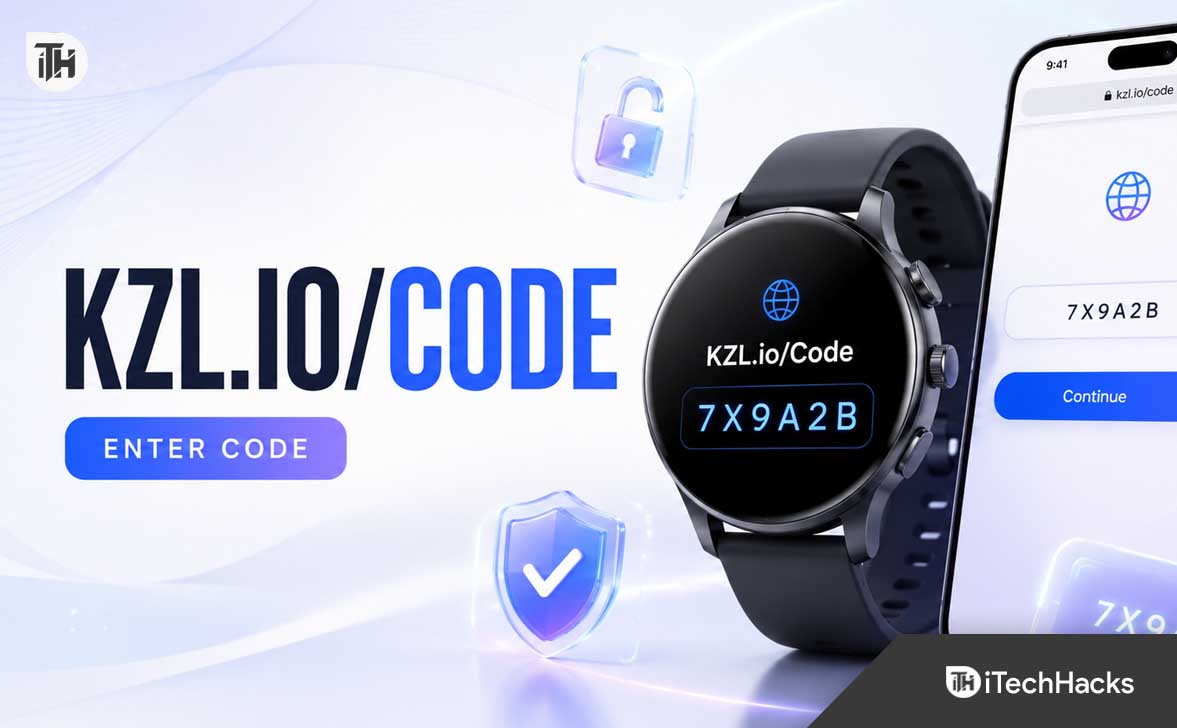
- If your smartwatch shows a message about KZL.io/Code, it usually means a paid app or feature needs activation via KiezelPay, which is common for Garmin, Fitbit, or other smartwatch platforms; this is not a virus but an activation process after a trial or for a new purchase.
- To activate, you need to visit the KZL.io/Code website on your browser, enter the specific code displayed on your watch exactly as it appears, confirm the app or feature name and proceed with the payment; if issues occur after payment, you can use KZL.io/Unlock with the purchase email for reactivation.
If your smartwatch suddenly shows a message asking you to visit KZL.io/Code and enter a code, do not worry. This is usually not an error, virus, or a request from Garmin, Fitbit, or Amazfit directly. It is typically a payment and license activation prompt from KiezelPay, a service used by some paid smartwatch apps, watch faces, and data fields.
The code appears on your watch after a trial expires or when a paid app needs to be unlocked. You use that code on the KZL.io/Code page to purchase the app or activate the license. Once the purchase is completed, the message should disappear and the watch face or app should work normally again.
This guide explains what KZL.io/Code means, how to enter your code correctly, what to do if you already paid, how to fix expired or invalid activation codes, and how to remove the message without making a purchase.
What Is KZL.io/Code?
KZL.io/Code is the code-entry page used by KiezelPay. KiezelPay is a payment platform that allows independent developers to sell premium smartwatch apps, watch faces, widgets, and Garmin data fields.
It is commonly used with third-party smartwatch content for Garmin, Fitbit, and similar wearable platforms. When a developer uses KiezelPay, their app or watch face can show a license code directly on your device after installation or when a free trial ends.
The code is not a standard Garmin pairing code, a Bluetooth connection code, or a TV activation code. It is specifically related to the paid watch face, app, or data field currently installed on your smartwatch.
Why Is My Watch Showing “Go to KZL.io/Code”?
You will normally see the KZL.io/Code message for one of the following reasons:
- You installed a paid watch face or smartwatch app with a free trial.
- Your trial period has expired.
- You purchased a watch face before but reinstalled it.
- You changed devices and the app needs the license activated again.
- You installed a premium Garmin data field that requires a separate activation process.
- The watch face cannot confirm your existing license yet.
KiezelPay explains that a watch face or app may show the code immediately after installation if it has no free trial, while other apps will show the code only after the trial period has ended.
In most cases, the message is expected behavior. It means the developer has chosen to sell the app or watch face through KiezelPay rather than offering it as a free download.
How to Use KZL.io/Code to Activate Your Watch Face
Follow these steps to purchase and activate the watch face, app, or smartwatch feature shown on your device.
1. Keep the Code Visible on Your Watch
Look at your smartwatch screen and note the code shown beside the KZL.io/Code message. Some watch faces display a short numeric code, while certain Garmin data fields can show a much longer identifier inside the app settings.
Do not guess the code or use an old code from a screenshot. The code is generated for the specific app, watch face, device, and activation session.
2. Open KZL.io/Code in a Browser
On your phone, tablet, or computer, open a web browser and type:
kzl.io/code
Make sure you type the address carefully. Avoid random websites that claim to activate KiezelPay apps, offer free unlocks, or ask for remote access to your phone or computer.
3. Enter the Code From Your Smartwatch
Enter the activation or purchase code exactly as it appears on the watch. Check every number and letter before continuing. A single wrong character can cause an unknown-code or invalid-code message.
If you copied a long Garmin data field identifier from an app settings page, use the full identifier. Do not remove characters, add spaces, or enter only part of the code.
4. Confirm the App or Watch Face Name
After entering the code, verify that the page identifies the correct product. Check the watch face, app, widget, or Garmin data field name before proceeding with payment.
This step matters because many developers create similarly named watch faces. Confirming the product name helps you avoid buying access to the wrong item.
5. Complete the Purchase
Select the purchase option and complete the checkout process using the available payment method. KiezelPay states that it supports credit and debit card payments, and some developers may also offer PayPal checkout.
Most KiezelPay apps and watch faces are sold as one-time purchases for a lifetime license. However, some developers may sell time-limited licenses, so check the product page and checkout details before paying. KiezelPay says that it does not use automatic subscriptions for these licenses.
6. Return to Your Watch
After the payment succeeds, return to your smartwatch. The KZL.io/Code message should disappear and the watch face or app should unlock automatically.
KiezelPay states that once the purchase is completed, the code screen is removed from the watch and the customer can continue using the app or watch face normally.
If the screen does not update immediately, leave the watch face open for a moment. You can also sync the watch through its companion app or restart the watch if needed.
Already Paid? Use KZL.io/Unlock Instead
One of the most common KZL.io/Code issues happens when you have already purchased the watch face but the app asks you to pay again.
This can happen after reinstalling the app, switching watches, resetting the device, changing the watch face temporarily, or reinstalling the companion app. KiezelPay may not always recognize a previous purchase automatically after a reinstall.
Do not purchase the same item again right away. Instead, use:
kzl.io/unlock
Enter the new code currently shown on your smartwatch, then use the email address connected to your original purchase. This should restore the existing license without charging you again.
Important Things to Check Before Unlocking
- Use the same email address used during the original purchase.
- Make sure you installed the exact same watch face or app you previously purchased.
- Check your purchase confirmation email for the correct app name.
- Do not use the unlock page for a different app from the same developer.
- Use the latest code shown on the watch, not an old screenshot.
If the system says it cannot find your purchase, you may have entered a different email address during checkout or installed a similar but different watch face. KiezelPay recommends confirming that the app name exactly matches the one in the original payment confirmation.
KZL.io/Code Says “Unknown Code” or “Code Already Used”
An unknown-code or already-used-code message usually means your activation code has expired. KiezelPay says that its codes are valid for approximately one hour.
This is why you should avoid waiting too long after seeing the code on your watch. If you return several hours later and try the same code, it may no longer work.
How to Get a New KZL.io/Code
To create a new code, restart or reopen the watch face so it reloads the licensing screen.
- On a Garmin smartwatch, turn the watch off and then restart it.
- Open the paid watch face again after restarting.
- Wait for the KZL.io/Code message to appear again.
- Use the newly generated code as soon as possible.
KiezelPay specifically recommends restarting Garmin watches when a code has expired, because restarting the watch face forces a fresh code to load.
For other supported devices, switching away from the watch face and opening it again may refresh the code. If that does not work, remove and reinstall the watch face through the official app store, then allow the app to generate a new activation prompt.
I Cannot Find My KZL.io/Code
You will not normally receive the purchase code by email. The activation code appears on the smartwatch itself when the watch face or app is ready to be purchased or unlocked.
KiezelPay confirms that customers do not receive purchase codes through email. Instead, you install the app or watch face and wait for it to show the code on the device.
What to Do if the Code Is Not Showing
- Open the watch face or app directly on the smartwatch.
- Make sure the free trial has actually ended.
- Sync the watch through Garmin Connect, Garmin Connect IQ, Fitbit, or the relevant companion app.
- Restart the smartwatch.
- Check that the watch has a stable connection to your phone or Wi-Fi, where supported.
- Remove and reinstall the app if the developer’s instructions recommend it.
Some watch faces do not show an activation code until the trial period ends. Others may show it immediately after installation if the product does not include a trial period.
How to Activate a Garmin Data Field With KiezelPay
Garmin data fields can use a different KZL.io/Code process than standard watch faces. This is because a data field runs inside an activity screen rather than operating as a normal standalone watch app.
Some Garmin data fields require you to copy a long identifier from the data field settings, enter it on the developer’s activation page, purchase or unlock the license, and then paste a shorter success code back into the Garmin app settings.
Garmin Data Field Activation Steps
- Install the data field from the Garmin Connect IQ Store.
- Add the data field to one of your Garmin activity screens.
- Open the data field settings in Garmin Connect, Garmin Connect IQ, or Garmin Express.
- Copy the long identifier code shown in the settings.
- Enter the identifier on the activation page provided by the developer.
- Choose Purchase if you have not bought it before.
- Choose Unlock if you already own a license.
- Copy the short success code generated after activation.
- Replace the old long identifier with the short success code.
- Save the settings and sync your Garmin device.
For compatible Garmin data fields, the license is installed after the short success code is saved back into the data field settings and synced to the watch.
KZL.io/Code Is Stuck on My Watch After Payment
If you completed payment but still see the KZL.io/Code message, do not immediately make another purchase. Try these fixes first.
1. Confirm the Payment Was Successful
Check your email inbox, spam folder, payment receipt, PayPal activity, or card transaction history. Look for confirmation that the payment actually completed rather than remaining pending or failing.
2. Use the Unlock Page
Even after a successful purchase, the watch may need the license restored. Open kzl.io/unlock, enter the latest code from the watch, and use the email address linked to the original payment.
3. Restart the Watch
Restarting the smartwatch refreshes the watch face and can force it to check the license again. This is particularly useful on Garmin devices when the code screen remains visible after checkout.
4. Sync Through the Official Companion App
Open Garmin Connect, Garmin Connect IQ, Fitbit, or the appropriate companion app for your device. Start a manual sync, then return to the watch face after the sync completes.
5. Reinstall the Watch Face Carefully
If the issue continues, remove the watch face and install it again from the official app store. After reinstalling, use KZL.io/Unlock rather than purchasing again.
KiezelPay notes that reinstalling an app or watch face can cause the system to ask for payment again because it may not automatically recognize the previous license. The unlock process is intended for this situation.
How to Remove the KZL.io/Code Message Without Paying
You do not have to purchase the app if you no longer want to use it. The KZL.io/Code message appears because the current watch face or app is a paid product whose trial has ended.
To remove the prompt, uninstall the paid app or switch to a free watch face from the official store. KiezelPay states that the payment messages stop automatically once you remove the paid app or replace the watch face.
On Garmin Devices
Open the Garmin Connect IQ Store or Garmin Connect app, find the installed watch face, and remove it. Then install a free watch face or select a built-in Garmin watch face from your device settings.
On Fitbit or Other Supported Devices
Open the official companion app, choose the currently active clock face or app, remove it, and switch to a free alternative. The exact steps vary by device model and app version.
Do not try to bypass, crack, or modify the paid app. Installing a legitimate free replacement is the safest way to remove the activation message without purchasing the premium watch face.
Common KZL.io/Code Problems and Fixes
My Code Has Expired
Generate a new code by restarting your watch or reopening the watch face. Use the new code within an hour.
I Entered the Correct Code but It Does Not Work
Check that you did not confuse the number zero with the letter O, or the number one with the letter I. Enter the code exactly as displayed and avoid adding extra spaces.
I Paid Before but KZL.io Wants Money Again
Use kzl.io/unlock with your current watch code and original purchase email. Do not pay twice unless you are certain the previous transaction failed.
The Unlock Page Cannot Find My Purchase
Try another email address you may have used during checkout. Also compare the exact app name on your watch with the name in your purchase confirmation email.
The Watch Face Says It Needs Internet Permission
Some KiezelPay-supported apps require internet permission to validate their license. KiezelPay recommends reinstalling the watch face and granting the required internet permission during setup.
I Purchased a Bundle but Cannot Find the Other Watch Faces
Check your purchase confirmation email for bundle download links. You can also use KiezelPay’s purchase lookup page to locate previous purchases and download details.
Is KZL.io/Code Safe?
KZL.io/Code is used by KiezelPay for supported paid smartwatch content. However, you should still take normal online payment precautions.
- Only enter the code on kzl.io/code or kzl.io/unlock.
- Confirm the name of the app or watch face before paying.
- Do not share your payment card number through email, chat, social media, or unofficial support pages.
- Do not allow anyone remote access to your phone, computer, or smartwatch for activation help.
- Keep your purchase confirmation email for future license recovery.
- Use the official KiezelPay support option if a payment or unlock issue cannot be resolved.
Be especially careful if a website claims it can provide a free KZL.io activation code. Legitimate activation codes are generated by the app or watch face running on your device.
Frequently Asked Questions
What does KZL.io/Code mean on my watch?
It means the installed watch face, app, or data field uses KiezelPay and needs to be purchased or unlocked. The message commonly appears when a free trial ends.
Where do I find the KZL.io activation code?
The code appears directly on your smartwatch screen. It is not normally sent by email.
How long is a KZL.io/Code valid?
KiezelPay says codes remain valid for around one hour. If the code fails because it is old, restart the watch or reopen the watch face to generate a new one.
Do I need to pay every month for a KiezelPay watch face?
Usually no. Most apps and watch faces use a one-time payment for a lifetime license, although some developers can offer time-limited licenses. KiezelPay says it does not use automatic subscriptions.
Why does KZL.io ask me to pay after I already bought the app?
This can happen after reinstalling the app, changing devices, resetting the watch, or losing the previous license connection. Use kzl.io/unlock with your current device code and original purchase email.
Can I remove the KZL.io/Code message for free?
Yes. Remove the paid watch face or app and replace it with a free alternative from the official app store. The prompt should stop appearing once the paid product is no longer active.
Is KZL.io/Code used for Garmin pairing?
No. A KZL.io/Code prompt is generally related to a paid third-party app, watch face, or data field. It is not the same as a Garmin Bluetooth pairing code.
Final Thoughts
The KZL.io/Code screen is usually a normal activation prompt for a premium smartwatch app or watch face. The key is to use the code currently displayed on your device, enter it at kzl.io/code, and complete the purchase only after confirming that the product name is correct.
If you have already paid, use kzl.io/unlock instead of purchasing a second time. If you do not want the premium app, remove it and switch to a free watch face. Most KZL.io activation problems are caused by expired codes, reinstallations, incorrect purchase emails, or confusion between the Purchase and Unlock options.
ALSO READ: