- If GTA 6 is not downloading on your PS5, it might not be available for pre-load yet, the PlayStation Network could be busy, or your console may lack enough storage space for the download.
- Ensure that you are signed into the correct PlayStation Network account that bought the game, check your internet connection, and make sure your PS5 system software is up to date to fix downloading issues.
- If the download button doesn't appear, or the download is stuck, try pausing and resuming the download, restarting your PS5, freeing up storage space, or restoring your PlayStation licenses to resolve common problems.
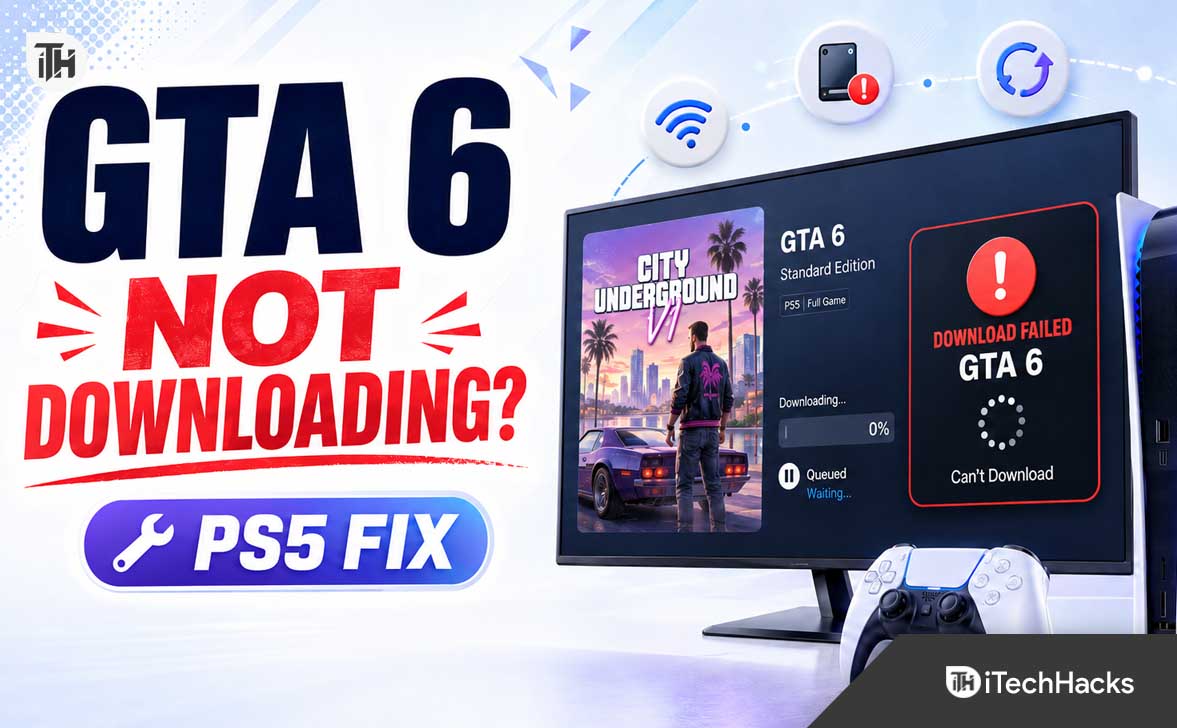
If GTA 6 is not downloading on your PS5, it is easy to assume that your console, internet connection, or PlayStation account is broken. In many cases, however, the issue is much simpler. The game may not be available for pre-load yet, the download queue may be stuck, there may not be enough storage space, or PlayStation Network may be having a temporary Store issue.
This guide explains every realistic fix for the GTA 6 Not Downloading problem on PS5. Start with the early checks before deleting anything, especially if you have pre-ordered the game and the Download button is missing.
Why GTA 6 Is Not Downloading on PS5?
There are several reasons GTA 6 may not begin downloading, may pause at 0%, or may disappear from your PS5 download queue. The most common cause for pre-order customers is that the game has been purchased, but Rockstar and PlayStation have not opened the pre-load window yet.
At the time of writing, Rockstar Games lists Grand Theft Auto VI for PlayStation 5 and Xbox Series X|S, with a release date of November 19, 2026. Pre-orders opened in June 2026, but purchasing a digital game does not always mean its full download is immediately available months before launch.
- The GTA 6 pre-load period has not started yet.
- You are signed into a different PSN account from the account that bought the game.
- The PlayStation Store or download servers are temporarily busy.
- Your PS5 does not have enough free internal storage.
- The download queue is frozen or corrupted.
- Your PS5 system software needs an update.
- Your game license is not syncing correctly.
- Family controls, region issues, or account restrictions are blocking access.
First Check: Is GTA 6 Actually Available to Download Yet?
Before changing settings or deleting the game from your library, open the GTA 6 page in the PlayStation Store and look carefully at the button shown on screen. If you see Pre-Order, Release Date, or a countdown instead of Download, the game files are not available for your account yet.
This is particularly important for players who pre-ordered GTA 6 soon after it became available. A successful purchase confirms that your account owns the license, but the large installation download will only begin once PlayStation enables pre-loading or the game officially launches.
Pre-Order, Pre-Load, and Download Are Different
A pre-order means you have paid for GTA 6 before release. A pre-load means Rockstar and PlayStation have made the game files available early, allowing players to download most of the game before launch day.
A full download means the game is currently available to install and play. If the Store page only shows a release countdown, there is usually nothing wrong with your PS5. You simply need to wait for the official pre-load window to appear.
Check the GTA 6 Page From Your Game Library
Go to your PS5 Game Library, open Your Collection, and search for GTA 6. Select the game and check whether the page shows Download, a release countdown, or a message saying the content is unavailable.
If Download is available, select it and watch the Downloads section for a few minutes. If it does not begin, continue with the fixes below.
How to Fix GTA 6 Not Downloading on PS5
1. Check PlayStation Network Status
PlayStation Store outages can stop you from buying, browsing, redeeming, or downloading games. This can happen during major sales, large game launches, scheduled maintenance, or unexpected server issues.
Open the PlayStation Network Service Status page from your phone or PS5 browser and check the status of PlayStation Store, Gaming and Social, and Account Management. If PlayStation reports an outage, avoid repeatedly restarting the download because the issue is on the server side.
2. Restart the Download Queue
A stuck queue is one of the most common reasons for the GTA 6 Not Downloading issue. The download may look active but remain at 0%, show no speed, or stop progressing after a few gigabytes.
Press the PlayStation button on your controller, open Downloads/Uploads, select GTA 6, and choose Pause. Wait around 15 seconds, then select Resume and check whether the progress bar begins moving.
If the download begins after pausing and resuming, leave your PS5 on until it has progressed normally for several minutes. Do not immediately put the console into Rest Mode if you are trying to identify whether the connection or queue is stable.
3. Restart Your PS5 Completely
A complete restart can clear temporary PlayStation Store, network, and download queue glitches. It is more effective than putting the console into Rest Mode and turning it back on.
Press the PlayStation button, select the Power icon, and choose Restart PS5. After the console starts again, go to your Game Library, locate GTA 6, and try the download again.
4. Test Your PS5 Internet Connection
GTA 6 will likely be a very large download, so a weak or unstable connection can cause the installation to stall, restart, or remain stuck at a low percentage. Even when other apps appear to work, packet loss or temporary Wi-Fi drops can interrupt a large PlayStation Store download.
Go to Settings > Network > Connection Status > Test Internet Connection. Check whether your PS5 is connected successfully and whether download speed looks unusually low compared with your normal connection.
- Restart your Wi-Fi router and wait until the connection fully returns.
- Move the PS5 closer to the router if the Wi-Fi signal is weak.
- Use a wired Ethernet connection when possible.
- Pause streaming devices, cloud backups, torrents, and other large downloads.
- Disconnect and reconnect your PS5 network connection.
- Try downloading another small free game or update to test PlayStation Store downloads.
If other games download normally but GTA 6 will not start, the issue is more likely related to the pre-load status, license, or game listing. If all downloads are failing, focus on your network or PlayStation Network status first.
5. Make Enough Free Storage Space
Your PS5 may refuse to start a large game download if the console storage is nearly full. Even if the GTA 6 Store page shows a specific file size, your PS5 can need additional temporary space while downloading, unpacking, and installing files.
Go to Settings > Storage and review the free space available on your console. If storage is low, remove games you no longer play, old beta files, unused apps, duplicate versions, and large video captures.
Do not delete saved data unless you are certain it is backed up and no longer needed. Removing an installed game usually frees substantial space without deleting your cloud saves, but always review the PS5 confirmation screen before selecting Delete.
6. Cancel and Restart the GTA 6 Download
If GTA 6 is visible in the download queue but is completely frozen, canceling the partial download can clear damaged or incomplete files. Only use this method when the Download button is already available and the game has actually started downloading.
Open Downloads/Uploads, select GTA 6, and choose Cancel and Delete. Then return to your Game Library, open GTA 6, and choose Download again.
PlayStation also recommends canceling and deleting a stuck game download before downloading it again from your library. This can repair a download queue that will not resume normally.
7. Update PS5 System Software
Older PS5 system software can create Store, account, and installation problems. Before trying more advanced troubleshooting, make sure your console is running the latest available PlayStation software.
Go to Settings > System > System Software > System Software Update and Settings. If an update is available, install it, restart the console, and try GTA 6 again.
System updates can include stability improvements that affect account authentication, downloads, storage handling, and network communication. Updating is especially worthwhile if your PS5 has been in Rest Mode for days or weeks without a full restart.
8. Restore Your PlayStation Licenses
If GTA 6 shows a lock icon, asks you to buy the game again, or does not show Download even though you paid for it, your PSN license may not be syncing correctly. Restoring licenses forces the PS5 to check your digital purchases again.
Go to Settings > Users and Accounts > Other > Restore Licenses. Select Restore, wait for the process to finish, then restart your PS5 and check the GTA 6 game page again.
Restoring licenses does not delete your installed games, screenshots, saved data, or account information. It is a safe step to try when you own a digital game but the PS5 is behaving as though you do not.
9. Make Sure You Are Using the Correct PSN Account
GTA 6 must be downloaded from the PSN account that purchased it. This becomes confusing when multiple people use the same PS5, when a parent bought the game for a child account, or when you previously used a different regional PlayStation account.
Sign out of your current account and sign into the account used for the original GTA 6 purchase. Open the Game Library and PlayStation Store from that account, then check whether Download appears.
If you bought GTA 6 from one regional PlayStation Store, do not assume it will appear in the library of a different regional account. Use the same account that received the purchase receipt and payment confirmation.
10. Check Payment, Refund, and Account Restrictions
A failed payment, canceled pre-order, chargeback, refund, or account restriction can prevent access to a digital purchase. Check your email inbox for PlayStation purchase confirmation emails, refund notices, failed-payment messages, or account security alerts.
You should also review your PlayStation transaction history to confirm that the GTA 6 order is listed as completed. If the charge is pending, reversed, or missing entirely, the download will not become available until the purchase issue is resolved.
Accounts with unresolved payment disputes can face restrictions on PlayStation Network services. If you received an account warning or suspension notice, resolve that issue through official PlayStation Support before troubleshooting the download further.
Fix GTA 6 Download Problems Caused by Family Controls
If you are using a child or family-managed PlayStation account, content restrictions can block access to certain games and purchases. GTA titles are generally intended for mature players, so parental controls may affect whether the game can be purchased, viewed, or downloaded.
Ask the family manager to check Settings > Family and Parental Controls > Family Management. They should review game and app restrictions, monthly spending limits, and any account-level limits that may be preventing the game from being accessed.
Do not try to bypass family settings by creating another account with false age details. It can create purchase, verification, and support problems later. The cleanest solution is for the family manager to review the correct account permissions.
Use Safe Mode Only If Normal Fixes Fail
If your PS5 has repeated download problems with GTA 6 and other games, your system database or cache may need maintenance. This should not be the first step, but it can help when downloads, game icons, and storage information are behaving strangely.
Turn off the PS5 completely, then press and hold the power button until you hear the second beep. Connect your controller with a USB cable, enter Safe Mode, and choose Clear Cache and Rebuild Database.
Start with Clear System Software Cache. If the issue continues, return to Safe Mode and select Rebuild Database, which scans the drive and rebuilds the content database without deleting installed games or saved data.
Avoid choosing Reset PS5 or Reinstall System Software unless PlayStation Support specifically tells you to do so. Those options can remove local data and are unnecessary for a simple GTA 6 download queue problem.
Common GTA 6 Download Messages and What They Usually Mean
The Download Button Is Missing
This often means GTA 6 is not available to pre-load yet, you are on the wrong PSN account, or the PlayStation Store listing is still syncing after your purchase. Check the game page from the purchasing account and look for a release countdown or pre-load message.
GTA 6 Is Stuck at 0%
A stalled download at 0% is commonly caused by a queue glitch, unstable Wi-Fi, low storage, or PlayStation Store traffic. Pause and resume the download first, then restart the PS5 and test your connection.
GTA 6 Download Starts Then Stops
This usually points to an unstable network connection or insufficient free space. Restart your router, switch to Ethernet if possible, clear extra storage, and restart the download only after confirming the PS5 has enough room.
GTA 6 Shows a Lock Icon
A lock icon normally indicates a licensing or account issue rather than a download-speed problem. Restore licenses, sign into the account that bought the game, and verify that the pre-order has not been refunded or canceled.
Your PS5 Shows a Download Error Code
Write down the full error code before trying random fixes. PlayStation error codes can point to a specific problem, such as a failed download, storage issue, account restriction, or system software requirement.
For example, PlayStation lists CE-107928-7 as an error that stopped a game from downloading on PS5. Searching the exact code through official PlayStation Support can save time and prevent unnecessary troubleshooting.
Best Practices Before the GTA 6 Pre-Load Period
GTA 6 will likely attract massive demand when the pre-load period and release day arrive. Preparing your PS5 early can reduce the chance of missing out because your storage is full, your console needs an update, or your account has an unexpected payment issue.
- Keep your PS5 system software updated.
- Free up a substantial amount of internal SSD storage before pre-load begins.
- Confirm you can access the PSN account that purchased GTA 6.
- Save the purchase confirmation email and order number.
- Enable automatic downloads if you use Rest Mode regularly.
- Use Ethernet for large downloads when possible.
- Avoid downloading several large games at the same time.
- Check PlayStation Network status before assuming your console is at fault.
It is also smart to avoid deleting and re-downloading other large games on release day unless necessary. PlayStation Store traffic can be high around major launches, and keeping your connection free for GTA 6 can make the process smoother.
Frequently Asked Questions
Why is GTA 6 not downloading after I pre-ordered it on PS5?
The most likely explanation is that GTA 6 pre-loading has not begun yet. A pre-order confirms your purchase, but the Download button may remain unavailable until Rockstar and PlayStation release the game files for pre-load or launch day.
Can I download GTA 6 early on PS5?
You can only download GTA 6 early if PlayStation enables an official pre-load period for your edition and region. Do not trust unofficial download links, fake early-access claims, modified console tools, or accounts claiming to unlock GTA 6 before the official PlayStation Store allows it.
Should I cancel my GTA 6 pre-order if the game will not download?
No, not unless you actually want to cancel the purchase. If the game has not entered its pre-load window, canceling and buying it again will not make the download available sooner.
Will GTA 6 download automatically on PS5?
It may download automatically if your PS5 has enough storage, automatic downloads are enabled, and PlayStation makes the pre-load available while your console is connected to the internet. Check your Downloads/Uploads section and Game Library rather than assuming it has started.
Does restoring licenses delete my GTA 6 purchase?
No. Restoring licenses only refreshes the connection between your PSN account and your digital purchases. It does not remove your games, saves, screenshots, videos, or purchase history.
What should I do if GTA 6 is still not downloading after release?
Check PlayStation Network status, confirm the purchase on the correct PSN account, test your internet connection, free up storage, restore licenses, and restart the console. If GTA 6 still will not download while other users can access it, contact PlayStation Support with your order confirmation and any exact error code shown on the PS5.
Final Thoughts
The GTA 6 Not Downloading problem on PS5 is usually caused by pre-load availability, storage limitations, account confusion, PlayStation Store traffic, or a stuck download queue. Start by confirming that GTA 6 is actually available to download before deleting files or changing advanced system settings.
Once the official GTA 6 pre-load period begins, keep plenty of PS5 storage free, use the account that purchased the game, update your console, and rely on a stable internet connection. These simple checks solve most PlayStation download problems without risking your saved data or digital purchase.
ALSO READ: