- Google Chrome's Enhanced Autofill feature helps fill online forms using information from your Gmail, like flight bookings or order numbers, without searching your inbox manually. This feature uses Gemini with Personal Intelligence to suggest details directly in forms.
- Initially available in the U.S. for users over 18, you must enable certain settings in Gemini Personal Intelligence and Chrome's Autofill settings to use it. Eligibility depends on having the latest version of Chrome on supported devices and having Gmail connected.
- To activate this feature on desktop, Android, or iOS, navigate to Chrome's Autofill settings and enable "Find and fill with Gemini." If the feature doesn’t appear, checking eligibility, updating Chrome, and verifying account settings might help resolve the issue.
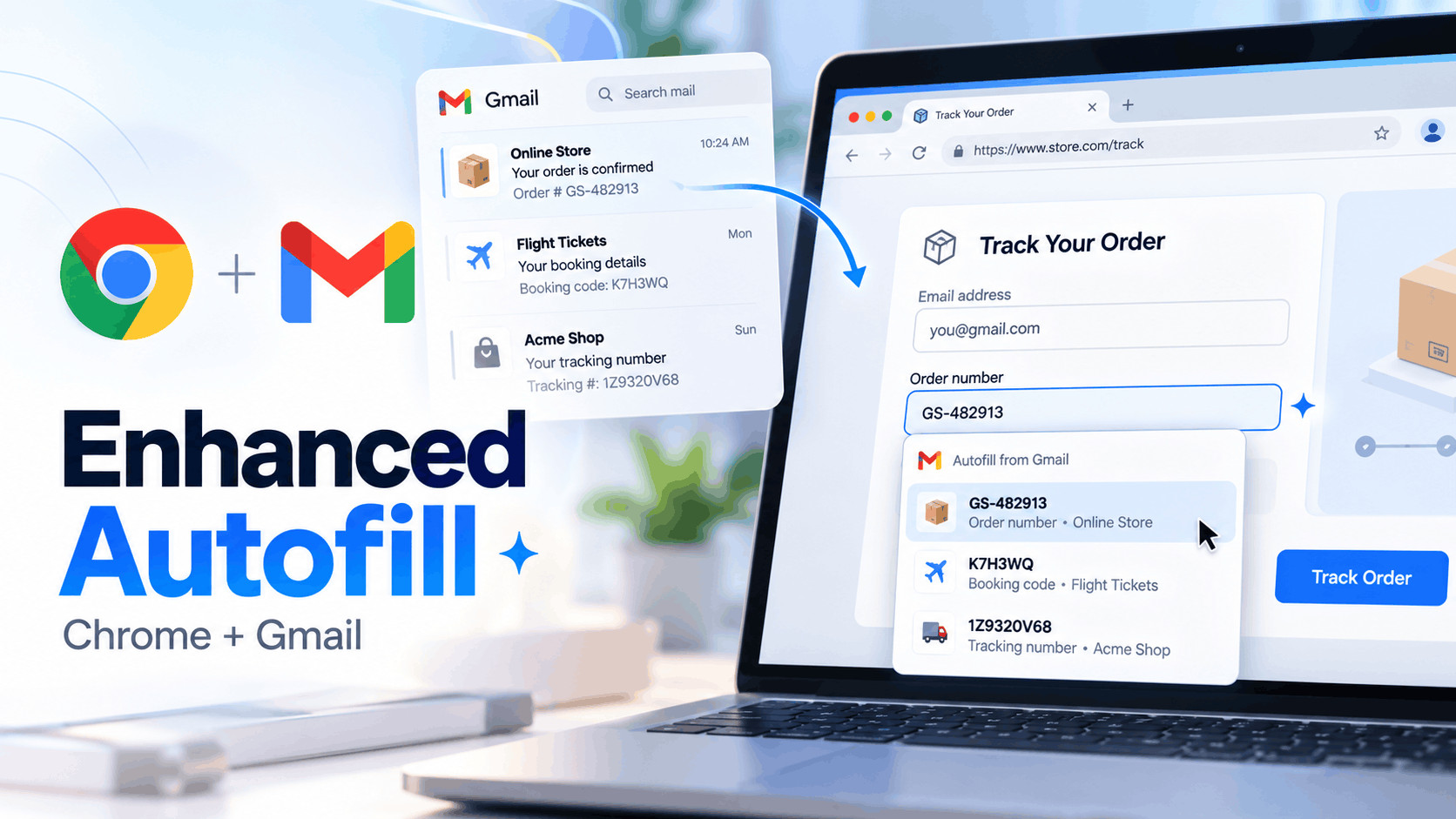
Google Chrome is getting a useful upgrade that could save you from repeatedly searching through your Gmail inbox while filling out online forms. With the new Enhanced Autofill feature, Chrome can find information from your Gmail messages and suggest it directly inside form fields.
For example, imagine you’re checking in for a flight and need your booking confirmation number. Instead of opening Gmail, searching for the airline’s email, and copying the number, Chrome can suggest the information while you’re completing the form.
Google officially announced this update recently. The feature uses Gemini with Personal Intelligence to find relevant information, including order numbers, package tracking details, and flight reservations.
However, Enhanced Autofill isn’t available to everyone yet. Google is gradually introducing it to eligible users in the United States, and you need certain settings enabled before it can access information from Gmail.
In this guide, we’ll explain how Chrome’s Gmail-powered Enhanced Autofill works, how to turn it on, which devices support it, and what to do if the feature isn’t showing up.
What Is Chrome’s New Enhanced Autofill Feature?
Chrome has offered autofill for years, but its traditional functionality primarily relied on information saved in your browser or Google Account. This included your name, email address, phone number, shipping address, passwords, and payment details.
The new Enhanced Autofill takes things further by using Gemini with Personal Intelligence to find relevant details stored in connected Google services, starting with Gmail.
Instead of requiring you to save every order number or booking reference manually, Chrome can identify useful information in your emails and offer it when you’re filling out a matching form.
What Information Can Chrome Pull From Gmail?
Google has confirmed that the feature supports several types of information commonly needed when completing online forms.
- Order numbers: Find purchase reference numbers from shopping confirmation emails.
- Package tracking numbers: Suggest shipment tracking details received from online stores or delivery companies.
- Flight booking information: Retrieve confirmation codes and reservation details from airline emails.
- Other relevant information: Depending on the available email and form, Chrome may suggest additional supported details.
For example, if you purchase something online and later need to check its delivery status, Chrome may identify the tracking number from your confirmation email and suggest it on the tracking website.
The feature doesn’t mean Chrome will automatically complete every form on every website. Suggestions depend on whether relevant information is available, whether the form is compatible, and whether your account has access to the new functionality.
Who Can Use Gmail-Powered Enhanced Autofill?
Before trying to enable the feature, check whether your account meets Google’s requirements.
- You must be located in the United States.
- You must be at least 18 years old.
- You need access to Gemini in Chrome.
- Gemini Personal Intelligence must be enabled.
- Your Gmail account must be connected and accessible through the relevant Google settings.
- You must use a supported version of Chrome on desktop, Android, or iOS.
Important: Google’s announcement describes a gradual rollout, not an immediate release to every eligible account. Even if you meet all the requirements, you might not see the feature right away.
Also, while Gemini Personal Intelligence has broader availability in some countries, this particular Gmail-powered autofill rollout is currently limited to the United States.
How to Turn On Enhanced Autofill in Google Chrome
If you’re eligible, you can enable the new functionality through Chrome’s autofill settings. The exact menu layout can vary depending on your device and whether Google has activated the feature for your account.
Method 1: Enable Enhanced Autofill on Windows or Mac
If you’re using Chrome on a desktop or laptop, follow these steps:
- Step 1: Open Google Chrome and make sure you’re signed in with the Google Account containing the Gmail information you want to use.
- Step 2: Click the three-dot menu in the upper-right corner and select Settings.
- Step 3: Open the Autofill and passwords section.
- Step 4: Look for Enhanced autofill under the available autofill settings.
- Step 5: If the new feature is available, open it and enable Find and fill with Gemini.
- Step 6: Review any permissions or account connection instructions displayed by Chrome.
Once enabled, Chrome can offer Gemini-powered suggestions when you encounter supported forms containing fields that match information in your connected Gmail account.
If you only see Smarter form understanding, that isn’t necessarily the new Gmail integration. It’s an existing autofill capability that helps Chrome recognize form fields and fill previously saved information more accurately.
Method 2: Turn On Enhanced Autofill on Android
Google has also introduced Gmail-powered Enhanced Autofill for eligible Android users. The mobile version works through Chrome’s form suggestions.
- Step 1: Open the Chrome app on your Android phone.
- Step 2: Tap the three-dot menu and select Settings.
- Step 3: Open Autofill and passwords.
- Step 4: Under Autofill settings, select Enhanced autofill.
- Step 5: Turn on Find and fill with Gemini.
- Step 6: Complete any additional setup instructions if Chrome asks you to enable Personal Intelligence or manage connected apps.
When Chrome identifies matching information from Gmail, a suggestion with the Gemini icon may appear above your keyboard or within the autofill dropdown.
Tap the suggestion to fill the field without manually copying the information from your inbox.
Method 3: Enable Enhanced Autofill on iPhone or iPad
The feature is also rolling out to eligible Chrome users on iOS. However, the location of autofill controls may differ between Chrome versions.
- Step 1: Update Google Chrome from the App Store.
- Step 2: Open Chrome and sign in with your Google Account.
- Step 3: Tap the three-dot menu and open Settings.
- Step 4: Open Autofill and passwords, or the relevant autofill section shown in your version.
- Step 5: Look for Enhanced autofill and enable Find and fill with Gemini if available.
- Step 6: Follow the on-screen instructions to complete the setup.
If you cannot find the setting, your account may not have received the update. Updating Chrome is recommended, but it cannot override Google’s account-based rollout.
How to Connect Gmail to Gemini Personal Intelligence
Turning on Enhanced Autofill is only part of the process. The new Gmail integration also requires Gemini Personal Intelligence, which allows eligible users to connect supported Google services for personalized assistance.
To review your Gmail connection on desktop:
- Step 1: Open Chrome and click Ask Gemini if Gemini in Chrome is available.
- Step 2: Open the Gemini menu and go to Settings and help.
- Step 3: Select Personal Intelligence and then Connected Apps.
- Step 4: Find Google Workspace, which includes Gmail, among the supported connections.
- Step 5: Enable the connection if necessary and follow the permission prompts.
- Step 6: Make sure Personal Intelligence is enabled for your eligible account.
These connection settings apply to Gemini services using the same Google Account, not just Chrome’s autofill feature.
If Personal Intelligence isn’t available, you may need to wait for access. Simply connecting Gmail doesn’t guarantee that the new Enhanced Autofill functionality will appear.
How to Use Chrome Autofill With Gmail Information
After enabling the necessary settings, using Enhanced Autofill is relatively simple. You don’t need to manually search Gmail every time you want to complete a supported form.
Consider a situation where you need to check the status of an online purchase.
- Step 1: Visit the retailer’s order tracking page using Chrome.
- Step 2: Click or tap the field requesting your order or tracking number.
- Step 3: Look for an autofill suggestion marked with the Gemini icon or Suggested by Gemini.
- Step 4: Review the suggested information to confirm it matches the correct order.
- Step 5: Select the suggestion to fill the corresponding field.
- Step 6: Check the completed form before submitting it.
This same process can help with supported airline booking forms and other websites requesting reference numbers available in your Gmail messages.
Tip: Always verify suggested booking codes and order numbers, especially if you have multiple reservations or purchases from the same company. An autofill suggestion can be outdated or refer to the wrong transaction.
How to See Where Chrome Found an Autofill Suggestion
One particularly helpful feature is the ability to check the source of certain Gmail-based suggestions.
On Android, Google provides a way to inspect the email behind a suggested value.
- Tap the relevant form field to display autofill suggestions.
- Long-press the suggestion chip marked with the Gemini icon above the keyboard.
- Select View sources.
- Tap the source link to open the original Gmail message.
This is useful when a suggestion looks unfamiliar or you need to confirm that a booking or tracking number belongs to the correct purchase.
You can also long-press a suggestion and select Remove suggestion if it’s unwanted. Removing a suggestion doesn’t delete the original email.
Is Chrome’s Gmail Enhanced Autofill Safe?
Allowing a browser to retrieve information from your inbox naturally raises privacy questions. Gmail messages can contain personal information, travel bookings, purchase histories, and other sensitive details.
According to Google, sensitive information used by Enhanced Autofill is encrypted, and users can manage whether the feature is enabled and which connected services are accessible.
However, encryption alone doesn’t mean you should accept every suggestion without reviewing it. It’s important to understand what permissions you’ve granted and avoid filling sensitive information into untrusted websites.
Privacy Tips Before Enabling Enhanced Autofill
- Review connected apps: Check which services Gemini can access and disconnect anything you don’t want to use.
- Check website addresses: Make sure you’re entering information on a legitimate website before accepting suggestions.
- Use device security: Keep your phone or computer protected with a strong screen lock.
- Verify sensitive details: Double-check any suggested information before submitting a form.
- Disable the feature when unnecessary: You can turn off Gmail-powered autofill without giving up Chrome’s standard password and address autofill.
Google has also announced plans to expand Enhanced Autofill with information from Google Photos. However, the initial rollout focuses on Gmail, so don’t assume Photos-based suggestions are already available.
How to Turn Off Gmail-Powered Enhanced Autofill
If you decide that you don’t want Chrome suggesting information from Gmail, you can disable this functionality through Chrome’s settings.
- Open Google Chrome.
- Go to Settings and select Autofill and passwords.
- Open Enhanced autofill if the feature is available.
- Turn off Find and fill with Gemini.
On Android, this setting is located under Settings, Autofill and passwords, and Enhanced autofill.
Disabling Gmail-powered Enhanced Autofill doesn’t automatically remove saved passwords, addresses, or payment information from Chrome. Those standard autofill categories have their own controls.
You can also disconnect Google Workspace through Gemini’s Connected Apps settings if you want to stop using Gmail information across the applicable Gemini experiences.
Chrome Enhanced Autofill Not Showing? Try These Fixes
Because the feature has only recently started rolling out, some users may not see the new settings or receive Gmail-based suggestions. Here are the most useful checks.
1. Check Your Country and Account Eligibility
The Gmail integration initially supports eligible users in the United States who are at least 18 years old and have Gemini Personal Intelligence enabled.
If you’re outside the supported rollout region, there isn’t an officially supported setting that guarantees access.
2. Update Google Chrome
Open Chrome’s menu and navigate to Help, then About Google Chrome on desktop. Chrome will check for available updates and may ask you to relaunch the browser.
On Android and iOS, check the Play Store or App Store for updates. Keeping Chrome updated ensures you have the latest available browser features and security fixes.
3. Confirm You’re Using the Correct Google Account
If you have several Gmail addresses, make sure Chrome and Gemini are using the intended account.
Otherwise, the information you’re expecting may belong to another inbox that isn’t connected to your current browsing session.
4. Verify Personal Intelligence and Gmail Permissions
Open Gemini’s Personal Intelligence and Connected Apps settings. Check whether the required connection is active and whether your account has access to the personalization features.
If Gmail isn’t connected or Personal Intelligence isn’t enabled, the new suggestions may not work.
5. Try Another Compatible Form
Chrome doesn’t support every form layout. Some websites use custom fields that the browser may not recognize correctly.
Try a supported form requesting an order number or booking reference you know exists in Gmail. If the suggestion doesn’t appear, it may be a compatibility or rollout limitation rather than a problem with your email.
6. Check Whether Chrome Is Managed
If you use Chrome through a workplace or school, your administrator may restrict Gemini integrations or enhanced autofill features.
Visit Chrome’s settings to see whether the browser is managed. If it is, your organization may control access to these features.
Frequently Asked Questions
Can Google Chrome automatically fill forms using Gmail?
Yes. Starting October, Google began rolling out Enhanced Autofill that uses Gemini Personal Intelligence to suggest relevant information from Gmail when completing supported online forms.
Is Enhanced Autofill available to everyone?
No. The new Gmail-powered capability is initially rolling out to eligible Gemini in Chrome users in the United States who are at least 18 years old and have enabled Personal Intelligence.
Does Chrome automatically read all my emails to fill forms?
The feature can use relevant Gmail information through the connected account to generate form suggestions. Google hasn’t described it as automatically submitting information from every email. Users can manage connected apps and turn off the functionality.
Can Chrome fill flight booking and tracking numbers?
Yes. Flight booking details, order numbers, and package tracking information are among the examples Google has officially highlighted. Actual suggestions depend on the relevant email and website form.
Is Chrome Enhanced Autofill the same as Smarter Form Understanding?
No. Smarter Form Understanding helps Chrome recognize form fields and fill saved information. The new Gmail-powered Enhanced Autofill uses Gemini Personal Intelligence to find information from connected services, including Gmail.
Can I edit Gmail information inside Chrome Autofill?
Google says information pulled from Gmail cannot be edited directly in Chrome. You can choose not to use a suggestion, remove an unwanted suggestion where supported, or manually enter the correct information.
Does turning off Enhanced Autofill disable saved passwords?
No. The Gmail-powered functionality is separate from Chrome’s standard password manager and other saved autofill categories. You can disable the new feature while continuing to use normal autofill.
Will Chrome also use Google Photos for autofill?
Google plans to extend the capability to information stored in Google Photos. However, Photos integration is a future expansion and shouldn’t be confused with the Gmail functionality announced in October 2026.
Final Thoughts
Chrome’s new Gmail-powered Enhanced Autofill is a practical upgrade, particularly for people who frequently fill out shopping, delivery tracking, and travel-related forms. Instead of searching through old emails for confirmation codes or order numbers, eligible users can receive relevant suggestions directly inside Chrome.
To get started, make sure Chrome is updated, your Google Account has access to Gemini Personal Intelligence, and Gmail is connected. Then check Chrome’s Enhanced Autofill settings for the Find and fill with Gemini option.
Remember that the feature started rolling out in the United States, so it may not appear immediately for everyone. If you don’t see it yet, verify your eligibility and account settings rather than experimenting with unsupported browser flags.
Once available, Chrome Enhanced Autofill can make repetitive online forms easier to complete while still giving you control over which suggestions you choose to use.