- If a Chrome extension won’t remove normally, it's often due to hidden settings in the Windows Registry that grant it special permissions, making it hard to delete. To solve this, identify the extension, remove these settings using the Registry Editor, and restart your computer.
- After removing the Registry settings, find the extension’s folder on your computer's hard drive and delete it. This permanently removes the software, preventing Chrome from loading it again.
- Reset Chrome to its original settings to fix any changes the extension made. For extra safety, use an adware cleanup tool to scan and remove any hidden malicious programs that might reinstall the extension.
Chrome extensions can enhance your web experience, but malicious adware and poorly coded bloatware occasionally slip through the cracks. It is incredibly frustrating to find a rogue extension hijacking your browser, only to discover the standard “Remove” button is completely grayed out or blocked by a stubborn “Installed by Administrator” warning. These aggressive add-ons use hidden Windows Registry edits to anchor themselves to your PC. When you need to remove Chrome extensions that won’t uninstall, bypassing these artificial locks and deleting the core files manually is the only way to forcefully evict them.
Troubleshooting Steps To Force Remove Chrome Extensions
Are you battling a stubborn browser add-on that simply will not delete? Given below are the definitive troubleshooting steps to help you remove Chrome extensions that won’t uninstall, allowing you to bypass administrative blocks, delete hidden files, and forcefully clear rogue software from your computer.
1. Identify the Extension ID and Delete Registry Policies
If an extension displays a building icon and claims it is “Managed by your organization,” it has maliciously altered your Windows Registry to grant itself unshakeable system privileges. To strip these privileges away, you must first identify the extension’s hidden code and then delete its corresponding registry key. To break this administrative lock, follow the steps given below:
- Open Chrome, type chrome://extensions/ into your address bar, and press Enter.
- Toggle the Developer mode switch in the top right corner to the “On” position, locate your rogue extension, and copy the long string of letters labeled ID: (e.g., id: abcdef…).
- Close Chrome entirely.
- Press the Windows Key + R, type regedit, and press Enter to launch the Registry Editor.
- In the left-hand sidebar, navigate to: HKEY_LOCAL_MACHINE\SOFTWARE\Policies\Google\Chrome\ExtensionInstallForcelist (If it is not there, check HKEY_CURRENT_USER\SOFTWARE\Policies\…).
- Look at the right-hand pane, find the specific numbered value containing the Extension ID you copied, right-click it, and select Delete.
- Restart your computer to permanently break the forced administrative policy.
2. Delete the Extension Folder Manually
Once the registry lock is broken, the actual physical files dictating the extension’s behavior are still sitting on your computer’s hard drive. If you want to permanently remove Chrome extensions that won’t uninstall, manually deleting this core folder physically destroys the software so Chrome can no longer load it. To forcefully delete the extension’s source files, follow the steps given below:
- Ensure all active Google Chrome windows are completely closed.
- Press the Windows Key + R on your keyboard to open the Run dialog box.
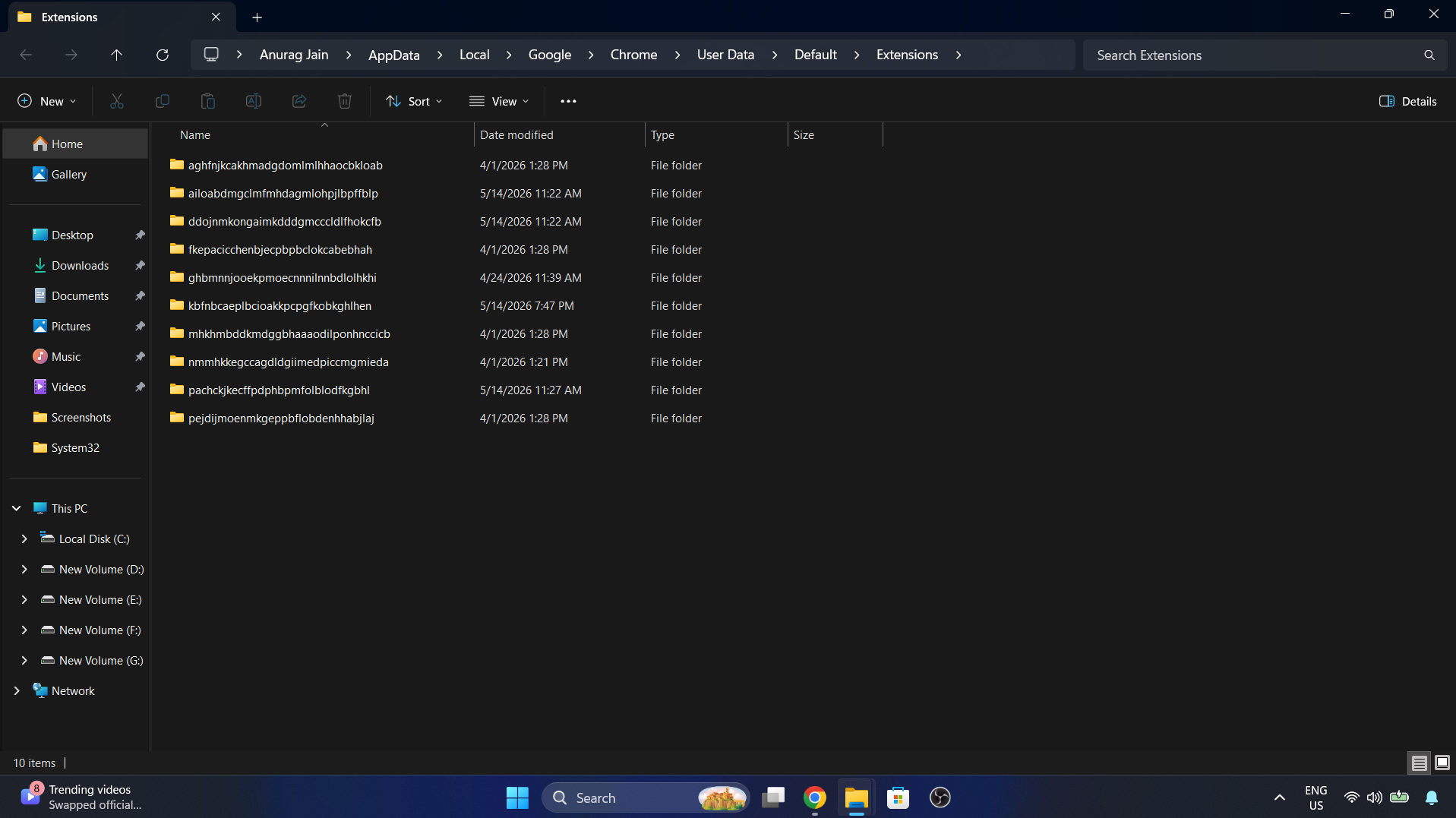
- Type the exact folder path: %localappdata%\Google\Chrome\User Data\Default\Extensions and press Enter.
- A File Explorer window will open displaying several folders with incredibly long, randomized names.

- Locate the folder name that perfectly matches the Extension ID you copied in the previous step.
- Right-click that specific folder, select Delete, and then permanently empty your computer’s Recycle Bin.
3. Reset Chrome to its Original Defaults
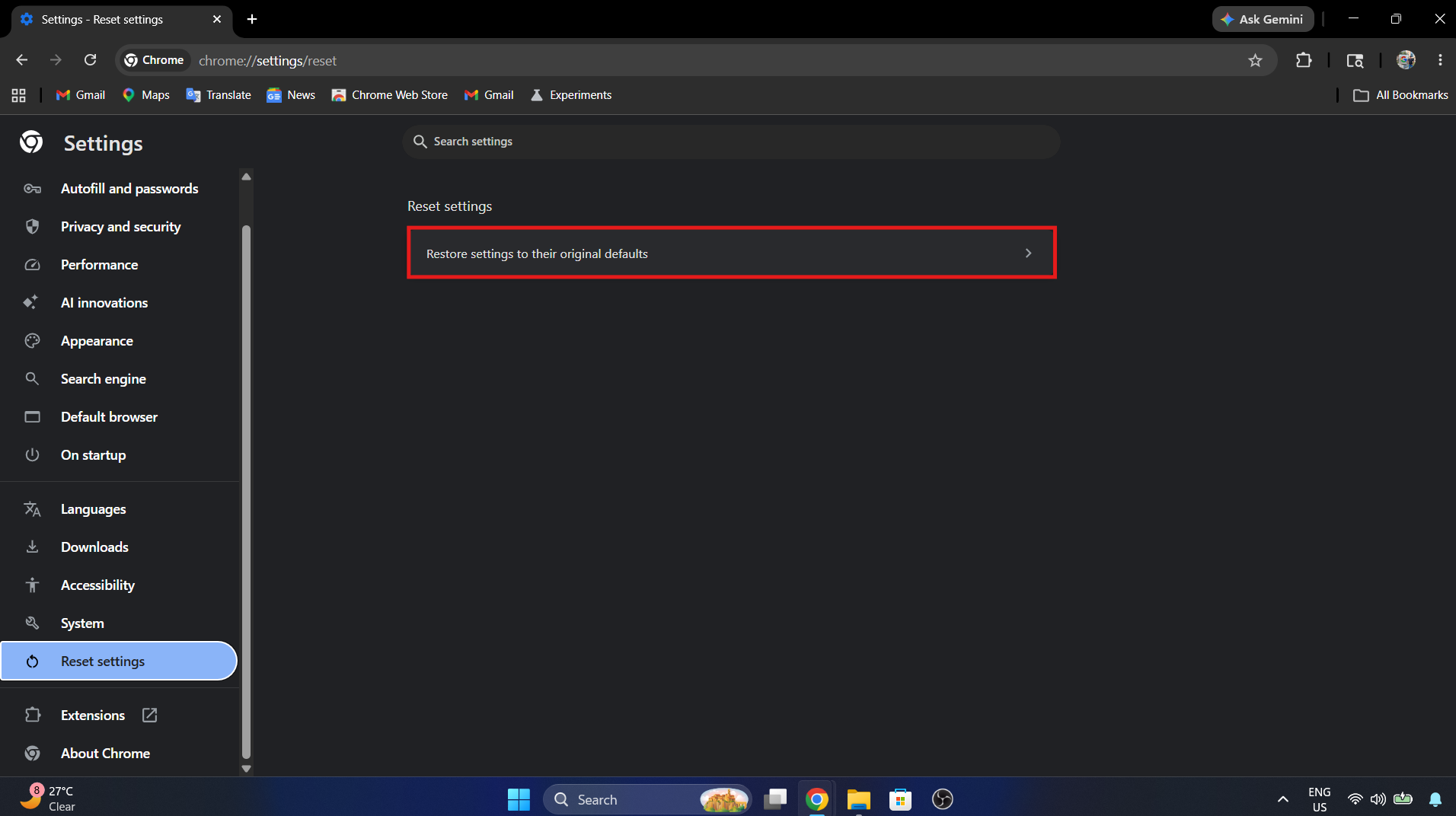
If the malicious extension has altered deep browser settings—like changing your homepage, altering your startup tabs, or redirecting your default search engine—simply deleting the files might leave your browser acting erratically. Performing a clean system reset restores Chrome to its factory state without deleting your saved passwords or personal bookmarks. To reset your settings, follow the steps given below:
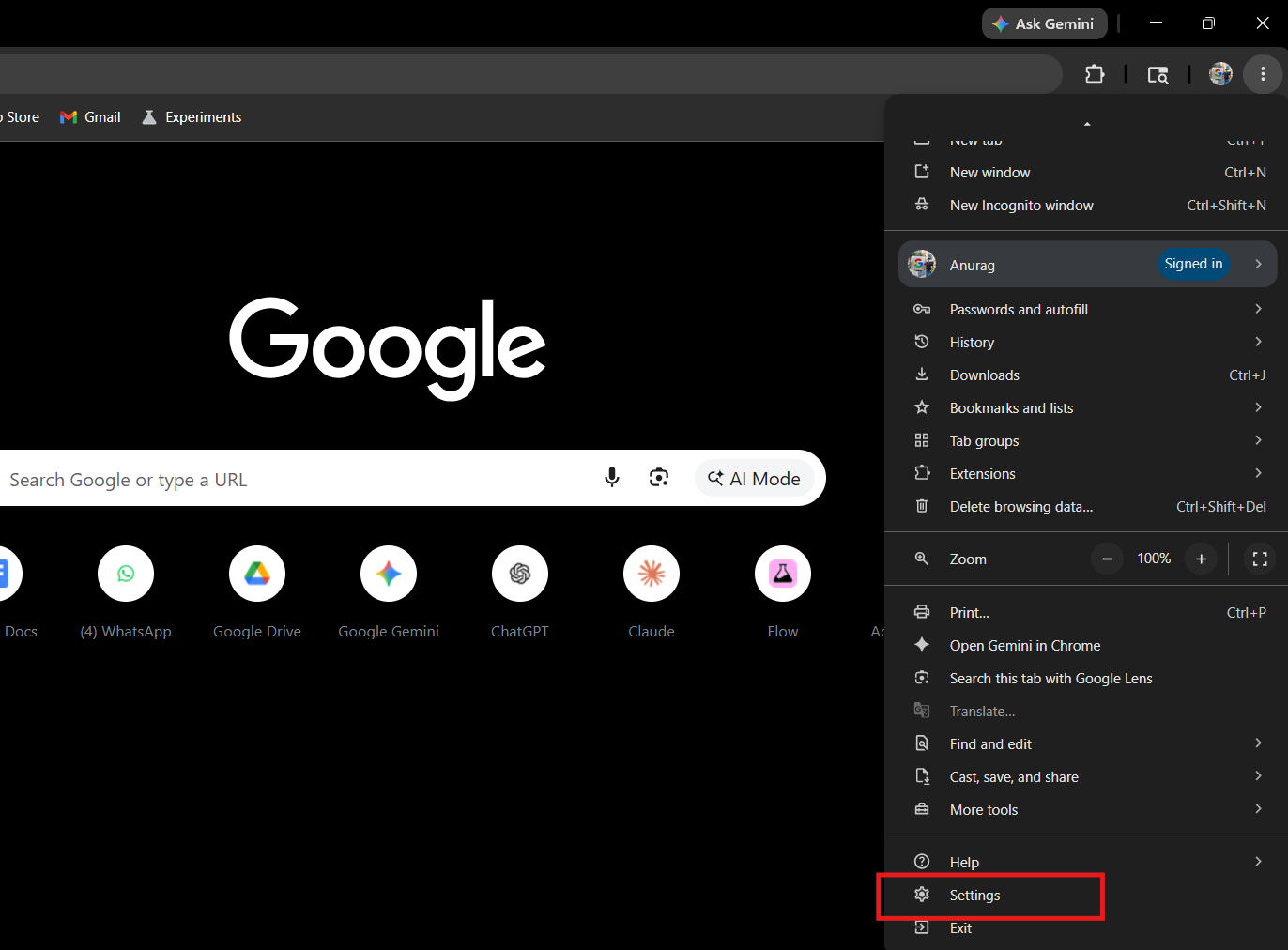
- Open Google Chrome, click the Three-Dot Menu, and select Settings.

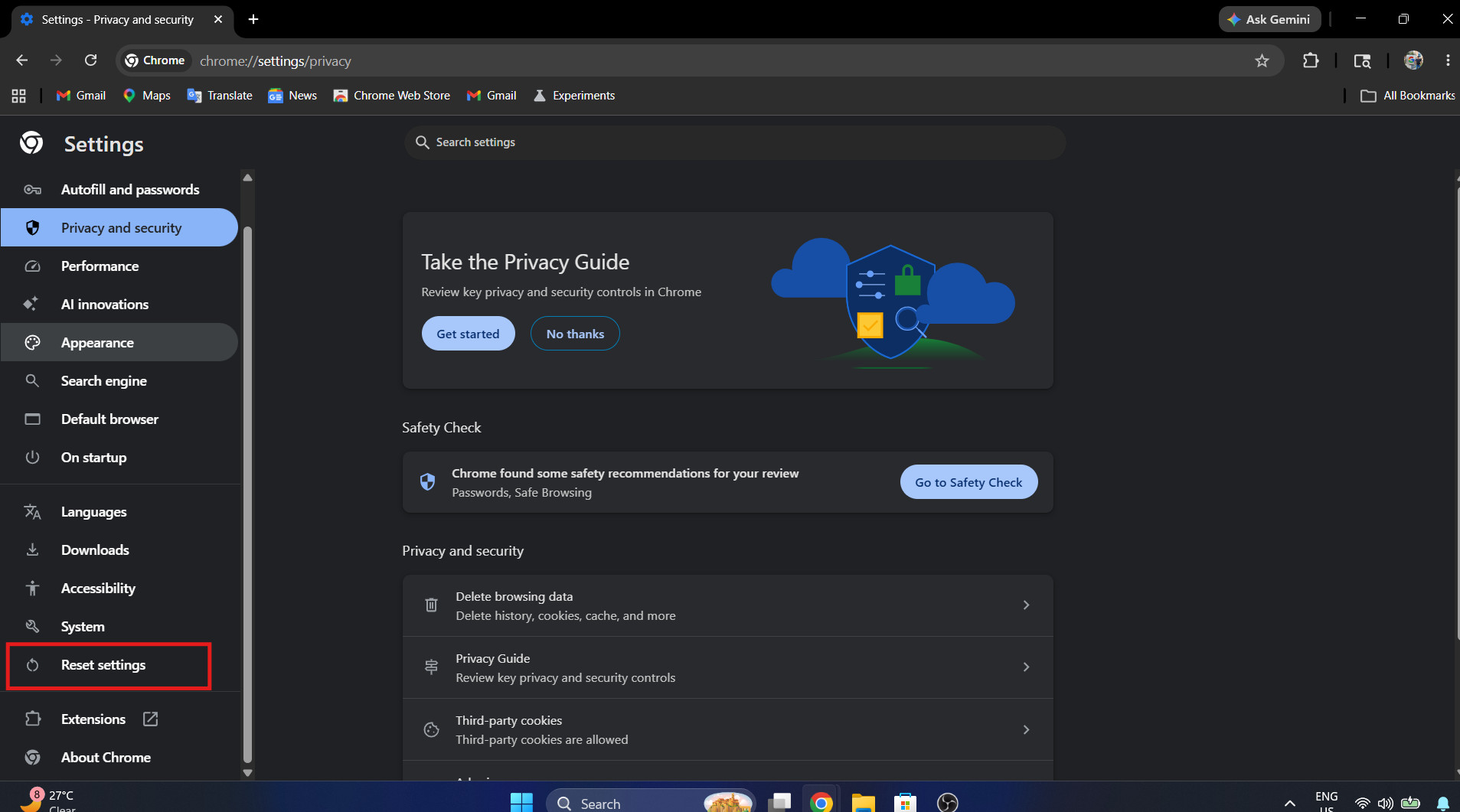
- On the left-hand sidebar menu, click on the Reset settings tab.

- Click on the option labeled Restore settings to their original defaults.

- A warning box will appear explaining that this action will disable all current extensions and clear your temporary data.
- Click the Reset settings button to confirm the action.
- Once the reset finishes, navigate back to chrome://extensions/ and manually re-enable the safe, legitimate extensions you actually want to use.
4. Run a Dedicated Adware Cleanup Tool
Sometimes, a stubborn extension is merely a symptom of a larger problem. If a malicious background program is quietly hiding on your PC, it will automatically reinstall the rogue Chrome extension every time you restart your computer, trapping you in a never-ending cycle. To ensure your system is completely clean, follow the steps given below:
- Download a trusted, lightweight malware scanner designed specifically for browser hijackers, such as Malwarebytes or AdwCleaner.
- Install the software and ensure its virus definitions are fully updated to the latest version.
- Close Google Chrome entirely and launch your chosen anti-malware tool.
- Run a Full System Scan (not a quick scan) and wait for the software to analyze your hard drive and registry.
- Once the scan completes, allow the program to Quarantine and Delete any flagged adware, PUPs (Potentially Unwanted Programs), or hidden hijackers.
- Restart your computer one final time to ensure the background installers are permanently eradicated.
Conclusion
A web browser should act as your secure portal to the internet, not a hostage to malicious software. While rogue developers continuously find clever new ways to bypass standard uninstall procedures using forced administrator policies and hidden registry keys, their extensions are never truly invincible. By utilizing Developer Mode to identify the exact culprit, scrubbing the Windows Registry of forced installation commands, and manually deleting the local app data, you can successfully remove Chrome extensions that won’t uninstall. Keep your browser clean, regularly audit your active extensions, and never let unauthorized adware dictate your web experience.
ALSO READ:
- Google Chrome Keeps Switching to Bing or Yahoo? Fix It Fast
- How to Fix Chrome Not Loading Most Websites on macOS Sequoia
- Download Google Chrome Offline Installer (64-bit, 32-bit)
- How to Stop Google Chrome from Automatically Signing You In to a Google Account
- How to Turn Off Google Chrome AI Features on Windows 11 (Complete Guide)
- How to Fix Google Chrome STATUS_ACCESS_VIOLATION Error 2026