- When ChatGPT doesn't create images as expected, it's often because the instructions are unclear or conflicting. Complex prompts with too many details or mixed instructions, like asking for both a minimal and highly detailed style, can confuse the model.
- To improve image results, use a structured, simple prompt. Clearly state what you want first, like keeping a specific face unchanged, and break down the prompt into sections like subject, style, and layout. Limit the number of objects and avoid long texts in the image to reduce mistakes.
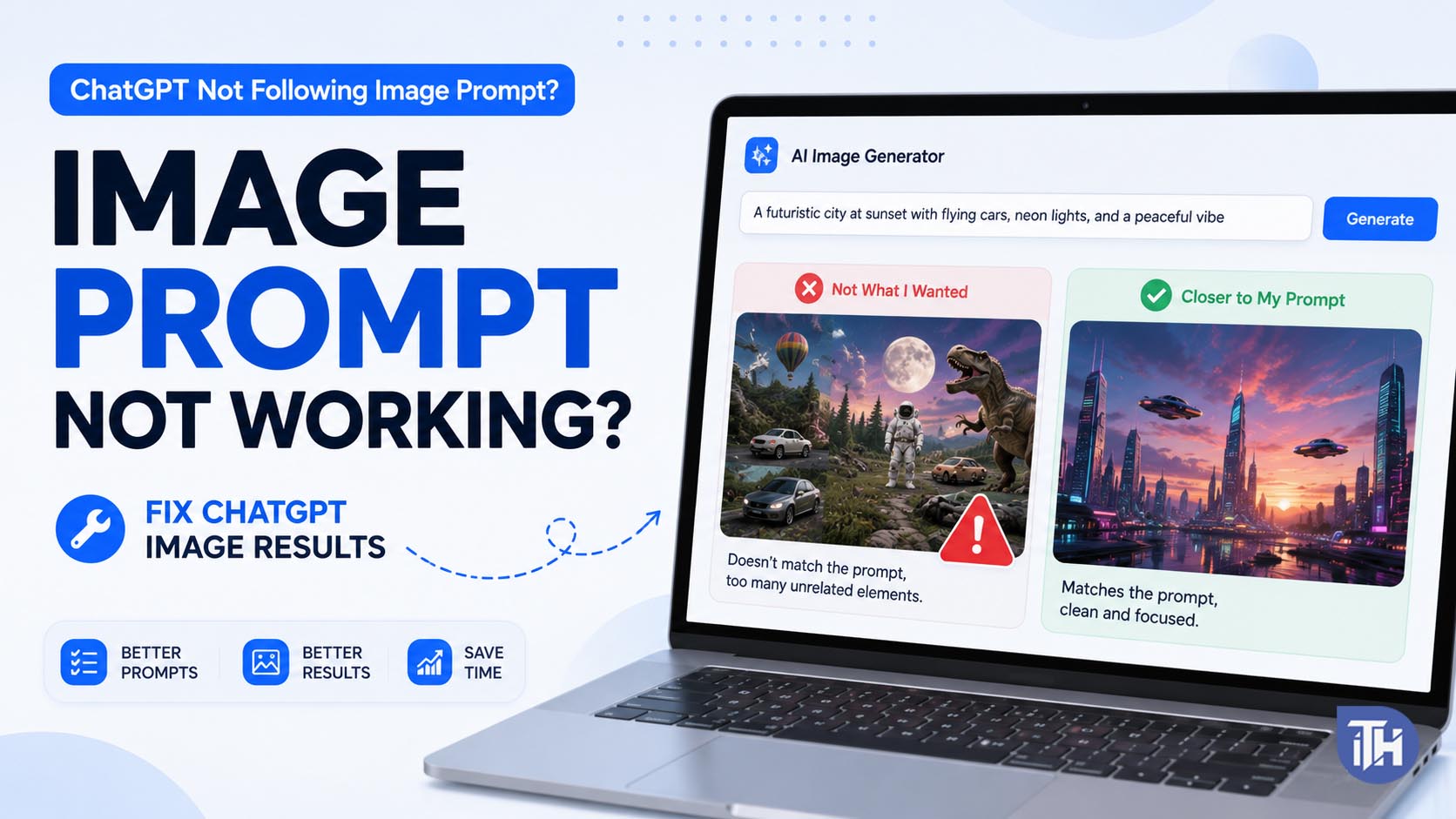
If ChatGPT not following image prompt is ruining your image results, the problem is usually not one single thing. It can happen because the prompt is too vague, too crowded, conflicting, unsupported by the image model, or missing clear visual priorities.
ChatGPT Images can create and edit images from prompts, and it can follow instructions for details like text, image edits, and transparent backgrounds. However, complex image requests may still need clearer structure, fewer conflicts, and step-by-step refinement.
What Does “ChatGPT Not Following Image Prompt” Mean?
When people say ChatGPT not following image prompt, they usually mean one of these things:
- The image ignores important text or layout instructions.
- The character, object, clothing, or background looks different.
- The output adds random objects that were not requested.
- The image changes the face, pose, color, or style too much.
- The text inside the image is misspelled or placed incorrectly.
- The model follows the theme but misses exact details.
This does not always mean ChatGPT is broken. Image generation works better when your prompt is visual, specific, and properly prioritized.
Why ChatGPT Is Not Following Your Image Prompt
1. Your Prompt Has Too Many Instructions
A very long prompt can confuse the image model. If you ask for a luxury office, smiling family, exact clothing, exact wall color, 10 icons, text placement, camera angle, lighting style, and 20 small details in one prompt, some parts may be skipped.
The fix is simple: divide your prompt into sections such as subject, background, style, text, layout, and restrictions.
2. Your Prompt Contains Conflicting Details
ChatGPT may struggle when the prompt says things like “minimal but highly detailed,” “realistic cartoon,” or “dark background with bright white clean daylight.” These instructions fight each other.
Use one clear direction. For example, write “bright minimal tech thumbnail” instead of mixing dark cinematic and clean Apple-like styles.
3. The Most Important Detail Is Buried
If your main instruction appears near the end, it may not get enough priority. Put the most important requirement at the beginning.
Bad prompt:
“Create a modern thumbnail with icons, laptop, background, warning sign, text, blue glow, and don’t change the baby’s face.”
Better prompt:
“Do not change the baby’s face, expression, or clothing. Only smooth the skin slightly, improve lighting, and replace the background with a soft studio backdrop.”
4. You Are Asking for Exact Text Rendering
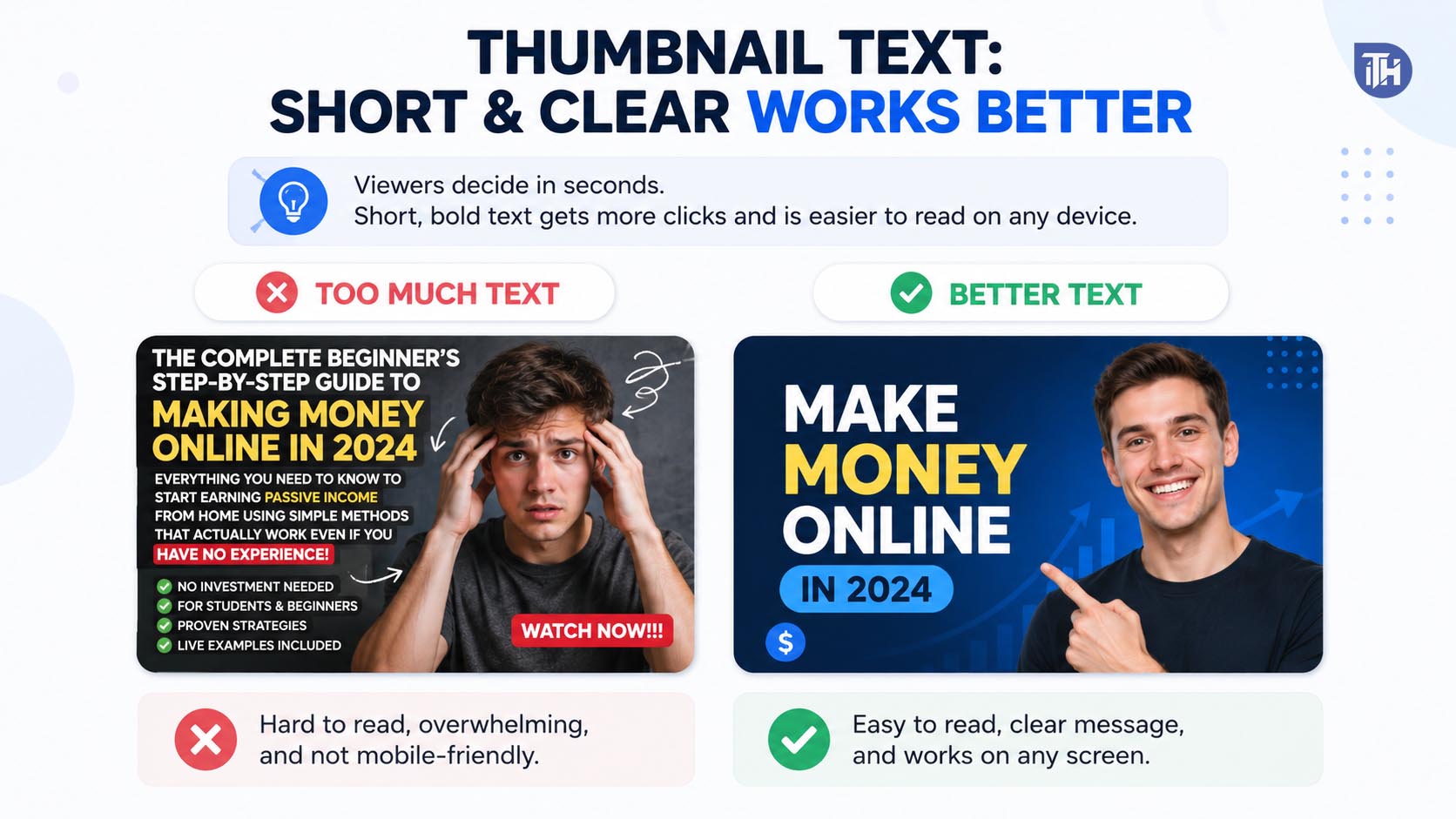
Image models can create text, but exact spelling, perfect alignment, and long text can still fail. OpenAI says ChatGPT Images can follow instructions to add text, but for best results, keep text short and simple.
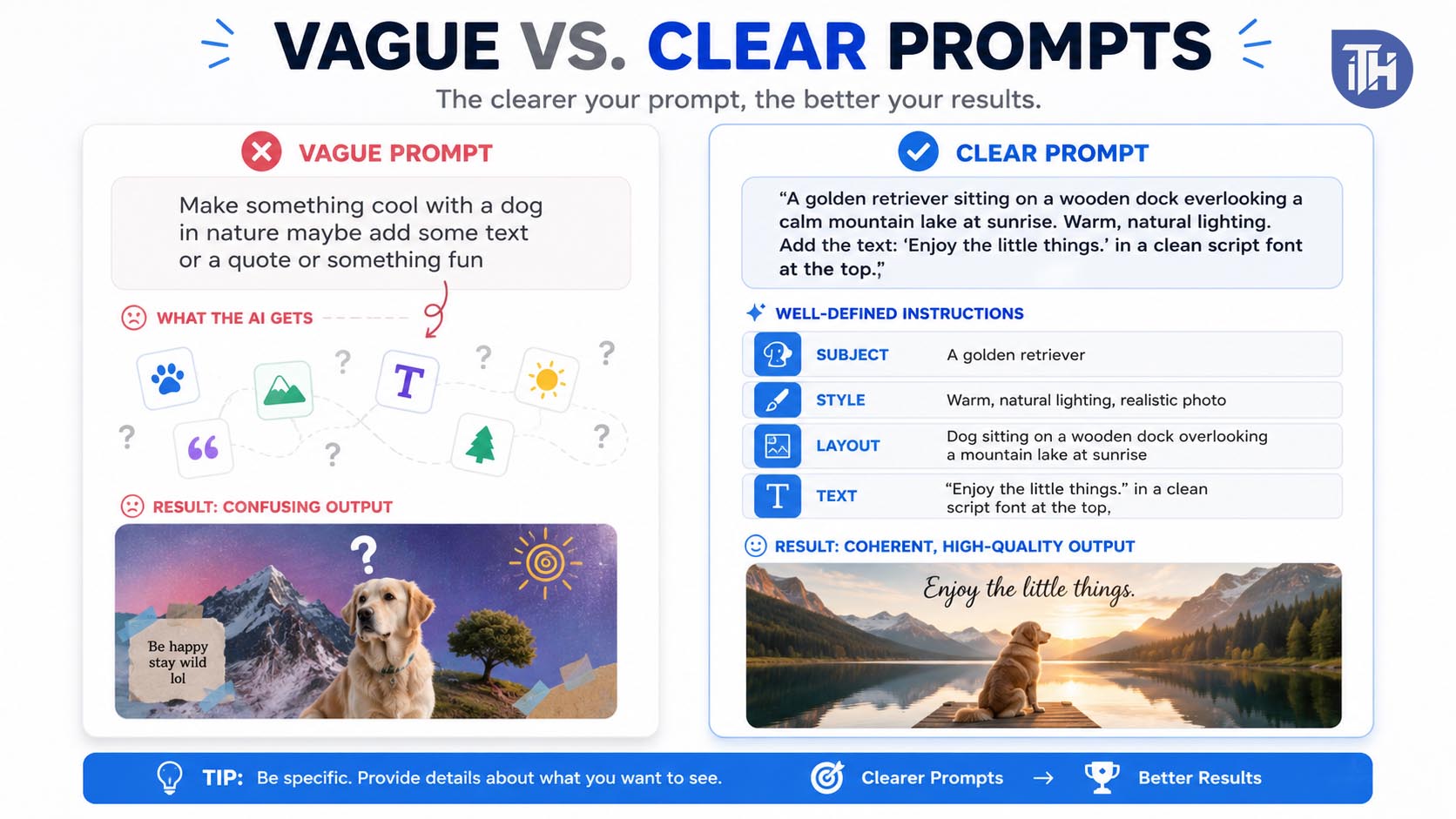
Use 2 to 5 words inside an image whenever possible. For thumbnails, avoid long sentences.
How to Fix ChatGPT Not Following Image Prompt
1. Use a Structured Prompt Format
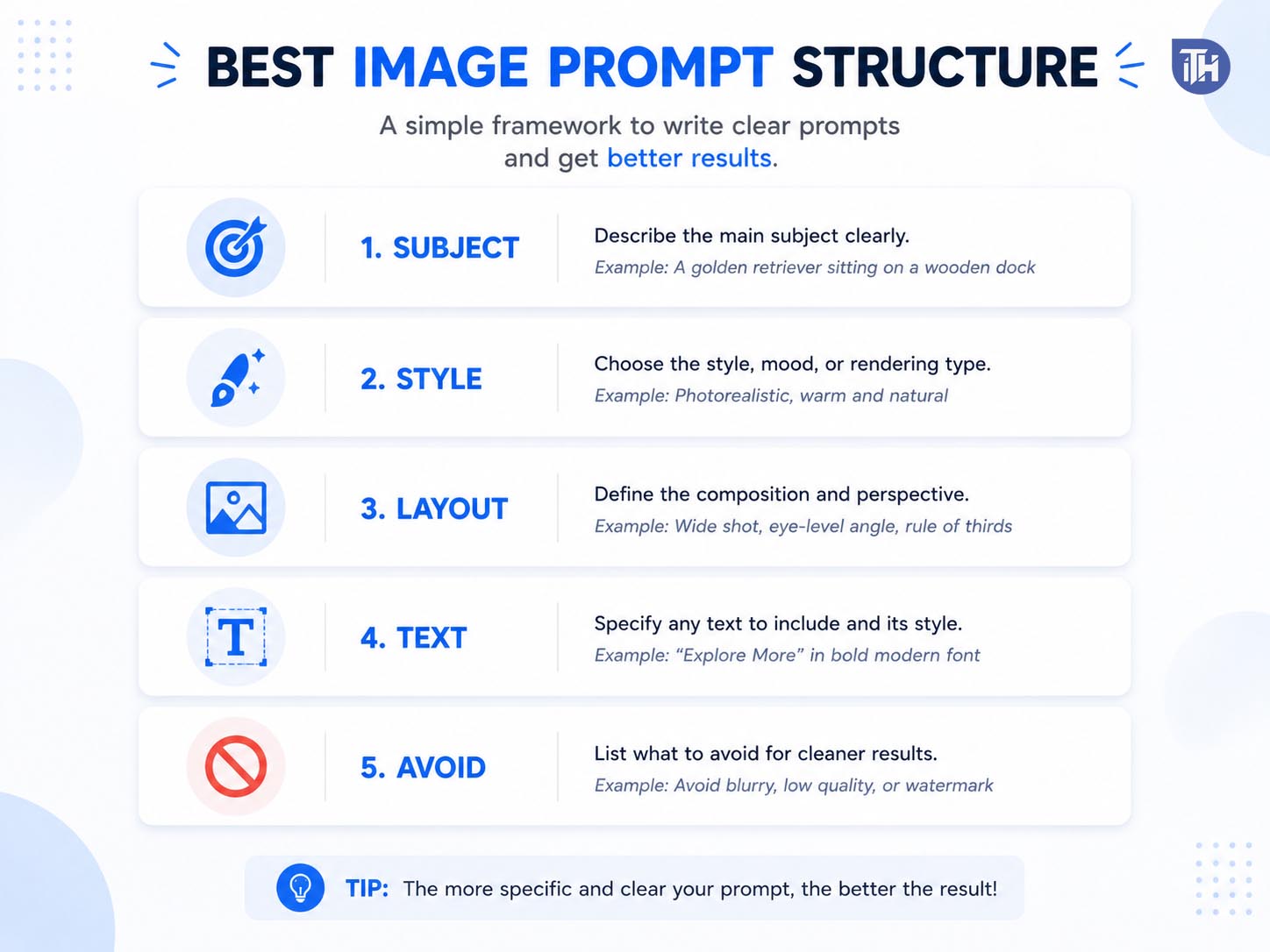
The best fix is to stop writing one messy paragraph. Use a clean structure like this:
- Subject: What should appear in the image.
- Style: Realistic, 3D, minimal, cinematic, flat design, or screenshot-style.
- Layout: Where each element should be placed.
- Text: Exact words to show.
- Do not include: Things you want to avoid.
2. Give Priority Instructions First
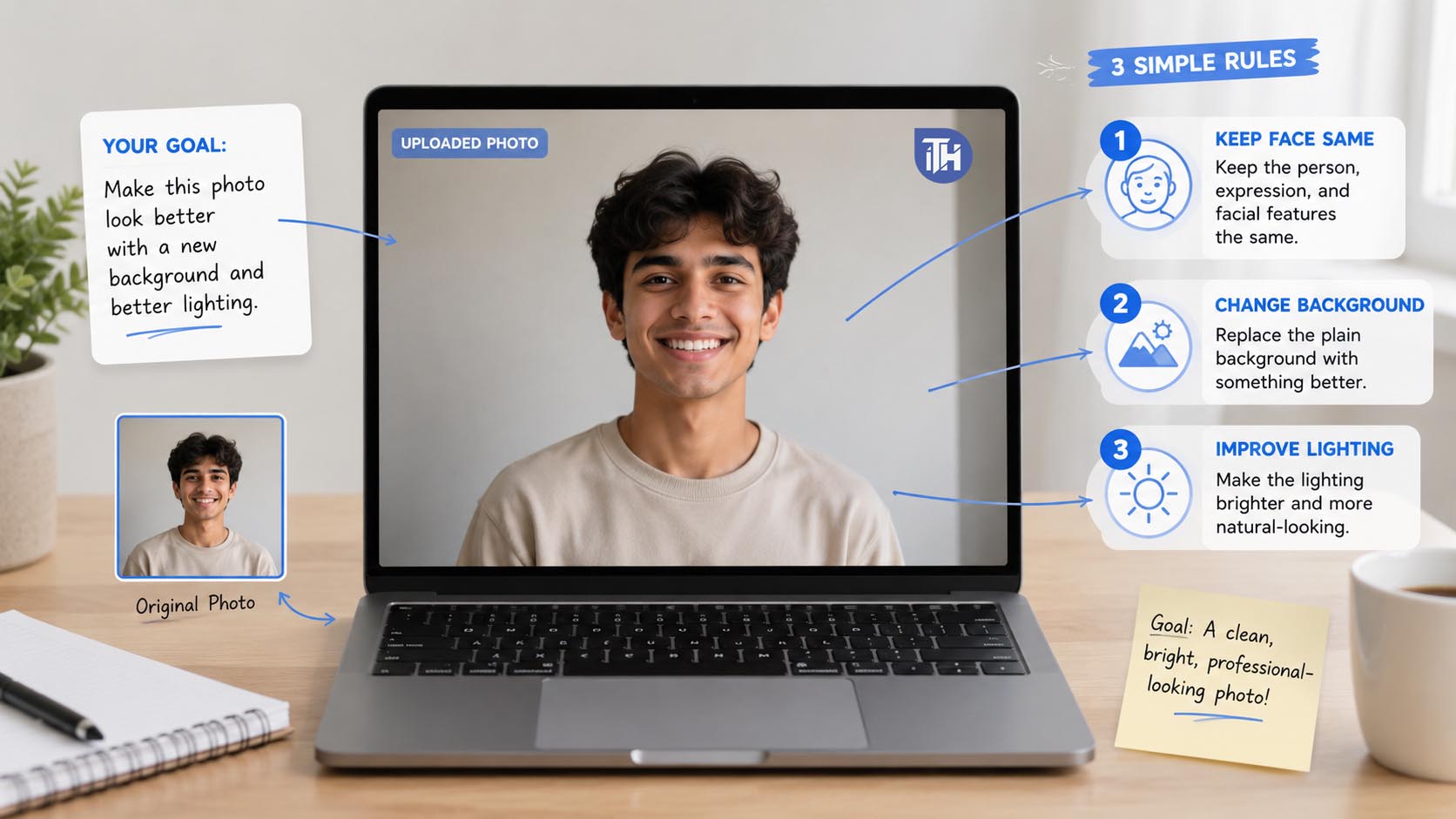
If something must not change, write it first. This is especially important for image editing.
Example:
“Keep the person’s face, pose, and clothing exactly the same. Only replace the background with a clean light grey studio background and improve brightness.”
3. Reduce the Number of Objects
If ChatGPT not following image prompt happens often, remove unnecessary elements. Instead of asking for 15 icons, ask for 3 strong visual elements.
For example, instead of:
“Add laptop, phone, browser, warning icon, settings icon, lock icon, bug icon, delete icon, shield icon, and arrows.”
Use:
“Add a laptop screen, one warning icon, and one settings gear icon.”
4. Use Negative Instructions Carefully
Negative instructions help, but too many “don’t” lines can confuse the output. Keep them short.
Good examples:
- No humans.
- No brand logos.
- No dark background.
- No extra text.
- Do not change the face.
5. Ask for One Edit at a Time
When editing an uploaded image, avoid asking for too many changes together. OpenAI notes that users can upload an image and describe changes they want, including selecting a specific area or describing edits directly.
First fix the background. Then fix lighting. Then adjust text. This gives better control than asking for everything at once.
Best Prompt Template to Fix ChatGPT Not Following Image Prompt
Use this template:
Create a [type of image] for [purpose].
Main subject: [Describe the main object/person clearly.]
Layout: [Where should the subject, text, and icons appear?]
Style: [Realistic, modern, clean, premium, minimal, 3D, etc.]
Text: “[Exact short text]”
Colors: [Mention 2 to 4 colors only.]
Must follow: [Most important rules.]
Avoid: [Things not to include.]
Example Prompt for Better Image Results
Here is a clean example:
Create a bright modern tech blog thumbnail about ChatGPT image prompt errors. Show a laptop screen with a generic image generation interface and a small warning icon. Keep the layout clean with the laptop on the right and bold text on the left.
Text on image: “PROMPT NOT WORKING?”
Smaller text: “FIX IMAGE RESULTS”
Use a light white, blue, and soft grey background. Design should look premium, minimal, and easy to read on mobile. No humans, no real brand logos, no clutter, no dark theme.
Common Problems and Fixes
ChatGPT Ignores My Text Instructions
Keep image text short. Use uppercase words. Avoid long subtitles. If spelling matters, generate the image without text first, then add text manually in Canva, Photoshop, Figma, or another editor.
ChatGPT Changes the Face in My Image
Start your prompt with: “Keep the face exactly the same.” Also mention what can be changed, such as background, lighting, or color tone.
ChatGPT Adds Extra Objects
Add a short restriction line: “Do not add extra objects.” Also reduce decorative elements in your prompt.
ChatGPT Does Not Follow Aspect Ratio
Clearly mention the size at the end: “Aspect ratio 16:9” or “Make the image vertical 9:16.” For thumbnails, 16:9 usually works best.
ChatGPT Makes the Design Too Crowded
Use words like “minimal,” “clean spacing,” “few elements,” and “large empty space.” Also avoid listing too many icons.
Best Practices for Image Prompts
- Put the most important instruction first.
- Use short, clear visual language.
- Separate layout, style, text, and restrictions.
- Keep image text short.
- Do not mix too many styles.
- Use one prompt for one main result.
- Edit step by step instead of fixing everything at once.
Frequently Asked Questions (FAQs)
Why is ChatGPT not following my image prompt exactly?
It usually happens because the prompt is too broad, too complex, or contains conflicting instructions. Image models work better with clear visual priorities and fewer elements.
Can ChatGPT create exact text in images?
It can add text to images, but short text works better than long sentences. For professional thumbnails, it is often better to add final text manually after generating the base image.
How do I make ChatGPT follow my prompt better?
Use a structured prompt with subject, layout, style, text, colors, and restrictions. Put the most important rule at the beginning.
Why does ChatGPT change faces during image editing?
Image editing may reinterpret the uploaded image if the prompt is not strict enough. Tell it to keep the face, pose, expression, and clothing unchanged before describing the edit.
Should I write long image prompts?
Long prompts can work, but only if they are organized. A shorter structured prompt usually performs better than a long paragraph with mixed instructions.
Final Thoughts
If ChatGPT not following image prompt keeps happening, do not keep regenerating the same weak prompt. Rewrite it with clearer priorities, fewer objects, short text, and direct restrictions.
The best results usually come from simple prompts that explain exactly what should appear, where it should appear, what style to use, and what to avoid. For image editing, make one change at a time and clearly mention what must stay unchanged.
ALSO READ:
- How to Fix ChatGPT Not Generating Ghibli-Style Images
- Fix ChatGPT High Demand Error | Fast Solutions for GPT-5, Desktop App & More
- How to Fix “Too Many Requests, Please Slow Down” on ChatGPT OpenAI
- How to Fix ChatGPT ‘Verify you are human’ Captcha Loop Error
- Top 10 Ways to Fix ChatGPT Send Button Not Working