- Apple Pencils, used with iPads for art and writing, can disconnect due to problems like a loose tip, Bluetooth issues, or software bugs. To fix it, check the pencil tip for tightness as loose physical contact might mean communication issues with the iPad screen.
- If the pencil disconnects despite a secure tip, the next step is to reset the Bluetooth connection. Do this by “forgetting” the device in Bluetooth settings and pairing it again. This resets any corrupt connection settings.
Apple’s iPad lineup has revolutionized digital art, note-taking, and productivity, but the true catalyst for this experience is the Apple Pencil. Whether you use the classic 1st Generation, the magnetic 2nd Generation, the USB-C variant, or the cutting-edge Apple Pencil Pro, this stylus is engineered to feel exactly like an analog tool with pixel-perfect precision. Unfortunately, that magical experience instantly shatters when the hardware refuses to communicate. It is incredibly frustrating to be in the middle of a complex illustration or an important meeting, only to have your stylus suddenly stop responding.
If your Apple Pencil Keeps Disconnecting without warning, you are certainly not alone. This is one of the most frequently reported issues across the Apple ecosystem, with users often describing the pencil working flawlessly before abruptly dropping its connection. Fortunately, this is rarely a sign of a permanently broken iPad or a dead stylus. In most cases, the problem boils down to a physical tip misalignment, a corrupted Bluetooth handshake, or a hidden software bug within iPadOS. if your Apple pencil keeps disconnecting on your iPad, then here are all the troubleshooting steps that you can follow to avoid this issue.
Troubleshooting Steps To Fix Apple Pencil Keeps Disconnecting
Are you constantly losing your wireless stylus connection? Given below are various troubleshooting steps to help fix this issue and permanently restore your seamless creative workflow.
1. Check and Tighten the Physical Nib
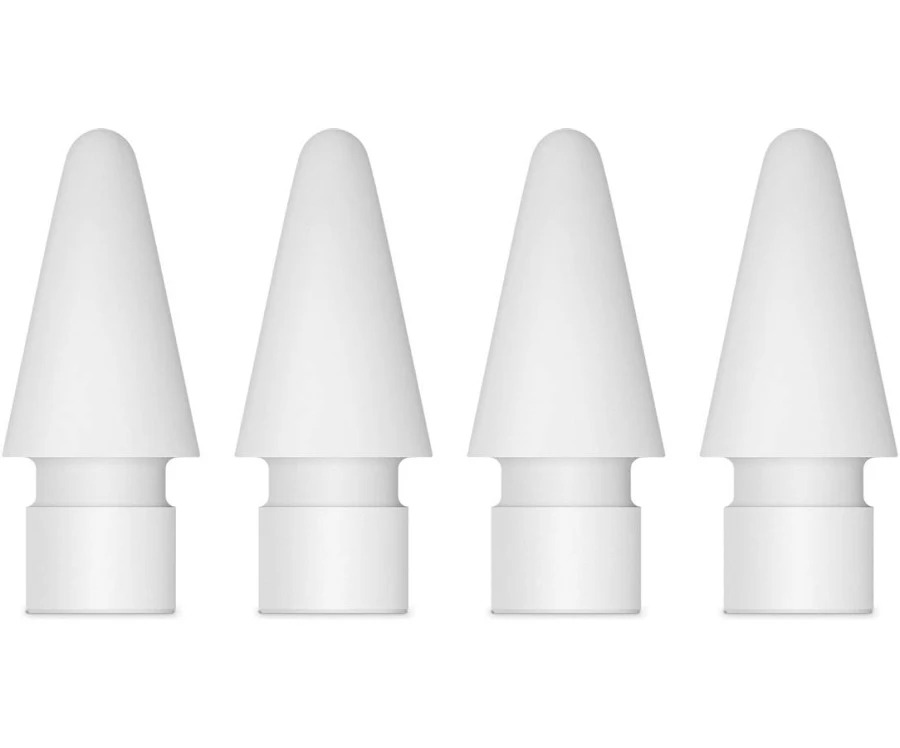
If your Apple Pencil keeps disconnecting, then it can be due to a loose nib. Before diving into complex software resets, you must rule out a loose Apple Pencil tip. The replaceable tip houses a highly sensitive metal transducer that communicates directly with the iPad’s screen. If natural friction from heavy drawing has caused it to slowly unthread itself, the internal contact points separate, making it feel exactly like a wireless failure. To fix this, follow the steps given below:
- Hold your Apple Pencil firmly in one hand and locate the plastic tip at the bottom.
- Gently pinch the tip with your thumb and index finger to gauge if there is any physical wobble.
- Turn the tip clockwise to ensure it is completely snug against the main body of the stylus. Do not overtighten it or use excessive force, as you can easily strip the delicate plastic threads.
- If the tip feels rough on the glass, is worn down to the underlying metal core, or refuses to screw in tightly, unscrew it completely by turning it counter-clockwise.
- Discard the damaged tip and screw a brand-new, official Apple replacement tip onto the exposed metal threads.
- Once the new tip is secure, open the Apple Notes app and attempt to draw a continuous, unbroken line across the screen to test the stability of the connection.
2. Forget the Bluetooth Profile in Settings
If the physical nib is tight but the stylus still drops out, the underlying issue is almost certainly a corrupted Bluetooth handshake. When initially paired, the two devices exchange an encrypted security token. If a temporary system glitch or software update invalidates this token, the iPad will aggressively drop the connection to protect the system. To fix this, you must sever the digital tie completely. To forget the profile, follow the steps given below:
- Open the Settings app from your iPad’s main home screen or app library.
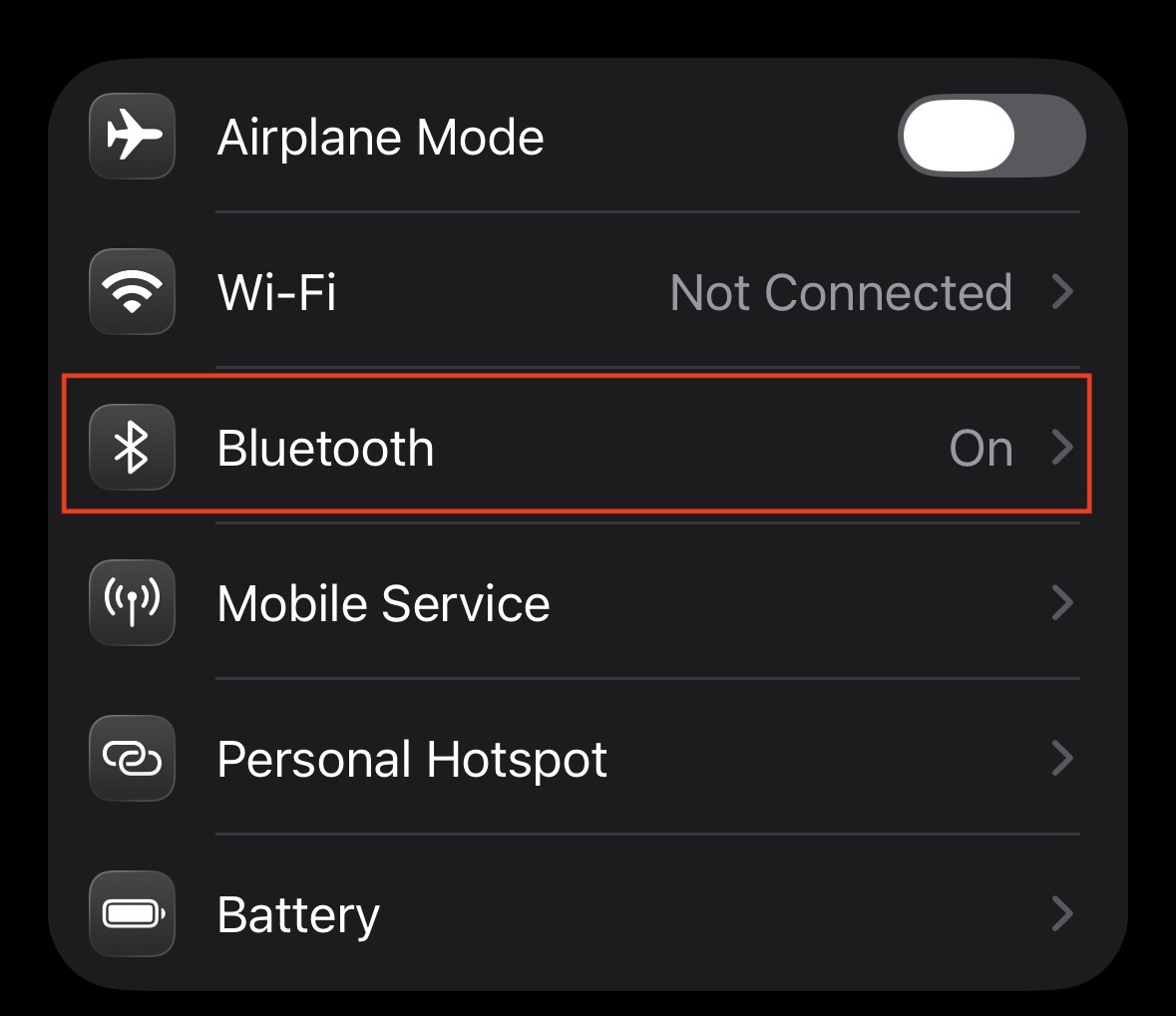
- In the left-hand sidebar menu, navigate directly to the Bluetooth tab. Ensure the main Bluetooth toggle at the top is turned on so you can view all your previously connected accessories.

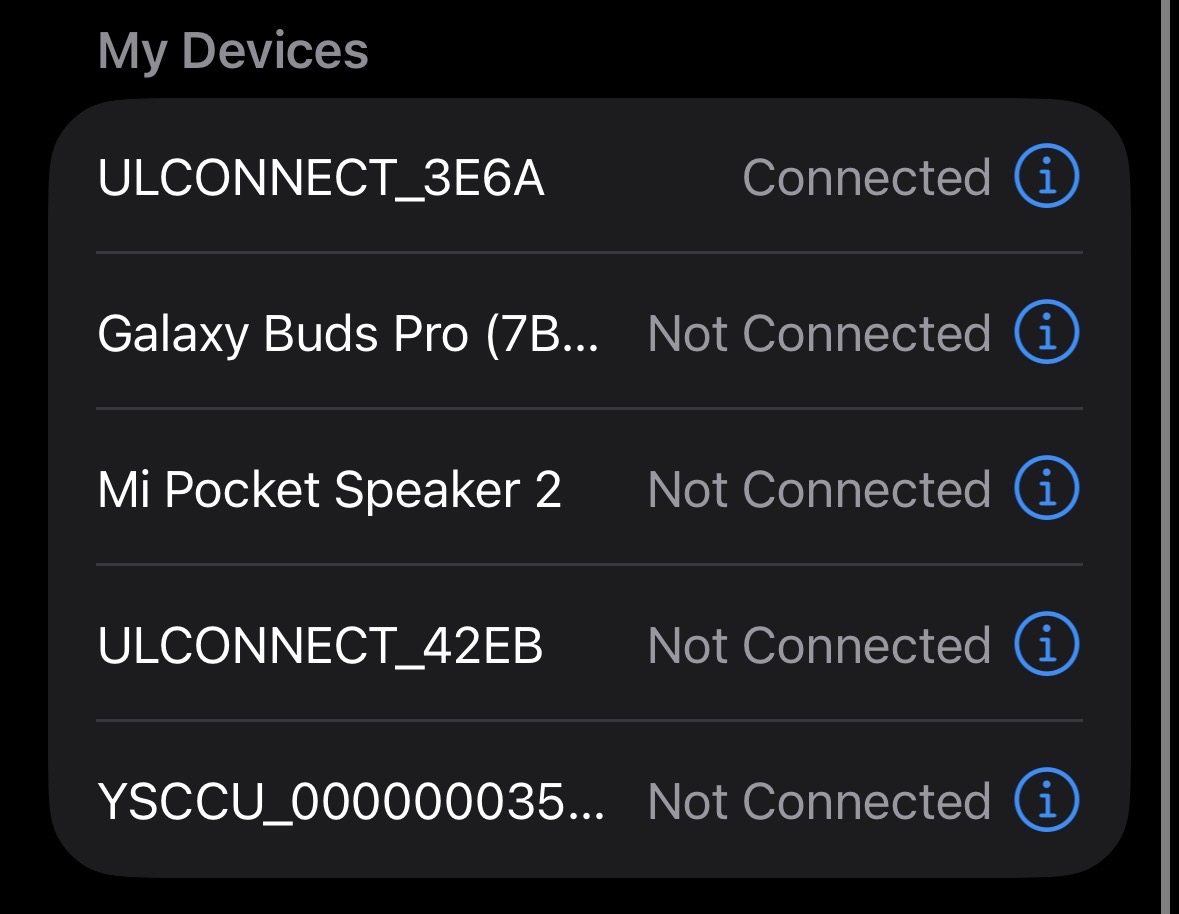
- Look at the “My Devices” list and carefully locate your specific Apple Pencil.

- Tap the small blue “i” (Information) icon located to the far right of the Pencil’s name.
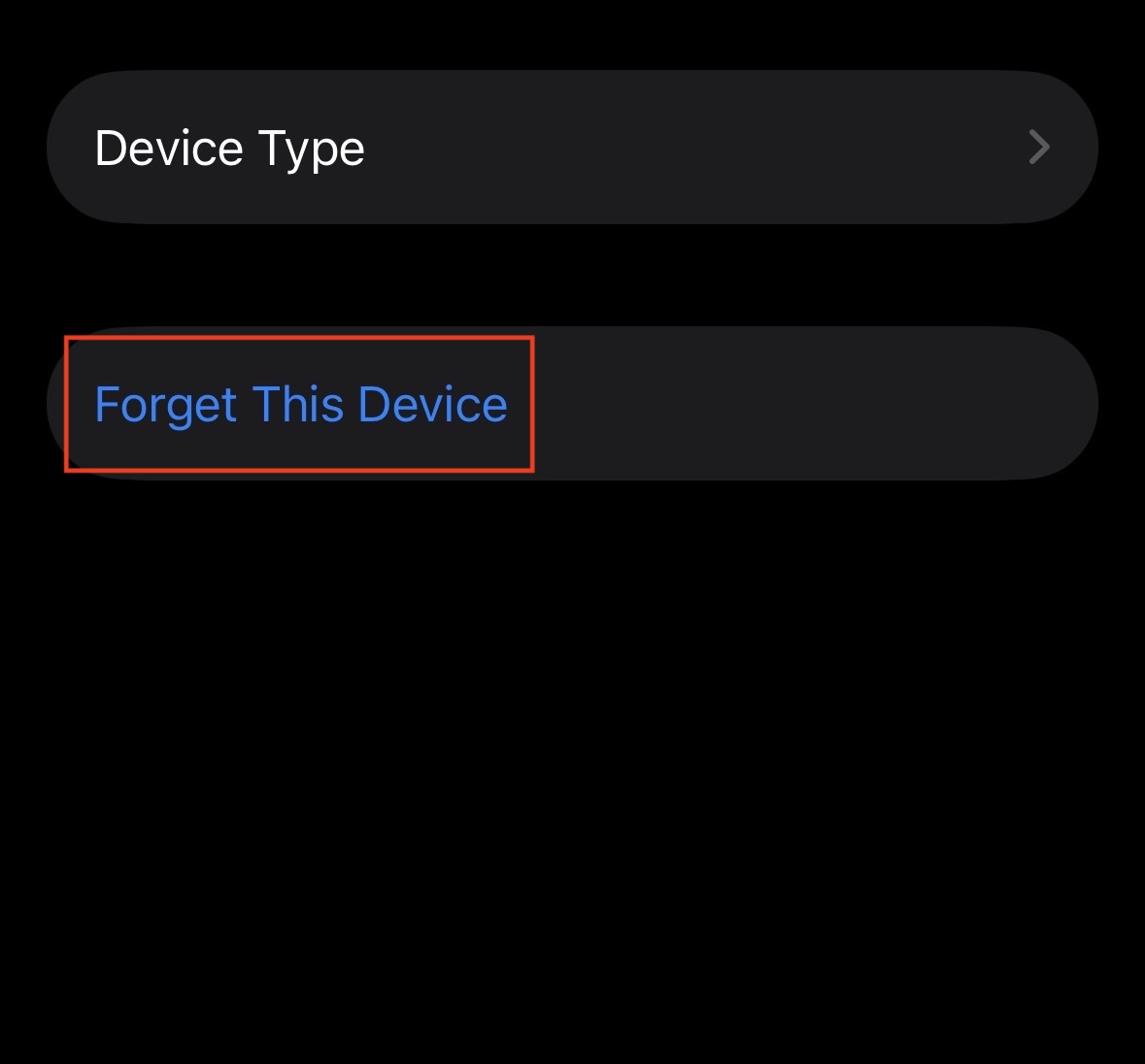
- Tap the Forget This Device option highlighted in red text, and strictly confirm your choice in the pop-up warning window that appears on the screen.

- Turn the main Bluetooth toggle switch completely off, wait a full ten to fifteen seconds to let the internal radio hardware power down, and then toggle it back on.
3. Initiate a Fresh Hardware Pairing Connection
Now that you have given your iPad a clean slate by forgetting the old Bluetooth profile, you must force the two devices to introduce themselves from scratch to generate a new security token. The pairing method depends entirely on which specific model of the Apple Pencil you own, as they all utilize different hardware connectors. To initiate a fresh pairing, follow the steps given below:
- For the Apple Pencil (1st Generation), gently remove the back magnetic cap to reveal the physical connector. Plug the Lightning connector directly into your iPad’s charging port at the bottom of the tablet. Leave it plugged in for ten seconds until the “Pair” prompt appears, and tap it.
- For the Apple Pencil (2nd Generation) and the Apple Pencil Pro, the process is entirely wireless. Snap the flat edge of the stylus directly onto the magnetic charging strip located on the right edge of your iPad.
- Wait for the pairing notification and the small graphical battery indicator to drop down from the top of the iPad’s display.
- For the Apple Pencil (USB-C), slide open the back cap to reveal the hidden port. Use a standard, data-capable USB-C cable to connect the stylus to your iPad’s charging port.
- Wait for the system pairing prompt to appear on the display, and tap “Connect.”
- Do not unplug or remove the stylus from any of these charging positions until you have actively verified the stylus is drawing on the screen and the battery is reading accurately.
4. Diagnose the Deep Discharge Battery Trap
One of the most misunderstood reasons an Apple Pencil Keeps Disconnecting relates to its internal power supply. The Apple Pencil houses a phenomenally tiny Lithium-Ion battery that is highly susceptible to permanent damage if left uncharged in a drawer for months. A classic symptom of a dead battery is the “100% to 0%” glitch, where the iPad reads the live voltage of its own charger rather than the Pencil’s dead cell. To test the battery health, follow the steps given below:
- Attach your Apple Pencil to the iPad’s magnetic wireless charger or plug it directly into the Lightning/USB-C port.
- Leave the stylus completely undisturbed for an uninterrupted window of exactly 60 minutes. Do not remove it to check the percentage during this time.
- After an hour has passed, detach the Pencil from the charging port or magnetic strip.
- Immediately swipe to your iPad’s home screen and open the system Battery Widget to monitor the live percentage readout.
- Open a heavy drawing application like Procreate or standard Apple Notes and draw continuously without stopping for five minutes.
- If the battery percentage plummets from 100% down to single digits in mere minutes, or if the stylus instantly disconnects the second it leaves the charger, the internal battery has suffered a permanent chemical failure.
5. Execute a Hard Force Restart on the iPad
If your hardware is pristine and your battery is healthy, the disconnection issue might be originating from a deep-rooted bug locked inside the iPad’s temporary memory architecture. A standard reboot via the power slider does not completely clear the system cache. To truly flush the RAM and force the operating system to rebuild its background processes, you need a Force Restart. To force restart your iPad, follow the steps given below:
- If you have an iPad without a Home Button (such as modern iPad Pros, iPad Airs, and the iPad mini), quickly press and release the Volume Up physical button.
- Immediately after, quickly press and release the Volume Down physical button.
- Finally, press and hold the Top Power button. Do not let go when the “slide to power off” visual prompt appears on the display.
- Keep holding the power button strictly until the screen goes entirely black and the white Apple logo flashes onto the screen.
- If you have an older iPad WITH a physical Home Button, press and hold the Top Power button and the circular Home button simultaneously. Keep holding both of them down for about ten to fifteen seconds until the Apple logo appears.
- Once the iPad completely reboots and you enter your security passcode, test the Apple Pencil to see if the connection is now fully stable.
6. Reset Your iPad’s Network Settings
If you are still wondering why your Apple Pencil Keeps Disconnecting after a full system reboot, your broader wireless network protocols may be fundamentally corrupted. Your iPad manages Wi-Fi, Bluetooth, and cellular data through a shared network routing table. If this table gets scrambled during an app crash or a firmware update, it can arbitrarily sever your Bluetooth connections. To reset your network settings, follow the steps given below:
- Open the Settings application on your iPad’s home screen.
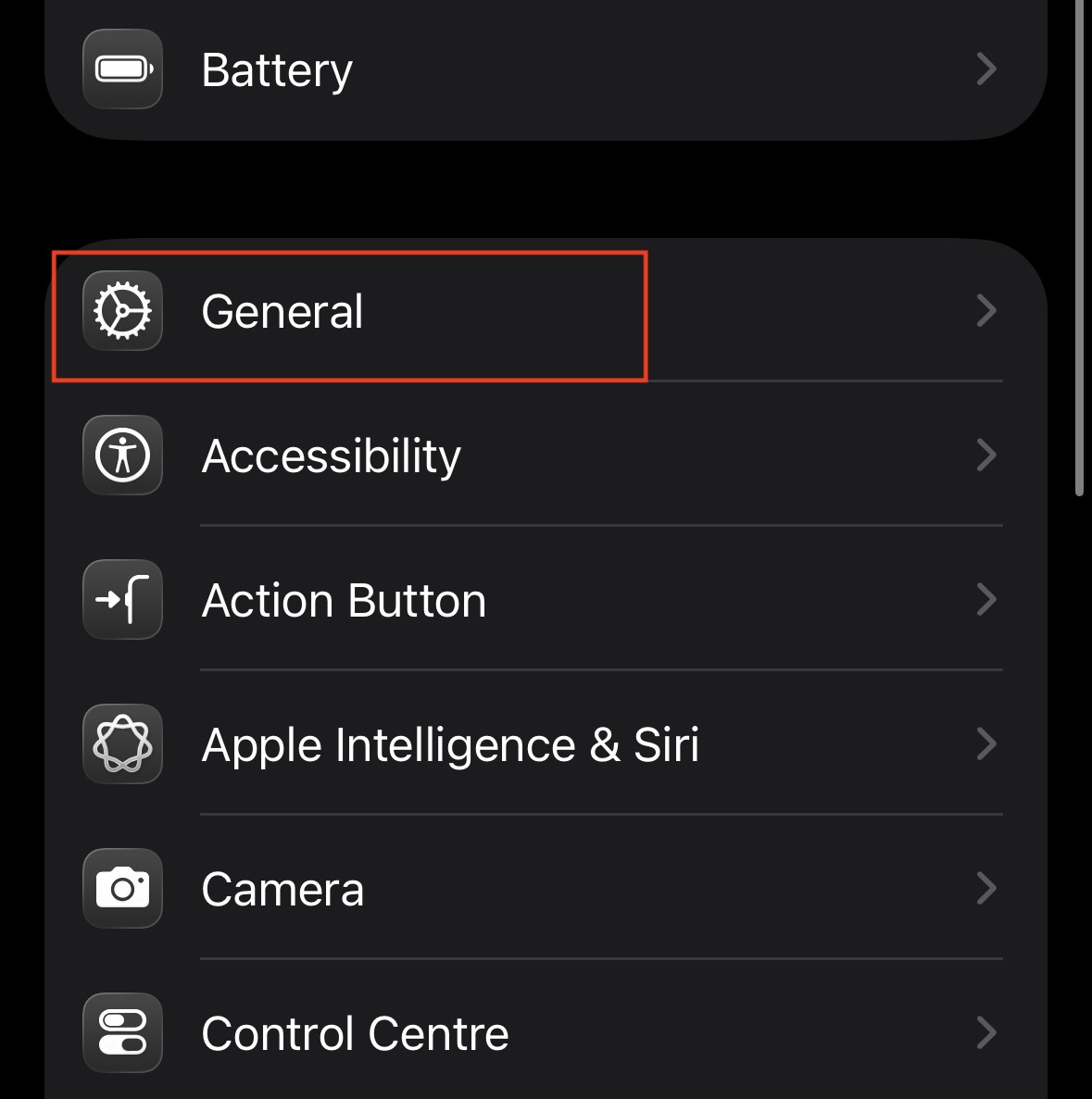
- Scroll down the left-hand sidebar menu and tap on General.
- Scroll all the way to the very bottom of the General menu and select the option labeled Transfer or Reset iPad.
- Tap the Reset button located at the bottom of the screen to open the advanced sub-menu.
- Specifically choose Reset Network Settings. Be extremely careful not to select “Erase All Content and Settings,” as that will wipe your entire device.
- Enter your device passcode to authorize the reset. Your iPad will reboot and wipe all saved Wi-Fi passwords, custom DNS settings, and Bluetooth device profiles. Reconnect to your Wi-Fi and re-pair your Apple Pencil from scratch.
7. Clean the Magnetic Charging Contacts
If you are using an Apple Pencil 2 or an Apple Pencil Pro, the stylus relies entirely on induction charging through a magnetic strip on the side of the iPad. Over time, the oils from your hands, atmospheric dust, and tiny metallic particles can accumulate on both the flat side of the Pencil and the edge of the iPad. This microscopic layer of grime can severely disrupt the wireless charging flow and the Bluetooth handshake. To safely clean the hardware contacts, follow the steps given below:
- Completely detach the Apple Pencil from the side of the iPad and set it down on a clean table.
- Power off your iPad entirely to ensure you do not accidentally trigger any on-screen actions while cleaning the chassis.
- Take a clean, dry microfiber cloth and gently wipe down the entire right edge (the magnetic charging side) of the aluminum iPad chassis.
- Lightly dampen a small corner of the microfiber cloth with 70% isopropyl alcohol. Do not use bleach, window cleaners, or heavy abrasives.
- Gently rub the dampened cloth specifically over the dark magnetic charging oval on the iPad to remove any stubborn adhesive residue or skin oils.
- Repeat the exact same cleaning process on the flat, magnetic edge of the Apple Pencil itself, wait two minutes for the alcohol to completely evaporate, and then reattach the stylus.
8. Inspect for Third-Party Case Interference
A frequently overlooked cause of random Bluetooth and charging disconnections is physical interference from aggressively thick third-party protective cases. If the heavy plastic or rubber edge of your drop-proof case is even slightly too thick, the Apple Pencil will still magnetically attach to the side of the tablet, but it will sit a millimeter too far away for the inductive wireless charging coils to engage. To test for case interference, follow the steps given below:
- Carefully remove your iPad entirely from its third-party protective case or folio cover.
- Ensure there are no protective vinyl skins, stickers, or heavy decals wrapped around the flat magnetic edge of the Apple Pencil.
- Attach the bare Apple Pencil directly to the bare aluminum edge of the iPad.
- Check the top of the iPad screen to ensure the graphical charging notification instantly appears and registers the connection.
- Leave the devices attached without a case for thirty minutes to ensure a steady, uninterrupted charge is flowing into the stylus battery.
- If the Pencil works flawlessly while out of the case but immediately starts dropping the connection when the case is put back on, you must permanently replace the case with an Apple-certified alternative that features a properly thinned-out charging rail.
9. Update to the Latest iPadOS Firmware
Software bugs are an unavoidable reality of modern technology. Occasionally, Apple releases an iPadOS update that inadvertently introduces a bug affecting Bluetooth accessory stability, but they are usually very quick to release a subsequent patch to fix it. Furthermore, the Apple Pencil actually receives its own internal firmware updates silently in the background while it is magnetically attached to an iPad running the latest operating system. To update your firmware, follow the steps given below:
- Plug your iPad into a reliable, high-wattage wall charger to ensure it does not power down during a system update.
- Attach your Apple Pencil to the magnetic strip or plug it into the bottom port so it can successfully receive its own firmware patch during the process.
- Open the Settings app and tap on the General tab.

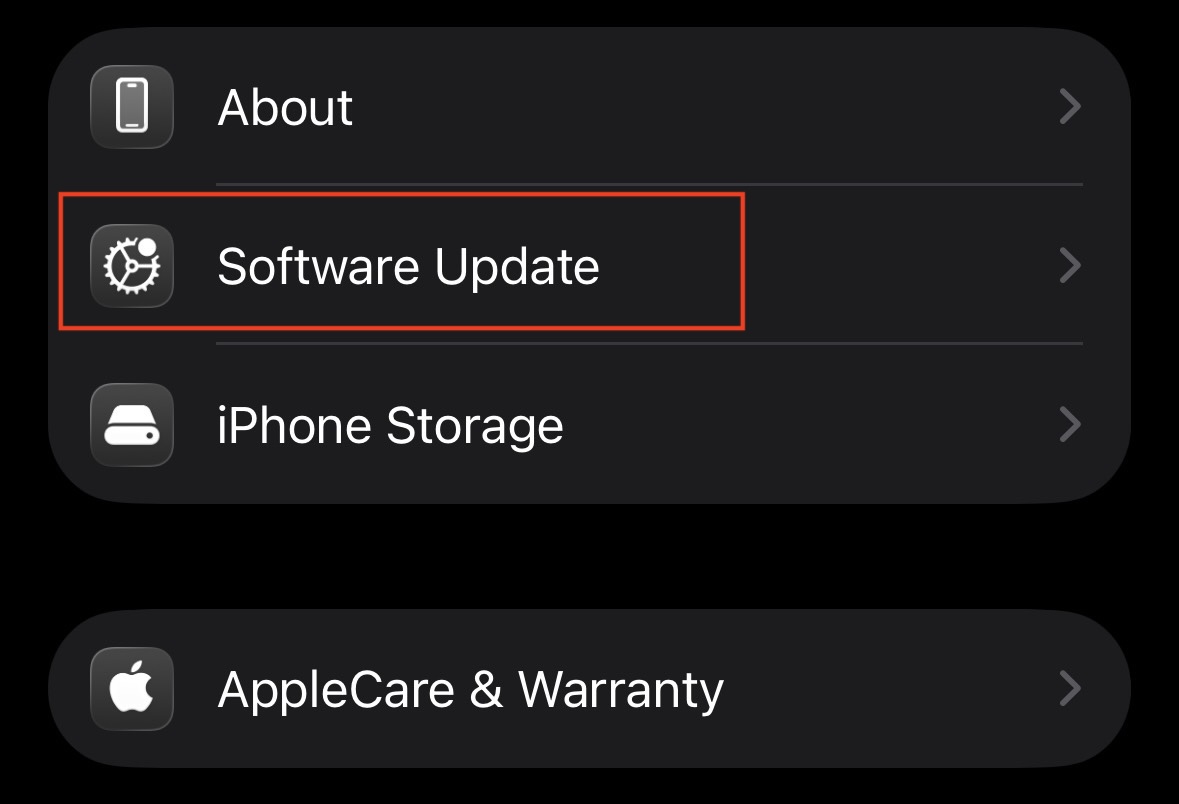
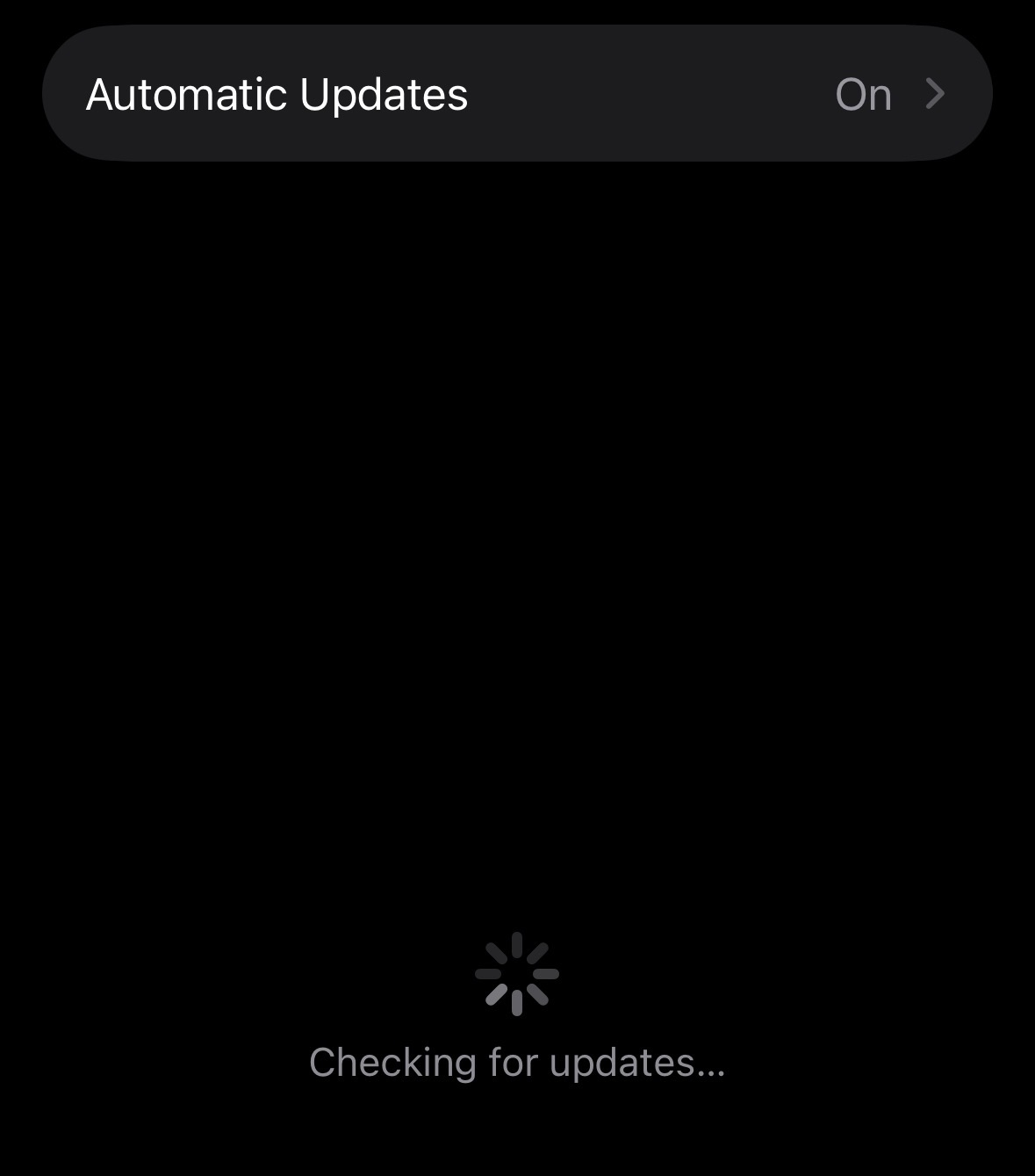
- Tap on Software Update. The iPad will automatically connect to Apple’s servers to check for the latest iPadOS version available for your specific hardware.

- If an update is available, tap Download and Install, and enter your device passcode if prompted.

- Wait for the installation process to completely finish, which may take up to twenty minutes. Once the iPad reboots, the Apple Pencil firmware will also be fully optimized to match the new system architecture.
Conclusion
A malfunctioning stylus can bring your daily productivity to a grinding halt, transforming a premium piece of technology into a frustrating, unreliable plastic stick. However, by systematically working your way through the hardware and software layers outlined in this comprehensive guide, you can usually isolate the exact cause of the communication breakdown. If your Apple Pencil Keeps Disconnecting, always start with the simplest physical solutions, like tightening the nib and cleaning the magnetic contacts, before moving on to deeper iPadOS network resets and battery diagnostics.
ALSO READ:
- How to Change Apple Maps Voice on iPhone, iPad, Mac, and Apple Watch
- How to Fix Apple Pay Not Working on iPhone, iPad, or Apple Watch
- iPad WiFi Not Working? Here’s How to Fix iPad Won’t Connect
- Parental Controls Keep Resetting on iPhone or iPad? How to Stop It Permanently
- How to Connect Apple Pencil to iPad (1st, 2nd & USB-C): Setup Guide
- Guided Access Not Working on iPhone or iPad? Fix It Fast