- Google Chrome automatically signs you into your browser when you log into Google services like Gmail, which can feel intrusive and affect privacy. Many users dislike this feature because it mixes browsing with account sign-in, which is concerning on shared computers.
- To stop this automatic sign-in, open Chrome, click the three dots, go to Settings, find "You and Google," and turn off "Allow Chrome sign-in." This change stops Chrome from connecting your browser to your Google account, meaning your browsing will remain private and separate.
For most of us, the web browser is just a tool we use to get online. We want to open it, check our email, watch a video, and close it. We don’t necessarily want the browser watching us or connecting everything we do to our permanent record.
If you use Google Chrome, you have probably noticed a specific change in how it behaves over the last few years. You might sit down at your computer, open Chrome, and log into Gmail to check a message. You finish your task and close the tab. But if you look at the top-right corner of the browser window, you will see your own profile picture.
Even though you only wanted to check your email, Chrome took that opportunity to sign you into the browser itself. Now, your browser is “logged in,” and it might start asking to sync your history, bookmarks, and passwords to the cloud.
For many people, this is annoying and intrusive. It blurs the line between using a website (like Gmail) and using the software (Chrome). If you share a computer with family, or if you just want to keep your browsing private on your local machine, you might want to stop this from happening.
This guide will explain why Google does this and, more importantly, how you can turn it off permanently using a simple setting.
Why Does Chrome Do This?
Before we fix it, it helps to understand why it happens. Years ago, Chrome didn’t work this way. You could log into Gmail inside a tab, and the browser itself would stay neutral.
Google changed this to make things “easier” for users. Their idea was that if you are logging into Google services, you probably want to sync your browser data too. They also wanted to prevent confusion on shared computers. For example, if you share a laptop with your spouse, Google thought it would be better if your picture appeared in the corner so you knew you were using your own profile, not theirs.
However, many users feel this removes their choice. By automatically signing you in, Chrome puts you just one click away from uploading your entire browsing history to Google’s servers. If you want to keep your computer data separate from your online account, you need to disable this feature.
How to Stop Chrome from Syncing and Auto Signing In to Google
Google does allow you to disable this feature, but the option is tucked away in the settings menu. Once you turn it off, Chrome will treat your Google Account and your web browsing as two separate things. You will be able to log into Gmail or YouTube without your profile ever attaching itself to the browser window.
Here is how to disable the feature:
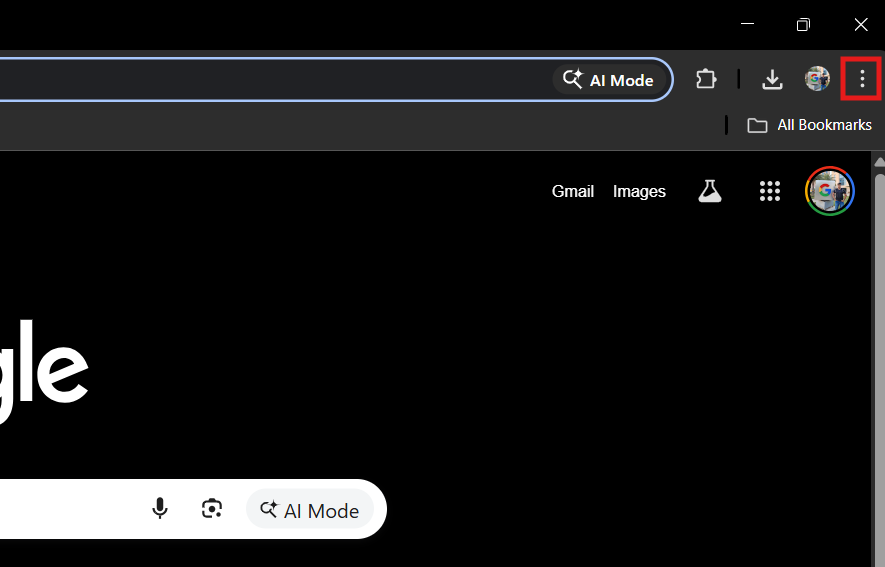
- Open Google Chrome and click the three vertical dots in the top-right corner of the window (next to your profile icon).

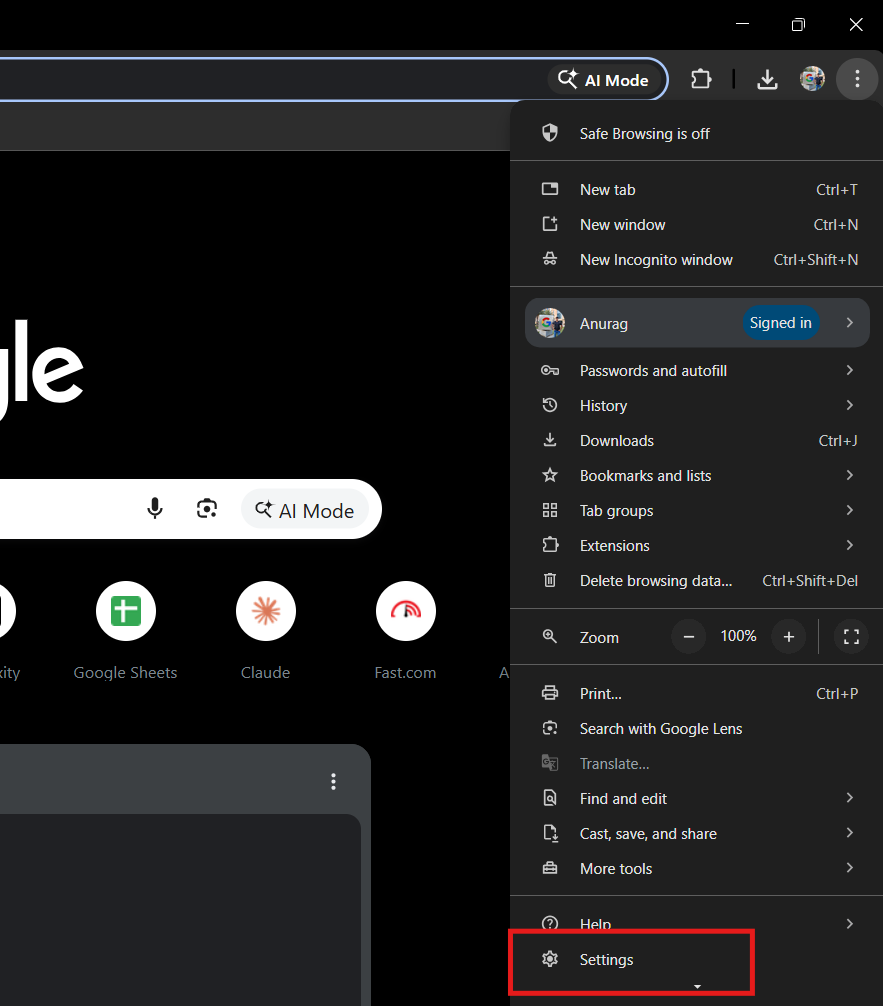
- Select Settings from the menu list.

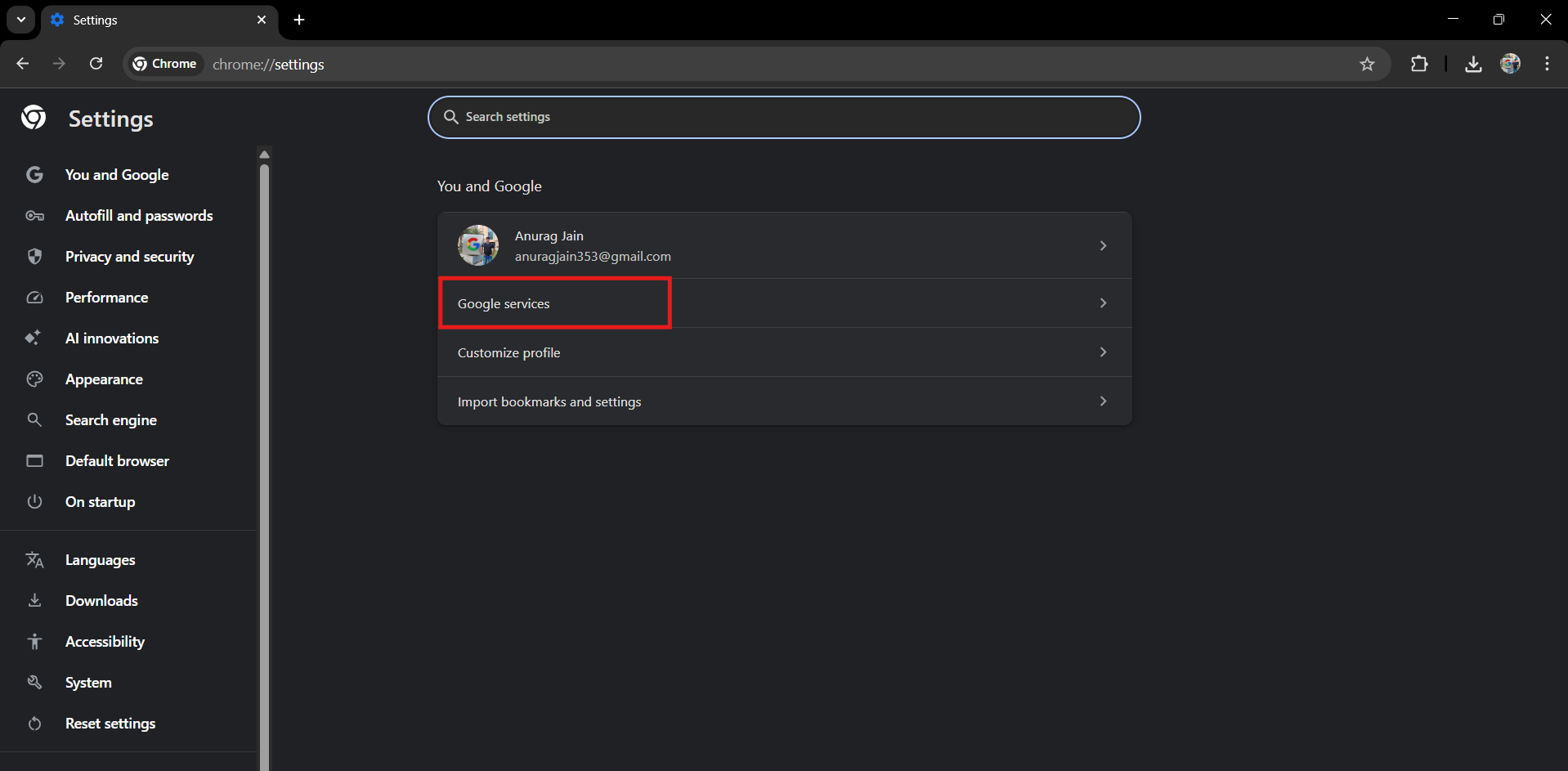
- On the settings page, click on You and Google.
- Click on the Google Services option.

- Find the switch labeled Allow Chrome sign-in and turn it Off.

- A pop-up will appear warning you that you will be signed out. Click the Relaunch button.
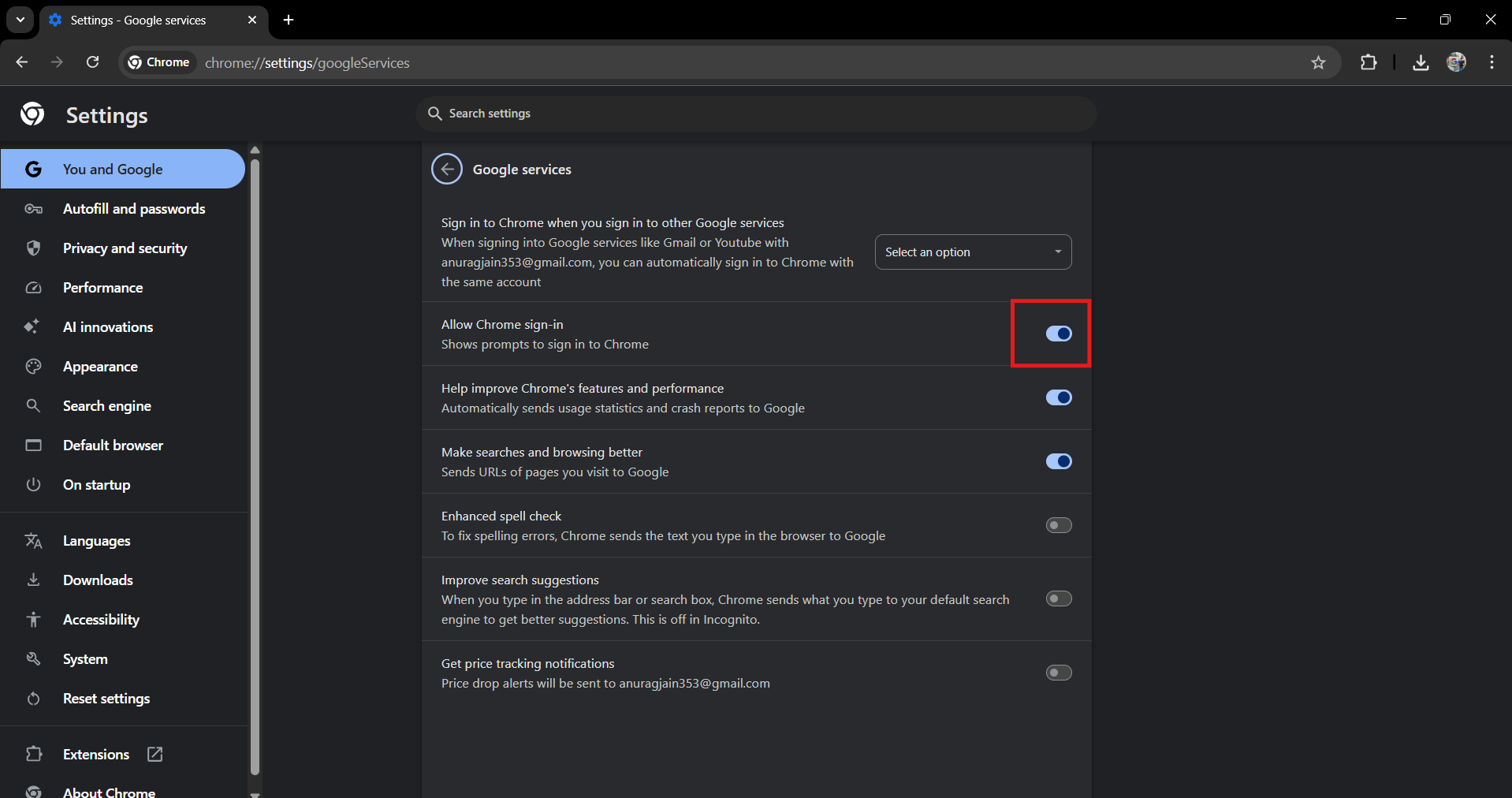
Chrome will close and reopen immediately. Once it restarts, the setting is saved. You can now log into your email, and the top-right corner of the browser will stay gray and generic. You are officially disconnected.
Cleaning Up Old Data
If you are doing this on a brand new computer, the instructions above are all you need. However, if you have been using Chrome for a long time with this feature turned on, simply flipping the switch might not be enough to fully clean your computer.
Turning off the setting stops future sign-ins, but your old profile data—like your bookmarks and saved passwords from before—might still be stored on the computer under your name. If you want a completely clean slate, you should remove the old profile.
- Look at the small circle icon in the top-right corner of the browser. If it shows a generic silhouette of a person, you are already clean. If it shows your face, proceed to the next step.
- Click on that circle icon and select the gear icon (or “Manage Chrome Profiles“) from the menu.

- A window will appear showing all users saved on the browser. Find the square tile with your name.
- Click the three vertical dots in the corner of that tile and select Delete.
- Confirm the deletion.
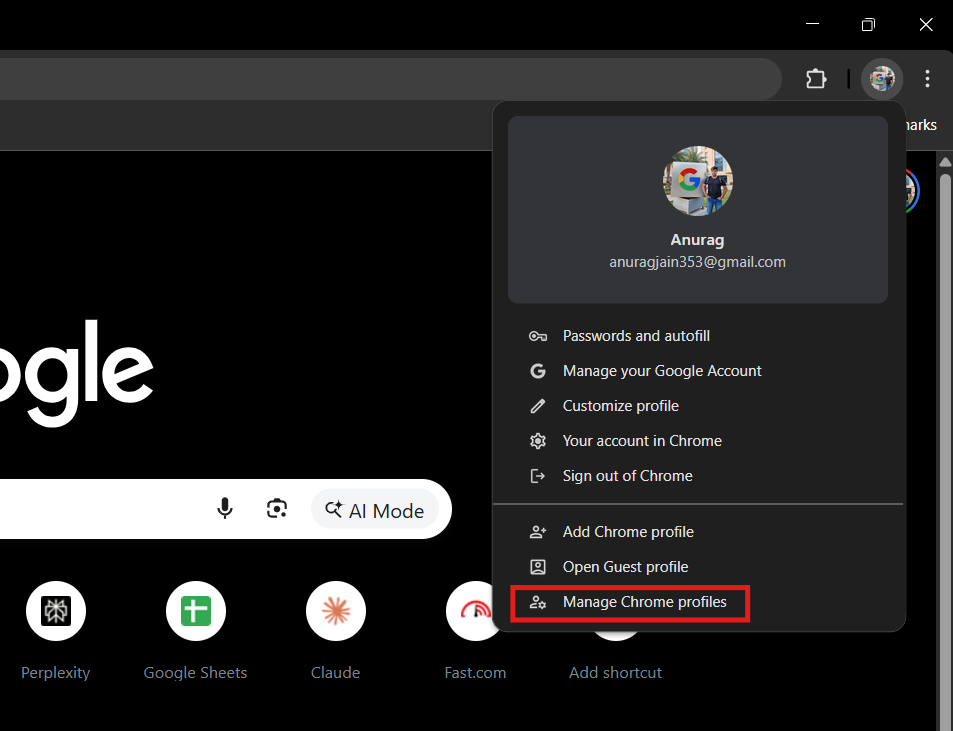
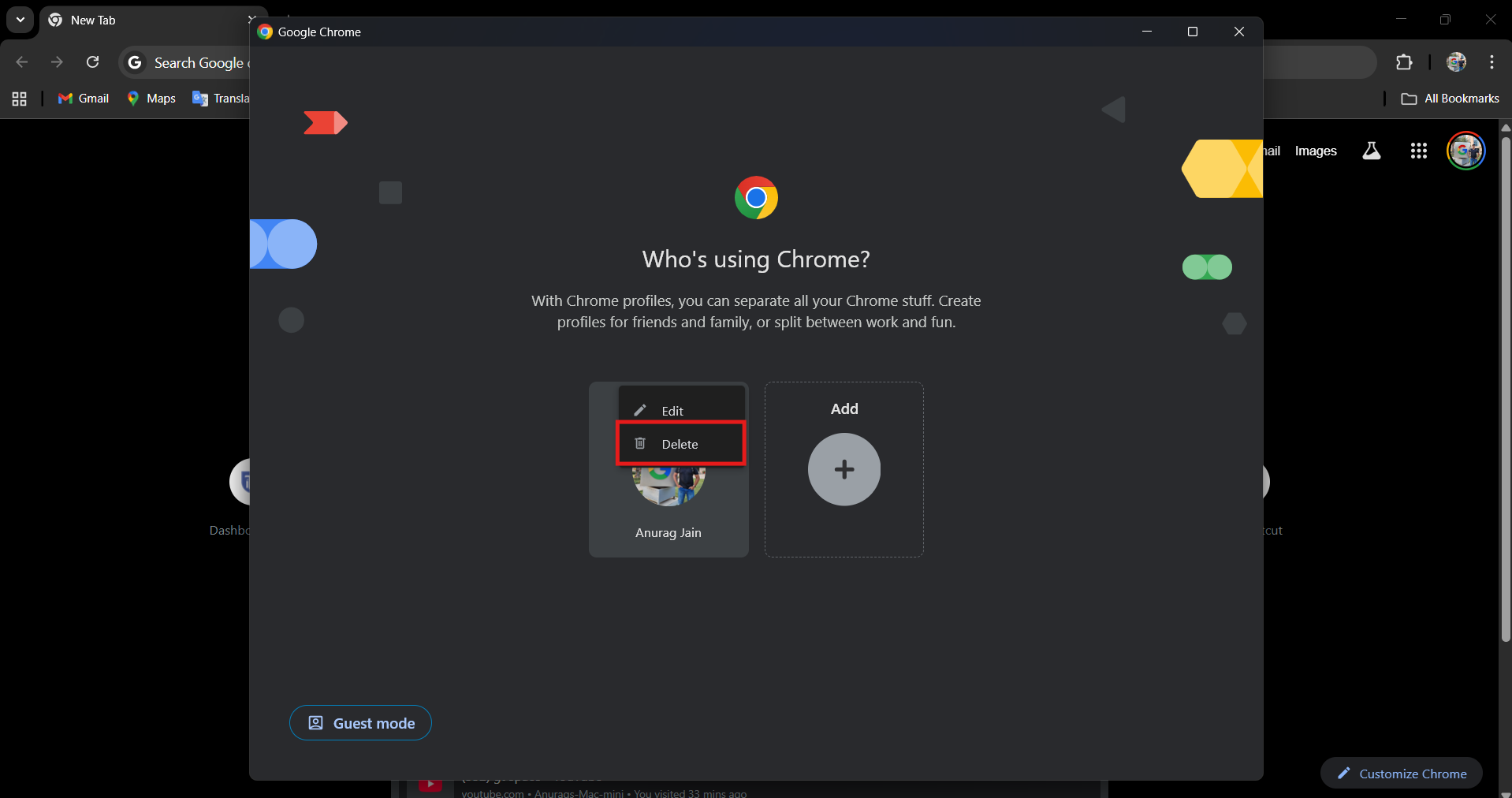
This removes your browsing history and cookies from the device entirely. Since you disabled the “Allow Chrome sign-in” setting earlier, Chrome won’t create a new profile for you automatically again.
What You Lose by Turning This Off
It is important to know that this feature was designed to make certain things convenient. When you turn it off to gain privacy, you do lose a few helpful features. You should decide if these trade-offs are worth it for you.
1. Passwords Won’t Sync
This is the main downside. If you use Chrome to save your passwords, that feature stops working properly when you aren’t signed in. Chrome needs to know who you are to download your passwords from your Google account. If you disable sign-in, Chrome won’t be able to autofill your passwords on websites. You will have to type them in manually, or you will need to start using a separate password manager app.
2. History Won’t Sync
If you like to start reading an article on your phone and then finish reading it on your laptop, that won’t work anymore. Since your desktop Chrome is no longer connected to your account, it has no idea what you were doing on your phone. Your browsing history stays trapped on whichever device you are using.
3. Google Pay Might Be Slower
If you have your credit card information saved in your Google Account for online shopping, it might not pop up automatically when you try to buy something. You might have to enter your card number manually or sign into your Google account specifically to authorize the payment.
The method described above is perfect for your own personal computer. But what if you are borrowing a friend’s laptop or using a computer at a library?
In those situations, you should not change the settings. If you turn off “Allow Chrome sign-in” on your friend’s computer, you might accidentally delete their unsaved data or mess up their syncing setup.
Instead, use Guest Mode.
Guest Mode is a special feature designed exactly for this situation. To use it:
- Click the Profile icon in the top-right corner.

- Select Open Guest Profile at the very bottom of the menu.


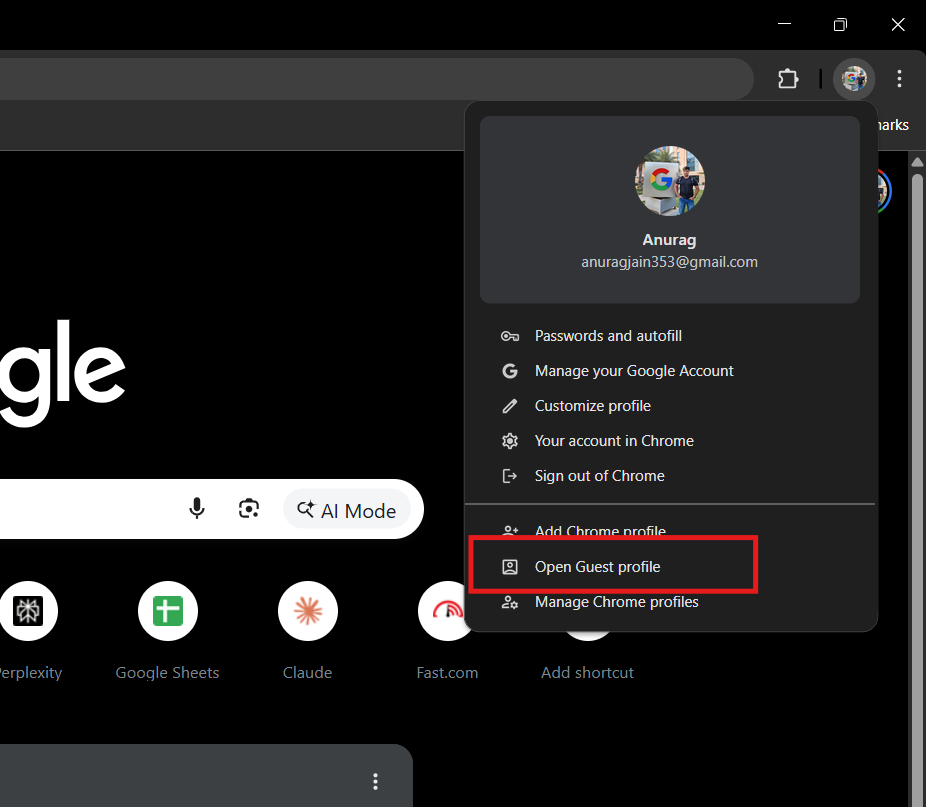
This opens a brand new browser window that is completely empty. It doesn’t see your friend’s bookmarks, and it doesn’t save any of yours. You can sign into your email, check your bank account, and browse freely.
The best part about Guest Mode is what happens when you finish. As soon as you close the Guest window, everything you did is instantly erased from that computer. No cookies, no history, and no passwords are left behind. It is much safer and easier than digging through settings on a computer that doesn’t belong to you.
What If The Setting Is Locked?
There is one exception where this guide might not work. If you are using a computer provided by your work or your school, you might find that the “Allow Chrome sign-in” toggle is grayed out, or you simply can’t click it.
This happens because the computer is “Managed.” The IT department at your company has used a special administrative tool to force that setting to stay On. They do this to make sure that company data is backed up and to ensure security policies are followed.
If you see this, there is unfortunately no way to bypass it. You cannot change the setting without permission from your IT department. In this case, your best option for privacy is to avoid using that specific computer for personal browsing.
Conclusion
Taking control of how your browser behaves is a smart move for your digital privacy. While features like automatic sign-in are built for convenience, they can often feel like an overstep.
By taking a moment to disable the “Allow Chrome sign-in” feature, you restore a healthy boundary. You can go back to using Chrome as just a simple tool to view the internet, rather than a platform that is constantly monitoring your identity. It might mean typing your password a few more times, but for the peace of mind it brings, it is often well worth the effort.
ALSO READ:
- How to Turn Off Google Chrome AI Features on Windows 11 (Complete Guide)
- Top 50 List of Chrome URLs for Internal Built-in Pages 2026
- How to Fix Google Chrome STATUS_ACCESS_VIOLATION Error
- How to Use Bionic Reading on Chrome or Edge
- Fix Chromebook Black Screen of Death: 11 Proven Ways to Bring Your Chromebook Back