- Discovering your PS5 controller isn't charging during gaming because of common issues like a bad cable, dusty port, or software glitch can be frustrating, but these problems are usually quick to fix.
- Ensure you're using a proper USB-C cable for both power and data by testing it on a PC, clean the port with care, check alternative USB ports, and adjust power settings to always charge in Rest Mode.
- If these hardware and setting checks fail, consider resetting the controller by pressing the small button hole with a paperclip, updating firmware using a PC or Mac, or using a charging dock that bypasses the USB-C port to extend use.
Few things interrupt a gaming session more suddenly than discovering your DualSense controller is plugged in but still completely dead. You are ready to jump back into the game, yet the light bar stays lifeless no matter what you do. If your PS5 controller is not charging, you are far from the only one facing this problem. It is one of the most common issues among PlayStation 5 owners, and the good news is that in most cases it can be fixed quickly with a few practical steps.
Whether you have the original console or the newer PS5 “Slim” models, the problem usually boils down to a few culprits: a faulty cable, a dusty port, or a simple software glitch. This guide will walk you through the most effective, up-to-date solutions to get your controller powered up and back in the game.
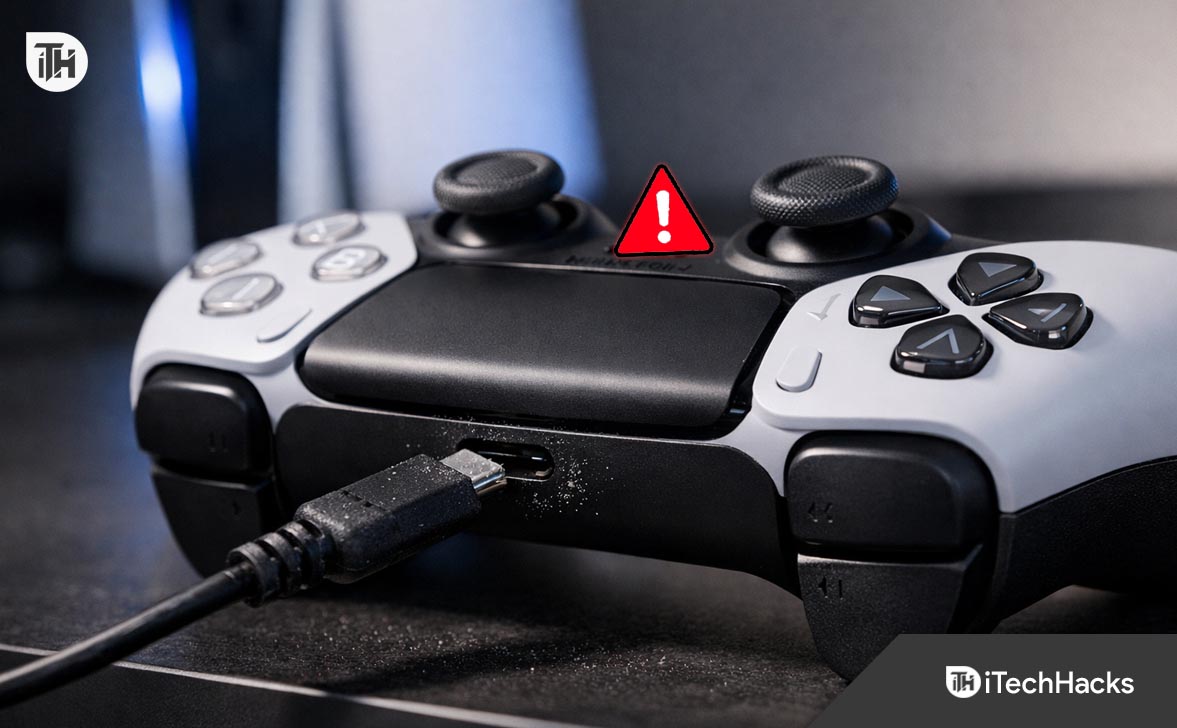
Understanding the “Handshake” Issue
Before diving into the fixes, it helps to understand why the controller fails to charge. Unlike older devices that simply siphoned power the moment they were plugged in, the DualSense controller is smart. When you connect it to your PS5, it performs a digital “handshake.”
The controller asks the console for a specific voltage and current. If the cable is damaged, the port is dirty, or the software is frozen, this handshake fails. To protect the battery from surges, the controller simply refuses to draw power. This safety mechanism is great for longevity, but it means even a tiny piece of lint or a budget cable can trigger a total charging failure.
Why Your PS5 Controller Is Not Charging and How to Fix It in Minutes
1. The Hardware Check: Cables and Ports
90% of PS5 controller not charging issues are physical. Before you start messing with settings menus, you need to rule out the connection itself.
The “Charge-Only” Cable Trap

Not all USB-C cables are created equal. In 2025, our drawers are full of USB-C cables from vape pens, cheap headphones, and toy drones. Many of these are “charge-only” cables. They have wires for power, but they lack the internal wiring for data transfer.
Because the PS5 needs to “talk” to the controller to initiate charging, these charge-only cables will not work.
- The Fix: Always use the official cable that came with your PS5. If you have lost it, use a high-quality USB-C to USB-A cable meant for a smartphone (like a Samsung, Pixel, or Apple braided cable). These are almost guaranteed to handle both data and power.
- The Test: Plug your controller into a computer. If the PC makes a sound recognizing a USB device, your cable is good. If it doesn’t react at all, the cable is likely the culprit.
Deep Cleaning the USB-C Port
We often leave our controllers on dusty TV stands, slip them between couch cushions, or toss them into drawers. Over time, dust, pet hair, and lint get compacted into the USB-C port on top of the controller.
Even a microscopic layer of lint at the bottom of the port can prevent the cable from seating fully.
- What NOT to do: Never use a metal needle or safety pin. Metal conducts electricity and can short out the sensitive pins inside the port, permanently killing the controller.
- The Proper Method: Use a can of compressed air to blow out loose debris. If that doesn’t work, use a wooden toothpick or a plastic dental pick. Gently scrape the bottom of the port to loosen any compacted lint. You might be surprised at what comes out.
Switch to the Rear Ports
The USB ports on the PS5 are not identical. On the original model (fat), the front USB-A port is a “Hi-Speed” port located on a separate daughterboard. The rear USB-A ports are “SuperSpeed” ports soldered directly to the motherboard.
- The Solution: If you are plugged into the front and seeing no life, move the cable to the back. The rear ports generally provide a more stable power output and are less prone to connection hiccups.
2. Adjust Your Rest Mode Power Settings
One of the most frustrating causes of a PS5 controller not charging is the console’s energy-saving settings. By default—or sometimes after a system update resets your preferences—the PS5 may be configured to cut power to USB ports when it goes to sleep.
This means you plug your controller in, put the PS5 in Rest Mode, and walk away. When you return, the controller is still dead because the console stopped sending power 10 seconds after you left.
How to Fix Rest Mode Charging:
- Turn on your PS5.
- Navigate to Settings (the gear icon in the top right).
- Select System > Power Saving.
- Choose Features Available in Rest Mode.
- Locate Supply Power to USB Ports.
- Crucial Step: Set this to Always or 3 Hours.
If this is set to “Off,” your controller will never charge while the console is sleeping. Setting it to “3 Hours” is usually the sweet spot—it provides enough time to fully charge the controller but cuts the power afterward to save electricity and prevent battery degradation.
3. The Factory Reset (The “Magic” Fix)
If your cable is good and your settings are correct, but the orange light still won’t appear, your controller’s internal firmware might have crashed. The logic board inside the DualSense is a tiny computer, and like any computer, it can freeze. When this happens, the battery management system stops working.
A “Soft Reset” (turning it off and on) often isn’t enough. You need to perform a “Hard Reset.”
Step-by-Step Hard Reset:
- Disconnect: Unplug the controller from the PS5 entirely.
- Locate the Button: Flip the controller over. Look for a tiny, circular hole on the back, located roughly next to the Sony logo (near the L2 button).
- The Tool: Straighten a paperclip or use a SIM card ejector tool.
- The Press: Insert the tool into the hole until you feel a small click. Hold the button down for 5 full seconds.
- Reconnect: Plug the controller back into the PS5 using your known-good USB cable.
- Power On: Press the PS button.
This process flushes the temporary cache in the controller and forces it to re-establish a fresh handshake with the console. For many users, this instantly solves the PS5 controller not charging loop.
4. Update Firmware via PC
Sometimes, the issue is that your controller’s firmware is so outdated that it struggles to communicate with an updated PS5 console. But this creates a catch-22: you can’t update the controller on the PS5 if the controller is dead and won’t connect.
Sony has released a dedicated tool for Windows and Mac that allows you to update the controller directly, bypassing the console.
- Go to the official PlayStation website and search for “Firmware updater for DualSense wireless controller.”
- Download and install the software on your PC or Mac.
- Launch the program.
- Connect your DualSense controller to your computer via USB.
- Follow the on-screen prompts to force an update.
This is often the only way to save a controller that has been sitting in a drawer for months and has fallen too far behind on software updates.
5. Bypassing the USB Port

If you have tried everything above and the controller still won’t charge, it is possible the top USB-C port is physically damaged. Constant plugging and unplugging can loosen the solder joints over time.
However, the DualSense has a “secret” backup way to charge: the EXT Port.
Look at the bottom of the controller, flanking the headphone jack. You will see small copper terminals. These are dedicated charging contacts used by charging docks.
- The Workaround: If your USB port is dead, buying an official DualSense Charging Station or a reputable third-party dock can save your controller.
- Why it works: These docks use the bottom EXT terminals to charge the battery, completely bypassing the broken USB-C port on top. It is a much cheaper solution than buying a brand-new controller.
6. A Warning on Wall Chargers
When the console isn’t charging the controller, many gamers instinctively grab their phone charger and plug it into the wall. Be very careful here.
The DualSense battery is designed to accept roughly 5 Volts at 1.5 Amps.
- Safe: Standard 5V USB wall bricks.
- Dangerous: Modern fast chargers rated at 65W, 100W, or higher.
While modern chargers should negotiate the correct voltage, handshake errors can occur. If a high-wattage charger forces too much voltage into the DualSense, it can fry the internal regulator chip. Once this chip is fried, the controller will never charge again.
If you must use a wall charger, check its output and ensure it lists 5V. Avoid any brick that only lists 9V, 12V, or 20V.
7. When to Replace the Battery
If your controller charges but the battery drains in 30 minutes, or if it only works while plugged in, your battery cells are likely degraded. This happens naturally over 2-3 years of heavy use.
Unlike older controllers, the DualSense battery is easy to replace if you are comfortable with a screwdriver.
- The battery model is LIP1708.
- You can pry off the black trim and unscrew the L1/R1 buttons to access the casing screws.
- Once opened, the battery simply unplugs—no soldering required.
Replacement batteries cost around 15 to 20 dollars online and can double the lifespan of your controller. Opening your controller voids any remaining Sony warranty.
Conclusion
A PS5 controller not charging rarely means the device is dead. It is almost always a communication breakdown between the charger and the battery.
Start with the basics: clean the port with a toothpick and swap your cable for a high-quality data line. Check your Rest Mode settings to ensure you aren’t accidentally cutting power to the USB ports. If those fail, perform a hard reset using the pinhole on the back. And if the USB port itself is loose, consider investing in a charging dock to use the bottom terminals instead.
ALSO READ:
- PS5 Keeps Overheating? 20 Step-by-Step Fixes to Cool It Down Fast
- PS5 Won’t Connect to Hotel WiFi? Learn How to Authenticate It Properly
- PS5 HDMI Not Working? Fix Port Issues, Replace Damaged Pins (Guide)
- How to Connect PS5 Controller to PC or Laptop (Bluetooth & USB)
- How to Fix Stick Drift on PS5 Controller with Real Working Fixes