- To change how files open in Windows 11, use the "Open with" feature or adjust settings under "Default apps" to set your preferred program for each file type. This ensures that files like PDFs open in the intended software, not accidentally in another app like a web browser.
- When you need to convert files from one format to another (like Word to PDF), use "Save As" in applications for documents or online converters for media files. This tool changes the file’s internal setup to fit the new format without just renaming it, which could cause errors.
You sit down at your computer, ready to work. You double-click a document, expecting it to open in Adobe Reader, but suddenly – bam! – it opens in Microsoft Edge or Chrome. Or maybe you have a photo that you need to upload to a website, but the website says, “Sorry, we only accept JPG files,” and your photo is a PNG.
It is frustrating. It feels like your computer is speaking a different language than you are.
When people search for how to change file type Windows 11, they are usually trying to solve one of three very different problems. The computer world can be confusing, so let’s break it down into simple, human terms.
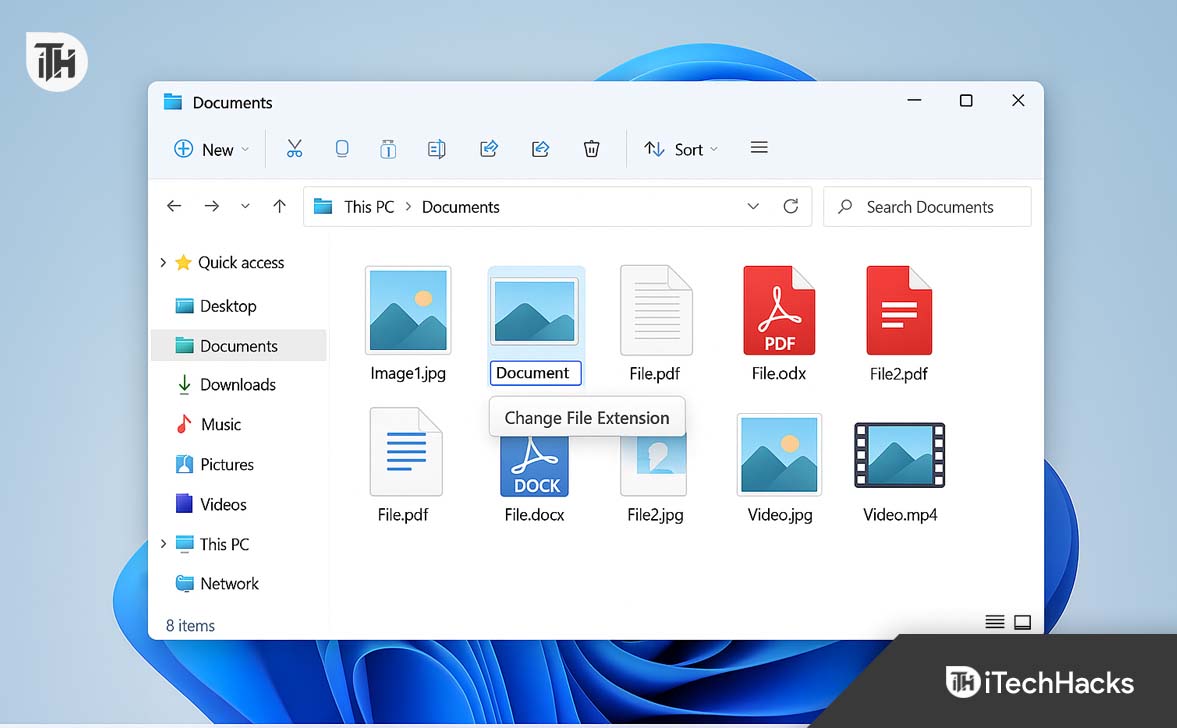
Which problem do you have?
- The “Wrong App” Problem: Your file is fine, but the wrong program opens it. (e.g., a PDF opening in a web browser).
- The “Wrong Format” Problem: You need to actually transform the file. (e.g., turning a Word document into a PDF, or a music file into a different format).
- The “Wrong Name” Problem: You have a file with the wrong extension (the letters after the dot) and you need to manually rename it.
How to View and Modify File Extensions in Windows 11
Don’t worry if you aren’t sure which one you need yet. We are going to walk through all three scenarios step-by-step. By the end of this guide, you will be the master of your files.
Scenario 1: The “Wrong App” Problem (Changing Defaults)
Let’s start with the most common annoyance. You have a file. You know what it is. But when you click it, Windows opens it in a weird app that you hate.
Imagine you hired a plumber to fix your sink, but every time you call the plumber’s number, a pizza delivery guy shows up. The number is right, but the connection is wrong.
In computer terms, this is called File Association. We need to tell Windows: “Hey, stop calling the pizza guy. Call the plumber.”
Method A: The “Open With” Trick (The Fast Way)
This is the quickest way to fix a single file type. It takes about 10 seconds.
- Find your file. Look for the file that is misbehaving. Maybe it’s a PDF icon that looks like a web browser.
- Right-click it. A menu will pop up with lots of options.
- Hover over “Open with”. Don’t click it just yet! Just move your mouse over the words “Open with.” A second menu will slide out to the side showing a list of apps.
- Click “Choose another app”. Even if you see the app you want in that list, ignore it for a second. Click the option at the very bottom that says Choose another app. This is important because we want to make a permanent change, not a one-time change.
- The Magic Checkbox. A new window will pop up in the middle of your screen.
- First, find the app you actually want to use (like Adobe Acrobat, Media Player, or Word). Click it once to highlight it.
- STOP! Before you hit OK, look at the bottom of that window. There is a checkbox that says “Always use this app to open files.”
- You must click that checkbox. If you don’t, Windows will forget your choice tomorrow.
- Click OK.
What just happened?
You will see the icon of the file flicker and change. If it used to look like a Chrome icon, it now looks like a PDF icon. From now on, every time you double-click any file of that type, it will open in the right program.
Method B: The Settings Menu (The Master List)
If you want to see a list of everything on your computer and organize it properly, you can use the main Settings menu. This is great if you want to fix multiple file types at once.
- Open Settings. Click the Start button (the Windows logo at the bottom) and look for the gear icon. Or, you can just press the Windows Key and the letter I on your keyboard at the same time.
- Go to Apps. On the left-hand side of the screen, you will see a list of categories. Click on Apps.
- Select “Default apps”. This is the control center for file associations.
- Search for the culprit. At the very top, there is a search bar that says “Enter a file type or link type”.
- Type the ending of your file. For example, if your music files are opening in the wrong app, type
.mp3. If it’s a picture, type.jpg.
- Type the ending of your file. For example, if your music files are opening in the wrong app, type
- Click the arrow. Windows will show you the current default app. For example, it might say “Groove Music.”
- Make the switch. Click on that app icon. A list will pop up asking, “How do you want to open .mp3 files from now on?” Select your favorite player (like VLC or Media Player) and click Set default.
Scenario 2: The “Wrong Format” Problem (Converting Files)
This is where things get a little tricky, and where people often make mistakes.
Let’s say you have a Word Document (a resume), but you need to upload it to a job site that only accepts PDFs.
A lot of people think, “Oh, I’ll just rename the file! I’ll change ‘Resume.docx’ to ‘Resume.pdf’.”
Do not do this.
Think of it like a car. You cannot turn a Honda into a Ferrari just by putting a Ferrari sticker on the bumper. Under the hood, it is still a Honda. If you just rename the file, the computer will get confused. It will try to read the file as a PDF, but the “engine” inside is still Word. It will crash or give you an error message.
To change the format, you have to Convert it. This means rewriting the file from scratch in the new language.
Method A: Using “Save As” (For Documents & Pictures)
The good news is that you usually don’t need any fancy software for this. The apps you already use can do it for you.
How to change Word to PDF:
- Open your document in Microsoft Word.
- Click the File button in the top left corner.
- Click Save As.
- Choose where you want to save it (like your Desktop).
- The Important Part: Look for the dropdown menu under the file name. It usually says “Word Document (*.docx)”. Click that bar.
- A long list will drop down. Select PDF (*.pdf).
- Click Save.
Now, if you look at your Desktop, you have two files. You have your original Word document (which you can still edit), and you have a brand new PDF file (which looks professional).
How to change a PNG picture to JPG:
- Right-click your image and select Open with > Paint. (Good old Microsoft Paint!).
- Once the image is open, click File in the top left.
- Hover your mouse over Save as.
- You will see options right there: JPEG picture, PNG picture, BMP picture.
- Click the one you want and save it.
Method B: Using Online Converters (For Video & Audio)
Video and Audio files are more complex. You usually can’t just open a movie file and “Save As” a different format using standard Windows tools.
For example, if you recorded a video on an iPhone, it might be a .MOV file.1 But your Smart TV might only play .MP4 files.
To fix this, you need a Converter.
Option 1: Online Websites (Easiest for small files)
If your file is small (like a short song or a 30-second video), use a free website.
- Go to Google and search for “MOV to MP4 converter.”
- Trusted sites like CloudConvert or Zamzar usually pop up.
- Upload your file.
- Select the format you want.
- Click Convert, wait a minute, and download the new file.
Option 2: Free Software (Best for big movies)
If you have a whole movie to convert, websites will be too slow. You should download a free tool called VLC Media Player.
- Open VLC.
- Click Media > Convert / Save.
- Add your video file.
- Pick the format you want from the list (Video – H.264 + MP3 (MP4) is a good standard).
- Click Start.
Scenario 3: The “Wrong Name” Problem (Renaming Extensions)
Okay, this is for the brave souls. This is Scenario 3.
Sometimes, you actually do want to rename the extension manually. Usually, this is because a file was named wrongly in the first place.
- Example: Someone emailed you a file called
photo.jpg_(with an underscore) and it won’t open. You need to delete that underscore. - Example: You are a web designer and you need to change a text file
.txtinto an HTML file.html.
The problem? Windows 11 hides these extensions by default.
Microsoft thinks that file extensions (the .jpg part) are ugly and confusing for normal users, so they turn them off. If you look at your files right now, you probably just see “VacationPhoto” instead of “VacationPhoto.jpg”.
You can’t change what you can’t see. So, step one is making them visible.
Step 1: Make the Extensions Visible
- Open File Explorer. That is the yellow folder icon on your taskbar.
- Look at the very top of the window. You will see a toolbar. Click on View.
- A menu will drop down. Go all the way down to the bottom where it says Show.
- Another side menu will pop up. Click on File name extensions.
Take a look at your files now.
Do you see the difference? Everything suddenly has a last name! Document became Document.docx. Song became Song.mp3. Now you have the power to change them.
Step 2: Rename the Extension
Now that you can see the extension, you can treat it just like any other text.
- Right-click the file you want to change.
- Click Rename (or look for the icon that looks like a text box with a cursor). Or, just press the F2 key on your keyboard.
- You will see the name highlighted in blue.
- Click at the very end of the name and backspace over the extension.
- Delete the old one (e.g.,
.txt) and type the new one (e.g.,.html). - Press Enter.
Step 3: The Scary Warning Box
As soon as you press Enter, Windows is going to yell at you. A yellow box will pop up that says:
“If you change a file name extension, the file might become unusable. Are you sure you want to change it?”
Don’t panic. This is Windows trying to be helpful. It is reminding you of the “Honda/Ferrari” rule we talked about earlier (Scenario 2). It wants to make sure you aren’t trying to convert a file by renaming it.
Since you know exactly what you are doing, confidently click Yes.
The icon will flicker, and your file type is now changed.
Bonus: How to Batch Rename Files (The Power User Trick)
This is a cool trick to impress your friends. What if you have 100 text files that you need to change? Renaming them one by one would take hours.
We can use the Command Prompt (the hacker-looking black box) to do it in one second.
- Put all the files you want to change into one folder on your desktop. Let’s call the folder “MyFiles”.
- Open that folder.
- Right-click in the empty white space of the folder window.
- Select Open in Terminal (or Open PowerShell window here).
- A blue or black window will open. Don’t be scared!
- Type this simple command:ren *.old *.new
- But replace the words “old” and “new” with your extensions.
- Example: If you want to change
.txtfiles to.mdfiles, you would type: ren *.txt *.md
- Example: If you want to change
- Press Enter.
Look back at your folder. Boom! All 100 files have changed instantly.
Conclusion
Managing files in Windows 11 doesn’t have to be a headache. It really comes down to knowing what you want to do.
- If the icon is wrong, you need to change the Association (Scenario 1).
- If the format is wrong, you need to Convert it using “Save As” (Scenario 2).
- If the name is wrong, you need to show extensions and Rename it (Scenario 3).
Now that you know the difference, you can stop fighting with your computer and start getting things done. Whether you are fixing a stubborn PDF or batch-renaming a project, you have the power to handle it.
ALSO READ: