- Microsoft Copilot is an AI assistant in Windows 11 designed to help with tasks, but many users find it unnecessary and want to remove it due to privacy concerns and desktop clutter.
- You can easily uninstall Copilot if it's treated as a normal app in your Windows version by going to Settings, but if not, you might need to use more advanced methods, like editing the Registry or using the Group Policy Editor.
- Removing Copilot helps create a distraction-free workspace, prevents accidental clicks, can free system resources, and alleviates privacy concerns, giving users more control over their computers.
Microsoft Copilot is an Artificial Intelligence (AI) assistant that Microsoft added to Windows 11. It is designed to answer questions, change settings, and help you write. However, it appeared on many computers automatically, and not everyone wants it.
If you find the new icon distracting, worry about privacy, or just want a cleaner desktop, you can get rid of it.
If you are looking for how to remove Copilot from Windows 11 or uninstall Copilot Windows 11, this guide will show you exactly how to do it.
We will cover every method, from the easy “settings switch” to the complete removal for advanced users.
What is Copilot, and Can I Delete It?
Before we start, it helps to know what we are removing. Copilot is not a normal program like Microsoft Word or a video game. It is actually a web-based tool that runs inside the Microsoft Edge browser, but it is glued to your desktop taskbar.
Because it is part of the operating system, Microsoft makes it tricky to remove.
However, in 2026, things have changed. Due to new regulations (especially in Europe), Microsoft has started treating Copilot more like a normal app. This means that for many users, you can now uninstall Copilot Windows 11 easily. For others, we have to use a few special tricks.
Disable or Uninstall Copilot on Windows 11 | Safe Way
Let’s look at the solutions, starting with the easiest one.
Method 1: Uninstall Copilot Completely
This is the best method. In newer versions of Windows 11 (specifically after the late 2024 updates), Microsoft turned Copilot into a standard application.
If you have this version, you don’t need to do anything complicated. You can simply uninstall it like any other unwanted app.
How to uninstall Copilot Windows 11:
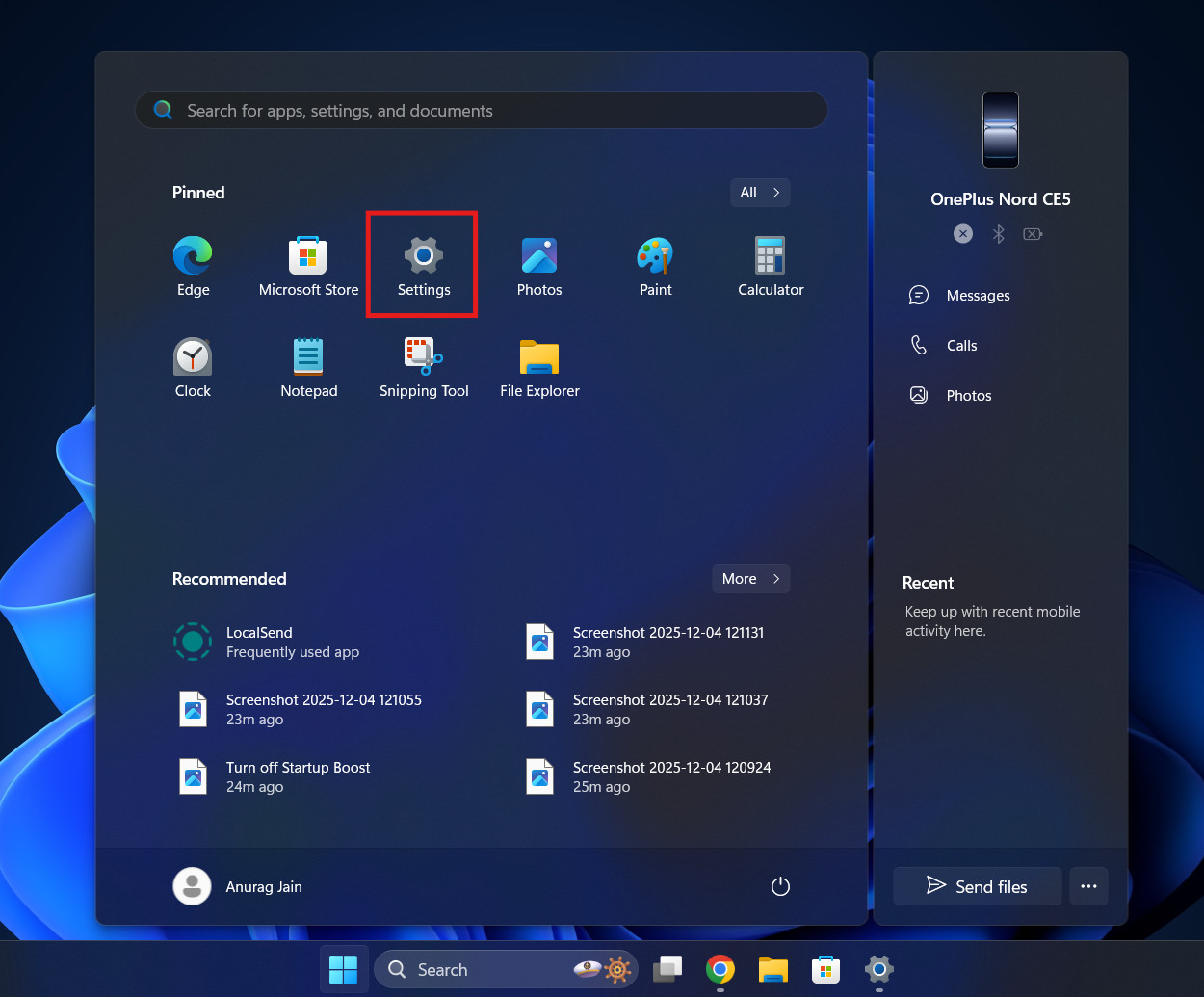
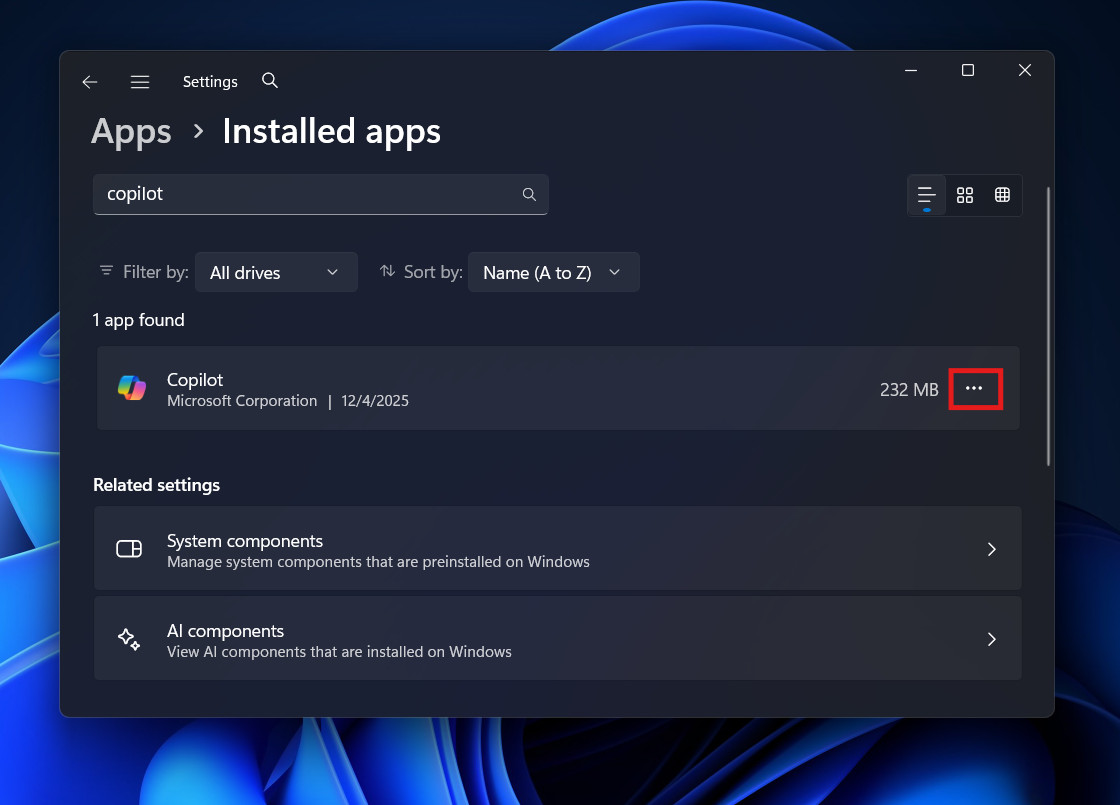
- Open Settings: Click the Start button and click the gear icon (Settings).

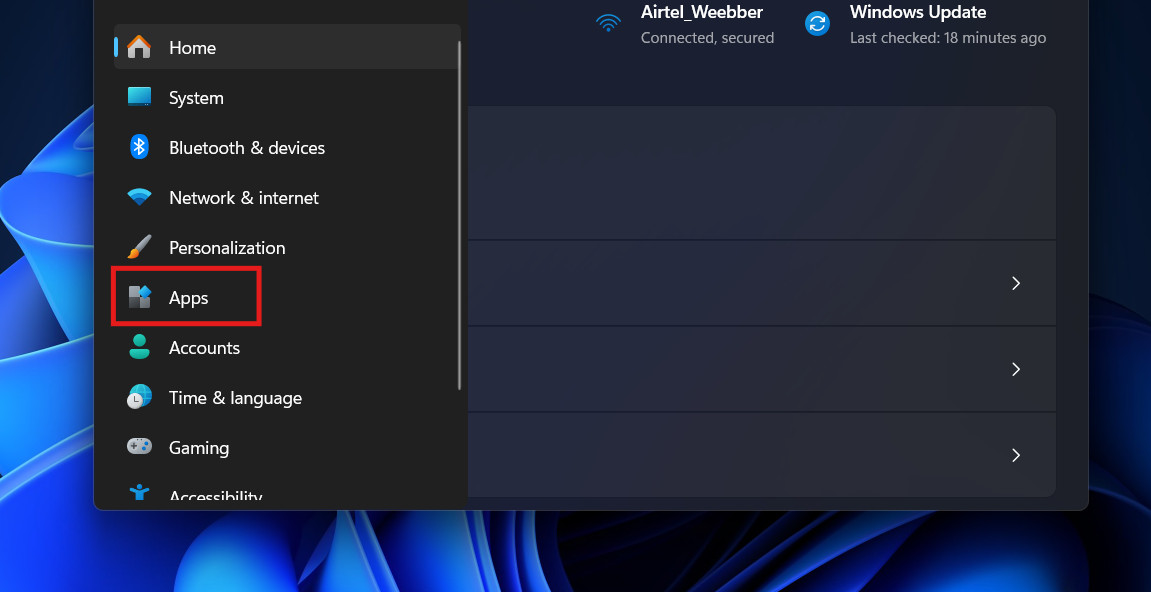
- Go to Apps: On the left-hand menu, click on Apps.

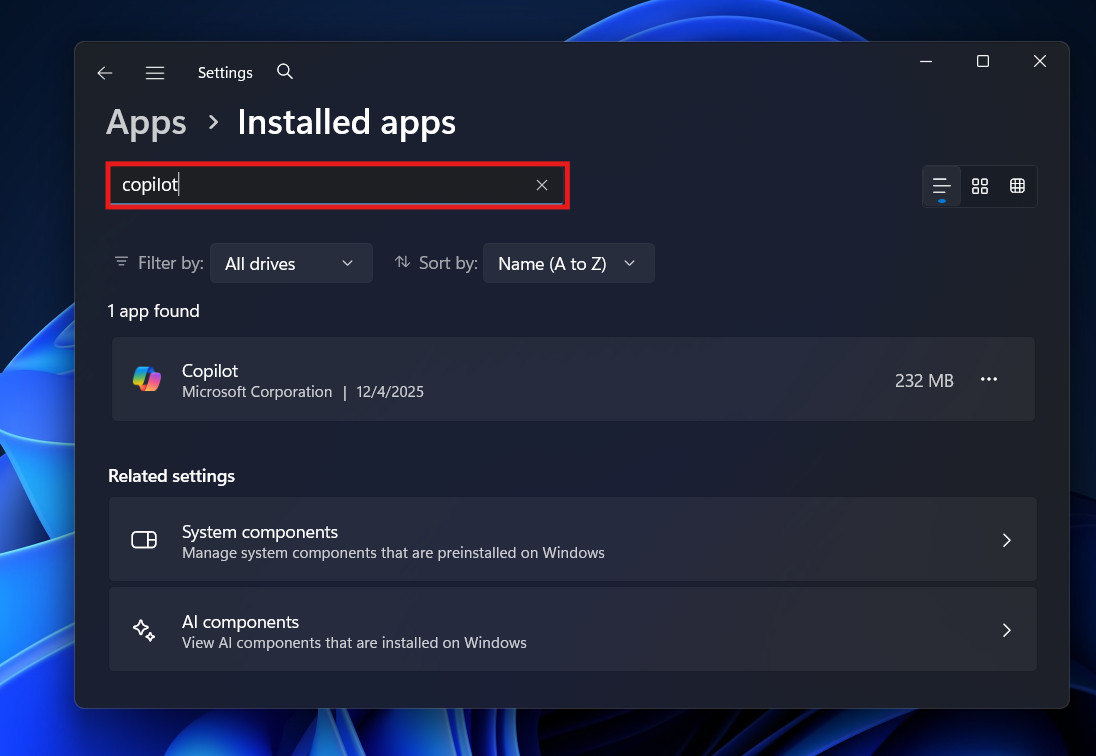
- Click Installed Apps: This will show you a list of every program on your computer.
- Search for Copilot: In the search bar at the top, type “Copilot”.

- Check the Result:
- If you see an app called “Copilot” or “Microsoft Copilot”, look to the right side of it.
- Click the three dots (…).

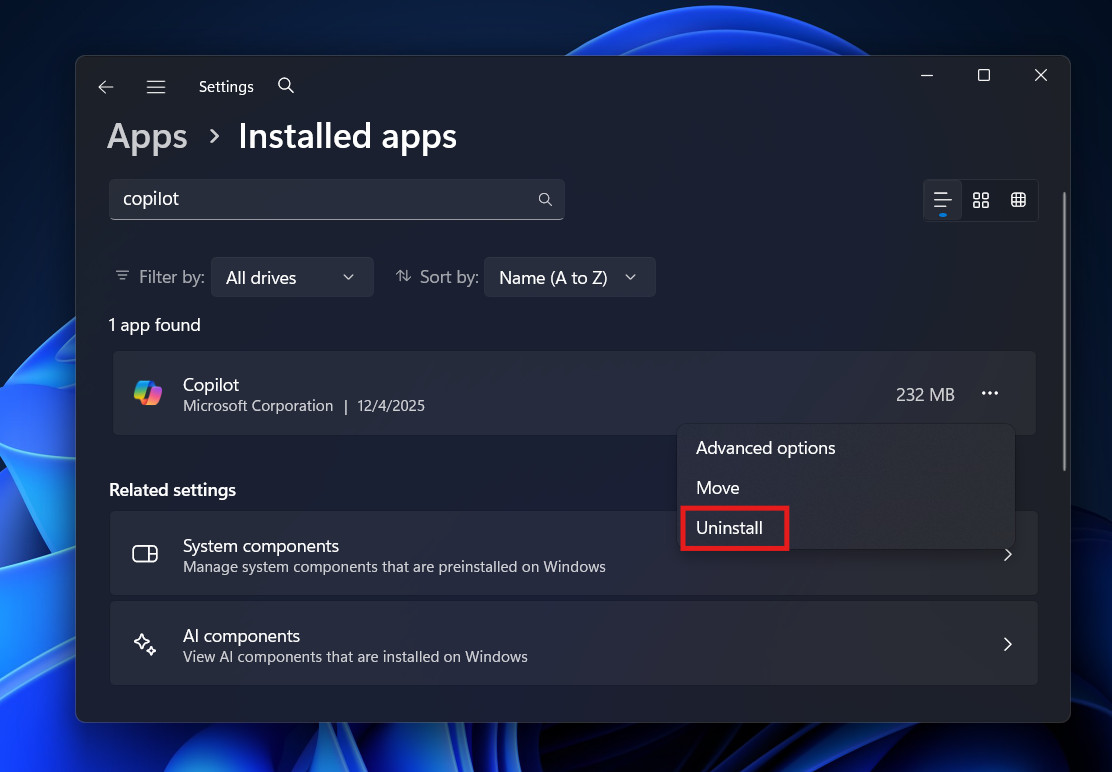
- Click Uninstall.

- Confirm: A box will pop up asking if you are sure. Click Uninstall again.
If you couldn’t click uninstall, or if Copilot didn’t appear in the list at all, it means you have a version of Windows where Copilot is a “System Component.” Don’t worry. You can still remove it using Method 2 or Method 3.
Method 2: Hide the Icon
For most people, the problem isn’t the software itself—it is the colorful icon taking up space on the taskbar.
If you don’t mind Copilot existing in the background, but you just never want to see it, you can hide it in seconds. This stops you from accidentally clicking it.
How to remove Copilot from Windows 11 taskbar:
- Right-click the Taskbar: Move your mouse to the empty space at the bottom of your screen (the bar where your open apps are) and right-click.
- Select Taskbar Settings: A small menu will pop up. Click Taskbar settings.
- Find the Toggle:
- A settings window will open.
- Look at the very top section called “Taskbar items.”
- You will see Copilot (preview) or just Copilot.
- Turn it Off: Click the switch to turn it Off.
Note: This does not delete the AI. If you press the shortcut keys (Windows Key + C), Copilot might still pop up. To completely kill it, you need to use the next method.
Method 3: The “Registry” Edit (For Home Users)
If you are using Windows 11 Home Edition (which most personal laptops have) and you cannot uninstall the app using Method 1, this is the solution for you.
We are going to use the Registry Editor. This sounds scary, but it is actually quite simple if you follow the steps exactly. We are going to create a “rule” that tells Windows: “Do not allow Copilot to run.”
Step-by-Step Guide:
1. Open the Registry Editor
- Press the Windows Key + R on your keyboard at the same time. A small box called “Run” will appear.
- Type
regeditinto the box. - Press Enter.
- Click Yes if your computer asks for permission.
2. Navigate the Folders
On the left side of the screen, you will see a list of folders. You need to double-click them to open them. Follow this exact path:
HKEY_CURRENT_USERSoftwarePoliciesMicrosoftWindows
3. Create the “WindowsCopilot” Folder
- Look inside the
Windowsfolder you just opened. Do you see a folder named WindowsCopilot? - If YES: Click on it to select it.
- If NO: We need to make it.
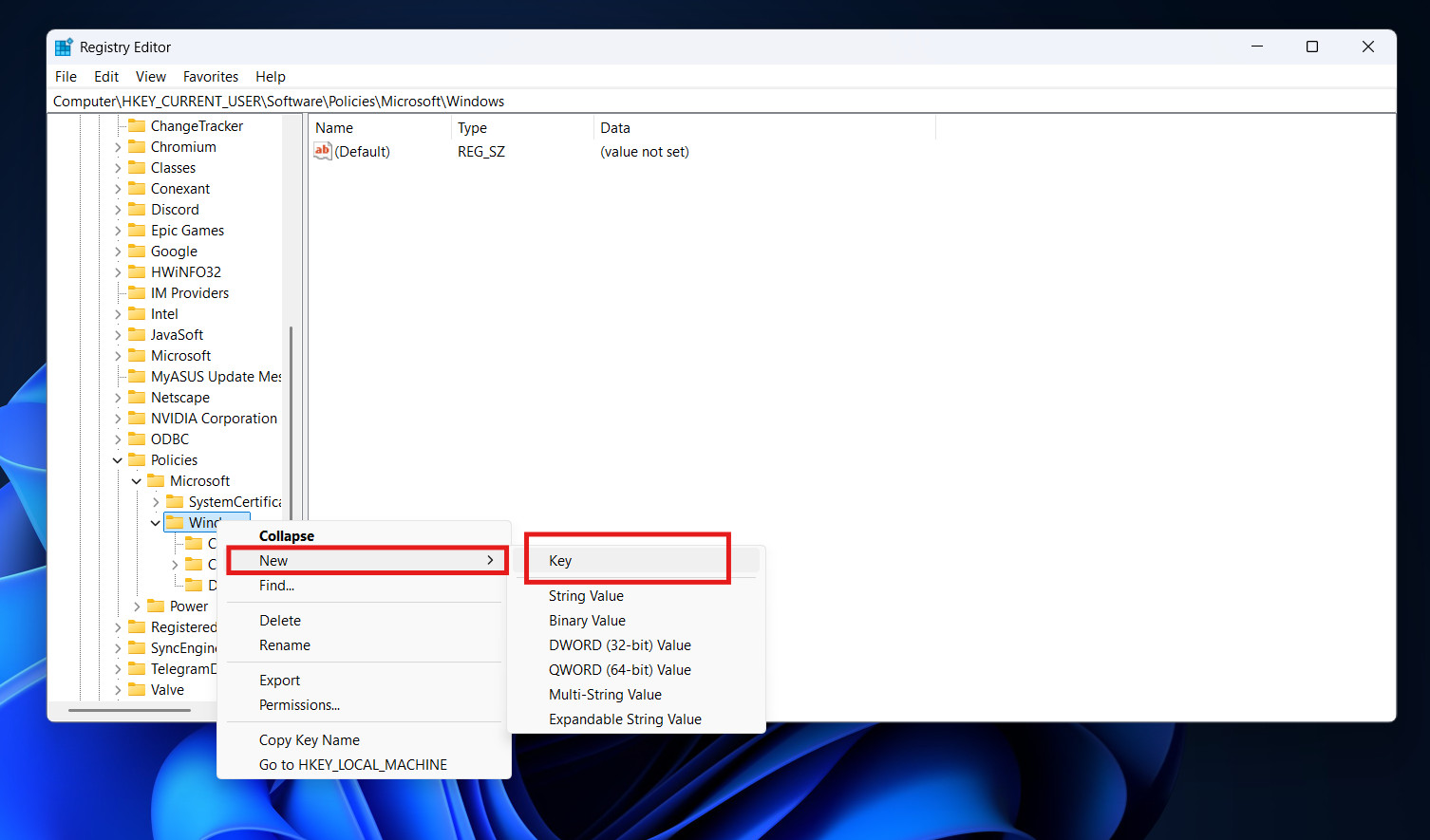
- Right-click on the
Windowsfolder. - Select New > Key.

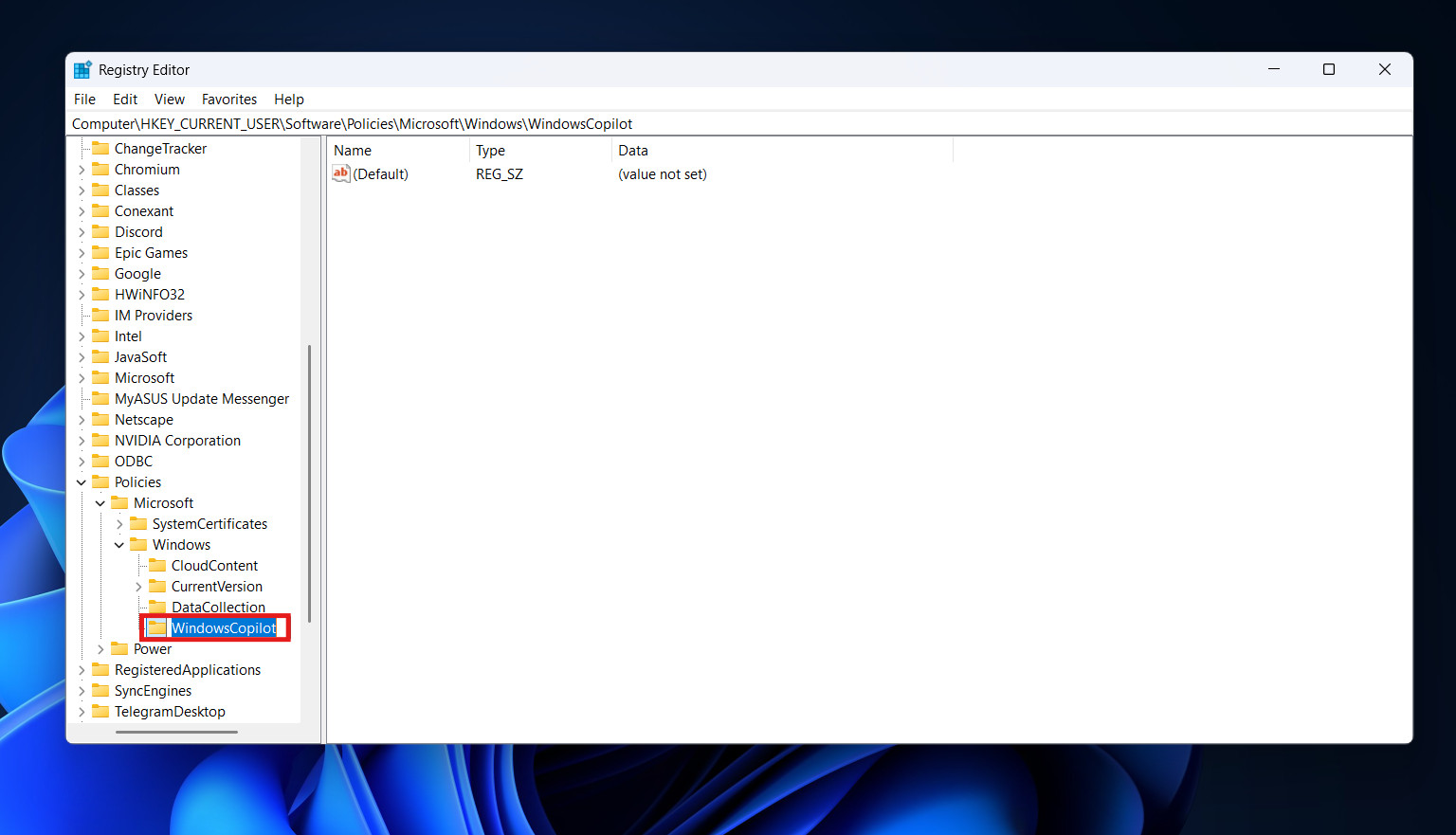
- Name the new folder
WindowsCopilot. (Make sure there are no spaces!).
- Right-click on the
4. Create the “Turn Off” Rule
- Now, click on your new
WindowsCopilotfolder so it is highlighted. - Move your mouse to the large white empty space on the right side of the window.
- Right-click in the white space.
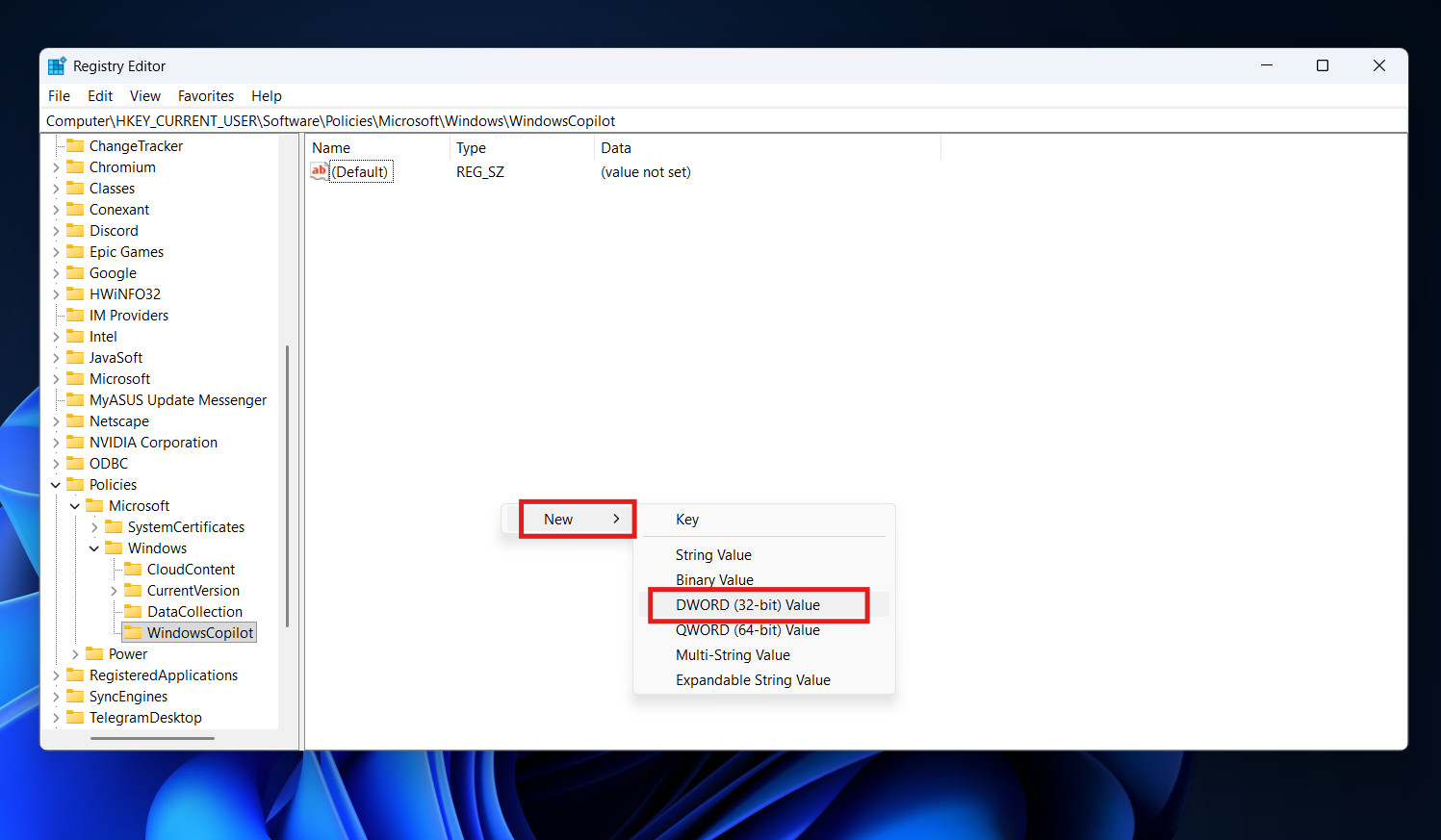
- Select New > DWORD (32-bit) Value.

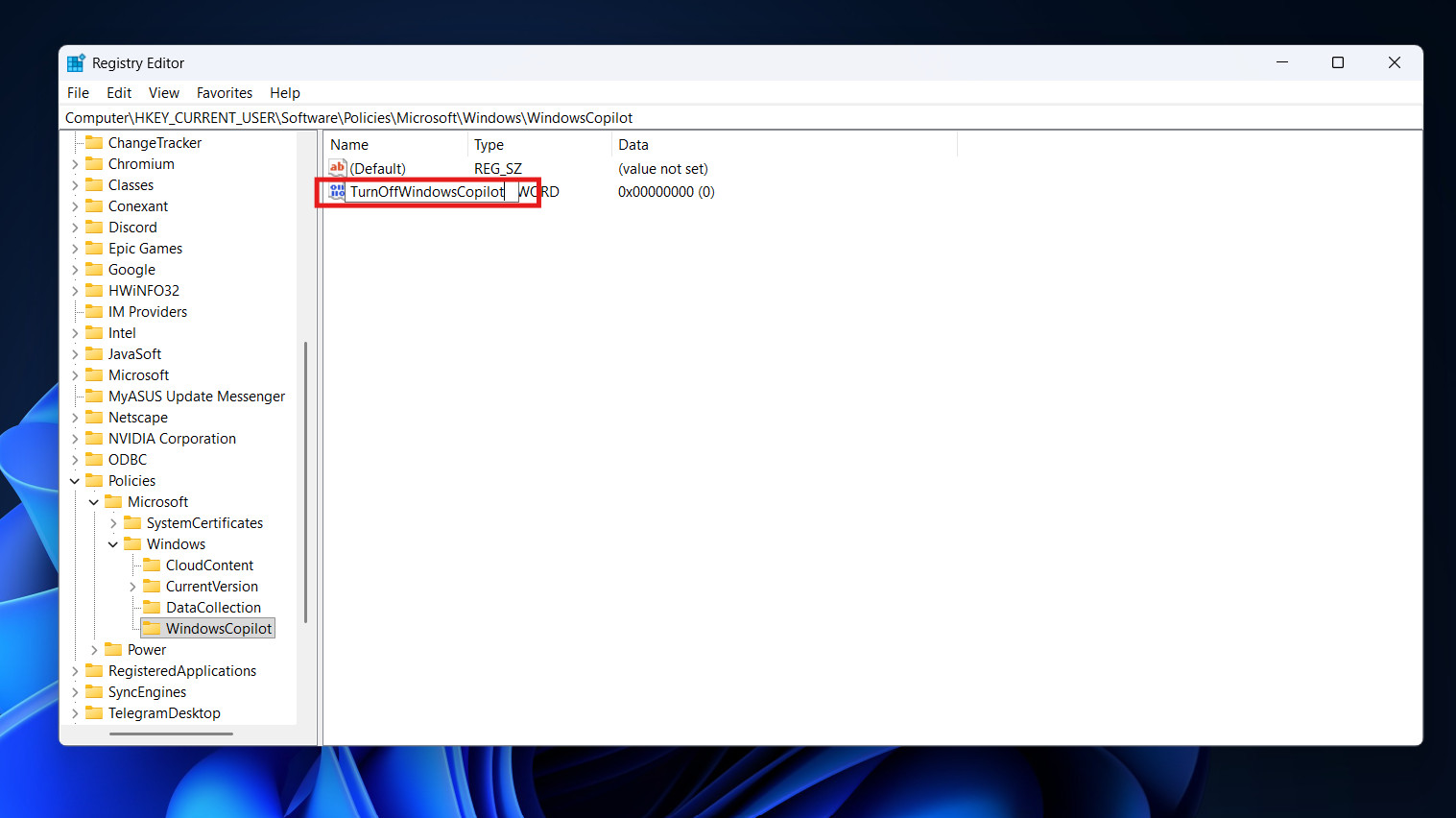
- A new file will appear. You need to name it exactly this:
TurnOffWindowsCopilot.
- Tip: Capital letters matter here! Copy the name exactly.
5. Activate the Rule
- Double-click on the
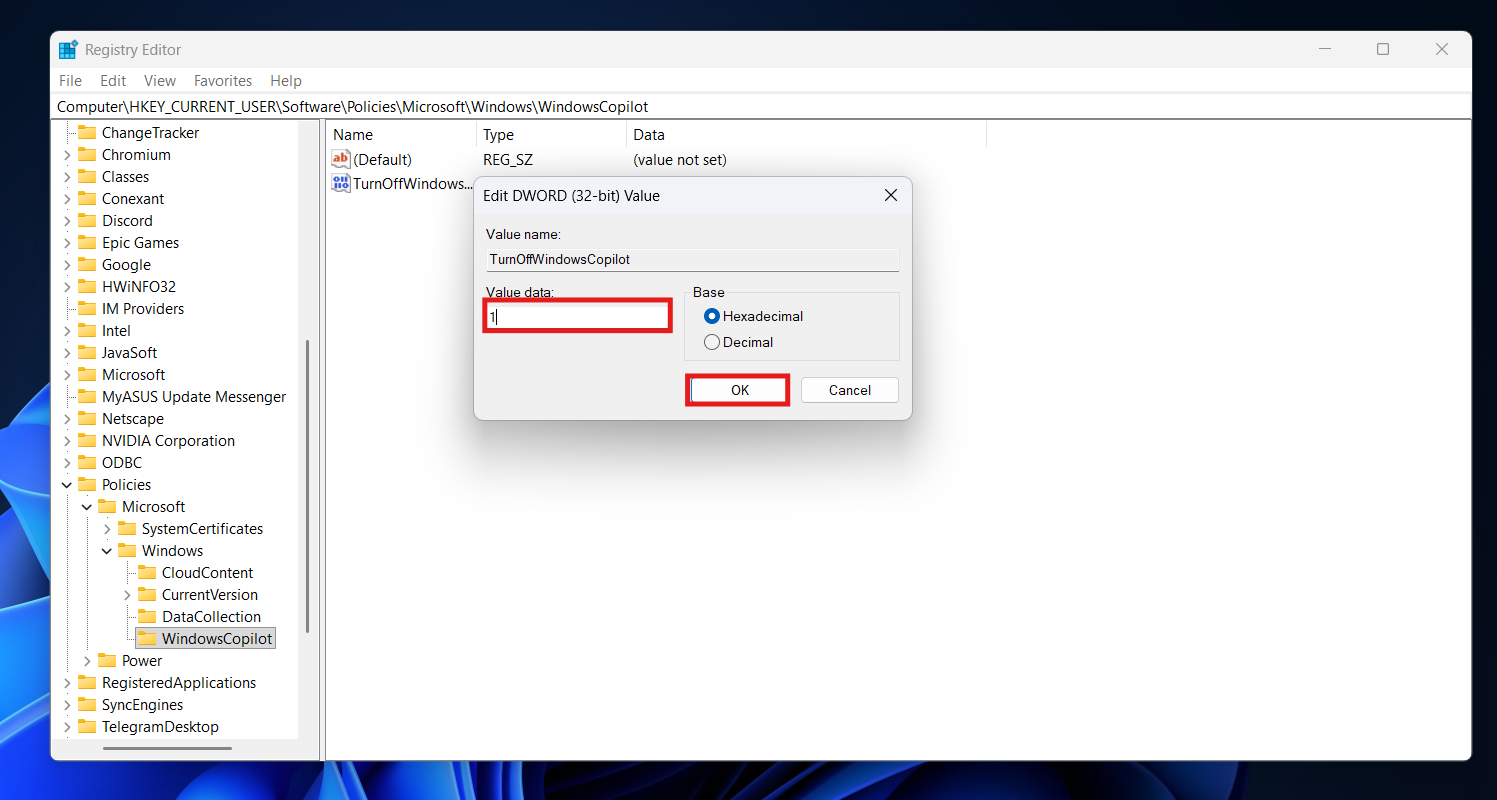
TurnOffWindowsCopilotfile you just made. - A small box will open. You will see a box labeled “Value data”. It will probably show a 0.
- Change the 0 to a 1.

- (In computer language, 1 means “True” or “On”. So you are turning the “Turn Off” rule ON).
- Click OK.
6. Restart Your Computer
The change will not happen immediately. You must do a full restart (Start > Power > Restart). When your computer wakes up, Copilot will be completely disabled. The icon will be gone, and the shortcut keys will not work.
Method 4: Group Policy Editor (For Pro Users)
If you have Windows 11 Pro or Windows 11 Enterprise, you have access to a tool called “Group Policy.” This is easier and safer than using the Registry. This is the method businesses use to remove Copilot from Windows 11 on office computers.
Step-by-Step Guide:
- Open Group Policy:
- Press Windows Key + R.
- Type
gpedit.mscand press Enter.
- Find the Setting:
- On the left menu, go to User Configuration.
- Click Administrative Templates.
- Click Windows Components.
- Scroll down the long list until you find Windows Copilot.
- Edit the Setting:
- On the right side of the screen, you will see a setting called “Turn off Windows Copilot.”
- Double-click on it.
- Enable the Block:
- This part is a little confusing, so read carefully.
- A window will open. You want to select the circle that says Enabled.
- Why? Because you are “Enabling” the rule that turns off Copilot.
- Click Apply and then OK.
- Restart:
- Restart your PC. Copilot is now banned from your system.
Method 5: Disable Copilot in Microsoft Edge
Even if you remove Copilot from Windows 11 desktop, it might still be hiding in your web browser.
Since Copilot is built into Microsoft Edge, it has a sidebar there too. If you want to be completely AI-free, you should turn this off as well.
How to do it:
- Open the Microsoft Edge browser.
- Click the three dots (…) in the top right corner of the browser.
- Click Settings (near the bottom of the list).
- On the left sidebar menu, click Sidebar.
- Look under “App and notification settings.” Click on Copilot.
- You will see a switch that says “Show Copilot.” Turn it Off.
Now, your browser is clean, and your desktop is clean.
Why Should You Remove Copilot?
You might be wondering, “Is it worth the effort to do all this?” Here are the main reasons why users choose to uninstall Copilot Windows 11.
1. Distraction Free Workspace
For many people, the Start menu and Taskbar are sacred spaces. Adding a bright, colorful, animated icon right next to the Start button can be visually distracting. If you prefer a minimal look, removing it makes your desktop feel calmer.
2. Accidental Clicks
The Copilot button is placed in a “high traffic” area. It is right next to the Search bar and the Start button. It is very easy to click it by mistake when you are trying to open a program. When you click it, a large sidebar slides out, shifting all your open windows to the left. This interrupts your workflow.
3. Saving System Resources (RAM)
Copilot is not just an icon; it is a web browser process waiting in the background. It uses “WebView2” technology. Even when you aren’t using it, it can reserve some of your computer’s Memory (RAM).
If you have a powerful gaming PC, you won’t notice this. But if you have a basic laptop with only 8GB of RAM, every megabyte counts. Disabling it can help your computer feel slightly faster.
4. Privacy Concerns
Copilot is an AI cloud service. When you type a question into it, that data is sent to Microsoft’s servers to be processed. While Microsoft has strict privacy policies, some users simply do not feel comfortable having an AI “listening” or ready to read their screen at any moment. By removing it, you ensure that you aren’t sending data to the cloud by accident.
Troubleshooting Common Issues
Sometimes, Windows fights back. Here are some common problems you might face when trying to remove Copilot from Windows 11.
Problem 1: I disabled it, but it came back after an update.
Windows updates are notorious for resetting your preferences. When a major update (like a “Feature Update”) installs, Microsoft often resets the taskbar to its default state.
- The Fix: You usually don’t need to do the Registry hack again. Just right-click the taskbar and check the Taskbar Settings. The update likely just flipped the “Show Icon” switch back on. Turn it off again.
Problem 2: The Registry method didn’t work.
If you tried Method 3 and Copilot is still there:
- Did you restart? Closing the Registry editor isn’t enough. You must fully restart the PC.
- Check the path: Did you put the
WindowsCopilotfolder insidePolicies? Sometimes people put it in the wrong place. - Check the value: Did you set the number to 1? If you left it at 0, the rule is inactive.
Problem 3: I don’t see “Group Policy Editor.”
- The Reason: You are using Windows 11 Home. Group Policy is a feature exclusive to the “Pro” and “Enterprise” versions of Windows.
- The Fix: You must use Method 3 (The Registry Edit). It does the exact same thing, it just takes a few more clicks.
Conclusion
Your computer is your personal space. You should have the final say on what features run on your screen.
While AI is the latest trend, and Microsoft is pushing it very hard, they have left doors open for us to opt out. Whether you simply want to hide the button to clean up your taskbar, or you want to completely uninstall Copilot Windows 11 for privacy reasons, you now have the tools to do it.
By following this guide on how to remove Copilot from Windows 11, you have taken control of your PC. You can now enjoy a cleaner, faster, and distraction-free Windows experience.
ALSO READ: