- Apple never sends SMS messages asking you to verify transactions, click links, or share credentials. Any text requesting such action should be treated as fraudulent and deleted immediately.
- Scammers constantly update fake Apple Pay messages to appear genuine. Keep your software updated, use spam filters, and inform family or colleagues so they don’t fall victim to similar phishing attempts.
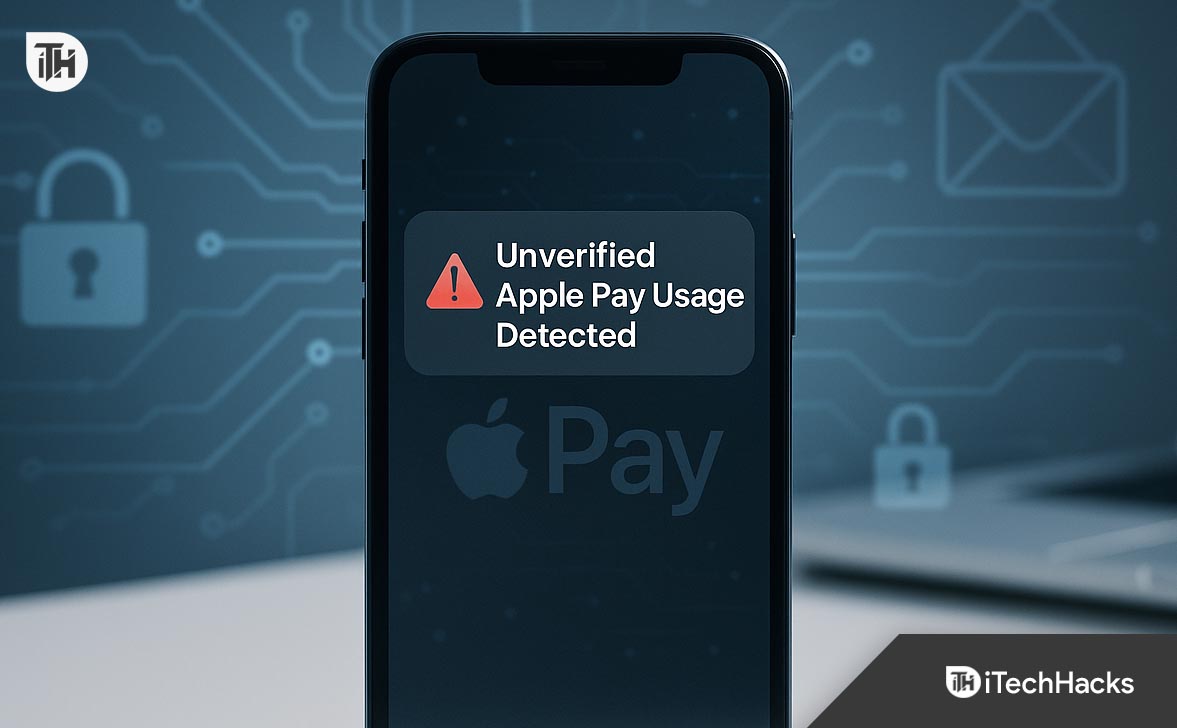
If you’ve just received a message claiming “Unverified Apple Pay Usage Detected” or “Your Apple Pay account has been used on another device,” it’s natural to feel alarmed — and you’re right to treat it seriously. The unverified Apple Pay usage text has become one of the most widespread phishing scams in 2026, designed to exploit trust in Apple’s secure ecosystem.
These fraudulent messages mimic official Apple alerts with remarkable precision. They often feature Apple’s branding, fabricated transaction IDs, or even spoofed phone numbers that appear authentic. The goal is simple yet dangerous: to trick you into clicking a malicious link or calling a fake support line, where scammers attempt to steal your Apple ID, card details, or personal verification codes.
Understanding how these scams operate is the first step to staying safe. In this comprehensive guide, you’ll learn what the unverified Apple Pay usage text actually means, how to spot the red flags that expose it as a fake, and the practical steps you can take to secure your Apple Pay and protect your financial information.
Understanding the “Unverified Apple Pay Usage” Text
The unverified Apple Pay usage text usually claims that:
- Your Apple Pay was used for an unrecognized transaction.
- Your account is under review or verification.
- You need to click a link or call a number to verify your identity.
While the wording varies, the purpose remains the same — to scare you into acting quickly. The scammers want your Apple ID, passwords, or banking details.
Here’s what’s actually happening:
- Apple doesn’t send verification or fraud warning texts via SMS.
- Real Apple Pay notifications appear only through the Wallet app or from verified Apple channels (like Apple’s support email or push notification).
- Clicking a fake link can lead to credential theft, financial loss, or account takeover.
In most cases, the message doesn’t indicate any real issue with your Apple Pay at all — it’s simply a phishing attempt disguised as a security alert.
Common Characteristics of the Unverified Apple Pay Usage Text
You can spot a fake Apple Pay text easily once you know the signs.
1. Suspicious or Urgent Language
Phrases like “Act immediately,” “Your account will be suspended,” or “Verify your Apple Pay now” are designed to create panic. Apple never uses threatening language.
2. Unknown Phone Numbers or URLs
If the link doesn’t end in apple.com, it’s fake. Scammers often use misspelled domains such as apple-verify.com, applepaysecure.net, or random shortened links.
3. Requests for Personal Data
Apple will never ask you to provide your Apple ID password, credit card number, or OTP via text message.
4. Poor Formatting or Grammar
Many fraudulent texts contain grammatical errors, strange punctuation, or inconsistent capitalization.
5. No Matching Notification in Wallet or Settings
If there’s no alert inside your Wallet app or your iPhone’s system notifications, it’s almost certainly a scam.
Step-by-Step: What To Do If You Receive an Unverified Apple Pay Usage Text
Step 1: Do Not Click or Reply
Do not tap on any link, call any number, or reply to the message — even if it looks official. Interacting can confirm your number is active and may result in more scam messages.
Step 2: Report and Delete the Message
- Forward the text to Apple’s official reporting address:
[email protected]. - On your iPhone, open the message → tap Report Junk → Delete and Block Sender.
This helps Apple block similar campaigns and protect other users.
Go to your iPhone’s Wallet app:
- Open the Wallet app.
- Select your card.
- Tap on Latest Transactions.
If you don’t see anything unfamiliar, you’re safe. If you spot an unknown charge, contact your bank immediately and remove the affected card from Apple Pay.
Step 4: Secure Your Apple ID
Even if you didn’t click any link, it’s smart to refresh your Apple ID security:
- Visit appleid.apple.com.
- Change your password immediately.
- Enable Two-Factor Authentication (2FA).
- Review your devices list — remove any device you don’t recognize.
This ensures that even if your login details were leaked earlier, they can’t be reused.
Step 5: Notify Your Bank or Card Provider
If you shared card details or suspect they’re compromised, contact your bank’s fraud department. They can block your card, investigate unauthorized activity, and issue a new one.
Step 6: Run a Device Security Check
In rare cases, fake sites may install malicious profiles or prompt you to download fake “Apple Support” apps. To check:
- Go to Settings → General → VPN & Device Management.
- Delete any unfamiliar profiles.
- Install a reliable antivirus or mobile security app to scan your device.
Advanced Tips for Apple Pay Security
1. Review Devices Linked to Your Apple ID
Open Settings → [Your Name] → Devices.
If you see any unfamiliar iPhone, iPad, or Mac, remove it immediately.
2. Check Trusted Phone Numbers
Under Apple ID → Sign-In & Security → Trusted Phone Numbers, remove any numbers you don’t recognize.
3. Disable “Allow Payments on Mac” if Not Needed
If you rarely make Apple Pay transactions on Mac, disable this option under Settings → Wallet & Apple Pay.
4. Keep iOS and Wallet Apps Updated
Apple frequently patches vulnerabilities through software updates. Always keep your iPhone, iPad, and Watch updated to the latest version.
5. Use Strong Passwords and Security Keys
Use a complex Apple ID password with at least 12 characters and consider setting up a physical security key for two-factor authentication.
How to Tell if an Apple Pay Alert is Real
To confirm authenticity:
- Check sender name: Real Apple messages will come from Apple Inc. or Apple.
- Check message location: Apple notifications appear as push notifications from Wallet, not SMS.
- Check URL carefully: Always ends in
apple.com. - Check your Wallet: Any genuine transaction or verification request will show in the Wallet app instantly.
If none of these checks out, treat it as a fake unverified Apple Pay usage text.
How Scammers Trick You — Common Scenarios
Scenario 1: The Fake Verification Link
You get a message saying “Verify your Apple Pay to avoid suspension.”
When you click, it opens a website that looks like the Apple ID login page. Once you enter your credentials, scammers instantly capture them and lock you out.
Scenario 2: The “Fraud Department” Call
You’re asked to “verify your Apple Pay activity” over the phone. The caller ID may even display “Apple Inc.” due to spoofing. They’ll ask for card details, OTPs, or Apple gift card codes.
Scenario 3: The Remote Support Scam
The scammer convinces you to download a “security verification” app or share your screen. Once connected, they access sensitive data, including banking apps and notes.
These methods are increasingly sophisticated — but all rely on tricking you into acting urgently.
Preventive Measures to Avoid Future Scams
-
Don’t trust text messages about financial accounts.
Always verify through your app or official website, not SMS. -
Turn on message filtering.
Enable Settings → Messages → Unknown & Spam → Filter Unknown Senders. -
Avoid reusing passwords.
A stolen password from any other site could give scammers access to your Apple ID. -
Regularly check your purchase and subscription history.
Go to Settings → Your Name → Media & Purchases → View Account → Purchase History. -
Educate family members.
Many scams target older users unfamiliar with how Apple notifications work.
FAQs
Is the unverified Apple Pay usage text real?
No. Apple never sends texts asking for verification or confirmation of transactions. These messages are phishing scams designed to steal your data.
What should I do if I clicked the link?
Change your Apple ID password immediately, enable two-factor authentication, and remove any unrecognized devices. Contact your bank to block any compromised cards.
Can scammers actually access my Apple Pay with just a text?
No. Apple Pay requires biometric authentication (Face ID or Touch ID). Scammers can’t use Apple Pay without your device or credentials — unless you give them your details through a fake link.
How can I stop receiving fake Apple Pay texts?
Block and report the sender. Use your iPhone’s spam filter, and avoid entering your number on suspicious sites.
How do I confirm a real Apple security alert?
Check inside your Wallet or Apple ID settings. Legitimate alerts always appear inside Apple’s ecosystem — never via SMS or random links.
Conclusion
Receiving an unverified Apple Pay usage text can feel alarming, but it’s almost always a scam — not a system alert from Apple. The right response is simple: don’t click, don’t reply, and secure your account immediately.
By verifying transactions only inside the Wallet app, keeping your Apple ID protected with two-factor authentication, and staying alert to fake messages, you’ll ensure your Apple Pay remains secure.
The takeaway? Trust the Wallet, not the text. Scammers can fake messages — but they can’t fake your Face ID.
ALSO READ: