- Combine a Standard User account, Microsoft Family Safety, UAC Always Notify, and Group Policy or AppLocker rules to effectively restrict kids from installing softwares in Windows 11 from all possible sources including Downloads, USB drives, and the Microsoft Store.
- Review app installation attempts through Family Safety reports, keep a strong administrator password, and periodically audit installed programs. This ensures ongoing control, prevents accidental installations, and maintains a safe computing environment for children.
Unrestricted software installation can expose your PC to security threats, performance issues, and unwanted changes, especially when children have access to the computer. Many parents want to restrict kids from installing softwares in Windows 11 to maintain control, ensure safety, and prevent accidental modifications. Windows 11 offers multiple built-in tools and settings that allow you to manage user permissions, control installations, and monitor activity effectively.
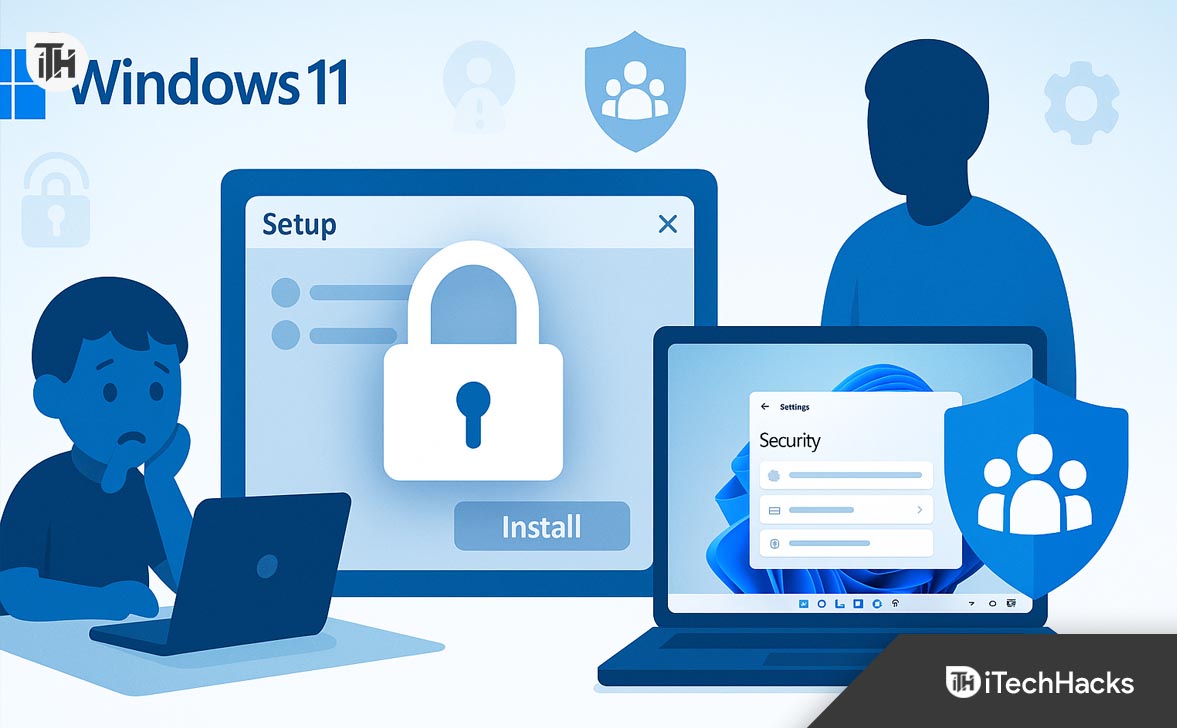
This detailed guide walks through every working method to restrict kids from installing softwares in Windows 11, covering Microsoft Family Safety, user account permissions, Group Policy, and more. Whether your child uses a standard account or a shared PC, you’ll find secure, practical steps to safeguard your system.
Understanding Software Restrictions in Windows 11
Before applying restrictions, it’s important to understand how Windows 11 handles software installations. Applications can be installed from:
- Microsoft Store (via Store apps)
- Executable files (
.exeor.msi) downloaded from the internet - Third-party package managers or installers
- External drives or USB devices
By default, administrative rights are required to install most desktop software. However, certain applications or games from the Microsoft Store may bypass these checks if permissions are not properly configured.
To restrict kids from installing softwares in Windows 11, you must limit administrative access, configure security policies, and use monitoring tools for continuous control.
Why Restricting Software Installation Matters
Uncontrolled installations can lead to several risks:
- Malware and Adware: Kids may unknowingly install unsafe programs bundled with harmful software.
- Performance Issues: Excessive or unverified software can slow down the system.
- Unauthorized Changes: Settings, themes, or system configurations may get altered.
- Data Privacy Risks: Apps can access personal or financial information.
- Distraction from Studies: Games or media apps may reduce productivity.
Restricting installations ensures a safe, stable, and controlled computing environment.
Create a Standard User Account (Remove Administrator Rights)
The most reliable way to restrict kids from installing softwares in Windows 11 is by ensuring they use a Standard User account instead of an Administrator one. Administrator accounts have full system control, including the ability to install new apps. Standard accounts, on the other hand, require admin approval for every installation.
- Open Settings → Accounts → Family & other users.
- Under Your family, click Add account.
- Choose Create one for a child and follow prompts to create a Microsoft account for your kid.
- Once added, select the child’s account → Change account type → set it to Standard User.
- Keep your own account as Administrator with a strong password.
Now, any software installation attempt will show a UAC (User Account Control) prompt asking for the admin password, effectively blocking unauthorized installs.
Use Microsoft Family Safety for App and Game Approvals
Microsoft Family Safety is built for parental control. It helps you block unapproved app installations, monitor activity, and limit screen time.
- Visit account.microsoft.com/family and sign in.
- Add your child’s Microsoft account to your family group.
- Click your child’s profile → Content filters → enable App and game limits.
- Set age ratings and require adult approval for app downloads.
- Enable activity reporting to receive weekly email summaries.
With this, your child cannot download or install any app from the Microsoft Store or web without your explicit approval.
Enable Strict UAC Settings
User Account Control (UAC) is the Windows gatekeeper for system changes. Strengthening it helps ensure no installer bypasses admin approval.
- Open Control Panel → User Accounts → Change User Account Control settings.
- Move the slider to the top (Always Notify).
- Click OK.
Now, every installation triggers a pop-up asking for the admin password—stopping kids from bypassing restrictions.
Disable Windows Installer via Group Policy
This method completely blocks the Windows Installer engine that handles .msi files—common installers for most applications.
For Windows 11 Pro or Enterprise:
- Press
Windows + R, typegpedit.msc, and press Enter. - Navigate to:
Computer Configuration → Administrative Templates → Windows Components → Windows Installer - Double-click Disable Windows Installer → set it to Enabled, choose Always.
- Also enable Prohibit User Installs.
- Click Apply → OK.
Now, any installation attempt using Windows Installer will be blocked for all standard users.
Disable the Microsoft Store
Many kids install games or apps through the Microsoft Store. To stop that, you can disable the Store completely.
Option 1: Group Policy (Pro Edition)
- Open
gpedit.msc. - Go to
Computer Configuration → Administrative Templates → Windows Components → Store. - Enable Turn off the Store application.
Option 2: Registry (Home Edition)
- Press
Windows + R, typeregedit, and press Enter. - Go to:
HKEY_LOCAL_MACHINE\SOFTWARE\Policies\Microsoft\WindowsStore - Create a new DWORD (32-bit) named
RemoveWindowsStoreand set its value to1.
After restarting, the Store will be inaccessible.
Block Executable Files with AppLocker
AppLocker is a professional-grade tool that lets you block .exe and .msi installers by path, publisher, or hash.
- Press
Windows + R, typesecpol.msc, and press Enter. - Navigate to:
Application Control Policies → AppLocker → Executable Rules. - Right-click Executable Rules → Create New Rule.
- Choose Deny → Select your child’s account.
- Under Conditions, pick Path → add:
-
-
C:\Users\ChildName\Downloads\* -
C:\Users\ChildName\Desktop\*
-
-
Repeat for Windows Installer Rules to block
.msifiles. -
Enable the Application Identity service and set Enforce Rules.
Now, any installer launched from Downloads or Desktop will be blocked instantly.
Use Software Restriction Policies (SRP)
If AppLocker isn’t available, SRP works similarly by denying executables from unsafe locations.
-
Open
secpol.msc. -
Right-click Software Restriction Policies → Create New Policies.
-
Under Security Levels, set Disallowed as default.
-
Add Path Rules:
-
Allow:
%WINDIR%\*,%PROGRAMFILES%\* -
Deny:
%USERPROFILE%\Downloads\*,%USERPROFILE%\Desktop\*
-
-
Apply and restart.
Now, your child can only run programs from safe, allowed folders.
Restrict USB and External Drives
Kids often use USB drives to sneak in games or apps. Disable USB access to block this path.
- Open
gpedit.msc. - Go to
Computer Configuration → Administrative Templates → System → Removable Storage Access. - Enable All Removable Storage classes: Deny all access.
You can also deny only Execute access to still allow file reading but block program execution.
Block Executable Downloads in Browser
Prevent kids from downloading installers via web browsers.
For Microsoft Edge:
-
Open Settings → Privacy, search, and services.
-
Turn on Microsoft Defender SmartScreen and Block potentially unwanted apps.
Group Policy:
- Navigate to:
Computer Configuration → Administrative Templates → Microsoft Edge. - Enable Configure Microsoft Defender SmartScreen and Block PUA.
This adds an extra layer against unsafe downloads.
Restrict Write Access to Installation Folders
Even if an installer runs, it needs write access to system folders. Denying this stops installations.
- Right-click
C:\Program Files→ Properties → Security. - Click Edit → Add your child’s account → Deny Write and Modify.
- Repeat for
C:\Program Files (x86)andC:\Windows\Installer.
This ensures no unauthorized software can install system-wide.
Disable Command Line and Scripting Tools
Block access to tools like cmd, PowerShell, and Regedit that kids could use to bypass restrictions.
- Open
gpedit.msc. - Go to
User Configuration → Administrative Templates → System. - Enable Don’t run specified Windows applications.
- Add:
cmd.exepowershell.exeregedit.exemsiexec.exewscript.exe
This prevents the execution of key system tools.
Switch to Windows 11 S Mode (Optional)
Windows 11 S Mode only allows Microsoft Store apps—ideal for kids who don’t need third-party programs.
- You can switch to S Mode from Settings → System → Activation.
- Once switched out of S Mode, you can’t go back.
- It’s available on most new laptops.
This mode locks down the system by design, providing ultimate safety.
Combine Layers for Maximum Security
The best approach is layered:
- Use a Standard account
- Apply Microsoft Family Safety
- Enforce UAC Always Notify
- Disable Installer + Store
- Add AppLocker or SRP
- Restrict USB + browser downloads
Together, these layers fully restrict kids from installing softwares in Windows 11—covering every possible route.
FAQs
Can a Standard account still install anything in Windows 11?
A Standard account can’t elevate installers that require admin. However, Store apps and some portable tools may run unless you disable the Store and block execution with AppLocker/SRP. Using both layers effectively restricts kids from installing softwares in Windows 11.
Is Microsoft Family Safety enough on its own?
It’s excellent for visibility and Store control, but it won’t stop a portable .exe from running off a USB drive. Combine Family Safety with AppLocker/SRP and removable storage policies for comprehensive control.
I have Windows 11 Home. Can I still lock installs?
Yes. Use a Standard account, Family Safety, UAC at Always notify, Store disable via registry, strong SmartScreen/PUA, and browser download restrictions. You can’t use AppLocker/SRP easily on Home, but NTFS denies on install directories plus browser controls go a long way.
Will these settings block Windows Update or school apps?
Windows Update uses system privileges and is unaffected. For school apps, whitelist them via Family Safety or AppLocker publisher rules. Test whitelisting on a spare standard account before applying to the child.
How do I allow one specific game or app safely?
Prefer publisher-based allow rules (AppLocker) for that vendor, or allow only its exact Store package. Avoid broad path allows in Downloads. Approve in Family Safety so usage is tracked and time-limited.
Conclusion
If you want to restrict kids from installing softwares in Windows 11, start with fundamentals—Standard user account, strict UAC, and Family Safety approvals. Then harden the system by disabling Windows Installer, shutting down the Store (or tightly whitelisting it), and enforcing AppLocker or Software Restriction Policies to block executables from Downloads, Desktop, and USB. Finish with browser download restrictions, NTFS denies on install folders, and removable storage policies.
ALSO READ: