

- To find your BitLocker recovery key, visit aka.ms/myrecoverykey using a different device, sign in with your Microsoft account, and check for the key listed under your device information. This site acts as a shortcut to your Microsoft account's recovery keys page.
- BitLocker encrypts Windows devices to protect your data, occasionally asking for a 48-digit recovery key if it detects a security risk, like a hardware change. If aka.ms/myrecoverykey doesn't show your key, check other places like USB drives, physical notes, and IT department databases.
- If you can't find your BitLocker key, consider reinstalling Windows, contacting your device manufacturer, or hiring data recovery services. There's no way to bypass BitLocker without the key
If you’re locked out of your Windows device due to BitLocker encryption and need your recovery key, the first place you should check is aka.ms/myrecoverykey. This Microsoft portal is the central location to access your BitLocker recovery key securely, provided you meet certain conditions.
In this comprehensive guide, you’ll learn exactly how to access your BitLocker recovery key using aka.ms/myrecoverykey, what to do if it’s not found there, how BitLocker works behind the scenes, and what options are available if recovery becomes complicated. Based on years of troubleshooting across Dell, HP, and Surface devices, this is the real-world walkthrough you need.
What Is BitLocker and Why Does It Need a Recovery Key?
BitLocker is Microsoft’s built-in disk encryption tool available on Pro and Enterprise editions of Windows 10 and 11. It protects your system from unauthorized access by encrypting the entire drive.
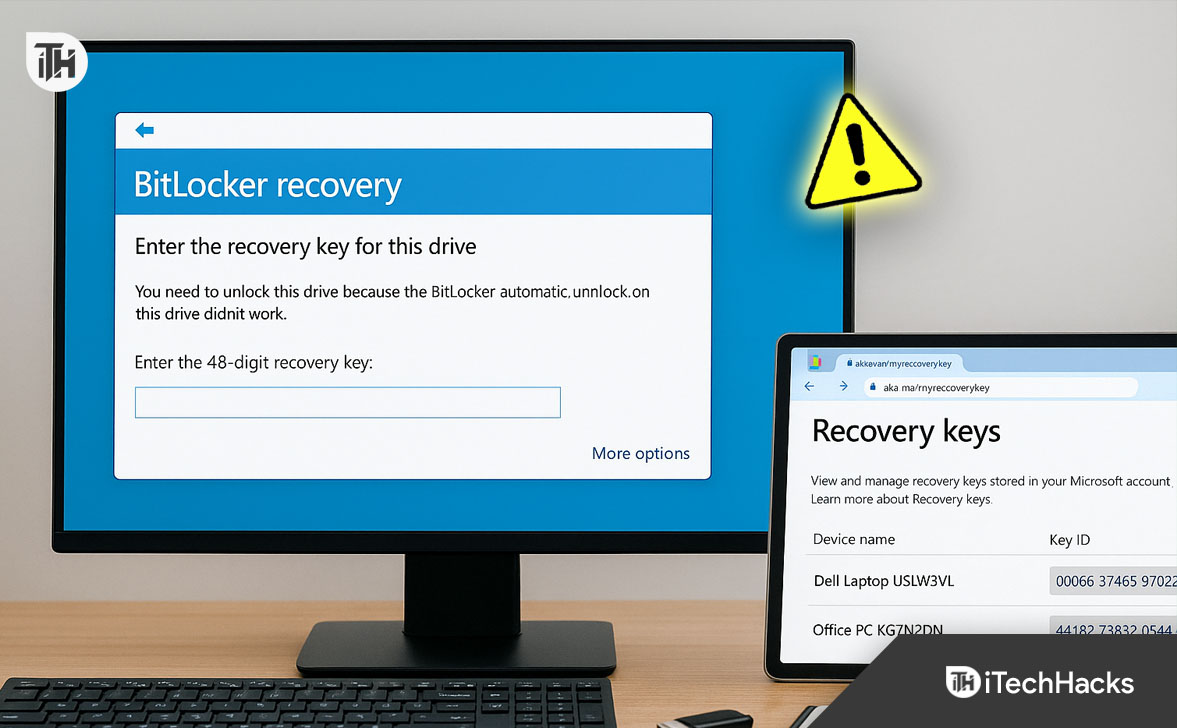
But if BitLocker detects a potential security risk — such as a change in hardware, firmware, or even BIOS settings — it may lock the drive and request a 48-digit recovery key before it allows boot access.
That’s where aka.ms/myrecoverykey comes in.
What Is aka.ms/myrecoverykey?
https://aka.ms/myrecoverykey is the official Microsoft portal that redirects to the BitLocker recovery key page inside your Microsoft account.
When your Windows device is encrypted using BitLocker and tied to a Microsoft account, the recovery key is often saved automatically to the cloud. This is true for most consumer laptops (HP, Dell, Surface, Lenovo) that ship with Windows 11 Home or Pro editions.
The aka.ms/myrecoverykey portal is simply a user-friendly redirect to this recovery interface.
When You Can Use aka.ms/myrecoverykey
You can access your BitLocker recovery key via aka.ms/myrecoverykey only if:
- You logged into your PC with a Microsoft Account (not just a local account)
- BitLocker was automatically enabled by the device manufacturer
- The recovery key was backed up to your Microsoft account at the time of setup
If your device was part of a company domain, the key may instead be stored with your organization’s IT department, not on aka.ms/myrecoverykey.
Step-by-Step: How to Access Your BitLocker Key via aka.ms/myrecoverykey
Follow these steps exactly as they apply to most Windows 11 and Windows 10 machines:
Step 1: Use Another Device to Access the Portal
You cannot access the portal from the locked device. Use a second computer, tablet, or smartphone to open a browser.
Step 2: Visit aka.ms/myrecoverykey
- Go to: https://aka.ms/myrecoverykey
- This will redirect you to: https://account.microsoft.com/devices/recoverykey
Step 3: Sign In to Your Microsoft Account
Use the same Microsoft account that was used on the locked device.
If you don’t remember which account you used, check your email for Microsoft Store receipts, Xbox account links, or Windows welcome emails.
The BitLocker key is tied to the user account used at device setup.
Step 4: Locate Your Device and Recovery Key
You’ll now see a list of devices associated with your Microsoft account.
Each entry will show:
- Device name
- BitLocker Key ID
- 48-digit BitLocker Recovery Key
- Compare the Key ID displayed on your locked device with the one listed here.
Step 5: Enter the Recovery Key on Your Locked PC
Type the exact 48-digit key shown into the locked device when prompted. It’s not case-sensitive, but must be entered exactly.
“No BitLocker recovery keys found” Error
- This usually means:
- You signed in with the wrong Microsoft account
- The recovery key was never uploaded to the Microsoft cloud
- The device was set up using a local account or organizational account
- You reinstalled Windows or changed the drive, and a new key was created but not saved
Fix: Double-check all Microsoft accounts you’ve used, including family member accounts. If you’re part of a school or business, contact your admin.
Alternative Places to Find the BitLocker Recovery Key
If aka.ms/myrecoverykey doesn’t show your BitLocker key, try the following:
Printed Copy or Note
Many users take a screenshot or write down the BitLocker key when it first appears. Check:
- Physical documents
- Photos on your phone
- Sticky notes around your workspace
USB Drive or File Backup
Sometimes BitLocker gives the option to save the key to a .txt file. Check USB drives, external HDDs, or cloud storage like:
- Google Drive
- OneDrive (manual upload)
- Dropbox
- Search for filenames like:
- BitLocker Recovery Key.txt
- BitLocker-key-[device-name].txt
Work or School Admin
If your device is managed by an organization (e.g., Intune or Active Directory), your recovery key may be stored by your IT admin.
Ask them to search using your device serial number or hostname.
Azure Active Directory
If the device was Azure AD-joined, try checking:
https://portal.azure.com > Azure Active Directory > Devices > [Your Device] > BitLocker Keys
What If You Still Can’t Find the BitLocker Recovery Key?
If you’ve exhausted aka.ms/myrecoverykey and all alternate methods:
Your Options Are:
- Wipe the Drive: If you don’t need the data, you can clean-install Windows from USB. This removes BitLocker and all files.
- Send to Manufacturer: Some brands like Microsoft (Surface), Dell, and HP offer device reset or replacement — but they cannot bypass BitLocker.
- Check BIOS for Secure Boot / TPM Changes: Sometimes, restoring default BIOS settings allows the device to boot normally again without asking for the key — but only in specific hardware changes.
- Data Recovery Services: If the data is critical and you have no backup or key, data recovery companies may be able to help, but costs are high and success is not guaranteed.
There is no backdoor to BitLocker. Microsoft cannot bypass it. The BitLocker recovery key is the only access point.
Quick Access Links
- Access recovery key: aka.ms/myrecoverykey
- Microsoft BitLocker support: https://support.microsoft.com/bitlocker
- Azure AD devices (for orgs): https://portal.azure.com
FAQs About aka.ms/myrecoverykey and BitLocker Recovery Keys
1. What is the difference between aka.ms/myrecoverykey and microsoft.com?
aka.ms/myrecoverykey is a shortcut URL provided by Microsoft. It redirects you to your Microsoft account’s device recovery key page. It’s easier to remember and type, especially when you’re locked out of a device.
2. What if my BitLocker recovery key is not listed on aka.ms/myrecoverykey?
If your key isn’t there, you likely used a local account, or the key wasn’t backed up. Try all Microsoft accounts you’ve used, then check for USB backups or contact your IT department.
3. Can I bypass BitLocker without the recovery key?
No. Microsoft’s BitLocker encryption is designed to be secure and has no bypass or master key. If the recovery key is lost and there’s no backup, the only option is to wipe the drive and reinstall Windows.
Final Thoughts
Finding your BitLocker recovery key is possible in most cases if you know where to look. Start with aka.ms/myrecoverykey, especially if your Windows PC was set up with a Microsoft account.
If the key isn’t available there, use every backup avenue: USB drives, printed copies, cloud folders, and IT support. BitLocker recovery is unforgiving, but with a structured approach, you can resolve it without data loss — or at least without delay.
ALSO READ:




