

- Muted mic, network issues, or firmware bugs are the top reasons Alexa stops responding. Always check the mic button, Wi-Fi connection, and software version first.
- Voice not detected = no response. If Alexa isn’t reacting to your commands, verify if your voice was registered using the Alexa app’s Voice History, this quickly rules out microphone or detection issues.
- Don’t reset blindly. A factory reset should be your final step, not your first. It wipes all data and routines, try power cycling, wake word change, and voice training before resorting to a reset.
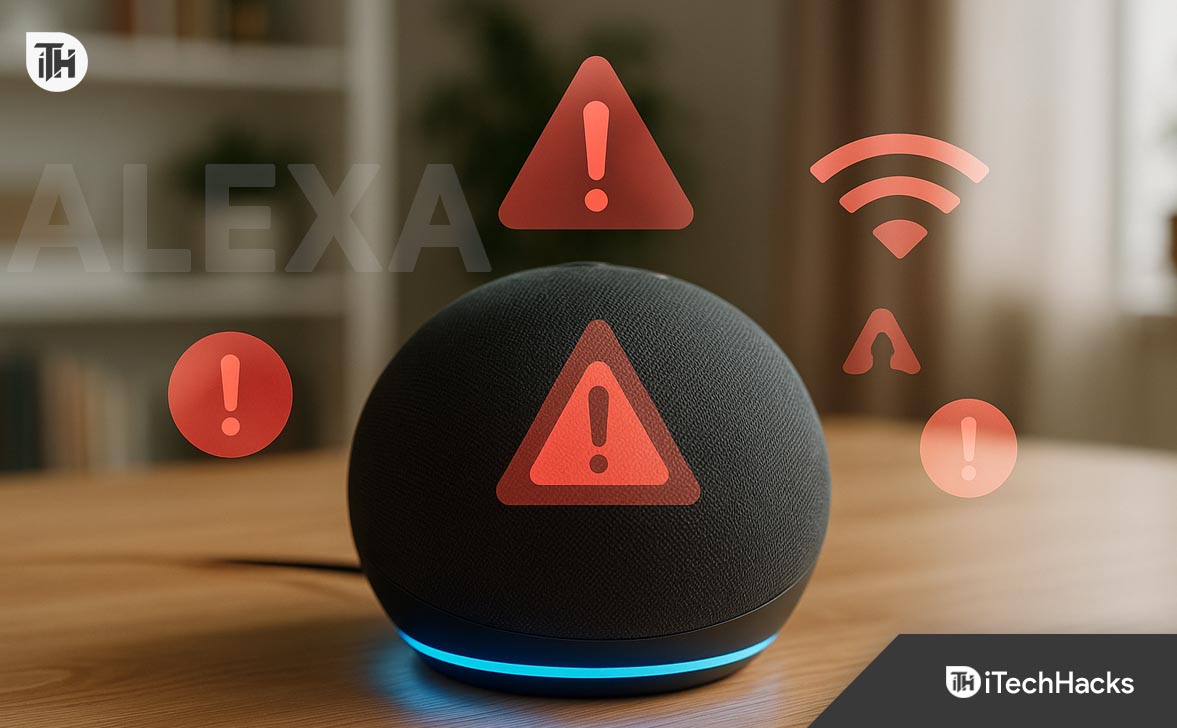
If your Alexa is not responding, not working, or ignoring voice commands, you’re likely dealing with one of the most common Echo issues in 2026. Whether it’s an unresponsive Echo Dot, Alexa not responding to voice, or the device stuck with a glowing ring and no reply, this guide covers every proven fix.
As repair professionals who’ve handled hundreds of real-world Alexa issues, we’ve compiled the most effective solutions, from basic checks to advanced resets. If you’re wondering “why is my Alexa not responding” or “why won’t my Alexa work,” this step-by-step guide will help you get your device working again fast and reliably.
Common Scenarios Where Alexa Is Not Responding
Before jumping to solutions, it’s important to identify what exactly you mean by “Alexa not working.” Here are the most reported behaviors:
- Alexa doesn’t respond to voice commands
- The blue ring lights up, but there’s no response
- No light or sound — device seems dead
- Alexa says “I’m having trouble connecting to the internet”
- Echo Dot not responding after power cycle or update
Alexa Not Responding to Voice? Here’s How to Fix It Fast
1. Check If Alexa Heard You Clearly
One of the most common reasons for Alexa not responding is that the device never actually heard your wake word. This can happen due to background noise, voice detection issues, or microphone problems.
- Say a simple command like: “Alexa, what’s the time?”
- If the light ring doesn’t turn blue or doesn’t activate at all, it means Alexa didn’t detect the wake word.
- Move closer to the device and speak more clearly.
- Avoid shouting or using complex phrases right away.
Go to the Alexa app > More > Activity > Voice History to check if your voice command was received. If nothing appears there, the issue is related to either your microphone or the device’s ability to detect voice — a key trigger for many “Alexa not responding to voice” complaints.
2. Unmute the Microphone (Red Ring = Mic Off)
A muted microphone is one of the top causes of users saying, “my Alexa is not responding” even when the device appears powered on.
When the mic is off, you’ll usually see a red light ring on the top of the device.
- Look for a microphone icon button on the top of your Echo or Echo Dot.
- If the red light is on, press the mic button once to turn it back on.
- The red ring should disappear, and your Alexa should now start responding again.
This simple fix solves a huge number of Echo Dot not responding complaints, especially among first-time users or households with kids.
3. Reboot the Echo Device (Power Cycle)
Rebooting your Echo is often enough to fix temporary glitches that lead to Alexa not working after updates, app sync issues, or Wi-Fi handoff failures.
- Unplug your Echo or Echo Dot from the power socket.
- Wait for at least 30 seconds.
- Plug it back in.
- Wait until the light ring cycles through blue and turns off (or to your usual indicator).
- Say “Alexa” and test.
This is especially useful when the Echo Dot is not responding right after a firmware update or when the Wi-Fi changes.
4. Check Internet Connectivity (Offline Echo)
Another major reason for Alexa not working is a dropped or weak Wi-Fi connection. If Alexa says, “I’m having trouble connecting to the internet,” it means your Echo can’t reach Amazon’s servers.
What to Check:
-
Open the Alexa app > Devices > Echo & Alexa > [Your Device]
-
Look at the Status – if it says “Offline,” the Echo is disconnected.
Reconnect Alexa to Wi-Fi:
- Press and hold the Action button (●) on your device for 15 seconds until the orange light appears.
- Go to the Alexa app > Devices > Echo & Alexa > Set Up New Device
- Follow the prompts to reconnect to your Wi-Fi.
This often resolves user issues like “why won’t my Alexa work even though it powers on.”
5. Update Alexa App and Echo Firmware
Running outdated firmware or app versions can lead to communication issues between your phone and Alexa, or glitches after firmware patches.
- In the Alexa app, go to Devices > Echo & Alexa > [Device Name] > About and check firmware version.
- Leave your Echo plugged in and connected to Wi-Fi overnight. Updates are applied automatically when the device is idle.
Also make sure your Alexa app (iOS/Android) is updated via the App Store or Google Play.
Many “alexa not responding” cases in 2026 have been caused by a mismatch between app version and device firmware.
6. Change or Re-Train the Wake Word
If Alexa no longer responds to its name but works through the app, the wake word may be the issue. This is common in noisy environments or after recent updates.
- Open Alexa app > Devices > Echo & Alexa > [Your Device]
- Tap Wake Word
- Choose an alternative: Echo, Computer, Amazon, Ziggy
- Test with the new wake word
Changing the wake word helps when Alexa is not responding to voice or keeps mistaking other words as the trigger.
7. Factory Reset (Last Resort)
If your Echo Dot is not responding even after all other fixes, a full reset may be required. This removes all data and sets it back to factory settings.
Reset by Device Type:
For Echo Dot (4th/5th Gen):
- Hold the Action button for 20–25 seconds.
- Wait for the orange spinning light.
- Device enters setup mode.
For Echo Show:
- Swipe down > Settings > Device Options > Reset to Factory Defaults
Warning: This will erase all settings, devices, Wi-Fi info, and linked services. Only use this when nothing else works.
8. Verify Amazon Account Linking
If Alexa isn’t working correctly or seems confused about your preferences, make sure the device is assigned to the right Amazon account.
- Open Alexa App > Settings > Your Profile
- Tap Recognized Voices and set up your voice profile
- Say: “Alexa, which account is this?” to confirm
If someone else set up the Echo or multiple users share one device, this can cause inconsistent performance or alexa not responding to voice commands properly.
9. Improve Voice Recognition with Training
If Alexa frequently misunderstands you or doesn’t respond, even though the mic is active and Wi-Fi is fine, create a new voice profile.
- Go to Alexa App > Settings > Your Profile > Voice Profile
- Tap Create Voice Profile
- Follow the instructions and repeat the prompted phrases
This helps especially in multi-user households or when Alexa seems less responsive to one person’s voice over others.
10. Rule Out Issues with Smart Devices
Sometimes users report “Alexa not working” when the real issue is with a smart device Alexa is trying to control.
For example, you might say “Alexa, turn on the light” and nothing happens — but Alexa actually heard and processed your command correctly.
- Open the Alexa app > Devices > Lights (or Plugs)
- Try toggling the smart device manually from the app
- Re-link the smart home device if it doesn’t respond
If Alexa is not responding after hearing your command, but only when smart devices are involved, the issue is likely on the device or skill side.
11. Use Alexa on Another Device to Isolate the Issue
To find out if the issue is with your physical Echo or with your Amazon account/setup:
- Open the Alexa app on your phone
- Tap the blue Alexa icon and say the same command
- If it works from your phone but Echo Dot is not responding, the issue is hardware or firmware-related.
If Alexa also fails to respond in the app, it’s likely a deeper issue with your Amazon account or voice profile.
12. Hardware Fault or Warranty Replacement
If none of these solutions resolve the issue and your Alexa is still not responding, the hardware might be defective. Echo devices can develop mic, speaker, or Wi-Fi module issues over time.
- Visit: Amazon > Devices > Manage Your Content and Devices
- Check your warranty or support options
Amazon typically offers free replacements if the device is under warranty, or discounted upgrades for out-of-warranty units.
Final Tips and Expert Advice
- Avoid using third-party power adapters — they often cause Alexa not working errors by underpowering the device.
- Never attempt to open or manually repair your Echo. These devices are sealed and tamper-resistant.
- Keep the Echo away from walls and noisy appliances (e.g., TVs or fans) to ensure better voice detection.
Frequently Asked Questions (FAQs)
1. Why is my Alexa not responding but the blue light is on?
If Alexa’s blue ring lights up but there’s no verbal response, the device likely heard you but failed to process the command. This can be due to internet issues, outdated firmware, or temporary system errors.
2. Why won’t my Alexa work after a power outage?
Power cuts can disrupt Wi-Fi pairing or corrupt temporary device memory. Unplug your Echo for 30 seconds, restart your router, and reconnect the device using the Alexa app.
3. My Echo Dot is not responding to voice — is the mic broken?
Possibly. First, check if the mic is muted (red ring). If not, try voice training, changing the wake word, and testing via the Alexa app. Persistent issues may indicate hardware failure.
4. Why is Alexa not responding to voice commands after an update?
This is a common issue in 2026 due to firmware sync delays. Restart the device, ensure the Alexa app is updated, and reconnect to Wi-Fi to prompt a fresh sync.
5. Alexa says it’s online but doesn’t do anything — what’s wrong?
If Alexa is connected but not performing actions, the problem may lie with linked smart devices, corrupted skills, or voice profile mismatches. Re-link devices and test using manual controls in the app.
Conclusion
If Alexa is not responding or your Echo Dot isn’t working as expected, don’t rush to replace it. In most cases, the fix is as simple as unmuting the mic, rebooting the device, or reconnecting to Wi-Fi. For persistent issues, voice training, firmware checks, or a factory reset may be necessary. These solutions, based on hands-on experience with hundreds of Echo units, will help you restore full functionality quickly and reliably.
ALSO READ:
- Top 8 Ways to Fix Amazon Alexa Echo Not Playing Music
- Top 10 Best Smartwatches with Amazon Alexa Built-in
- How to Fix Ford Touch Screen Not Responding to Touch
- How to Fix DNS Server Not Responding Error in Windows 11
- Google Meet Not Loading Due to 504 Errors? 9 Proven Fixes to Try Now
- Top 10 Ways to Fix PikaShow Not Working or Responding