- You can mark a message as important in Teams on desktop, web, or mobile by using the “Format” menu or the keyboard shortcut (Ctrl+Shift+I).
- Important messages appear with a red “Important!” banner and push higher-priority notifications to recipients, helping your message stand out.
- Avoid overusing the important tag, reserve it for urgent or high-priority updates to maintain visibility and team trust.
In Microsoft Teams, communication moves fast. But sometimes, you need a way to make sure your message cuts through the noise, especially in high-traffic channels, group chats, or when collaborating across time zones. That’s where the “Mark as Important” feature comes in.
In this guide, we’ll show you exactly how to mark a Teams message as important, how it works across desktop and mobile, and how to use the Teams important message shortcut to speed things up. If you’ve ever struggled with getting someone to notice your message in a busy thread, this solves that problem directly.
What Does “Mark as Important” Do in Teams?
When you mark a message as important in Teams, the message is highlighted with a red exclamation mark (!) and the word “Important” appears at the top of the message. It also pushes a special notification to the recipient(s), depending on their notification settings.
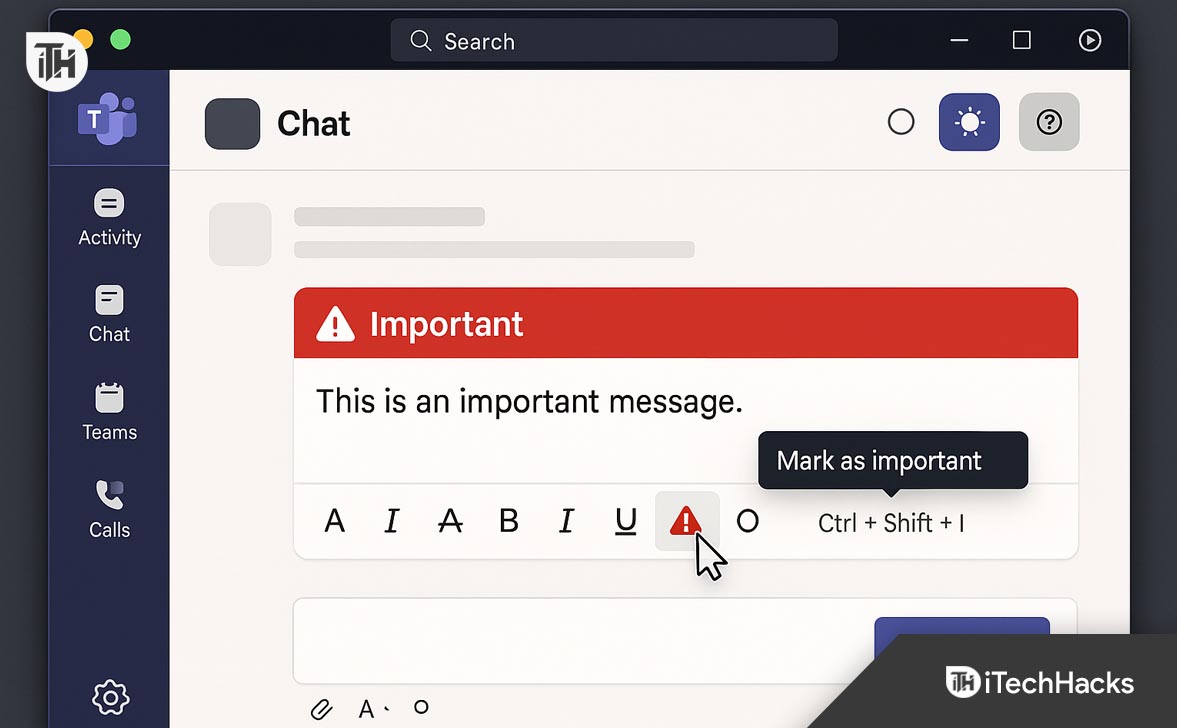
This feature is especially useful for:
- Project deadlines
- Critical IT or operational alerts
- Managerial updates
- Time-sensitive HR communication
- Emergency coordination
Important Note (2025 Update): In the latest Teams builds (v2411+), Microsoft added stricter notification controls, so recipients with Focus Assist or DND may still miss non-persistent alerts. Use with discretion.
Mark a Message as Important in Microsoft Teams Easily
If you’re wondering how to mark a message as important in MS Teams, follow these proven methods that work on Windows, Mac, mobile apps, and Teams web in 2026. These steps are tested and updated based on the latest Microsoft Teams interface.
Mark a Teams Message as Important on Desktop (Windows/macOS)
This is the most common and reliable way to send a Teams important message using the formatting toolbar.
- Open Microsoft Teams and go to the desired chat or channel.
- Click inside the message box where you type your message.
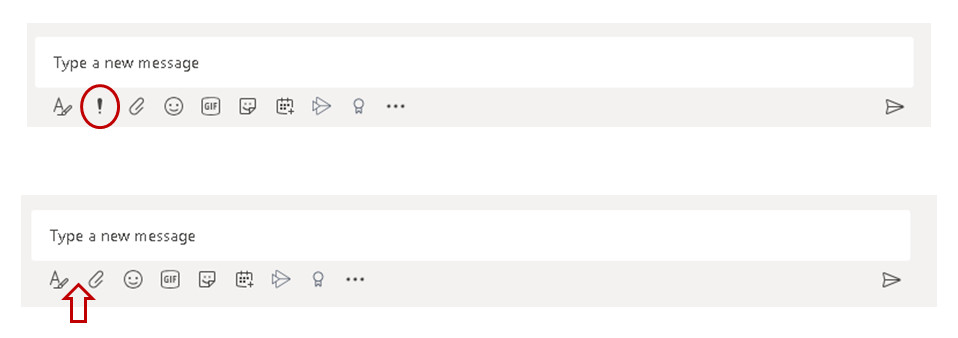
- Click the Format (A icon) below the box to expand formatting options.
- At the top, click the three-dot menu (⋯) or find the exclamation mark icon.
- Select “Mark as Important”.
- A red “Important!” label will appear above your message.
- Now type your message and press Send.
You’ve now successfully marked a message as important in Teams. It will show a red banner and alert the recipient.
Use the Teams Important Message Shortcut (Keyboard)
If you send a lot of messages, this shortcut is a faster way to send an important message in Teams.
- Windows Shortcut: Ctrl + Shift + I
- Mac Shortcut: Command + Shift + I
- Go to any chat or channel.
- Click inside the message field.
- Press the shortcut:
Ctrl + Shift + IorCmd + Shift + I. - The “Important!” red label appears instantly.
- Type your message and hit send.
Use this Teams important message shortcut for quick priority messaging without touching the mouse.
Pro Tip: Train your team to use this keyboard method for high-priority updates.
Mark Message as Important in Teams on Mobile App (iPhone/Android)
Whether you’re using an iPhone 15 or Android 14+ device in 2026, you can still send a Teams important message from your phone.
- Open the Teams mobile app.
- Tap into any chat or channel.
- Tap the message box to open the keyboard.
- Tap the plus icon (+) or ellipsis (⋯) next to the box.
- Tap “Mark as Important”.
- A red bar labeled “Important!” will appear.
- Type your message and tap Send.
Mobile users can easily mark a Teams message as important even while on the move.
Web Version (teams.microsoft.com)
If you’re using Teams through a browser like Chrome or Edge:
- Go to https://teams.microsoft.com and log in.
- Open any chat or channel.
- Click the Format (A icon) below the text field.
- Click the exclamation icon and select “Mark as Important.”
- Send your message.
This works on Windows, macOS, and Chromebooks.
Summary Table – How to Mark Teams Message as Important
| Platform | How to Mark as Important |
|---|---|
| Windows App | Click Format → ⋯ → “Mark as Important” or Ctrl+Shift+I |
| Mac App | Format → ⋯ → “Mark as Important” or Cmd+Shift+I |
| Mobile App | Tap + or ⋯ → “Mark as Important” |
| Web Browser | Format → ⋯ → “Mark as Important” |
What to Do If You Forgot to Mark It as Important
If you send a message and forgot to mark it as important:
- You cannot edit it to make it important later.
- Your best option is to delete and resend the message, this time using the Teams important message shortcut or formatting option.
- Or, send a new message marked as important, referencing the previous one.
Warning (2026): Some organizations restrict message deletes or edits in Teams, especially in compliance-heavy industries like banking, healthcare, or education. If you can’t delete, just send a new important message.
Why You Should Use Teams Important Message Feature Wisely
- Don’t overuse it. Save it for actual high-priority communication.
- Use the Teams important message shortcut when speed matters.
- Make sure the message content matches the urgency — don’t just mark “FYI” messages as important.
Can I Set Default “Important” for Every Message?
No. As of 2026, Microsoft Teams does not allow defaulting all your messages to Important. You must manually mark each message as important.
This prevents misuse and ensures the feature retains its significance.
Conclusion
Now you know exactly how to mark a Teams message as important, across all devices — and how to use the Teams important message shortcut to send it faster. Whether you’re in a desktop environment, on mobile, or using the web, Teams makes it easy to highlight time-sensitive communication.
ALSO READ:
- How to Fix Microsoft Teams Error Tag 657rx in Windows 11/10
- How to Migrate Chats from Skype to Teams [Full Guide]
- Top 8 Ways to Keep Microsoft Teams Status Green All the Time
- How To Fix Microsoft Teams Error CAA20003 Or CAA2000C
- How to Change Your Video Background on Microsoft Teams
- How to Disable End-to-End Encryption in WhatsApp Settings