- Microsoft Teams has enhanced AI in 2026 to create smart meeting notes automatically, capturing key discussion points, action items, and summaries, which are available with the Microsoft 365 Copilot or Teams Premium license. These notes are generated when meetings are scheduled in Teams' calendar, transcription is enabled, and done from the desktop app.
- To use Teams AI meeting notes effectively, you need to schedule your meetings using Teams Calendar, enable transcription through the Microsoft Teams Admin Center, and start transcription during meetings. Clear audio and structured communication during meetings are crucial for generating accurate AI summaries.
Microsoft Teams has significantly improved its AI capabilities in 2025, especially around smart note-taking during meetings. If you’re looking to understand how to enable, manage, and get the most out of Teams AI meeting notes, this guide covers every working method and best practice – based on real user scenarios and tested configurations.
Whether you’re using Teams for project syncs, HR interviews, or client calls, Teams AI notes can save hours of manual transcription and help your team focus on what matters.
What Are Teams AI Meeting Notes?
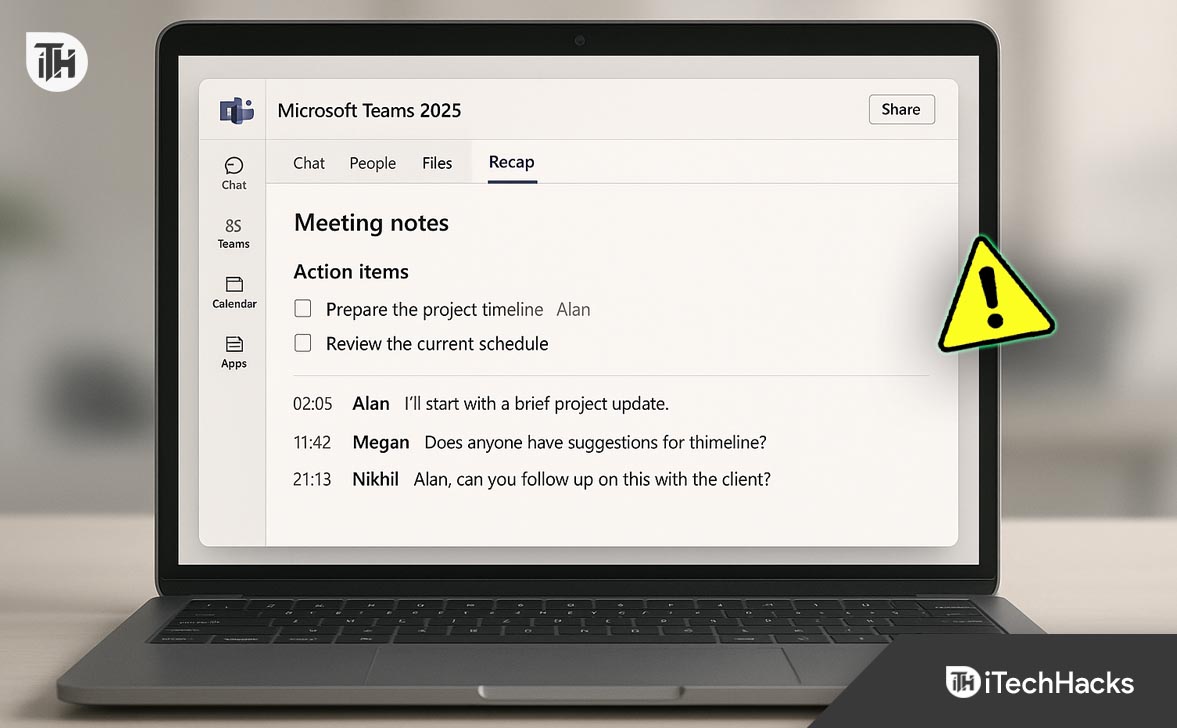
Teams AI meeting notes are auto-generated summaries and action items created by Microsoft Teams’ built-in AI. They include:
- Key discussion points
- Action items with assigned owners
- Smart timestamps for critical comments
- AI-generated summaries after the meeting
- Speaker-attributed notes (if enabled)
This feature is currently available with Microsoft 365 Copilot or Teams Premium license in 2026.
Who Can Access Microsoft Teams AI Meeting Notes?
As of 2026, Teams AI notes are available under the following conditions:
- You must be using the desktop version of Teams (Windows 11/10 or macOS 14+)
- Your Microsoft 365 admin must have enabled the Copilot or Teams Premium features
- Meetings must be scheduled and recorded in Teams calendar
- AI notes require transcription to be enabled
If any of these conditions are missing, Microsoft Teams AI meeting notes won’t work or be visible.
Step-by-Step: How to Use Teams AI Meeting Notes
Follow these verified steps to ensure Teams AI meeting notes are properly enabled and functional.
Schedule the Meeting Using Teams Calendar
You must schedule the meeting inside Microsoft Teams or Outlook with Teams integration. Do not use Google Calendar or third-party schedulers, as they may break AI features.
- Open Microsoft Teams
- Navigate to Calendar from the left-hand panel
- Click New Meeting
- Add participants, title, and time
- Click Send
Once scheduled, the meeting will be eligible for Teams AI notes processing.
Enable Transcription in Admin Center
Only admins can allow organization-wide transcription and recording settings. Here’s how:
- Visit Microsoft Teams Admin Center
- Navigate to Meetings > Meeting Policies
- Choose the policy assigned to users (e.g., Global)
-
Enable:
-
Allow Transcription
-
Allow Cloud Recording (optional but recommended)
-
If you’re a user, you can still start transcription manually during the meeting.
Start the Meeting and Enable Transcription
Even if transcription is allowed by policy, you still need to start it manually during the meeting unless auto-transcription is enabled.
- Join the meeting from the desktop app
- Click on the three-dot More menu
- Select Start transcription
Without transcription, the system cannot process Teams AI meeting notes.
Let the Meeting Proceed with Clear Audio
To ensure quality AI summaries:
- Avoid overlapping dialogue
- Speak clearly and use names (e.g., “James will handle this by Monday”)
- Avoid excessive background noise
Microsoft’s Copilot AI uses speech-to-text technology combined with natural language processing. Clear audio input directly affects the quality of teams ai notes.z
Access AI Notes After the Meeting Ends
After the meeting concludes:
- Go to Teams Chat
- Select the meeting thread
- Click on the Recap tab
You’ll find the following sections automatically generated:
- Summary of topics
- Key moments with timestamps
- Action items with assigned participants
- Decisions taken during the call
This section is what’s referred to as Microsoft Teams AI meeting notes.
How to Export Teams AI Meeting Notes
Exporting or sharing your AI-generated notes helps ensure follow-up and accountability.
- Open the Recap tab of the meeting
- Click on More Options (three dots)
- Choose Export to Word or Send to OneNote
- You can also manually copy the summary into Microsoft Planner as tasks
In 2026, Microsoft also supports exporting action items directly into Planner with assignment and due dates.
Common Issues and Fixes for Teams AI Notes
If Teams AI meeting notes are not appearing or working properly, the following issues are most likely the cause.
Issue 1: Transcription Was Not Started
Symptoms: No AI notes generated. Meeting summary is blank.
Fix: Start transcription manually next time. AI notes depend entirely on transcription data to function.
Issue 2: Unsupported Account or License
Symptoms: The Recap tab does not appear, or it’s empty. You don’t see AI-generated insights.
Fix: Confirm with your Microsoft 365 admin that:
- You have either a Copilot or Teams Premium license
- The feature is assigned to your user account
Issue 3: Mobile or Guest Users Joined
Symptoms: Some participants are missing from speaker attribution. Notes are incomplete.
Fix: Ask all participants to:
- Join using the Teams desktop app
- Use their organizational Microsoft account
- Avoid using mobile or guest access when accuracy is critical
Issue 4: Meeting Not Scheduled Properly
Symptoms: No AI notes generated. The meeting is not tracked in Recap.
Fix: Always schedule meetings using the Teams calendar. Avoid ad hoc calls using the Meet Now feature.
Best Practices to Improve Teams AI Meeting Notes
To get better summaries and action items from teams ai notes, follow these tips:
- Mention names during discussions to help AI assign tasks correctly
- Speak clearly and avoid side discussions or cross-talk
- Use task phrases like “Let’s assign this to…” or “This is due by Friday…”
- Use the recording feature for added context and clarity
Real-World Example of Teams AI Notes in Action
A consulting firm conducted a 90-minute strategic planning meeting with eight team members using Microsoft Teams. By enabling transcription and using clear task-based language, the Teams AI meeting notes generated a complete task list with responsible owners, due dates, and a high-level summary. The exported notes were immediately copied to OneNote and shared with leadership—eliminating the need for manual typing or delegation follow-ups.
This practical example shows the real-world value of teams ai notes when used correctly.
Safety and Privacy Considerations
- AI notes are stored in Microsoft 365 cloud services
- Admins can configure retention, deletion, and access policies
- Transcriptions may contain sensitive information — ensure compliance with your organization’s data protection policies
- Disable transcription if the meeting is legally confidential or sensitive.
Conclusion
Microsoft Teams AI meeting notes have evolved into a powerful tool for capturing, organizing, and distributing meeting insights without manual effort. When configured correctly—with transcription enabled, the right licenses in place, and meetings scheduled through Teams—these AI-driven summaries can dramatically improve post-meeting follow-up and team accountability.
In 2026, organizations relying on remote collaboration and hybrid work environments cannot afford to overlook the value of Teams AI notes. They not only save time but also reduce the risk of miscommunication, missed tasks, and undocumented decisions.
ALSO READ: