- Most Instant Replay issues are caused by conflicts with overlays, privacy settings, or recent driver/Windows updates. Disabling Xbox Game Bar, updating or rolling back NVIDIA drivers, and enabling desktop capture often resolves the problem.
- GeForce Experience needs proper system permissions and clean background services to function correctly. Running it as Administrator, restarting NVIDIA services, and ensuring save directories are accessible can restore full functionality.
- Persistent issues may require a clean reinstall using Display Driver Uninstaller (DDU). This removes deep-level driver conflicts and resets ShadowPlay for fresh configuration — a reliable solution when other methods fail.
NVIDIA Instant Replay is a go-to feature for gamers and content creators who want to capture gameplay highlights without constantly recording. But when NVIDIA Instant Replay stops working on Windows, it’s more than just an inconvenience — you miss critical footage and functionality.
In this guide, you’ll find real, working fixes for NVIDIA Instant Replay not working on Windows 10 and Windows 11 (including the latest 23H2 and 24H2 updates). These solutions are based on actual repair experience and known compatibility issues with GeForce Experience, Game Ready Drivers, and Windows overlays.
What Is NVIDIA Instant Replay?
For those using GeForce Experience, Instant Replay is part of NVIDIA ShadowPlay. It constantly records your gameplay in the background (usually the last 5–20 minutes) and saves it instantly when you press a hotkey.
When NVIDIA Instant Replay is not working, the symptoms usually fall into one of these categories:
- Instant Replay won’t turn on at all
- Instant Replay toggles off automatically
- No footage is saved despite the feature being “enabled.”The
- GeForce overlay doesn’t show Instant Replay options
- Instant Replay causes lag or crashes when enabled.
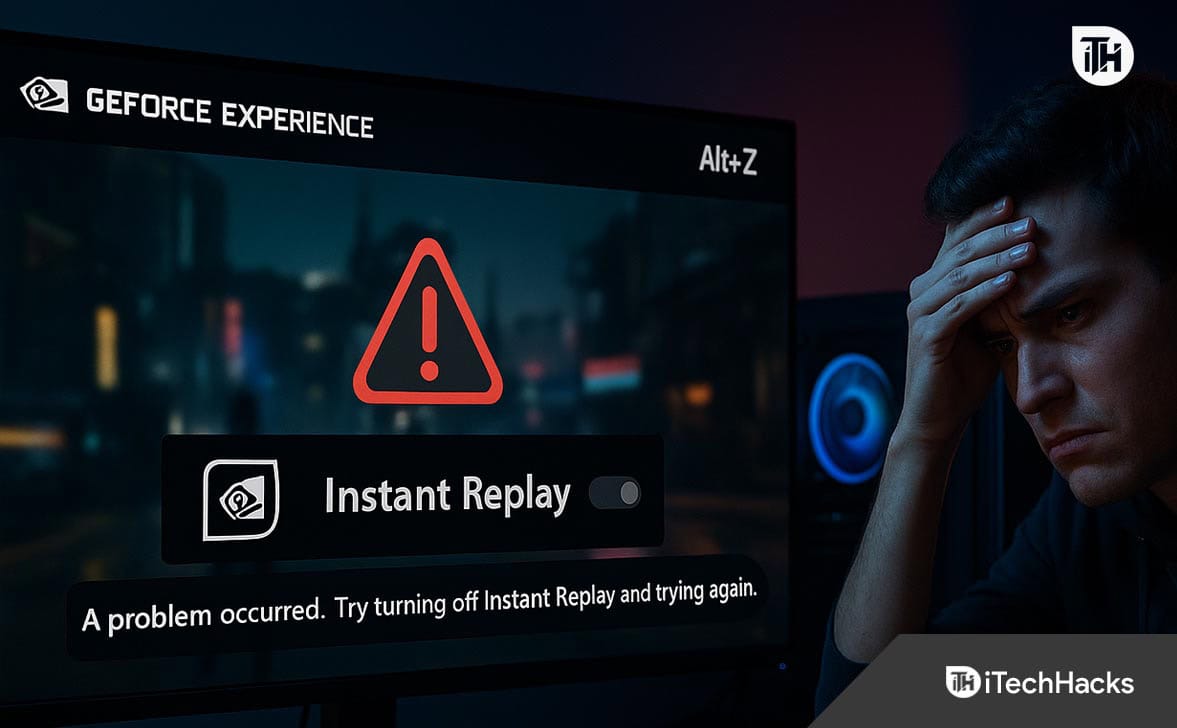
How to Fix NVIDIA Instant Replay Not Working in Windows (All Methods)
Restart GeForce Experience & NVIDIA Services
NVIDIA runs multiple background services like NVIDIA Share, NVIDIA Container, and ShadowPlay Helper. If any of these hang or crash, Instant Replay fails to load or record.
- Press
Ctrl + Shift + Escto open Task Manager. - Under the “Processes” tab, find and End Task for the following (in this order):
-
NVIDIA Share -
NVIDIA ShadowPlay Helper -
NVIDIA Container -
GeForce Experience
-
- Wait 10–15 seconds.
- Relaunch GeForce Experience (via desktop shortcut or start menu).
- Press
Alt + Zto bring up the overlay and try enabling Instant Replay.
We’ve fixed dozens of setups with this simple step, especially when users updated drivers without rebooting.
Enable Desktop Capture in Privacy Control
In recent Windows 11 builds (like 24H2), privacy settings may disable background screen recording. If desktop capture is off, Instant Replay can’t work — even if it says it’s “enabled.”
- Open GeForce Experience (
Alt + Z). - Click the gear icon for Settings.
- Navigate to Privacy Control.
- Toggle Desktop Capture to ON.
If you use multiple monitors, Instant Replay might not capture all displays unless they’re identical in refresh rate and resolution. Ensure your main monitor is set as Primary Display in Windows.
Update or Roll Back Graphics Drivers
Many Instant Replay issues are tied to driver compatibility. After every major Windows or game update, older drivers may stop functioning correctly.
- Open GeForce Experience.
- Go to the Drivers tab.
- Click Check for Updates.
- Install the latest Game Ready Driver (GRD).
Roll Back (if the issue started recently):
- Press
Win + R, typedevmgmt.msc, hit Enter. - Under Display adapters, right-click your GPU → Properties.
- Go to the Driver tab → Click Roll Back Driver (if available).
If rollback is unavailable, visit NVIDIA’s official Driver Archive and manually download a known stable version like 537.58 (for RTX 30-series users).
Disable Game Mode and Xbox Game Bar
Game Mode and Xbox Game Bar often conflict with ShadowPlay, especially when competing for GPU overlay hooks. This is particularly problematic on laptops with hybrid graphics.
Disable Game Mode:
- Open Settings → Gaming → Game Mode.
- Toggle it OFF.
Disable Xbox Game Bar:
- Go to Settings → Gaming → Xbox Game Bar.
- Toggle off Open Xbox Game Bar using this button on a controller.
Restart your system and test Instant Replay again.
Change Save Location for Instant Replay Clips
In 2026, high-performance NVMe SSDs sometimes enter low-power states. If the save location is on such a drive, ShadowPlay may fail to write clips due to delayed wake-up times.
- Open GeForce Experience → Settings → Recordings.
- Click Videos → Select a different folder or drive.
- Use a local, non-syncing folder (not under OneDrive, Dropbox, etc.).
- Apply and restart your PC.
Additional Tips:
- Right-click the new folder → Properties → Uncheck “Read-Only”
- Avoid saving to external USB or network locations.
Run GeForce Experience as Administrator
Windows UAC and security policies sometimes prevent ShadowPlay from hooking into full-screen apps. Running GeForce Experience as an admin fixes permission-related issues.
- Right-click the GeForce Experience shortcut.
- Select Properties → Compatibility.
- Tick Run this program as an administrator.
- Click Change settings for all users and tick it again.
Also Check:
Win + I → Privacy & Security → App Permissions → Microphone & Camera-
Ensure GeForce Experience is allowed under both.
Disable Third-Party Overlays (Discord, MSI Afterburner, etc.)
Apps like RivaTuner, Discord, and Steam Overlay inject themselves into games. This can block NVIDIA’s own overlay system (ShadowPlay).
-
Close the following apps completely:
-
Discord
-
Steam Overlay
-
MSI Afterburner / RivaTuner
-
OBS, Bandicam, or any screen recorder
-
-
Launch only GeForce Experience and your game.
-
Try enabling Instant Replay (
Alt + Z → Instant Replay → Turn On).
Special Note for MSI Afterburner:
- Open RivaTuner Statistics Server.
- Set Stealth Mode = OFF
- Disable Show On-Screen Display
Check and Reset Hotkey & Replay Settings
Hotkeys can become unresponsive after driver resets or game conflicts. Sometimes Instant Replay appears enabled but doesn’t respond to the trigger.
- Press
Alt + Z → Settings → Keyboard Shortcuts. - Set Save Instant Replay to a simple key (e.g.,
F10). - Avoid conflicts with Windows or Game Bar shortcuts.
Reset Replay Duration:
- Open
Alt + Z → Settings → Highlights & Instant Replay. - Set:
- Replay time: 10 minutes
- Quality: High
- Resolution: 1080p
- Frame Rate: 60 FPS
Avoid using 4K or Custom unless your GPU is high-end (e.g., RTX 4080+).
Perform Clean Reinstall of GeForce Experience
Over time, corrupted registry entries or failed updates break the overlay. A clean reinstall clears leftover data and fully resets Instant Replay modules.
- Download Display Driver Uninstaller (DDU) from Guru3D.
- Boot into Safe Mode.
- Use DDU to remove:
-
NVIDIA Display Driver
-
GeForce Experience
-
ShadowPlay Components
-
- Reboot normally.
- Visit NVIDIA.com → Download and install the latest Game Ready Driver and GeForce Experience.
Adjust Display Settings (HDR, Refresh Rate)
Instant Replay sometimes fails on displays using:
- HDR at 10-bit color depth
- Non-standard refresh rates (e.g., 144Hz with adaptive sync)
- HDMI 2.0 connected monitors
- Go to Display Settings → Advanced Display Settings.
- Set:
-
60Hz or 120Hz
-
HDR = Off
-
8-bit color depth
-
-
Ensure monitor is set as Primary Display.
Registry Tweak to Force Enable Overlay (Advanced Users Only)
You get “Instant Replay Not Supported” despite everything being enabled.
- Press
Win + R, typeregedit, press Enter. - Navigate to:
HKEY_LOCAL_MACHINE\SOFTWARE\NVIDIA Corporation\Global\ShadowPlay
- Right-click → New →
DWORD (32-bit)→ Name itEnableShadowPlay - Set its value to 1
- Restart your system
Backup your registry first (File → Export) before modifying entries.
Bonus: Scenarios Where Instant Replay May Not Work (By Design)
Even when everything is set up correctly, NVIDIA Instant Replay won’t work in these cases:
- Fullscreen optimizations are disabled in the game .exe properties
- HDR is enabled on certain monitors with incompatible refresh rates (120Hz+ at 10-bit)
- You’re using third-party screen recorders at the same time (OBS, Bandicam)
- Game is launched via an anti-cheat-protected launcher (e.g., Valorant, Apex)
- Windows Focus Assist is blocking notifications or screen capture
Conclusion
When NVIDIA Instant Replay is not working on Windows, the root cause usually falls under driver conflicts, overlay restrictions, or background service bugs. With the right steps — including re-enabling desktop capture, adjusting settings, and updating drivers — you can restore full Instant Replay functionality quickly.
If you’ve applied all the above and still face issues, consider switching to OBS Studio’s Replay Buffer feature for more control until NVIDIA resolves the problem in a future update.
ALSO READ:
- Best Nvidia Tesla V100 Volta VS Nvidia Tesla T4 GPU of 2026
- What is NVIDIA Virtual Audio Device and How to Update/Uninstall It
- How to Fix Can’t Move Mouse in NVIDIA GeForce Experience Overlay
- Top 7 Ways to Fix Nvidia Shield Remote Not Working Error
- Fix You Are Not Currently Using A Display Attached to An Nvidia GPU