- Most Hyundai CarPlay issues are caused by cables, USB ports, or iPhone settings.
- Updating both your iPhone and Hyundai’s software often fixes CarPlay glitches.
- Wired and wireless CarPlay have different setup steps—follow the right method for your model.
If your Hyundai Apple CarPlay is not working, you’re probably annoyed—and understandably so. CarPlay is one of those features that make daily driving easier, more enjoyable, and safer. Whether it’s using Apple Maps for directions, listening to Spotify, or taking calls hands-free, we’ve come to expect it to “just work.”
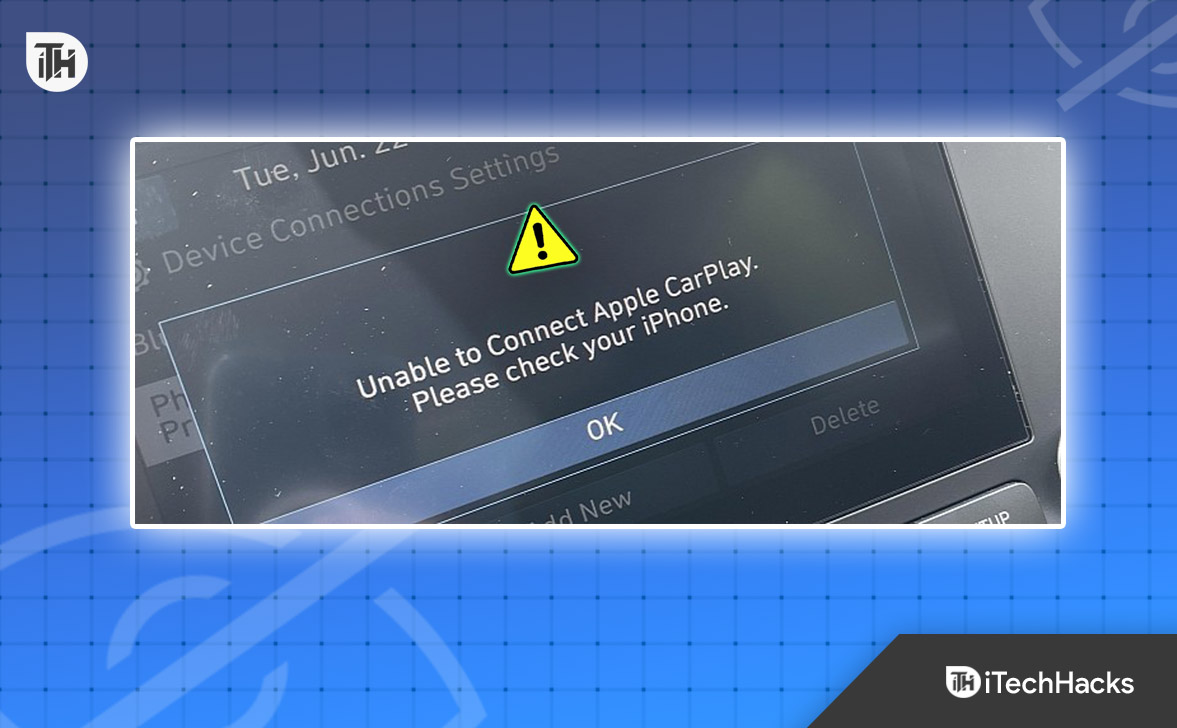
This comprehensive, step-by-step guide will help you troubleshoot and fix CarPlay issues in your Hyundai—whether you’re driving a Sonata, Elantra, Tucson, Santa Fe, Kona, or any other model. We’ll cover wired and wireless connections, iPhone settings, software updates, infotainment system tweaks, and even when to get professional help.
What Is Hyundai CarPlay and Why Does It Break?
Before diving into solutions, it’s worth understanding what Hyundai CarPlay actually does. CarPlay is a feature developed by Apple that mirrors your iPhone onto your car’s infotainment screen. You get access to apps like:
- Apple Maps or Google Maps
- Messages
- Phone calls
- Podcasts, Apple Music, Spotify, Audible, etc.
- Calendar
- Siri voice commands
CarPlay connects either via USB (wired) or over Bluetooth/Wi-Fi (wireless, on newer models). If your connection isn’t working, it usually boils down to a hardware issue, software conflict, or incorrect settings.
Compatibility Checklist
Not every Hyundai model or trim comes with CarPlay, and not all iPhones work the same way. Here’s a quick checklist before starting:
Hyundai Models That Support Apple CarPlay (Wired):
- 2017+ Elantra
- 2017+ Tucson
- 2017+ Sonata
- 2017+ Santa Fe
- 2018+ Kona
- 2019+ Veloster
- Most 2020+ models include CarPlay by default
Wireless CarPlay Availability:
-
2021+ Elantra, Tucson, Kona, Santa Fe (depending on trim)
iPhone Compatibility:
- iPhone 5 and later
- Running iOS 9 or newer (though iOS 14+ is recommended for full features)
Real-World Problems Hyundai Drivers Face
Here are the most reported Hyundai CarPlay issues in forums and customer feedback:
- “CarPlay won’t launch when I plug in my iPhone.”
- “The screen is black, but the phone is charging.”
- “It keeps disconnecting randomly.”
- “Wireless CarPlay used to work. Now it doesn’t.”
- “My Hyundai doesn’t even show the CarPlay option anymore.”
- “Everything worked before updating iOS—and now it doesn’t.”
1. Start with the Basics: Cable, Port, and Power
a. Use an Apple-Certified Cable
Most CarPlay failures are traced back to the cable.
- Avoid dollar-store or cheap Amazon Lightning cables.
- Stick to Apple-certified or MFi-certified cables.
- Test a second cable to rule out wear or internal breakage.
b. Use the Correct USB Port
Not every USB port in your Hyundai supports CarPlay.
- Use the primary USB port, usually labeled or near the front console.
- Avoid USB ports located in the armrest, rear seats, or those marked for charging only.
- Some models have multiple USB ports, but only one allows CarPlay.
2. Enable CarPlay in Hyundai’s Infotainment Settings
CarPlay may be disabled in your car’s system, especially after a software update or if you just bought the vehicle.
- Go to the main infotainment screen.
- Tap
SetuporSettings. - Select
Device ConnectionsorPhone Projection. - Locate Apple CarPlay and toggle it ON.
- If your iPhone is listed, tap it and choose Remove Device, then reconnect fresh.
Some models may display it under Connectivity > Apple CarPlay.
3. iPhone Settings: Give Permission and Reconnect
Even if your car is ready, your iPhone might be blocking the connection.
- Go to
Settings > General > CarPlay - Look for your Hyundai. If it’s there, tap and choose Forget This Car
- Plug your iPhone into your Hyundai again
- Follow prompts to allow CarPlay and Siri
Also verify:
Settings > Siri & Search > Listen for "Hey Siri"– Enable itSettings > Screen Time > Content & Privacy Restrictions > Allowed Apps– Make sure CarPlay is allowed- If using wireless CarPlay, Bluetooth and Wi-Fi should be ON
4. Software Updates: Keep Everything Current
- Go to
Settings > General > Software Update - Install the latest version of iOS
Update Hyundai’s Infotainment System
- Visit https://update.hyundai.com
- Enter your car model and year
- Download software to USB, then plug it into your Hyundai to install
5. Restart Devices to Clear Glitches
Rebooting can resolve temporary bugs and caching issues.
- Disconnect the iPhone
- Restart the iPhone (hold Power + Volume Down)
- Turn off your Hyundai completely and open/close the driver’s door
- Wait 30 seconds
- Start car, then reconnect the iPhone
You’ll often see CarPlay reconnect cleanly after a proper restart.
6. Set Up Wireless CarPlay (If Available)
If your Hyundai model supports Wireless CarPlay, the setup is a bit different.
- On iPhone, turn Wi-Fi, Bluetooth, and Siri ON
- On your Hyundai, go to:
Setup > Device Connections > Add New - On your iPhone, select your Hyundai under Bluetooth
- Approve pairing prompts
- Accept CarPlay connection on both the car and phone
Some models also prompt you to scan a QR code. Be sure to follow the prompts exactly.
7. Disable VPNs, Privacy Apps & Battery Savers
Many users run VPNs, content filters, or low-power settings that can interfere with CarPlay.
Turn off:
- VPN apps (NordVPN, Proton, etc.)
- Data monitoring or firewall apps
- Low Power Mode in
Settings > Battery
Reboot the phone and try again.
8. Reset Hyundai’s Infotainment System (Factory Reset)
If you’re still stuck, it may be time to reset your Hyundai’s infotainment system.
- Tap
Setup > General > System Info > Reset - Choose Factory Reset or Reset All
⚠️ This will erase all Bluetooth devices, radio presets, and personalization. But it can solve deep-level bugs that are affecting CarPlay.
9. Try Another iPhone or Another Car
This helps isolate the issue.
- Connect a friend’s iPhone to your Hyundai. Does it work?
- Try your iPhone in a different CarPlay-compatible car. Does it work there?
If your phone works in other vehicles, your Hyundai may need servicing. If other iPhones don’t work either, your car settings may be at fault.
10. Still Not Working? Contact Hyundai Service
If everything else has failed and your Hyundai Apple CarPlay still isn’t working, it might be a hardware or firmware issue that needs professional attention.
Things the dealer can check:
- USB port wiring or corrosion
- Firmware version not available online
- CarPlay compatibility modules
- Factory-installed bugs (especially on newer releases)
Most new Hyundais are still under warranty, so the inspection or fix may be covered.
Real Case: 2023 Tucson CarPlay Wireless Glitch
One Hyundai owner reported that their 2023 Tucson suddenly stopped recognizing Wireless CarPlay after an iOS update. They tried everything—until a Hyundai service tech discovered that the infotainment system had to be hard-reset using a USB software patch not available online.
Moral of the story? Sometimes you’ll need help from someone with dealership-level access.
Final Thoughts
When your Hyundai CarPlay isn’t working, it’s tempting to blame the car or phone right away. But with modern tech, it’s usually a minor miscommunication—an outdated setting, a bad cable, or a software conflict.
This guide walks you through everything, step by step, to get your Hyundai Apple CarPlay back up and running—whether you use it for commuting, road trips, or just to listen to music without touching your phone.
ALSO READ:
- 7 Ways to Fix Hyundai ix35, Sante Fe, i10, i30, Elantra Bluetooth Issues
- How to Fix Hyundai Radio Not Working Problem
- How To Fix Royal Mail Tracking Not Working or Down 2025
- Fix: Bluetooth Icon Option Is Disappeared In Windows 11
- How to Fix Audi Wired Apple CarPlay Stopped Working
- How to Fix Apple Carplay Not Working and Connecting