- If your computer is slow to start up, it's likely due to too many apps opening at once, old or problematic settings, or a cluttered hard drive. Fortunately, these issues are usually fixable without needing to buy a new computer.
- To speed up startup, turn off unnecessary apps that open automatically by using the Task Manager. Also, consider disabling the fast startup option, which sometimes causes problems, and try cleaning up junk files using Windows' built-in Storage Sense tool.
- If issues persist, consider upgrading from an HDD to a faster SSD to decrease boot time. Regularly check and update your device drivers, reduce visual effects, and run a virus scan to ensure optimal performance.
Is your PC slow? And how to fix slow startup on Windows? We have all been there. You press the power button on your computer, ready to work or play. You go get a coffee, come back, and the screen is still loading. Or worse, you are staring at a spinning circle that seems to last forever. In 2025, technology is supposed to be fast. Waiting minutes for your computer to wake up feels like a waste of time.
A slow startup is one of the most common complaints people have with their PCs. It is frustrating, but the good news is that it is almost always fixable. You rarely need to buy a new computer to solve this. Usually, the problem is just clutter—too many apps fighting for attention, old settings that don’t work right, or a storage drive that is too full.
If you are looking for how to fix slow startup Windows, this guide is for you. We are going to walk through the most effective solutions, ranging from simple clicks to more advanced changes. We will explain everything in plain English, so you can follow along even if you aren’t a “tech person.”
Understanding the Problem: Why Is It So Slow?
Before we start fixing things, it helps to understand what is happening inside your computer. When you press the power button, your computer has to do a lot of heavy lifting before the desktop appears.
- BIOS/UEFI Check: The computer checks your hardware (mouse, keyboard, screen, hard drive) to make sure it works.
- Windows Loading: The operating system pulls thousands of files from your hard drive into your memory (RAM).
- User Login: You type your password.
- Startup Rush: This is usually where the problem is. Once you log in, Windows tries to load your desktop, your icons, and every single program that is set to launch automatically.
If your computer is fast at first but slows down right after you type your password, the problem is usually software (too many apps). If the computer takes a long time before you even see the Windows logo, the problem might be hardware.
Let’s look at the solutions, starting with the easiest and most effective ones.
1. Stop Apps from Opening Automatically
This is the number one reason for a slow computer.
Over time, you install apps like Spotify, Skype, or Steam. These apps want to be ready for you instantly. So, they set themselves to open automatically when you turn on your computer.
When five or ten apps try to open at once, your computer slows down.
How to fix it: You don’t need to download anything to fix this. Windows has a tool built right in.
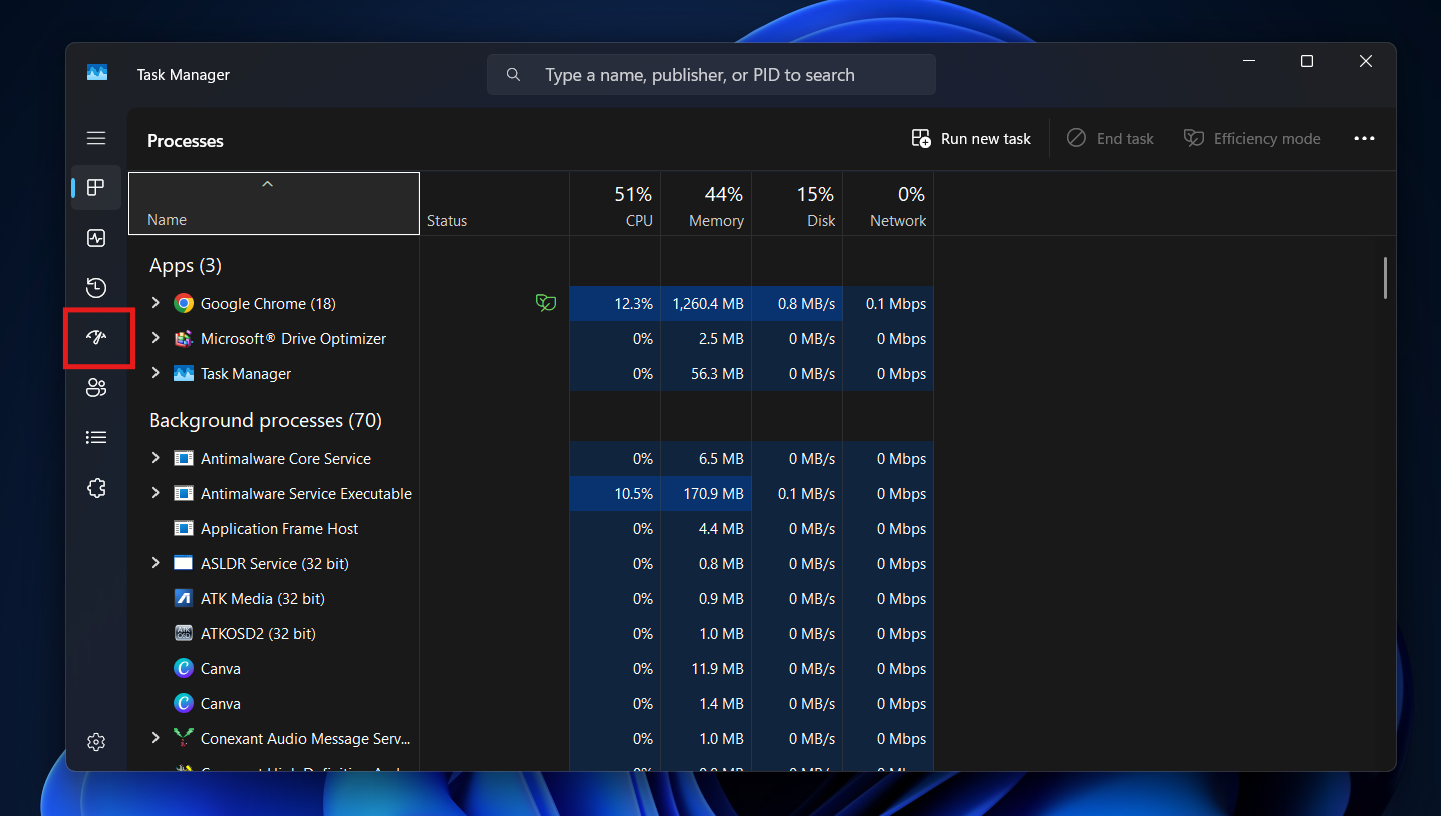
- Open Task Manager: Press these three keys on your keyboard at the same time: Ctrl + Shift + Esc.
- Find the Startup Tab:
- On Windows 11, look for the icon on the left that looks like a speedometer.

- On Windows 10, click the tab at the top that says “Startup.”
- On Windows 11, look for the icon on the left that looks like a speedometer.
- Check the Impact: Look at the column called “Startup impact.”
- High: These apps slow you down a lot.
- Medium: These slow you down a little.
- Low: These don’t matter much.
- Disable Them: Look for apps you don’t need right away. For example, if you don’t use Canva every morning, you don’t need it to start automatically.
- Select the app you want to disable, and then click Disable.

- Select the app you want to disable, and then click Disable.

Note: Only disable apps you know. If you see names like “Audio,” “Graphics,” or “Security,” leave them alone.
2. Turn Off Fast Startup
This sounds strange, but sometimes the feature called “Fast Startup” is actually the problem.
This feature tries to save time. When you turn off your computer, it doesn’t turn off completely. It saves a “snapshot” of your system. When you turn it back on, it tries to load that snapshot quickly.
However, sometimes that snapshot has errors in it. If the file is bad, your computer gets stuck trying to read it. This causes your computer to freeze or load slowly. Turn off fast startup, and this will force your PC to start fresh every time.
How to turn it off:
- Click the Start button and type “Control Panel.” Open it.

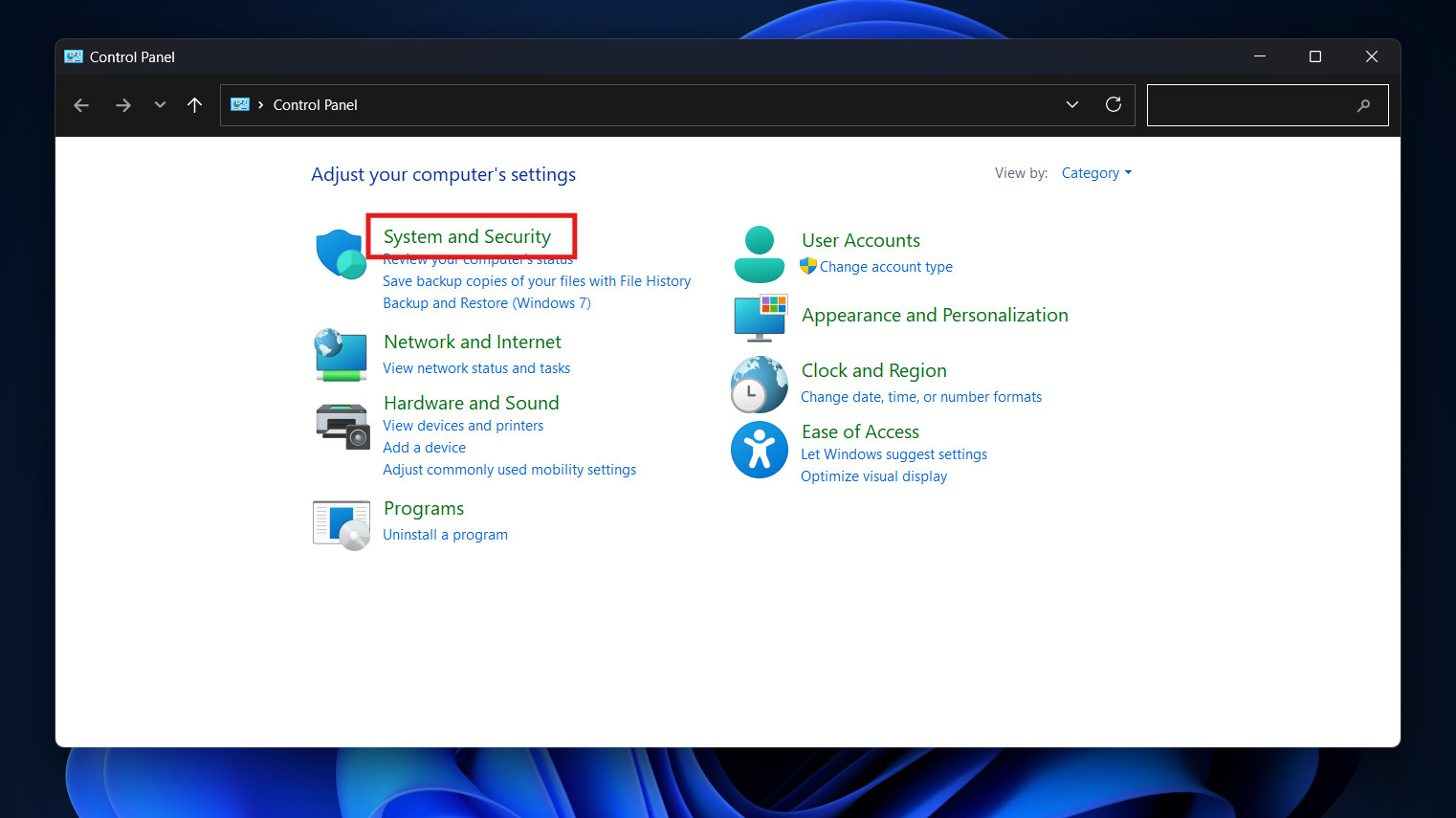
- Click on System and Security.

- Now, click Power Options.

- Click the link on the left: “Choose what the power buttons do.”

- You will see some checkboxes at the bottom. They might be grey. Click the link at the top that says “Change settings that are currently unavailable.”
- Uncheck the box that says Turn on fast startup.
- Click Save changes.



Now, restart your computer. It might take a few extra seconds the first time, but it should run smoothly after that.
3. Old Hard Drives vs. New SSDs
We need to be honest about your hardware. There are two types of storage drives:
- HDD (Hard Disk Drive): These are old. They have spinning parts inside, like a record player. They are slow.
- SSD (Solid State Drive): These are new. They have no moving parts. They are very fast.
- HDD Boot Time: 60 to 90 seconds.
- SSD Boot Time: 10 to 15 seconds.
The Solution: If you have an old drive, the best thing you can do is buy an SSD. It is the single best upgrade for any computer. It will make an old computer feel brand new.
4. Clean Up Your “Digital Junk”
Think about your closet. If it is full of old boxes and trash, it is hard to find what you need.
Your computer is the same. Over time, it collects “junk files.” These are old temporary files, error logs, and internet data. If your drive is too full, Windows struggles to move.
Windows has a tool called “Storage Sense” that acts like a maid. It cleans up the junk for you.
How to use it:
- Click Start and go to Settings (the gear icon).
- Click on System and then Storage.
- Turn Storage Sense to On.
- Click on Cleanup recommendations.
Windows will scan your computer. It might find gigabytes of old files you don’t need. Select them and click Clean up. This gives your computer more room to breathe.
5. Check for Background “Services”
Sometimes, a program runs in the background without you knowing. This is called a “Service.”
If you installed a program years ago and forgot about it, it might still be running a service every time you turn on your PC. We can do a “Clean Boot” to check for this.
How to do a safe check:
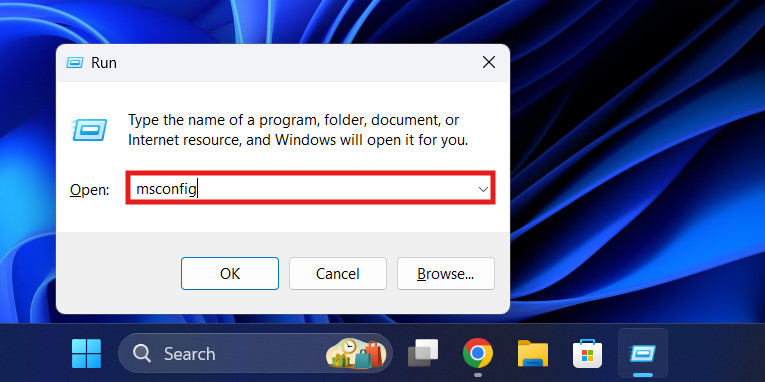
- Press the Windows Key + R on your keyboard.
- Type
msconfigand press Enter.
- Click the Services tab at the top.

- Check the box at the bottom that says “Hide all Microsoft services.” You must do this so you don’t turn off something important.

- Click Disable all.

- Restart your computer.
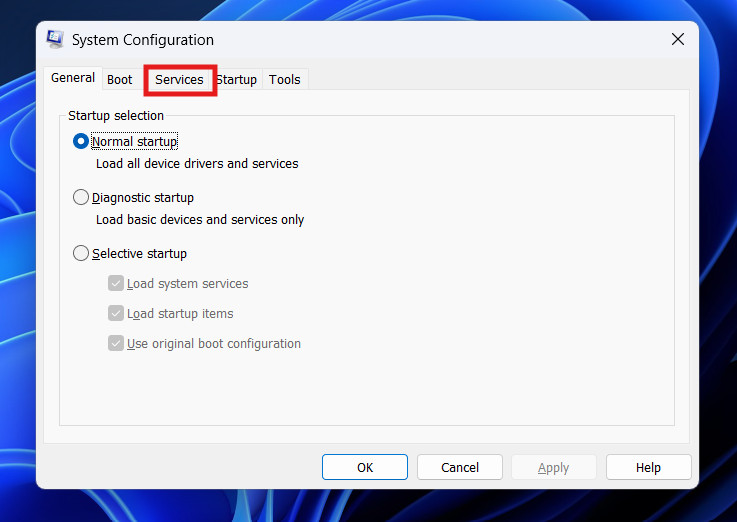
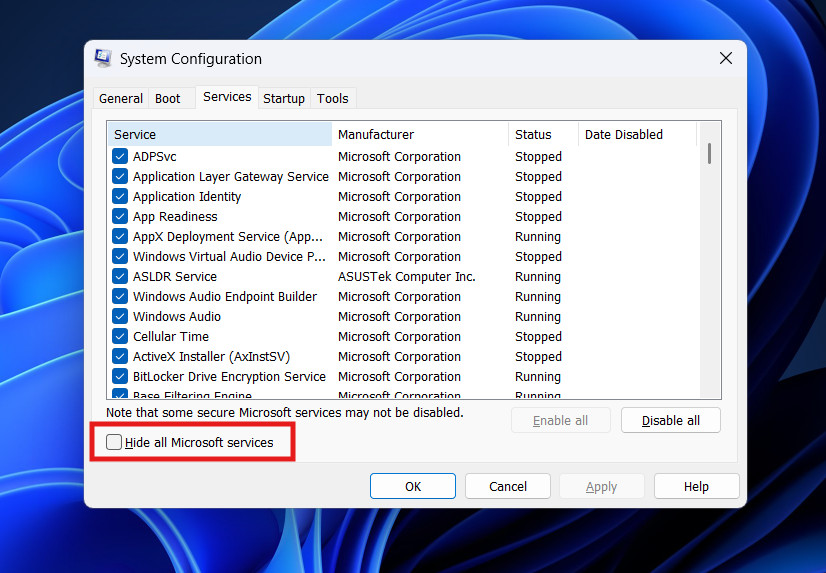
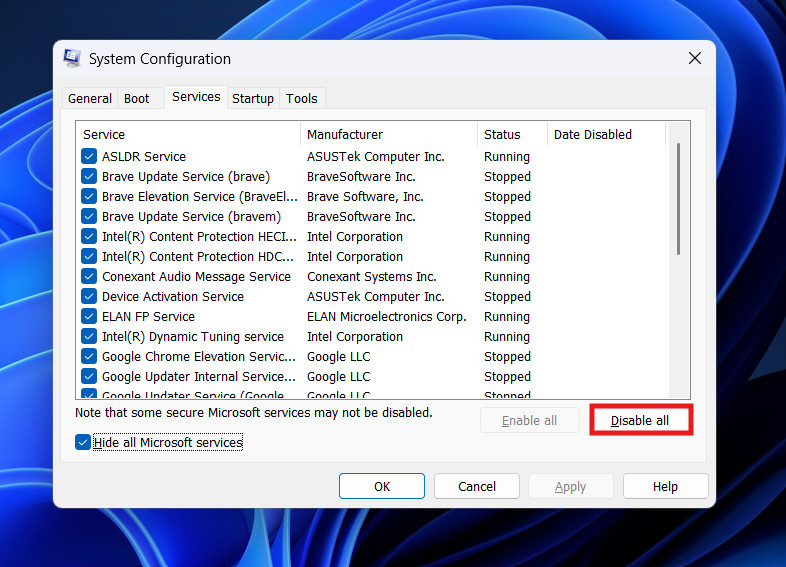
If your computer starts up very fast now, you know that one of your old programs was slowing you down. You can turn them back on one by one to find the bad one.
6. Update Your Drivers
Your computer has many parts, like the screen, the sound card, and the WiFi chip. These parts need software to talk to Windows. This software is called a “Driver.”
If a driver is old or broken, the part might not talk to Windows correctly. The computer will wait and wait for an answer, causing a delay.
How to fix it: Don’t just rely on Windows Update. It is often a few months behind.
- If you have an NVIDIA graphics card, download the “GeForce Experience” app.
- If you have an AMD card, download the “Adrenalin” app.
These apps will check your drivers and update them automatically.
7. Check the “BIOS Time”
This is a neat trick. Windows actually measures how long it takes for your hardware to wake up. This is called the “BIOS Time.”
How to see it:
- Open Task Manager (Ctrl + Shift + Esc).
- Click the Startup apps tab.
- Look at the top right corner. You will see “Last BIOS time.”
What the number means:
- 0 to 10 seconds: This is great. Your hardware is fast.
- 10 to 20 seconds: This is normal.
- Over 20 seconds: This is slow.
If your time is high, it means something plugged into your computer is confusing it. Try unplugging your USB drives, webcam, or printer before you turn the computer on. If it starts faster, you know one of those devices is the cause.
8. Turn Off Fancy Visual Effects
Windows 11 looks beautiful. It has transparent windows and smooth animations. But these pretty effects take power to run.
If your computer is a little older, these effects can slow it down. You can tell Windows to focus on speed instead of beauty.
How to do it:
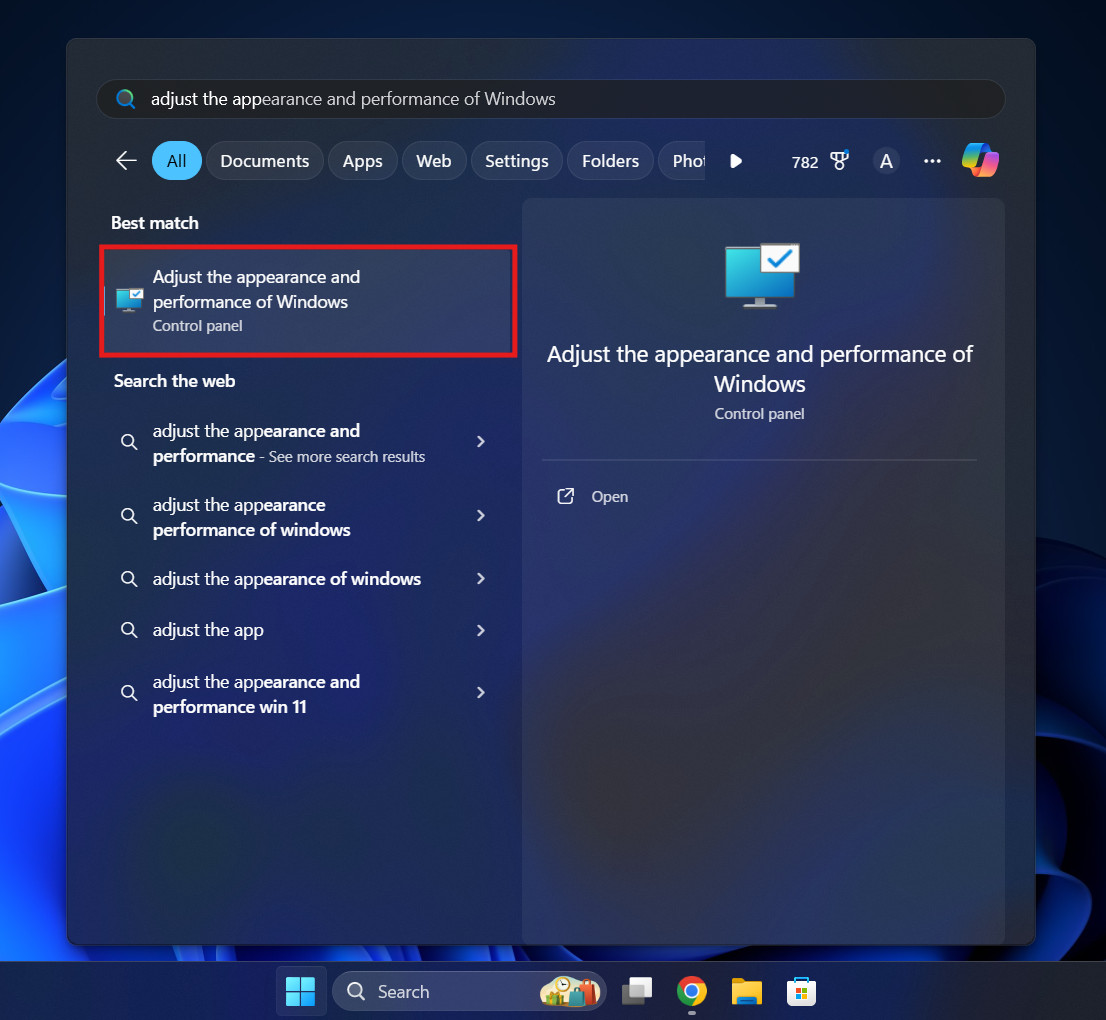
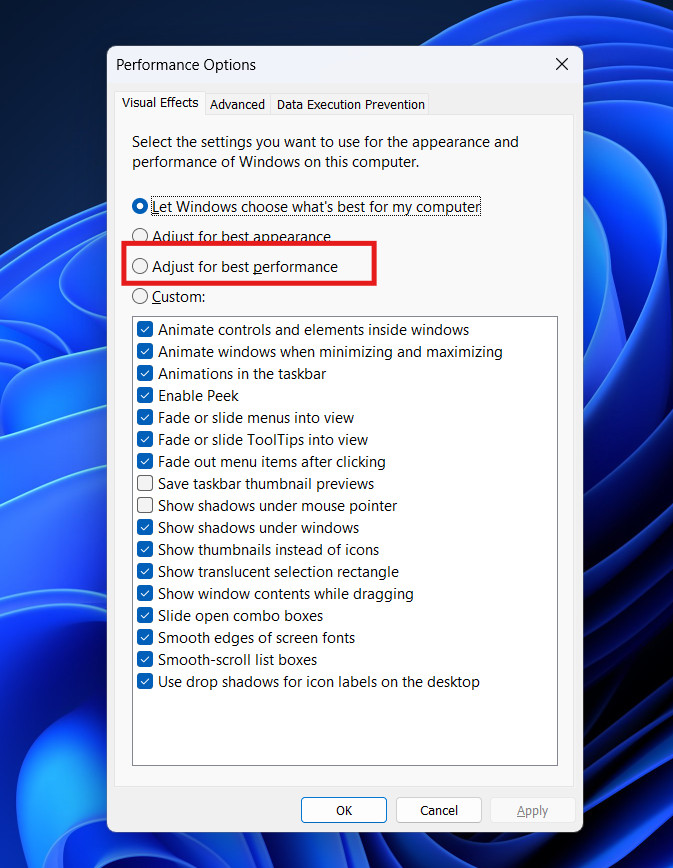
- Click Start and type “Adjust the appearance.”
- Click the option that says Adjust the appearance and performance of Windows.

- Select the circle that says Adjust for best performance.

- Click Apply.

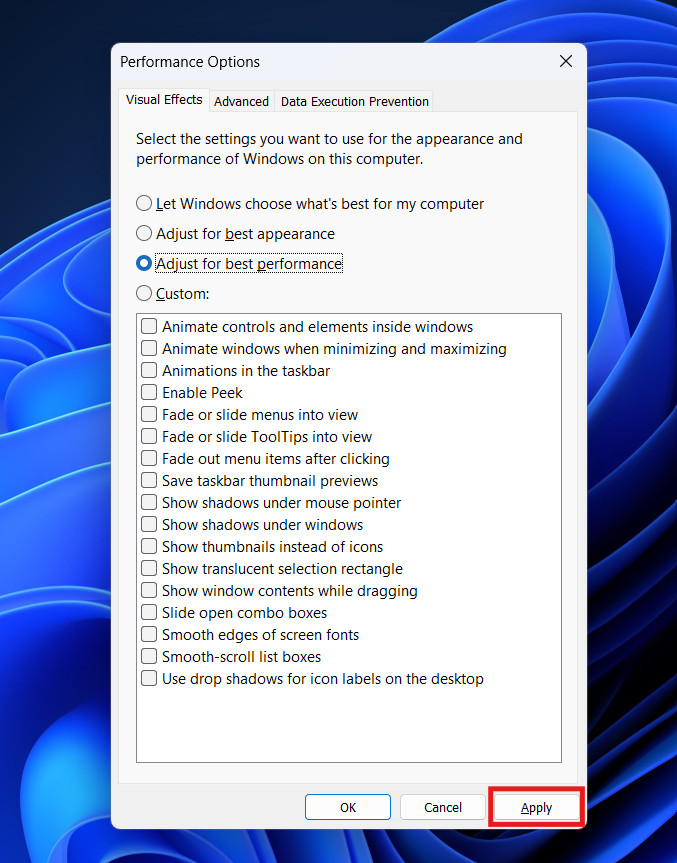
Pro Tip: This might make your text look a little jagged. To fix that, check the box that says “Smooth edges of screen fonts.” Now your computer will be fast, but the text will still be easy to read.
9. Check for Viruses
It is unpleasant to think about, but sometimes a virus is the problem.
Some viruses are designed to start running the moment your computer turns on. They use your computer’s power to do work for hackers. This makes your computer very slow and sometimes very hot.
How to check: You don’t need to buy expensive software. Windows has a great security tool built in.
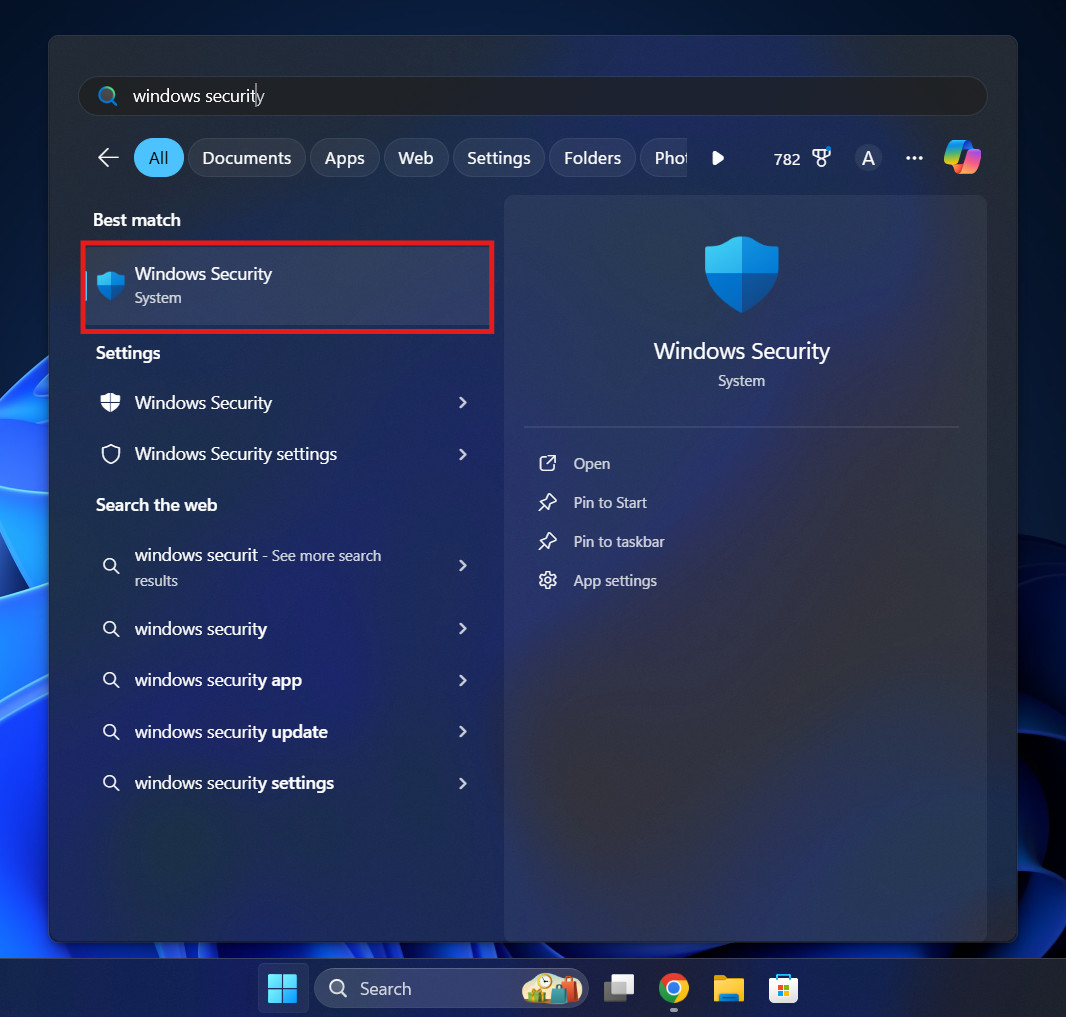
- Click Start and type “Windows Security.”

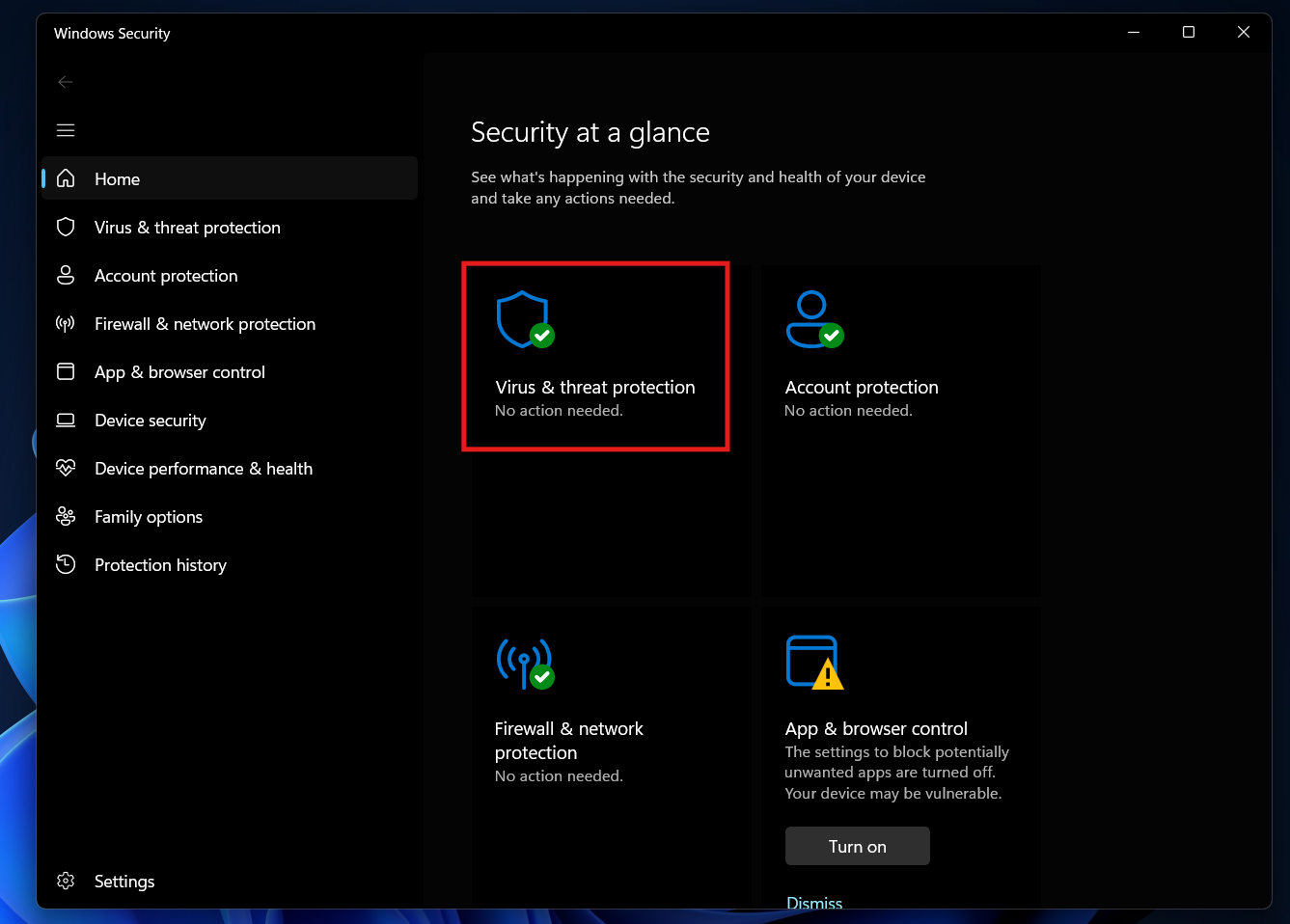
- Click Virus & threat protection.

- Click Quick scan.

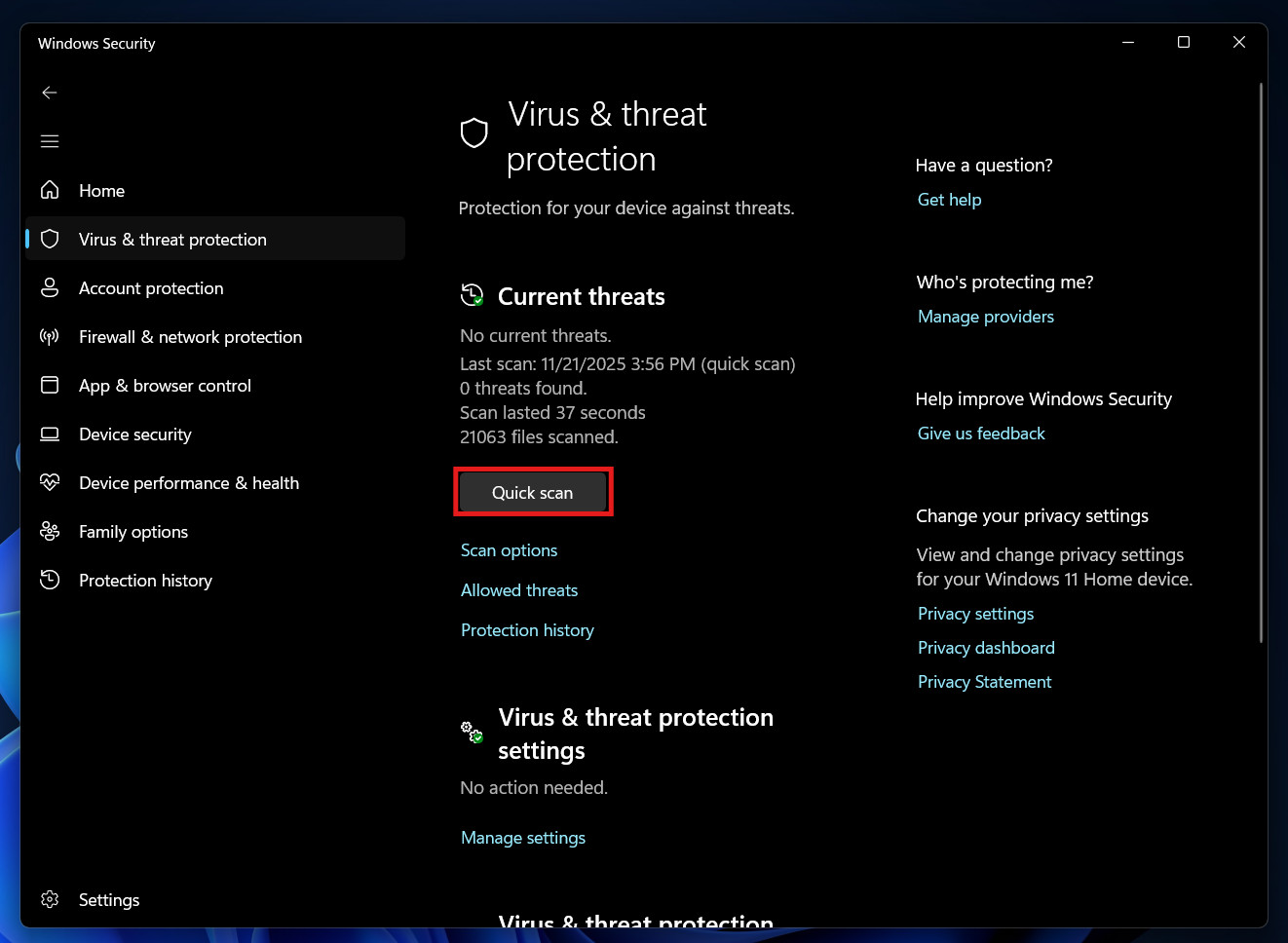
If you are still worried, you can choose a Full scan. It takes longer (maybe an hour), but it checks every single file on your computer.
Conclusion
A slow computer is annoying, but you don’t have to live with it.
Most of the time, the problem is simple. You might have too many apps open at once. Your hard drive might be too full. or you might need to change a simple setting.
By following this guide on how to fix slow startup Windows, you can get your time back. Start by checking your startup apps in Task Manager. That is usually the fix for most people. Keep your computer clean, update your drivers, and enjoy a faster PC.
Frequently Asked Questions (FAQs)
1. Should I restart my computer or just put it to sleep?
You should restart your computer fully at least once a week. “Sleep” mode is good for short breaks. But a full “Restart” clears out the memory and fixes small errors.
2. Will deleting icons from my desktop help?
Not really. A few icons are fine. However, if you have very large video files saved directly on your desktop, that can slow things down. Move them to your “Videos” folder instead.
3. Do I need a “PC Cleaner” app?
In 2025, Windows is very good at cleaning itself. Many “Cleaner” apps actually slow down your computer because they run in the background all the time. Stick to the tools already in Windows.
ALSO READ:
![Fix Phone Screen Unresponsive Touch on Android & iPhone [Step-by-Step]](https://itechhacks.com/wp-content/uploads/2025/10/Fix-Phone-Screen-Unresponsive-Touch-150x150.jpg "Fix Phone Screen Unresponsive Touch on Android & iPhone [Step-by-Step]")