- Windows users often face the error 'The RPC Server is too busy to complete this operation' when accessing a remote system through Remote Procedure Call (RPC).
- The RPC server handles various tasks in Windows, and common causes of the error include an overloaded RPC server, firewall blocking RPC, antivirus interference, network issues, and corrupted Windows Registry.
- Solutions to fix the error include restarting the RPC service, disabling Windows Firewall, troubleshooting network connectivity, increasing RPC timeout, repairing Windows Registry, updating the system, and performing a clean boot.
Windows users often encounter the error ‘The RPC Server is too busy to complete this operation’. When a program or process attempts to access a remote system through Remote Procedure Call (RPC), it is failed due to an overloaded or unavailable RPC server.
It can be frustrating to experience this Error as it causes you to be unable to complete certain tasks or use certain programs. This troubleshooting guide will discuss several solutions to resolve the RPC server is too busy Error.
What is the RPC Server?

RPC is an open protocol that enables processes on different systems to communicate. A variety of tasks, including file sharing, printing, and network communication, are handled by RPC in the Windows operating system. On a remote system, the RPC server handles an RPC request when a program or process sends it.
It sends back the request’s outcome to the requesting program or process after it has processed the request. However, it can cause various errors, including the RPC server is too busy Error, if the RPC server fails, which is a critical part of the Windows operating system.
What Are The Causes of RPC Server is too Busy Error?
The RPC server can be too busy Error to occur for a number of reasons, some of which are listed below:
- Overloaded RPC Server: This is one of the leading causes of the RPC server is too busy Error. It is possible for a remote RPC server to become overwhelmed by too many requests and stop responding.
- Firewall Blocking RPC: Your system’s firewall may be blocking the RPC protocol, resulting in the “RPC server is too busy” Error. Firewalls can sometimes block legitimate traffic, including RPC requests, despite their purpose.
- Antivirus or Security Software: Beware of security software that interferes with the RPC protocol. Usually, this happens when certain types of network traffic are blocked by antivirus software or security software.
- Network Connectivity Issues: In the case of network connectivity problems between your system and the remote system, this Error can occur. It may be because of congestion in the network, faulty hardware, or incorrect configuration of the network.
- Corrupted Windows Registry: This can cause a number of errors, such as the RPC server being too busy Error if the Windows Registry becomes corrupted.
How to Fix RPC Server is Too Busy Error
So, here are some fixes that you can use to resolve the RPC Server is too Busy error message:
Restart RPC Service
In order to resolve the RPC server is too busy error, the first and easiest step is to restart the RPC service on the remote computer. To do this, follow the steps below:
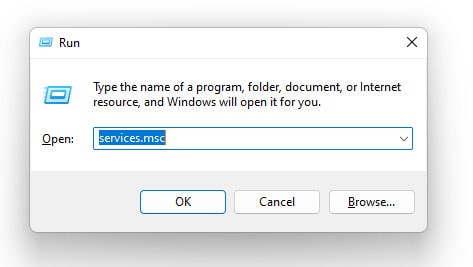
- Initially, open the Run dialog box by pressing Windows key + R.
- In order to open the Services console, type services.msc and press Enter.

- Thereafter, look for the Remote Procedure Call (RPC) service at the bottom of the page.
- To restart the RPC service, right-click it and select Restart.


Disable Windows Firewall
RPC server is too busy Error can be fixed if your system’s firewall is blocking the RPC protocol. If your firewall is blocking the RPC protocol, you can temporarily disable it to see if it fixes the problem. You can disable the Windows Firewall by following these steps:
- Firstly, to open the Run dialog box, press Windows + R.
- To open the Control Panel, type control panel and press Enter.
- Select System and Security.
- Select Windows Defender Firewall.

- On the left side, click Turn Windows Defender Firewall on or off.
- Select Turn off Windows Defender Firewall (not recommended) for both private and public networks.

- Click OK to save the changes.


Note: Disabling the Windows Firewall could make your system vulnerable to malicious attacks. Once the RPC server issue has been resolved, ensure that it is enabled.
Disable Antivirus or Security Software
It may be necessary for you to temporarily disable your antivirus or security software if it interferes with the RPC protocol. Depending on the vendor, you must follow their instructions to disable your antivirus or security software.
Check Network Connectivity
You can troubleshoot the network to fix the RPC server is too busy error if there is a network connection issue between your system and the remote system. You can troubleshoot network connectivity issues by following these steps:
- Initially, to open the Run dialog box, press Windows + R.
- To open the Command Prompt, type cmd and press Enter.
- Type ping <remote system IP address> and press Enter.
- Upon successful execution of the ping command, the remote system should respond.
- You may need to resolve network connectivity issues if the ping command fails.
Skip InternetTimeout Registry Edits — Use Better Diagnostics Instead
Some older tutorials recommend increasing an undocumented registry value like "InternetTimeout" to prevent RPC timeouts. However, this method is no longer reliable or effective in modern Windows versions like Windows 11 (23H2 and later). Microsoft doesn’t officially support or document this setting, and using it may not resolve the issue — or could create new ones.
Instead, here are safer, more effective ways to handle RPC timeout-related issues:
-
Check Event Viewer for errors:
-
Press Windows + S, type
Event Viewer, and open it. -
Go to Windows Logs > System and look for events related to “RPC” or “DCOM.”
-
-
Verify that RPC-related services are running:
-
Press Windows + R, type
services.msc, and press Enter. -
Ensure these services are Running and set to Automatic:
-
Remote Procedure Call (RPC)
-
DCOM Server Process Launcher
-
RPC Endpoint Mapper
-
-
-
Use Component Services to review DCOM settings:
-
Press Windows + R, type
dcomcnfg, and press Enter. -
Navigate to: Component Services > Computers > My Computer > DCOM Config
-
Look for entries with warning signs or permission issues.
-
These steps give you better insight and control over what might be causing RPC delays — without needing to modify undocumented registry values.
Repair System Files Using SFC and DISM
A safer, modern way to repair Windows system issues — including RPC-related errors — is by using System File Checker (SFC) and Deployment Image Servicing and Management (DISM) tools. These are built into Windows and can fix corrupted or missing system files automatically.
- Press Windows + S, type cmd, right-click Command Prompt, and choose Run as administrator.
- In the Command Prompt window, type the following command and press Enter: sfc /scannow
- Wait for the scan to finish. If it finds and fixes any issues, restart your system.
- If problems persist, run this second command: DISM /Online /Cleanup–Image /RestoreHealth
This will scan for deeper corruption and repair the Windows image files. Once complete, reboot your computer and check if the RPC error is resolved.
Update Your System
Unless you update your system with the latest patches and updates, you may encounter an RPC server too busy Error. In order to resolve this issue, you can update your system. To do this, follow the steps below:
- Initially, open the Settings app by pressing the Windows key + I.
- Select Windows Update.
- Click on Check for updates.

- If updates are available, click on Download and install.

Clean Boot Your System
It allows you to start your system with only essential services and drivers running, which is a troubleshooting technique. By doing this, you can determine if a third-party software or service is causing the RPC server is too busy Error. Follow these steps to do a clean boot:
- Firstly, to open the Run dialog box, press Windows key + R.
- To open System Configuration, type msconfig and press Enter.
- Select the Services tab.
- Ensure that the box Hide all Microsoft services is checked.
- Select Disable all.

- Select the Startup tab.
- To open the task manager, click the Open Task Manager button.
- Right-click each startup item and select Disable.
- Close Task Manager.

- Click on OK. Restart your system.


Wrap Up
When you encounter the RPC server is too busy Error, you will not be able to complete tasks and use certain programs. Various reasons may contribute to this Error, including an overloaded RPC server, a firewall, antivirus software, a corrupted Windows Registry, or a network connectivity issue.
Using these solutions, you can fix the RPC server is too busy Error and ensure your system runs efficiently. So, that’s how to fix the RPC Server is too Busy Error. We hope that this guide has helped you. Moreover, if you need more info, comment below and let us know.
ALSO READ:
- Pair Android Phone to Windows PC at aka.ms your-pc
- What Is ‘Sent As Sms Via Server’ on Android and How to Fix it
- Top 7 Best Home Server OS For Windows/Linux
- Fix This Message Has not Been Downloaded from the Server Error on iOS
- How to Lower WindowServer CPU Usage on Mac
- How To Fix Omegle Error Connecting To Server

![Fix Phone Screen Unresponsive Touch on Android & iPhone [Step-by-Step]](https://itechhacks.com/wp-content/uploads/2025/10/Fix-Phone-Screen-Unresponsive-Touch-150x150.jpg "Fix Phone Screen Unresponsive Touch on Android & iPhone [Step-by-Step]")