

- Msedgwebview2.exe is a legitimate process by Microsoft, not a virus, that helps apps display web content, like websites or buttons, using the Microsoft Edge browser engine.
- Although this process uses very little memory, it can sometimes get stuck because of apps like Microsoft Teams or the Windows Widgets panel that keep it running, preventing the computer from sleeping properly.
- To fix issues with msedgewebview2.exe, try turning off the Widgets panel, repairing the installation, checking chat applications, using the power request tool, disabling Startup Boost in Edge, checking for malware, and ensuring Windows and Edge are updated.
You are ready to go to bed. You shut off the lights, walk away from your desk, and expect your computer to go to sleep automatically like it always does. But ten minutes later, you hear the fans spinning. The screen is still on. The lights on your keyboard are still glowing.
You sit back down, move the mouse, and check the Task Manager. There it is. A strange process running over and over again: msedgewebview2.exe.
It is confusing. You aren’t even using the Microsoft Edge browser. Yet, this program is running in the background, eating up your battery, making your fans spin, and refusing to let your computer rest.
If you are frustrated by this, you are not alone. In 2026, this is one of the most common complaints for Windows users.
What is msedgewebview2.exe?
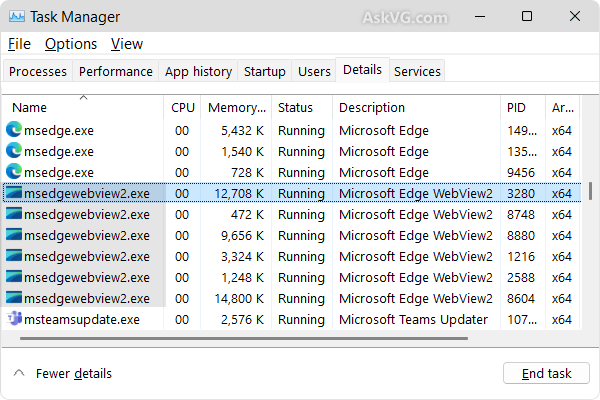
First, let’s clear up a scary thought: This is NOT A VIRUS.
It looks suspicious because the name is long and complicated. However, msedgewebview2.exe is a legitimate file created by Microsoft.
The name stands for Microsoft Edge Web View 2.
Here is the simple explanation of what it does:
In the past, if a program (like an email app) wanted to show you a website or a button that looked like a website, the developers had to write their own code to display it. That was hard work.
Today, Microsoft gives developers a shortcut. They say, “Hey, don’t write new code. Just use a tiny piece of our Microsoft Edge browser inside your app.”
So, when you see msedgewebview2.exe running, it means another app on your computer is using the brain of the Edge browser to show you something.
Common apps that use it include:
- Microsoft Teams
- The “Widgets” panel (Weather and News) in Windows 11
- Microsoft Outlook
- Game Launchers (like Steam or Epic Games)
- Some antivirus software interfaces
The problem isn’t usually the file itself. The problem is the app that is using it. If that app gets stuck, msedgewebview2.exe gets stuck too, and your computer stays awake.
Why Is It Always Running?
You might ask, “I closed Edge. Why is this still here?”
It is always running because modern Windows has many “background” apps. Even if you don’t have a browser window open, the “Weather” widget in your taskbar is constantly checking for rain. Microsoft Teams is checking for messages. These background tasks keep the WebView2 engine running silently.
Usually, this is fine. It uses very little memory. But sometimes, it goes rogue.
The “Insomnia” Problem: Sometimes, a webpage inside this process plays a silent video or an ad. Even if you can’t see it, your computer thinks you are watching a movie. Because it thinks you are watching a movie, it refuses to go to sleep.
Fix: Computer Won’t Sleep Because of msedgewebview2.exe — Full Guide
Let’s look at how to fix this, starting with the most likely culprit.
Fix 1: Turn Off Widgets
If you are using Windows 11, this is the answer 90% of the time.
Windows 11 has a “Widgets” board. It is that little icon in the bottom left corner of your screen that shows the temperature or a stock price. When you hover over it, a big board pops up with news, sports scores, and ads.
That board is powered entirely by msedgewebview2.exe.
Often, a video in the news feed will get stuck playing in the background. Your computer thinks, “I better not go to sleep, the user is watching a video.”
How to fix it:
- Open Task Manager: Press Ctrl + Shift + Esc on your keyboard.
- Find the Process: Look for “Windows Widgets” or a long list of “WebView2” processes.
- End the Task: Right-click on it and select End Task.
How to fix it permanently:
If you don’t use the Widgets board, you should turn it off. This stops the process from launching automatically.
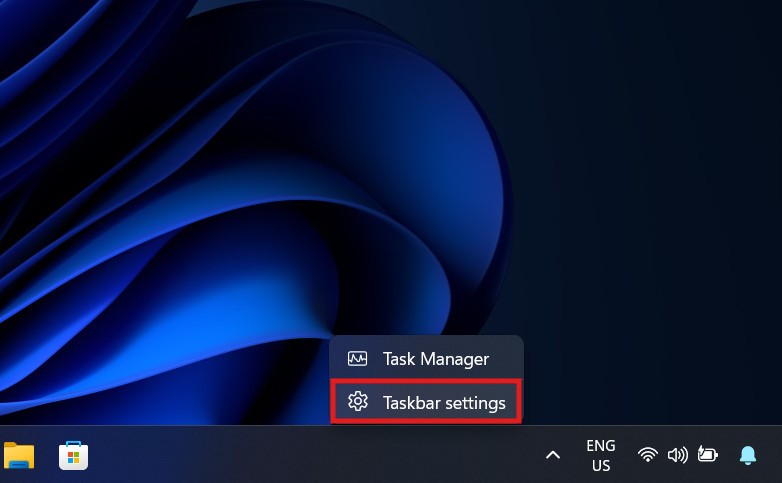
- Right-click on your Taskbar (the bar at the bottom of the screen).
- Select Taskbar settings.

- Look for the switch labeled Widgets.
- Turn it off.

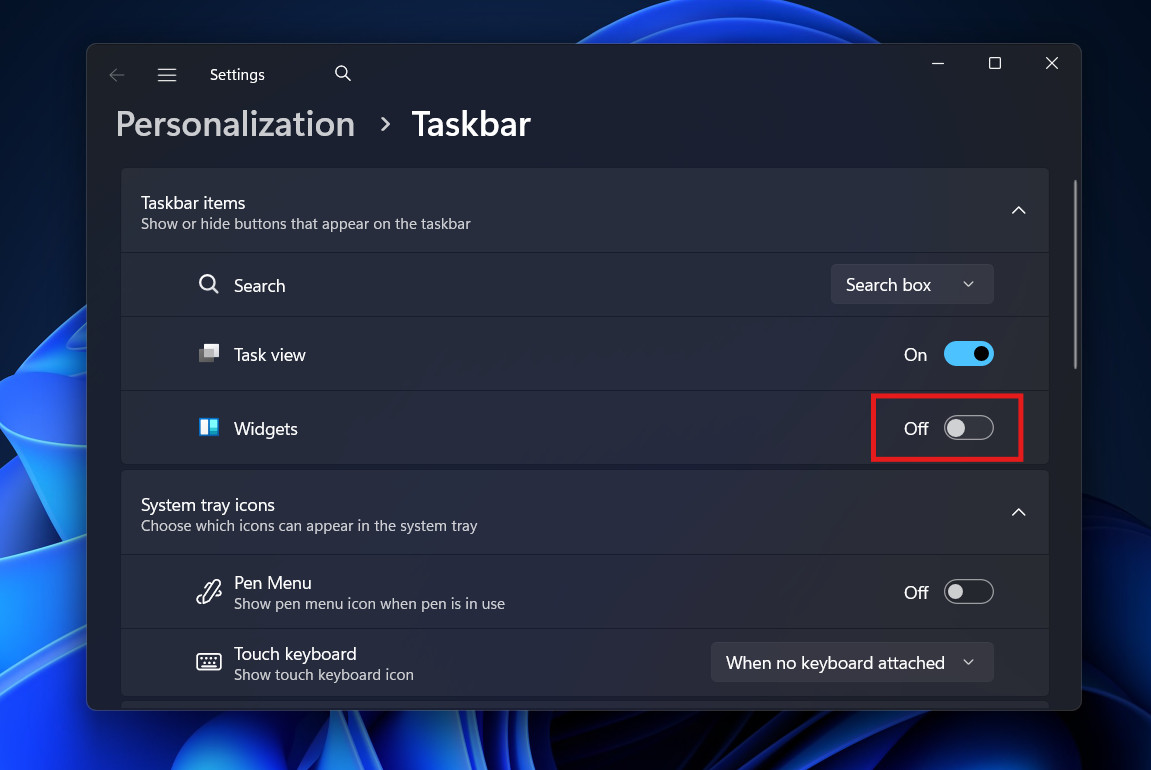
Once you do this, restart your computer. You will likely see that the msedgewebview2.exe usage drops significantly, and your computer will finally be able to sleep.
Fix 2: Repair the Installation
Sometimes, the file itself is corrupted. If the software is broken, it might get stuck in a “loop,” trying to start over and over again. This constant activity keeps the processor busy and prevents sleep.
You cannot simply “uninstall” it easily, because Windows needs it. However, you can “repair” it.
How to repair the runtime:
- Click the Start button and type “Control Panel.” Open it.
- Go to Programs and then Programs and Features.
- Scroll down the list until you find Microsoft Edge WebView2 Runtime.
- Click on it once to select it.
- At the top of the list, click the button that says Change. (You might need to say “Yes” to a permission box).
- A window will pop up asking if you want to repair it. Click Repair.
The computer will redownload fresh files from Microsoft and replace the bad ones. This often fixes the “stuck” state that keeps the PC awake.
Fix 3: Check Your Chat Apps (Teams and Slack)
After the Widgets board, the second most common cause is chat applications. Apps like Microsoft Teams, Slack, and Discord use web technologies to run.
If you have Microsoft Teams running in the background (which most of us do for work), it is using msedgewebview2.exe.
Sometimes, Teams enters a state called “Away” or “Do Not Disturb,” but the background process hangs. It keeps “pinging” the server to check for new messages. This “ping” acts like a nudge to your computer, telling it to stay awake.
- Fully close Microsoft Teams (or Slack).
- Don’t just click the X. Right-click the icon in your system tray (down by the clock) and select Quit.
- Wait 10 minutes and see if your computer goes to sleep.
If the computer sleeps, you know the chat app is the problem. You may need to uninstall and reinstall that specific app to fix the glitch.
Fix 4: The “Power Request” Detective Trick
This is a slightly more advanced trick, but we will make it very simple. Windows has a secret tool that will tell you exactly what is keeping it awake. It is like asking the computer, “Who is disturbing you?”
How to use the tool:
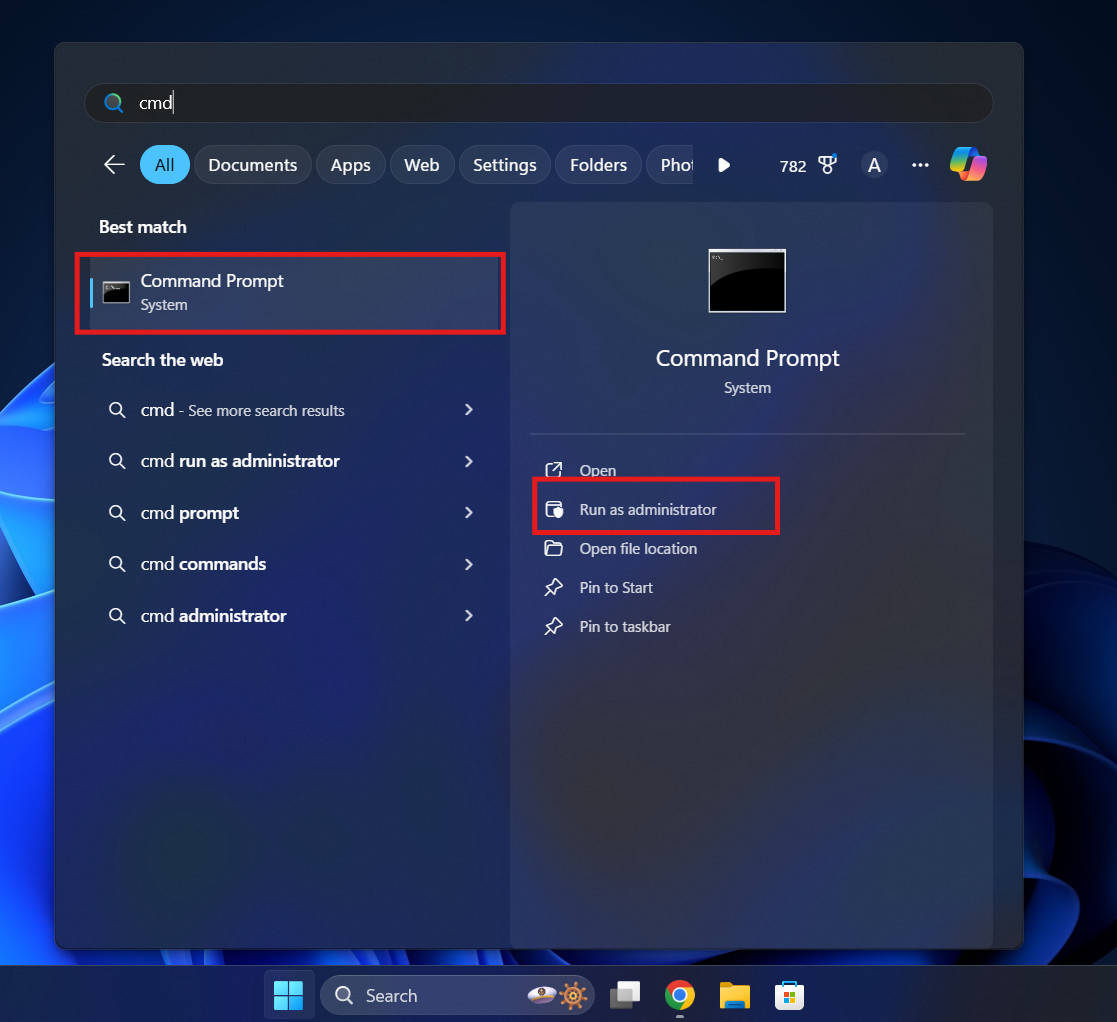
- Click Start and type “cmd”.
- You will see “Command Prompt.” Right-click it and choose Run as administrator.

- A black box will appear.
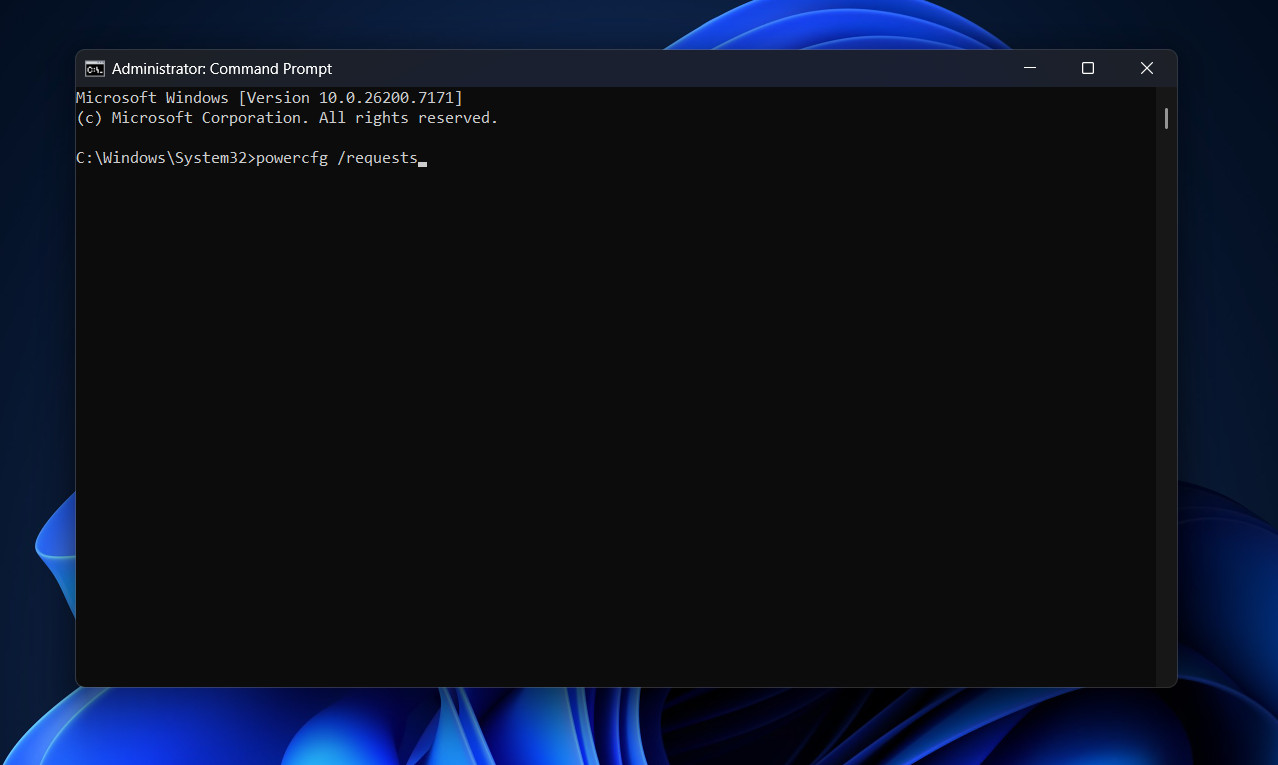
- Type this command exactly:
powercfg /requests
- Press Enter.
How to read the results:
The black box will show you a list.
- DISPLAY: This shows what is keeping the screen on.
- SYSTEM: This shows what is preventing sleep.
If you see msedgewebview2.exe listed under “SYSTEM” or “execution,” you have confirmed it is the culprit.
Usually, it will also show you which audio driver or device is being used. If it says “Audio Stream,” it confirms that a hidden webpage is playing sound or video. Closing your open apps one by one and running the command again will help you find the specific app causing the issue.
Fix 5: Disable Startup Boost in Edge
Even though we said this isn’t exactly the Edge browser, they are related. The main Microsoft Edge browser has a feature called “Startup Boost.”
This feature keeps a bunch of Edge processes (including msedgewebview2.exe) running in the background even when the browser is closed. It does this so that when you do click the browser icon, it opens instantly.
However, on some computers, this feature is too aggressive. It keeps the engine revving high, preventing the computer from resting.
How to turn it off:
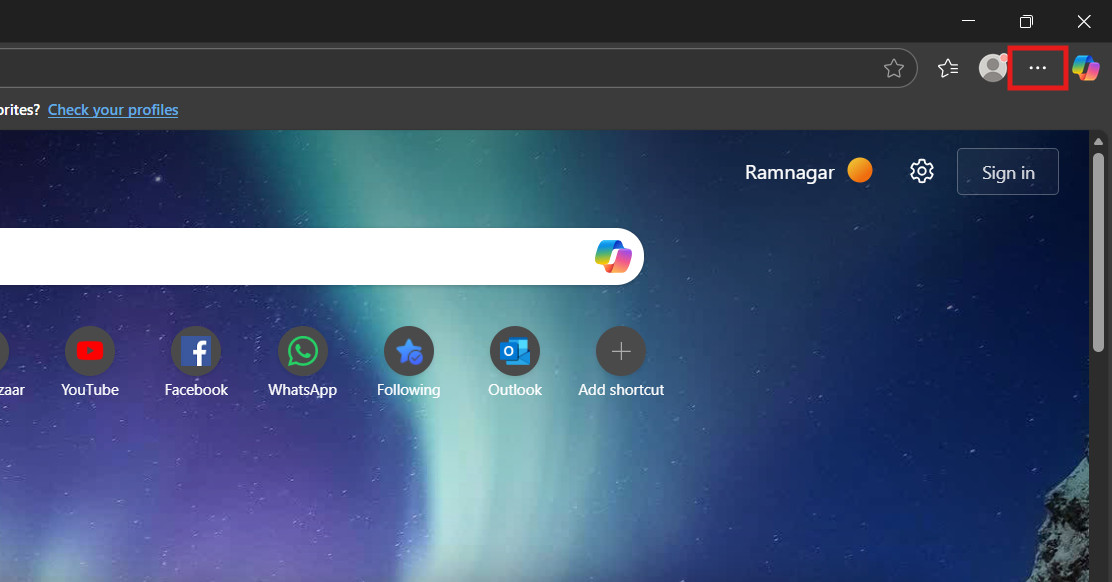
- Open the Microsoft Edge browser.
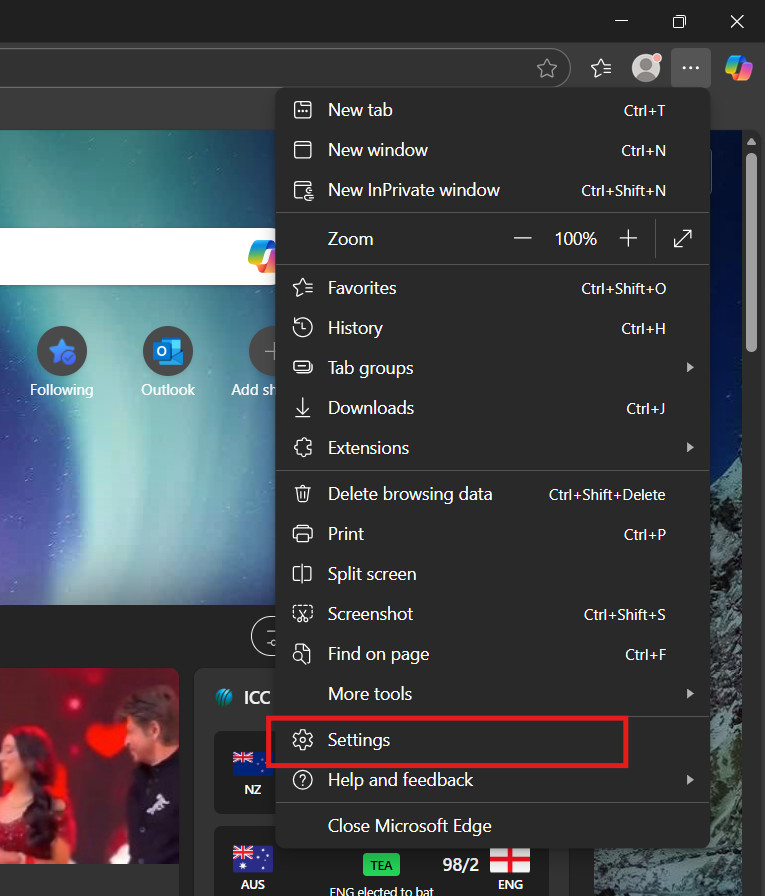
- Click the three dots (…) in the top right corner.

- Click Settings near the bottom.

- On the left menu, click System and performance.

- Look for Startup boost.

- Toggle the switch to Off.

- Also, turn off the option below it: Continue running background extensions and apps when Microsoft Edge is closed.
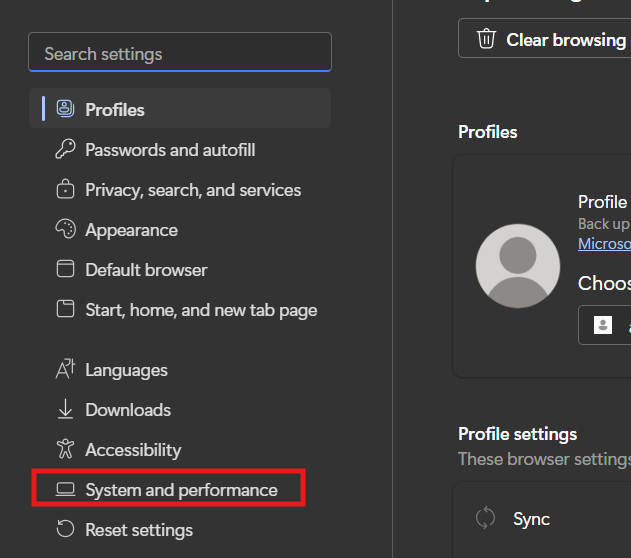
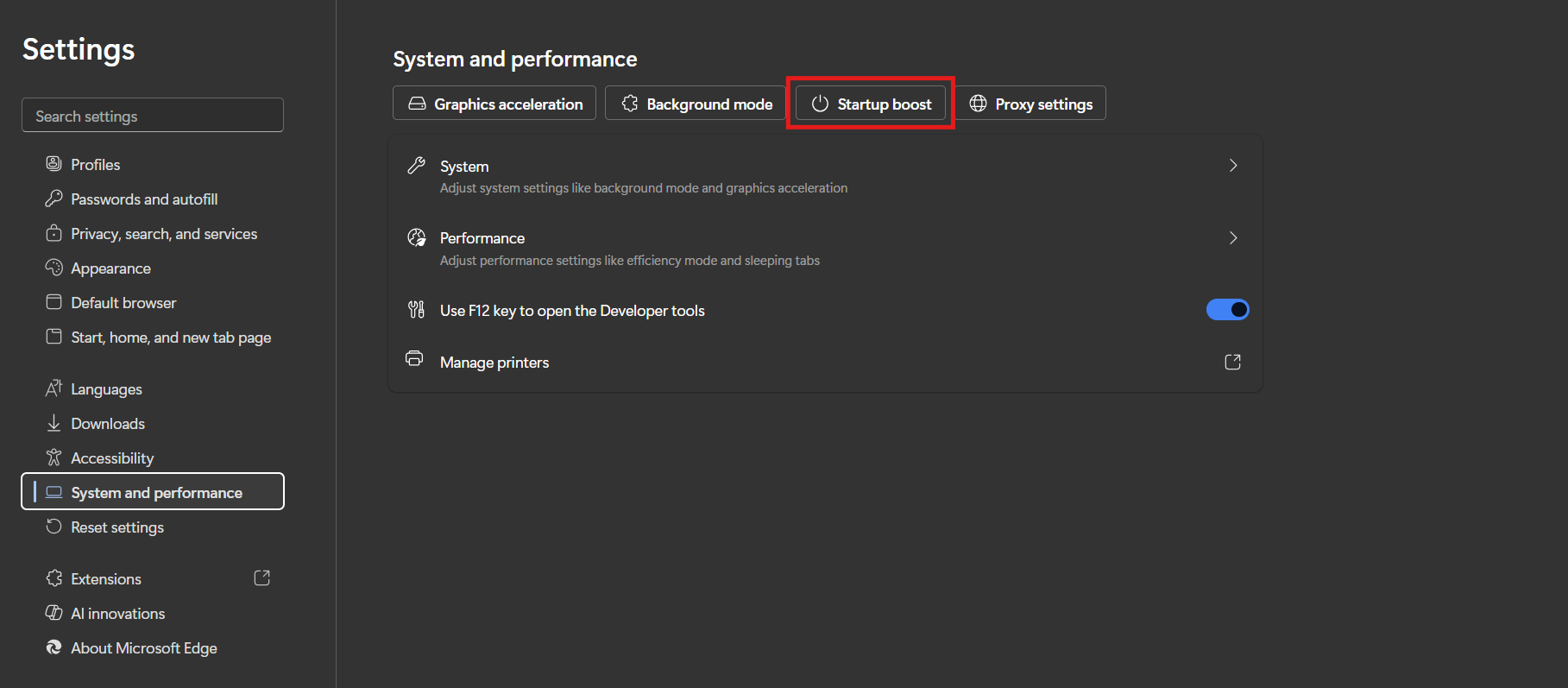
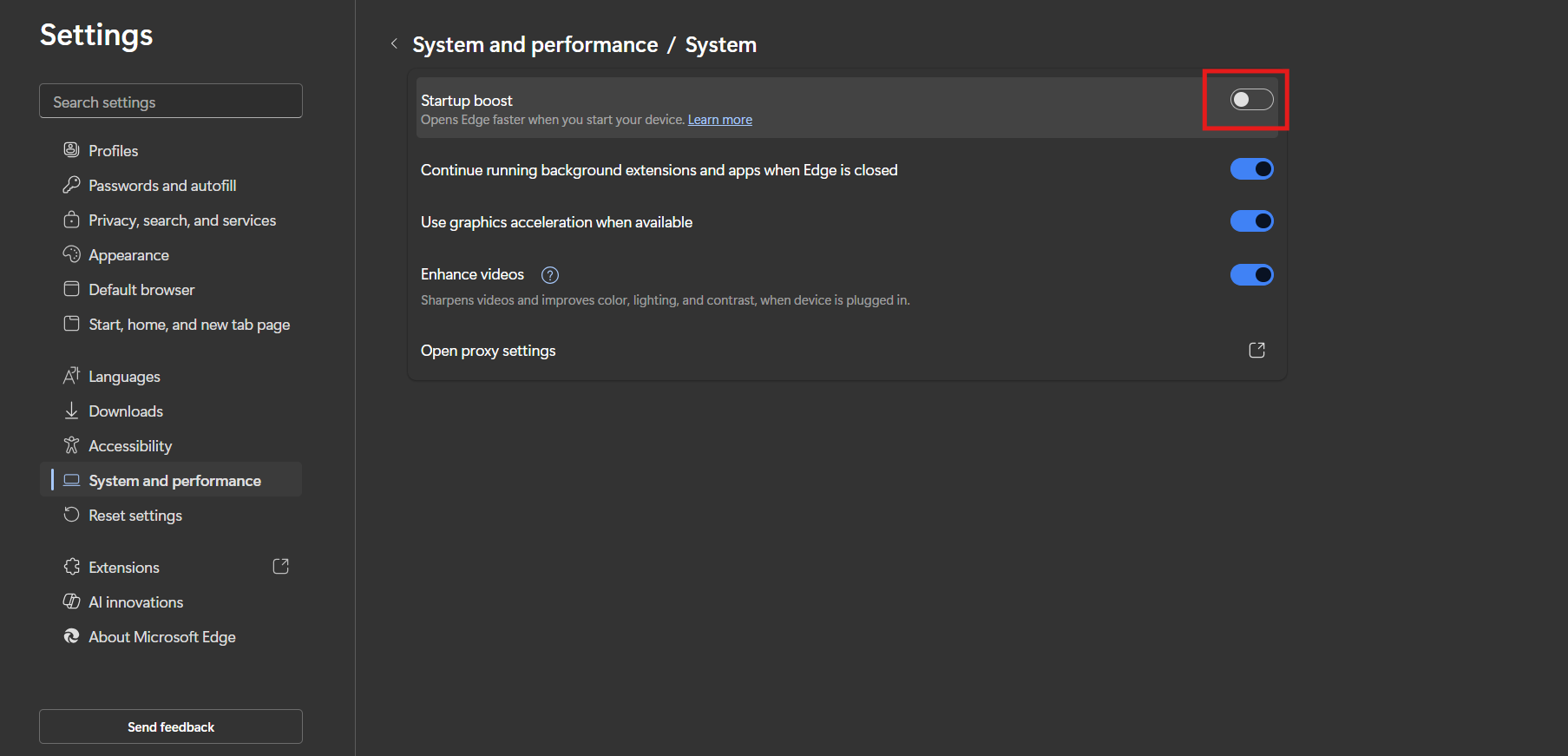
Restart your computer. This frees up msedgewebview2.exe from always being “on call.”
Fix 6: Check for Malware
We mentioned earlier that msedgewebview2.exe is not a virus. However, bad hackers know this. Sometimes, they create a virus and name it “msedgewebview2.exe” so you won’t suspect anything.
This is called “spoofing.” If you have a fake file running, it will definitely keep your computer awake because it is busy doing bad things in the background.
How to spot the malware:
- Open Task Manager (Ctrl + Shift + Esc).
- Find msedgewebview2.exe in the list.
- Right-click it and select Open file location.
The Truth Test:
- The Real File: It should be located in a folder that looks like this:
- C:\Program Files (x86)\Microsoft\EdgeWebView\Application\…
- The Fake File: If the folder opens and it is in
C:\Windows\TemporC:\Users\YourName\Downloads, it is a fake.
If the location looks wrong, run a full virus scan immediately using Windows Security.
Fix 7: Update Windows and Edge
It sounds boring, but it is true. Microsoft knows that msedgewebview2.exe has bugs. They release fixes for it almost every month.
If you are running an old version from 2024, you might be suffering from a bug that has already been fixed.
- Update Edge: Open Edge, go to Settings > About Microsoft Edge. It will check for updates automatically.

- Update Windows: Go to Start > Settings > Windows Update. Click Check for updates.

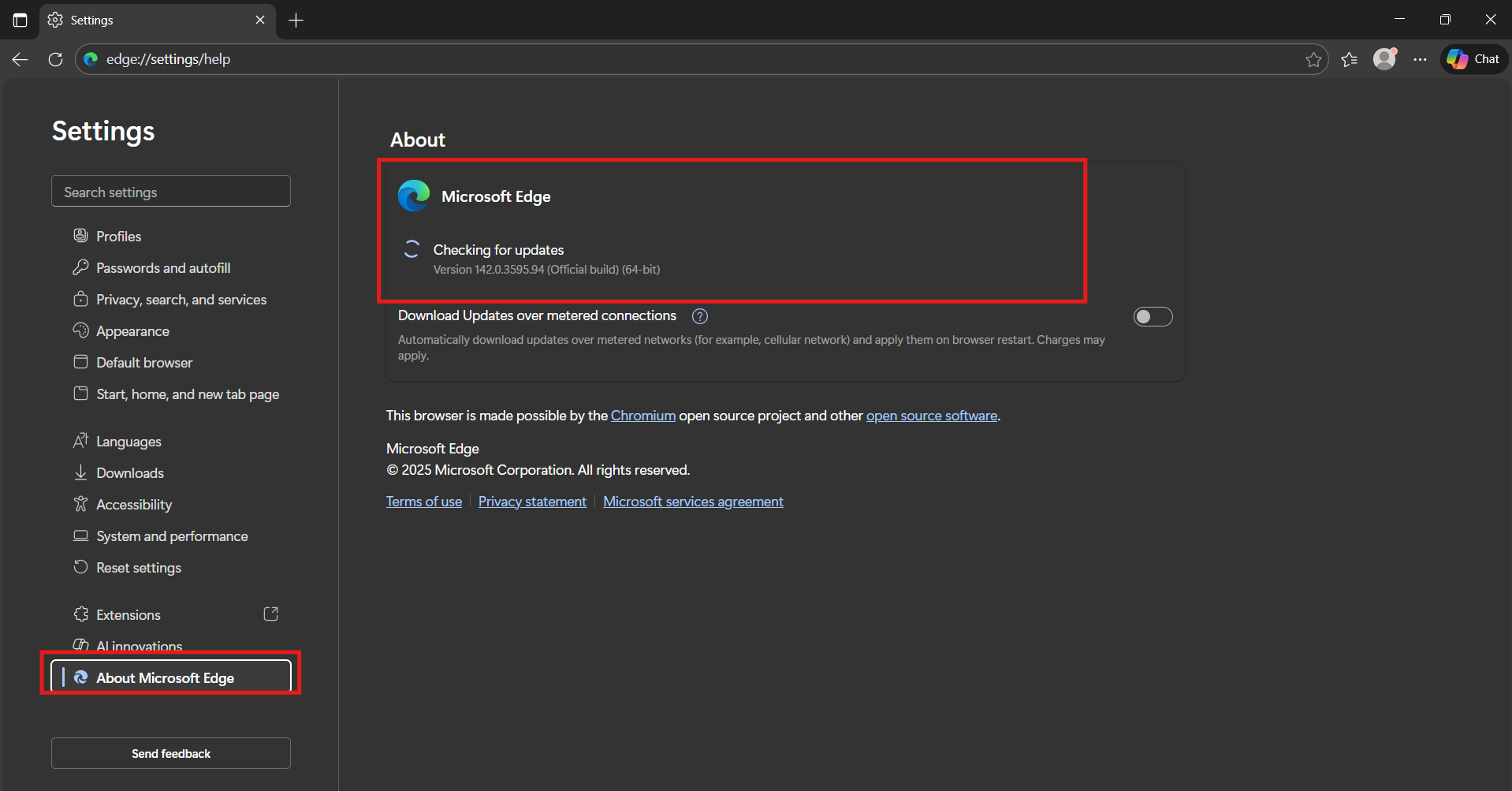
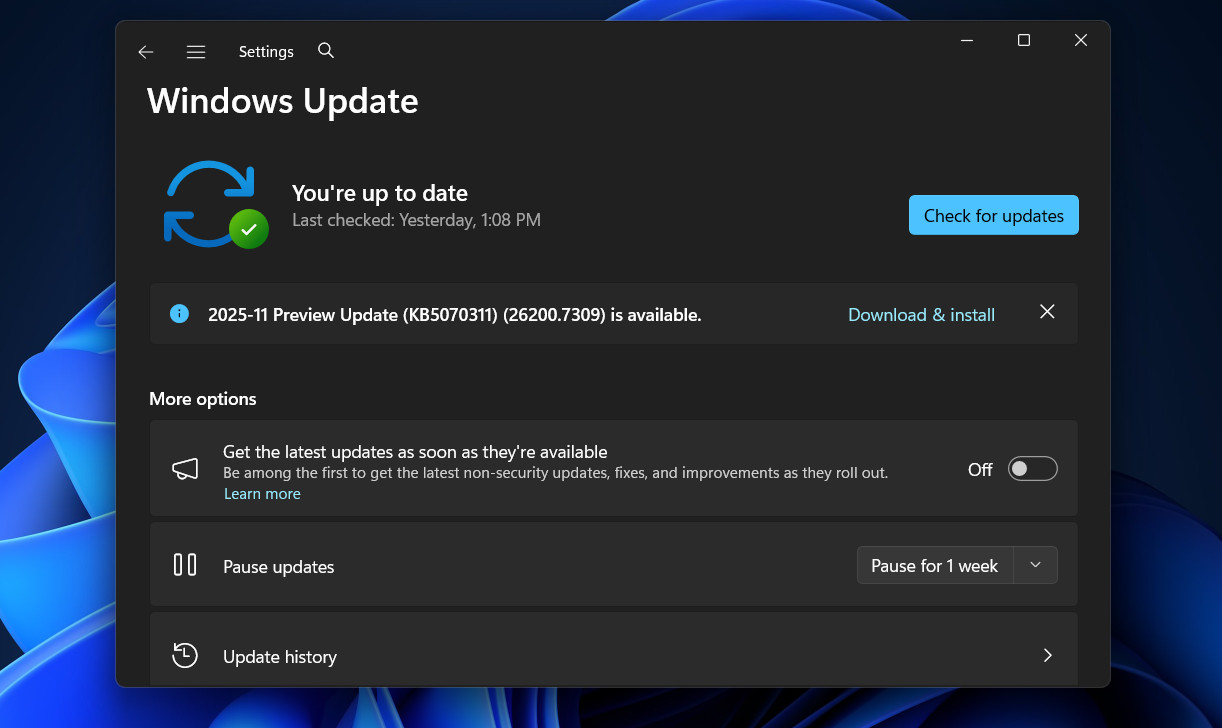
Often, a “cumulative update” for Windows 11 includes patches specifically for how background apps sleep.
What If I Just Delete It?
You might be tempted to find the file and delete it. Do not do this. If you delete msedgewebview2.exe, you will break a lot of things.
- Your email app (Outlook) might stop displaying messages.
- Your Widgets panel will crash.
- Microsoft Teams might not open.
- You might get error messages popping up every time you start Windows.
- It is a “dependency,” which means other apps depend on it to live. It is better to disable the apps using it (like Widgets) than to delete the file itself.
Conclusion
Computers are supposed to make our lives easier, not keep us up at night with bright lights and spinning fans.
The file msedgewebview2.exe is a helpful tool that lets our modern apps run smoothly. It connects our desktop apps to the web. But when it malfunctions, it becomes a nuisance.
By following the steps in this guide, you should be able to identify which app is abusing this tool. Whether it is the Windows Widgets board (the usual suspect) or a background chat app, you now have the power to fix it.
Take control of your Task Manager, check your settings, and finally let your computer – and you—get some sleep.
Frequently Asked Questions (FAQs)
1. Can I disable msedgewebview2.exe in Task Manager?
You can, but it will just come back. Since it is launched by other apps (like Widgets or Teams), as soon as those apps check for an update, they will launch the process again. You need to disable the source app, not just the process.
2. Why does it use so much Memory (RAM)?
Each “process” you see in Task Manager is usually a separate tab or part of an app. If you see six versions of msedgewebview2.exe, it means an app has six different things loaded. This is normal behavior for modern web browsers. It keeps your computer stable; if one part crashes, the whole app doesn’t crash.
3. Does this affect gaming performance?
Usually, no. The CPU usage is very low. However, if it is “stuck” and using 20% or 30% of your CPU, it will definitely cause lag in games. In that case, use the End Task method before you start playing.
4. I tried everything and my PC still won’t sleep. How to Fix?
If you have fixed the file but the PC is still awake, check your mouse. Sometimes, a sensitive gaming mouse detects tiny vibrations on your desk and “wakes” the PC. Try flipping your mouse upside down and waiting ten minutes. If it sleeps, you need a new mouse pad, not a software fix!
ALSO READ:







