- If your iPhone 16 isn't connecting to car Bluetooth, it might be due to a "handshake" failure; your phone uses modern Bluetooth which may not be compatible with your car's older system. This can cause music and calls not to play properly.
- To solve this, try resetting the Bluetooth connection by toggling Airplane Mode on and off, restarting both your iPhone and car system, or forgetting and re-pairing the Bluetooth connection completely.
- Other solutions include checking for conflicts with Wireless CarPlay, turning off accessibility features that might interfere, and ensuring your iPhone and car firmware are up-to-date. If issues persist, consider resetting network settings as a last resort.
Is your iPhone 16 not connecting for car Bluetooth audio? You are not alone. The iPhone 16 is a powerhouse of connectivity, featuring the latest Bluetooth 5.4 standards and the blazing-fast A18 chip. However, even the most advanced technology can hit a roadblock when trying to communicate with the often-outdated infotainment systems found in many vehicles. There is nothing more frustrating than getting into your car for a long drive, only to find that your music won’t stream, your calls won’t route through the speakers, or the phone simply refuses to acknowledge the car exists.
A common misconception is that this is purely a hardware failure of the new iPhone. In reality, the issue is almost always a “handshake” failure. Your iPhone 16 is speaking a very modern, secure language of Bluetooth, while your car might be speaking a dialect from five years ago. When these two fail to agree on a protocol, the connection drops, or the phone gets stuck in a “Connecting…” loop. Additionally, features like Wireless CarPlay can sometimes conflict with standard Bluetooth audio, causing the system to hang as it tries to decide which method to prioritize.
If you are tired of driving in silence or fiddling with cables, this guide is for you. We will walk you through a comprehensive set of troubleshooting steps, ranging from simple radio resets to advanced settings tweaks like disabling specific accessibility features that are known to interfere with audio routing. By following this guide, you should be able to restore a stable, high-quality audio connection between your iPhone 16 and your vehicle.
Fix iPhone 16 Not Pairing to Car Bluetooth Audio System
This article will list various troubleshooting steps to help fix the iPhone 16 not connecting for car Bluetooth audio.
1. Toggle Airplane Mode (The Radio Reset)
The very first thing you should try is a soft reset of the iPhone’s wireless radios. Often, the Bluetooth modem in the phone can get “stuck” in a state where it thinks it is connected to a previous device (like your AirPods) and refuses to look for the car. Toggling Airplane Mode forces the modem to completely power down and restart.
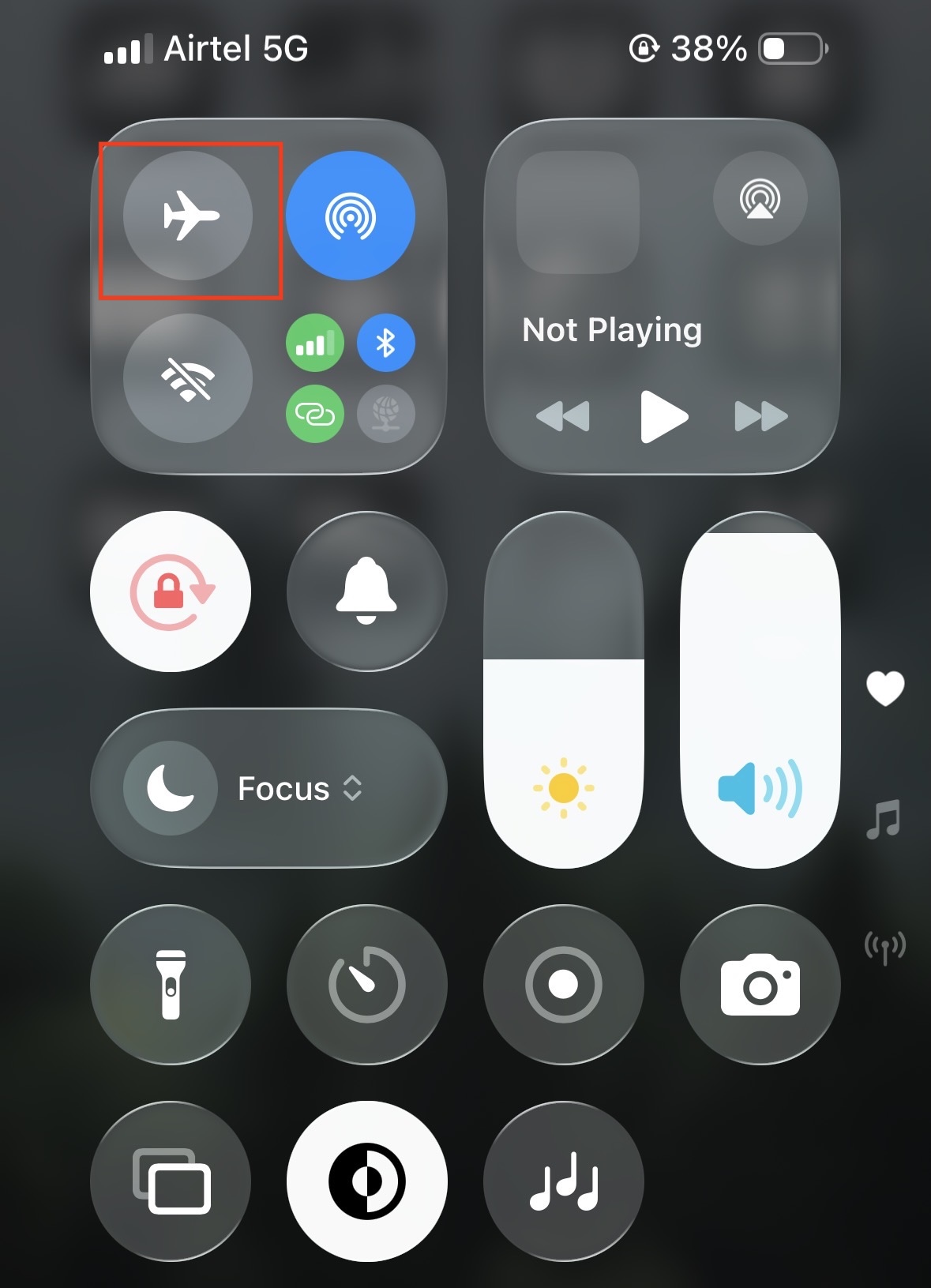
- Swipe down from the top-right corner of your screen to open the Control Center.
- Tap the Airplane Mode icon (the airplane) so it turns orange.

- Wait for at least 30 seconds. This pause is crucial to ensure any residual electricity in the capacitors clears and the software processes terminate.
- Tap the icon again to turn it off.
- Wait for the Bluetooth icon to turn blue, then check your car’s display to see if the connection re-establishes automatically.
2. Restart Both Devices (The System Refresh)
If toggling the radios didn’t work, the next step is to restart the operating systems on both ends. Your car’s infotainment system is essentially a small computer, and like any computer, it accumulates temporary files and errors over time that can block new connections.
- For the iPhone 16: Press and hold the Side Button and Volume Down button simultaneously until the “Slide to power off” slider appears. Slide it, wait for the screen to go fully black, and then turn it back on.
- For the Car: Simply turning the engine off is often not enough, as many modern cars keep the computer in “sleep” mode. Turn the car off, open the driver’s door (to cut accessory power), and wait for the dashboard lights to go out completely. Then, restart the engine.
- Try to connect again once both systems are fully booted.
3. Forget and Re-Pair (The Handshake Reset)
This is the most effective fix for persistent connection issues. Over time, the digital “key” that your phone and car share to trust each other can become corrupted, especially after an iOS update. “Forgetting” the device deletes this old key and forces them to generate a new one.
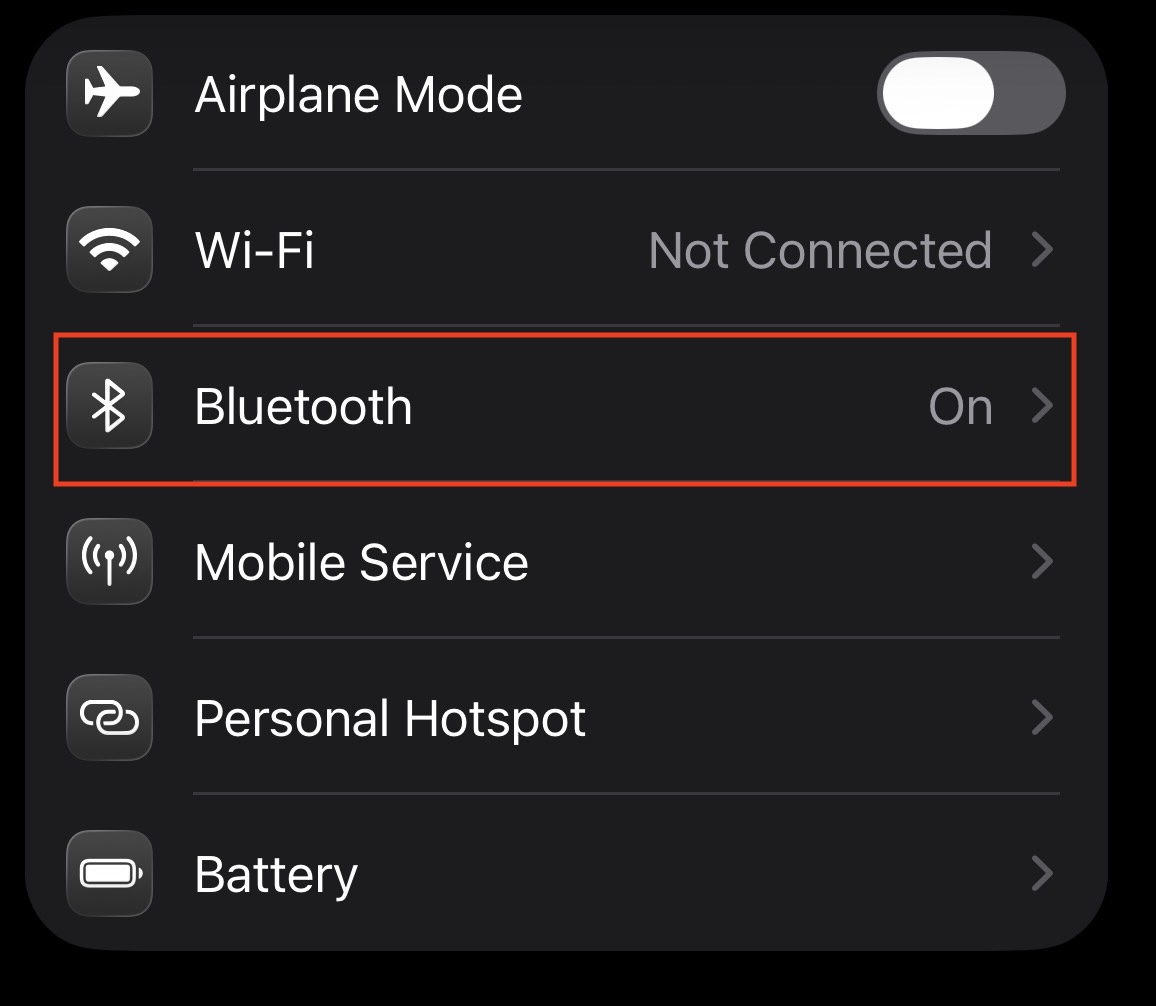
- Open the Settings app on your iPhone 16.
- Tap on Bluetooth.

- Find your car’s name in the list (e.g., “Ford Sync,” “BMW 12345,” or “Uconnect”).
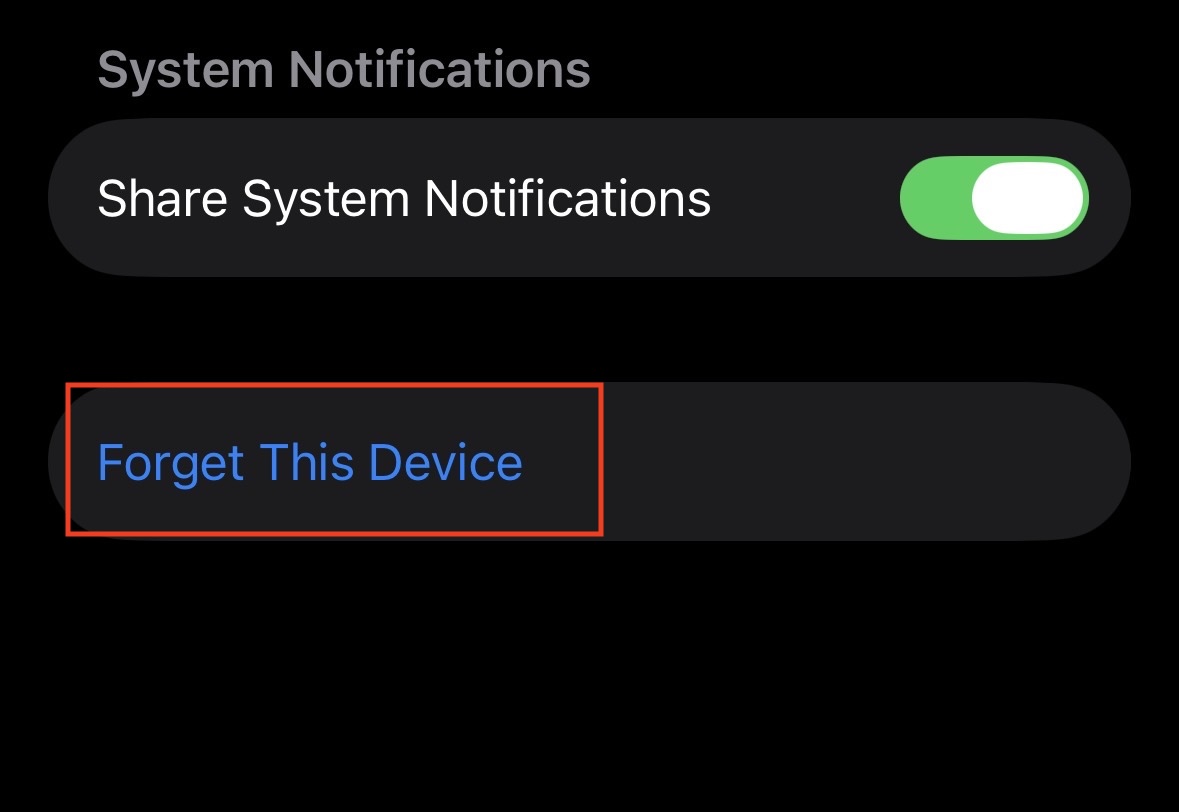
- Tap the blue (i) icon next to the name.
- Select Forget This Device and confirm the choice.

- Crucial Step: Now go to your car’s bluetooth menu. Find your iPhone in the list of paired devices and delete/remove it there as well.
- Put your car back into Pairing Mode.
- On your iPhone, look for the car’s name under “Other Devices” and tap it to start the pairing process from scratch.
4. Check for Wireless CarPlay Conflicts
The iPhone 16 is designed to prefer Apple CarPlay over standard Bluetooth because it offers a better interface. However, if your car supports both Bluetooth and Wireless CarPlay, the two can fight. The phone might connect via Bluetooth, then immediately disconnect to try (and fail) to launch CarPlay, leaving you with no audio.
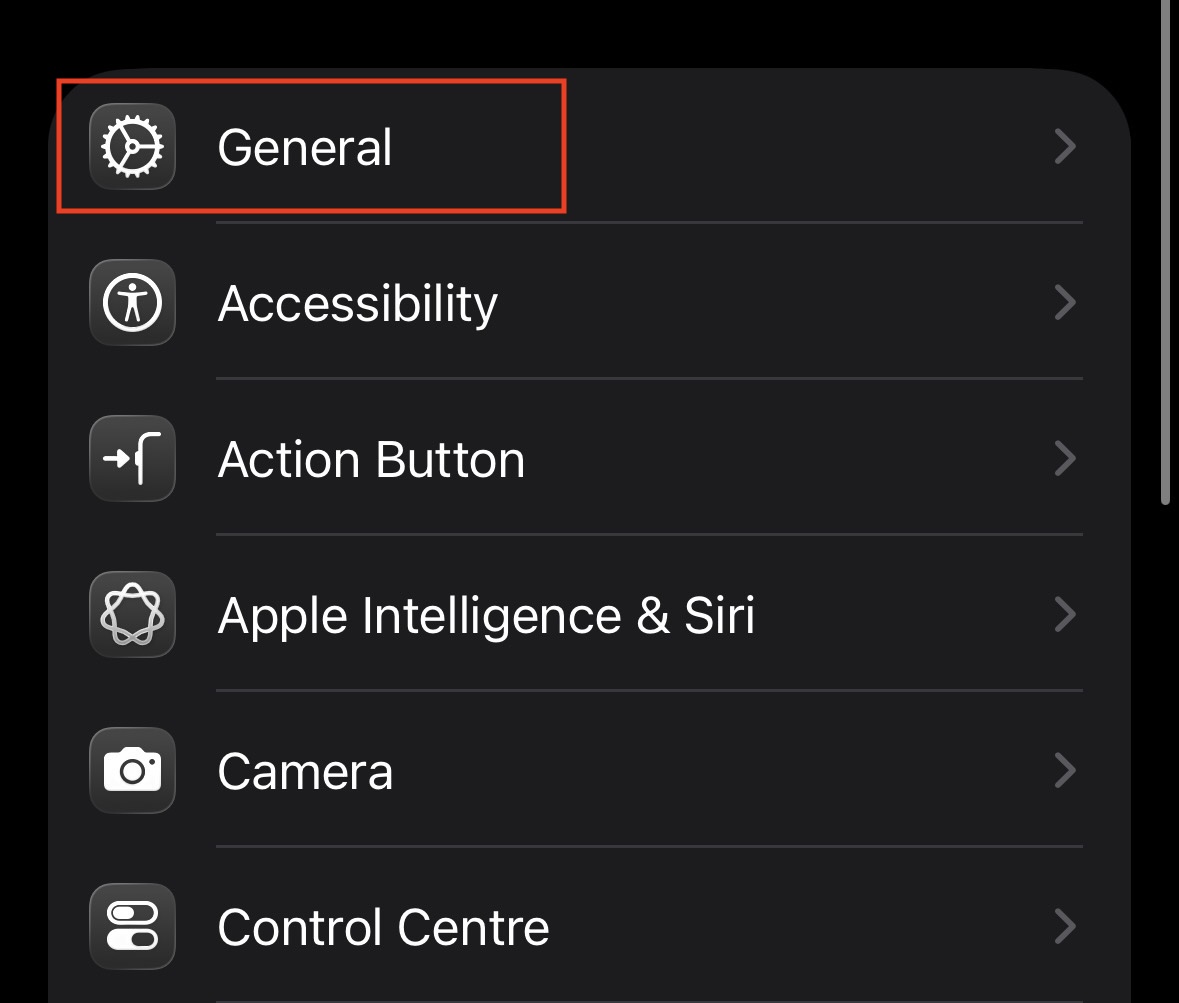
- Go to Settings > General.

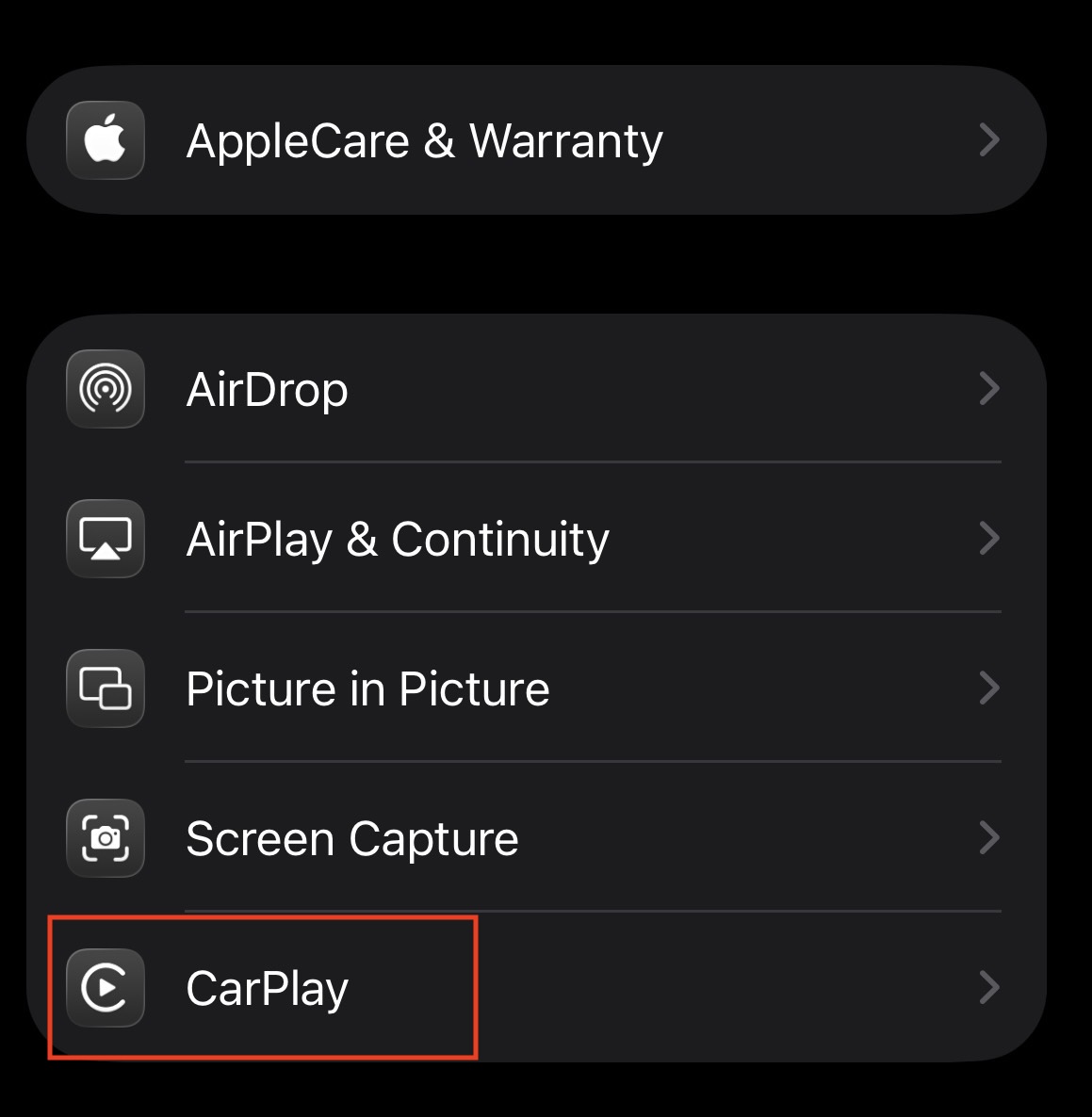
- Now, tap on the CarPlay option.

- If your car is listed there, tap it and select Forget This Car.
- Now, try connecting via standard Bluetooth again.
- If this works, you know the issue is specifically with the CarPlay handshake. You can choose to stick with Bluetooth audio, or troubleshoot the CarPlay connection separately (often requiring a high-quality USB-C cable for the initial setup).
5. Disable “Vocal Shortcuts” (Advanced Fix)
A specific bug affecting recent iOS versions (iOS 18/19) on newer devices like the iPhone 16 involves an accessibility feature called “Vocal Shortcuts.” Users have reported that this feature can aggressively take over the microphone and audio routing, causing Bluetooth audio to stutter or disconnect in cars.
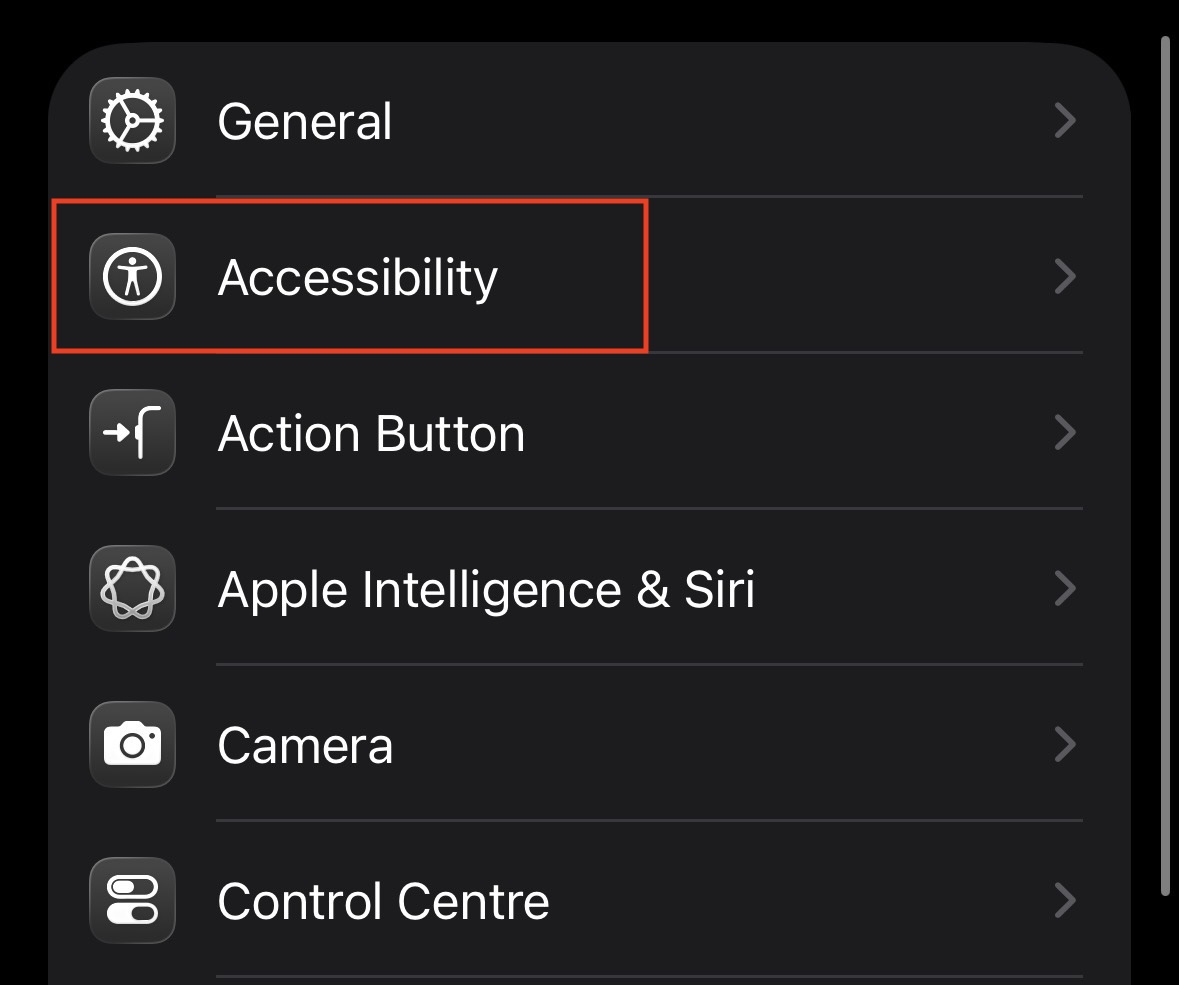
- Open Settings and go to Accessibility.

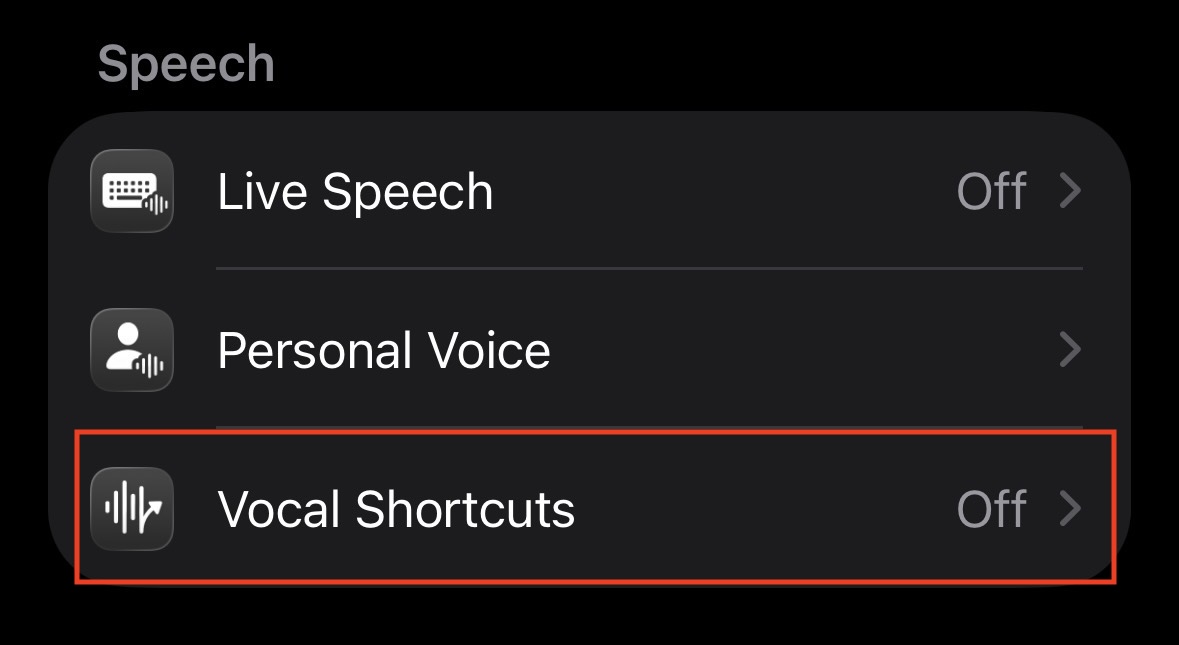
- Scroll down to the “Speech” section.
- Tap on Vocal Shortcuts.

- Toggle the switch to Off.
- Restart your iPhone and test the car audio again. Many users report this single step solves “stuttering” or “silent” connections immediately.
6. Update iOS and Car Firmware
Bluetooth protocols are always evolving. If your iPhone 16 is running the latest iOS 19 but your car is running firmware from 2019, they might not understand each other.
- Update iPhone: Go to Settings > General > Software Update. If an update is available, install it. Apple frequently includes “Bluetooth connectivity improvements” in minor updates.
- Update Car: Check your car manual. Many modern systems (Ford Sync 4, BMW iDrive, etc.) allow you to update via Wi-Fi or a USB stick. Visit your car manufacturer’s support website, enter your VIN, and see if there is an audio/navigation update available.
7. Change Bluetooth Device Type
Your iPhone tries to optimize audio based on what it thinks it is connected to (e.g., headphones vs. hearing aids vs. car stereo). If it misidentifies your car, the audio levels might be too low or the connection might drop.
- Go to Settings > Bluetooth.
- Tap the (i) icon next to your car’s name.
- Tap on Device Type.
- Ensure it is set to Car Stereo. If it is set to “Headphones” or “Other,” change it. This tells the iPhone to send a line-level signal appropriate for vehicle speakers.
8. Reset Network Settings (The Nuclear Option)
If absolutely nothing else works, you may have a deep-seated corruption in your iPhone’s network configuration. This step will erase all Wi-Fi passwords, VPN settings, and Bluetooth pairings, essentially returning the radio software to factory state.
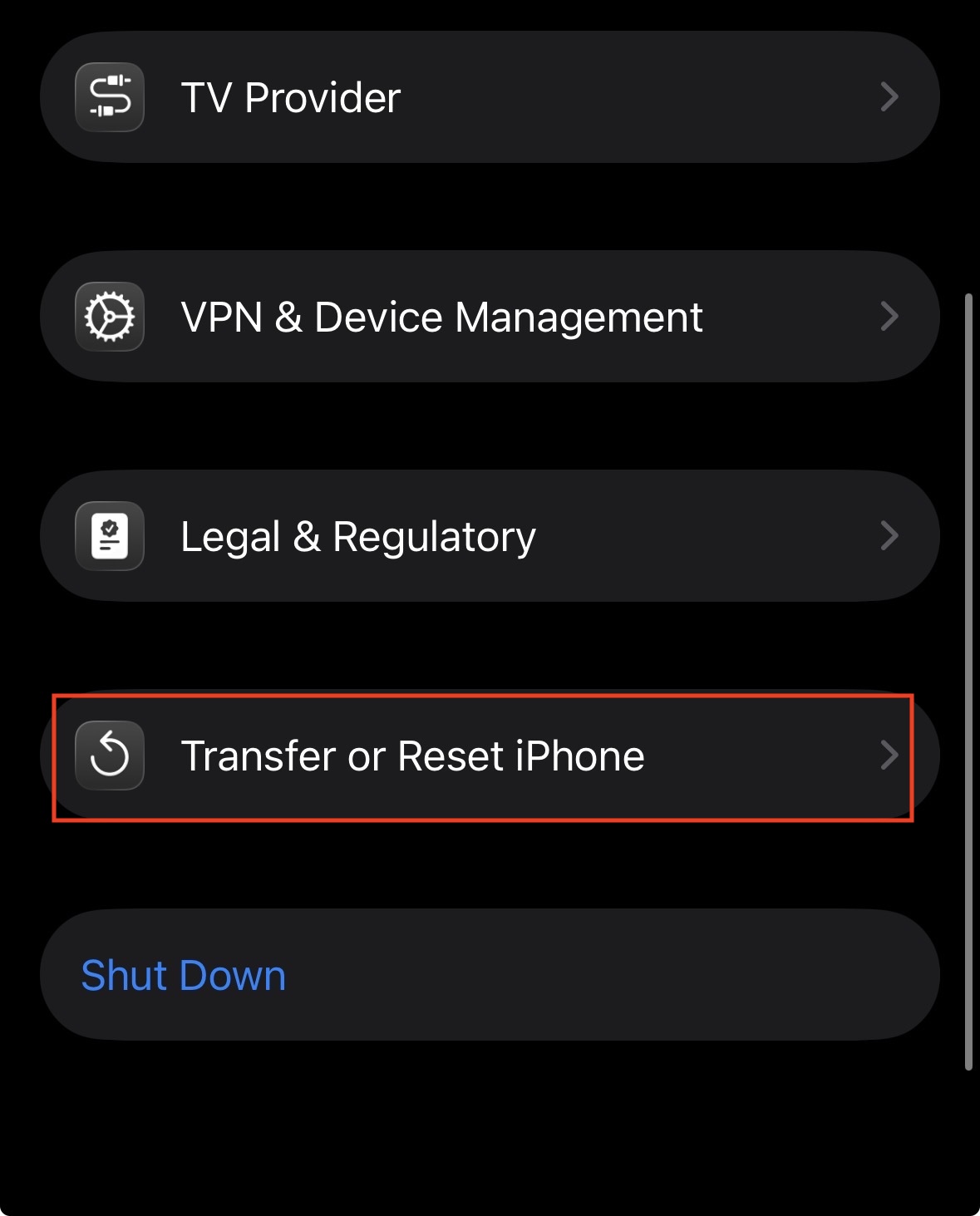
- Go to Settings > General.
- Scroll to the bottom and tap Transfer or Reset iPhone.

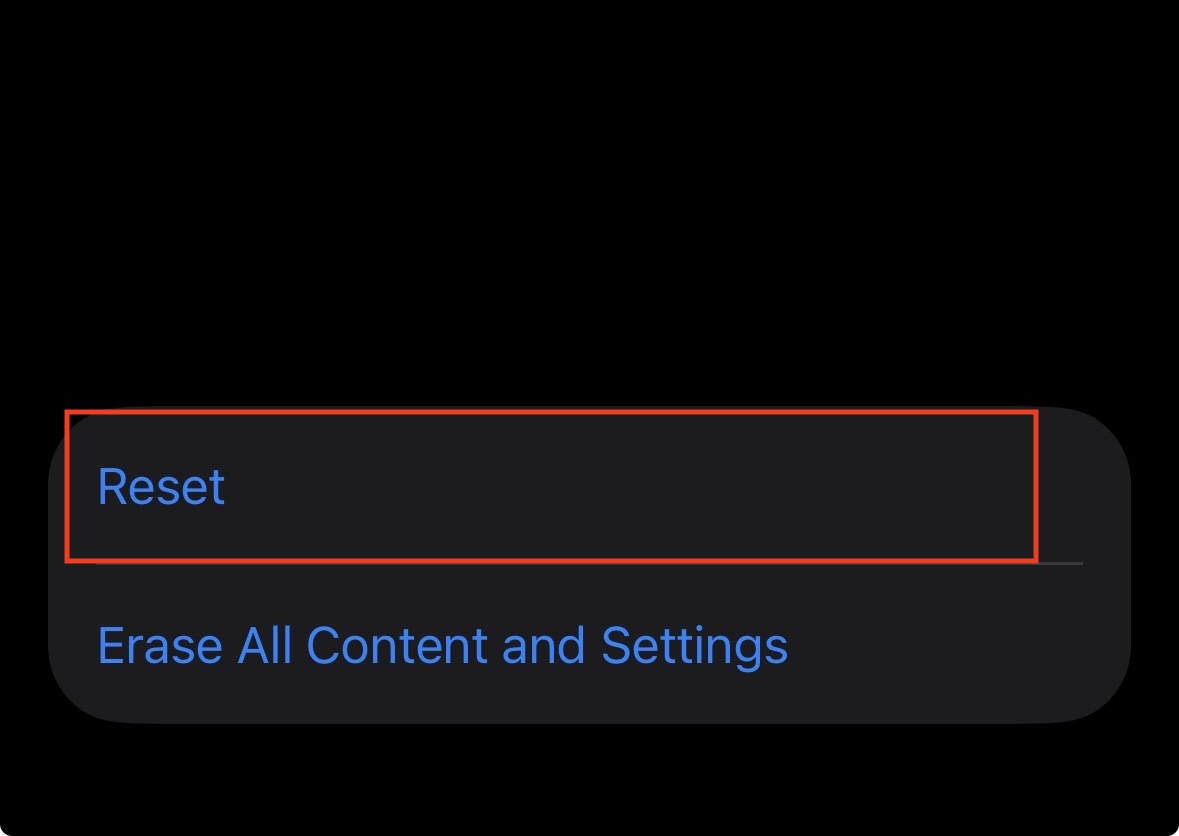
- Tap Reset.

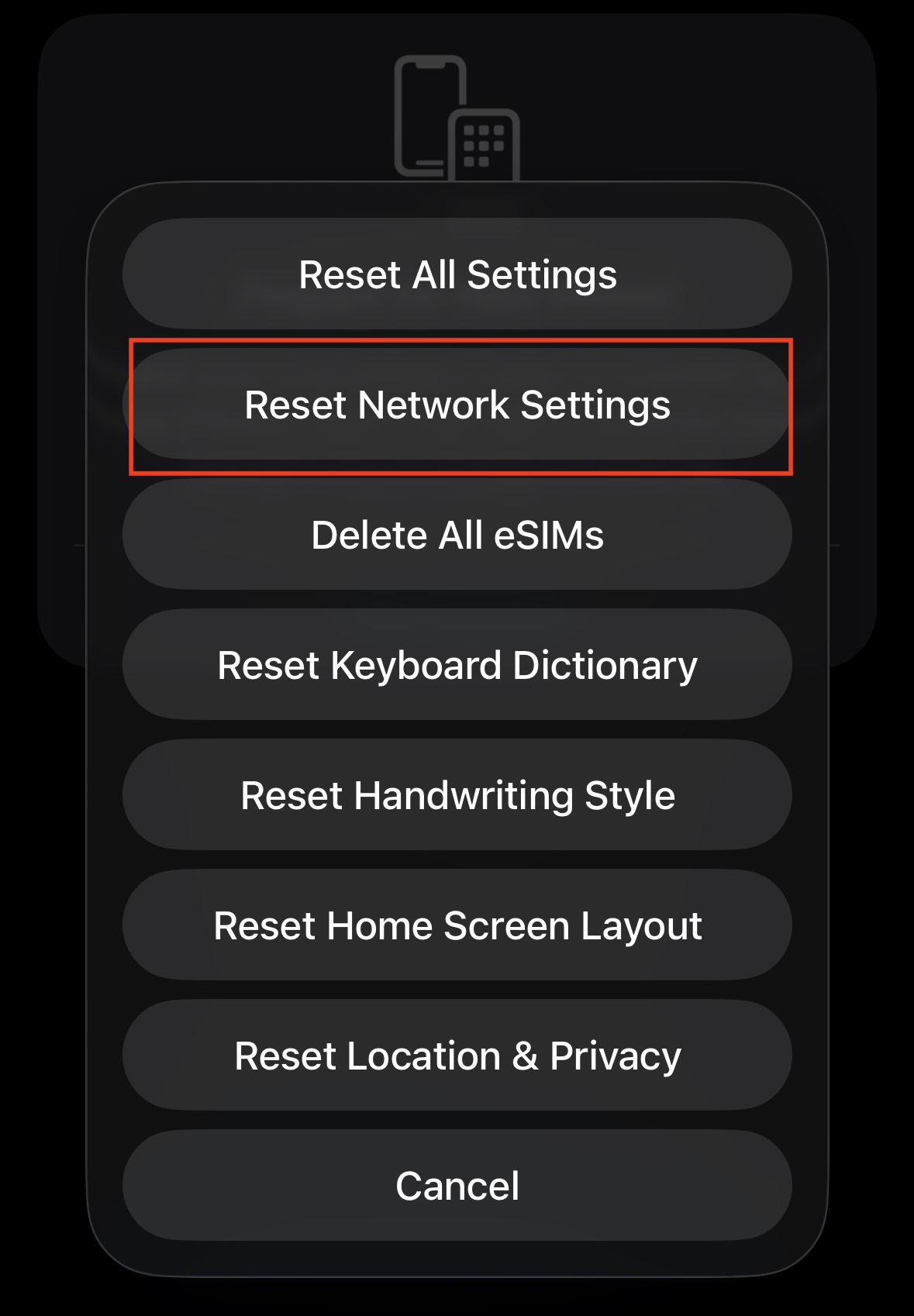
- Select Reset Network Settings.

- Enter your passcode. The phone will reboot.
- Note: Your phone name will revert to “iPhone,” and you will need to re-pair every Bluetooth device you own (watches, headphones, car). However, this has a very high success rate for stubborn car audio issues.
Final Words
The iPhone 16 is a fantastic device, but legacy car audio systems can be finicky. Issues like the iPhone 16 not connecting for car Bluetooth audio are usually software-based rather than hardware defects. By cycling through these steps, starting with simple toggles and moving to permission checks, you can force the two devices to communicate properly. In 2026, we expect seamless connectivity, and following this guide ensures you get exactly that. If you have tried all these steps and still cannot connect, it is worth checking if your car requires a specific dealer tool to reset its Bluetooth module, or contacting Apple Support for a diagnostic.
ALSO READ:






![Download LineageOS 22 Official & Unofficial Supported Device List [2026]](https://itechhacks.com/wp-content/uploads/2026/04/Download-LineageOS-22-150x150.jpg "Download LineageOS 22 Official & Unofficial Supported Device List [2026]")