- Download the HP LaserJet Pro M404n driver from HP’s official website for the most secure and up-to-date installation on Windows and macOS, including the latest macOS Sequoia.
- Use HP Easy Start on macOS and the Full Software Solution on Windows to ensure all printer features work properly, including network printing and driver updates.
- The same driver supports both HP LaserJet Pro M404n and M404dn models, so you don’t need separate files for different versions of the printer.
If you’ve just purchased an HP LaserJet Pro M404n or are trying to reinstall it after a system update, you’ll need the correct driver to make it work smoothly. Without the right driver, your printer won’t communicate properly with your computer, resulting in printing delays, errors, or no response at all.
This guide will walk you through everything you need to know to download, install, and troubleshoot the HP LaserJet Pro M404n driver whether you’re on Windows 11, Windows 10, or macOS. We’ll also cover compatibility with the HP LaserJet Pro M404dn, which shares the same core driver base.
What Is the HP LaserJet Pro M404n?
The HP LaserJet Pro M404n is a high-speed, monochrome laser printer designed for small and medium-sized offices. It offers:
- Fast printing up to 40 pages per minute
- Wired Ethernet connectivity
- Enterprise-grade security features
- Support for various paper sizes and media
Before it can print, your system needs to know how to talk to it—that’s where the HP M404n driver comes in.
Install HP LaserJet Pro M404n Driver on Windows 11/10 (USB or Network)
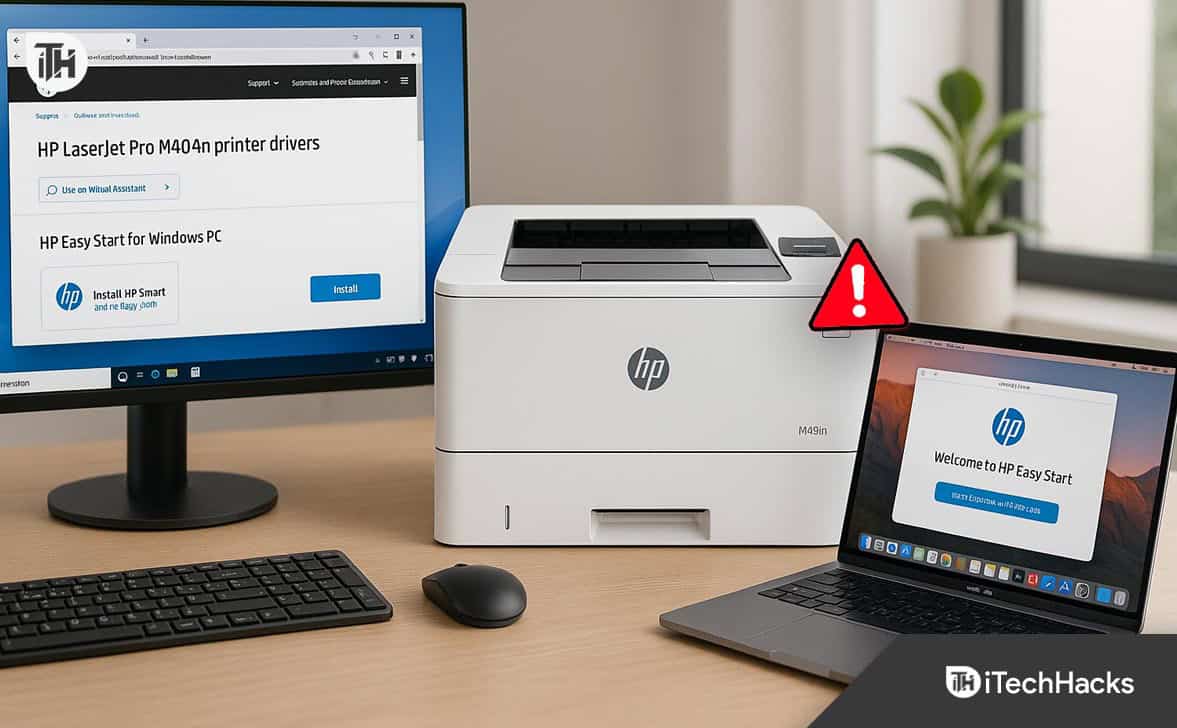
This method works for both USB and Ethernet connections.
Step 1: Go to the Official HP Support Page
- Visit support.hp.com
- Type “HP LaserJet Pro M404n” in the search bar
- Select the correct printer model from the results
- Choose your operating system (e.g., Windows 11 64-bit)
HP regularly updates the hp laserjet pro m404n driver for stability and performance improvements.
Step 2: Download the Full Software Package
- Look for the section labeled “Driver – Product Installation Software”
- Download: HP LaserJet Pro M404n Printer Full Software Solution
- File type:
.exe - This includes the full HP M404n driver, HP Smart Install, and utility tools
Step 3: Run the Installer
- Locate the downloaded
.exefile and double-click it - Run as administrator for smoother installation
- Accept the license terms when prompted
- Choose the connection type:
-
USB for direct connection
-
Ethernet for network setup
-
The installation will automatically detect your LaserJet Pro M404n printer.
Step 4: Complete the Setup
- Wait for the driver and supporting tools to install
- Print a test page to confirm everything is working
- Optionally set the HP M404n as your default printer
If you’re using the HP LaserJet Pro M404dn, this driver package works for that model as well. No separate download is needed.
Install HP LaserJet Pro M404n Driver on macOS (Sequoia, Sonoma, Ventura, Monterey)
HP provides a streamlined setup for macOS using the HP Easy Start tool.
Step 1: Download HP Easy Start for Mac
- Visit the same HP support page
- Search for “HP LaserJet Pro M404n”
- Select your macOS version (Ventura, Monterey, Sonoma, etc.)
- Click Download next to HP Easy Start
This installer will automatically download the correct hp laserjet pro m404n driver for macOS.
Step 2: Launch HP Easy Start
- Open the downloaded
.dmgfile - Drag HP Easy Start to your Applications folder
- Launch the installer
Step 3: Detect the Printer
- Connect your printer via USB or ensure it’s on the same network
- HP Easy Start will detect the device and install the latest hp m404n driver
- Follow the prompts and allow necessary permissions
HP Easy Start also supports the HP LaserJet Pro M404dn driver, so mac users with that model can use this method too.
Step 4: Finalize Setup
- Complete the guided installation
- Print a test page
- Set the printer as default if needed
This ensures your LaserJet Pro M404n printer works seamlessly with macOS.
Method 3: Install Using HP Universal Print Driver (UPD) on Windows
This option is ideal for IT departments or users managing multiple HP printers.
Step 1: Download the Universal Print Driver
- Visit the HP Universal Print Driver page
- Download the PCL6 version for best compatibility with the HP M404n
Step 2: Install the Driver
- Run the installer
- Choose Dynamic Mode for network printers or Traditional Mode for USB installation
- Follow the on-screen instructions
Step 3: Add the Printer Manually
- Go to Control Panel > Devices and Printers
- Select Add a Printer
- Click The printer that I want isn’t listed
- Choose Add a printer using TCP/IP address or hostname
- Enter your printer’s IP address
The Universal Print Driver will now control the HP LaserJet Pro M404n printer or HP LaserJet Pro M404dn printer.
Method 4: Update HP M404n Driver Using Device Manager (Windows Only)
If the driver isn’t working or got corrupted after a Windows update, follow these steps.
Step-by-Step:
- Press
Windows + Xand choose Device Manager - Expand the Printers section
- Right-click on HP LaserJet Pro M404n
- Select Update Driver
- Choose Search automatically for updated driver software
Windows will look for the latest hp laserjet pro m404n driver and install it if available.
This method also works for HP LaserJet Pro M404dn.
Method 5: Offline Installation (No Internet Access)
If the computer where you want to install the driver doesn’t have internet:
- Use another computer with internet access
- Visit HP’s driver page and download the full driver package
- Copy the
.exe(Windows) or.dmg(macOS) to a USB drive - Transfer it to the offline machine
- Run the installer normally
Choose Local USB Setup if you’re connecting directly. This ensures you can install the hp m404n driver without any web connection.
Is the HP LaserJet Pro M404dn Driver Different?
No, the HP LaserJet Pro M404dn driver is the same core driver used for the M404n model. The only difference is in their hardware:
| Feature | M404n | M404dn |
|---|---|---|
| Duplex Printing | Manual | Automatic |
| Network Support | Ethernet only | Ethernet + USB |
| Driver Compatibility | Identical | Identical |
So if you downloaded the driver for HP M404n, you’re covered for the M404dn too.
Common Issues While Installing HP M404n Driver
1. Driver Installation Freezes or Fails
- Disable antivirus temporarily
- Make sure Windows Update is enabled
- Run the installer as Administrator
2. Printer Not Detected Over Network
- Check if printer is connected to the same network
- Restart both printer and PC
- Assign a static IP to the printer
3. macOS Doesn’t Recognize Printer
- Use HP Easy Start only—do not attempt manual driver installs
- Reset printer settings via System Preferences → Printers & Scanners
Using HP Smart App with HP M404n (Windows/macOS)
While the HP LaserJet Pro M404n doesn’t support wireless printing, you can still use the HP Smart App for:
- Driver updates
- Monitoring print jobs
- Checking ink/toner levels
- Performing printer maintenance
FAQs
Can I use HP M404n with Windows 11?
Yes. The latest driver fully supports Windows 11, including 64-bit versions.
Is there a universal HP driver for LaserJet Pro M404n?
Yes. HP Universal Print Driver (UPD) works with this model. Ideal for offices managing multiple HP printers.
Where do I find the HP LaserJet Pro M404dn driver?
Same place. The M404n and M404dn share the same driver package. Just search for M404n on HP’s site.
Can I use the M404n without installing drivers?
No. At minimum, you need HP Smart Install or Windows’ built-in drivers. Full features require official driver.
Conclusion
Setting up the HP LaserJet Pro M404n driver doesn’t have to be complicated. Whether you’re using Windows 10, Windows 11, or macOS versions like Sequoia, Sonoma, Ventura, or Monterey, HP provides simple tools to help you install and manage your printer with ease. Always download drivers from the official HP support site to avoid compatibility issues or outdated software.
ALSO READ: