- Pagefile.sys is a system file used by Windows as extra memory when your computer's RAM is full; it's like a digital storage space to help your computer run smoothly without crashing.
- If you want to manage pagefile.sys to save space on your computer, you should reduce its size rather than delete it; this is especially true if your computer has less than 16GB of RAM, as deleting it could cause crashes.
- Pagefile.sys can be moved to a secondary drive if available; doing so keeps your system stable while freeing up space on your main drive, offering a practical solution for computers with two drives.
You are cleaning up your computer by deleting old movies, clearing your downloads folder, and emptying the recycle bin. You feel good about the space you are saving.
Then, you decide to use a tool like “Windirstat” or “TreeSize” to see what else is eating up your hard drive space. And there it is. A massive, unmovable block sitting right in the middle of your C: drive.
It is called pagefile.sys.
Depending on your computer, this file might be 4GB, 16GB, or even 32GB in size. It is huge. Naturally, your first instinct is to click “Delete.” But when you try, Windows stops you. It says the file is in use.
You are probably asking: What is this file? Do I need it? And how do I get rid of it to get my space back?
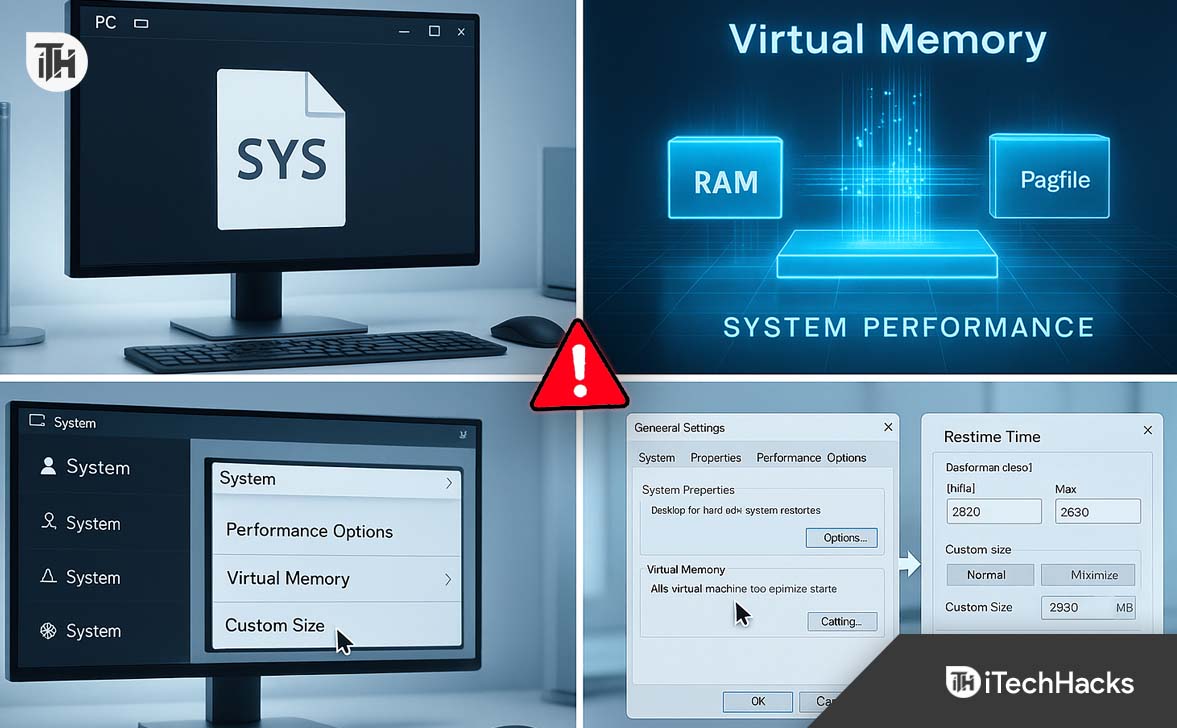
If you are looking for how to manage pagefile.sys, this guide is for you. We will explain what this mysterious file does, why it is so big, and how to safely reduce its size (or delete it completely) without crashing your PC.
Part 1: What is pagefile.sys?
To understand why this file exists, we need to talk about your computer’s memory.
Your computer has two types of memory:
- RAM (Random Access Memory): This is the super-fast memory where your open apps live. When you open Chrome, it loads into RAM.
- Hard Drive (SSD/HDD): This is the slower storage where your files live permanently.
The Problem:
What happens if you open so many apps that your RAM gets full? If you have 8GB of RAM and you try to open a game that needs 10GB, your computer should crash. It has nowhere to put that data.
The Solution:
Windows is smart. When your RAM gets full, Windows grabs a chunk of your hard drive and pretends it is RAM. This “fake RAM” is called Virtual Memory.
The file that holds this Virtual Memory is called pagefile.sys.
Think of your RAM as your physical desk. It is where you do your work. But if your desk gets covered in papers, you need a filing cabinet to put the overflow. pagefile.sys is that filing cabinet.
Part 2: Why Is It So Huge?
You might notice that pagefile.sys is often almost the same size as your actual RAM.
If you have 16GB of physical RAM, Windows will often create a 16GB (or larger) pagefile. Windows does this automatically to be safe. It wants to ensure that even if you max out your memory, your computer won’t freeze (Blue Screen of Death).
In 2025, many people have computers with 32GB or 64GB of RAM. In these cases, a 32GB pagefile is often a waste of space. If you never use all 64GB of your RAM, that massive pagefile.sys is just sitting there, eating up your expensive SSD storage for no reason.
This is why you might want to reduce it.
Part 3: Should You Delete pagefile.sys?
Before we show you how, we need to answer should you?
The Short Answer:
- Do not delete it if you have less than 16GB of RAM.
- Reduce it if you have 16GB or 32GB of RAM.
- Move it if you have a second hard drive (this is the best option).
The Risks of Deleting It:
If you disable pagefile.sys completely:
- Crashes: If you open one too many browser tabs, your program will instantly crash without warning.
- Game Errors: Many modern games check for a pagefile before they launch. If they don’t see one, they won’t start.
- No Error Logs: If your computer crashes (Blue Screen), Windows needs the pagefile to write a “Dump file” explaining what went wrong. Without it, you won’t know why your PC died.
However, Reducing the size is very safe.
Part 4: How to Check the Size of pagefile.sys
First, let’s see exactly how much space you are losing. By default, this file is hidden. You cannot see it in your normal folder view.
- Open File Explorer (yellow folder icon).
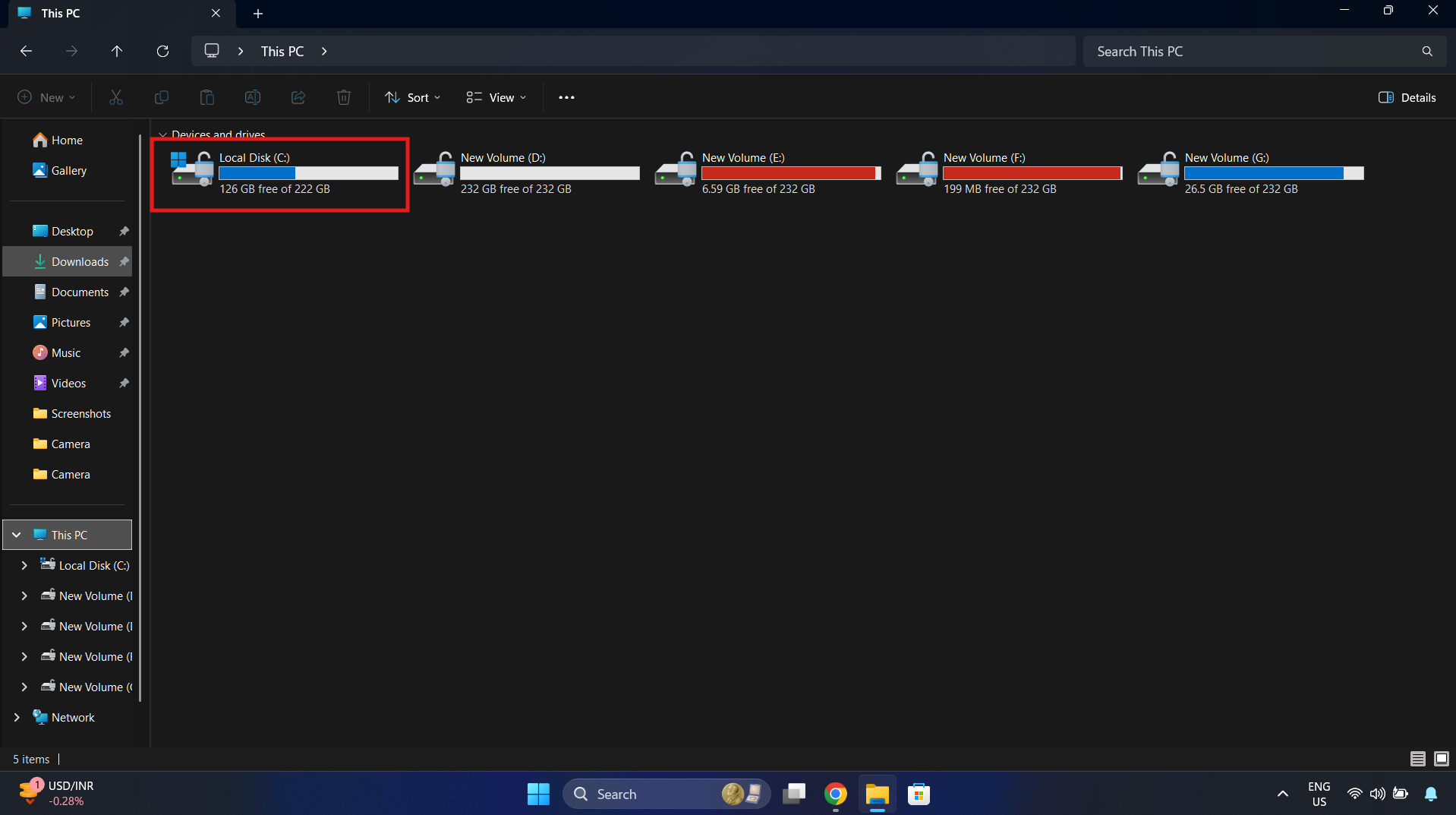
- Click the C: drive.

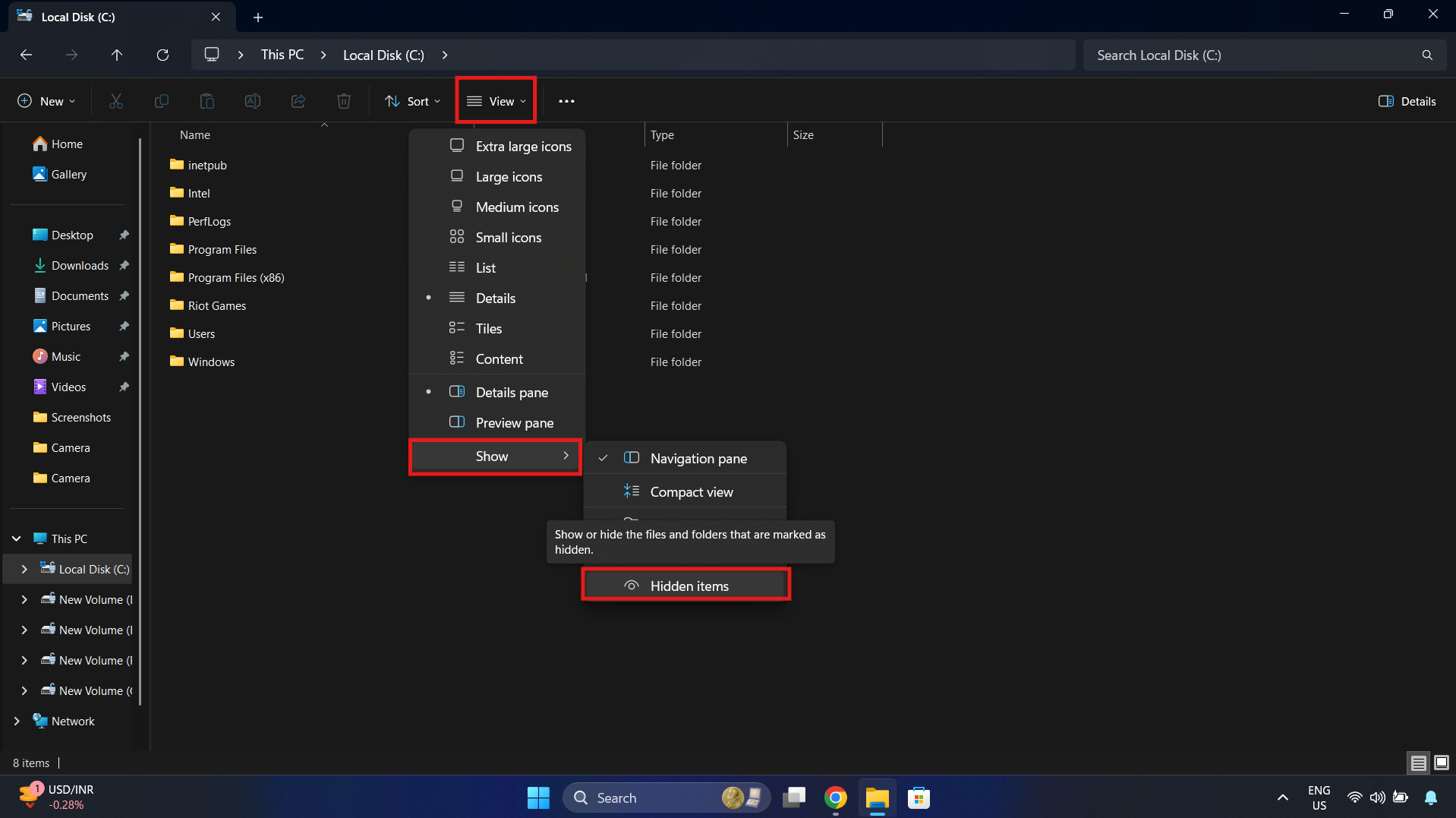
- At the top menu, click View > Show > Hidden items.

- You still might not see it. You need to unhide “System protected files.”
- Click the three dots (…) at the top of Explorer.

- Click Options.
- Click the View tab.

- Uncheck the box that says “Hide protected operating system files (Recommended).”

- Click Yes on the warning.

- Click Apply.
- Click the three dots (…) at the top of Explorer.
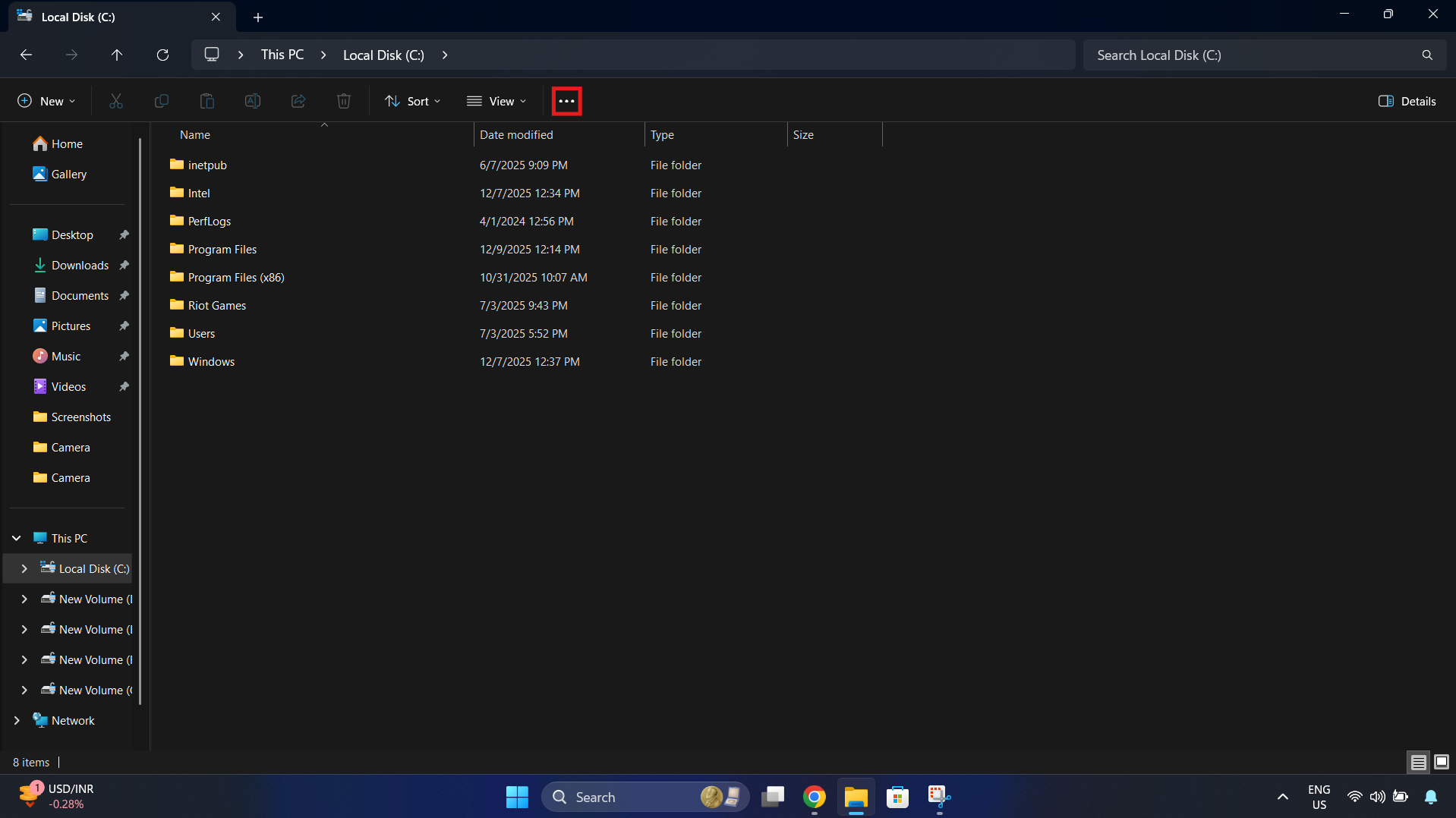
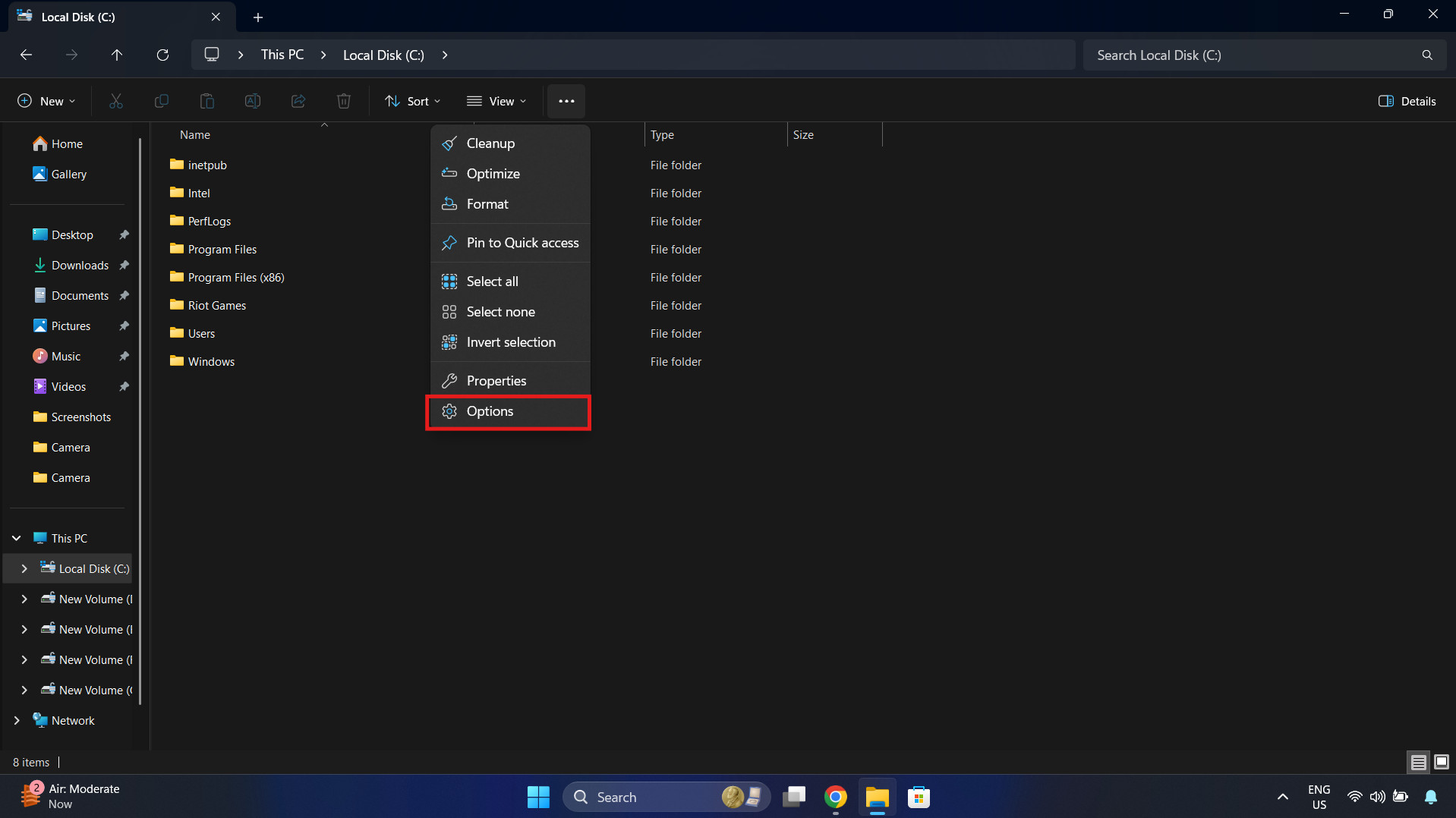
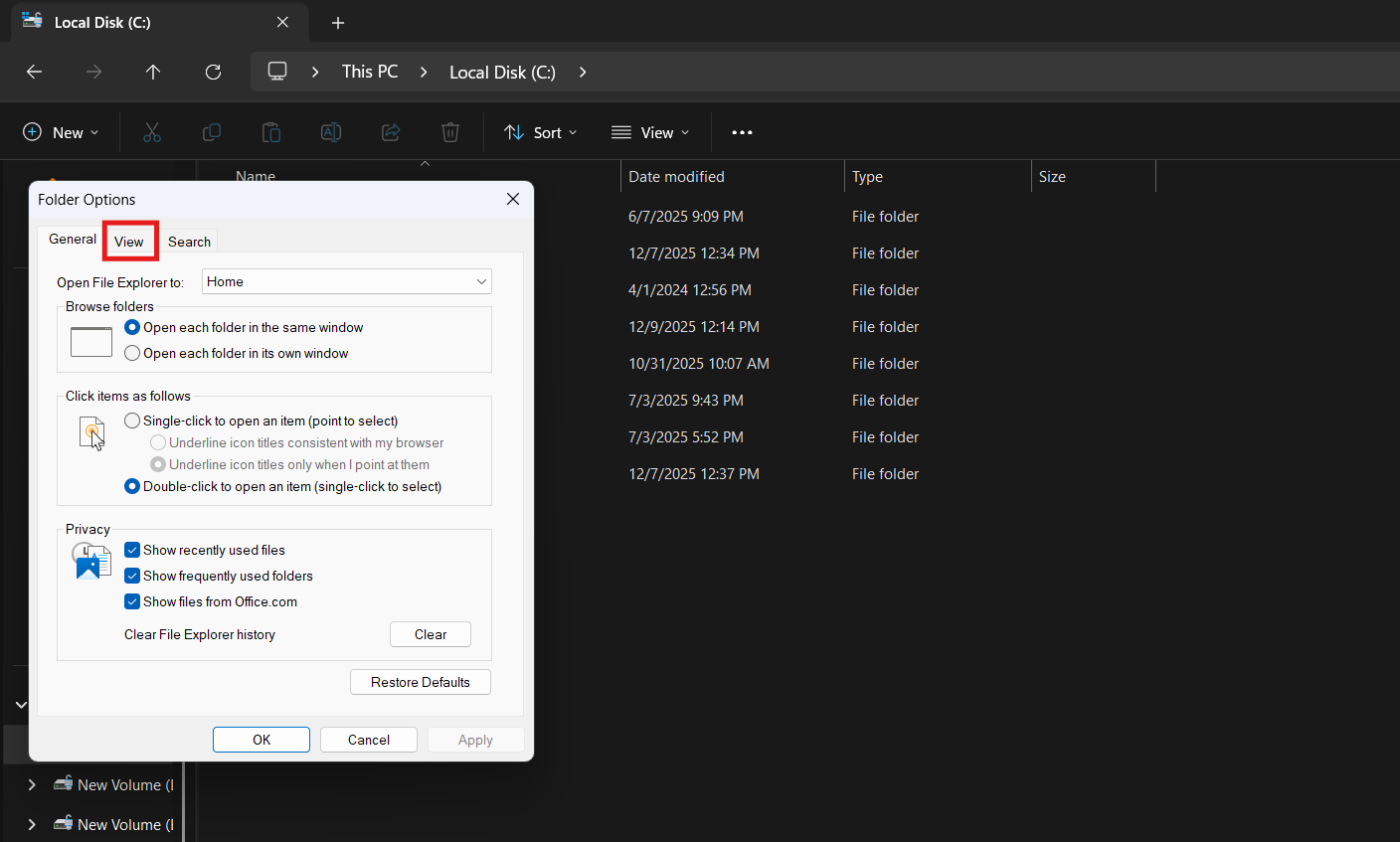
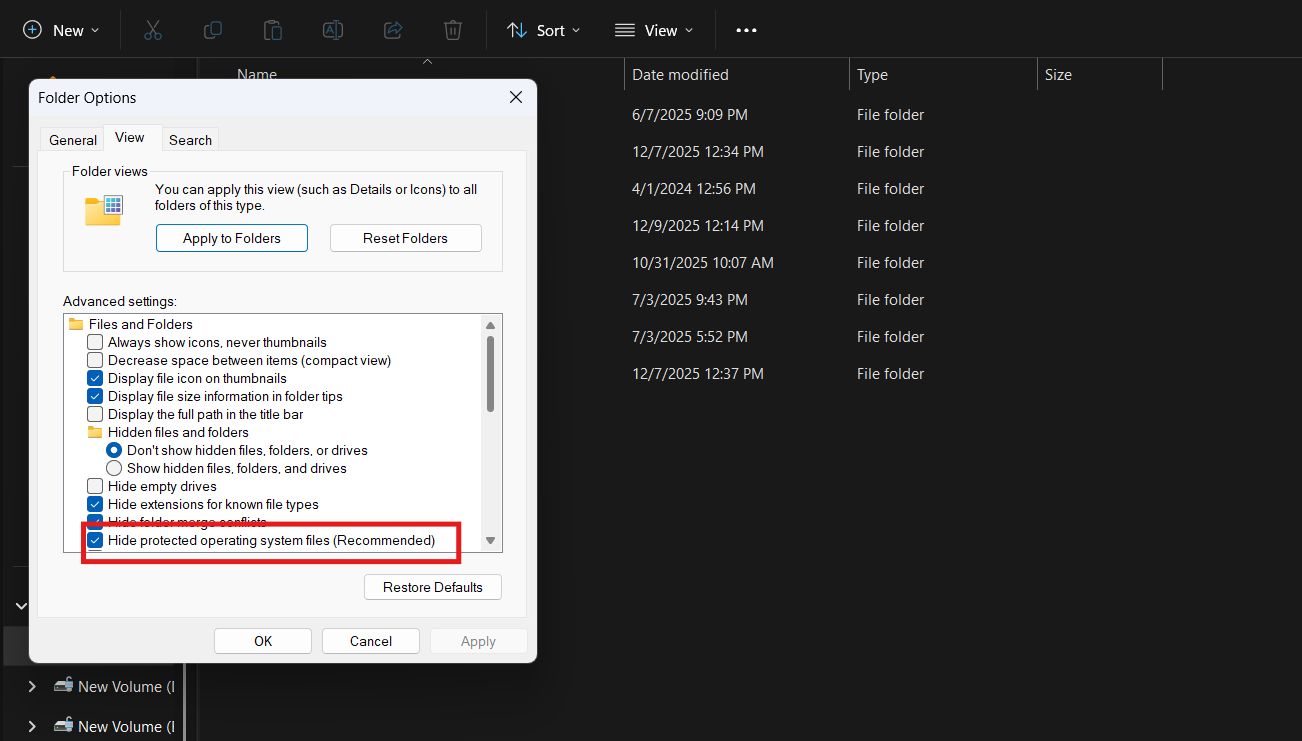
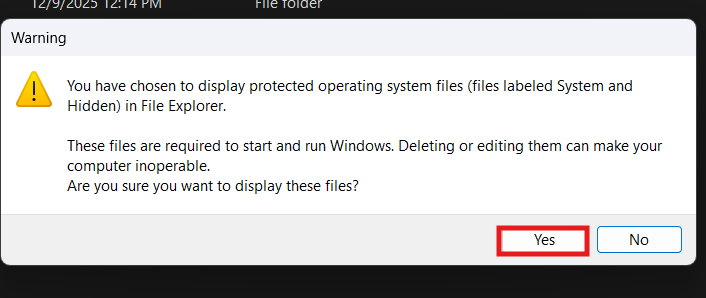
Now, look at your C: drive. You will see a faint, semi-transparent file named pagefile.sys. Look at the size column. Is it 10GB? 20GB?
Now that we see it, let’s shrink it.
Part 5: How to Reduce the Size (The Safe Method)
This is the recommended method for most users. Instead of letting Windows eat up 20GB automatically, we will force it to use a smaller, fixed amount (like 2GB or 4GB).
This frees up space but keeps your system stable.
Step-by-Step Guide:
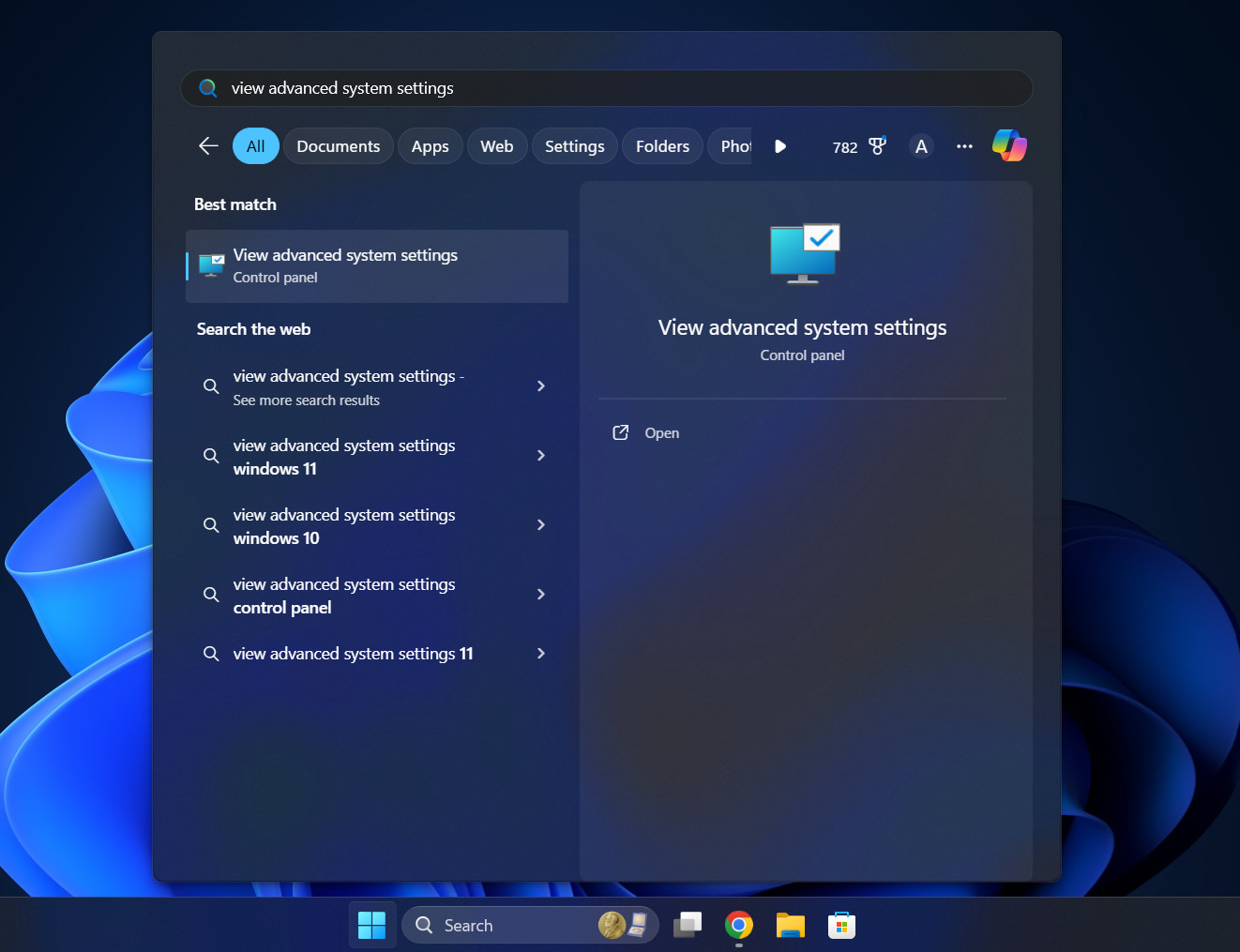
- Open Advanced System Settings:
- Click the Start button.
- Type “View Advanced System Settings” and press Enter.

- A small window titled “System Properties” will open.
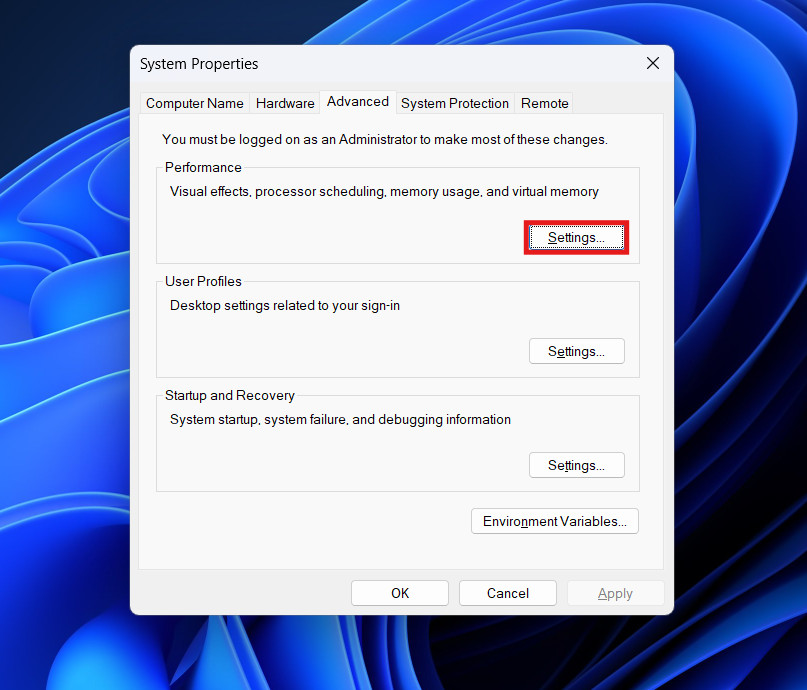
- Go to Performance:
- Make sure you are on the Advanced tab.
- Look for the Performance section at the top.
- Click the Settings button inside that section.

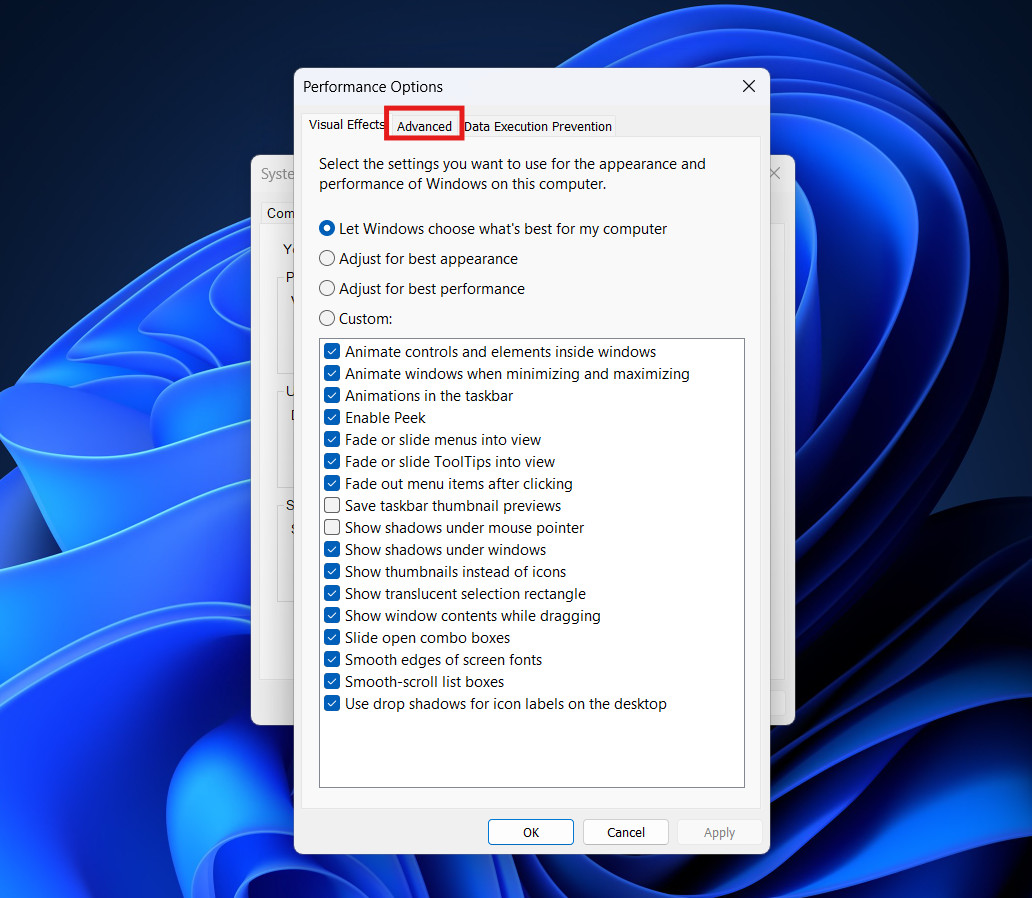
- Find Virtual Memory:
- A new window opens. Click the Advanced tab (yes, again).

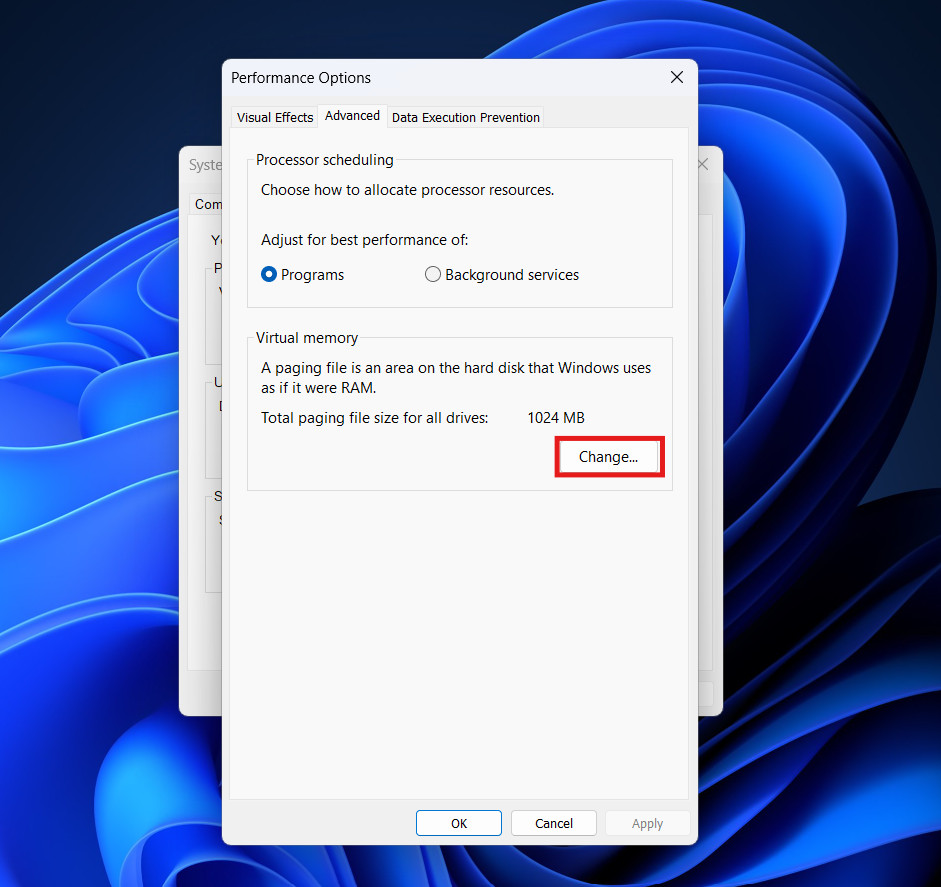
- At the bottom, you will see a section called Virtual memory.
- It will show a number (like “Total paging file size for all drives: 16384 MB”).
- Click the Change… button.

- A new window opens. Click the Advanced tab (yes, again).
- Unlock the Settings:
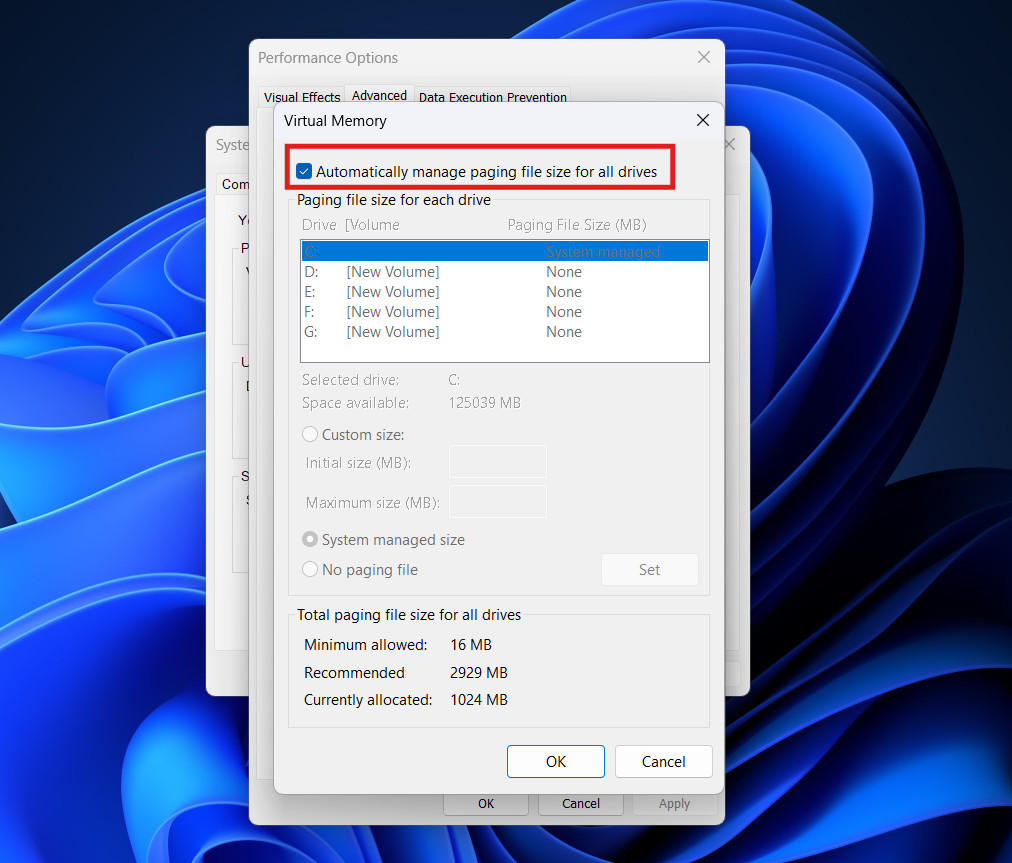
- At the very top, uncheck the box that says “Automatically manage paging file size for all drives.”

- This unlocks the greyed-out options below.
- At the very top, uncheck the box that says “Automatically manage paging file size for all drives.”
- Set a Custom Size:
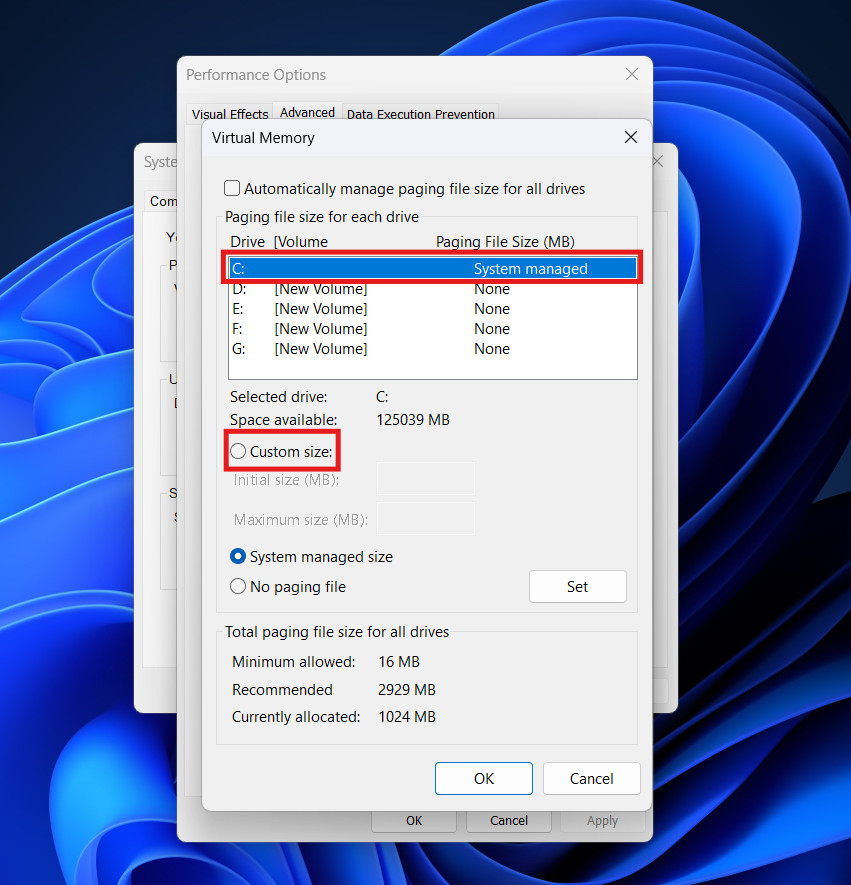
- Click on your C: drive in the list.
- Select the radio button that says Custom size.

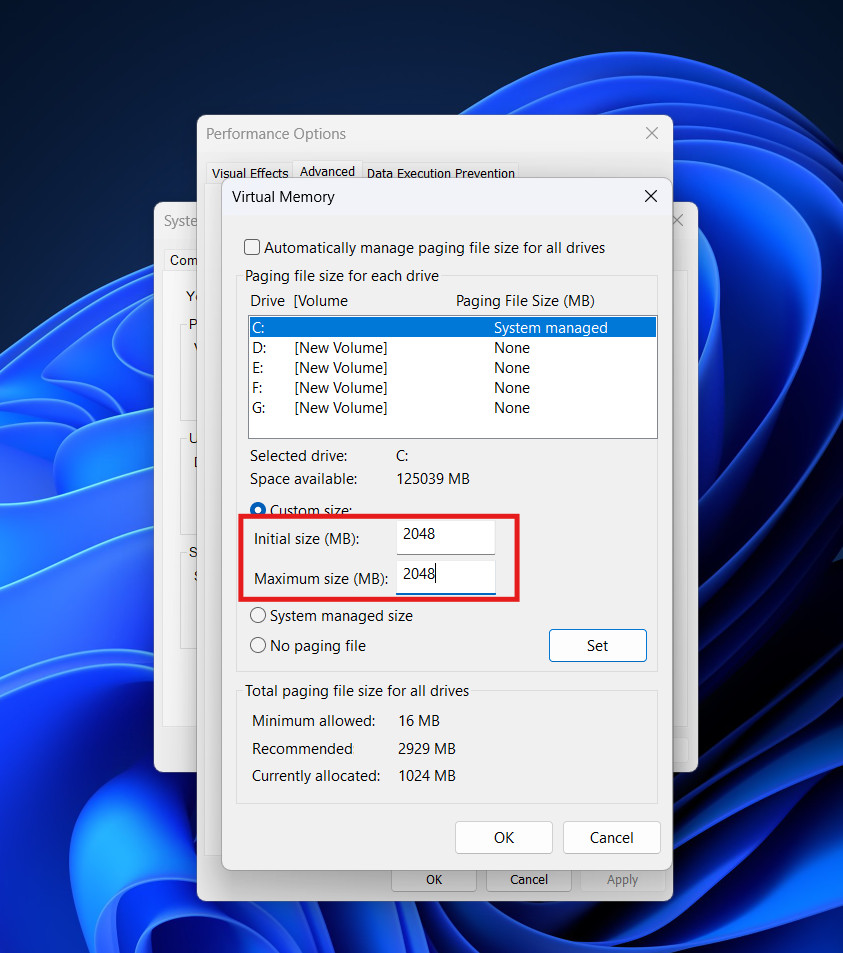
- You will see two boxes: Initial size (MB) and Maximum size (MB).
- The Magic Numbers:
- What should you type here?
- If you just want to save space, setting both numbers to 2048 (2GB) or 4096 (4GB) is usually safe for modern PCs.

- Tip: Set the “Initial” and “Maximum” to the same number. This prevents the file from growing and shrinking, which helps keep your drive faster.
- Apply the Change:
- IMPORTANT: You must click the Set button. If you just click OK, it won’t save.
- Click OK on all the open windows.
- Restart your computer.
When your computer reboots, check your C: drive. Your pagefile.sys will now be the exact size you typed in. You just saved gigabytes of space!
Part 6: How to Move pagefile.sys (The Smart Method)
If you have a computer with two drives (for example, a small, fast SSD for Windows and a large, slower HDD for data), this is the best trick in the book.
You can move pagefile.sys off your small C: drive and put it on your large D: drive. This frees up space on your main drive without sacrificing system stability.
How to move it:
- Go back to the Virtual Memory window (follow steps 1-3 in the previous section).
- Uncheck “Automatically manage paging file size.”
- Step A: Remove it from C:
- Click on the C: drive.
- Select No paging file.
- Click Set.
- Windows will warn you. Click Yes.
- Step B: Add it to D:
- Click on your D: drive (or whatever your second drive is called).
- Select System managed size. (Or you can set a custom size if you prefer).
- Click Set.
- Click OK and Restart.
Result:
The pagefile.sys will vanish from your C: drive, freeing up massive space. Windows will now use your D: drive for its overflow memory.
Part 7: How to Delete pagefile.sys Completely
If you have 32GB or 64GB of RAM and you absolutely refuse to have this file on your computer, you can delete it.
Warning: Do not do this if you have 8GB or 16GB of RAM. You will experience crashes eventually.
How to delete it:
- Go back to the Virtual Memory settings window.
- Uncheck “Automatically manage paging file size.”
- Select your C: drive.
- Select the button No paging file.
- Click Set.
- Windows will scream at you with a warning: “If you disable the paging file… you may not be able to record details if a system error occurs.”
- Click Yes.
- Click OK and Restart.
After the Restart:
Go to your C: drive. The pagefile.sys should be gone.
What if the file is still there?
Sometimes, even after you disable it, the file remains as a “ghost.” It isn’t being used, but Windows didn’t delete it.
If you have set the option to “No paging file” and restarted, but you still see the file:
- Verify in settings that it is definitely off.
- If it is off, you can now simply Right-Click the pagefile.sys file in File Explorer and press Delete. Since Windows isn’t using it anymore, it won’t block you.
Part 8: What about swapfile.sys and hiberfil.sys?
When you are looking for pagefile.sys, you usually see two other big files sitting next to it. Since you are cleaning house, you might wonder about them too.
1. swapfile.sys
- What is it? This is a cousin of the pagefile. It is used specifically for “Modern Apps” (the apps you download from the Microsoft Store, like Calculator, Photos, or Candy Crush).
- Size: It is usually very small (around 256MB).
- Should you delete it? No. It is too small to matter, and deleting it breaks your Windows apps. It is linked to the pagefile settings, so if you disable the pagefile, this usually vanishes too.
2. hiberfil.sys
- What is it? This is the Hibernation File. When you put your computer to “Sleep” or “Hibernate,” Windows takes everything in your RAM and saves it to this file so it can turn the power off completely.
- Size: Huge. Usually 75% of your RAM size.
- Can you delete it? Yes! If you never use “Hibernate” mode (if you always just Shut Down or use regular Sleep), you can delete this.
- How to delete it:
- Open Start, type “cmd”, right-click Command Prompt and choose Run as Administrator.
- Type:
powercfg -h off - Press Enter.
- The file will instantly disappear.
Conclusion
The file pagefile.sys is not a virus, and it is not “junk.” It is a safety net for your computer’s memory.
However, Microsoft is very generous with how much space it gives this safety net. On a modern PC with plenty of RAM, you simply do not need a 32GB pagefile.
- The Best Strategy: Don’t delete it. Shrink it. Set it to a custom size of 2GB or 4GB. This satisfies Windows so it doesn’t crash, but it gives you back the majority of your hard drive space.
- The Alternative: If you have a second drive, move the file there.
By managing pagefile.sys correctly, you can reclaim valuable space on your SSD without making your computer unstable.
ALSO READ:
- External Hard Drives SSD Keeps Disconnecting macOS Sonoma, but Accessible on iPhone
- How to Install an NVMe SSD in a Desktop And Laptop
- How to Remove Ecp.yusercontent.com From Computer
- PC Taking Forever to Boot? How to Fix Slow Startup in Windows
- iPad WiFi Not Working? Here’s How to Fix iPad Won’t Connect