- Visual Voicemail on Android needs mobile data, not just Wi-Fi.
- Most errors like “please wait while voicemails are being downloaded” fix with cache clear, app update, or network reset.
- If nothing works, contact your carrier to re-provision voicemail service.
Visual Voicemail is one of the most convenient features on modern smartphones. Instead of dialing into your carrier’s voicemail service, it allows you to see a list of your voicemails directly inside an app, play them in any order, and often even read transcriptions. But when it stops working, you might see frustrating errors like “please wait while voicemails are being downloaded” or find that the app doesn’t update at all.
If you’re struggling with visual voicemail not working on Android, this guide will cover every reliable fix. We’ll also explain why is my visual voicemail not working in the first place, so you know what to check before trying solutions.
Common Reasons Visual Voicemail Isn’t Working on Android
Before jumping into fixes, it helps to understand what usually causes the problem:
- Carrier service issues – Visual Voicemail is provided by your carrier. If their servers or settings are down, the app won’t update.
- App glitches – The default Visual Voicemail app or your dialer app may freeze, showing the message “please wait while voicemails are being downloaded”.
- Incorrect network settings – Weak mobile data, airplane mode, or disabled background data can block voicemail syncing.
- Outdated software – An outdated Android version or voicemail app can break compatibility.
- SIM or account provisioning errors – Sometimes your account loses voicemail provisioning after a SIM swap or carrier reset.
Knowing these causes helps you pick the right fix faster.
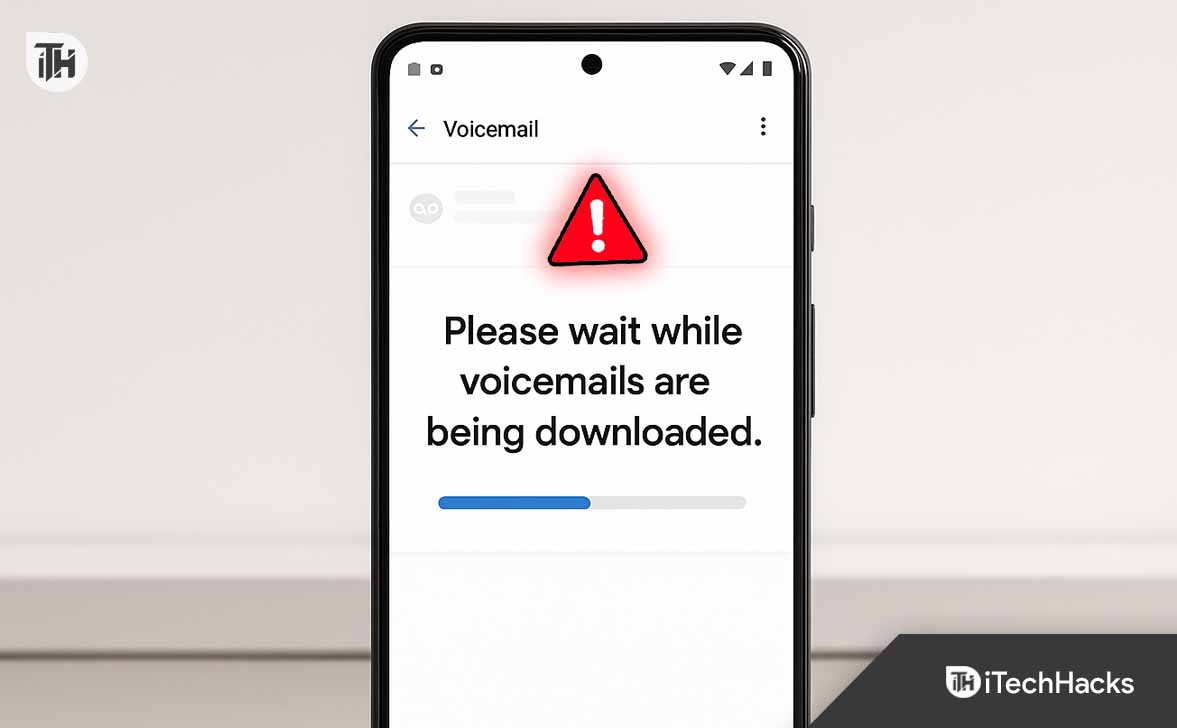
Why Is My Visual Voicemail Not Working? Fix It on Android Phones
If your phone keeps showing the error “please wait while voicemails are being downloaded” or your visual voicemail not working Android app refuses to load new messages, follow these detailed steps. Each solution is designed to address a different cause of the problem, so work through them in order until your voicemails sync correctly.
1. Restart Your Phone (Quickest Reset)
Many Android glitches, including visual voicemail not working, are temporary and clear up after a reboot.
- Hold the Power button and select Restart.
- Once your device restarts, open the Visual Voicemail Android app again.
- If you previously saw “please wait while voicemails are being downloaded,” check if the messages now load normally.
2. Confirm Mobile Data Is Turned On
Visual Voicemail is a carrier feature that typically requires mobile data, not Wi-Fi. If your phone is connected only to Wi-Fi, syncing can fail.
- Go to Settings > Network & Internet > Mobile Network.
- Ensure Mobile Data is switched on.
- Try disabling Wi-Fi temporarily so that voicemail downloads over the carrier’s data.
If this fixes it, you’ve solved the mystery of why is my visual voicemail not working—your carrier simply needs data access.
3. Toggle Airplane Mode to Refresh Network
Sometimes, the network itself needs a reset. Turning on Airplane Mode briefly forces your phone to reconnect to the carrier.
- Swipe down and tap the Airplane Mode icon.
- Wait 20–30 seconds.
- Turn Airplane Mode off.
- Open your voicemail app again. This simple trick resolves visual voicemail not working Android for many users stuck in syncing loops.
4. Clear Cache and Storage of the Voicemail App
If the voicemail app is freezing on “please wait while voicemails are being downloaded,” the stored cache may be corrupted.
- Open Settings > Apps.
- Scroll down and tap Visual Voicemail (or your carrier’s voicemail app).
- Select Storage & cache.
- Tap Clear Cache, then Clear Storage.
Reopen the app and sign in if required. This fresh start often makes visual voicemail Android work again.
5. Update the Voicemail App and Phone Dialer
Using outdated versions of your voicemail app or Phone app can cause compatibility issues with Android updates.
- Open the Google Play Store.
- Search for your Visual Voicemail Android app (e.g., T-Mobile Visual Voicemail, AT&T Visual Voicemail).
- Tap Update if available.
- Do the same for the Phone/Dialer app.
After updates, restart your phone and recheck voicemail. This resolves most cases of visual voicemail not working after system updates.
6. Re-Enable Visual Voicemail in Phone Settings
If you’re using the built-in dialer (Pixel, Samsung, Motorola, etc.), Visual Voicemail can sometimes disable itself after updates.
- Open the Phone app.
- Tap the 3-dot menu > Settings > Voicemail > Visual Voicemail.
- Toggle it Off, wait a few seconds, then toggle it On.
- Refreshing this setting often clears syncing errors and fixes visual voicemail not working Android instantly.
7. Reset Network Settings
Misconfigured APN or network preferences can block voicemail servers. Resetting restores defaults:
- Go to Settings > System > Reset options.
- Tap Reset Wi-Fi, mobile & Bluetooth.
- Confirm reset and reboot.
- You’ll need to rejoin Wi-Fi networks, but voicemail will usually download again.
8. Remove and Reinsert SIM Card
If your phone recently updated or you swapped SIMs, the voicemail service may not be properly provisioned.
- Power off your phone.
- Remove the SIM card.
- Wait 30–60 seconds.
- Reinsert and power back on.
This forces the carrier to refresh voicemail provisioning. Many users stuck on “please wait while voicemails are being downloaded” fix it this way.
9. Disable Battery Optimization for Visual Voicemail App
Aggressive battery optimization can prevent voicemail from syncing in the background.
- Go to Settings > Apps > Visual Voicemail > Battery.
- Set to Unrestricted or Don’t optimize.
- Now the app will update voicemails automatically without waiting for you to open it.
10. Change Preferred Network Mode
Some carriers require LTE or 4G for Visual Voicemail. If you’re locked on 3G or in a weak 5G area, syncing can fail.
- Go to Settings > Network & Internet > Mobile network.
- Tap Preferred network type.
- Choose LTE/4G instead of 3G, or test switching between 5G and 4G.
- After switching, open the voicemail app again.
11. Reset APN (Access Point Name) Settings
If mobile data works for browsing but not voicemail, your APN configuration may be off.
- Go to Settings > Mobile network > Access Point Names.
- Tap Reset to default.
- Restart your phone.
This restores carrier defaults, often resolving why is my visual voicemail not working after SIM changes.
12. Uninstall and Reinstall Voicemail App
If you’re using a carrier-specific app and it still won’t load voicemails:
- Go to Settings > Apps > Visual Voicemail > Uninstall.
- Reinstall it from the Google Play Store.
- Sign in with your carrier credentials.
This is the cleanest way to remove corrupted files causing visual voicemail not working Android.
13. Contact Your Carrier for Re-Provisioning
If none of the steps above help, the issue is likely on your carrier’s end. Call support and ask:
- Is Visual Voicemail provisioned for my account?
- Can you reset/re-enable it on your line?
This is often the final fix when users wonder why is my visual voicemail not working even after trying every local setting.
Advanced Fixes for Persistent Errors
If you’ve tried all basic methods but still face visual voicemail not working, these advanced solutions can help:
Reinstall Phone Dialer App (Pixel and Stock Android)
On Google Pixel or Motorola phones, voicemail is tied to the default Phone app. Uninstall updates for the Phone app, reinstall via Google Play, then re-enable visual voicemail Android inside settings.
Factory Reset (Last Resort)
If all else fails and your phone shows “please wait while voicemails are being downloaded” indefinitely, a factory reset may fix corrupted system files:
- Backup your data.
- Go to Settings > System > Reset > Factory data reset.
- Follow instructions.
- After reset, reinstall carrier voicemail settings.
Preventing Future Visual Voicemail Problems
To avoid running into visual voicemail not working Android again:
- Keep your voicemail app updated.
- Ensure mobile data is enabled when using Visual Voicemail.
- Avoid aggressive battery/data saver modes.
- Restart your phone regularly.
- Contact your carrier if voicemail disappears after plan changes.
FAQs on Visual Voicemail Issues
1. Why is my visual voicemail not working after a software update?
Sometimes updates reset voicemail settings. Re-enable Visual Voicemail in the Phone app and clear its cache.
2. Why does my phone say “please wait while voicemails are being downloaded” forever?
This usually means the app is stuck syncing. Clearing cache, resetting network settings, or re-enabling the feature usually fixes it.
3. Can Visual Voicemail work on Wi-Fi only?
In most cases, no. Visual Voicemail requires carrier mobile data, not just Wi-Fi.
4. Do all Android phones support Visual Voicemail?
No. Some budget carriers or older Android models may not support native Visual Voicemail. You may need your carrier’s standalone app.
Conclusion
When you see “please wait while voicemails are being downloaded” or notice visual voicemail not working Android, it’s usually a simple fix like clearing cache, updating the app, or checking mobile data. In tougher cases, resetting network settings, reinstalling the app, or contacting your carrier resolves the issue.
With the step-by-step methods above, you should no longer have to wonder why is my visual voicemail not working. Once fixed, visual voicemail Android makes checking messages faster and more convenient than ever.
ALSO READ: