

- SteamOS and client updates are critical in 2025 — many connection issues on the Steam Deck are fixed by updating SteamOS, Proton, or the Steam client.
- Modern network fixes work best — changing DNS (Google/Cloudflare), clearing Steam’s download cache, and checking VPN/proxy settings are more reliable than older tricks like forcing TCP.
- Server-side outages and ISP throttling still cause problems — always check Steam server status first, and contact your ISP if errors persist during peak gaming hours.
There’s no denying it – Steam is still the king of gaming platforms in 2025. But nothing ruins your downtime faster than seeing the dreaded message: “Steam Deck Couldn’t Open Connection to Steam Servers.”
Since Steam requires an active internet connection for most titles, this error can feel like hitting a wall just when you’re ready to play. Unless you’ve got a few single-player games already set to offline mode, you’ll need to get your Deck reconnected before diving back into your library.
The good news? This issue is usually fixable with a few tried-and-tested steps. Below are the most effective solutions to help you resolve the Steam Deck connection error and get back into your games without the endless “Retry” button loop.
What Is The Steam Deck Can’t Reach the Steam Server?
Steam Deck’s “Steam Deck Couldn’t Open Connection to Steam Servers” issue appears suddenly and without warning. Playing all those games sitting in your Steam library is a real hassle when you can’t even log into Steam’s servers. Especially since you find out about it the next time you launch the well-known launcher on your end, it’s a terribly frustrating experience.
If you click on the “Retry” button incessantly, things aren’t going to improve on their own unless you do something real about them. No matter how hard you keep hitting the “Retry” button, things will not improve on their own.
Fix the Steam Deck Can’t Reach the Steam Server Issue
So, here are some fixes to resolve the Steam Deck couldn’t open a Connection to Steam Servers issue on the Steam Deck:
Fix 1: Check the Server Status
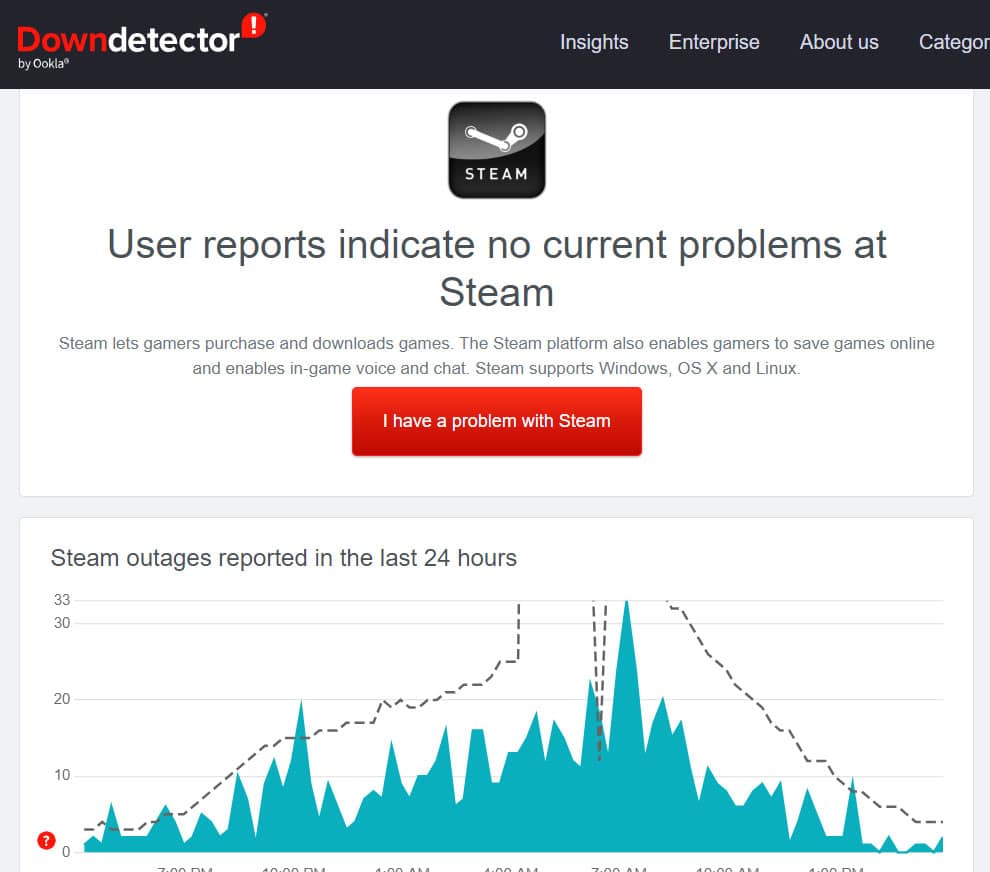
An error message such as “Steam Deck Couldn’t Open Connection to Steam Servers” can be caused by a problem with the servers. Check to see if the problem lies with them before going through a list of potential fixes.
Ensure that Steam Status is functioning correctly by checking it out. There may be nothing wrong with your connection if you see server outages. In any case, you can begin implementing some fixes if the Steam server is in good shape.
Fix 2: Restart the PC or Mobile Device
While restarting a PC or mobile device may seem like an old-fashioned move from the days of Windows 98/XP blue screen errors, it can effectively solve many problems, including problems with connections. Steam is no different from any other app when it comes to launching.
Log back into your Steam account after rebooting your device and letting your background apps and services load. However, the Steam Deck Could not connect to Steam server because of frozen application or driver causing a “Steam Deck Couldn’t Open Connection to Steam Servers” message.
Fix 3: Troubleshoot your internet connection

Your internet connection is one of the first things you should check. When you are disconnected from the network, Windows gives you a quick visual indication. When your network cable is unplugged, you should see a disconnected network symbol in the taskbar or a message.
There are a variety of symbols that can show up depending on your version of Windows, but the basic idea is the same: an alert, an exclamation point, or a red circle with a line drawn through it. These are all signs that the internet isn’t connected to your computer.
Fix 4: Update SteamOS on Your Steam Deck
One of the most overlooked reasons for the “Steam Deck Couldn’t Open Connection to Steam Servers” error is outdated system software. The Steam Deck runs on SteamOS, and connection issues can pop up right after Valve pushes new updates.
Make sure your Steam Deck is fully updated:
- Press the Steam button on your Deck.
- Go to Settings > System.
- Under System Update, select Check For Updates.
- Install any available update and restart your Deck.
This alone often clears up stubborn connection errors in 2025, especially after major Steam client or Proton updates.
Fix 5: Update the Client
It is common for Steam to automatically download and install updates. Upon installing a new update, the app should also inform users that they need to restart the client. Sometimes, however, you may miss an update, or something may go wrong during it, causing a problem with the connection. If that’s the case, you can update manually.
- Start Steam.
- On the toolbar, click “Steam.”
- Choose “Check for Steam Client Updates.”

- If an update is found, install it.
- Try restarting Steam to see if the Steam Deck Couldn’t Open Connection to Steam Servers problem persists.

Fix 6: Switch Between Ethernet and Wireless
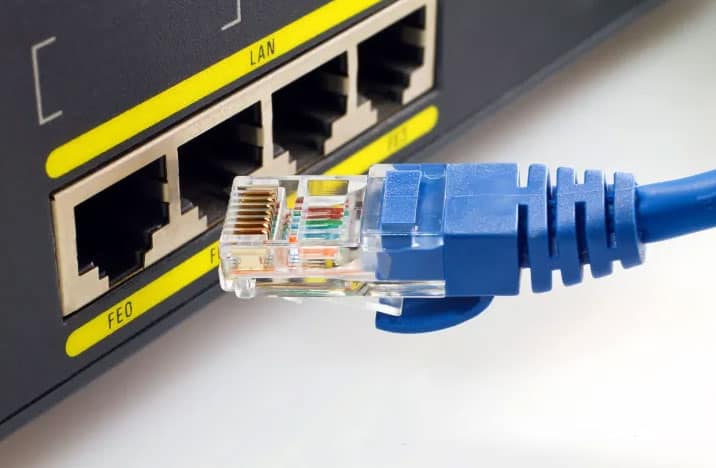
It is possible that you will not be able to connect to the Steam server network with a wireless connection if your internet connection is slow. You may still experience this problem even if you are able to browse the internet, access websites, or launch online applications.
Instead of using your wireless connection, try using your Ethernet one. Your cable or motherboard could be having problems if you are having difficulty using an Ethernet connection. Use your Wi-Fi to log into Steam.
Fix 7: Change Your DNS Settings
Sometimes your ISP’s default DNS slows things down or blocks certain server requests. Switching to a faster, more reliable DNS can help fix the “Steam Deck can’t connect to Steam servers” problem.
Here’s how to do it:
- Open your network settings on the Steam Deck.
- Find your active Wi-Fi network and select Configure.
Manually set your DNS servers to:
- Google DNS: 8.8.8.8 and 8.8.4.4
- Cloudflare DNS: 1.1.1.1 and 1.0.0.1
- Save and reconnect.
- This small tweak often improves connection speed and stability.
Fix 8: Clear Steam’s Download Cache
If your Steam client or Steam Deck gets stuck while trying to connect, a corrupted cache might be the culprit. Clearing it can refresh Steam and fix the error.
On the Steam Deck:
- Open the Steam menu.
- Go to Settings > Storage.
- Select Clear Download Cache.
- Restart Steam and log in again.
This won’t delete your games—it only forces Steam to refresh stored data.
Fix 9: Check VPN or Proxy Settings
Using a VPN or proxy server in 2025 can sometimes trigger the “Couldn’t Open Connection to Steam Servers” message. Steam might block suspicious IP addresses, or your ISP may be throttling game traffic.
Try these steps:
- If you use a VPN → Disable it temporarily and see if Steam connects.
- If you don’t use one → Try connecting with a trusted VPN to check if your ISP is the problem.
- Switching regions often solves server-specific blocks.
Fix 10: Contact Your ISP
If none of the above works, your Internet Service Provider could be the one blocking or throttling Steam traffic. Many users in 2025 have reported ISP-level restrictions, especially during peak hours.
Call your ISP and ask if they are blocking game servers or ports required by Steam. If they confirm throttling, using a VPN or requesting an unfiltered connection may be your only solution.
Fix 11: Disable Your Antivirus Temporarily
Steam’s compatibility seems to be affected by the antivirus software on some Windows PCs, according to some users on community forums.
It’s not set in stone, so we’ll have to test it out for ourselves and confirm its validity. You may be able to resolve the “could not connect to Steam network” error if you turn off the Windows Defender Firewall software.
In the steps below, we’ll explain exactly how you can temporarily disable Windows Defender. In this way, you can see if Steam works normally now.
- Using the Windows Search bar, search for “Windows Security“. To proceed, click on the application when it appears.
- To proceed, select the “Virus and threat protection” section. Last but not least, you must tap on the Manage Settings.

- The last step is to disable the following features under “Virus and threat protection settings.” To disable each setting, click its toggle.


ALSO READ:





![Fix Phone Screen Unresponsive Touch on Android & iPhone [Step-by-Step]](https://itechhacks.com/wp-content/uploads/2025/10/Fix-Phone-Screen-Unresponsive-Touch-150x150.jpg "Fix Phone Screen Unresponsive Touch on Android & iPhone [Step-by-Step]")

