- Most Dell laptop power issues in 2026 are caused by external faults like a dead charger, static lock, or battery failure—not internal hardware damage.
- Dell’s built-in BIOS recovery (Ctrl + Esc method) and F12 diagnostics can resolve common boot failures without needing professional repair.
- If your Dell laptop shows no power signs at all, and none of the methods work, it likely points to a motherboard, DC-in jack, or BIOS chip failure requiring technician-level intervention.
If your Dell laptop is not turning on, don’t panic. This is a common issue we’ve seen across hundreds of service requests — from business laptops like the Latitude series to personal Inspirons and XPS models. Whether your Dell laptop won’t turn on at all (no lights, no sound) or it powers on but the screen stays black, the root cause typically falls into one of a few categories: power issues, hardware failure, firmware corruption, or battery faults.
This guide explains why your Dell laptop won’t turn on and provides detailed, technician-backed fixes that work across Windows 11, UEFI BIOS, and newer Dell models launched in 2023–2026.
Common Scenarios We Encounter
Before diving into fixes, here are the types of issues users typically report in our repair lab:
- “My Dell laptop won’t turn on, but the power light blinks.”
- “My laptop won’t turn on even when plugged in.”
- “The charger light is on, but my Dell laptop is not turning on.”
- “My Dell laptop is not turning on; the fan spins for a second, then nothing.”
- “Dell laptop won’t turn on after BIOS update or battery drain.”
Let’s go through the step-by-step troubleshooting based on real-world diagnostics.
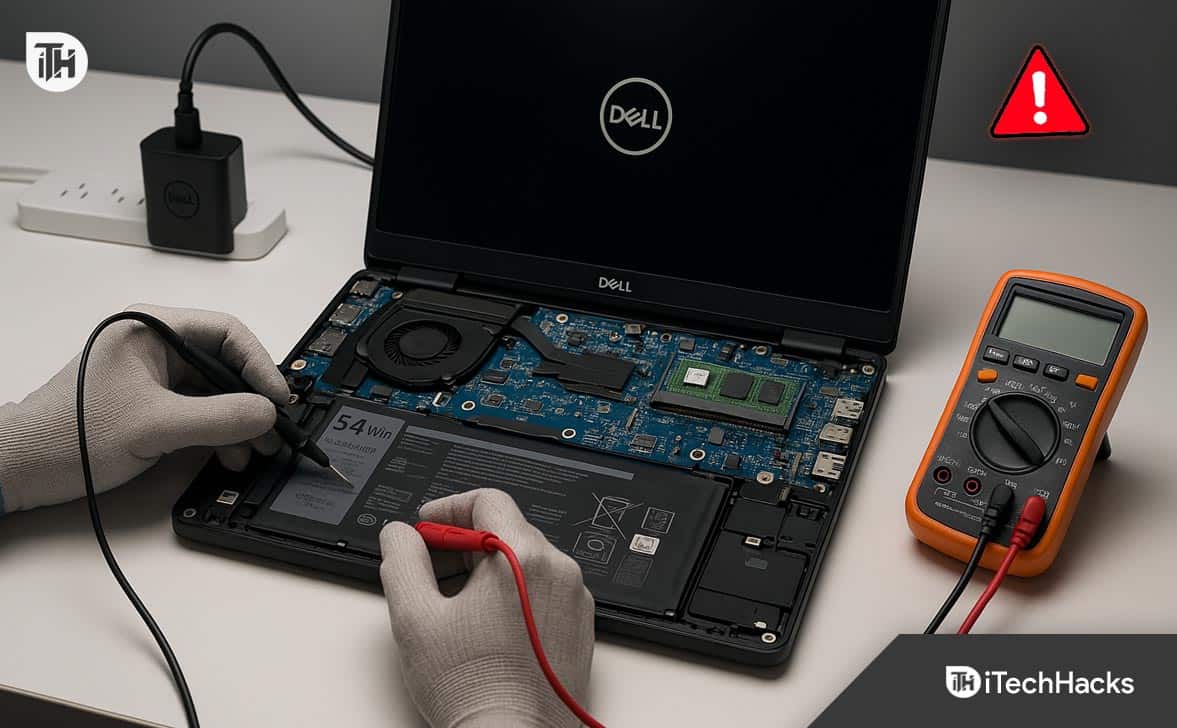
Fix Dell Laptop That Won’t Turn On Even When Plugged In
1. Check the Power Source and Charger (External Power Check)
Many users ask: “Why won’t my Dell laptop turn on even when plugged in?”
In our repair lab, faulty chargers or wall sockets are responsible in nearly 30% of such cases.
- Use a different power socket to rule out wall power issues.
- Check charger LED — Dell adapters have a small light on the tip or on the brick. If it’s off, the adapter is dead.
- Try another genuine Dell adapter of the correct wattage. For example, Dell XPS 15 (2024-25) requires a 130W charger. Using a lower-rated one may prevent startup.
- Inspect the charging port (DC jack). If it feels loose or the LED flickers when moved, the DC-in board might need replacement.
Pro Tip: Avoid using USB-C chargers unless your Dell model explicitly supports USB-C charging at full power.
2. Perform a Power Drain (Static Discharge Reset)
If your Dell laptop won’t turn on but shows no signs of damage, it might be stuck in a frozen power state.
- Unplug charger.
- Remove battery if your Dell model has a removable one.
- Hold the power button down for 30–60 seconds.
- Reconnect the charger only (don’t insert the battery yet).
- Try turning on the laptop.
In 2026, most Dell laptops like the Inspiron 15 3000 and Latitude 7440 have non-removable batteries. For these, just hold the power button down for a full 60 seconds with everything disconnected.
3. Check for LED/Blink Codes (Dell Diagnostics)
When your Dell computer is not turning on but shows blinking lights, it’s trying to tell you something.
- Observe the power LED or Caps Lock LED.
- Look for a repeating pattern (e.g., 3 amber, 5 white).
- Refer to your specific model’s LED code chart on Dell’s support site or documentation.
| LED Pattern | Error Type |
|---|---|
| 2 amber, 7 white | LCD failure |
| 3 amber, 5 white | CMOS battery failure |
| 2 amber, 4 white | RAM issue |
| 4 amber, 2 white | CPU failure |
Warning: If you see no LEDs at all, skip to Method 6 or 7 — it could be a motherboard or power circuit issue.
4. Try Booting Without the Battery
If your Dell laptop is not turning on, the battery itself might be shorted or causing startup failure.
- Open back panel if needed.
- Disconnect the internal battery (use plastic spudger for safety).
- Plug in the charger (only AC power, no battery).
- Press the power button.
If it boots, your battery is faulty. You can continue using the laptop on AC until the replacement battery is installed.
Many users ignore this step, but bad batteries are one of the most common causes of Dell laptops not turning on in 2026, especially in older Inspiron and Latitude units.
5. Test External Display (Screen Black, But Laptop On)
You might say, “My laptop won’t turn on,” but it may actually be running — the screen is just dead or not displaying.
- Shine a flashlight at an angle on the screen after powering on. If you see a faint image, the backlight or inverter is faulty.
- Connect an external monitor using:
- HDMI
- DisplayPort or USB-C (if supported)
If the display shows up externally, replace the LCD or internal display cable.
On Dell models like the XPS 13 and G-series (2023+), BIOS defaults to external monitor if the lid sensor or display fails.
6. Reseat the RAM (Random Access Memory)
Improperly seated or corrupted RAM is a frequent culprit in Dell laptops not turning on but showing light or fan activity.
- Remove the back panel.
- Eject the RAM module(s).
- Clean the gold contacts gently with a dry lint-free cloth.
- Reinsert RAM firmly until it clicks into place.
- Try booting again.
If two RAM sticks are installed, test each individually.
On newer laptops with soldered RAM (e.g., Dell Inspiron 14 5420), skip this step — check SSD instead.
7. BIOS Auto-Recovery for Firmware Corruption
In 2026, Dell laptops now support BIOS recovery via hotkeys, especially useful when a BIOS update fails or the system hangs post-update.
- Power off completely.
- Hold CTRL + ESC on the keyboard.
- Plug in the charger while still holding both keys.
- Tap the power button once, but keep holding CTRL + ESC for 15–20 seconds.
- If successful, the BIOS Recovery Mode will appear. Follow instructions to restore or reflash.
If nothing appears, BIOS may be hard-bricked. A service center or external programmer is required.
8. Use F12 Diagnostics (If Laptop Turns On Partially)
If your Dell laptop powers on but won’t boot into Windows, use the onboard diagnostics:
- Press F12 repeatedly on startup.
- Select Diagnostics from the boot menu.
- Wait while the system tests memory, fan, battery, and hard drive.
You’ll get error codes or a confirmation screen. This helps isolate hardware faults.
9. CMOS Reset (Clear RTC)
In some cases where your Dell laptop won’t turn on or show lights, the issue lies with the CMOS or real-time clock module.
- Open the back panel.
- Locate the CMOS battery — usually a silver coin cell (CR2032).
- Remove it for 2–3 minutes.
- Reinstall and power on.
On many 2024+ models, the CMOS battery is soldered. In that case, perform an RTC reset via jumper or contact Dell support.
10. Replace Faulty Power Button or IO Board (Advanced)
If pressing the power button does nothing, and you’ve tested charger and RAM, the power button board may be defective.
- No reaction from the power button
- Charging LED works, but no boot
- Laptop boots when jump-started via motherboard pins
You’ll need to open the laptop and:
- Inspect the power button ribbon cable
- Replace the IO board (on models like Latitude 5420, Inspiron 15 3000)
- Manually short power pins to test startup
Not recommended for beginners unless you’re confident with disassembly.
11. Reflash BIOS with External Programmer (Hard-Bricked Fix)
If BIOS recovery fails and the laptop is completely dead but charger light works, the BIOS chip may need to be reflashed externally.
- CH341A USB BIOS programmer
- SOIC8 clip
- Correct BIOS file from Dell’s official site
This method is advanced and suitable for experienced repair technicians only.
12. Motherboard Issues and When to Replace It
If all above fail — no power light, no fan, no screen, no reaction — and your charger and RAM are fine, the motherboard is likely dead.
- Shorted power IC
- Blown fuse (PU4702)
- Failed CPU/GPU
- Water damage or corrosion
In 2026, Dell service centers can replace motherboards within 1–2 days. Warranty check is advisable before repair.
Frequently Asked Questions (FAQs)
1. Why won’t my Dell laptop turn on but the power light is on?
This usually means the motherboard is receiving power, but there’s a problem with RAM, display, or BIOS. Try external monitor, reseating RAM, and BIOS recovery.
2. My Dell laptop is not turning on even with the charger plugged in — what should I check first?
Start by testing the power adapter. If the adapter LED is off or flickers, it’s likely faulty. Also, perform a static discharge by holding the power button for 30–60 seconds.
3. Can a Dell laptop not turn on because of a BIOS issue?
Yes. A failed BIOS update or corrupted firmware is a common cause, especially after a power cut. Dell supports BIOS auto-recovery (Ctrl + Esc method) for this exact scenario.
4. How do I know if my Dell laptop’s screen is the issue?
Power on and shine a flashlight at an angle. If you see a faint image, the screen backlight is likely dead. You can also connect an external display to test further.
5. What if none of these fixes work and my Dell laptop still won’t turn on?
If there’s no power, no fan noise, and no LED response after trying everything, it may be a motherboard-level issue — power IC, fuse, or CPU failure. In that case, service center diagnostics are required.
Conclusion
If your Dell laptop won’t turn on, don’t assume the worst. Most cases we encounter — whether it’s “my Dell laptop is not turning on” or “my laptop won’t turn on even when plugged in” — are caused by simple, fixable issues like a bad charger, static lockup, or corrupted BIOS. By following the methods outlined above, you can safely diagnose and resolve the problem without wasting time or money on unnecessary repairs. For persistent or hardware-level faults, a certified technician should handle it to avoid further damage.
ALSO READ: