- Reduce Transparency in Accessibility settings is the most effective way to disable iOS 26 Liquid Glass Design.
- Combining Reduce Transparency, Reduce Motion, and Dark Mode delivers the best results for visibility, performance, and battery life.
- Apple has not added a one-click toggle yet, so accessibility and display options remain the only way to control Liquid Glass Design in iOS 26.
Apple’s iOS 26 update introduced several design refinements, but one of the most noticeable and polarizing changes is the new Liquid Glass Design. This glossy, semi-transparent UI effect appears across system menus, widgets, and app interfaces. While many users appreciate its futuristic aesthetics, others find it distracting, battery-draining, or uncomfortable for extended use.
If you prefer a cleaner interface, it is possible to disable iOS 26 Liquid Glass Design or at least minimize its impact through system settings and accessibility options. This guide provides an in-depth, step-by-step breakdown of the available methods, explains why the feature exists, and covers how to troubleshoot issues related to performance, visibility, and user comfort.
Understanding iOS 26 Liquid Glass Design
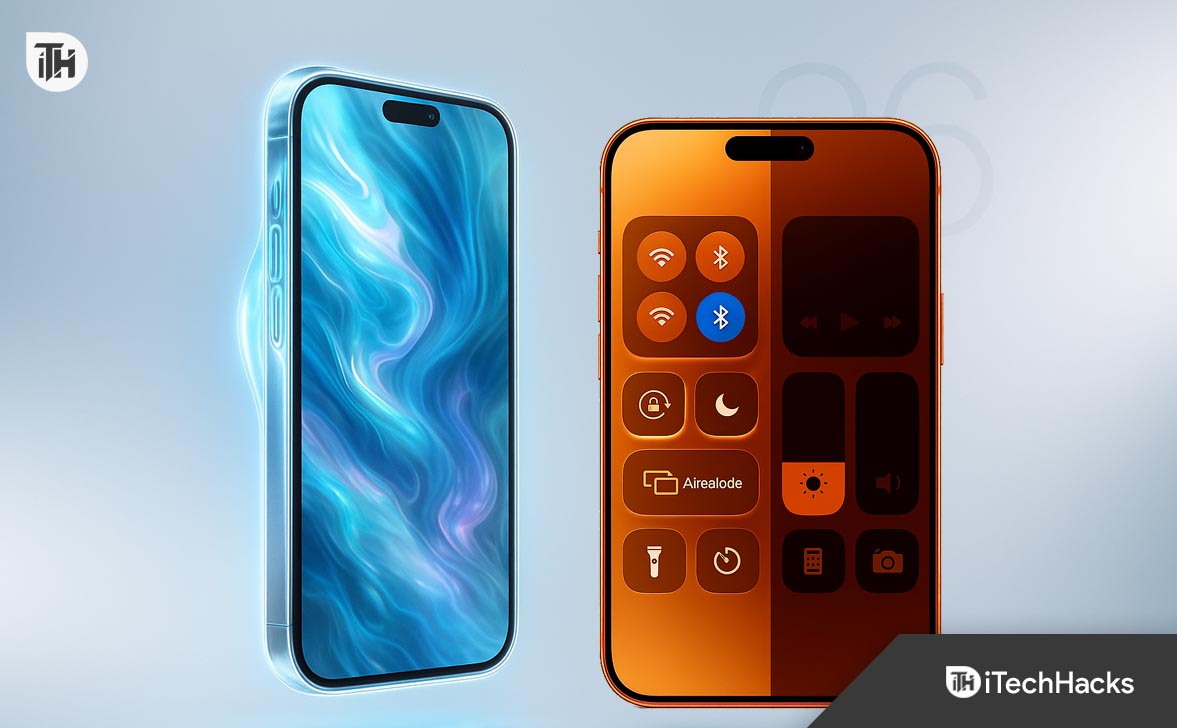
Apple’s Liquid Glass Design is essentially an advanced transparency and blur effect layered on UI elements. The feature gives menus and backgrounds a fluid, glass-like appearance that shifts with motion and light.
Key Characteristics
- Translucent Panels: Menus and widgets allow background colors to bleed subtly through.
- Dynamic Blur Effects: Movement and scrolling create smooth depth-of-field visuals.
- System-Wide Application: Present in Control Center, Notification Shade, Settings panels, and redesigned native apps.
While visually appealing, this feature can introduce higher GPU demand, reduced legibility under bright light, and potential eye strain for sensitive users.
Common Problems with Liquid Glass Design
Although designed as an upgrade, many users have raised concerns.
1. Battery Drain
The real-time rendering of blur and transparency requires constant GPU cycles, which can increase power consumption. Older iPhones in particular may experience noticeable drain.
2. Reduced Readability
On certain wallpapers or bright backgrounds, text overlays may appear washed out, lowering readability.
3. Performance Lag
Entry-level or older devices running iOS 26 sometimes experience micro-stutters when opening Control Center or scrolling through menus.
4. User Discomfort
For users with sensitive eyes, the shifting blur can feel dizzying, especially when paired with motion animations.
These reasons make it crucial for some users to disable iOS 26 Liquid Glass Design entirely or adjust settings to mitigate its effects.
Step-by-Step Guide: Disable iOS 26 Liquid Glass Design: Complete Guide
If you want a more performance-friendly and minimal interface, there are several built-in options to disable iOS 26 Liquid Glass Design or at least reduce its visibility. Follow these detailed steps to adjust your iPhone settings.
1. Turn On Reduce Transparency
The most effective way to disable the glass-like blur effects is through the Accessibility menu.
- Open the Settings app.
- Scroll down and select Accessibility.
- Tap Display & Text Size.
- Toggle Reduce Transparency to ON.
Result: Menus, Control Center, and notification backgrounds will switch from translucent glass to solid or semi-opaque colors. This drastically reduces the Liquid Glass effect while making text easier to read.
2. Enable Reduce Motion
Liquid Glass visuals often move in sync with animations. By disabling motion effects, you limit how often transparency shifts on the screen.
- Go to Settings > Accessibility > Motion.
- Turn on Reduce Motion.
- (Optional) Disable Prefer Cross-Fade Transitions for even simpler transitions.
Result: Your iPhone stops rendering dynamic transitions tied to the Liquid Glass Design, giving you a cleaner, more stable user interface.
3. Increase Display Contrast
For users who struggle with readability against translucent panels, increasing contrast provides a sharper UI.
- Open Settings > Accessibility > Display & Text Size.
- Enable Increase Contrast.
Result: Text and buttons stand out more clearly against backgrounds, reducing the blurred glass effect.
4. Use Dark Mode for Reduced Visibility
Dark Mode naturally lessens the appearance of the Liquid Glass Design by darkening UI backgrounds.
- Open Settings > Display & Brightness.
- Select Dark Mode.
- Combine with a solid dark wallpaper for maximum effect.
Result: The translucent blur remains but becomes almost invisible against dark tones, making the interface feel sharper.
5. Enable Low Power Mode
Although not a direct toggle, Low Power Mode lowers graphical effects to save battery, which also dims the Liquid Glass intensity.
- Swipe down from the top-right to open Control Center.
- Tap the battery icon to enable Low Power Mode.
Result: The system reduces visual effects and background rendering, softening Liquid Glass Design animations.
6. Create an Accessibility Shortcut for Quick Switching
If you want to switch between Liquid Glass and simplified UI on the fly, set up an Accessibility Shortcut.
- Open Settings > Accessibility > Accessibility Shortcut.
- Select Reduce Transparency or Reduce Motion.
- Triple-press the side button whenever you want to toggle the feature.
Result: You can instantly enable or disable iOS 26 Liquid Glass Design without digging through menus.
7. Combine Methods for Maximum Effect
For the best results, use a combination of:
- Reduce Transparency (core setting)
- Reduce Motion (animation control)
- Dark Mode (visual suppression)
- Increase Contrast (readability boost)
Together, these settings come close to completely disabling iOS 26 Liquid Glass Design, while also saving battery and improving visibility.
FAQs
1. Can you completely disable iOS 26 Liquid Glass Design?
Not fully. While you cannot entirely remove the system design layer, enabling Reduce Transparency is the most effective way to disable iOS 26 Liquid Glass Design in practice.
2. Does disabling Liquid Glass improve battery life?
Yes. Reducing transparency and motion lessens GPU usage, which can provide modest but noticeable battery improvements, especially on older iPhones.
3. Will disabling Liquid Glass affect third-party apps?
Most third-party apps that rely on system UI layers will adopt the reduced-transparency setting, but apps with custom designs may still show their own effects.
4. Is there a shortcut to toggle these settings quickly?
Yes. You can add Accessibility Shortcuts via Settings > Accessibility > Accessibility Shortcut. This allows quick toggling of Reduce Transparency or Reduce Motion with a side-button triple click.
5. Does Apple plan to add a dedicated “Liquid Glass” toggle?
As of iOS 26’s launch, Apple has not provided a one-click option. However, user feedback may influence future updates.
Conclusion
Apple’s Liquid Glass Design in iOS 26 is a bold visual change, but it is not universally loved. Whether you want to save battery, improve text readability, or simply prefer a cleaner look, the available system settings provide reliable ways to disable iOS 26 Liquid Glass Design or reduce its intensity.
By using Reduce Transparency, Reduce Motion, and High Contrast Appearance, you can regain control over how your iPhone looks and feels—while still enjoying the other benefits of iOS 26. For long-term comfort and performance, pair these adjustments with mindful device habits such as Dark Mode, solid wallpapers, and regular updates.
ALSO READ:
- How to Fix Face ID Not Working After iOS 26 Update? Step-by-Step Fix
- iOS 26 Fast Battery Drain on iPhone? How to Restore iPhone Battery Health
- How to Fix iPhone That Won’t Turn Off After iOS 26 Update
- iOS 26 Update Failed on iPhone? Fix for the ‘Unable to Check for Update’ Error
- How to Fix iPhone 14 Flashlight Not Working on iOS 26