- The error “Your computer or network may be sending automated queries” occurs when Google detects abnormal or bot-like traffic , often caused by VPNs, browser extensions, malware, or shared IPs.
- You can usually fix it by restarting your router, disabling extensions, turning off VPNs, and clearing browser data to restore normal Google access and prevent future blocks.
If you’ve encountered the error message “Your computer or network may be sending automated queries” while using Google Search, it means Google’s security systems detected unusual traffic from your device or network. This message often appears on the reCAPTCHA verification page and can interrupt normal browsing.
In 2025, this issue has become increasingly common due to browser extensions, VPNs, malware, or shared Wi-Fi connections that mimic automated search patterns. While it might look alarming, it’s usually not a serious security threat — but it does require attention to restore normal Google access.
This guide explains why this error appears, how to fix it step-by-step, and how to prevent it from returning, using methods that actually work on modern browsers, devices, and networks.
Understanding the “Your Computer or Network May Be Sending Automated Queries” Error
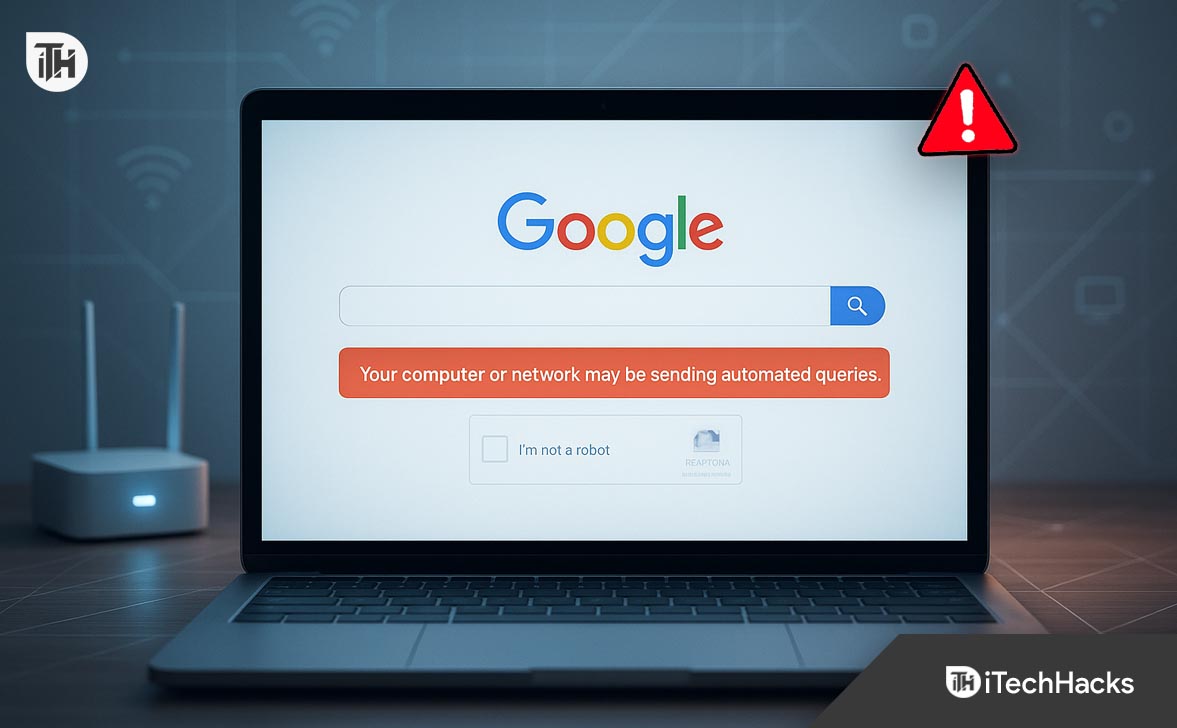
When Google displays the “Your computer or network may be sending automated queries” message, it’s essentially saying:
“We’ve detected search-like activity that looks automated — possibly from bots, scripts, or unusual browsing behavior.”
Google limits automated queries to prevent abuse, such as scraping or spam indexing. However, legitimate users can be mistakenly flagged if:
- Their IP address is shared with others (e.g., public Wi-Fi, mobile data networks).
- They use browser extensions that send background requests to Google.
- A VPN or proxy masks real user identity, resembling bot traffic.
- Malware or adware sends hidden requests in the background.
Common Causes of the Google Says “Your Computer or Network May Be Sending Automated Queries”?
When multiple users share the same public IP (like in cafes, colleges, or corporate networks), Google can’t distinguish between individual users. If one device generates suspicious traffic, the entire IP range may get flagged.
2. Overactive Browser Extensions or Scripts
Extensions that automate searches, check keyword rankings, or auto-refresh pages often trigger the error. Examples include SEO tools, auto-clickers, or content scrapers.
3. VPNs and Proxies
Many VPN services reuse IPs among hundreds of users. If others using the same VPN IP have sent automated queries to Google, your session inherits that reputation and may be blocked temporarily.
4. Malware or Adware
Unwanted software can silently send queries to Google or redirect traffic through ad networks, creating “bot-like” signals. This is one of the most common hidden causes.
5. Bots and Automation Tools
If you or someone on your network runs scripts for data scraping or automation, Google will detect this pattern quickly.
6. Misconfigured Router or Network Device
A compromised router or outdated firmware can create irregular traffic. Similarly, DNS or proxy misconfiguration can cause misrouted requests that appear suspicious.
Your Computer or Network May Be Sending Automated Queries – Step-by-Step Fix
Use this sequence from quickest to most impactful. Each step explains why it works and exactly how to do it on modern browsers and systems (2025). Sprinkle these where relevant in your article; they’re already SEO-tuned with the core phrase “Your computer or network may be sending automated queries.”
Prove you’re human (one-time check)
Google sometimes throws the message in response to a burst of traffic. Passing the CAPTCHA clears the temporary block for that session.
- On the warning page, complete the “I’m not a robot” challenge.
- If you’re looped back to the same screen within minutes, proceed to the next steps—there’s an underlying trigger.
Power-cycle your connection (refresh your public IP)
Many blocks are tied to your public IP reputation. Reconnecting can issue a fresh IP that isn’t flagged.
How:
- Home/Office Wi-Fi: Unplug the modem/router for 60 seconds → plug back in → wait 2–3 minutes.
- Mobile data: Toggle Airplane Mode ON → OFF to force a new IP.
- Visit Google again. If “Your computer or network may be sending automated queries” is gone, the previous IP was the problem.
Tip: If you’re on a static IP, contact your ISP to rotate or investigate reputation issues.
Disable and isolate noisy browser extensions
SEO rank checkers, auto-refreshers, coupon finders, and automation add-ons can send background requests that look bot-like.
How (Chrome/Edge/Brave):
- Go to
chrome://extensions/(oredge://extensions/). - Toggle off all non-essential extensions.
- Restart the browser and test Google.
- Re-enable extensions one by one until the warning returns; the last enabled is your culprit. Remove it.
How (Firefox): Menu → Add-ons and themes → Extensions → Disable test → re-enable incrementally.
Corrupted session data and cached service workers can repeatedly trigger the challenge even after you’ve fixed the root cause.
How (Chrome/Edge/Brave):
- Settings → Privacy & Security → Clear browsing data.
- Select Cookies, Cached images/files, Site data → Last 7 days (or All time if persistent).
- Click Clear data, then fully close and reopen the browser.
How (Firefox/Safari): Preferences/Settings → Privacy → Manage Website Data → Remove Google entries → restart browser.
Scan for malware and adware (full system)
Hidden adware injects background calls to search engines and ad networks. Google sees automated patterns and responds with the block.
How (Windows 10/11):
- Microsoft Defender: Settings → Privacy & security → Windows Security → Virus & threat protection → Scan options → Full scan.
- Run a second-opinion tool (e.g., Malwarebytes, AdwCleaner) for browser hijackers.
How (macOS 13/14/15):
- Update macOS (Apple menu → System Settings → General → Software Update).
- Use a reputable scanner (e.g., Malwarebytes for Mac) for PUPs/adware.
- Remove unknown Login Items: System Settings → General → Login Items.
Reboot after cleaning and test again.
Turn off VPN/Proxy—or switch to a clean, dedicated IP
Shared VPN endpoints are frequently abused. If hundreds of users share an IP, your traffic inherits its poor reputation.
-
Disable your VPN/Proxy and test Google immediately.
-
If you must use a VPN:
-
Choose providers offering Dedicated IP or Rotating Residential IPs.
-
Avoid free VPNs and chain proxies.
-
Lock your protocol to stable settings (e.g., WireGuard with DNS leak protection).
-
If the message “Your computer or network may be sending automated queries” disappears with VPN off, you’ve confirmed the cause.
Update the browser and OS (protocol & token fixes)
Out-of-date browsers can send malformed headers or unsupported TLS features, tripping anti-abuse systems.
- Chrome/Edge/Brave: Menu → Help → About → Update and relaunch.
- Firefox: Menu → Help → About Firefox → Update.
- Windows/macOS: Apply pending system updates and reboot.
Flush DNS and reset your network stack
Stale DNS cache or a corrupted TCP/IP stack misroutes queries, making traffic look like scripted retries.
- Windows (Admin Command Prompt): ipconfig /flushdns netsh winsock reset netsh int ip reset shutdown /r /t 0
- macOS (Terminal):sudo killall -HUP mDNSResponder sudo dscacheutil -flushcache
- Reboot and test.
Use trusted DNS resolvers
Clean, fast resolvers reduce retries and failures that resemble automated polling.
Recommended:
- Cloudflare: 1.1.1.1 / 1.0.0.1
- Google DNS: 8.8.8.8 / 8.8.4.4
- How (Desktop): Network settings → Adapter properties → IPv4 → Manual DNS.
- How (Router): WAN/Internet settings → Primary/Secondary DNS.
Audit your router and connected devices
A single infected phone, smart TV, or camera can spam requests for the whole LAN, causing “Your computer or network may be sending automated queries.”
- Log in to your router admin page (printed on the router back/ISP app).
- Update firmware to the latest version.
- Review Connected Devices; block unknown entries.
- Change the Wi-Fi password (WPA3 if supported), then reconnect only trusted devices.
- If the issue persists, factory-reset (after backing up settings).
Remove automation and scraping tools
Headless browsers (Selenium/Puppeteer), rank trackers, and scraper scripts generate patterns that Google flags immediately.
- Stop any scheduled jobs/cron tasks that fetch Google pages.
- Replace scraping with official APIs where possible.
- If you manage a team, enforce a no-scrape policy on production networks.
Check developer tools for background noise
Some sites and extensions inject scripts that ping Google (fonts, Safe Browsing checks, hidden queries).
How (Chrome DevTools):
F12→ Network tab.- Filter by google, gstatic, captcha, recaptcha.
- Identify repetitive calls (status 429/403 or rapid bursts).
- Disable the site’s script (extension/content blocker) or remove the offending extension.
Try a different network to isolate the root
If the problem vanishes on a mobile hotspot or another Wi-Fi, your original network or ISP is the source.
- Connect to a hotspot and run several searches.
- If clean, contact your ISP to check IP reputation, CGNAT pools, or upstream blocks.
Request IP review (last resort)
Prolonged false positives can be tied to your IP range. Escalation helps clear reputation.
- Contact your ISP to request a fresh public IP or reputation check.
- Submit Google’s access review form (if available in your region) with details of steps taken and the timeframe of blocks.
Hardening for the future (make it stick)
Prevention saves you from recurring lockouts and protects search productivity.
Checklist:
- Keep OS and browsers updated monthly.
- Limit extensions to essential, well-rated ones.
- Use a paid VPN with dedicated IP if privacy is required.
- Schedule weekly malware scans and quarterly router firmware checks.
- Educate family/roommates/staff on avoiding suspicious downloads and automation tools.
- Clear browser cookies/cache every few weeks to avoid persistent triggers.
Preventing the Error in the Future
To avoid seeing “Your computer or network may be sending automated queries” again, follow these preventive steps:
- Use legitimate browsing tools only. Avoid web scrapers or auto-search software.
- Install strong antivirus protection. Schedule weekly scans.
- Keep your router secure. Change default passwords and update firmware.
- Limit browser extensions. Only install from trusted sources.
- Avoid free VPNs or shared proxies. Use verified, privacy-friendly providers.
- Maintain device hygiene. Clear cookies and cache monthly.
- Educate network users. In shared networks, inform others about safe browsing practices.
FAQs
1. Why do I keep getting “Your computer or network may be sending automated queries” on Google?
It happens when Google detects abnormal traffic patterns from your IP — often caused by VPNs, browser extensions, or malware. Even legitimate users can be flagged if someone else on the same network is generating automated queries.
2. How long does Google block last for automated queries?
Temporary blocks usually lift after a few hours once the suspicious activity stops. Persistent issues may require router restarts or IP changes.
3. Will using a VPN always trigger this message?
Not always. Premium VPNs with dedicated IPs are less likely to cause issues. Free or shared VPNs often lead to this error because many users share the same IP.
4. Is the “Your computer or network may be sending automated queries” error dangerous?
No, the error itself isn’t harmful. However, it can indicate malware or misconfigured network settings that need attention.
Yes, clearing cookies and cached data helps reset your browsing session and remove corrupted data that may trigger the warning repeatedly.
Conclusion
The “Your computer or network may be sending automated queries” error is a protective measure by Google, not a system malfunction. In most cases, it results from shared IPs, browser automation, or malware interference — all of which can be resolved with proper troubleshooting.
By restarting your network, disabling suspicious extensions, and keeping your system clean, you can restore uninterrupted Google access and prevent future disruptions. If you rely on VPNs or shared Wi-Fi networks, choosing reliable services and maintaining device hygiene will ensure smoother browsing without triggering Google’s automated query filters.
ALSO READ:
![Fix Phone Screen Unresponsive Touch on Android & iPhone [Step-by-Step]](https://itechhacks.com/wp-content/uploads/2025/10/Fix-Phone-Screen-Unresponsive-Touch-150x150.jpg "Fix Phone Screen Unresponsive Touch on Android & iPhone [Step-by-Step]")