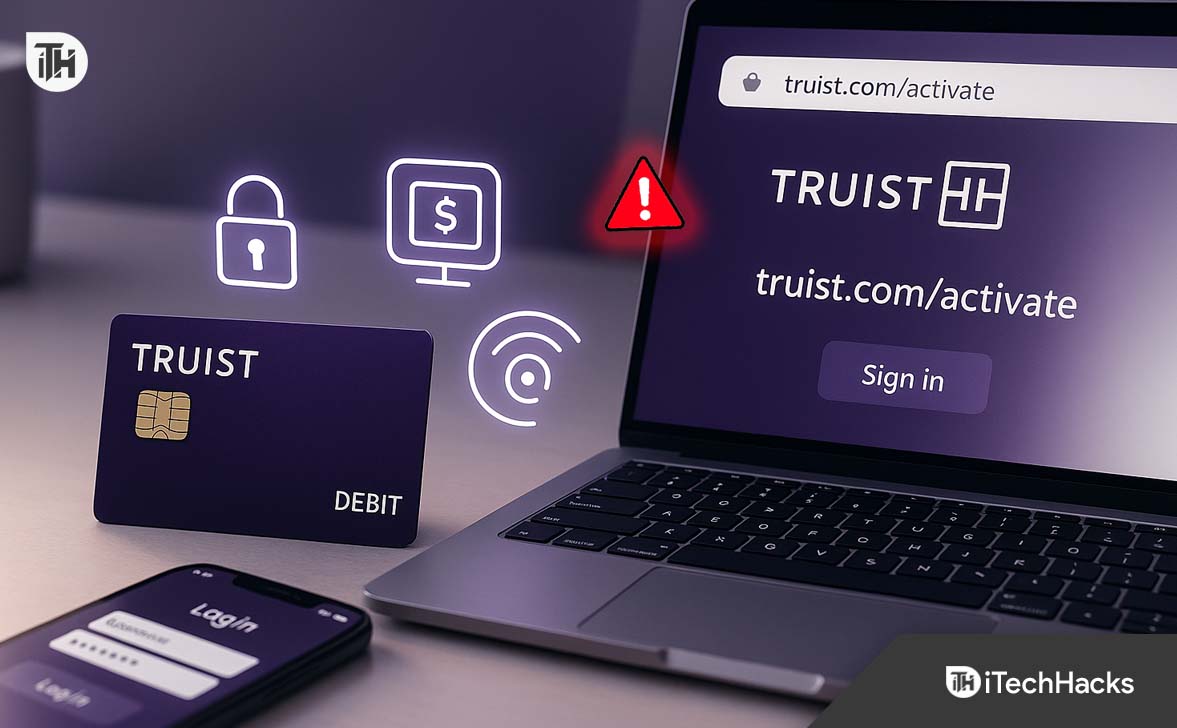
- The safest and most reliable way to activate your Truist debit card is directly through truist.com/activate or the official Truist mobile app. Avoid third-party links or messages to protect your financial data.
- After activating your Truist debit card, immediately enable alerts, add it to your digital wallet, and destroy any old or temporary cards to maintain full account safety and prevent unauthorized use.
When you receive your new Truist Bank debit card, it must be activated before you can start making purchases, ATM withdrawals, or online payments. Activating your card confirms your identity and ensures it’s safely linked to your account. The most secure and official method is by visiting truist.com/activate.
This guide explains how to activate your Truist debit card, provides clear instructions for each method available, and offers troubleshooting steps in case activation fails.
Understanding Truist Debit Card Activation
Activating a Truist debit card simply means enabling it for use after it’s issued. Until activated, the card remains locked for your security. Once activated, you can make payments, use it at ATMs, and manage it through Truist Online Banking or the mobile app.
In 2025, Truist offers multiple convenient options to activate your debit card:
- Online at truist.com/activate
- Through the Truist Mobile App
- By phone via the automated line
- At an ATM using your PIN (in some cases)
Each of these methods is secure and takes only a few minutes to complete.
Why Activating Your Card Immediately Matters
Many users overlook activation, but it’s a critical step for both security and functionality. Here’s why you should activate your Truist debit card right away:
- Prevents unauthorized use of unactivated cards.
- Ensures you can make purchases or withdraw cash without delays.
- Links your card securely to your checking account.
- Enables fraud alerts, transaction tracking, and spending controls.
- Allows you to add your card to digital wallets like Apple Pay or Google Pay.
Common Issues During Truist Debit Card Activation
Even though the process is simple, users occasionally face problems when trying to activate their Truist debit card. Understanding these issues helps you resolve them quickly.
1. Incorrect Website or URL
Many users accidentally visit fake or mistyped URLs. Always type truist.com/activate directly into your browser to ensure you’re on the official Truist website.
2. Not Enrolled in Online Banking
If you haven’t yet created a Truist online banking account, you might be prompted to do so before activating your card. Activation requires a verified user ID and password.
3. Typing Errors
Entering the wrong card number, expiration date, or CVV can cause an error. Double-check the numbers on your card before submitting.
4. Temporary System Outages
Sometimes, Truist’s systems may undergo maintenance. If the site doesn’t load or you get an error, try again after a short while or use another activation method.
5. Replacement Card Delays
If you’re activating a replacement for an expired or lost card, ensure your old card is no longer linked. The old one will automatically deactivate once the new card is active.
Truist.com/activate – Step-by-Step Debit Card Activation Process
Activating your Truist debit card is a simple but essential process that confirms your identity and enables full functionality for transactions, ATM withdrawals, and online banking.
Method 1: Activate Online at truist.com/activate
Activating online through truist.com/activate is the most secure and convenient option. It takes just a few minutes and allows you to verify your identity directly through Truist’s online banking system.
-
Open the Official Website
Launch your preferred browser (Chrome, Edge, or Safari) and go to https://www.truist.com/activate.-
Always type the URL manually instead of clicking on links from emails or texts to avoid phishing risks.
-
Check for the padlock icon in your browser address bar to confirm a secure HTTPS connection.
-
-
Sign in to Your Truist Account
You’ll be asked to enter your Online Banking User ID and Password. If you’re not enrolled yet, you’ll need to register before proceeding.-
Registration requires your Social Security Number (SSN) and account number to verify your identity.
-
After logging in, navigate to your account dashboard.
-
-
Access the Card Activation Section
Once logged in, look for “Activate Card” or “Card Services” under your account options.-
Select the debit card you want to activate (especially if you have multiple Truist cards).
-
-
Enter Your Card Details
Provide the requested information exactly as it appears on your card:-
16-digit card number
-
Expiration date (MM/YY)
-
CVV code (3-digit number on the back)
-
-
Confirm Your Identity
For added security, Truist may prompt you to confirm your date of birth, billing address, or last four digits of your SSN. -
Submit the Activation Request
Click “Activate” or “Submit”. The system will validate your information in real-time. -
Receive Confirmation
You’ll see an on-screen confirmation message stating that your debit card has been successfully activated.-
You may also receive an email or SMS notification for verification.
-
-
Dispose of Old Cards Safely
If this is a replacement card, cut your old card into small pieces before discarding it.
Expert Tips for Online Activation
- Always use a private, secure Wi-Fi connection.
- Avoid public computers or shared networks.
- Clear your browser cache if the page doesn’t load or shows an error.
- If you forget your login details, use the “Forgot User ID or Password” link on the Truist login page before proceeding.
Method 2: Activate Through the Truist Mobile Banking App
If you prefer using your phone, the Truist Mobile App provides a fast and convenient activation method. It’s ideal for users who already have mobile banking set up.
Step-by-Step Process
-
Download and Install the App
-
For iPhone: Download from the App Store.
-
For Android: Download from Google Play Store.
Make sure you download the official app published by Truist Financial Corporation.
-
-
Log In to Your Account
Open the app and sign in using your Truist credentials. If you’re new, register within the app using your account details and SSN. -
Navigate to Card Services
Tap on the Menu (☰) icon and choose “Accounts & Cards” → “Manage Cards” → “Activate Card.” -
Select the Card
If you have more than one Truist card, select the debit card that requires activation. -
Enter Card Information
Input the 16-digit card number, expiration date, and CVV code when prompted. -
Complete the Verification Step
You may receive a one-time password (OTP) via text or email for additional verification. -
Confirm Activation
Tap Activate Card. Within seconds, you’ll see a success notification in the app confirming your card is active. -
Enable Notifications & Digital Wallet
-
Turn on transaction alerts to receive updates for every purchase.
-
Add your activated card to Apple Pay, Google Pay, or Samsung Pay directly from the app.
-
Why Use the Mobile App?
-
It’s faster than calling customer service.
-
You can activate anytime, anywhere.
-
The app allows real-time management of spending limits, locks, and alerts after activation.
Method 3: Activate by Phone
This is a reliable option if you prefer not to use the internet or app. The automated phone system guides you through activation in a few minutes.
-
Locate the Activation Number
Check the sticker on the front of your new debit card. It contains the official Truist activation phone number (usually a toll-free line). -
Call the Number
Dial the number from your registered mobile or landline. Using your registered number helps the system verify your identity faster. -
Follow the Automated Instructions
The system will ask you to:-
Enter your 16-digit debit card number.
-
Confirm your expiration date and CVV code.
-
Provide personal details like the last four digits of your SSN for verification.
-
-
Set or Confirm Your PIN (if prompted)
Some users may be asked to set a new Personal Identification Number (PIN) during activation. -
Listen for Confirmation
The automated voice will confirm once your card is successfully activated. You can now use it for transactions.
Phone Activation Tips
-
Use a quiet environment to avoid input errors.
-
Do not share sensitive information if someone calls claiming to be from Truist; always initiate the call yourself using the number on the card.
-
Keep your card handy during the call.
Method 4: Activate Using an ATM
Truist also allows activation at its network ATMs. This is particularly useful if you want to set your PIN and activate the card simultaneously.
-
Visit a Truist ATM
Find the nearest Truist-branded ATM in your area.-
Insert your new debit card into the machine.
-
-
Enter Your PIN
-
If you received a temporary PIN with your card, use that.
-
If you didn’t receive one, you may be prompted to create a new PIN.
-
-
Follow On-Screen Instructions
The ATM will display an activation option or automatically activate the card once you perform a balance inquiry or withdrawal. -
Complete the Process
The ATM will confirm that your card is now active. Once done, remove the card and keep it safe.
ATM Activation Advantages
- You can set your PIN immediately.
- No internet connection required.
- Works for both personal and business debit cards.
Post-Activation Checklist
Once your card is active, take these extra steps to maximize security and convenience:
- Destroy your old debit card — cut through the magnetic strip and chip.
- Enable Truist alerts — get real-time transaction notifications.
- Add your card to a digital wallet for contactless payments.
- Set spending and withdrawal limits through your online banking dashboard.
- Keep your contact info updated to ensure you receive fraud alerts or replacement card notices.
Pro-Level Tips for Smooth Activation
- Always use truist.com/activate and never click links from unsolicited messages.
- If activation fails, wait 15–30 minutes before retrying — the system may be updating.
- For replacements, your old card will stop working immediately after activation of the new one.
- If traveling abroad, notify Truist in advance to avoid security blocks during activation or usage.
- Store your Truist activation confirmation number (if provided) safely for reference.
FAQs
How can I activate my Truist debit card without online banking?
You can activate your card by phone using the number printed on the card sticker or by using the Truist mobile app after verifying your identity.
How long does it take to activate my Truist debit card?
Activation is usually instant. Once confirmed, your card can be used immediately for purchases or ATM withdrawals.
Can I activate my Truist debit card outside the United States?
Yes, but you must use a secure internet connection and may need to disable VPNs for verification to succeed.
Why can’t I activate my Truist debit card online?
Common reasons include incorrect card details, temporary technical issues, or an inactive online banking account. Double-check your inputs and try again later.
What should I do after activation?
After activating, destroy old cards, set up alerts, and add the card to your preferred digital wallet for ease of use and safety.
Conclusion
Activating your new Truist debit card is a quick but vital step to access your funds safely. Whether you choose to do it through truist.com/activate, the mobile app, by phone, or at an ATM, ensure you follow each step carefully. Immediate activation not only enables smooth transactions but also secures your account from unauthorized use.
ALSO READ:
- Can’t Activate Code on discoveryplus.com/link? Here’s How to Fix & Activate Discovery Plus
- Activate Go Fox Enter Code and Login at activate.foxsports.com
- How to Activate Indigo Mastercard at Indigocard.com & Set Up Login
- How to Activate UKTV Play Enter Your Code at u.co.uk/activate
- Activate JCPenney Credit Card Login at jcp.syf.com 2025: Apply for a JCPenney