- Always enter the activation code immediately after it appears on your device screen, ensure your internet connection is stable, and sign in with the correct Discovery Plus account to avoid activation errors.
- Updating the Discovery Plus app, clearing browser cache, or reinstalling the app on your smart TV or streaming device usually resolves most issues with discoveryplus.com/link and lets you activate Discovery Plus successfully across all platforms.
If you’re trying to activate Discovery Plus using your TV or streaming device and the discoveryplus.com/link code isn’t working, you’re not alone in facing this frustration. Many users encounter issues when trying to link their smart TV, Firestick, Roku, or gaming console to their Discovery Plus account.
This detailed guide will walk you through every working fix to successfully activate Discovery Plus using discoveryplus.com/link, covering both common and advanced troubleshooting methods that actually work in 2025.
Understanding Discovery Plus Activation via discoveryplus.com/link
When you install the Discovery Plus app on a smart TV or streaming device, you’re required to sign in using a unique activation code displayed on the screen. Instead of entering login credentials directly on the TV, Discovery Plus provides a convenient linking system:
- You open discoveryplus.com/link on a browser (mobile or desktop).
- Enter the activation code shown on your TV.
- The system links your device to your Discovery Plus account automatically.
This process works across platforms like Roku, Fire TV, Apple TV, Android TV, Xbox, PlayStation, and select Smart TVs.
However, if your Discovery Plus code isn’t working, the issue could be due to temporary service disruptions, expired codes, outdated apps, or incorrect accounts.
Common Reasons Why discoveryplus.com/link Isn’t Working
Several factors can cause activation errors when linking Discovery Plus to your device. Below are the most frequent causes identified by technical support and user feedback.
1. Expired or Invalid Activation Code
Activation codes are time-sensitive. If you delay entering it on discoveryplus.com/link, the code expires, and the system rejects it.
2. Network or Connectivity Issues
Unstable internet or weak Wi-Fi on either your TV or mobile device can interrupt the activation request between Discovery Plus servers and your device.
3. Wrong Account or Region
Using a different region (e.g., US vs. India) or signing in with another Discovery account may result in a failed activation.
4. Outdated Discovery Plus App
Running an older version of the app may lead to bugs that prevent new codes from generating or verifying properly.
5. Browser Cache or Login Session Conflicts
If you’ve previously logged into Discovery Plus on multiple browsers or profiles, cached sessions may interfere with new activations.
6. Service Outage or Maintenance
At times, Discovery’s servers undergo scheduled maintenance. During this period, discoveryplus.com/link may not verify new codes.
How to Activate Discovery Plus via discoveryplus.com/link
Activate Discovery Plus on Smart TVs (Samsung, LG, Sony)
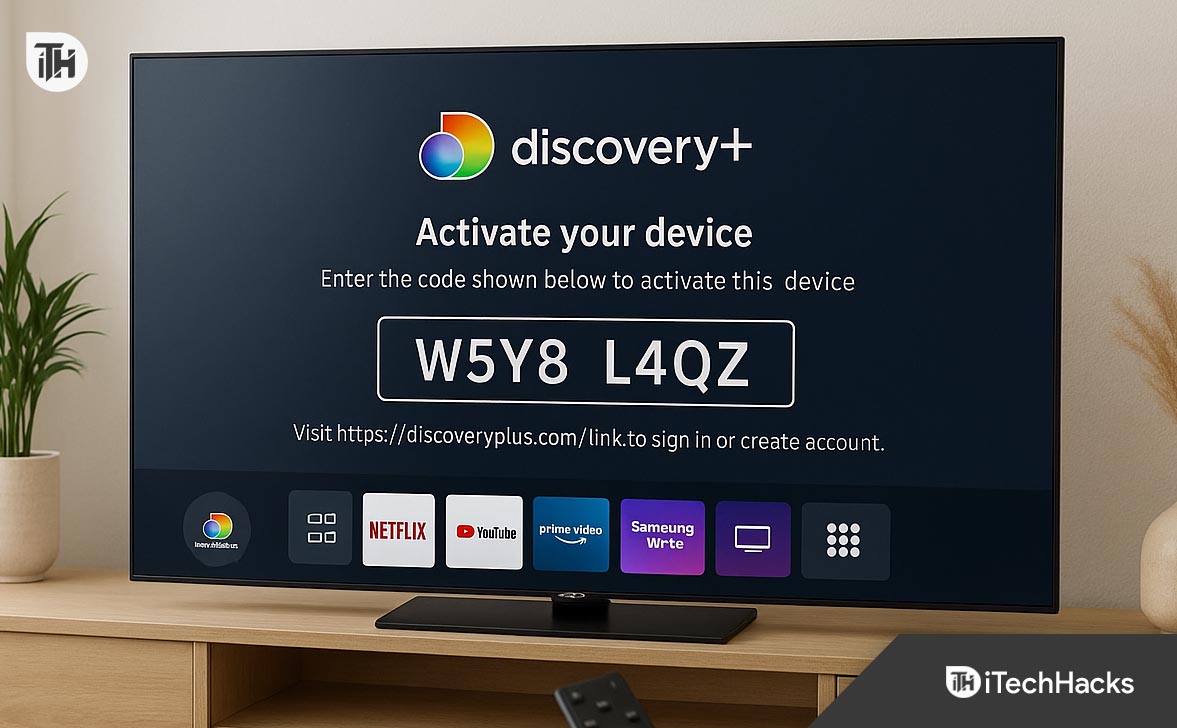
- Open the Discovery Plus app on your TV.
- Select Sign In to view your activation code.
- On another device, open discoveryplus.com/link.
- Log into your Discovery Plus account.
- Enter the code and click Activate.
- Wait a few seconds — your TV will automatically refresh to show your account.
Activate Discovery Plus on Roku
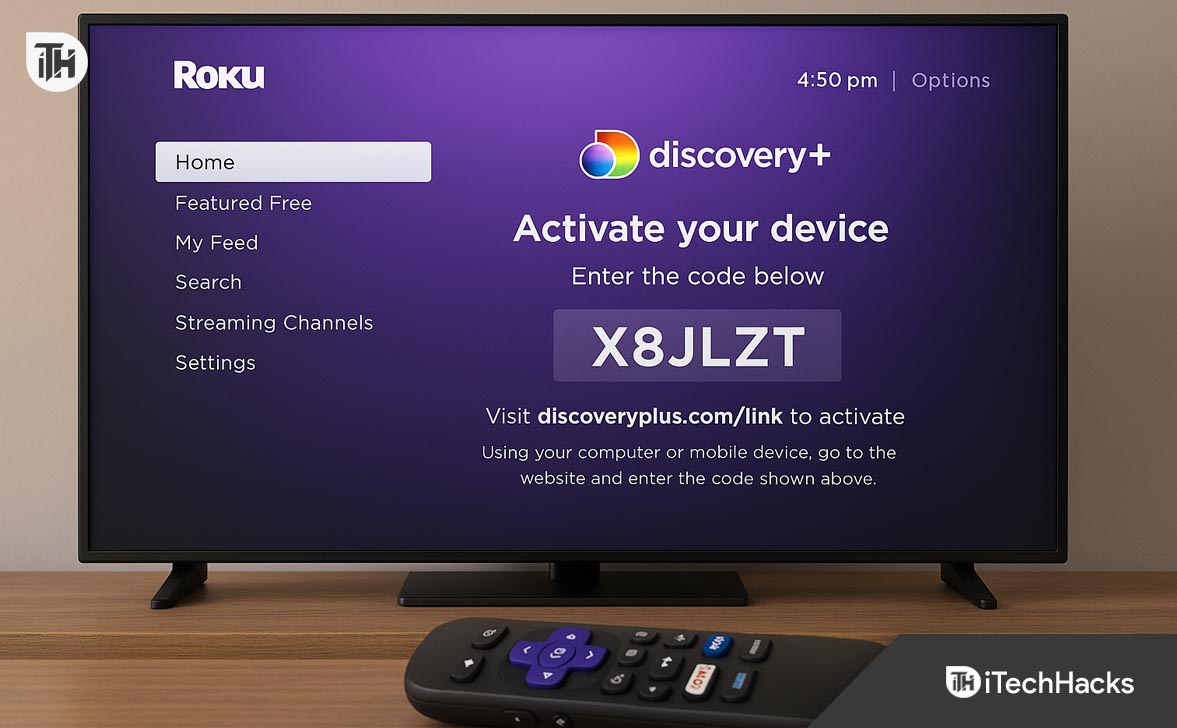
- Open Discovery Plus on Roku.
- Select Sign In with Code.
- Note the code displayed.
- On your phone/computer, visit discoveryplus.com/link.
- Enter the code to link your Roku device.
Activate Discovery Plus on Amazon Fire TV / Firestick
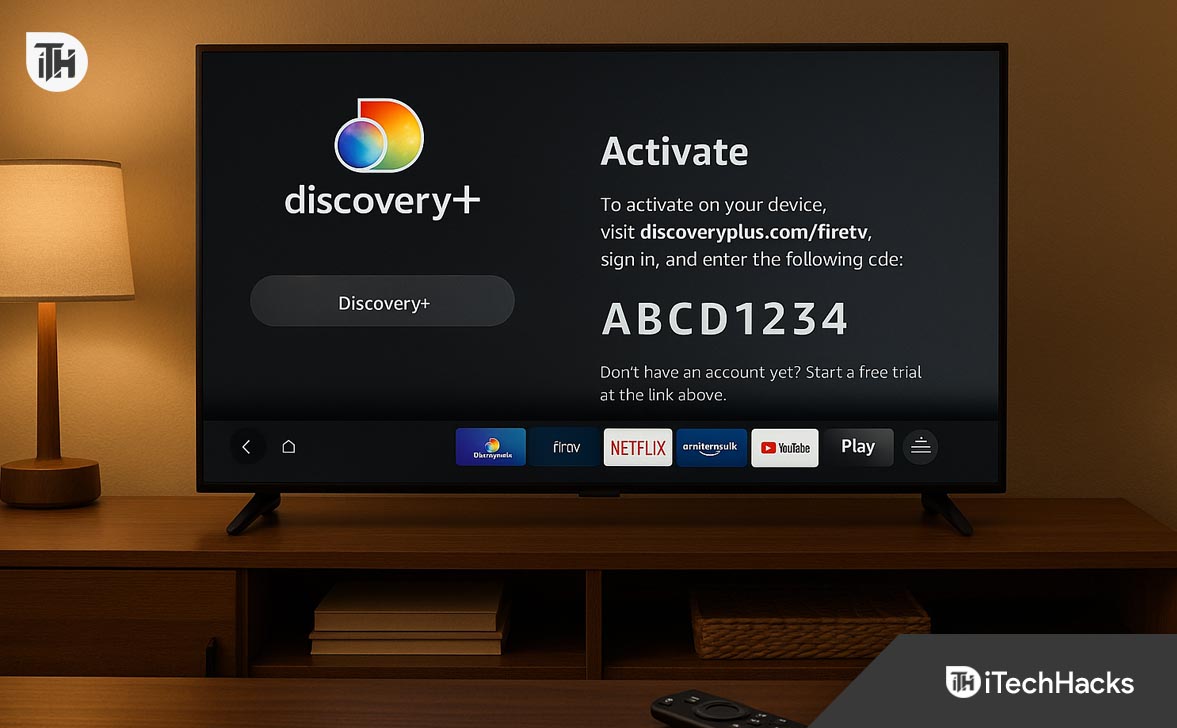
- Launch the Discovery Plus app on Fire TV.
- Select Sign In > Activate on a browser.
- On your browser, go to discoveryplus.com/link.
- Enter the TV-displayed code.
- The app will automatically refresh once activation completes.
Activate Discovery Plus on Apple TV
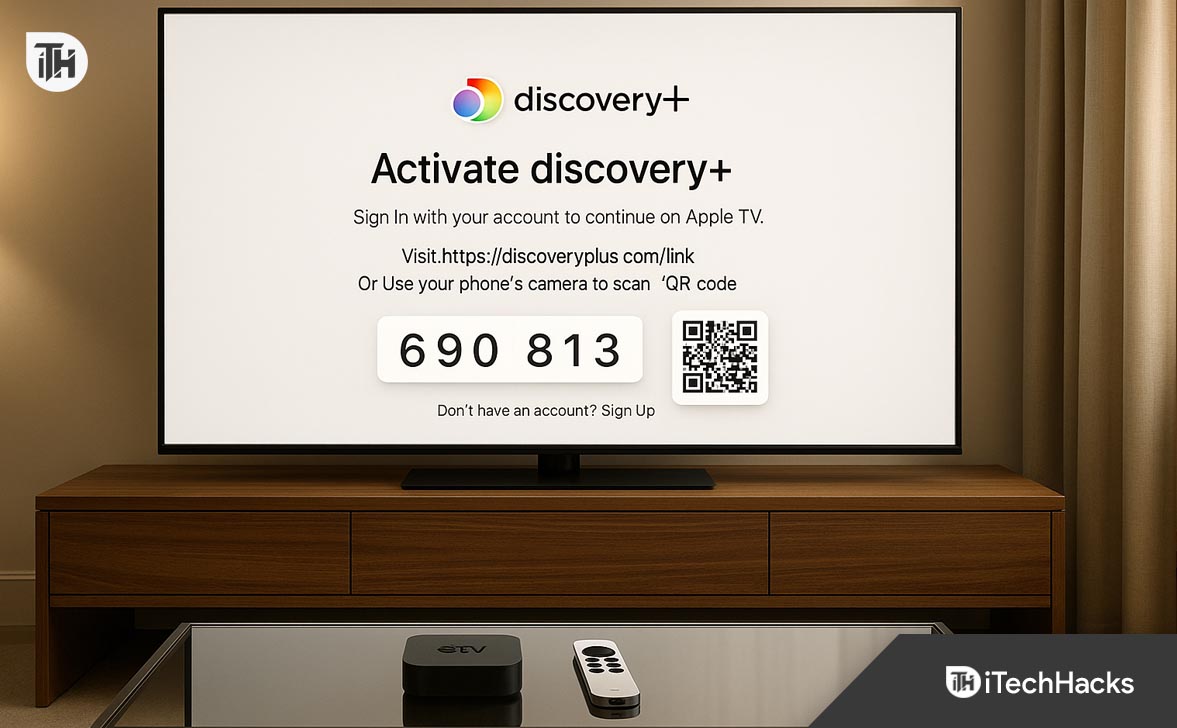
- Open Discovery Plus from the home screen.
- Choose Sign In.
- Note the code and open discoveryplus.com/link on any device.
- Sign in to your Discovery Plus account.
- Enter the code and confirm.
Activate Discovery Plus on Xbox or PlayStation
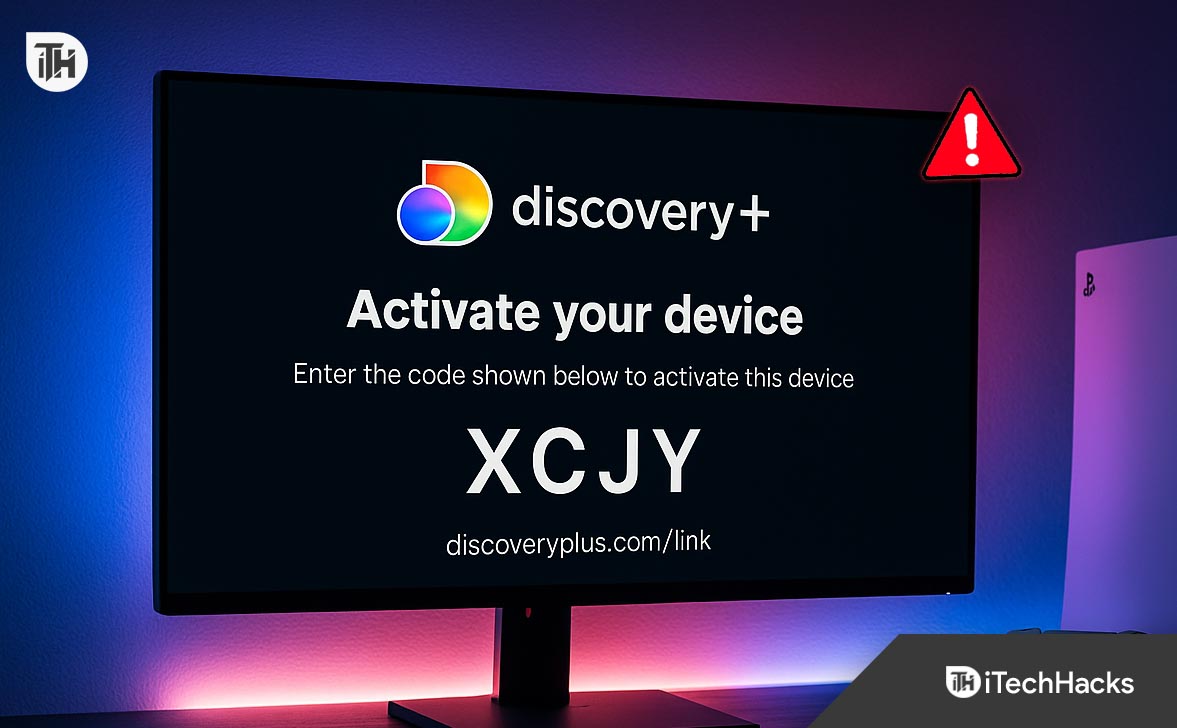
- Download Discovery Plus from your console’s app store.
- Launch it and go to Sign In.
- Note the activation code.
- Visit discoveryplus.com/link on a browser.
- Log in and enter the code.
Fix Discovery Plus Code Not Working on discoveryplus.com/link
Below are the verified, working methods to fix activation issues and complete your Discovery Plus setup without hassle.
Step 1: Check Your Activation Code Validity
- Open the Discovery Plus app on your TV.
- Look for the 6-digit activation code on the screen.
- Immediately go to https://www.discoveryplus.com/link on your smartphone or computer.
- Enter the exact code and click “Activate”.
Tip: If the activation fails, return to your TV app and generate a new code. Codes typically expire after 10–15 minutes.
Step 2: Ensure Stable Internet Connection
Activation relies on a secure and consistent internet connection.
- Restart your Wi-Fi router.
- Make sure both your TV and phone/computer are on the same network.
- If possible, use an Ethernet connection for your TV.
To confirm network stability:
- Open YouTube or Netflix on the same TV to verify streaming works.
- If buffering or connection drops occur, fix your Wi-Fi before retrying Discovery Plus activation.
Step 3: Update the Discovery Plus App
An outdated app version is one of the leading causes of discoveryplus.com/link not working.
For Smart TVs:
- Open your TV’s App Store or Channel Store.
- Search for Discovery Plus.
- If an Update option appears, select it.
For Streaming Devices:
- Fire TV / Firestick: Go to Apps > Discovery Plus > Options > Update.
- Roku: Highlight the app > Press * (Star) > Check for updates.
After updating, relaunch the app and generate a new activation code.
Step 4: Clear Browser Cache Before Visiting discoveryplus.com/link
Old browser sessions or cached login data can conflict with the activation page.
On Chrome:
- Go to Settings > Privacy and Security > Clear browsing data.
- Select Cookies and Cached files.
- Reload discoveryplus.com/link and try again.
On Safari or Edge:
Use equivalent steps under History > Clear Browsing Data.
💡 Pro Tip: You can also try opening discoveryplus.com/link in Incognito/Private mode to avoid conflicts.
Step 5: Reinstall the Discovery Plus App (Full Reset)
If updating doesn’t fix the issue, a clean reinstall can help.
- Uninstall Discovery Plus from your device.
- Restart the device.
- Reinstall Discovery Plus from the official app store.
- Generate a new activation code and retry via discoveryplus.com/link.
This method clears corrupted app data and ensures a fresh setup.
Step 6: Check Account Subscription & Region
Ensure that your Discovery Plus subscription is active and matches your region.
- Go to your account dashboard at discoveryplus.com/account.
- Confirm your plan status (Active, Expired, or Cancelled).
- If you’re using VPN or proxy, disable it. Discovery Plus often blocks activation from mismatched regions.
Step 7: Try a Different Browser or Device
If the link page fails to load or keeps showing “invalid code,” try using:
- Another browser (Chrome, Firefox, Edge, Safari).
- A different device (mobile instead of desktop or vice versa).
Also, avoid using work networks or restricted Wi-Fi that might block activation servers.
Step 8: Verify Discovery Plus Server Status
Occasionally, Discovery Plus experiences outages.
Visit https://downdetector.com/status/discovery-plus and check if others are reporting problems with discoveryplus.com/link.
If the issue is on their end, wait for 30–60 minutes before retrying.
FAQs
1. Why is my Discovery Plus activation code not working?
The activation code may have expired or been entered incorrectly. Always generate a fresh code and enter it promptly at discoveryplus.com/link.
2. Can I use discoveryplus.com/link on my mobile phone?
Yes. The link works perfectly on mobile browsers. Open the Discovery Plus app on your TV, copy the code, and enter it on discoveryplus.com/link using your phone.
3. What should I do if I get an “Invalid Code” error?
Ensure you’re signed into the correct Discovery Plus account. Then generate a new code and try again. If the issue persists, reinstall the app.
4. Does Discovery Plus activation work with multiple devices?
Yes, but the number of simultaneous streams depends on your subscription plan. You can activate multiple devices using the same account.
5. Is discoveryplus.com/link safe and official?
Absolutely. discoveryplus.com/link is the official and secure website for linking your Discovery Plus device. Avoid fake or lookalike URLs.
Conclusion
If you can’t activate your code on discoveryplus.com/link, the issue usually lies with an expired activation code, unstable connection, or outdated app. By following the step-by-step methods in this guide — updating your app, refreshing your network, clearing browser cache, or reinstalling Discovery Plus — you can quickly resolve the issue and link your device successfully.
Once activation completes, you’ll enjoy uninterrupted access to Discovery Plus’s vast library of documentaries, shows, and originals across all your devices.
ALSO READ:

![Fix Phone Screen Unresponsive Touch on Android & iPhone [Step-by-Step]](https://itechhacks.com/wp-content/uploads/2025/10/Fix-Phone-Screen-Unresponsive-Touch-150x150.jpg "Fix Phone Screen Unresponsive Touch on Android & iPhone [Step-by-Step]")