
- Google Gemini is now available on Apple CarPlay, allowing iPhone users to use conversational AI while driving, integrating tasks like checking emails, calendars, and finding nearby locations through their car's system without needing to hold their phones.
- To use Gemini on CarPlay, your iPhone needs to have an updated iOS version, the latest Gemini app installed, and microphone access enabled, and you must use Gemini Live on your iPhone at least once before accessing it through CarPlay.
- Even though Gemini offers conversational opportunities like brainstorming and email summarization, it does not entirely replace Siri, as Siri handles vehicle and iPhone controls; both can be used together for a better driving experience.
Google Gemini is finally available on Apple CarPlay, giving iPhone users a new way to interact with AI while driving. Instead of reaching for your phone, you can now have natural conversations with Gemini Live directly through your car’s infotainment system.
Google officially announced the integration recently, and the feature is rolling out globally. With Gemini on Apple CarPlay, you can catch up on emails, check your calendar, prepare for meetings, find nearby places, and ask follow-up questions without constantly restarting the conversation.
Getting started is fairly simple, but there are a few requirements you need to meet. Your iPhone must have a compatible iOS version, the latest Gemini app, and microphone permissions enabled. You also need to activate Gemini Live on your iPhone at least once before using it through CarPlay.
Here’s how to set up Gemini on Apple CarPlay, what you can do with it, and how to fix common problems if the app isn’t showing up on your dashboard.
What Is Gemini on Apple CarPlay?
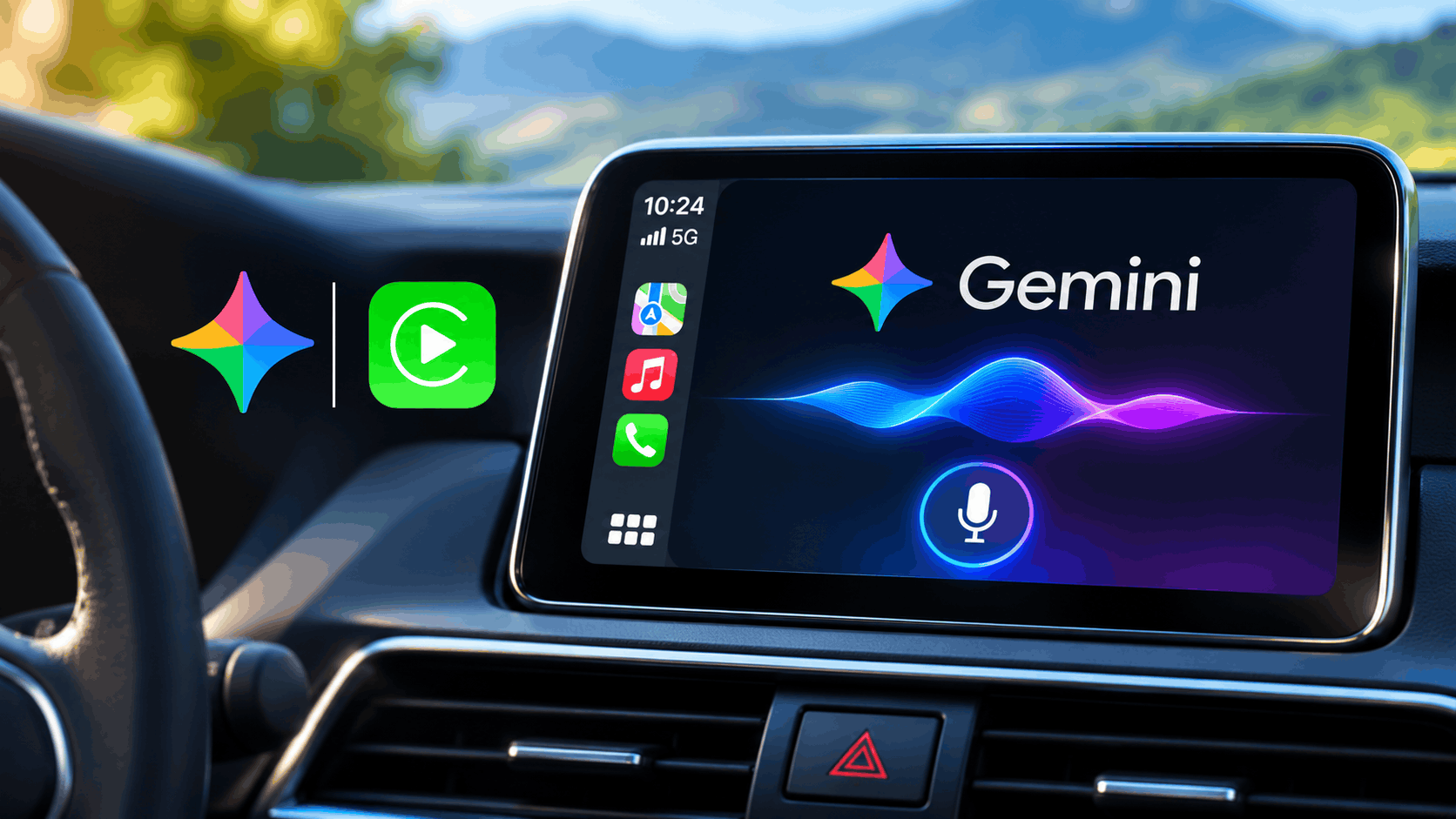
Gemini on Apple CarPlay is Google’s conversational AI assistant designed to work through your vehicle’s display and audio system. It uses Gemini Live, which allows you to speak naturally, interrupt responses, ask follow-up questions, and switch topics during the same conversation.
Unlike traditional voice assistants that typically handle short commands, Gemini Live is designed for longer discussions. For example, you can ask Gemini to explain a complicated topic, help prepare for a meeting, or summarize emails while you’re commuting.
The feature became possible after Apple introduced support for third-party voice-based conversational apps with iOS 26.4. This opened CarPlay to AI applications beyond Siri.
Google’s dedicated Gemini CarPlay app offers several useful capabilities:
- Natural voice conversations: Ask questions and continue talking without repeating a wake phrase for every follow-up.
- Gmail integration: Summarize unread emails and discuss important messages when your account is connected.
- Google Calendar access: Review upcoming appointments and prepare for scheduled meetings.
- Local recommendations: Ask about restaurants, landmarks, and interesting places nearby.
- Conversation history: Continue conversations on your iPhone after leaving the car.
- Hands-free brainstorming: Discuss ideas, practice presentations, or learn something during a commute.
Gemini does not completely replace Siri on Apple CarPlay. While Gemini handles conversational tasks, Siri remains important for controlling supported iPhone and CarPlay functions.
Requirements to Use Gemini on Apple CarPlay
Before installing or opening Gemini, make sure your setup meets these requirements.
- Compatible iPhone: An iPhone that supports Apple CarPlay and runs iOS 26.4 or later.
- CarPlay-compatible vehicle: A vehicle or aftermarket infotainment system with working wired or wireless Apple CarPlay.
- Updated Gemini app: The latest available version of Google Gemini installed from the App Store.
- Google account: A Google account signed into Gemini, with access to Gemini Live.
- Microphone permission: Gemini must be allowed to access your iPhone’s microphone.
- Internet connection: Your iPhone needs a reliable mobile data connection for Gemini’s online features.
- Initial Gemini Live setup: You must have used Gemini Live on your iPhone at least once.
Google began rolling out Gemini for CarPlay worldwide, across supported Gemini Live languages. Availability may take some time to reach every eligible user, even if the app is already updated.
How to Set Up Gemini on Apple CarPlay
Once you meet the requirements, follow these steps to enable Gemini on your car’s display.
Step 1: Update the Gemini App on Your iPhone
The first step is making sure you’re running the newest version of Google’s Gemini application. Older versions may not include the dedicated CarPlay integration.
- Open the App Store on your iPhone.
- Tap your profile picture in the upper-right corner.
- Check the available app updates.
- Find Google Gemini and tap Update if an update is available.
- Alternatively, search for Google Gemini directly in the App Store and open its listing.
If the listing displays Open instead of Update, you already have the latest version currently offered to your device. However, the CarPlay feature may still be rolling out to your account.
Step 2: Enable Microphone Access for Gemini
Gemini Live needs microphone access to hear your questions and respond during voice conversations. Without this permission, the app may open but fail to recognize your voice.
- Open Settings on your iPhone.
- Go to Privacy & Security.
- Select Microphone.
- Find Gemini in the list of applications.
- Enable microphone access if it is turned off.
If Gemini doesn’t appear in the microphone permissions list, open the app and try starting Gemini Live. Your iPhone should request the necessary permission.
Step 3: Start Gemini Live on Your iPhone Once
This is an important requirement that users may overlook. According to Google’s official setup instructions, you must use Gemini Live on your iPhone at least once before launching the CarPlay experience.
- Open the Gemini app on your iPhone.
- Sign in to your Google account if required.
- Tap the Gemini Live icon to begin a voice conversation.
- Allow any required permissions.
- Ask a simple question, such as “What’s the weather like today?”
- End the conversation after confirming that Gemini responds.
This completes the initial Gemini Live setup. Once activated, the service can be accessed through the compatible CarPlay application.
Step 4: Connect Your iPhone to Apple CarPlay
Next, connect your iPhone to your vehicle using the normal CarPlay connection method.
- Wired CarPlay: Connect your iPhone using a compatible USB cable and the vehicle’s supported USB port.
- Wireless CarPlay: Enable Bluetooth and Wi-Fi on your iPhone, then connect to your vehicle using its wireless CarPlay setup.
- Wait for the Apple CarPlay interface to appear on your dashboard.
- Open the CarPlay app grid to look for Gemini.
You don’t need a separate Gemini application installed on your car. The CarPlay interface uses the supported Gemini app installed on your iPhone.
Step 5: Open Gemini on Your CarPlay Display
Once CarPlay is connected, look for the Gemini application icon on your vehicle’s display or CarPlay side rail.
- Tap the Gemini icon.
- Choose to start a new conversation or resume a recent chat.
- Wait for Gemini Live to begin listening.
- Ask your question using your normal speaking voice.
- Continue the conversation with follow-up questions whenever needed.
Google has designed the interface around voice interaction rather than reading lengthy responses on a screen. During a conversation, you’ll see a simple waveform interface indicating whether Gemini is listening, processing, or responding.
You can also use the available Mute and End controls to manage or finish your conversation.
How to Use Gemini Hands-Free While Driving
After opening Gemini Live, you can interact with it conversationally without touching your iPhone. You can interrupt Gemini while it is speaking, ask it to clarify something, or change the topic entirely.
Here are some practical ways to use the feature.
1. Check Your Daily Schedule
If you’ve connected Google Calendar to Gemini, you can ask about upcoming appointments and important meetings.
For example, say “What’s on my calendar today?” or “Help me prepare for my next meeting.”
Gemini can review relevant schedule information and help you organize your priorities without needing to check your phone manually.
2. Catch Up on Gmail Messages
Gemini can connect with Gmail and help summarize messages while you’re driving. This is useful when you’ve received several emails but don’t have time to read them individually.
Try asking “Summarize my unread emails from this morning.”
You can also ask about a specific conversation, provided Gemini has permission to access the relevant Google Workspace information. Review anything important before relying on it, especially dates, figures, or commitments.
3. Find Restaurants and Interesting Places
Gemini can offer suggestions for restaurants, attractions, and places to visit near your destination.
For example, ask “Suggest a good family restaurant near my destination.”
Gemini can discuss recommendations and help you narrow down your choices. However, conversational recommendations should not be confused with automatically starting navigation in Apple Maps or Google Maps.
4. Brainstorm and Practice Presentations
One of Gemini Live’s strengths is its ability to maintain longer conversations. You can use your commute to rehearse presentations, work through ideas, or understand unfamiliar subjects.
For example, say “Help me practice a five-minute presentation about my new project.”
Gemini can ask questions, suggest improvements, and respond to your answers as the conversation develops.
Gemini Not Showing on Apple CarPlay? Try These Fixes
Because the Gemini CarPlay integration started rolling out, some users may not immediately see the application. Here are the most useful troubleshooting steps.
1. Check Your iOS Version
Apple introduced support for third-party conversational AI apps in CarPlay with iOS 26.4. If your iPhone is running an older compatible iOS release, update it.
Open Settings > General > Software Update and install an available supported update. Back up your iPhone before installing major software updates.
2. Check Your CarPlay App Settings
Sometimes a compatible application is installed but isn’t visible on the CarPlay home screen.
- Open Settings > General > CarPlay on your iPhone.
- Select your vehicle.
- Tap Customize, if available.
- Look for Gemini among the available apps.
- If it’s listed under additional apps, add it to your CarPlay layout.
If Gemini isn’t listed anywhere, the latest compatible CarPlay integration might not have reached your device or account yet.
3. Restart Your iPhone and Reconnect CarPlay
Temporary connection problems may prevent CarPlay from refreshing its available applications.
Disconnect your iPhone, restart it, and reconnect to your vehicle. For wireless CarPlay, verify that both Bluetooth and Wi-Fi are enabled.
Restarting the infotainment system, when supported by the manufacturer, may also help resolve connection problems.
4. Check Your Internet Connection
Gemini Live requires an internet connection to process conversations. If your mobile signal is weak, the assistant may take longer to respond or fail to connect.
Check that cellular data is enabled and that the Gemini app can access it. Try using Gemini Live directly on your iPhone while parked to determine whether the issue is related to connectivity or CarPlay.
5. Confirm That Gemini Live Works on Your Phone
If Gemini opens on CarPlay but doesn’t respond, return to the iPhone app and test Gemini Live.
Make sure microphone permission is enabled and complete an initial voice conversation. If Gemini Live doesn’t work on your iPhone, resolve that problem before troubleshooting the vehicle connection.
6. Allow Time for the Rollout
Google announced a global rollout rather than guaranteeing immediate availability to every device.
If your iPhone, app, and CarPlay setup are all compatible but Gemini still doesn’t appear, check for subsequent App Store updates. Avoid installing unofficial modified apps or configuration profiles that claim to unlock the feature early.
Can Gemini Replace Siri on Apple CarPlay?
Not completely. Gemini and Siri serve different purposes within Apple CarPlay.
Gemini Live is particularly useful for natural conversations, research-style questions, email summaries, and brainstorming. Siri remains integrated with Apple’s system-level features, including supported phone calls, navigation requests, messages, and device controls.
Third-party conversational apps do not receive unrestricted access to vehicle controls or iPhone functions. You also cannot assume that saying “Hey Google” will launch the dedicated Gemini CarPlay app the same way Siri can be activated using its wake phrase.
For now, the most practical approach is to use Siri for direct vehicle-related and iPhone tasks and Gemini when you want more detailed conversational assistance.
Tips for Using Gemini Safely in Your Car
Although Gemini is designed for hands-free conversations, it is still important to avoid distractions while driving.
- Open Gemini and complete initial setup before starting your journey.
- Keep conversations short when navigating busy roads or unfamiliar areas.
- Use voice interactions instead of handling your iPhone.
- Pause or end conversations when approaching junctions or complex traffic situations.
- Check important AI-generated information after parking.
- Avoid discussing sensitive personal information when passengers can hear the conversation.
Remember that Gemini can occasionally provide inaccurate answers. Always verify important details such as appointment times, business opening hours, and directions when it is safe to do so.
Frequently Asked Questions
Is Google Gemini available on Apple CarPlay?
Yes. Google officially announced Gemini Live for Apple CarPlay. The integration is rolling out globally for supported iPhone users and Gemini Live languages.
Is Gemini on Apple CarPlay free?
Google says the CarPlay rollout is available to all Gemini users on iOS. A separate paid Gemini subscription isn’t required for the basic supported experience, although individual features may have eligibility restrictions or usage limits.
Can I activate Gemini using “Hey Google” on CarPlay?
The dedicated Gemini CarPlay experience doesn’t provide a Siri-style system-wide wake word. You normally start it by tapping the Gemini app icon on your CarPlay display, then continue talking through Gemini Live.
Does Gemini work with wireless Apple CarPlay?
Yes. The Gemini integration works through supported Apple CarPlay connections, including wireless CarPlay. Your vehicle must support the connection method you’re using, and your iPhone must have the compatible app and software.
Can Gemini read my Gmail emails while driving?
Gemini can summarize Gmail messages and help you discuss your inbox when the relevant Google Workspace connection and permissions are enabled. Some personalized capabilities, including Daily Brief, have regional and age-related restrictions.
Will Gemini conversations appear on my iPhone?
Yes. Google says conversations started through Apple CarPlay sync with the Gemini app on your iPhone, allowing you to revisit previous discussions after you’ve finished driving.
Final Thoughts
Google Gemini on Apple CarPlay brings a more conversational voice assistant to iPhone users who spend time commuting or taking long drives. The ability to discuss ideas, review your schedule, summarize emails, and continue conversations from your phone makes Gemini Live a useful addition to the CarPlay experience.
To get started, update your Gemini app, enable microphone permissions, use Gemini Live once on your iPhone, and connect to Apple CarPlay. Once the feature reaches your account, the Gemini icon should become available on your vehicle’s display.
Just remember that Gemini complements Siri rather than replacing it entirely. Use Gemini for conversations and information, keep Siri available for supported system controls, and always prioritize driving safely over interacting with either assistant.