- Since September 2026, some YouTube users have faced sign-in issues on web browsers, encountering a cryptic error message while other Google services like Gmail continue to function normally.
- Users have tried common solutions like changing browsers or clearing cookies without success, but a temporary workaround found in October 2026 involves changing the Google Account display name, which has helped some regain access.
- The error appears specific to web authentication on YouTube, not affecting the mobile app, and users are advised to utilize the YouTube app while awaiting a formal fix from Google and to report the issue for further assistance.
Trying to sign in to YouTube on your computer, only to encounter a strange error saying “Our tubes must be clogged”? You’re not alone. Since September 2026, some YouTube users have reported being unable to access their accounts through web browsers, even though Gmail and other Google services continue working normally.
What makes this YouTube sign-in bug particularly frustrating is that changing browsers, clearing cookies, or even resetting the Google Account password doesn’t always help. Some affected users can still watch videos through the YouTube mobile app but cannot sign in to the website.
The good news is that several users reported finding a workaround. Here’s what causes the error, what is currently known about the problem, and which troubleshooting methods are worth trying.
What Is the YouTube “Our Tubes Must Be Clogged” Error?
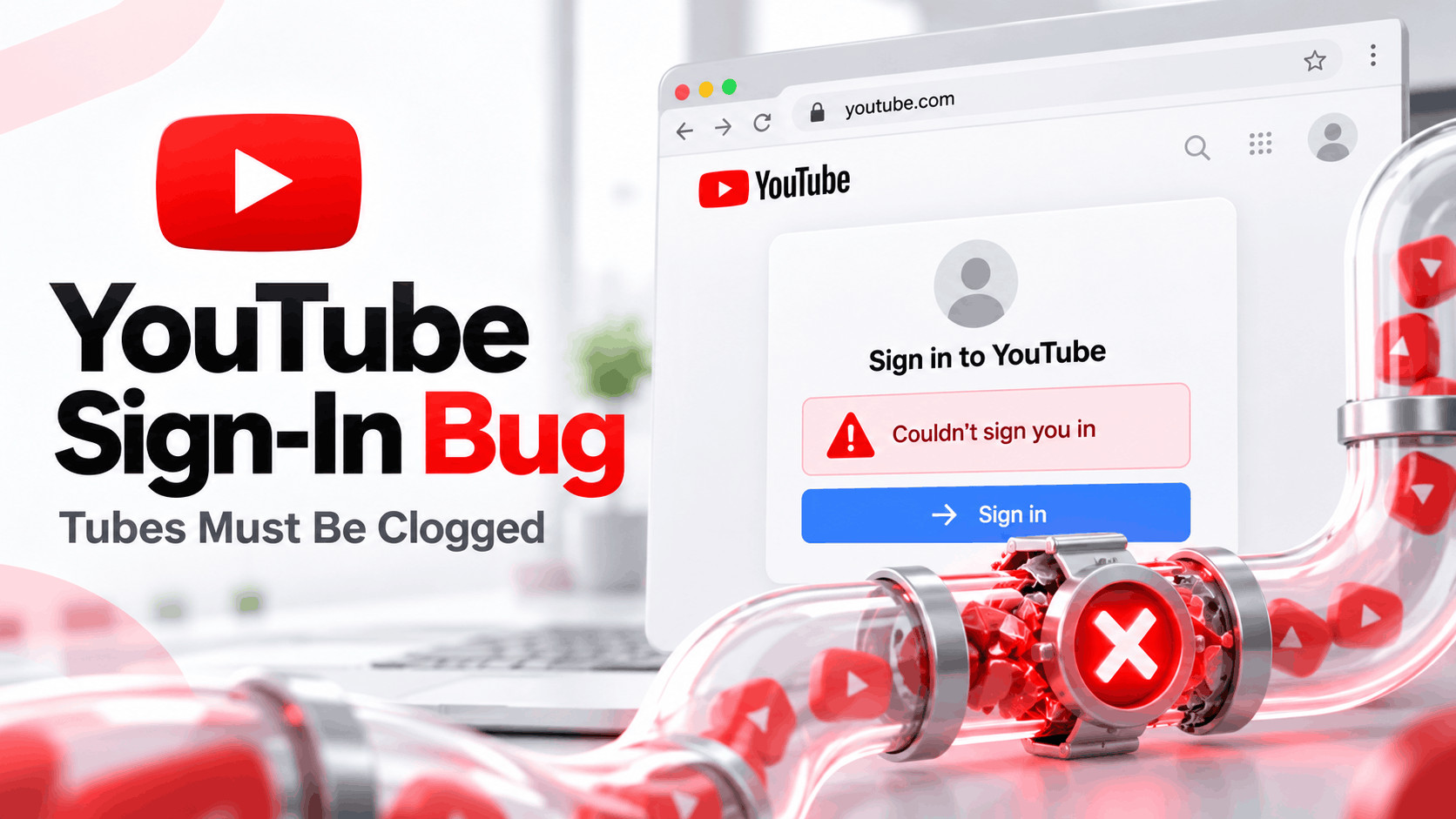
The “Our tubes must be clogged” message is a general YouTube error that can appear when the website fails to complete a request. In the recent sign-in reports, users are typically redirected to an error page after attempting to log in with their Google Account.
The message may appear as:
“There was an issue signing you into YouTube. Sorry, something went wrong! Our tubes must be clogged.”
Some users instead encounter a retro television graphic or a page displaying “There was an issue while signing you in to YouTube.” The browser may redirect to youtube.com/oops.
Unlike an incorrect password error, this problem can occur after Google has successfully authenticated the account. YouTube simply fails to complete the browser sign-in process.
Common Symptoms of the YouTube Web Sign-In Bug
- YouTube redirects to youtube.com/oops when you click Sign in.
- Gmail, Google Drive, and other Google services work normally.
- The YouTube mobile app continues to recognize your account.
- The same login error appears in Chrome, Edge, Firefox, or other browsers.
- Incognito or private browsing doesn’t resolve the problem.
- YouTube Studio or YouTube Music may also fail to open while signed in.
- Another Google Account may work correctly on the same computer.
If several of these symptoms match your experience, you may be encountering the account-specific browser sign-in issue reported in September and October 2026.
Why Is YouTube Not Letting Users Sign In?
Reports published in early October 2026 described users experiencing persistent YouTube login failures across different browsers, computers, and networks. Some users confirmed that their Google Accounts remained active and that their YouTube channels and subscriptions were still accessible through mobile apps.
This pattern suggests a possible problem with YouTube’s web authentication process for certain accounts. However, Google has not publicly established the technical cause of these particular failures.
Is It a Google Account Problem?
Not necessarily. YouTube uses your Google Account for authentication, but successfully accessing Gmail doesn’t guarantee that every Google service will complete its own sign-in process.
If your account works elsewhere but YouTube consistently displays an error, the problem may be specific to YouTube’s website or the account’s web session. This doesn’t automatically mean that your Google Account has been suspended or compromised.
Has YouTube Fixed the Sign-In Bug?
On September 22, 2026, a Diamond Product Expert in the YouTube Help Community confirmed that the reported web sign-in issue had been passed on to YouTube.
As of October 21, 2026, a universal official fix has not been independently confirmed. However, on October 11, multiple users in the community reported successfully restoring browser access using an unusual workaround involving their Google Account display name.
How to Fix YouTube “Our Tubes Must Be Clogged” Sign-In Error
Before changing important account settings, try the following solutions in order. The first methods help rule out common browser problems, while the display-name workaround specifically addresses the recent reports.
1. Change Your Google Account Display Name
One of the most interesting developments came on October 11, 2026, when affected users reported that changing their Google Account name and clearing browser data restored YouTube access.
This is a community-reported workaround rather than an officially documented repair. Nevertheless, several users confirmed that it worked after ordinary troubleshooting had failed.
Follow these steps:
- Open your browser and visit myaccount.google.com.
- Sign in using the Google Account that cannot access YouTube.
- Click Personal info in the left-hand menu.
- Under Basic info, select Name.
- Click the edit option next to your current name.
- Make a small, valid change to your display name and save it.
- Clear the browser’s Google and YouTube cookies and cached data.
- Close the browser completely and reopen it.
- Visit youtube.com and attempt to sign in again.
Why might this help? Changing account profile information may cause Google services to retrieve updated account details. Clearing site data also removes existing browser sessions, allowing YouTube to attempt a fresh sign-in.
However, the exact reason this combination helped some users remains unconfirmed. Remember that changing your Google Account name can affect how your name appears across Google services, although it does not directly change your YouTube channel name.
2. Clear YouTube and Google Cookies
Corrupted or outdated browser cookies can prevent websites from recognizing a valid login session. Clearing the relevant site data can resolve ordinary authentication problems without requiring you to reset your entire browser.
For Google Chrome:
- Open Chrome and click the three-dot menu.
- Select Settings.
- Navigate to Privacy and security.
- Open Site settings and find the option to view stored site data.
- Search for YouTube and remove its stored data.
- Repeat for relevant Google sign-in domains if necessary.
- Restart Chrome and try signing in again.
You can also use Chrome’s Delete browsing data option to clear cookies and cached files more broadly. Be aware that deleting cookies may sign you out of websites and remove certain saved site preferences.
Important: Clearing cookies alone did not fix the September 2026 issue for everyone. If you experience the same error on multiple devices, move to the next troubleshooting steps instead of repeatedly deleting browser data.
3. Test YouTube in Incognito Mode
Incognito mode creates a separate temporary browsing session without using your regular browsing history and most existing cookies. It is a quick way to determine whether the issue might be associated with your normal browser profile.
- Open Chrome, Edge, or another browser.
- Press Ctrl + Shift + N in Chrome or Edge.
- Visit youtube.com.
- Click Sign in and enter your Google Account credentials.
- Check whether YouTube opens successfully.
If Incognito mode works, your regular browser profile, extensions, or stored site data may be contributing to the problem.
If the same error appears, especially across different browsers, the failure may be unrelated to your local browser settings.
4. Disable Browser Extensions Temporarily
Privacy extensions, script blockers, and security tools can sometimes interfere with authentication requests. Some extensions modify cookies or restrict communication between websites, which can affect Google sign-in sessions.
Open your browser’s extension management page and temporarily disable relevant extensions. Restart the browser, then retry YouTube.
If signing in starts working, re-enable extensions one at a time to identify the conflict. Only change the settings of the extension responsible instead of permanently disabling your browser’s protections.
5. Try Another Browser or Device
Testing another browser helps determine whether the problem is specific to Chrome, Firefox, Edge, Safari, or your current browser profile.
- Try signing in using a different updated browser.
- Use another computer if one is available.
- Test your phone’s browser separately from the YouTube app.
- Switch between Wi-Fi and mobile data to rule out network-related interference.
If YouTube fails with the same Google Account everywhere but other accounts work correctly, that is a useful indication that the problem may be account-specific.
Several users affected in September 2026 reported exactly this behavior. Changing browsers or computers did not restore their access.
6. Check Whether YouTube Works on Your Phone
The official YouTube app can be a practical temporary workaround while browser access is unavailable. Some users reported that their accounts continued functioning normally on Android, iPhone, and television apps despite browser failures.
- Open the official YouTube app on Android or iPhone.
- Tap your profile picture.
- Confirm you’re signed in to the affected Google Account.
- Check whether your subscriptions, playlists, and watch history appear.
- Try opening YouTube Studio if you manage a channel.
If everything works in the app, continue using it while investigating the browser problem. There is no reason to remove a working account from your phone simply because YouTube web sign-in is failing.
7. Check Your Google Account Status
Before assuming that the error is a YouTube server bug, confirm your Google Account is functioning correctly.
- Visit myaccount.google.com.
- Open Security or Security & sign-in.
- Review recent security activity and unfamiliar devices.
- Check for warnings requiring your attention.
- Confirm that you can access Gmail normally.
If your account shows a genuine security warning, follow Google’s official instructions. Otherwise, avoid repeatedly changing your password just to fix the YouTube error.
A password reset is appropriate when your credentials are compromised or you cannot authenticate, but it is not a confirmed solution for this particular browser sign-in bug.
8. Report the Problem to YouTube
If the error persists across browsers and devices, reporting it may help YouTube investigate. Product Experts have already escalated similar reports, but individual feedback can provide additional information about affected accounts.
To report the issue through the mobile app:
- Open YouTube on your Android phone or iPhone.
- Tap your profile picture.
- Open Settings or Help and feedback, depending on your app version.
- Select Send feedback.
- Explain that YouTube web sign-in redirects to youtube.com/oops.
- Mention which browsers and devices you’ve tested.
- Attach a screenshot if possible and submit the report.
You can also use the YouTube Help Community to follow the existing discussion about the browser login loop.
What Should You Do If Nothing Works?
If you’ve tested multiple browsers, confirmed your Google Account works, and still encounter the same error, further local troubleshooting may provide little benefit.
Continue using the official YouTube mobile app if it remains accessible, and monitor YouTube’s support channels for updates. Avoid deleting your YouTube channel, removing Brand Accounts, or reinstalling your operating system without evidence that those actions are necessary.
Creators who cannot access YouTube Studio should check whether they qualify for YouTube Creator Support. Eligible channel owners may have additional support options for account-related problems.
Frequently Asked Questions
Why does YouTube say “Our tubes must be clogged”?
This message means YouTube encountered an error processing a request. During the September and October 2026 reports, it appeared when certain users tried signing in through web browsers. The message alone does not identify the underlying cause.
Can I fix the YouTube login error by changing my Google Account name?
Possibly. Multiple users reported success in October 2026 after modifying their Google Account display name and clearing browser cookies. However, this remains an unofficial workaround and is not guaranteed to work for everyone.
Why does YouTube work on my phone but not my computer?
The mobile app and website use different sign-in environments. The recent reports suggest that some accounts encounter failures specifically when authenticating through browsers, even though their mobile app sessions remain active.
Does the error mean my YouTube account is banned?
No. The error alone is not evidence of an account suspension. If Gmail and the YouTube mobile app still work, check for official account notifications before concluding that your account has been restricted.
Will clearing my browser cache delete my YouTube subscriptions?
No. Your subscriptions, playlists, and channel information are associated with your YouTube account, not your browser’s cache. Clearing cookies may sign you out, but it does not delete account data stored on YouTube’s servers.
Is YouTube down for everyone?
Not necessarily. Reports from October 2026 indicate that the browser login problem affected particular accounts rather than every YouTube user. A widespread YouTube outage would typically produce a different pattern of complaints.
Final Thoughts
The YouTube “Our tubes must be clogged” sign-in bug has caused genuine frustration for users who can access their Google Accounts everywhere except YouTube’s website. Reports from September and October 2026 suggest that some failures may involve account-specific web authentication rather than browser configuration.
If you’re experiencing this issue, start with basic browser troubleshooting. If that doesn’t work, the Google Account display-name workaround reported on October 11 is worth considering, provided you’re comfortable changing your visible account name.
Until Google confirms the underlying cause and a permanent solution, the safest approach is to preserve access through working YouTube apps, report persistent problems, and avoid unnecessary changes to your Google Account or YouTube channel.