- Wi-Fi certificate errors in Windows 11 happen when your computer can't verify a secure network's identity, often in places like offices and schools. Errors may follow a Windows update, password change, or security certificate update by organizations.
- Common issues causing these errors include an expired certificate, incorrect system date and time, missing trusted certificates, or wrong network settings. Verify if the problem is your computer's setup or a network-wide issue before altering settings.
- Solutions to fix these errors range from checking and correcting system date and time, forgetting the network and reconnecting, ensuring necessary certificates are valid, and updating drivers and Windows. Avoid disabling security settings or accepting unknown certificates to maintain security.
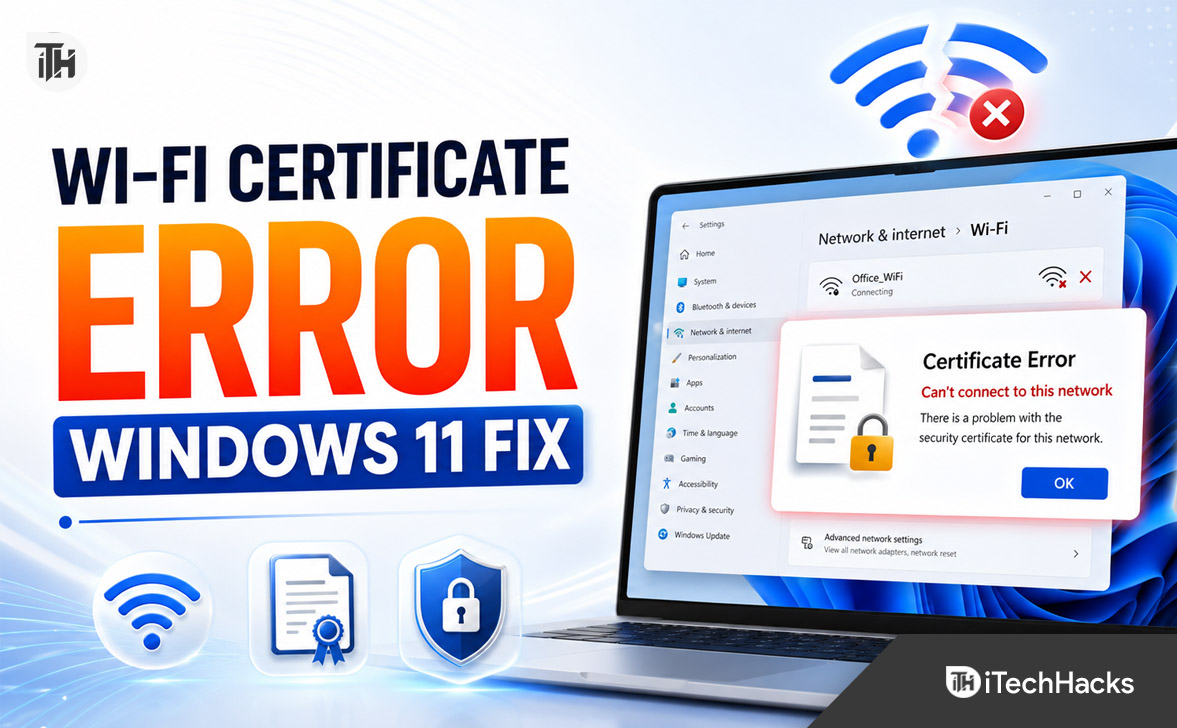
A Wi-Fi certificate error in Windows 11 usually appears when your computer cannot verify the identity of a secured wireless network. You might see messages such as “Can’t connect because you need a certificate,” “The certificate required to connect to this network cannot be found,” “Continue connecting?” or “The server certificate is not trusted.”
This problem is most common on office, university, school, hospital, hotel, and other enterprise Wi-Fi networks that use 802.1X authentication. It can also appear after upgrading Windows 11, changing a password, renewing an organization’s security certificate, or receiving an incorrect wireless profile through Group Policy or Microsoft Intune.
The correct solution depends on whether the problem is caused by your Windows 11 computer, the saved Wi-Fi profile, a missing client certificate, or the organization’s authentication server. This guide explains how to troubleshoot the Windows 11 Wi-Fi certificate error without weakening your network security.
What Is a Wi-Fi Certificate Error in Windows 11?
A digital certificate works like an electronic identity card. When Windows 11 connects to an enterprise Wi-Fi network, it may use certificates to verify that the network is genuine and, depending on the authentication method, prove that your computer or user account is authorized to connect.
Enterprise wireless networks commonly use IEEE 802.1X with an Extensible Authentication Protocol method such as PEAP or EAP-TLS. With PEAP, the network normally presents a server certificate before accepting your username and password. With EAP-TLS, both the server and your device may use certificates to authenticate each other.
Windows 11 performs stricter and more consistent server certificate validation than some older Windows releases. The server certificate chain must be trusted, the expected certificate information must be included in the wireless profile, and the server name must match when name validation is enabled.
Why Home Wi-Fi Usually Does Not Need a Certificate
Most home networks use WPA2-Personal or WPA3-Personal security and require only a Wi-Fi password. They do not normally require a user or computer certificate.
If you receive a certificate warning on home Wi-Fi, determine where the warning appears. A warning inside a web browser may relate to the router’s management page, a captive portal, antivirus HTTPS scanning, or an incorrect system clock rather than the Wi-Fi connection itself.
Common Causes of the Windows 11 Wi-Fi Certificate Error
A certificate error can be caused by a simple saved-profile problem or a more complex enterprise authentication failure. The most common causes include:
- An expired client, user, computer, RADIUS, or NPS server certificate
- An incorrect date, time, or time zone on the Windows 11 computer
- A missing trusted root certification authority certificate
- A corrupted or outdated saved Wi-Fi profile
- The wrong EAP authentication method selected for the network
- A certificate installed in the wrong Windows certificate store
- A certificate without the required Client Authentication or Server Authentication purpose
- A mismatch between the server certificate name and the name configured in the Wi-Fi profile
- An outdated Wi-Fi adapter driver
- A Group Policy or Intune profile that has not been updated after certificate renewal
- A certificate revocation list that cannot be reached or has expired
- An outdated RADIUS server that does not handle the TLS settings used by Windows 11 correctly
Before Troubleshooting the Wi-Fi Certificate Error
Start by identifying whether the problem affects only your computer or the entire network. This can prevent you from spending time changing Windows settings when the certificate on the organization’s authentication server has expired.
Test the Network on Another Device
Try connecting another organization-approved laptop to the same Wi-Fi network. You can also ask a colleague whether they can connect successfully.
- If several users suddenly receive the same certificate error, the RADIUS or NPS server certificate may have expired or changed.
- If only your Windows 11 computer is affected, the issue is more likely related to your certificate, wireless profile, driver, or local settings.
- If the network works after signing in but fails at the Windows login screen, the organization may be using a user certificate that is not available before sign-in.
Check Whether the Network Is Managed
Open Settings > Accounts > Access work or school. If your device is connected to an organization, some Wi-Fi and certificate settings may be controlled through Active Directory, Microsoft Entra ID, Intune, or Group Policy.
Do not manually remove company certificates or management profiles unless your IT administrator instructs you to do so. Removing the wrong certificate can affect Wi-Fi, VPN, email, application sign-in, device compliance, and access to internal services.
1. Correct the Date, Time, and Time Zone
Certificates are valid only between specific dates. If the clock on your computer is significantly incorrect, Windows may treat a valid certificate as expired or not yet valid.
- Open Settings.
- Select Time & language.
- Open Date & time.
- Enable Set time automatically.
- Enable Set time zone automatically, or manually select the correct time zone.
- Use the available synchronization option to sync the clock.
- Restart the computer and reconnect to Wi-Fi.
If the date becomes incorrect every time the computer is powered off, the motherboard clock or firmware settings may need attention. On managed devices, time synchronization can also depend on the organization’s domain controller.
2. Forget and Reconnect to the Wi-Fi Network
A saved Wi-Fi profile contains more than the network name and password. An enterprise profile may contain the security type, EAP method, authentication mode, trusted root certificate, expected server names, and user prompt settings.
If the organization changes any of these settings, the old profile can produce a Windows 11 Wi-Fi certificate error. Removing the profile forces Windows to create or receive a fresh configuration.
- Open Settings > Network & internet > Wi-Fi.
- Select Manage known networks.
- Choose the affected Wi-Fi network.
- Select Forget.
- Restart your computer.
- Reconnect to the Wi-Fi network and enter your credentials when requested.
For an organization-managed network, wait a few minutes after restarting so that Group Policy or Intune can reinstall the wireless profile. Windows 11 does not provide a normal Settings option to edit all EAP details after a Wi-Fi profile has been added, so deleting and recreating the profile is often the simplest correction.
Delete the Wi-Fi Profile Using Command Prompt
If the network does not appear under Manage known networks, you can remove it with an elevated Command Prompt. This is also useful when a damaged profile cannot be removed through Settings.
- Search for Command Prompt.
- Select Run as administrator.
- Enter netsh wlan show profiles to list saved Wi-Fi profiles.
- Enter netsh wlan delete profile name=”NetworkName”.
- Replace NetworkName with the exact profile name.
- Restart Windows and reconnect.
The netsh wlan utility can display, delete, import, export, and troubleshoot wireless profiles in Windows 11.
3. Check the Certificate Expiration Date
If the network uses certificate-based authentication, check whether the required certificate is present and valid. A certificate can appear installed but still fail because it is expired, issued for the wrong purpose, missing its private key, or located in the wrong certificate store.
Check Certificates for Your User Account
- Press Windows + R.
- Enter certmgr.msc and select OK.
- Expand Personal.
- Select Certificates.
- Look for a certificate issued by your employer, school, university, or internal certificate authority.
- Open the certificate and check the Valid from and Valid to dates.
- Open the Certification Path tab and confirm that Windows reports the certificate as valid.
In the Details tab, check the Enhanced Key Usage field. A user or device certificate used for EAP-TLS normally needs the Client Authentication purpose. Microsoft notes that certificates without the Client Authentication purpose are not offered for this type of wireless authentication.
Check Certificates for the Local Computer
Some enterprise networks use a computer certificate rather than a user certificate. These certificates are stored under the local computer account and may be used before a user signs in.
- Press Windows + R.
- Enter mmc and select OK.
- Select File > Add/Remove Snap-in.
- Select Certificates and choose Add.
- Select Computer account.
- Select Local computer and choose Finish.
- Select OK.
- Open Certificates (Local Computer) > Personal > Certificates.
- Check the certificate’s validity, issuer, intended purposes, and certification path.
Do not delete an expired certificate simply because it appears related to Wi-Fi. On managed computers, certificate enrollment software may need the existing record to complete renewal, and deleting certificates can interfere with other services.
4. Verify the Trusted Root Certificate
Windows must trust the certification authority that issued the Wi-Fi authentication server’s certificate. Private organizations frequently use an internal root CA that is not included with a standard Windows installation.
- Open the Certificates snap-in for the local computer using the MMC steps above.
- Expand Trusted Root Certification Authorities.
- Select Certificates.
- Look for the root certificate named by your organization or IT department.
- Open it and check its expiration date and thumbprint.
The Trusted Root Certification Authorities store contains root certificates that Windows trusts. Microsoft warns that adding or removing certificates from this store can affect system security, so changes should be made only when the certificate source has been verified.
Install a Root Certificate Safely
If the required root certificate is missing, obtain it directly from your employer, university, school, or network administrator. Do not download a certificate from an unofficial website, email attachment, public forum, or file-sharing service.
After receiving a verified certificate, your administrator may ask you to import it into the current user or local computer Trusted Root Certification Authorities store. The correct store depends on whether the Wi-Fi profile uses user authentication, machine authentication, or both.
5. Confirm the Correct EAP Authentication Method
A Windows 11 Wi-Fi certificate error can occur when the saved profile uses an authentication method that does not match the network. For example, a network expecting PEAP with a username and password will not work correctly if the profile is configured for EAP-TLS with a client certificate.
Common enterprise Wi-Fi configurations include:
- PEAP with EAP-MSCHAP v2: Usually authenticates with an organizational username and password inside a certificate-protected connection.
- EAP-TLS: Uses a user or computer certificate and is common in higher-security environments.
- TEAP: Can combine machine and user authentication in supported enterprise deployments.
- WPA2-Enterprise or WPA3-Enterprise: Security modes that normally use 802.1X and a RADIUS authentication server.
If you do not know which method the network requires, do not guess. Ask the network administrator for the SSID, security type, EAP method, trusted root CA, expected server name, authentication mode, and whether a user or computer certificate is required.
6. Do Not Disable Server Certificate Validation
Some outdated troubleshooting guides recommend turning off Validate server certificate. Although this may make the connection appear to work, it removes an important protection that helps prevent your credentials from being sent to a fake Wi-Fi access point or malicious authentication server.
Server validation should remain enabled on business, school, and university networks. The correct fix is to install the trusted root certificate, configure the expected server name, update the Wi-Fi profile, or renew the server certificate.
Windows normally expects the server certificate to chain to a trusted certification authority, include the Server Authentication purpose, and match the server name configured in the connection profile.
7. Restart the WLAN AutoConfig Service
The WLAN AutoConfig service manages wireless network discovery, profiles, connections, and 802.1X authentication. Restarting it can clear a temporary failure without removing certificates or resetting all network settings.
- Press Windows + R.
- Enter services.msc and select OK.
- Find WLAN AutoConfig.
- Confirm that the startup type is set to Automatic.
- Right-click the service and select Restart.
- Reconnect to the affected network.
If the service is stopped or disabled, Windows may fail to discover, configure, or authenticate wireless connections. On an organization-managed computer, contact IT if the service settings cannot be changed.
8. Install Windows and Wi-Fi Driver Updates
An outdated wireless driver can mishandle newer WPA3, EAP, or TLS configurations. This is particularly worth checking when the certificate error started after a Windows feature update, firmware update, wireless access point replacement, or security-policy change.
Check Windows Update
- Open Settings > Windows Update.
- Select Check for updates.
- Install available security and cumulative updates.
- Open Advanced options > Optional updates.
- Check for a wireless network adapter driver.
- Restart the computer after installation.
Update the Wi-Fi Driver Manually
- Right-click the Start button and select Device Manager.
- Expand Network adapters.
- Right-click the wireless adapter.
- Select Update driver.
- Select Search automatically for drivers.
For business laptops, also check the computer manufacturer’s support page for a driver specifically approved for your model. Microsoft recommends comparing the installed driver version and date with the version offered by the device manufacturer.
Reinstall the Wireless Adapter
If updating the driver does not help, reinstalling the adapter can correct damaged driver settings. Download a backup driver from the computer manufacturer before removing the existing adapter, especially if Wi-Fi is your only internet connection.
- Open Device Manager.
- Expand Network adapters.
- Right-click the Wi-Fi adapter.
- Select Uninstall device.
- Restart the computer.
- Allow Windows to reinstall the adapter, or install the manufacturer’s driver.
9. Reset the Windows Network Stack
Network stack commands do not renew or replace an invalid certificate. However, they can help when the certificate error is accompanied by failed network detection, damaged Winsock settings, DNS problems, or repeated connection failures after the certificate issue has already been corrected.
Open Command Prompt as administrator and run the following commands one at a time:
- netsh winsock reset
- netsh int ip reset
- ipconfig /release
- ipconfig /flushdns
- ipconfig /renew
Restart your computer after running the commands. If the network uses a static IP address, VPN client, virtual network adapter, or specialized enterprise configuration, record the settings before making changes.
10. Use Network Reset as a Last Resort
Network reset removes installed network adapters and returns their settings to the default configuration. It may fix persistent connection problems, but it can also remove saved Wi-Fi profiles and affect VPN clients, Hyper-V virtual switches, and other networking software.
- Open Settings > Network & internet.
- Select Advanced network settings.
- Select Network reset.
- Select Reset now.
- Confirm the reset and allow the computer to restart.
Microsoft recommends using network reset only after other troubleshooting methods have failed because adapters and network settings are reinstalled with default values.
11. Generate a Windows Wireless Network Report
If the certificate error continues, generate a WLAN report. The report can reveal authentication failures, disconnected sessions, adapter information, driver details, saved profiles, and error reason codes.
- Open Command Prompt as administrator.
- Run netsh wlan show wlanreport.
- Wait for Windows to generate the report.
- Open the HTML file path displayed in Command Prompt.
- Review the failed connection attempt for the affected SSID.
Look for entries mentioning 802.1X, EAP, certificate validation, an unavailable certificate, an untrusted root, an incorrect authentication method, or failed server validation. Share the report only with trusted support personnel because it may contain network names and device information.
12. Check WLAN AutoConfig and Certificate Logs
Event Viewer provides more precise information than the Wi-Fi error shown in Settings. It is especially useful for enterprise Wi-Fi networks using RADIUS, NPS, EAP-TLS, PEAP, or certificate-based authentication.
Check the WLAN AutoConfig Log
- Right-click Start and select Event Viewer.
- Expand Applications and Services Logs.
- Expand Microsoft > Windows > WLAN-AutoConfig.
- Select Operational.
- Attempt to connect to the Wi-Fi network again.
- Refresh the log and review events created at the same time.
The WLAN AutoConfig operational log records information about the wireless adapter, connection profile, selected authentication method, and reported reason for connection failure.
Enable the CAPI2 Certificate Log
CAPI2 logging can help identify certificate-chain, revocation, trust, and validation problems. This is mainly intended for administrators or advanced troubleshooting.
- In Event Viewer, open Applications and Services Logs > Microsoft > Windows > CAPI2.
- Right-click Operational.
- Select Enable Log.
- Reconnect to the affected Wi-Fi network.
- Review new errors created during the connection attempt.
Microsoft identifies invalid certificates, expired certificates, certificate-chain failures, and revocation-check failures as frequent causes of 802.1X authentication problems.
Solutions for IT Administrators
If multiple Windows 11 computers show the same Wi-Fi certificate error, the problem is probably not limited to an individual client. Administrators should verify the complete certificate and 802.1X configuration on the RADIUS or Network Policy Server.
Renew the RADIUS or NPS Server Certificate
Confirm that the certificate bound to the applicable network policy has not expired. Installing a new server certificate does not always update the certificate selected inside an existing NPS policy automatically, so verify the certificate configured under the policy’s authentication method.
The server certificate should include the Server Authentication enhanced key usage. Its private key must be available to the server, and the full issuing chain must be valid.
Check the Certificate Name
The certificate should contain the authentication server’s fully qualified domain name in its Subject Alternative Name field. The name configured in the Windows Wi-Fi profile must match the certificate name.
If the RADIUS server certificate was renewed with a different hostname, the Wi-Fi profile may also need to be updated. Avoid using only an outdated Common Name when a proper DNS name can be placed in the Subject Alternative Name field.
Update the Trusted Root in the Wi-Fi Profile
Having the CA certificate in the Windows Trusted Root store may not be sufficient for every Windows 11 enterprise profile. The wireless profile should also identify the appropriate trusted root certificate or server certificate as required by the selected EAP configuration.
This detail is particularly important when connections worked before an upgrade from Windows 10 but consistently fail on Windows 11. Reissue the updated profile through Group Policy, Intune, provisioning packages, or the organization’s network onboarding system.
Verify User and Computer Authentication Mode
Check whether the Wi-Fi network expects user authentication, computer authentication, or machine-or-user authentication. A user certificate stored under the signed-in user account may not be available at the Windows login screen.
Networks that must connect before sign-in generally need an appropriate machine certificate and profile configuration. Confirm the single sign-on and pre-logon settings rather than copying a user-only profile to every device.
Check Certificate Revocation Services
Windows may reject a certificate when it cannot complete a required revocation check. Verify that clients and the NPS server can reach the certificate revocation list or online certificate status service referenced by the certificate.
Also confirm that the revocation list has not expired. This problem can appear suddenly even when the client and server certificates themselves are still within their validity periods.
Verify TLS and RADIUS Compatibility
Keep NPS, RADIUS, wireless controller, access point firmware, and third-party authentication software updated. Older RADIUS implementations may have compatibility problems with modern TLS behavior used by current Windows 11 releases.
Review server-side authentication logs alongside the client’s WLAN AutoConfig events. If the connection fails before the RADIUS server receives a request, investigate the client profile and certificate selection. If the request reaches the server and is rejected, review NPS policies, certificate mapping, allowed EAP methods, and server certificate configuration.
Common Problems and Fixes
The Certificate Required to Connect Cannot Be Found
This message usually means the selected EAP method expects a client certificate but Windows cannot find an eligible certificate. Check the Personal certificate store, certificate expiration, Client Authentication purpose, private key availability, and whether the certificate is installed for the correct user or computer account.
The Server Certificate Is Not Trusted
Install the organization’s verified root CA certificate and confirm that the Wi-Fi profile trusts the same CA. If many users receive the warning, check whether the RADIUS server recently started using a certificate from a different issuer.
The Certificate Name Does Not Match
The hostname configured in the wireless profile may not match the Subject Alternative Name in the RADIUS server certificate. The administrator should correct the certificate or update the approved server-name list in the profile.
Wi-Fi Worked Before a Windows 11 Upgrade
Delete and redeploy the enterprise Wi-Fi profile. Windows 11 uses updated server certificate validation behavior, so an older profile that relied only on a certificate being present in the trusted root store may no longer satisfy the expected configuration.
Wi-Fi Works After Login but Not Before Login
The network is probably using a user certificate or user-only authentication mode. Pre-logon connectivity normally requires a machine certificate and a wireless profile configured for computer or machine-or-user authentication.
The Error Started for Everyone at the Same Time
Check the RADIUS or NPS server certificate first. It may have expired, been renewed without the correct Server Authentication purpose, changed to a different issuing CA, or been replaced without updating the wireless profiles.
Additional Tips and Best Practices
- Never accept an unexpected certificate prompt on an unknown Wi-Fi network.
- Verify the certificate name and issuer with your IT department before trusting it.
- Do not permanently disable server certificate validation.
- Do not install root certificates downloaded from unofficial websites.
- Keep Windows, wireless drivers, access points, controllers, and RADIUS servers updated.
- Renew enterprise certificates before their expiration dates.
- Test renewed certificates on a limited group of Windows 11 devices before full deployment.
- Update Group Policy and Intune profiles whenever the trusted CA or server name changes.
- Maintain both client-side and server-side logs for faster troubleshooting.
- Back up custom Wi-Fi profile settings before performing a network reset.
Frequently Asked Questions
Why does Windows 11 ask me to trust a Wi-Fi certificate?
Windows asks because the network is presenting a certificate that is not already approved by the saved Wi-Fi profile, does not chain to a trusted root, or uses an unexpected server name. Confirm the certificate details with the network administrator before accepting it.
Can I connect to enterprise Wi-Fi without a certificate?
It depends on the network’s authentication method. PEAP networks may use a server certificate with a username and password, while EAP-TLS networks normally require a client certificate on the connecting device.
Should I turn off Validate Server Certificate?
No, not as a permanent fix. Disabling validation can expose your account credentials to a fake access point or authentication server. Correct the certificate chain, server name, trusted root, or Wi-Fi profile instead.
Where are Wi-Fi certificates stored in Windows 11?
User certificates are commonly found under Current User > Personal > Certificates. Machine certificates are commonly found under Local Computer > Personal > Certificates, while trusted CA certificates are stored under Trusted Root Certification Authorities.
Will forgetting the Wi-Fi network delete my certificates?
No. Forgetting a Wi-Fi network removes its saved wireless profile but does not normally delete certificates from the Windows certificate stores. You will need to re-enter credentials or receive the enterprise profile again.
Will a network reset fix an expired certificate?
No. Network reset may correct damaged adapter or networking settings, but it cannot renew an expired certificate. The certificate must be renewed, reissued, or replaced by the user’s organization or certificate authority.
Why does the certificate error appear only on one laptop?
The affected laptop may have an expired client certificate, missing trusted root, damaged Wi-Fi profile, outdated driver, incorrect date, or a certificate installed in the wrong store. Compare its certificate and wireless profile with a working organization-managed laptop.
Why did the error appear after the organization renewed its certificate?
The new certificate may use a different issuer, root CA, server name, thumbprint, or certificate chain. The organization may need to update and redeploy its Wi-Fi profiles so that Windows 11 trusts the renewed certificate.
Final Thoughts
To troubleshoot a Wi-Fi certificate error in Windows 11, begin with the simple checks: correct the date and time, forget the network, restart WLAN AutoConfig, and install Windows and wireless driver updates. For certificate-based enterprise networks, verify the client certificate, trusted root, EAP method, authentication mode, and saved wireless profile.
A certificate warning should not be bypassed without understanding why it appeared. Disabling server validation or installing an unverified root certificate may solve the connection temporarily, but it can create a serious security risk.
ALSO READ: