- Your Windows Product Key is a 25-character code needed for reinstalling or upgrading your operating system, often hidden in your digital account or computer hardware. Without it, Windows may restrict features and show activation messages.
- You can find your Windows Product Key using several methods like the Command Prompt, PowerShell, or a trusted app called ShowKeyPlus from the Microsoft Store. Each method helps you securely access and save your license key.
- If your key is not embedded in your hardware, check your emails or physical documents for purchase records. Microsoft often sends digital keys via email, or they may be on a sticker on older computers or retail packages.
Your Windows Product Key is a 25-character code essential for reinstalling, transferring, or upgrading your operating system. Without it, Windows will eventually lock you out of personalization features and display annoying activation watermarks. While Microsoft used to print this code on a physical sticker, modern keys are usually hidden either tethered to your digital account or hardcoded directly into your motherboard. If you are searching for the best ways to view your Windows product key, you do not have to guess. By utilizing built-in command line tools or verified software, you can quickly extract and save your license.

Top 5 Best Ways to View Your Windows Product Key
Are you preparing for a clean reinstall and need to secure your license first? Given below are the best ways to view your Windows product key across both Windows 10 and Windows 11.
1. Extract the Key via Command Prompt (CMD)
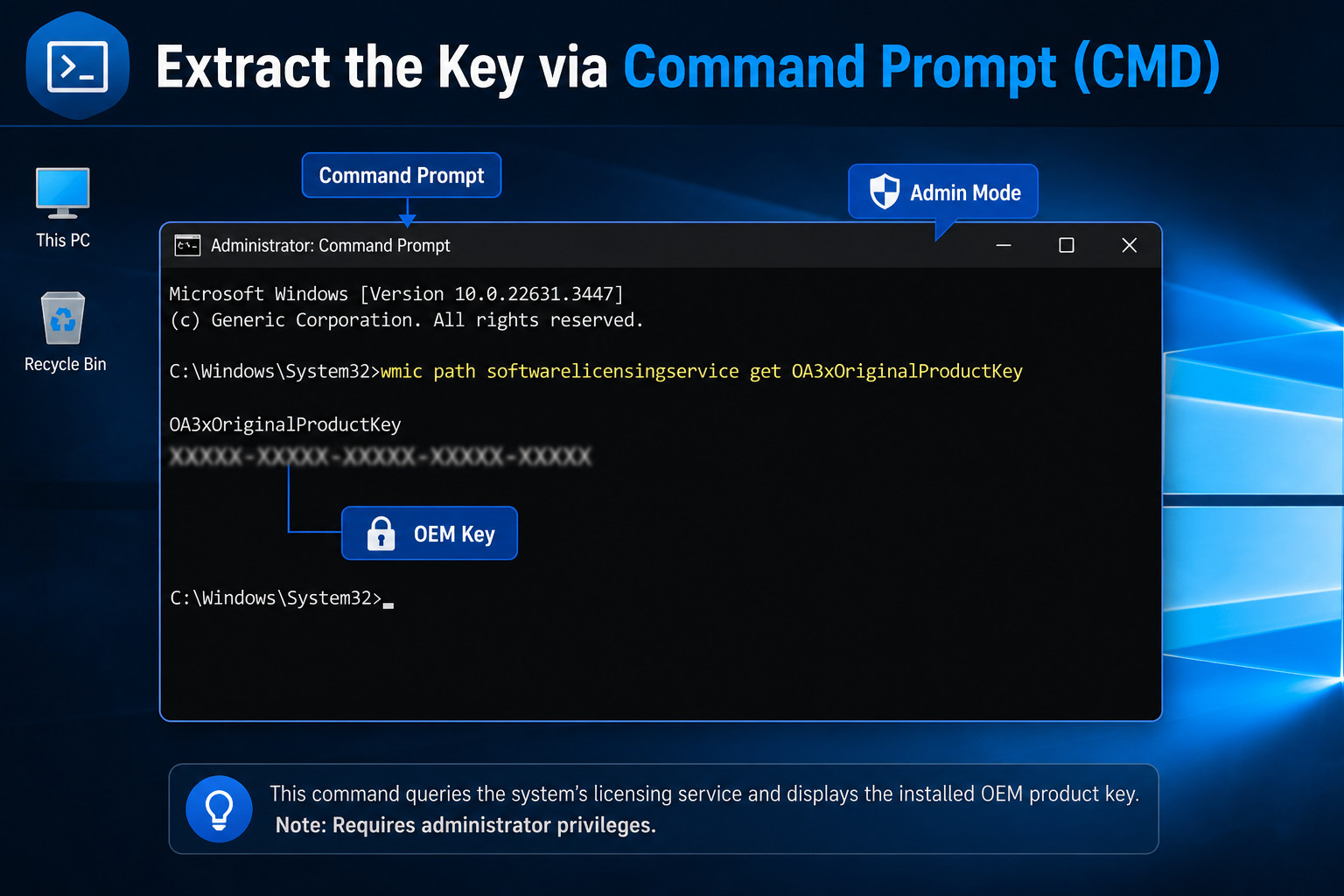
If you purchased a pre-built computer from a major manufacturer (like Dell, HP, or Lenovo), your product key is an “OEM” license. This means the 25-character code is permanently embedded directly into your motherboard’s BIOS/UEFI firmware. Because it is tied to the hardware, you can instantly extract it using a simple command line prompt. To retrieve your OEM key, follow the steps given below:
- Click the Windows Start Menu, type cmd into the search bar.
- Right-click on the Command Prompt app and select Run as administrator.
- Click Yes if the User Account Control window asks for permission.
- Carefully type or paste the following exact command: wmic path softwarelicensingservice get OA3xOriginalProductKey
- Press the Enter key.
- Your 25-character product key will appear directly beneath the command. Highlight it, press Ctrl+C to copy it, and save it in a secure document.
2. View the Key via Windows PowerShell
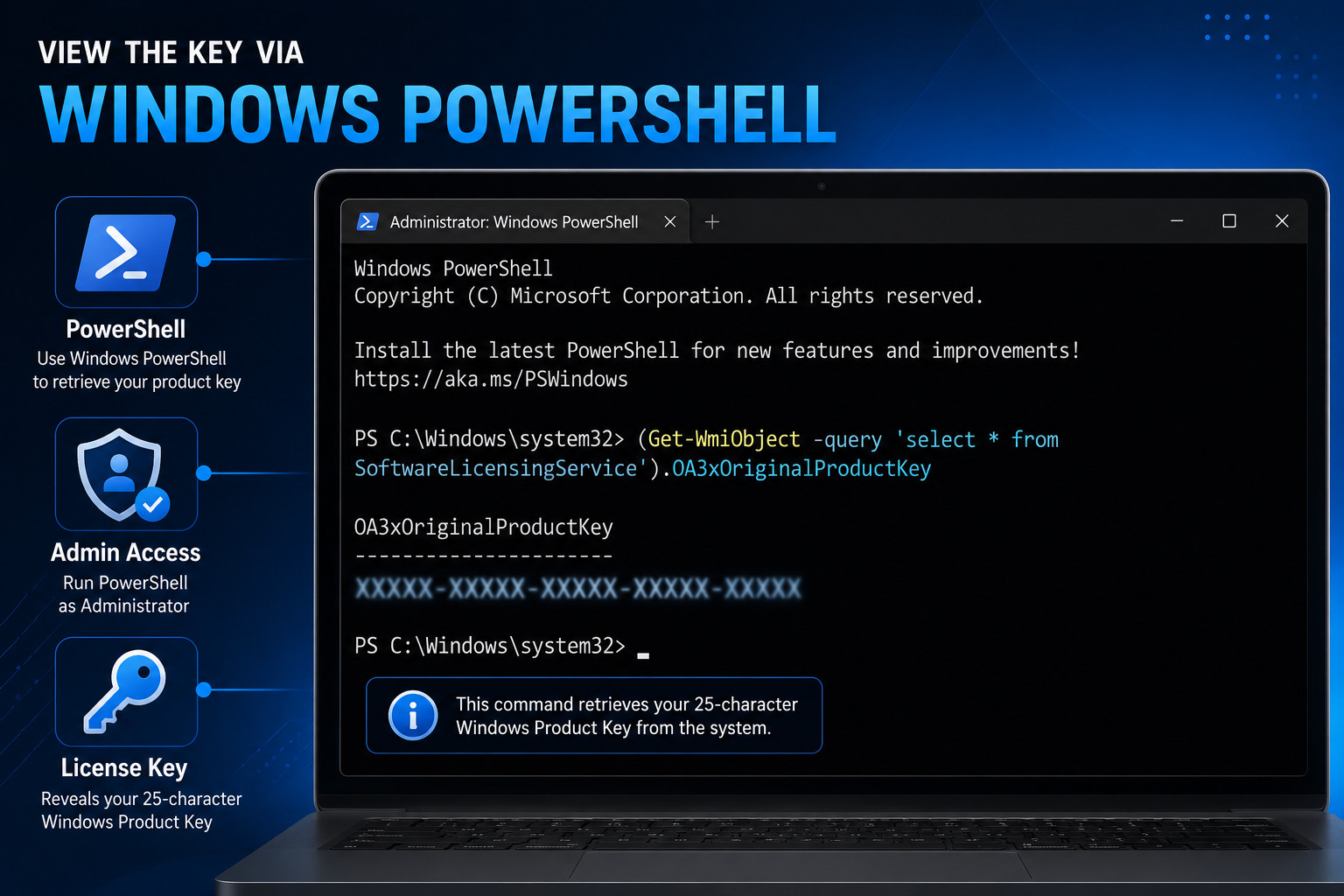
If you prefer using modern administrative tools, Windows PowerShell can execute a similar hardware query to extract your embedded motherboard key. This method is exceptionally fast and operates identically to the Command Prompt method but uses a different coding language. To use PowerShell, follow the steps given below:
- Right-click the Windows Start Menu icon.
- Select Windows PowerShell (Admin) or Terminal (Admin) from the resulting context menu.
- Click Yes on the security prompt to allow administrative access.
- Type or paste the following command string: (Get-WmiObject -query ‘select * from SoftwareLicensingService’).OA3xOriginalProductKey
- Press the Enter key to execute the script.
- The screen will instantly output your alphanumeric product key. Write it down on a physical piece of paper for safekeeping.
3. Check for a Digital License Linked to Your Account
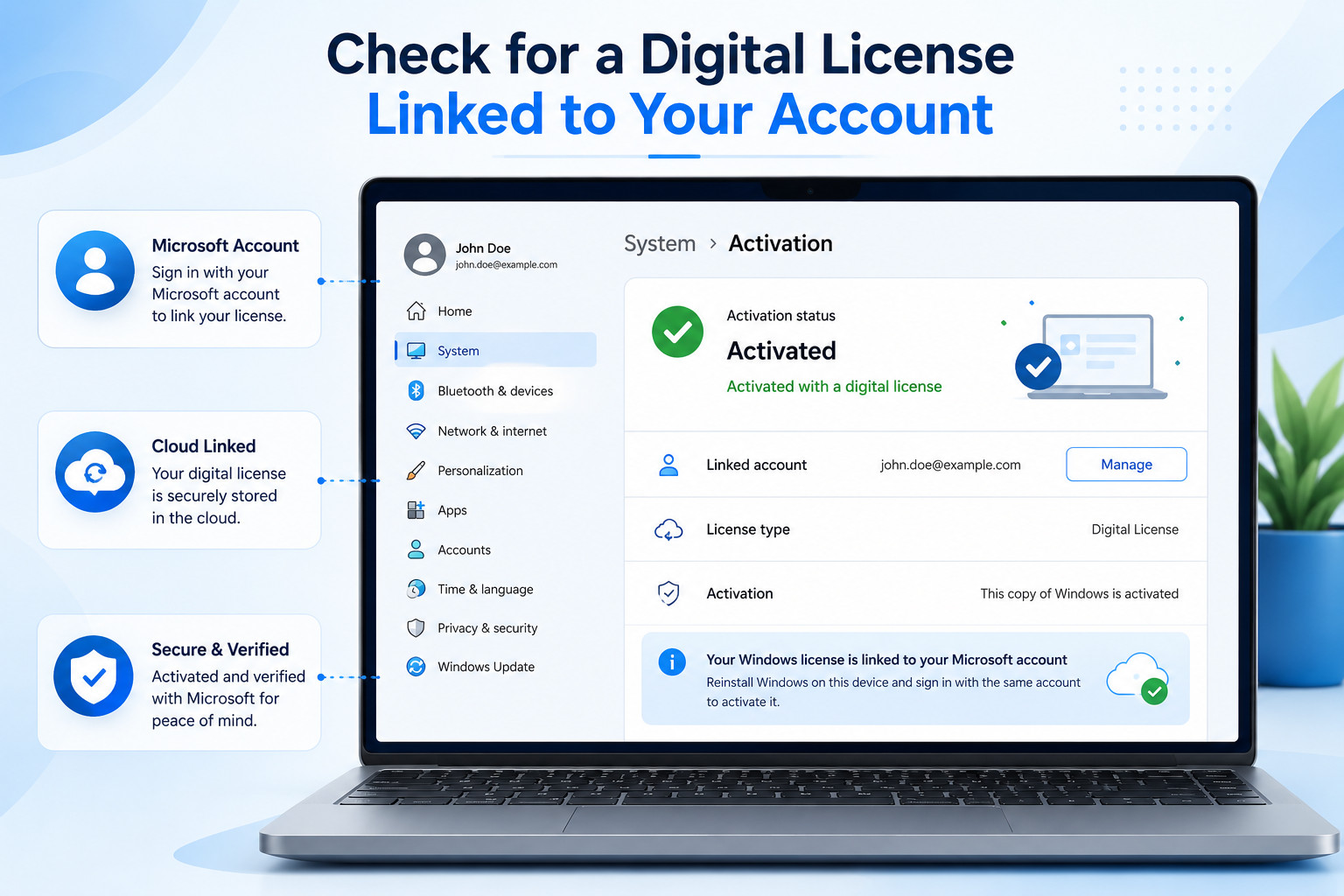
If you upgraded to Windows 10 or 11 for free, or if you purchased a retail copy directly from the Microsoft Store, you likely do not have a traditional physical product key anymore. Instead, Microsoft uses a “Digital License” (or Digital Entitlement) that is permanently tethered to your primary Microsoft email address. In this scenario, you do not need a 25-character code; you just need to log in. To verify your digital license, follow the steps given below:
- Click the Windows Start Menu and open the Settings gear icon.
- In Windows 11, navigate to System and click on Activation. (In Windows 10, go to Update & Security, then click Activation on the left sidebar).
- Look for the “Activation state” section.
- If it says Windows is activated with a digital license linked to your Microsoft account, you are entirely safe.
- When you reinstall Windows in the future, simply click “I don’t have a product key” during the setup screen.
- Once you reach the desktop, sign in with your Microsoft account, and the operating system will activate automatically over the internet.
4. Use ShowKeyPlus from the Microsoft Store
If you bought a retail license key years ago and applied it to your machine, the CMD and PowerShell methods might turn up completely blank because the key is not embedded in the motherboard. Digging through the Windows Registry manually to find a retail key can be dangerous. Instead, utilizing a trusted, free application hosted directly on the official Microsoft Store is one of the best ways to view your Windows product key safely. To find your retail key, follow the steps given below:
- Open the Microsoft Store app from your taskbar or Start menu.
- Search for the application named ShowKeyPlus (it is free, highly rated, and safe to use).
- Click Install and wait for the lightweight application to download.
- Launch ShowKeyPlus.
- The software will instantly display a dashboard showing your “Installed Key” (your current Windows license) and your “OEM Key” (if your motherboard has one).
- Click the Save button within the app to export these keys into a simple text file for your personal records.
5. Check Physical Documentation and Emails
If you are building a brand-new PC and cannot extract a key from an old machine, you will need to hunt down your original purchase records. Microsoft still issues standard 25-character keys for standalone retail purchases. To locate your physical or emailed key, follow the steps given below:
- Check your email inbox for receipts from Microsoft, Amazon, or Newegg. Search for keywords like “Windows 11 License”, “Product Key”, or “Digital Delivery”.
- If you bought a physical box from an electronics store, look inside the packaging for a small, credit-card-sized piece of cardboard containing the code.
- If you have an older laptop or pre-built desktop (from the Windows 7 or Windows 8 era), physically inspect the bottom chassis or the back panel of the tower.
- Look for a colorful Microsoft Certificate of Authenticity (COA) sticker.
- Gently scratch off any protective silver foil (if present) to reveal the 25-character key printed on the sticker.
Conclusion
Losing your Windows product key can cause a massive headache when it comes time to upgrade your hardware or perform routine system maintenance. Thankfully, Microsoft has made it increasingly difficult to permanently lose your license. By understanding the best ways to view your Windows product key, whether by extracting it from your motherboard via Command Prompt, verifying your digital account linkage, or using a trusted app like ShowKeyPlus, you can secure your operating system credentials in minutes. Always ensure you have your activation status confirmed or your 25-character code physically written down before initiating any major hard drive formats.
ALSO READ: