- To reconnect your Shark robot to WiFi after a password change, first ensure the robot is charged, check that your phone is on the 2.4GHz WiFi network, and place the robot into pairing mode using the SharkClean app. This is the basic method and usually works effectively.
- If the robot won't connect, try removing it from the SharkClean app, restart your phone and router, forget any temporary Shark networks on your phone, and repeat the setup process. Router changes, password updates, or app issues are often the cause of connection problems.
- When connecting the Shark robot to a new WiFi, ensure your phone is on the new 2.4GHz network, remove any old network settings for the robot from the
If your Shark robot suddenly goes offline, stops showing up in the app, or no longer follows schedules, the problem is usually related to WiFi settings rather than a hardware failure. This often happens after a router change, a new internet connection, a WiFi password update, a factory reset, or a SharkClean app issue. In many homes, the robot was working fine for months, then one small network change breaks the connection and leaves the owner wondering what went wrong.
The good news is that reconnecting a Shark robot is usually not difficult once you know the proper order. You need to check the robot, the router, your phone connection, and the SharkClean app. Then you can place the robot back into pairing mode and reconnect it properly. If the first setup attempt fails, there are still several reliable ways to fix it.
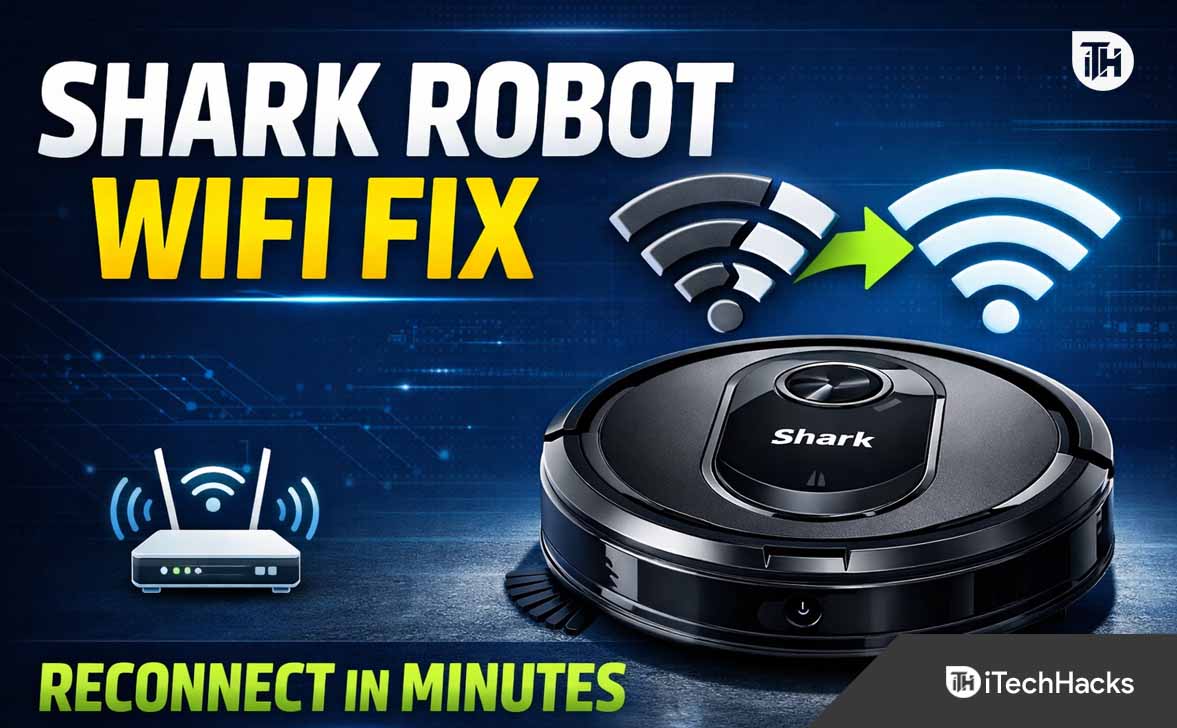
This guide explains how to reconnect Shark robot to wifi in a clear, practical way. It also covers what to do if your shark robot not connecting to wifi, how to complete shark robot wifi setup, how to reconnect shark robot vacuum to wifi, what to do if your shark robot vacuum not connecting to wifi, how to handle sharkclean app wifi setup, and how to connect shark robot to new wifi after changing routers or internet providers.
Why Your Shark Robot Lost WiFi Connection
Before trying to reconnect anything, it helps to understand why the robot lost connection in the first place. In most cases, the reason is simple.
Router change
If you installed a new router, replaced your modem-router combo, or changed internet providers, your Shark robot may still be trying to connect to the old network. The robot saves your previous WiFi details. Once that old network disappears, the robot cannot reconnect by itself. This is one of the most common reasons people need to reconnect their robot.
WiFi password change
Even if the router is still the same, changing the WiFi password can break the saved connection. Your robot still has the old password stored in memory, so it keeps failing in the background. The app may show the robot as offline, unavailable, or disconnected. In this situation, you usually need to repeat the setup process and enter the new password.
Robot reset
If the robot was reset manually, powered off for a long time, removed from the app, or went through a failed setup cycle, its wireless settings may no longer be valid. Sometimes users reset the robot while troubleshooting another issue and later realize the WiFi connection was erased too.
Router band issues
Many Shark robots work best with a 2.4GHz WiFi network. If your router combines 2.4GHz and 5GHz under one network name, the setup can fail. Your phone may connect to 5GHz while the robot only supports or pairs properly through 2.4GHz. This mismatch causes many cases of failed pairing.
App connection problems
Sometimes the issue is not the robot or router at all. The SharkClean app may be outdated, stuck, holding old pairing data, or failing to communicate with the robot correctly. If the app cannot find the robot, freezes during setup, or keeps showing an old offline device, the reconnection process may fail until the app is refreshed or reinstalled.
Things to Check Before Reconnecting
Before starting the full reconnection process, check a few basic things. These simple checks save time and often prevent unnecessary resets.
Check the robot battery level
Your Shark robot should have enough battery before WiFi setup. If the battery is too low, pairing may fail halfway through. Put the robot on the dock and let it charge for a while before you begin. If the robot is not charging properly, fix that first.
Make sure the router is working
Confirm that your home WiFi is actually working by testing it on your phone or another device. If the internet is unstable, slow, or cutting in and out, the robot may fail to connect. Restarting the router before setup is a smart step, especially if the connection has been acting strangely.
Connect your phone to the correct WiFi
This is very important. Your phone should be connected to the same home WiFi network that you want the robot to use. If your phone is on mobile data, guest WiFi, a different network, or the wrong band, setup may fail. During SharkClean app wifi setup, your phone and robot need to work together on the correct network.
Use a 2.4GHz network
If your router has separate 2.4GHz and 5GHz network names, connect your phone to the 2.4GHz one before starting setup. If both bands use the same name, you may need to temporarily separate them in the router settings. Many people dealing with a shark robot vacuum not connecting to wifi eventually discover this was the main problem.
Move closer to the router
Do not try to reconnect the robot from the far end of the house. Put the robot, dock, and phone in the same room as the router during setup. Thick walls, large appliances, and weak signal areas can interrupt the pairing process.
Turn off VPN if you use one
If your phone uses a VPN, private DNS, work security app, or anything that changes the network path, turn it off during setup. These services can interfere with app-based device pairing.
Method 1 – Reconnect Shark Robot to WiFi Using the SharkClean App
This is the main method most owners should try first. If you are searching for how to reconnect shark robot to wifi, this is usually the correct starting point.
Step 1: Open the SharkClean app
Unlock your phone and open the SharkClean app. Sign in with the same account you used when the robot was first set up. If you have more than one Shark device, make sure you are looking at the correct one.
If the app is outdated, update it before continuing. An old app version can cause setup bugs or pairing errors.
Step 2: Check the device status
If the robot already appears in the app but shows as offline, tap into the robot details and see whether there is an option to reconnect, manage network, or remove the device. If the robot is badly stuck in an offline state, it is often better to remove it from the app and set it up again from scratch rather than trying to repair the broken connection.
Step 3: Remove the old robot entry if needed
If the app keeps failing to reconnect, remove the robot from the SharkClean app. This clears the old saved link between the app and the robot. The exact wording may vary depending on app version, but look in settings, device management, or robot options.
This step is especially useful if you recently changed routers or passwords. The app may still be holding old network information that prevents a clean setup.
Step 4: Put the robot into pairing mode
Make sure the robot is powered on and near the router. On many Shark models, you can place the robot into pairing mode by pressing and holding the Dock and Clean buttons together until the WiFi light starts blinking.
The blinking WiFi indicator usually means the robot is ready to pair. On some models, you may also hear a sound or voice prompt. If the light does not blink, wait a few seconds and try again.
Step 5: Start device setup in the app
In the SharkClean app, choose the option to add a new robot or reconnect an existing robot. Follow the on-screen steps carefully. The app may ask what model you have, so check the label on the robot if needed.
Read each screen instead of tapping quickly through setup. A lot of failed pairings happen because users skip small instructions about WiFi networks, pairing mode, or phone settings.
Step 6: Connect to the temporary robot network if prompted
During setup, your phone may be asked to connect to a temporary Shark robot network. This may appear in your WiFi settings with a name related to the robot model. If the app tells you to switch networks temporarily, do that and then return to the app.
This temporary connection allows the app to send your home WiFi details to the robot.
Step 7: Choose your home WiFi network
Once the robot is ready to receive your network details, the app will ask you to select your home WiFi. Choose the correct 2.4GHz network, not the 5GHz network. Enter the password carefully.
A single typing mistake can cause the entire setup to fail. Check upper and lowercase letters, numbers, and symbols before continuing.
Step 8: Wait for the robot to connect
Keep the app open and stay close to the robot while the setup finishes. Do not switch apps, turn off the screen, or walk far from the router. The connection can take a minute or two.
If setup succeeds, the robot should appear online in the app, and the blinking WiFi light should stop showing pairing behavior.
Step 9: Test the connection
Once setup is complete, send a simple command through the app, such as start cleaning or return to dock. If the robot responds, your Shark robot wifi setup was successful.
If the app still says the robot is offline, move on to the next method.
Method 2 – Reset Shark Robot WiFi Connection
If the normal app method does not work, the next step is to clear the robot’s saved network state and try again with a clean setup.
When should you reset the WiFi connection?
You should do this if:
- The app cannot find the robot at all
- The robot keeps trying to connect to an old network
- The setup gets stuck every time
- The robot was removed from the app and will not reconnect normally
- You need to reconnect shark robot vacuum to wifi after a major network change
Shark IQ Robot
For many Shark IQ Robot models, the standard reconnect method starts by placing the robot into setup mode using the Dock and Clean buttons. If it will not reconnect, remove it from the app, restart it, and then repeat the setup process from the beginning.
If your phone has a saved temporary Shark setup network from a previous failed attempt, forget that network in your phone’s WiFi settings before trying again.
Shark AI Robot
For Shark AI Robot models, the overall process is similar. You still use the SharkClean app, place the robot into pairing mode, and reconnect it to your 2.4GHz home network. The exact button layout may differ slightly by model, but the goal is the same: get the robot back into setup mode so the app can transfer the WiFi details again.
Shark Matrix Robot
Shark Matrix models also reconnect through the SharkClean app. If you are trying to connect Shark robot to new wifi on a Matrix model, remove the old device entry if necessary, put the robot in setup mode, and run the pairing flow again through the app.
The name of the model does not change the basic logic very much. What matters most is a charged robot, a good 2.4GHz signal, and proper pairing mode.
Practical reset routine that works well for many Shark robots
- Remove the robot from the SharkClean app if it is stuck offline.
- Place the robot on the dock and make sure it is charging.
- Power the robot off if your model has a power switch, then wait about 10 seconds.
- Power the robot back on or wake it from the dock.
- Restart your phone.
- Restart your router.
- In your phone’s WiFi settings, forget any saved temporary Shark robot network.
- Reconnect your phone to the 2.4GHz home WiFi.
- Put the robot into pairing mode again.
- Open the app and complete the full setup process from the start.
This routine is often enough to fix a broken connection that would not respond to a simple app retry.
Method 3 – Fix Shark Robot Not Connecting to WiFi
If your Shark robot not connecting to wifi even after a fresh setup attempt, work through these fixes one by one.
Switch fully to 2.4GHz
This is the most important fix. If your phone is connected to the 5GHz band while the robot is expecting 2.4GHz setup, pairing can fail. Log into your router if needed and temporarily disable 5GHz or create separate network names. Then reconnect your phone to the 2.4GHz network and try again.
Restart the router
A full router restart clears temporary network issues. Unplug the router, wait around 30 seconds, then plug it back in. Let it fully restart before trying again. Even if the internet seems mostly normal, a restart can fix small problems that affect smart devices more than phones or laptops.
Restart the robot
Reboot the robot before each new setup attempt. Sometimes a failed pairing leaves the robot in a bad state. A fresh restart gives it a clean chance to enter pairing mode properly.
Reinstall the SharkClean app
If the app behaves strangely, uninstall it and install it again. Then sign in and retry setup. This is especially helpful if the app freezes, crashes, or keeps showing an old offline device that cannot be removed properly.
Move the robot closer to the router
Keep the robot right near the router during setup. A weak signal can interrupt the handoff between your phone, the app, and the robot. Once the robot is fully connected, you can return it to its normal dock location.
Check for password mistakes
WiFi passwords are easy to enter incorrectly, especially if they include symbols or mixed uppercase and lowercase letters. Re-enter the password carefully. If necessary, temporarily simplify the WiFi password, reconnect the robot, and then change the password again later if you are comfortable doing that.
Turn off mobile data temporarily
Some phones switch between WiFi and mobile data if the WiFi network has weak internet during setup. Turning off mobile data temporarily can reduce confusion during pairing and force the phone to stay on the correct network.
Disable guest network use
If you are trying to use a guest network, setup may fail or the robot may disconnect later. Use your main home network instead. Guest networks sometimes block communication that smart devices need.
Method 4 – Connect Shark Robot to a New WiFi Network
If you changed routers, switched internet providers, or renamed your network, you need to connect Shark robot to new wifi rather than simply waiting for it to reconnect by itself.
Step 1: Confirm the new network details
Make sure you know the exact network name and password for the new WiFi. Also confirm that the new router is broadcasting a 2.4GHz network that your phone can join.
Step 2: Connect your phone to the new 2.4GHz WiFi
Your phone must already be on the new network before the robot can be added correctly. Do not keep the phone on the old router, another saved network, or mobile data.
Step 3: Remove the robot from the app if the old network is still linked
If the app still shows the robot from the old network, remove it so you can start clean. This helps prevent the app from trying to repair a broken old connection instead of setting up the new one properly.
Step 4: Put the robot into pairing mode
Place the robot close to the router and put it into pairing mode using the appropriate buttons. On many models, this means holding Dock and Clean until the WiFi light blinks.
Step 5: Add the robot again through SharkClean
Use the SharkClean app to add the robot as if you were setting it up for the first time. Follow each prompt carefully, connect to the robot’s temporary network if asked, then select your new home WiFi and enter the password.
Step 6: Wait for setup to complete fully
Do not leave the room, switch WiFi networks, or close the app before setup is finished. Let the pairing process complete completely before testing commands.
Step 7: Test scheduling and remote commands
After setup, test more than one feature. Start a cleaning cycle, send the robot back to dock, and check whether schedules can be viewed or created. This confirms that the robot is not only connected but fully communicating with the app.
Common Shark Robot WiFi Error Problems and Fixes
Robot stuck on “connecting”
If the SharkClean app keeps showing a connecting message and never finishes, the likely causes are wrong password, weak signal, or 5GHz interference. Restart the setup, double-check the password, move closer to the router, and confirm your phone is on 2.4GHz.
SharkClean app cannot find the robot
If the app cannot detect the robot, first make sure the robot is really in pairing mode. Watch for the blinking WiFi indicator. If there is no blinking light, the robot may not be ready to pair. Restart it and try again.
Also check your phone permissions. Some phones require Bluetooth, local network access, or location permission for device discovery to work correctly inside setup apps.
Robot disconnects repeatedly
If the robot connects but goes offline again later, the issue is often weak WiFi coverage. The router may be too far away from the dock or cleaning area. You may need to move the dock, improve router placement, or use better signal coverage in the part of the house where the robot works.
Robot appears online, but app commands fail
This can happen when the connection is unstable or partial. Restart the router, reboot the robot, and reopen the app. Then test commands again. If the problem continues, remove the robot and complete a fresh Shark robot wifi setup.
Robot went offline after router reset
If the router was reset to factory settings, the WiFi name or security settings may have changed even if the password looks similar. In that case, treat it like a new network and repeat the full connection process from scratch.
Tips to Prevent Shark Robot WiFi Problems
Keep the dock in a good signal area
Do not place the dock in a dead zone, behind thick furniture, or far from the router. Since the robot starts and ends its jobs near the dock, it helps if that area has a strong signal.
Keep 2.4GHz enabled on your router
Even if most of your devices use 5GHz, keep 2.4GHz available for smart devices like your Shark robot. Turning it off can create future setup or reconnect problems.
Do not change WiFi settings casually
If you change the network name, password, security mode, or router hardware, expect that the robot may need to be reconnected. This is normal. Planning for that saves frustration later.
Update the app regularly
Keep the SharkClean app updated so you get the latest fixes and compatibility improvements. Older app versions can make setup harder than it needs to be.
Reconnect immediately after a router change
Do not wait weeks after installing a new router. Reconnect the robot right away while you still remember the network details and before old pairing data becomes confusing.
Avoid weak guest or extender networks for setup
Use the main home WiFi whenever possible. Guest networks or poorly configured extenders can create strange pairing and stability issues.
Conclusion
If you are trying to figure out how to reconnect shark robot to wifi, the most reliable approach is to start simple. Make sure the robot is charged, confirm your phone is on the correct 2.4GHz WiFi network, place the robot into pairing mode, and reconnect it through the SharkClean app. If that does not work, remove the device from the app, restart the robot and router, forget any temporary Shark network on your phone, and run the setup again from scratch.
Most cases of shark robot not connecting to wifi are caused by router changes, password changes, 2.4GHz issues, or app-related problems. Once those are fixed, the robot usually connects normally again. If you recently changed your router or internet provider, follow the full process to connect Shark robot to new wifi rather than trying random app refreshes.
ALSO READ:
- Teams Mic Not Working After 24H2 Update? Try These Working Fixes
- How to Use Google Authenticator Transfer to Move Codes to a New Phone
- iPad WiFi Not Working? Here’s How to Fix iPad Won’t Connect
- PS5 Won’t Connect to Hotel WiFi? Learn How to Authenticate It Properly
- How to Connect HP Printer to New WiFi Network Without Reinstalling
- 8 Proven Ways to Fix WiFi Authentication Errors on Android