

- Microsoft introduced Quick Machine Recovery (QMR) in Windows 11 Version 24H2, allowing computers with boot problems to connect to Microsoft servers to download and apply a fix automatically without needing complex commands or to reinstall Windows.
- QMR operates by using Wi-Fi or Ethernet to connect to Windows Update before the system boots, checks for problems like faulty updates, and if a fix is available, downloads and applies it, making the PC ready without needing user intervention.
- To use QMR, ensure your system is on Windows 11 Version 24H2 or later, has a functional WinRE partition, and an internet connection; enabling it proactively lets the system fix itself automatically during boot issues, reducing downtime significantly.
There are few sights more terrifying for a PC user than the “Automatic Repair” loop. You turn on your computer, see the loading spinner, and then… nothing. It restarts. It tries again. It fails. In the past, fixing a persistent boot failure often meant digging out a USB installation drive, running complex Command Prompt commands like bootrec /fixboot, or, in the worst-case scenario, completely wiping your drive and reinstalling Windows.
But in 2026, Microsoft changed the game.
With the release of Windows 11 Version 24H2, Microsoft introduced a groundbreaking resilience feature known as Quick Machine Recovery (QMR). Born from the lessons learned during major global IT outages (such as the CrowdStrike incident of 2024), this feature allows a broken computer to “phone home” to Microsoft’s servers, download a specific emergency patch, and fix itself—even if it cannot boot into Windows.
This guide will explain exactly what Quick Machine Recovery is, how it works under the hood, and crucially, how to enable and use it to save your PC from the dreaded Blue Screen of Death (BSOD).
What Is Quick Machine Recovery?
Quick Machine Recovery is a cloud-enhanced troubleshooting tool embedded directly into the Windows Recovery Environment (WinRE).
To understand why it is special, we have to look at how the old system worked. Previously, the “Startup Repair” tool could only fix local problems. It would scan your hard drive for missing system files or bad registry keys. But if the problem was caused by a buggy driver update or a flawed security patch that you had just installed, “Startup Repair” was useless because it didn’t have the new, fixed file. It only had the files already on your disk—which were the problem.
Quick Machine Recovery changes this dynamic. When your PC fails to boot, QMR spins up the Wi-Fi or Ethernet drivers inside the recovery environment. It connects to Windows Update before the operating system loads. It then checks if Microsoft has flagged any specific updates as “bad” and if there is a “Targeted Remediation” (a specialized fix) available for your specific machine.
If a fix exists, QMR downloads it, applies it to the sleeping operating system, and restarts the machine. It can surgically remove a bad driver or patch a corrupted kernel file without you ever needing to touch a command line.
Prerequisites: Do You Have QMR?
Before attempting to enable or use this feature, you must ensure your system meets the 2025 standards for this technology.
- Windows 11 Version 24H2 (or later): This feature is part of the core changes made to the OS in late 2024 and 2025. If you are still running Windows 11 23H2 or Windows 10, this feature will not be available in your settings.
- WinRE Partition Space: Your recovery partition must be healthy. During the upgrade to 24H2, Windows usually expands this partition automatically to house the new Wi-Fi drivers needed for QMR.
- Internet Connection: This is the most critical requirement. For QMR to work, the Recovery Environment needs to talk to the internet.
- Ethernet: Works best (plug-and-play).
- Wi-Fi: Supported, provided your Wi-Fi card drivers are included in the basic Windows driver store.
Fix Windows 11 Boot Loop Using Quick Machine Recovery (Step-by-Step)
Method 1: How to Enable Quick Machine Recovery (Proactive Setup)
The best time to fix a boot loop is before it happens. Windows 11 allows you to configure Quick Machine Recovery to run automatically. This means if your PC crashes while you are asleep or away from the desk, it can repair itself without waiting for your input.
Step-by-Step Configuration
- Open System Settings: Press the Windows Key + I on your keyboard to launch the Settings app.
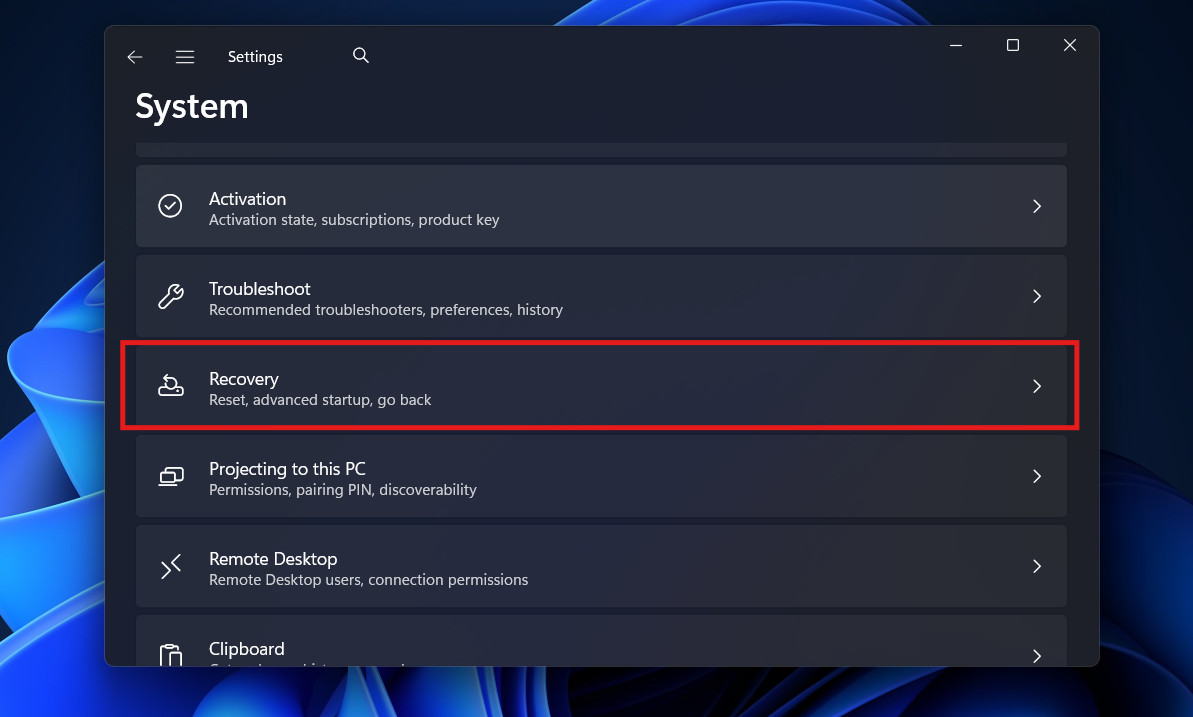
- Navigate to Recovery: On the left-hand sidebar, ensure System is selected. Scroll down the main pane until you find Recovery. Click it.

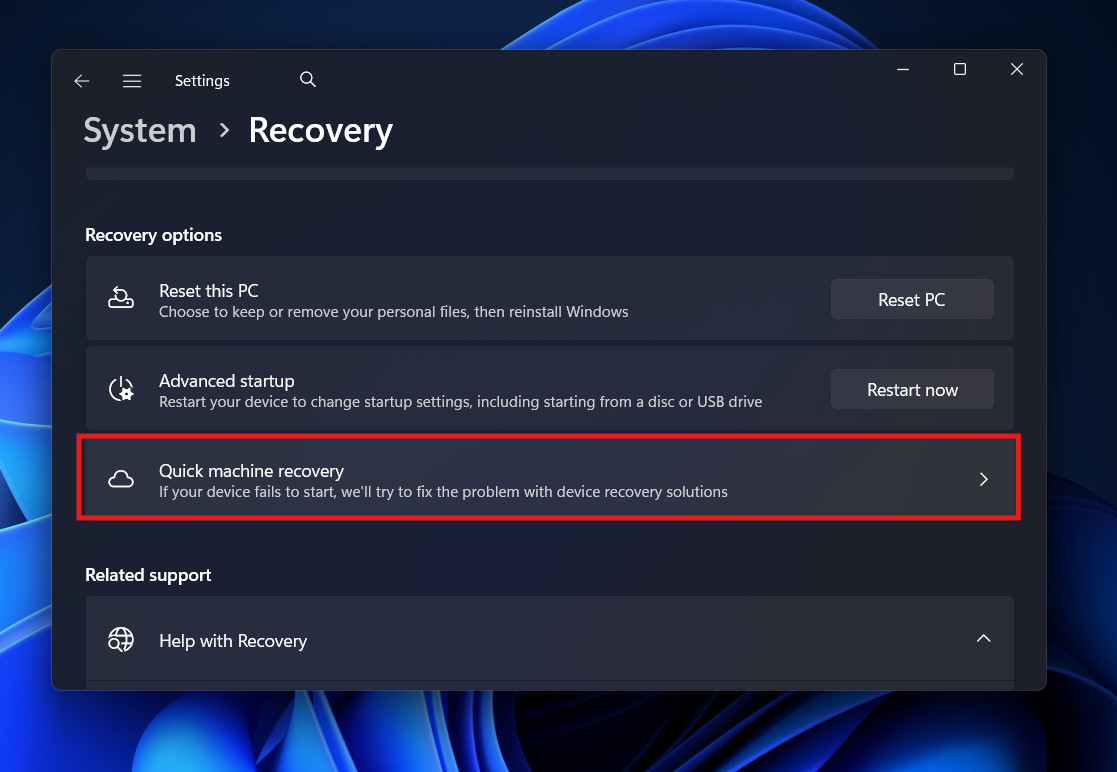
- Locate the Feature: In the Recovery menu, under the “Recovery options” section, you will see a new entry labeled Quick Machine Recovery; click on it. (Note: If you do not see this, double-check that you have installed the latest “Feature Update” in Windows Update).

- Toggle It On: Switch the main toggle to On.

- Configure Automation (Optional but Recommended):Once enabled, you may see a dropdown menu for “When to run.”
- Automatic: Windows will attempt QMR immediately upon detecting a boot failure.
- Manual: Windows will boot to the blue recovery screen and wait for you to click the button.
- Recommendation: Set this to Automatic. If a bad update breaks your PC, you want it fixed immediately.
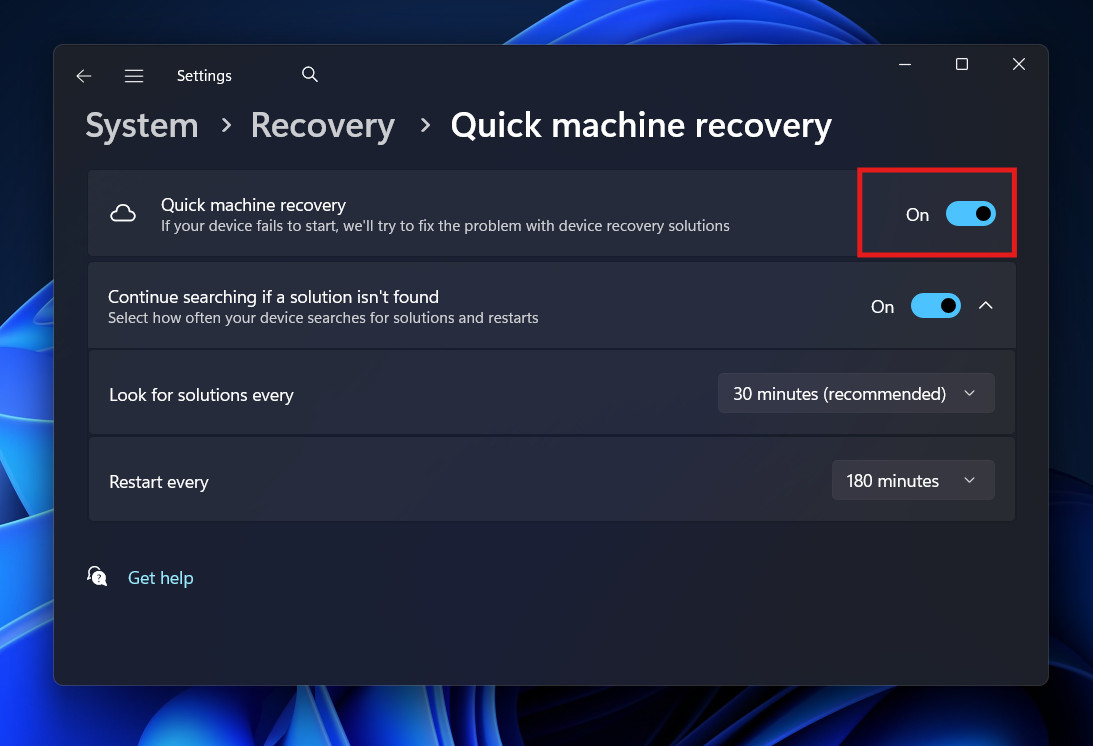
By enabling this, you are essentially giving permission for the Recovery Environment to access your saved Wi-Fi credentials so it can connect to the internet without you having to re-type your password during a crash.
Method 2: How to Use Quick Machine Recovery Manually (During a Crash)
If you didn’t enable the setting above, or if your computer is currently stuck in a boot loop, don’t worry. You can still access Quick Machine Recovery manually.
Phase 1: Force the Recovery Environment
If your computer cannot boot, Windows will try to load the recovery screen automatically after two failed attempts. If it doesn’t, you can force it:
- Turn on your PC.
- The moment you see the manufacturer logo (Dell, HP, ASUS, etc.), press and hold the power button for 10 seconds to force a hard shutdown.
- Repeat this process three times.
- On the fourth boot, let the PC run. You should see a message saying “Preparing Automatic Repair,” followed by a blue screen.
Phase 2: Run the Cloud Fix
- On the blue screen titled “Automatic Repair,” click the Advanced options button.
- Select Troubleshoot.
- Select Advanced options again.
- Look for the option labeled Quick Machine Recovery or Fix with Windows Update.
- Note: The wording may vary slightly depending on the specific update installed, but it will always reference cloud repair or updates.
- Network Setup: The system will initialize its network drivers. It will scan for Wi-Fi networks. Select your home Wi-Fi and enter the password using the on-screen keyboard. If you have an Ethernet cable connected, it should connect automatically.
- The Diagnosis: Once online, you will see a screen saying “Checking for fixes…”
- What is happening here? Your PC is sending a small diagnostic report (specifically the “failure bucket ID”) to Microsoft. Microsoft’s servers cross-reference this ID. If thousands of other people with your specific graphics card or processor are crashing, Microsoft likely has published a “Targeted Remediation” for that hardware.
- The Repair: If a fix is found, the screen will change to “Applying repairs…”
- The tool downloads the corrected driver or patch.
- It mounts your Windows drive.
- It swaps the bad file for the good one.
- It triggers a reboot.
If successful, your PC will boot directly to the login screen as if nothing ever happened.
The “CrowdStrike” Context: Why Does This Feature Exist?
To understand the importance of Quick Machine Recovery, we have to look back at the major IT outage of July 2024. A faulty update from a security vendor (CrowdStrike) caused millions of Windows machines worldwide to enter a boot loop.
The fix was actually simple: delete one specific file (C-00000291*.sys). However, because the machines couldn’t boot, IT admins couldn’t send a command to delete the file. They had to physically visit every single server and laptop, boot into safe mode, and delete it manually. It took days.
Quick Machine Recovery is the direct answer to that disaster.
If that scenario happened today with QMR enabled:
- The PC crashes.
- It boots to QMR.
- Microsoft (in partnership with the security vendor) publishes a tiny instruction script to the cloud.
- The PC downloads the script, deletes the bad file, and reboots.
- The crisis is solved in minutes, not days.
This is why enabling this feature is critical not just for home users, but for anyone running a business PC. It transforms a catastrophic manual repair job into an automated software update.
Troubleshooting Quick Machine Recovery
While QMR is a powerful tool, it relies on several variables working perfectly. Here is how to troubleshoot common failures.
1. “No Networks Found”
This is the most common issue. The Windows Recovery Environment (WinRE) is a stripped-down version of Windows. It contains generic drivers, but it might not have the specific driver for your fancy new Wi-Fi 7 card.
- The Fix: Use an Ethernet cable. Plugging directly into your router bypasses the need for complex Wi-Fi drivers. WinRE almost always supports wired connections.
2. BitLocker Blocking the Repair
If you have BitLocker encryption enabled (which is standard on most modern laptops), QMR needs to unlock your drive to apply the fix.
- The Issue: Before it connects to the internet, it might ask for your 48-digit BitLocker Recovery Key.
- The Fix: You must have this key handy. You can find it by logging into your Microsoft Account on a different device (phone or tablet) and going to
account.microsoft.com/devices/recovery-key. Without this key, QMR cannot access your disk to repair it.
3. “No Fixes Available”
Sometimes, QMR will connect, scan, and tell you “No fixes were found for your device.”
- What this means: The crash is likely unique to your machine (e.g., a physically failing hard drive or RAM stick) rather than a widespread software bug that Microsoft knows about.
- Next Steps: In this case, you will need to revert to traditional troubleshooting methods, such as System Restore or Reset this PC (Keep my files).
Best Practices for System Resilience
Quick Machine Recovery is a safety net, but it shouldn’t be your only defense. To ensure it works when you need it most, follow these best practices:
- Keep WinRE Updated: Occasionally, Windows Update will push updates specifically for the Recovery Partition. Never skip these. They often contain newer Wi-Fi drivers that ensure QMR can actually connect to the internet during an emergency.
- Test Your Recovery Key: Ensure you know where your BitLocker key is. QMR is useless if it hits the encryption wall and you can’t unlock the door.
- Use Ethernet for Desktops: If you have a desktop PC, keep it wired via Ethernet if possible. It removes the variable of Wi-Fi passwords and driver compatibility from the recovery process.
Conclusion
Quick Machine Recovery represents the biggest leap forward in Windows troubleshooting in a decade. By shifting the repair logic from the local hard drive to the cloud, Microsoft has created a system that can adapt to new problems instantly.
Whether you are a casual user who fears tech support calls or an enthusiast who likes to tinker, enabling this feature is a “no-brainer.” It costs you nothing in performance but provides an invaluable lifeline.
So, take a moment right now. Go to Settings > System > Recovery, and flip that Quick Machine Recovery switch to On. Hopefully, you will never need it. But if you wake up one morning to a boot loop, you will be very glad it’s there to fix the problem for you.
ALSO READ:




