- If your Xbox controller isn't connecting to your PC, it might have low batteries, or it might be trying to connect to the wrong device, like an actual Xbox console, remembering its last connection.
- Check your USB cable if connecting via USB; it should be a data cable, not just a charging one. For Bluetooth connections, forget the device in your PC settings and re-pair it to fix any confusion the controller and PC might encounter.
- Ensure your Bluetooth setup is correct by checking antenna connections and turning off other interfering devices. If using an Xbox Wireless Adapter, ensure correct USB port usage and manage driver issues through the Device Manager.
You are ready to play. You launch your game, grab your controller, and press the Xbox button. It flashes… and keeps flashing.
Instead of jumping into the action, you are stuck staring at a blinking light. It is incredibly frustrating when technology fails right when you need it.
If you are searching for why your Xbox controller not connecting to pc, you are in the right place. Whether you have the latest Series X controller or an older model, this guide covers every fix—from simple Bluetooth resets to driver updates—to get you back in the game fast.
Xbox Controller Not Connecting to PC (Wired/Bluetooth)
Part 1: The “Sanity Checks” (Do This First)
Before we start uninstalling drivers or digging into settings, we need to rule out the silly stuff. These are the things we often overlook because we are too focused on the complex solutions.
1. The Battery Trap
It sounds obvious, but low batteries cause weird behavior. A controller with 10% battery might turn on and flash, but it won’t have enough radio power to maintain a stable Bluetooth connection.
- The Fix: Swap in fresh AA batteries or fully charge your rechargeable pack. If you are using a rechargeable pack, try using standard AAs just for testing. Sometimes rechargeable packs die over time and can’t hold the voltage needed to pair.
2. The “Wrong Console” Problem
Did you recently use this controller on your actual Xbox console in the living room?
- The Issue: The Issue: Xbox controllers have a “memory.” They remember the last device they talked to. If you press the Xbox button, it might be turning on your console in the other room instead of looking for your PC.
- The Test: If you hear the “beep” of an Xbox turning on in the other room, you know this is the problem.
- The Fix: You need to force the controller into pairing mode (hold the small sync button on top) to make it forget the console and look for the PC.
3. The Cable Check (Charge vs. Data)
If you are trying to connect via USB because wireless isn’t working, check your cable.
- The Issue: Many Micro-USB and USB-C cables are “Charge Only.” They have wires for power, but no wires for data. They are designed for charging phones, not connecting controllers.
- The Fix: Try a different cable—specifically one that came with a phone or a hard drive. If the controller buzzes but Windows doesn’t make the “device connected” sound, your cable is likely charge-only.
Part 2: Fixing Bluetooth Connections
Most people today connect via Bluetooth. It is convenient, but Bluetooth on Windows is notoriously finicky. If your Xbox controller not connecting to pc via Bluetooth, here is the step-by-step repair.
1. The “Forget and Re-pair” (The Magic Fix)
Bluetooth gets confused. Sometimes Windows thinks it is connected, but the controller thinks it isn’t. They are stuck in a standoff. You need to introduce them as strangers again.
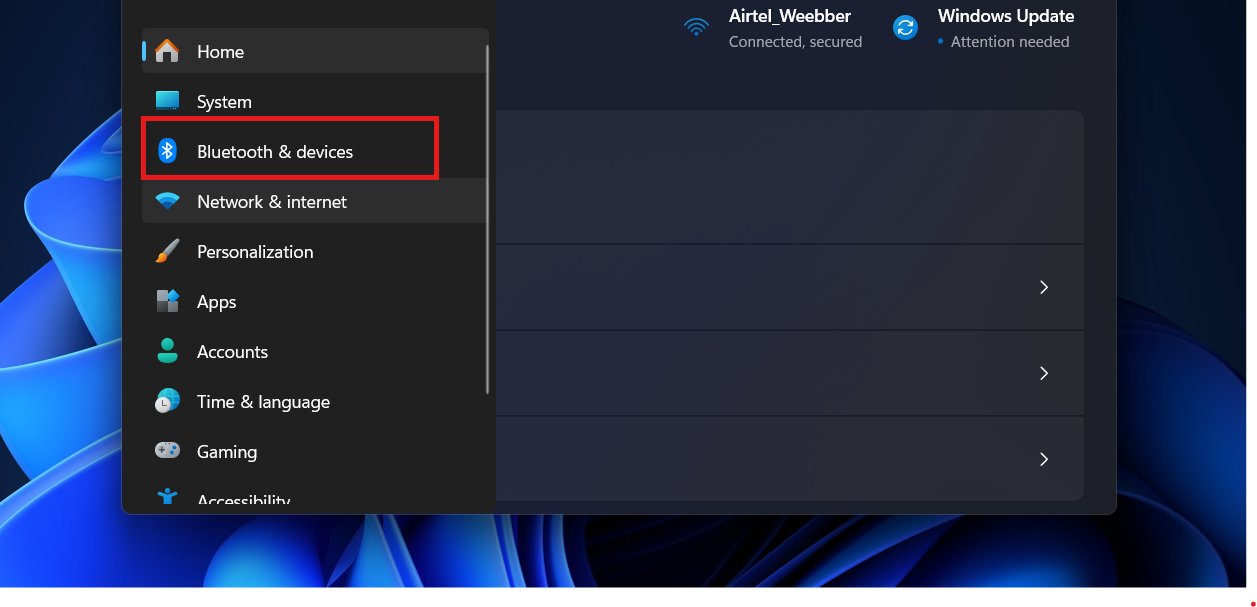
- Open Settings: Press Windows Key + I.
- Go to Devices: Click Bluetooth & devices.

- Find the Controller: Look for “Xbox Wireless Controller” in the list.
- Remove It: Click the three dots (or click the device) and select Remove device.
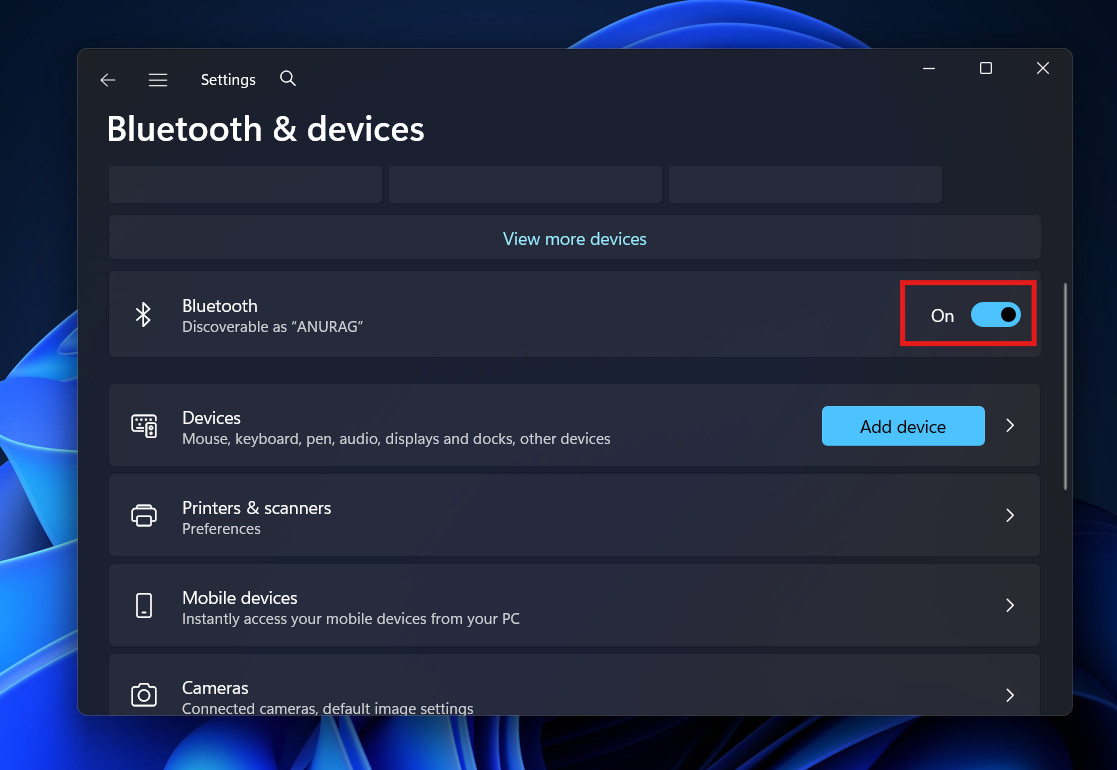
- Restart Bluetooth: Toggle the Bluetooth switch Off, wait 5 seconds, and turn it On.

- Re-pair:
- Hold the Xbox button on the controller to turn it on.
- Press and HOLD the small round Sync button on the very top of the controller (near the charging port) for 3 seconds. The Xbox button will start flashing very fast.
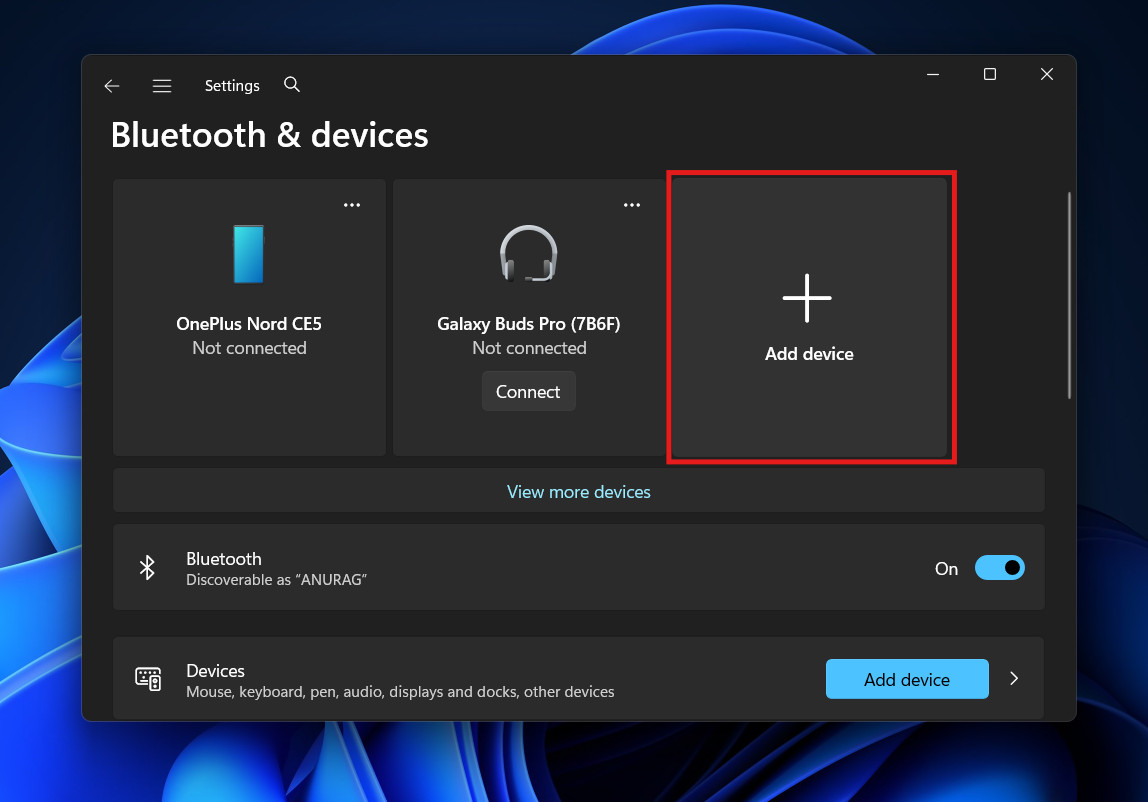
- On your PC, click Add device > Bluetooth.

- Select “Xbox Wireless Controller” when it pops up.
2. Check Your Bluetooth Antennas
This is a hardware issue that plagues desktop PC users.
- The Scenario: You built your own PC. Your motherboard has built-in Wi-Fi and Bluetooth.
- The Issue: Did you screw in the little plastic “shark fin” antennas that came with your motherboard? Many people throw these in a drawer because they use Ethernet (wired internet).
- The Reality: Those antennas are for Bluetooth too! Without them, your Bluetooth range is about 6 inches. If your controller works when touching the PC case but fails when you sit back, screw in your antennas.
3. Bluetooth Interference
Bluetooth operates on the 2.4GHz frequency. You know what else does?
- Your Wi-Fi router.
- Your microwave.
- Other wireless mice/keyboards.
- Your neighbor’s Wi-Fi.
If you have a lot of wireless gadgets on your desk, your controller might be fighting for signal space. Try turning off other Bluetooth devices to see if the connection stabilizes.
Part 3: Fixing the Xbox Wireless Adapter
If you are a serious gamer, you might be using the official Xbox Wireless Adapter for Windows (the USB stick). This provides a better, lower-latency connection than Bluetooth.
However, these dongles can be temperamental.
1. The Driver Glitch
Sometimes Windows updates break the driver for this specific dongle.
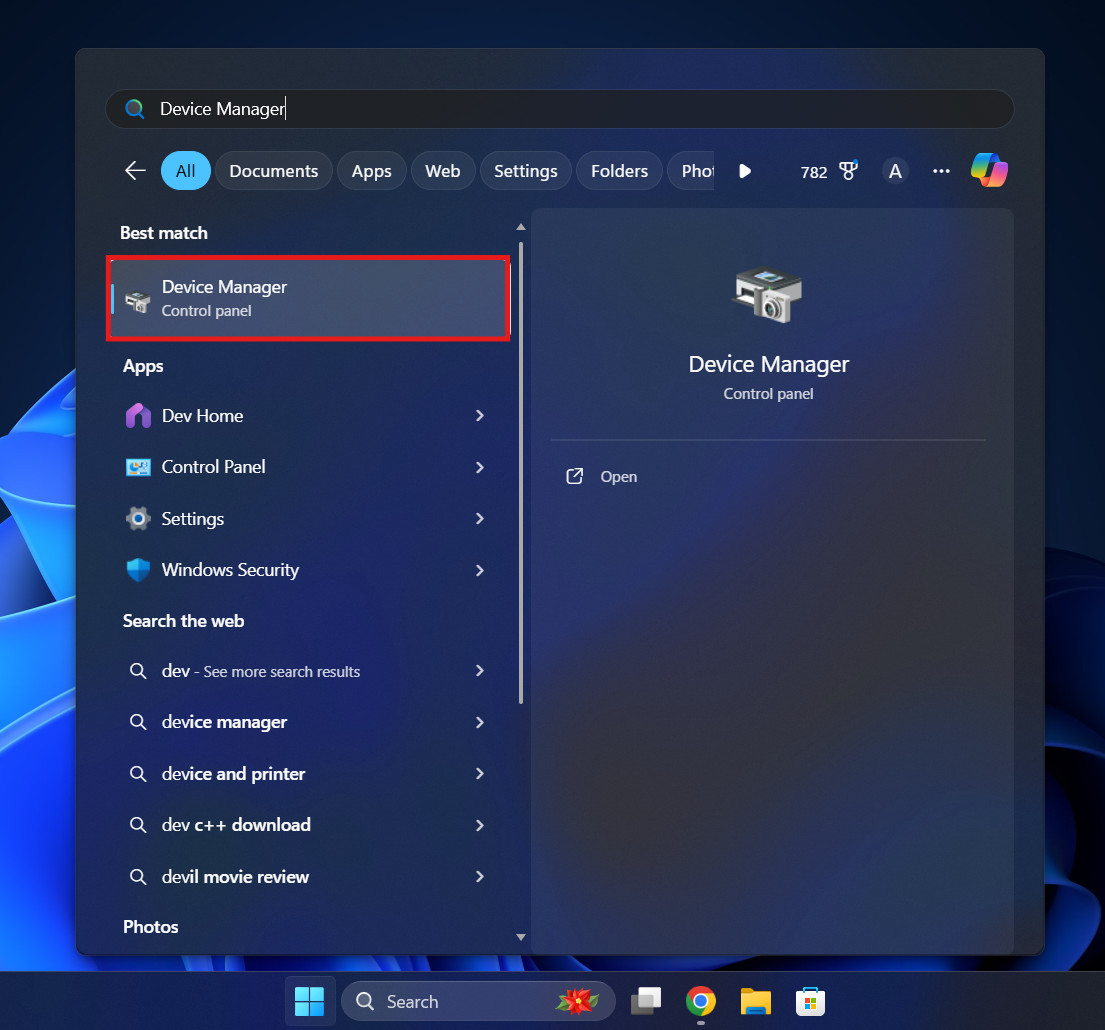
- Open Device Manager: Right-click the Start button and select Device Manager.

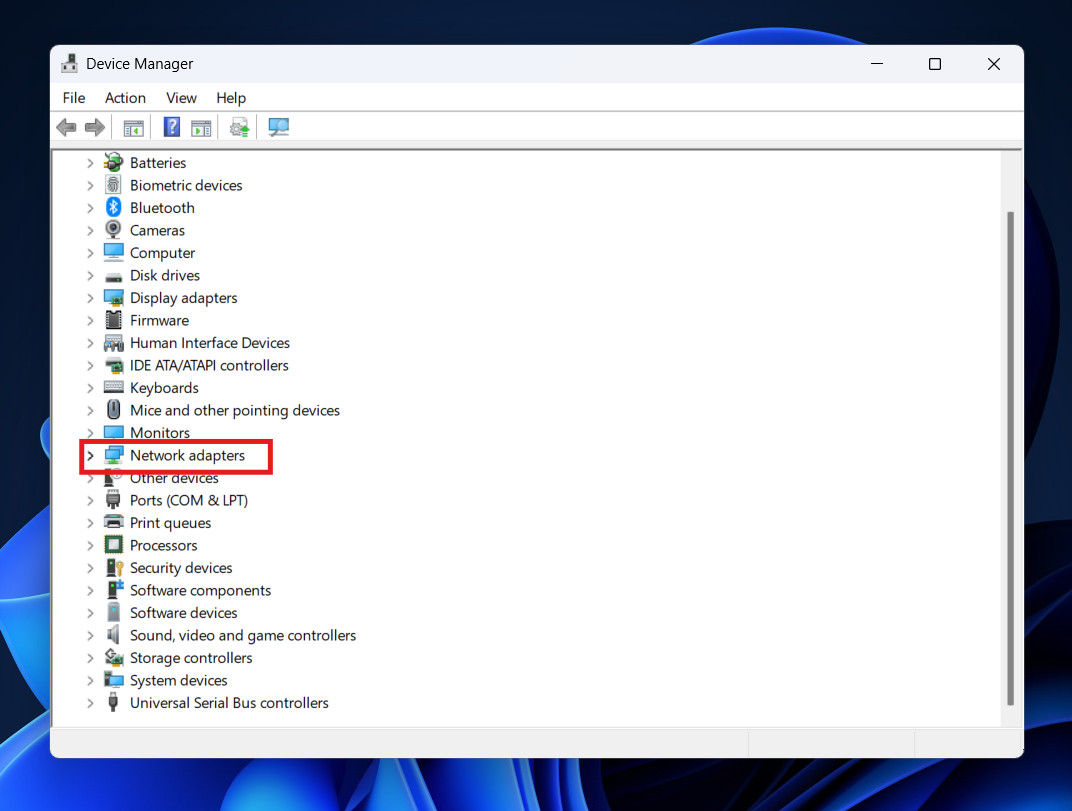
- Find the Adapter: Look under Network adapters for “Xbox Wireless Adapter for Windows.”

- Uninstall: Right-click it and select Uninstall device. (Do not check the box to delete driver software, just uninstall).
- Replug: Unplug the USB dongle. Wait 10 seconds. Plug it back in.
- Windows will automatically reinstall the fresh driver. Press the sync button on the dongle and the controller to try again.
2. The USB Port Power Issue
Sometimes, the USB port you are using doesn’t provide steady power.
- Avoid Hubs: Do not plug the adapter into a USB hub or the pass-through port on your keyboard/monitor. Plug it directly into the back of your motherboard.
- USB 2.0 vs 3.0: USB 2.0 vs 3.0: Surprisingly, USB 3.0 ports (the blue ones) can cause radio interference that kills wireless signals. If you have a black USB 2.0 port, try plugging the adapter there. It often works better for wireless dongles.
Part 4: Advanced Fixes (Firmware & Drivers)
If the physical and wireless checks failed, we need to look at the software brain of the controller.
1. Update the Controller Firmware
This is the most common fix for newer games. If your controller is running software from 2021, it might not know how to talk to Windows 11 properly.
How to update:
- Connect via USB: You must plug the controller into the PC with a cable for this to work safely.
- Download the App: Open the Microsoft Store on your PC and download the Xbox Accessories app.
- Launch the App: Open it. It should detect your controller immediately.
- Update: If an update is available, you will see a button that says “Update required” or a version number. Click it and let it install.
- Warning: Do not unplug the cable during the update, or you could “brick” the controller.
Once updated, unplug the cable and try connecting wirelessly again. The new firmware often fixes Bluetooth bugs.
2. The “Device Manager” Refresh
Sometimes, Windows installs the wrong driver. It thinks your controller is a generic “Game Device” instead of an Xbox controller.
- Right-click Start > Device Manager.
- Scroll down to Xbox Peripherals. (If you don’t see this, look under Human Interface Devices).
- If you see something with a yellow triangle, right-click it and select Update driver.
- Choose “Search automatically for drivers.”
- If that fails, choose “Browse my computer” > “Let me pick from a list” > select Xbox Gaming Device > Next.
Part 5: The Steam Conflict
If your Xbox controller not connecting to pc only happens when you are trying to play games on Steam, the problem isn’t the controller—it is Steam.
Steam has its own “Controller Input” system that intercepts your button presses. Sometimes, it fights with Windows for control.
How to fix Steam settings:
- Open Steam.
- Go to Settings (top left corner).
- Click Controller.
- Look for “Enable Steam Input for Xbox controllers.”
- Try Toggling It: If it is On, turn it Off. If it is Off, turn it On.
- Some games need Steam Input (like older titles), while newer games (like Call of Duty or Halo) prefer “Native Support” and work better with Steam Input turned Off.
Big Picture Mode: Sometimes launching Steam in “Big Picture Mode” (the TV icon in the top right) forces the controller to wake up when standard Steam does not.
Part 6: Is Your Controller Too Old? (Bluetooth Compatibility)
This is a heartbreaking realization, but it happens often. Not all Xbox One controllers have Bluetooth.
If you bought your controller before 2016 (the original fat Xbox One era), it might not have Bluetooth at all.
How to tell the difference: Look at the plastic around the Xbox button (the glowing logo).
- Bluetooth Model: The plastic around the Xbox button is part of the face of the controller. It is the same continuous piece of plastic as the rest of the front.
- Non-Bluetooth Model: The plastic around the Xbox button is part of the bumpers (triggers). It is shiny plastic, distinct from the matte face.
If you have the Non-Bluetooth model, you cannot connect it to a PC without the special USB Wireless Adapter or a Micro-USB cable. No amount of settings tweaking will make Bluetooth work because the chip isn’t there.
Part 7: How to Reset the Controller
If your controller is acting strangely (connecting then disconnecting, or buttons pressing themselves), you can perform a “hard reset” on the controller itself.
For Series X/S and One Controllers:
- Unplug the controller and remove the batteries.
- Hold the Xbox button down for 30 seconds while the batteries are out. This drains any residual electricity from the capacitors.
- Put the batteries back in.
- Turn it on and try to pair.
For Elite Series 2 (Internal Battery):
- Hold the Xbox button down for about 6-10 seconds until it turns off.
- Wait 10 seconds.
- Turn it back on.
Conclusion
There is nothing worse than being ready to game and being stopped by a blinking light. Technology is messy, and the connection between an Xbox controller and a PC relies on a delicate dance between Bluetooth radios, Windows drivers, and firmware versions.
Usually, the fix is simple: forgetting the device in Bluetooth settings and re-pairing it solves 80% of cases. For the other 20%, a firmware update or a new USB cable usually does the trick.
Hopefully, this guide helped you solve the mystery of your Xbox controller not connecting to pc. Now, put the troubleshooting behind you, check your battery level one last time, and get back to the game.
ALSO READ: