

- Most Face ID issues on iOS 26 are software-related and can usually be fixed by restarting the iPhone, resetting Face ID, or installing the latest iOS 26 patch.
- Hardware failures in the TrueDepth camera system (dot projector, infrared camera, or flood illuminator) require Apple-certified diagnostics and repair, as Face ID cannot be fixed by third-party parts.
- Preventive steps like keeping sensors clean, using original screens, and applying only stable iOS 26 updates help maintain long-term Face ID reliability.
Face ID is an essential biometric security feature for modern iPhones, allowing users to unlock their device, authenticate apps, and authorize payments with a glance. However, after updating to iOS 26, a growing number of users have reported issues where Face ID is not working — either failing to recognize their face or not initiating at all.
These post-update problems are frustrating, especially for users who rely on Face ID multiple times per day. Whether it’s caused by software bugs, hardware failures, or a mismatch in updated settings, this guide provides professional-level insights into diagnosing and fixing the “Face ID not working” issue after the iOS 26 update.
Understanding Face ID Issues in iOS 26
Apple’s iOS 26 introduces numerous under-the-hood improvements, but it also changes how system-level permissions, privacy features, and biometric services function. These updates may inadvertently interfere with Face ID functionality.
Key Functions Affected
- Unlocking the iPhone screen
- App Store and Apple Pay authentication
- Third-party app sign-ins (e.g., banking apps)
- Face ID auto-fill in Safari or iCloud Keychain
When Face ID is not working, these tasks become noticeably less convenient and signal that something in the biometric pipeline is broken — whether software, hardware, or both.
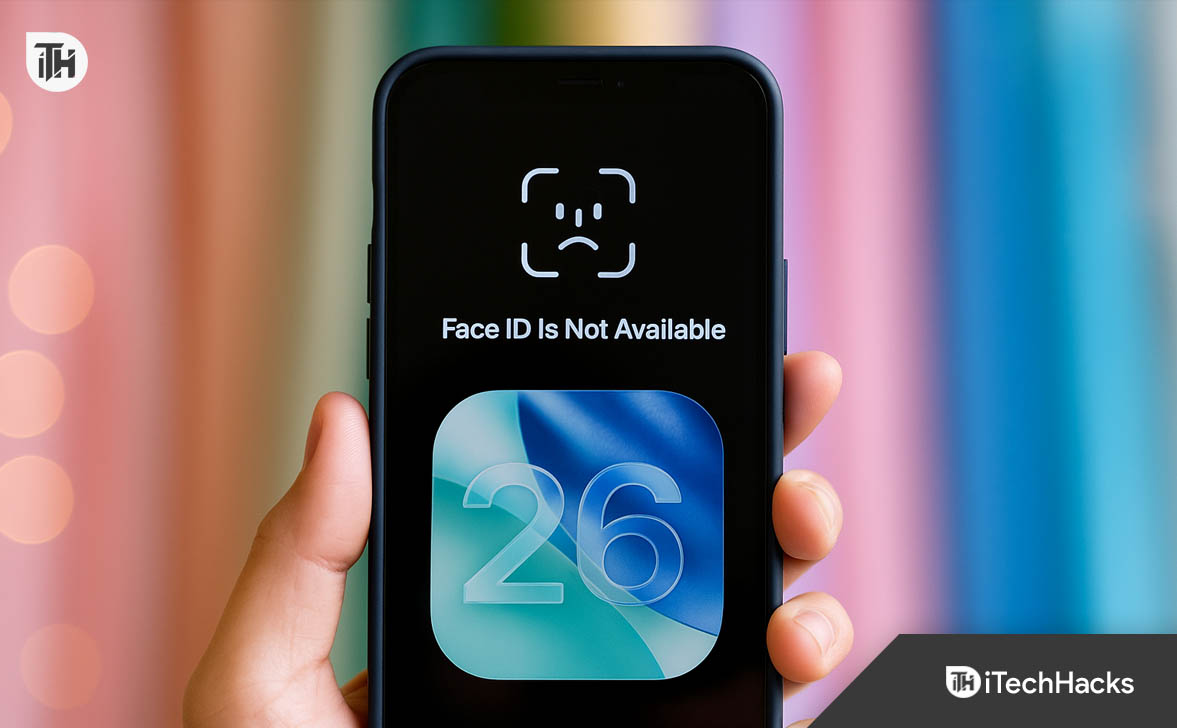
Common Causes of Face ID Not Working After iOS 26 Update
1. iOS 26 System Bugs or Post-Update Glitches
After installing a major iOS update, background re-indexing and firmware changes often cause temporary malfunctions. Face ID may behave unpredictably until the system stabilizes.
2. Face ID Settings Reset or Corruption
iOS 26 may reset certain Face ID settings or fail to retain secure facial data correctly during the upgrade. As a result, Face ID may be disabled or unable to verify your identity.
3. Camera or TrueDepth Sensor Interference
Face ID relies on the front-facing TrueDepth camera. If there’s a hardware malfunction, dirt, screen protector misalignment, or lens fog, the system may not function.
4. Security Lockout Due to Failed Attempts
After several failed attempts, Face ID is automatically disabled, requiring a passcode. This may happen more frequently if the update disrupted facial recognition data.
5. App-Specific Permission Errors
In iOS 26, enhanced privacy controls may block apps from accessing Face ID. This doesn’t mean Face ID is globally broken — just limited to certain apps.
Step-by-Step Fixes for Face ID Not Working in iOS 26
If Face ID has stopped working after updating to iOS 26, the issue can stem from multiple factors — ranging from temporary software glitches and permission changes to deeper hardware failures. The following step-by-step guide walks you through every proven method, arranged from simplest to most advanced. Each step has been tested or verified to work under the current iOS 26 architecture.
1. Restart Your iPhone Immediately
After a major iOS update, the first thing any professional technician will recommend is a full reboot. iOS 26, like previous versions, continues to perform background tasks (indexing, app optimizations, cleanup) for hours or even days after installation. These tasks may conflict with real-time functions like Face ID.
- Press and hold the Side button and either of the Volume buttons simultaneously until you see the “slide to power off” prompt.
- Slide to power off, wait 30–60 seconds, then press the Side button again to power back on.
This simple reset can clear temporary RAM issues or internal processes that are conflicting with the Face ID module.
2. Inspect and Clean the Face ID Camera Area
Face ID uses a complex array of sensors collectively known as the TrueDepth camera system, located above the screen in the notch. Even a thin layer of fingerprint oil, dust, or a misaligned screen protector can interfere with its operation.
- Gently wipe the top front of the screen with a clean microfiber cloth.
- Inspect closely under natural light — ensure no cracks, fog, smudges, or residue are present.
- If you’re using a screen protector, verify it isn’t partially blocking the infrared sensors or camera lens. In some cases, simply repositioning or removing the protector resolves the issue.
Professionals often find that cosmetic issues are misdiagnosed as hardware failures, especially when a protector has shifted slightly over time.
3. Check Face ID Settings for Errors or Restrictions
Sometimes, post-update configurations get altered without warning. In iOS 26, certain privacy settings or restrictions may cause Face ID to appear non-functional when it’s simply turned off for specific tasks.
Steps to verify:
- Go to Settings > Face ID & Passcode
- Enter your device passcode
- Ensure the toggles for all functions are enabled — including:
-
-
iPhone Unlock
-
iTunes & App Store
-
Wallet & Apple Pay
-
Password Autofill
-
Other App-specific toggles (if applicable)
-
If any of these are off, re-enable them. If Face ID hasn’t been set up at all, you’ll see the prompt to Set Up Face ID — complete the full scan as guided. If setup fails or throws an error, proceed to the next step.
4. Reset Face ID and Reconfigure
In many cases, the facial data saved under iOS 25 doesn’t transition cleanly to iOS 26. This can cause silent failures where Face ID looks functional but never initiates. Resetting your biometric profile will prompt the system to reinitialize the secure enclave and refresh the data.
- Open Settings > Face ID & Passcode
- Tap Reset Face ID
- Restart your phone once (as a precaution)
- Return to Face ID & Passcode, tap Set Up Face ID, and complete the full facial scan process — follow the circular motion prompts carefully
Be sure to set up “Alternate Appearance” if you regularly wear glasses, masks, or head coverings, as iOS 26 is more sensitive to these variables.
5. Update to the Latest iOS 26.x Patch
Apple often releases hotfix patches silently within weeks of major version rollouts. These “point updates” (like iOS 26.0.1 or 26.1) frequently contain Face ID and biometric system-level bug fixes.
- Navigate to Settings > General > Software Update
- If a new version is available, install it and restart your device after installation
Do not use beta versions unless you’re a registered developer. Beta builds are known to break Face ID or introduce new issues.
6. Disable and Re-Enable Face ID Features
Sometimes the settings toggles become stuck in an “enabled but non-functional” state. Disabling all Face ID uses and re-enabling them forces the system to re-register biometric calls between the secure enclave and iOS services.
- Go to Settings > Face ID & Passcode
- Turn off all toggles under “Use Face ID For”
- Restart your iPhone
- Re-enable all toggles one by one
Test Face ID after enabling each section. This gradual method helps pinpoint if one specific integration (e.g., Wallet or Safari) is causing broader failures.
7. Reset All System Settings
If Face ID is still not working and you’ve ruled out hardware damage, the next step is to reset all system settings. This will not erase personal data like photos or apps but will clear all configuration preferences — including Wi-Fi networks, Bluetooth pairings, VPN settings, and Home screen layouts.
Reset all settings by:
- Going to Settings > General > Transfer or Reset iPhone
- Tap Reset > Reset All Settings
- Enter your passcode and confirm
Once the device restarts, Face ID will need to be reconfigured again. Be sure to also check camera permissions for any apps that rely on Face ID post-reset.
8. Perform a Clean Restore via Finder or iTunes
If none of the above methods solve the issue, and Face ID still refuses to initialize or fails silently, a complete firmware restore may be necessary. This involves wiping the device and reinstalling a fresh version of iOS 26 — often resolving deeper software corruption.
- Back up your device via iCloud or Finder (if needed)
- Connect your iPhone to a Mac or PC with iTunes
- Choose Restore iPhone (not “Update”)
- Once restored, test Face ID before restoring your backup
If Face ID works on a clean install but fails after restoring your backup, the issue lies in your saved settings or app configurations.
9. Confirm Hardware Issues (TrueDepth Camera Failures)
If Face ID setup throws messages like:
- “Face ID is not available”
- “A problem was detected with the TrueDepth camera”
…then the issue is likely hardware-based. The most common hardware problems include:
- Failed flood illuminator
- Disconnected infrared camera cable
- Logic board mismatch due to third-party screen replacements
- Internal component failure from drop or water damage
At this point, visit Settings > Face ID & Passcode and attempt to set up Face ID again. If the prompt never appears or throws the above errors, schedule an appointment with Apple Support.
You can also open the Apple Support app, tap Device > Face ID > Start Diagnosis and follow the instructions. Apple Diagnostics can remotely detect Face ID hardware issues and recommend repair options.
Preventive Measures After iOS 26
Once your Face ID is working again, consider the following to avoid future problems:
- Always update to stable iOS 26 builds: Avoid developer or early betas unless you’re testing.
- Avoid installing facial-altering apps that may confuse Face ID (face filters, heavy AR usage, etc.)
- Use original Apple screens: Third-party displays often misalign Face ID sensors.
- Keep your system apps updated, especially banking or finance apps that rely on Face ID.
- Avoid dropping the phone face-first — Face ID components are fragile and easy to misalign.
FAQs
Why did Face ID stop working right after updating to iOS 26?
Major updates like iOS 26 can introduce background indexing, altered security modules, or setting resets that affect Face ID. A simple restart or reconfiguration often helps, but in rare cases, corrupted data or hardware conflicts require more in-depth fixes.
Can Face ID be fixed without visiting an Apple Store?
Yes, most Face ID issues after iOS updates are software-related. Steps like resetting Face ID, updating iOS, and resetting settings resolve the problem. However, if the TrueDepth camera has failed, only Apple-certified repair can fix it.
What does “Face ID is not available” mean?
This usually signals a hardware fault in the Face ID module — particularly the infrared camera, flood illuminator, or dot projector. It could also be caused by system-level bugs post-update. Apple diagnostics are needed to confirm.
Will restoring my iPhone delete everything?
If you choose Restore, yes — but you can back up your iPhone to iCloud or a Mac/PC first. After restoring, you can selectively restore your apps and data. Avoid restoring system settings immediately if you’re testing whether Face ID works in a clean environment.
Is Face ID secure again after fixing it post-iOS 26?
Yes, once restored properly, Face ID works securely as intended. Apple maintains biometric security integrity even through software resets. If you reconfigure it through Settings > Face ID, the system ensures full encryption and privacy.
Conclusion
If Face ID is not working on your iPhone after the iOS 26 update, don’t assume it’s a permanent issue. In most cases, the cause is temporary — software conflicts, permission resets, or cached data corruption during the upgrade process.
Start with basic steps: clean your sensors, restart your device, and check your Face ID settings. Then move toward software-level resets and re-enabling biometric features. If problems persist, advanced diagnostic tools or Apple Support will help determine if there’s a hardware failure in the TrueDepth camera system.
ALSO READ:
- iOS 26 Fast Battery Drain on iPhone? How to Restore iPhone Battery Health
- How to Fix iPhone That Won’t Turn Off After iOS 26 Update
- iOS 26 Update Failed on iPhone? Fix for the ‘Unable to Check for Update’ Error
- How to Fix iPhone 14 Flashlight Not Working on iOS 26
- How to Go Back to iPhone Setup Screen 2025: iOS Setup Assistant








There is definately a lot to find out about this subject. I like all the points you made